


If you’re using Postman to test APIs, you’re already one step ahead. But what if you want to automate those tests, run them on a schedule, or integrate them into your CI/CD pipelines?
Enter Newman — your command-line companion to Postman.
This guide is crafted for beginners who want to take their API testing skills to the next level using Newman. By the end, you’ll be able to run your API tests from the terminal, generate reports, and impress your team with automation.
🧭 What Is Newman?
Newman is a command-line tool that allows you to run Postman collections (your API tests) outside of the Postman GUI.

Think of it like this:
🧪 Postman = manual testing with a GUI
⚙️ Newman = automated testing via command line
With Newman, you can:
- Automate API tests
- Run tests in a CI/CD pipeline (GitHub Actions, Jenkins, GitLab CI…)
- Generate reports (HTML, JSON, JUnit…)
- Run tests with dynamic data
How to use Newman as a Beginner?
✅ Step 1: Install Node.js and Newman
👉 1.1 Install Node.js
First, make sure Node.js is installed:
node -v
If it’s not, download it here:
👉 https://nodejs.org/en/download
👉 1.2 Install Newman globally
Once Node is ready, install Newman:
npm install -g newman
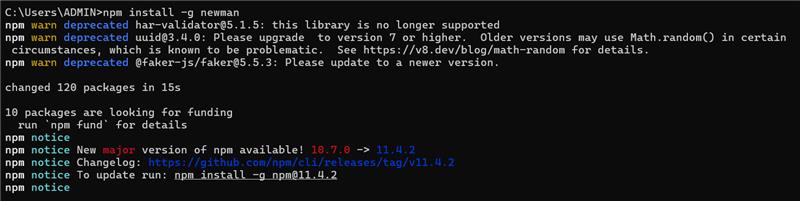
Check if it’s installed:
newman -v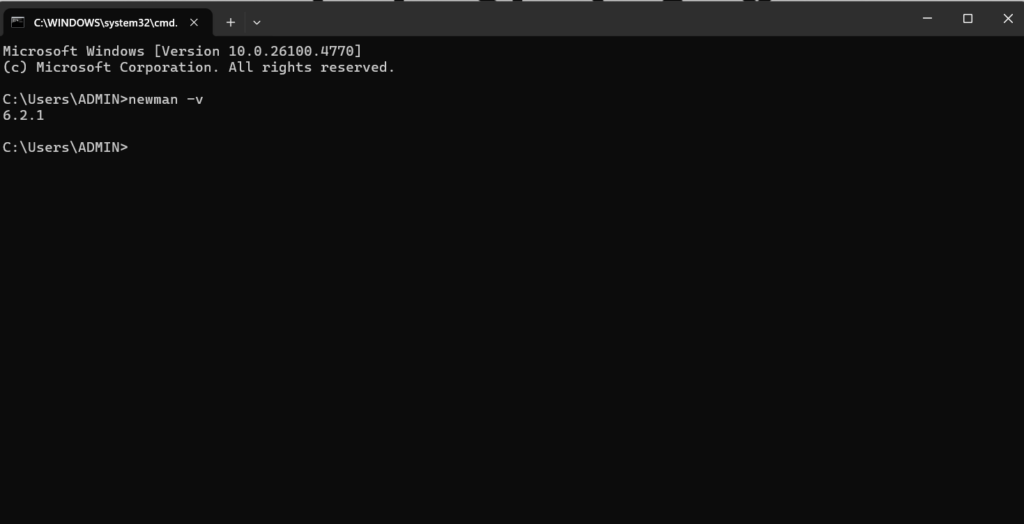
🧪 Step 2: Prepare Your Collection and Environment in Postman
👉 2.1 Export Your Collection
- Open Postman
- Select the collection you want to export
- Click the three dots (⋮) → Export
- Choose Collection v2.1 format
- Save it as my-collection.json
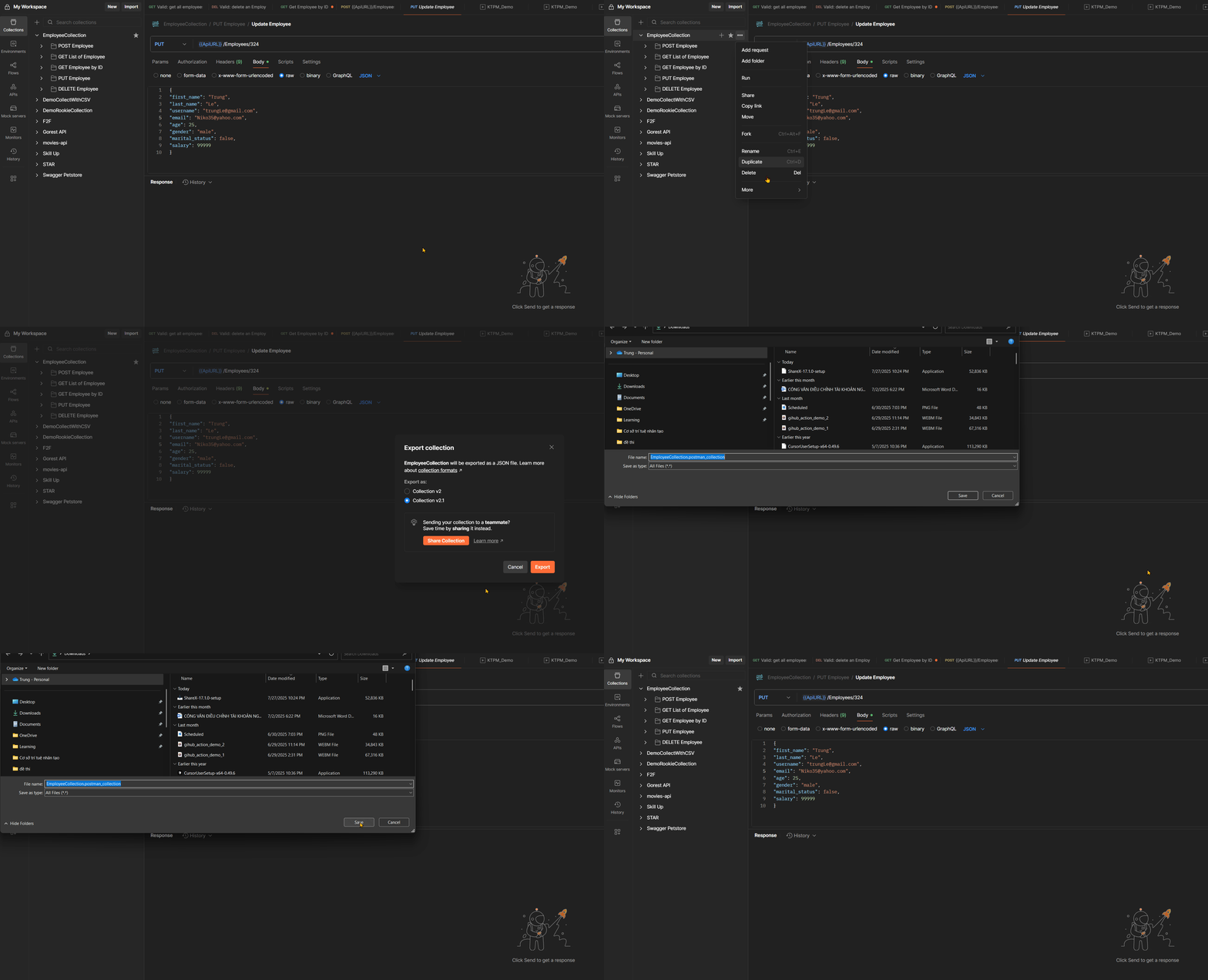
👉 2.2 (Optional) Export Your Environment
If you use variables in Postman:
- Go to the Environment tab
- Click the Download icon on your environment
- Save as my-environment.json
🏃♂️ Step 3: Run the Collection with Newman
Navigate to the folder where you saved your files and run this command:
newman run my-collection.jsonIf you’re using an environment file:
newman run my-collection.json -e my-environment.jsonYou’ll see the results directly in your terminal – success/failure, response time, assertions, and more.
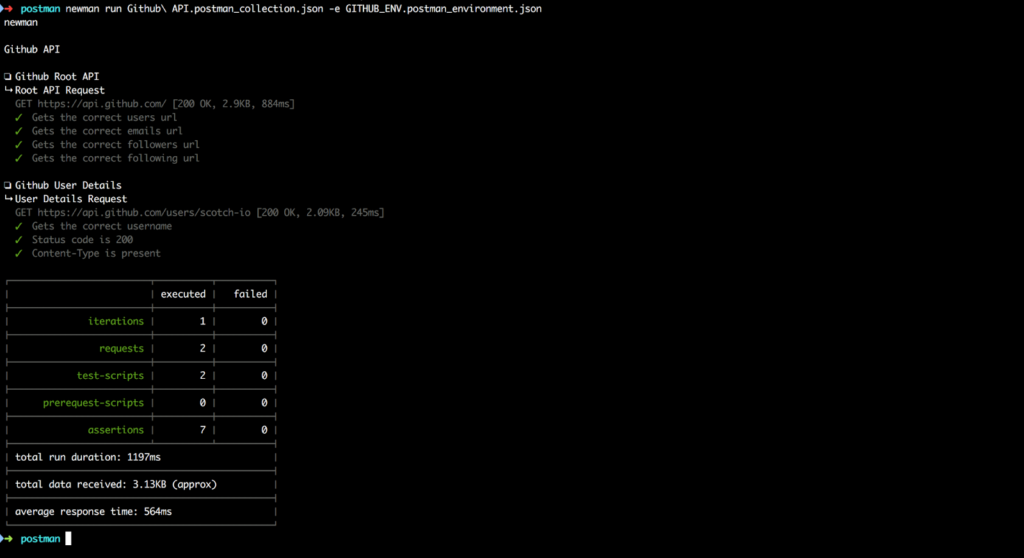
📊 Step 4: Generate Test Reports
👉 4.1 Simple CLI Report (default)
Already included when you run any newman run command.
👉 4.2 Generate JSON and HTML reports
Install HTML reporter plugin:
npm install -g newman-reporter-htmlextraThen run:
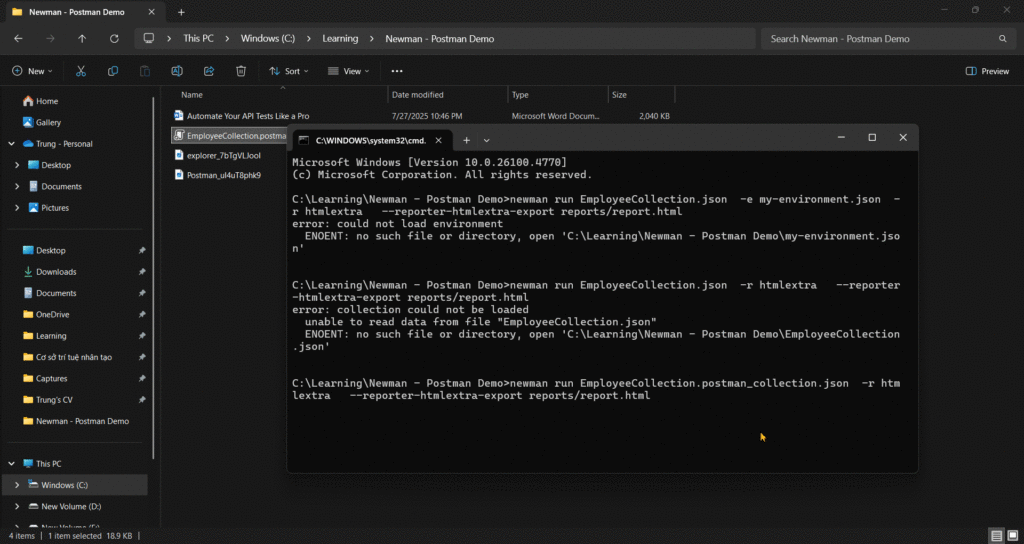
newman run my-collection.json -e my-environment.json -r htmlextra --reporter-htmlextra-export reports/report.htmlThis will create a report.html file with a beautiful summary of your test results:
- Pie chart of pass/fail
- Details of each request/response
- Assertion results
Open the report in your browser to view it.
🔚 Conclusion
In this post, we’ve walked through the essentials of using Newman—from installation and running Postman collections via CLI to generating HTML reports. It’s a powerful tool for automating API testing, especially when integrated into your CI/CD workflow.
But this is just the beginning.
👉 In the next part of this blog series, we’ll dive deeper into using Newman as a Node.js library directly within your VSCode environment. This approach unlocks more flexibility—like writing custom test scripts, handling results programmatically, and integrating with advanced testing frameworks.
Stays tuned for Part 2 and Code blesses you guys!!!