
Guide to JMeter Scripting for Microsoft SSO (Single Sign-On):
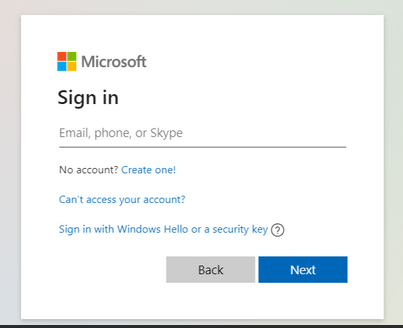
Microsoft SSO (Single Sign-On) is a widely used authentication mechanism that enables seamless and secure login experiences across multiple systems. Creating a JMeter script for Microsoft SSO requires a detailed understanding of the authentication flow and handling various dynamic factors. This guide walks you through the process step-by-step.
Understanding Microsoft SSO:
Microsoft SSO allows users to authenticate once and gain access to multiple applications without needing to log in again. This is achieved through the use of tokens and identity providers (IdPs) and the authentication process involves several key components:
1. Identity Provider (IdP): This is the service that authenticates the user and issues tokens.
2. Service Provider (SP): This is the application or service that the user wants to access.
3. Tokens: These are used to convey authentication and authorization information between the IdP and SP.
Why Microsoft SSO is Important:
Microsoft Single Sign-On (SSO) login is important for several reasons, but especially for organizations that rely on Microsoft products and services.
1. Microsoft SSO improved User Experience:
- Users only need to log in once to access multiple Microsoft services like Office 365, SharePoint, Teams, OneDrive, and third-party apps integrated with Azure Active Directory (AAD).
2. Enhances Security:
- Centralized Authentication: All login activities are managed through a single identity provider (Azure AD), making it easier to enforce security policies.
- Multi-Factor Authentication (MFA): Microsoft SSO integrates seamlessly with MFA, adding an extra layer of security.
3. Microsoft SSO Increases Productivity:
- Reduces time spent logging into different services, so helping the employees focus on their work.
- Simplifies onboarding and offboarding processes. When a user account is created or deleted in Azure AD, access to all connected services is automatically granted or revoked.
4. Cost Savings:
- Reduces helpdesk costs associated with password resets, which are a significant source of IT support tickets.
5. Scalable for Cloud and Hybrid Environments:
- Works seamlessly across on-premises and cloud environments, allowing organizations to adopt hybrid models without compromising user convenience.
- Supports integration with third-party applications through OAuth, SAML, and OpenID Connect protocols.
6. Compliance and Audit:
- Centralized identity management helps organizations meet compliance requirements by enabling better monitoring and logging of user activities.
7. Microsoft SSO Integration with Azure Services:
- Native integration with Microsoft services like Azure DevOps, Azure Virtual Desktop, and Azure Kubernetes Service simplifies secure access for development and IT teams.
- Facilitates DevOps pipelines and automation tasks by using managed identities.
Let’s start scripting Microsoft SSO!
Step 1: Record or Manually Create the Microsoft SSO Script:
1. Use JMeter’s HTTP(S) Test Script Recorder to record the login flow based on the business transactions.
2. Ensure you set up the proxy settings correctly for recording.
Manual Creation:
If recording is not possible, create the script manually. Use the Network tab in Google Developer Tools:
– Open the browser.
– Navigate to the application’s login page.
– Inspect network requests during the login process.
– Replicate these requests in JMeter.
Step 2: Clean Up Unwanted URLs:
Remove unnecessary requests such as:
– SVGs
– CSS files
– WebUIResources
Focus only on critical requests that affect the authentication process because with only a few requests we can cover Microsoft SSO script.
Step 3: Add a CSV Data Set Config for Environment Details:
To manage environment-specific details, add a CSV Data Set Config element:
1. Create a CSV file with the following columns:
“CSV – BASE_URL_1, BASE_URL_2, BASE_URL_3
https://www.xyz.com,dcodpocb2c.b2clogin.com,login.microsoftonline.com“
2. Configure the CSV Data Set Config in JMeter:
– Filename: `EnvDetails.csv`
– Variable Names: `BASE_URL_1, BASE_URL_2, BASE_URL_3`
These variables will be used in later steps to parameterize requests.
Step 4: Hit the Main URL (Homepage):
– Use the variable `${BASE_URL_1} ` to hit the homepage of the application.
– Add an HTTP Request sampler for this action.
– Extract the following dynamic parameters:
1. `ClientID`
2. `redirect Uri` (e.g., `https://${BASE_URL_2}/dcodpocb2c.onmicrosoft.com/oauth2/authresp`)
3. `response type`
4. `scope`
5. `nonce`
6. `state`
7. `SSO reload`
8. `Tenant_ID`
Use a Regular Expression Extractor to capture these parameters.
Step 5: Handle the Microsoft SSO Reload URL:
# URL Structure
`https://$ {BASE_URL_3}/${TenantID}/oauth2/authorize?client_id=&redirect_uri=&response_type=&scope=&response_mode=&nonce=&sso_reload=`
– Add an HTTP Request sampler with the above URL.
– Use the extracted values from Step 4 (e.g., `ClientID`, `redirect Uri`, `nonce`, `state`).
# Extract Parameters
From the response of this request, extract:
1. `username`
2. `originalRequest` (e.g., `sctx`)
3. `country`
4. `flowToken`
5. `API – Canary`
6. `Canary`
7. `Correlation_Id`
8. `SessionId`
9. `Timestamp`
10. `Hpgact`
11. `Hpgid`
Step 6: Handle the GetCredentialType URL:
# URL Structure
`https://${BASE_URL_3}/common/GetCredentialType?mkt=en-US`
– And Add an HTTP Request sampler with:
– Protocol: `https`
– Method: `POST`
Provide the extracted dynamic values (`username`, `originalRequest`, `country`, and `flowToken`) as POST parameters.
Step 7: Handle the Login URL:
# URL Structure
`https://$ {BASE_URL_3}/${TenantID}/login`
– Add an HTTP Request sampler. Set the protocol to `https`. Choose the method as `POST`.
– Use the previously extracted values (`ctx`, `canary`, `flowToken`, `hpgrequestID`) as parameters.
# Extract Parameters
From the response of this request, extract:
1. `ctx` for the next call.
2. `canary` for the next call.
3. `flowToken` for the next call.
4. `hpgrequestID` for the next call.
Step 8: Handle the Keep Me Signed In (KMSI) URL:
# URL Structure
`https://${BASE_URL_3}/kmsi`
– Add an HTTP Request sampler.
– Use extracted values (`ctx`, `hpgrequestID`, `flowToken`, `canary`) as parameters.
#Extract Parameters
From the response of this request, extract:
1. `Code` for the next call.
2. `state_property`.
3. `Session State`.
Step 9: Final Action with Authresp URL:
# URL Structure
`https://${BASE_URL_2}/dcodpocb2c.onmicrosoft.com/oauth2/authresp`
– Add an HTTP Request sampler with:
– Protocol: `https`
– Method: `POST`
– Use all extracted values from the previous steps as parameters.
# Extract Final Parameters
From the response of this request, extract:
1. `Id_Token`.
2. `State_openId`.
Enhancing and Validating the Script:
1. Assertions:
– Add response assertions to validate the success of each step.
2. Listeners:
– Use listeners like View Results Tree and Summary Report to monitor test execution.
3. Correlation:
– Ensure proper correlation of dynamic parameters to avoid script failure.
4. Parameterization:
– Use the CSV Data Set Config to test multiple user scenarios.
Common Errors and Solutions with Microsoft SSO Scripting:
1. Error: 400 Bad Request:
– Solution: Ensure all dynamic parameters (e.g., `flowToken`, `ctx`, `canary`) are correctly extracted and passed in subsequent requests. So, verify that all required headers and cookies are included.
2. Error: Missing Parameters:
– Solution: Double-check the extraction of parameters using Regular Expression Extractors. Ensure that all necessary parameters are being captured and used in the requests.
3. Error: Authentication Failure:
– Solution: Verify the correctness of the credentials being used. Ensure that the login flow in JMeter matches the actual login flow observed in the browser.
4. Error: Session Expiry:
– Solution: Implement proper session handling by extracting and using session tokens dynamically. Ensure that the session tokens are refreshed as needed.
5. Error: Rate Limiting:
– Solution: Avoid hitting the authentication endpoints too frequently. Implement pacing in your test plan to simulate realistic user behaviours and avoid triggering rate limits.
Conclusion:
By following these steps, you can create and enhance a JMeter script for Microsoft SSO login. Proper handling of dynamic parameters and maintaining a structured approach ensures the reliability and accuracy of your performance tests.
Reference for Microsoft SSO:
https://learn.microsoft.com/en-us/entra/identity/enterprise-apps/what-is-single-sign-on
https://learn.microsoft.com/en-us/answers/questions/1339814/microsoft-ad-authentication-in-jmeter
https://club.ministryoftesting.com/t/jmeter-oauth2-0-and-microsoft-login/4496