


GitHub Copilot is an AI-powered coding assistant developed by GitHub and OpenAI. It helps developers write code faster by providing real-time suggestions based on the context of their current project. However, using Copilot effectively requires more than just enabling it in your editor. Here are some tips to get the most out of this powerful tool:
1. Understand Its Strengths and Limits
Copilot is excellent at generating boilerplate code, small functions, or repetitive tasks. However, it’s not always accurate, especially with complex logic or domain-specific requirements. Always review the code it suggests.
| Aspect | GitHub Copilot | Microsoft Copilot |
| Functionality | Assists with coding tasks, offers code snippets. | Enhances productivity in writing, data, presentations. |
| Collaboration | Supports collaborative coding in development environments. | Aids teamwork with shared editing and real-time suggestions. |
| Scope | Focused on software development. | Broad use in general office tasks. |
| Applications | Integrated with code editors like VS Code. | Integrated with Microsoft apps (Word, Excel, PowerPoint). |
| User Experience | Adapts to coding styles and project needs. | Adapts to various office tasks with AI support. |
2. Write Descriptive Comments and Function Names
Copilot thrives on context. Writing clear comments like:
# Sort a list of integers in descending order…or descriptive function names like:
def fetch_user_data_from_api():will help it generate more relevant suggestions.
3. Refactor and Edit as Needed
Think of Copilot as a junior developer — it can speed up work, but you’re still responsible for the final output. Modify, improve, and refactor its suggestions to fit your coding standards.
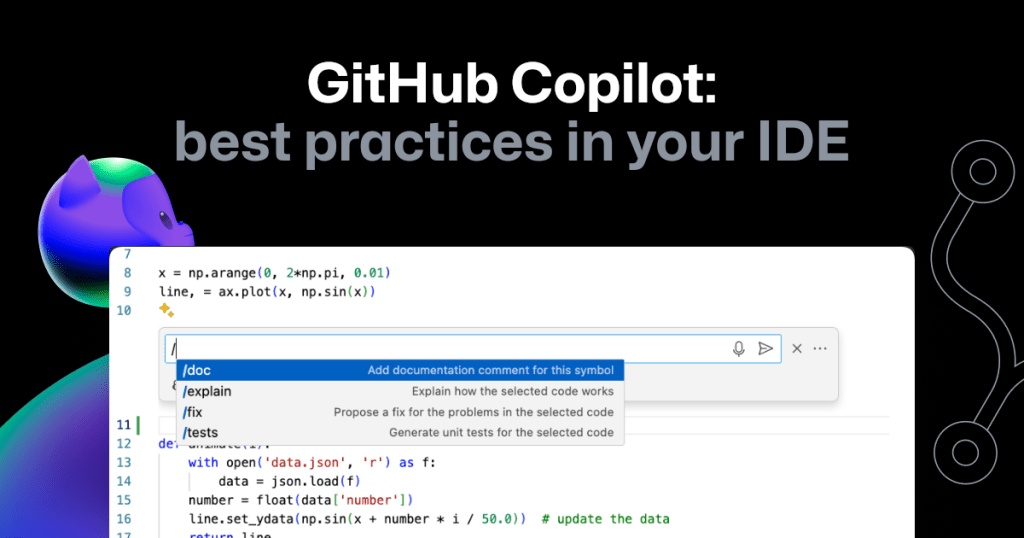
4. Use It for Learning
Copilot can be a great learning tool. If you’re unfamiliar with a language or API, it can show how to use certain functions or libraries. But be cautious: verify against official documentation.
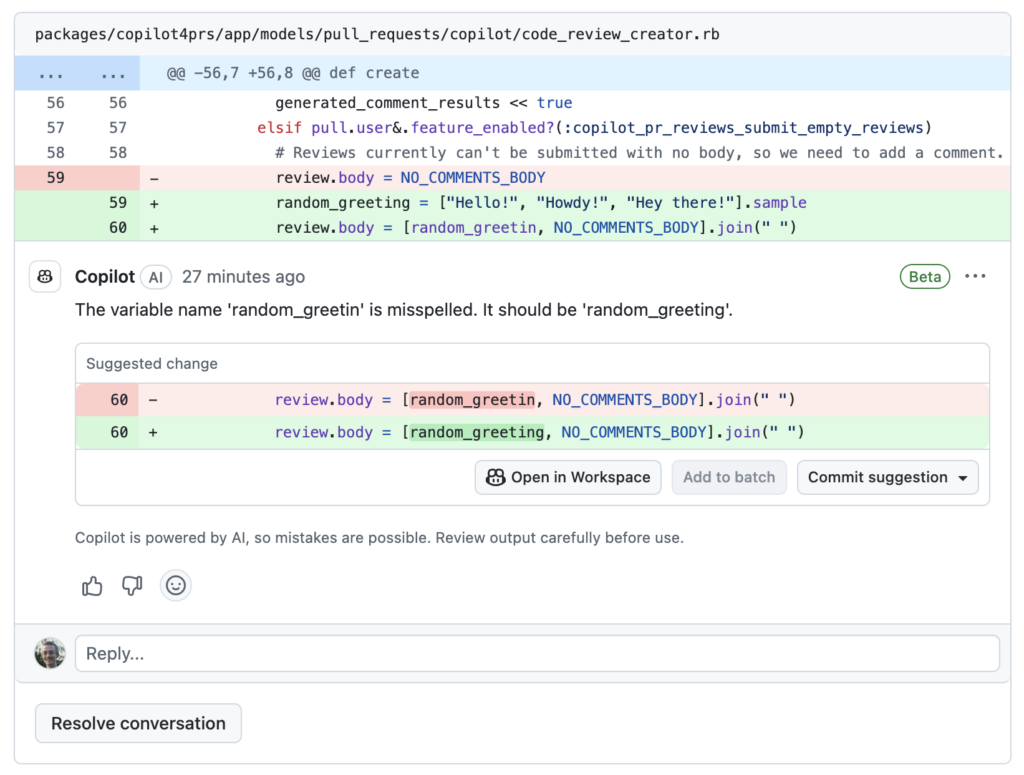
5. Combine With Testing and Debugging
Always test the code Copilot writes. It doesn’t “understand” your project logic the way you do. Integrate it into a workflow that includes proper unit testing and debugging.
6. Customize Settings
Adjust Copilot’s behavior through your editor settings — for example, limiting how many suggestions it shows or how often it auto-completes. Find a balance that works for your coding style.
7. Final Thought
GitHub Copilot can supercharge your productivity, but it’s most effective when used thoughtfully. Treat it as a tool, not a replacement for understanding code. With practice, you’ll learn when to rely on it — and when to override it.

Last but not least, Part 2 of this cheat sheet covers additional powerful features to enhance your GitHub Copilot skills
| Command | Description |
| /clear | Start a new chat session. |
| /explain | Explain how the code in your active editor works. |
| /fix | Propose a fix for problems in the selected code. |
| /fixTestFailure | Find and fix a failing test. |
| /help | Quick reference and basics of using GitHub Copilot. |
| /new | Create a new project. |
| /tests | Generate unit tests for the selected code. |