


In my previous blog, I’ve share with you how to leverage Github Copilot in generating Playwright script. However, for using the generated script we need to update the locators, handle waiting. By combining Github Copilot and the new tool named Playwright MCP Server, we can overcome the above challenges quickly. Let’s understand more about the way Playwright MCP Server works and its interesting features.
1. What is MCP Server
At the beginning of 2025, MCP Server is one of the most popular keywords when we talk about AI. For now, there is a lot of MCP Server kinds like Flutter MCP, PostgreSQL MCP, Selenium MCP, Git MCP. So, what is an MCP server?
An MCP (Model Context Protocol) server is a program that provides tools, resources, and capabilities to AI clients, enabling them to interact with external data and applications. It implements the server-side of the MCP protocol, which defines how clients and servers communicate.

After the MCP protocol defined, it becomes the common standard which enables the connection between the AI tools and the different data kinds. It supports the AI tools provide the more accurate response. Moreover, it also increases the collaboration and extensibility in developing AI ecosystems between the developers and businesses.
2. Playwright MCP Server
For automation testing, we also have several MCP Server like Puppeteer or Selenium. In this article, we’ll focus on Playwright MCP Server. Playwright is one of the most modern code-based automation tools, and most of the ideas for applying AI in automation test are usually applied to Playwright first. Let’s see how Playwright MCP Server support us in generating automation script.
2.1 Generate automation scripts
In the previous blog, I’ve shared that Github Copilot can support to generate the automation scripts quickly. However, the locator is not correct, and it can’t generate the steps for wait handling. We still need to spend effort for correcting the locator and add waiting functions into the script.
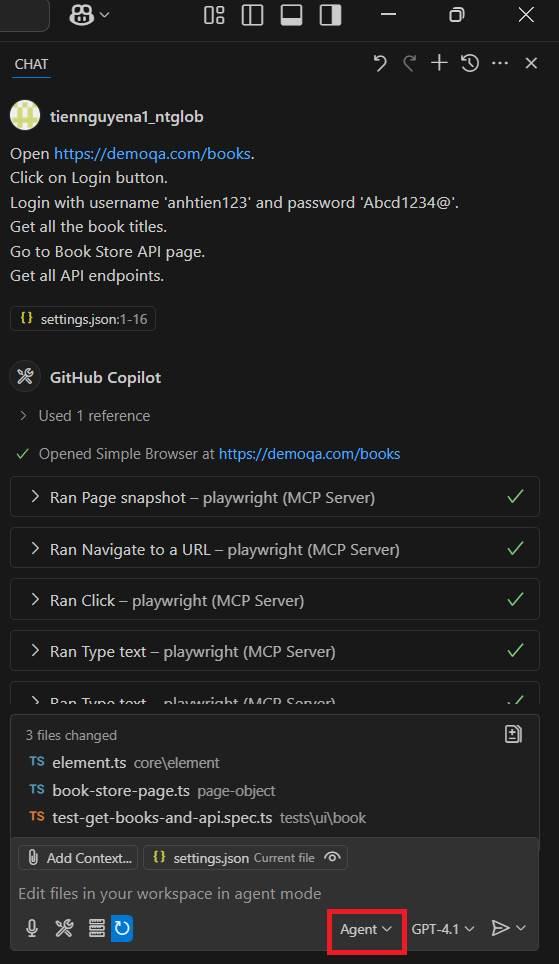
With Playwright MCP, it will launch the browser and execute the steps we share.

For each step, it will scan the element in the DOM and decide which element to interact. Thanks to that the locator is more correct. Moreover, if your application is slow, it know that it needs to wait for the appearance of the elements or their status. Although, we don’t define the steps for waiting, you can see the wait handling in the generated script.

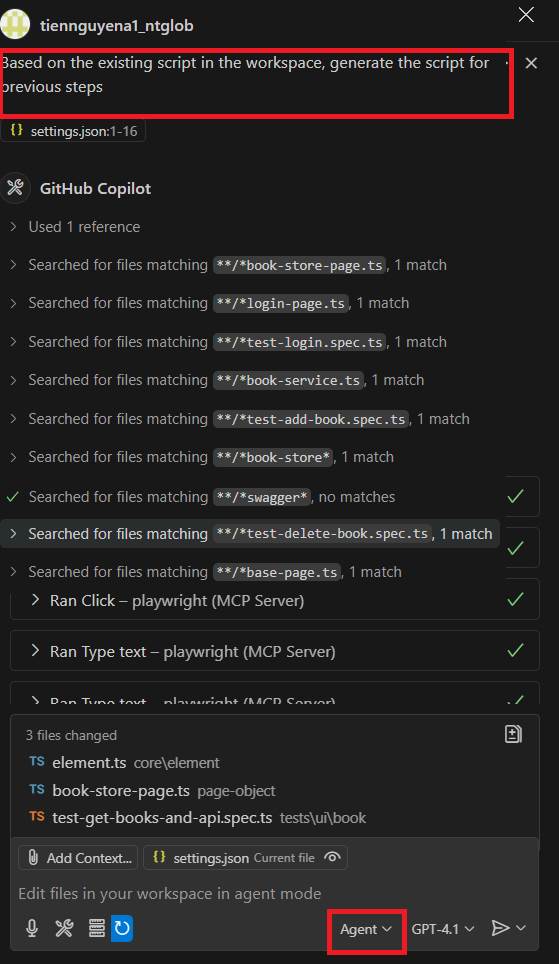
After Playwright MCP supports us to run the scenario successfully, we can tell Github Copilot to generate the script for previous steps.

It will refer other file in the workspace and generate the script. By scanning the existing file, it will help us to leverage the existing method and avoid duplicated code.
2.2 Fix broken test
When the UI is changed, the test case will be failed. We need to go to the application, inspect the locator and update the script manually. However, with Playwright MCP, we only need to tell it “Rerun the test case and fix it if any issues”. Then, the test case will be rerun, and the locators will be updated automatically.
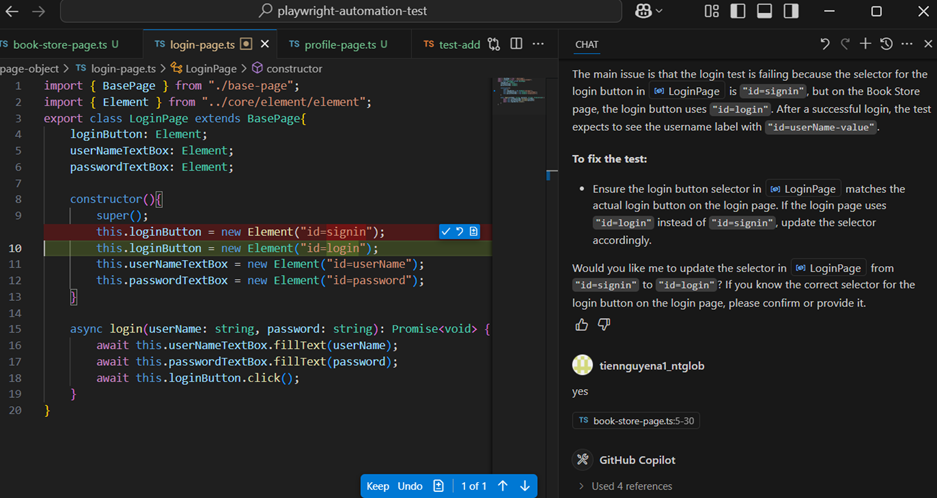
After it updates the locator, we can tell it run again to ensure that the updated script can be executed successfully.
2.3 Test execution
Instead of remembering the command line for running test or install Playwright test plugin, we can chat to Github Copilot, and it will run the test cases for us.
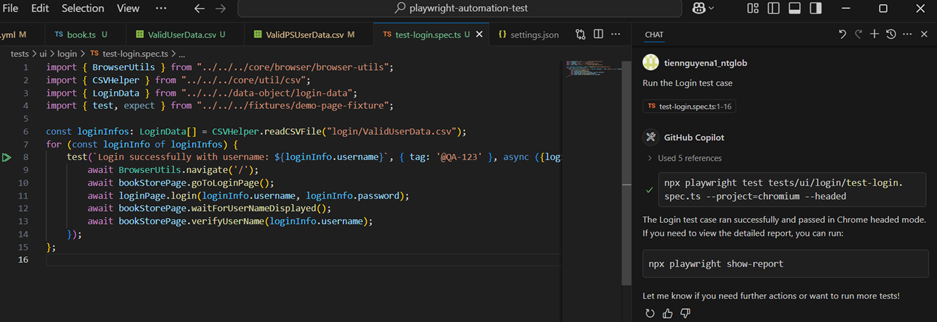
3. Quick steps to set up Playwright MCP Server on VS Code
Pre-requisite
- Nodejs 18 or newer
- VS Code
- Github Copilot
3.1 Install Playwright MCP Server
You can go to https://github.com/microsoft/playwright-mcp and click VS Code symbol in the README.
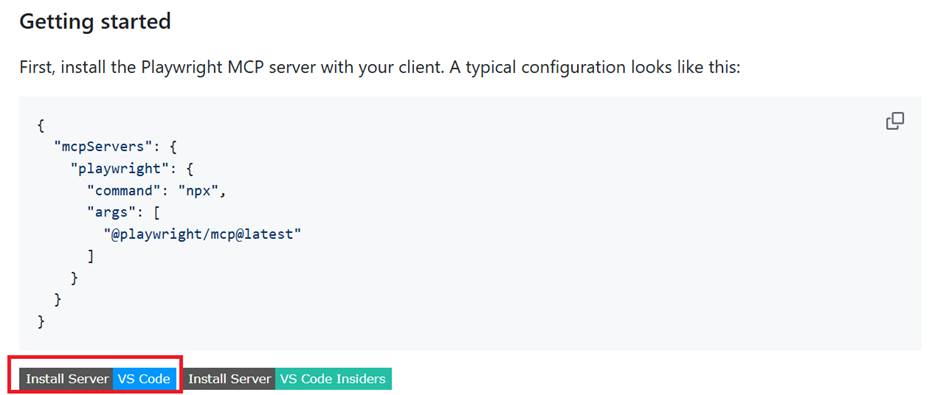
You also can use VS Code CLI for installing it.
code --add-mcp '{"name":"playwright","command":"npx","args":["@playwright/mcp@latest"]}'3.2 Configuration
After installing successfully, you can find Playwright MCP Server by navigating to MCP List server as below pictures from Search bar of VS Code
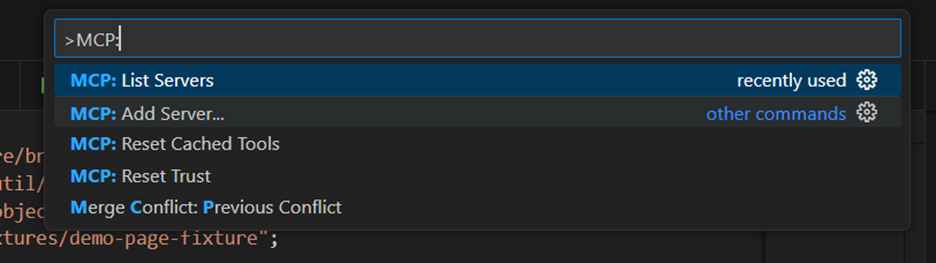
Then you can choose Playwright.

Then you can open the configuration.

For customizing the configuration, you can refer to the following table to update the args.
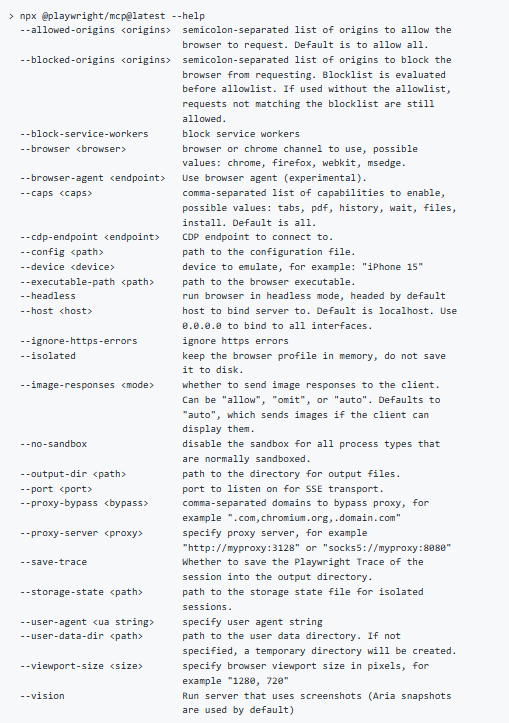
3.3 Start playing with Playwright MCP Server
You can start the Playwright MCP Server by clicking on the Start text in the configuration file.
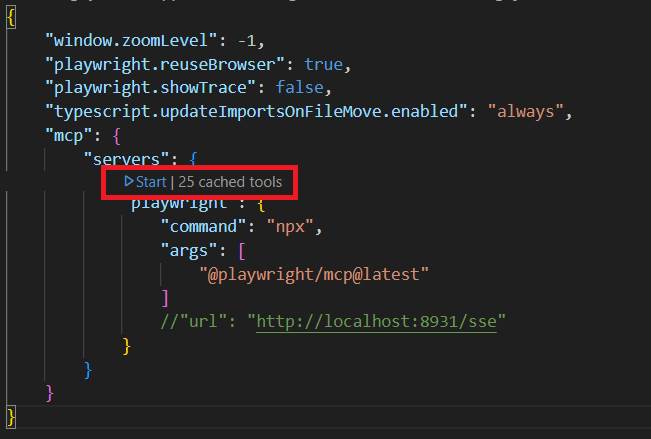
Then, you need to open Github Copilot chat and select Agent mode as below. After that, you can enter the test case steps, and Playwright MCP server will run the test steps in the browser automatically.
After it finish running, tell Github Copilot to generate the test script for us.
4. Conclusion
Of course, we still need time to optimize the script generated by Github Copilot + Playwright MCP Server. However, the test script is quite correct and reusable now. It will help us to save a lot of time for generating the Playwright automation test script. In the next blogs, I’ll share with use how to customize Playwright MCP Server so that we can add more tools into MCP Server.
References:
- https://www.devshorts.in/p/how-to-build-your-own-mcp-server
- https://github.com/microsoft/playwright-mcp