


When working with multiple platforms like the web, Android API one requires a different test framework, which is difficult to maintain and time-consuming to create.
The smarter way is to build a Cross Application Automation framework, one that works across multiple applications using configuration.
In this blog, I’ll walk you through how to create a plug-and-play automation framework that can adapt to any application using just configuration changes—no code duplication required.
Tech Stack Used
- Java – Programming language
- Selenium – Web automation
- Appium – Mobile automation
- TestNG + Cucumber – BDD + test execution engine
- Properties + ConfigLoader – Dynamic app/environment switching
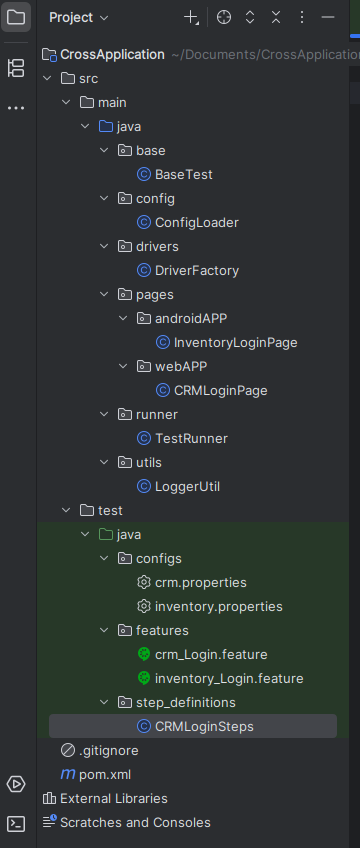
Project Structure Overview
Step-by-Step Setup
1. Create BaseTest.java
This class sets up and tears down WebDriver or AppiumDriver based on app config.
public class BaseTest {
    protected WebDriver driver;

    @BeforeMethod
    public void setUp() {
        String app = System.getProperty("app", "crm"); // Check if the user has passed an app name like crm or inventory. Defaults to crm if nothing passed"
        ConfigLoader.load(app); // Loads the .properties file
        driver = DriverFactory.initDriver(); // Creates Web or Mobile driver based on platform
    }

    @AfterMethod
    public void tearDown() {
        if (driver != null) {
            driver.quit();
        }
    }
}
Change "crm" to "inventory" at runtime with -Dapp=inventory to switch the app under test.
No code change needed—just update the runtime parameter.
2. Create ConfigLoader.java – Dynamic Configuration
It will load the file specific app i.e crm/inventory properties file (crm.properties) from the configs folder and makes all the key-value pairs available to the rest of the framework.
public class ConfigLoader {
    private static final Properties properties = new Properties();

    public static void load(String appName) {
        try {
            FileInputStream fileInputStream= new FileInputStream("src/test/java/configs/" + appName + ".properties");
            properties.load(fileInputStream);
        } catch (IOException e) {
            throw new RuntimeException("Failed to load config file for : " + appName, e);
        }
    }

  public static String get(String key) {
        if (properties == null) {
            throw new RuntimeException("Config file not loaded. Call ConfigLoader.load(appName) first.");
        }
        return properties.getProperty(key);
    }
}
3. Create DriverFactory.java – Web or Mobile Driver
Depending on the platform set in your config, it either opens Chrome for web tests or starts Appium for Android tests.
public class DriverFactory {
    public static WebDriver initDriver() {
        String platform = ConfigLoader.get("platform");

        if (platform.equalsIgnoreCase("web")) {
            return new ChromeDriver();
        } else if (platform.equalsIgnoreCase("android")) {
            DesiredCapabilities caps = new DesiredCapabilities();
            caps.setCapability("platformName", "Android");
            caps.setCapability("deviceName", "emulator-5554");
            caps.setCapability("app", ConfigLoader.get("appPath"));
            try {
                return new AndroidDriver<>(new URL("http://localhost:4723/wd/hub"), caps);
            } catch (Exception e) {
                throw new RuntimeException("Failed to initialize Android Driver", e);
            }
        }

        throw new RuntimeException("Unsupported platform: " + platform);
    }
}
4. Create TestRunner.java – Run Cucumber + TestNG
@CucumberOptions(
    features = "src/test/java/features",
    tags="",
    glue = "step_definitions",
    monochrome = true,
    plugin = {"pretty", "html:target/cucumber-report.html"}
)
public class TestRunner extends AbstractTestNGCucumberTests {
 @Override
    @DataProvider(parallel = false)
    public Object[][] scenarios() {
        return super.scenarios();
    }
}
5. Add Feature Files – Example: crm_Login.feature
Feature: CRM Login

  Scenario: Successful login to CRM
    Given I launch the application
    When I enter username and password
    And I click on the login button
    Then I should see the home page
6. Define Test Steps (step_definitions) – Example: CRMLoginSteps.java
public class CRMLoginSteps extends BaseTest {

  @Given("I launch the application")
    public void i_launch_the_application() {
        // Code
    }

    @When("I enter username and password")
    public void i_enter_username_and_password() {
       // Code
    }

    @And("I click on the login button")
    public void i_click_on_the_login_button() {
       // Code
    }

    @Then("I should see the home page")
    public void i_should_see_the_home_page() {
         // Code
    }
}
7. Create App-Specific Config Files
crm.properties
base.url=https://crm.testapp.com
username=testuser
password=testpassword
platform=web
inventory.properties
base.url=https://inventory.testapp.com
username=testuser
password=testpassword
platform=android
appPath=/path/to/inventory.apk
8. Run the Framework
To test different apps, just pass the app name at runtime:
For CRM (web)
mvn test -Dapp=crmFor Inventory (mobile)
mvn test -Dapp=inventoryThis works because platform-specific logic is handled inside DriverFactory.
9. Logging (Optional Section)
Logging helps track what’s happening inside your test run—step-by-step using Log4j or ExtentReports. It’s helpful for:
- Debugging test failures
- Tracing test execution
- Knowing which platform/test ran and when
10. Reporting (Optional Section)
Reporting is how you visualize test results after execution.
- Which tests passed/failed?
- How long did each test take?
- What was the browser/app/platform used?
- What failed and why?
Conclusion
That’s about it! It is no longer necessary to develop a new framework each time a new application or project with a different platform arrangement arises. Whether it’s a mobile inventory app or a CRM web app now, all you need to do is edit a configuration file.
This framework makes things reusable, straightforward, and much simpler to manage. Additionally, instead of repeatedly recreating the same setup, your team may onboard more quickly and concentrate more on testing.
So instead of building new frameworks for each project, build once and plug everywhere. That’s the power of true cross-application adaptability.