


Are you staring down a mountain of old ActionScript code? If you’re planning a migration from Adobe Flash/Flex to C# WPF, you know it’s a massive undertaking. It can feel daunting, but what if you had an AI assistant to help shoulder the load?
We’ve been developing a practical workflow that uses GitHub Copilot to streamline this exact process. This post shares our guide on leveraging Copilot’s AI capabilities—from analyzing legacy code to generating, reviewing, and testing the new C# equivalents.
For our project, we’re using GPT4o and GPT4.1 models through the GitHub Copilot extension in Visual Studio Code, and compiling with the C# .NET SDK & Visual Studio 2022.
Here’s a breakdown of our approach.
Know Your Team: The AI’s Role vs. The Developer’s Role
First things first, it’s crucial to understand what GitHub Copilot is and isn’t. Think of it as an incredibly fast, pair-programming partner, not an autonomous replacement.
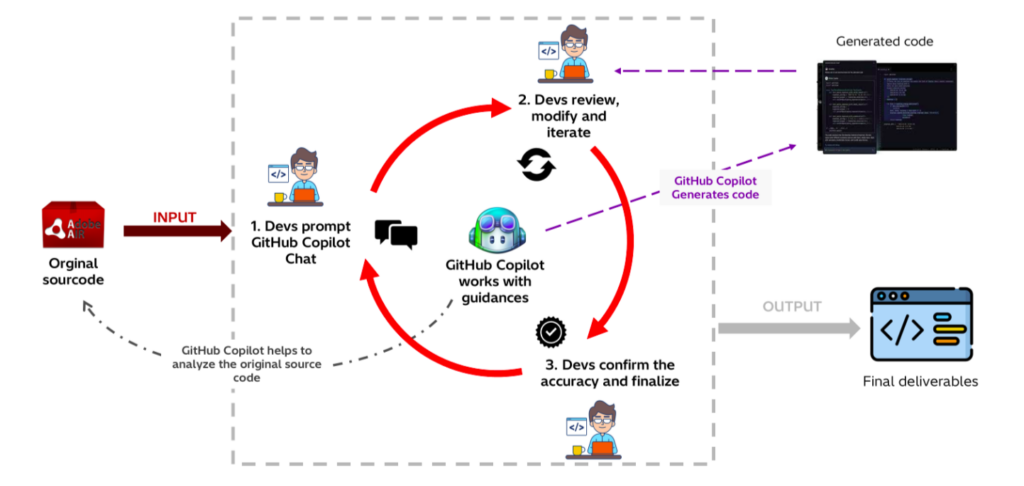
What Github Copilot Does Best
We’ve found Copilot excels at:
- Automating the migration of repetitive, boilerplate code.
- Generating unit tests and scaffolding for new components.
- Refactoring and optimizing code for better readability.
- Debugging, spotting syntax issues, and suggesting fixes.
- Explaining why it made certain migration decisions with detailed comments.
- Translating tricky things like regular expressions and data logic.
- Assisting with the complex mapping of ActionScript constructs to C# WPF.
- Helping document the new code for future maintainability.
Where You Need to Step In (GitHub Copilot’s Limitations)
Copilot is a tool to assist developers, not replace them. It’s not designed to make high-level decisions without human oversight, and it won’t respond to prompts outside of coding and technology.
Based on our last check (June 2025), we’ve also run into some specific limitations you should be aware of:
- Code Generation: It’s great at new code but can sometimes struggle with migrating existing code. The solutions it offers aren’t always the most efficient or optimal.
- Context Understanding: With complex requirements, it can miss the nuance and produce code that doesn’t quite work as intended.
- Language Limitations: Its proficiency varies. Support for older languages like ActionScript isn’t as strong as for more modern ones.
- UI Components: It often struggles to generate complex or non-standard UI components correctly.
- Security: It can sometimes suggest code with security vulnerabilities or code that doesn’t follow best practices.
- Dependencies: It doesn’t always handle package management or version conflicts well.
- Complex Logic: For highly complex algorithms, we’ve seen it produce incomplete, incorrect, or even skipped implementations.
- Large Code Files: Copilot can have trouble processing very large files (thousands of lines), leading to fragmented suggestions or throttling errors.
The Developer’s Role: You’re Still the Pilot
This is where you, the developer, come in. We are responsible for analyzing the migration requirements and crafting effective prompts. Our most important job is to review and validate all AI-generated code.
The AI can make mistakes, especially with complex logic and UI. The developer is ultimately responsible for all decisions, integrating the code, and ensuring the final product meets performance standards and project requirements.
The Art of the Prompt: Getting What You Want from GitHub Copilot
The quality of your migration hinges on the quality of your prompts. Vague prompts get vague results. We’ve developed a checklist for writing effective prompts.
- State the Goal Clearly: “I am migrating this ActionScript code from Adobe Flex to C# WPF.”
- Include Code Snippets: Provide the exact ActionScript segment you want to migrate.
- Describe the Desired Output: Be specific. “I expect a C# class that uses Caliburn.Micro conventions” or “I need the XAML file for this view.”
- Highlight Specifics: Note any platform differences or refactoring needed (e.g., “Change this ActionScript event model to a C# event handler”).
- Ask for Explanations: This is a huge one. Ask Copilot to “annotate the generated code with comments explaining key migration decisions.”
- Use Examples: If the AI is struggling, provide a small example of the input and your desired C# output.
- Use Clear Language: Avoid jargon.
- Structure Your Prompt: Use sections for “Task,” “Input Code,” “Instructions,” and “Expected Output.”
- Iterate: If the first result isn’t perfect, don’t give up. Provide follow-up prompts to refine it.
Example Prompt Structure:
Here’s a template we use for MXML to XAML migration (written in markdown structure)
**Task:** Migrate MXML code to XAML Caliburn.Micro, C# WPF.
**Input:** You will be provided with a MXML file of ActionScript code (Adobe Flash/Flex) that contains UI layout, code logic and/or event handling.
**Instructions:**
1. Analyze the provided code and identify key components (e.g., UI components, component states, component properties, actionscript code).

2. For the UI layout and component, migrate to XAML Caliburn.Micro and put it in `<FileName>.xaml`
   - Ensure proper mapping of MXML constructs to XAML equivalents, including data binding and event handling.
   - Use Caliburn.Micro conventions for view models and bindings.
3. For the actionscript code, migrate to C# WPF and put it in `<FileName>.xaml.cs`, ensuring proper mapping of ActionScript constructs to C# equivalents.
4. Provide comments and explanations for each migration step.
**Output:**
Output the migrated C# code and XAML files in the specified project structure.
- Place C# code files in the `src/View` directory, using the naming convention `<FileName>.xaml.cs`.
- Place XAML files in the `src/View` directory, using the naming convention `<FileName>.xaml`.
- Ensure that file names are descriptive and align with the corresponding class or view functionality.
Tackling Large Files with Agent Mode
When you hit those massive ActionScript files, trying to migrate in one go is a recipe for frustration. For these, we recommend using agent mode to break the problem down into smaller, specific tasks.
This is especially important for files with thousands of lines, which Copilot often can’t handle in a single request.
Example Agent Mode Prompt:
**Task:** Migrate large ActionScript code files to C# WPF (not include layout code,which refers to visual arrangement definitions typically found in XAML files).

**Input:** You will be provided a list of ActionScript files in ./target/LargeFiles.csv

**Instructions:**
1. For each file, analyze the code structure and identify key components (e.g., classes, methods, event handlers).
2. Migrate each component to C# WPF, ensuring proper mapping of ActionScript constructs to C# equivalents.
3. Provide comments and explanations for each migration step.
4. Output the migrated C# code and XAML files in the specified project structure.
- Place C# code files in the `src/Code` directory, using the naming convention `<ClassName>.cs`.
- Place XAML files in the `src/UI` directory, using the naming convention `<ViewName>.xaml`.
- Ensure that file names are descriptive and align with the corresponding class or view functionality.
A quick warning, though: agent mode isn’t perfect. We’ve seen it struggle with:
- Loops: It sometimes won’t complete a full loop (e.g., “for each file”) due to complexity safeguards.
- Long-running tasks: It can time out or stop.
- Resuming: It may not resume from the exact point it was interrupted.
- History: Responses can be affected by previous requests in the same session.
The takeaway? You, the developer, must monitor the process, track progress manually, and be ready to re-initiate or continue tasks if they get stuck.
Boost Your Accuracy with Helper Scripts
To make the AI’s job even easier, we’ve found it incredibly helpful to develop helper scripts (using Python or Node.js) to automate simple tasks that don’t require AI reasoning.
Think of it as pre-processing the data for Copilot. Our script workflow looks like this:
- Extract: Parse and extract relevant ActionScript code (classes, methods) from large files.
- Preprocess: Clean the code. Remove unnecessary comments, whitespace, etc., that might confuse the AI.
- Segment: Break the code into smaller, logical chunks.
- Automate Prompts: Use the script to generate the prompts for Copilot, automatically inserting the code segments.
- Post-process: After Copilot returns the C# code, use scripts to automatically place the new files in the correct project directories.
Here’s a simple Python script example we use for cleaning files:
import os
import re
import pandas as pd

def extract_actionscript_code(file_path):
    with open(file_path, 'r') as file:
        code = file.read()
    # Preprocess code (e.g., remove comments, whitespace)
    code = re.sub(r'//.*?\n', '', code)  # Remove single-line comments
    code = re.sub(r'/\*.*?\*/', '', code, flags=re.DOTALL)  # Remove multi-line comments
    return code

def main():
    # Example usage
    input_file = './target/LargeFiles.csv'
    actionscript_files = pd.read_csv(input_file)['file_path'].tolist()

    for file_path in actionscript_files:
        code = extract_actionscript_code(file_path)
        with open(file_path, 'w') as file:
            file.write(code)

if __name__ == "__main__":
    main()
What to Migrate First: Our Recommended Order
To avoid dependency nightmares, having a plan is key. We’ve found this migration order to be the most effective:
| Priority | Category | Description | Migration Notes |
| 1 | Framework and Utilities | Helper classes and utility functions used everywhere. | Migrate early to support other components. |
| 2 | Display Project (Framework) | Core UI components. May have logic but few dependencies. | Application UI will depend on these. |
| 3 | Models and Interfaces | Data structures. No logic and minimal dependencies. | Migrate first as they are foundational. |
| 4 | UI Layout & Controllers | Can be partially verified even if logic isn’t done. | Migrate in parallel with logic components. |
| 5 | Business Logic | The complex stuff. Accuracy drops as file size increases. | Under 1k lines: Can be migrated in one go. 1k – 2k lines: Migrate but may need splitting. 2k – 5k lines: Must split. Review results carefully. Over 5k lines: Must split. Accuracy is low. Requires scripts and significant manual effort. |
| 6 | Data Access Layer | Handles API connections. Often done manually. | Migrate last. Develop stubs if the APIs aren’t ready. |
The “Slice and Dice” Method for Huge, Complex Files
For those truly monstrous business logic files (5,000+ lines), the AI will hit its limits. We use a “slice and dice” approach:
- Prepare Function List: We run a script (
extract_as3_functions.py) that parses the file and generates a CSV of all functions, their line count, dependencies, etc. - Split the File: We use Copilot for this! We feed it the original file, the CSV of functions, and a set of prompts (
will be in another future article) telling it to create a new, smaller file containing only a few functions. - Repeat: We repeat step 2 until the entire original file has been broken down into smaller
<FileName>_<PartNumber>.asfiles, each under 1000 lines. (Note: for very large functions, the AI just creates a placeholder, and a developer must manually inject the code). - Review: We check the split files to ensure all code is present and dependencies are handled.
- Migrate: Now, we can use our standard migration prompts (from Section 2) on each small, split file.
Here is the content of extract_as3_functions.py
import re
import os
import csv
import sys
def extract_functions(filepath):
    with open(filepath, 'r', encoding='utf-8') as f:
        lines = f.readlines()
    functions = []
    func_pattern = re.compile(r'\b(public|private|protected|internal)\s+function\s+(\w+)\s*\(')
    call_pattern = re.compile(r'(\w+)\s*\(')
    in_func = False
    func_start = 0
    func_name = ''
    access_modifier = ''
    brace_count = 0
    for i, line in enumerate(lines):
        match = func_pattern.search(line)
        if match and not in_func:
            in_func = True
            func_start = i
            access_modifier = match.group(1)
            func_name = match.group(2)
            brace_count = line.count('{') - line.count('}')
            func_body = [line]
            continue
        if in_func:
            func_body.append(line)
            brace_count += line.count('{') - line.count('}')
            if brace_count <= 0:
                # Function ends
                loc = i - func_start + 1
                # Find dependencies (calls to other functions)
                body_text = ''.join(func_body)
                dependencies = set()
                for call in call_pattern.findall(body_text):
                    if call != func_name and call not in ['if', 'for', 'while', 'switch', 'catch', 'function', 'return', 'else', 'new', 'super', 'this']:
                        dependencies.add(call)
                functions.append({
                    'function_name': func_name,
                    'loc': loc,
                    'dependencies': ';'.join(sorted(dependencies)),
                    'access_modifier': access_modifier
                })
                in_func = False
                func_body = []
    return functions
def write_csv(functions, output_csv):
    with open(output_csv, 'w', newline='', encoding='utf-8') as csvfile:
        writer = csv.writer(csvfile)
        writer.writerow(['function name', 'loc', 'dependencies', 'access modifier'])
        for func in functions:
            writer.writerow([func['function_name'], func['loc'], func['dependencies'], func['access_modifier']])
if __name__ == '__main__':
    if len(sys.argv) < 2:
        print("Error: Please provide the input file path as an argument.")
        print("Usage: python script.py <input_file_path> [output_csv_path]")
        sys.exit(1)
    as_file = sys.argv[1]  # Get the input file path from the first argument
    # Use provided output CSV path or generate default
    output_csv = sys.argv[2] if len(sys.argv) > 2 else os.path.splitext(os.path.basename(sys.argv[1]))[0] + '.csv'
    output_csv = os.path.join('.', output_csv)
    functions = extract_functions(as_file)
    write_csv(functions, output_csv)
    print(f'Function list written to {output_csv}')
How We Refine Our Prompts
Your first prompt won’t be perfect. We use an iterative loop to improve them:
| Step | Task | Action |
| 1 | Identify Tasks | Start with simple prompts on diverse code. See where the AI struggles and list the common problems. |
| 2 | Add Context | Start with simple, precise instructions. Only add more detail or examples if the effectiveness is low. |
| 3 | Remove Clutter | Get rid of instructions that don’t work or aren’t relevant. Don’t try to cover every single edge case. |
| 4 | Keep it Concise | Ensure every instruction has a clear purpose. Review and merge duplicate instructions. |
| 5 | Use AI to Help | Ask Copilot to review your prompt and suggest improvements for clarity and effectiveness. |
A key tip: Keep a history of your prompts to track what works, but when testing a new prompt, start a new session to clear the history for consistent results.
Don’t Trust, Verify: Reviewing AI-Generated Code
This is the most critical step. Always review the AI’s work.
- Define your coding guidelines, naming conventions, and best practices from day one.
- Use Copilot’s code review features to compare the generated code against the original and your guidelines.
- Customize your review settings to enforce project-specific standards.
Final Thoughts
Migrating a legacy codebase is a marathon, not a sprint. By using GitHub Copilot as a powerful assistant—not a replacement—and by being strategic with our prompts, scripts, and workflows, we’ve been able to significantly speed up the process.
We hope these guidelines from our own migration journey help you tackle your ActionScript to C# WPF project with more confidence.
Happy coding!