



Gemini in Android Studio – GenAI for Android Developers
- Google has officially introduced its new AI assistant integrated directly into Android Studio, powered by the Gemini 2.5 Pro multimodal model from Google DeepMind. This assistant is designed to understand your entire project context—both code and UI—and can generate interfaces, implement logic, or explain complex sections of code with ease. With a clear focus on boosting developer productivity, especially for Android and Flutter projects, it brings AI support right into the development workflow, helping developers build faster and smarter than ever before.
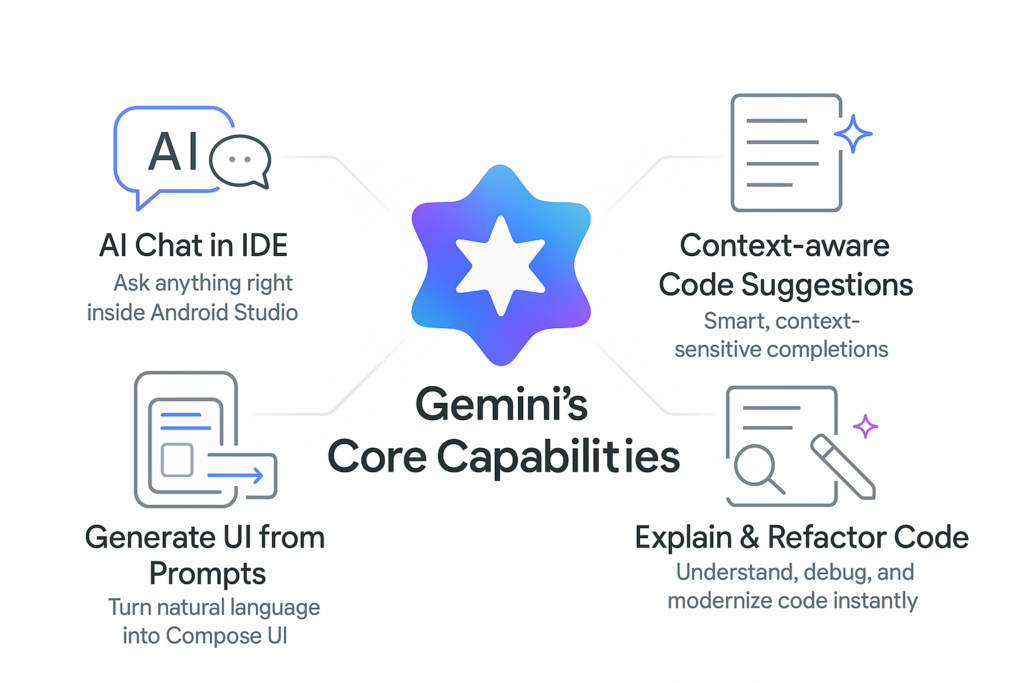
Gemini’s Core Capabilities
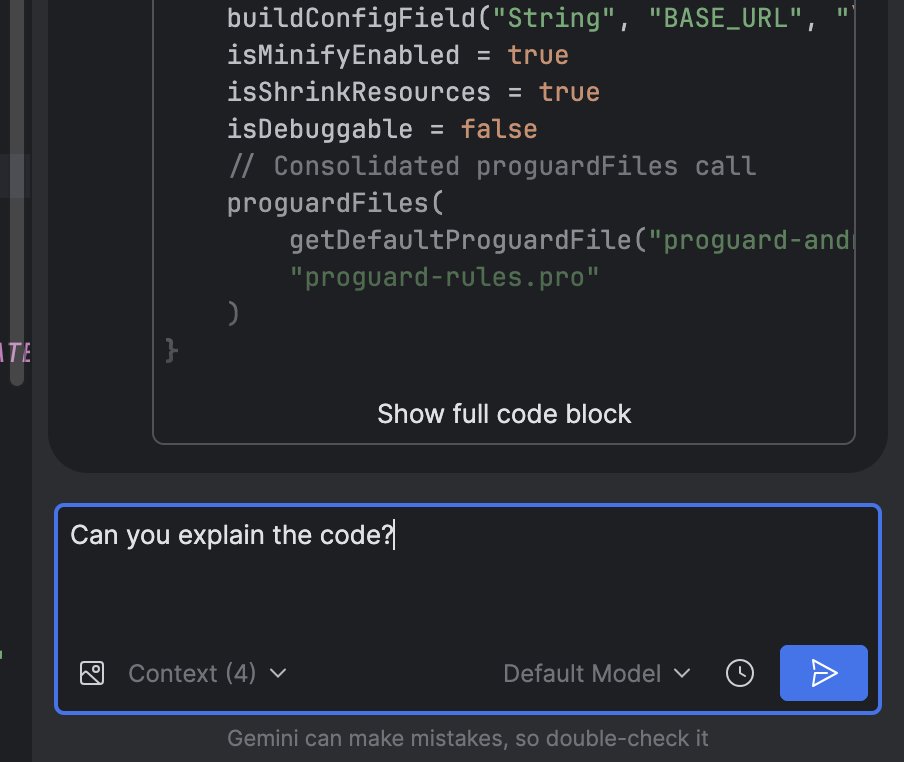
AI Chat in IDE
Beyond its intelligence and deep integration, the assistant also brings a wide range of practical capabilities tailored to real development workflows. It offers context-aware assistance that understands your current file, cursor position, errors, and even the overall project structure—allowing it to deliver suggestions that feel surprisingly accurate. Developers can generate or refactor code instantly, from creating snippets to optimizing functions or converting between Java and Kotlin. It can also break down build errors and stack traces into clear explanations with actionable fixes. Since everything works through natural-language queries directly inside the IDE, you can ask about APIs, architecture decisions, or debugging steps without ever leaving your editor. Combined with thoughtful productivity enhancements like reduced manual searching and faster onboarding, plus built-in privacy and safety controls that sanitize code and mask sensitive information, this AI assistant becomes a powerful and reliable partner throughout the development process.
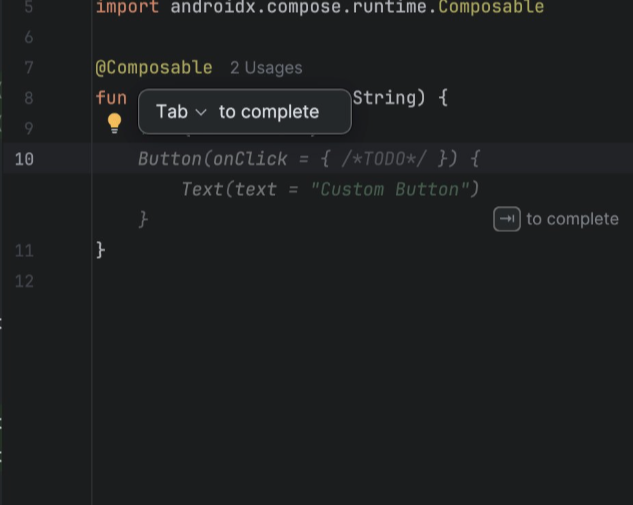
Context aware Code Suggestions
One of the most impressive aspects of this AI assistant is its ability to understand code in real time. It doesn’t just scan the file you’re working on—it also takes into account your cursor location, active imports, and the broader project structure to deliver highly relevant suggestions. Thanks to this deep context awareness, the assistant can generate smart code completions that align perfectly with your existing logic, architecture, and coding style.
It also proactively detects potential issues, offering error-aware suggestions that highlight bugs before they surface and recommending cleaner or safer alternatives. Its multi-file reasoning capability enables it to interpret referenced classes, resources, Gradle modules, and dependencies across the entire codebase, ensuring its insights are accurate and consistent.
On top of that, it naturally follows your established style conventions and common patterns such as MVVM, Jetpack Compose best practices, or typical Android architecture guidelines. The result is a smoother, faster development experience—less boilerplate, quicker feature implementation, and far fewer mistakes along the way.
Generate UI from Prompts
The assistant also shines when it comes to UI generation. With natural-language instructions, developers can instantly turn a simple text prompt into fully structured UI code—whether it’s XML layouts or Jetpack Compose components. This capability makes rapid prototyping incredibly easy, allowing you to draft screens, widgets, or different design variations without writing everything manually from scratch.
Even better, the generated UI automatically follows Material 3 guidelines, ensuring that what you get is responsive, accessible, and visually modern by default. The output is completely editable, so developers can refine, extend, or refactor the code just as they would with anything they write themselves.
Because the assistant understands your existing themes, styles, color resources, and project structure, the UI it generates naturally fits into the rest of your codebase. This dramatically speeds up the design-to-code workflow, making it easier for both designers and developers to explore ideas, iterate quickly, and bring polished interfaces to life much faster.
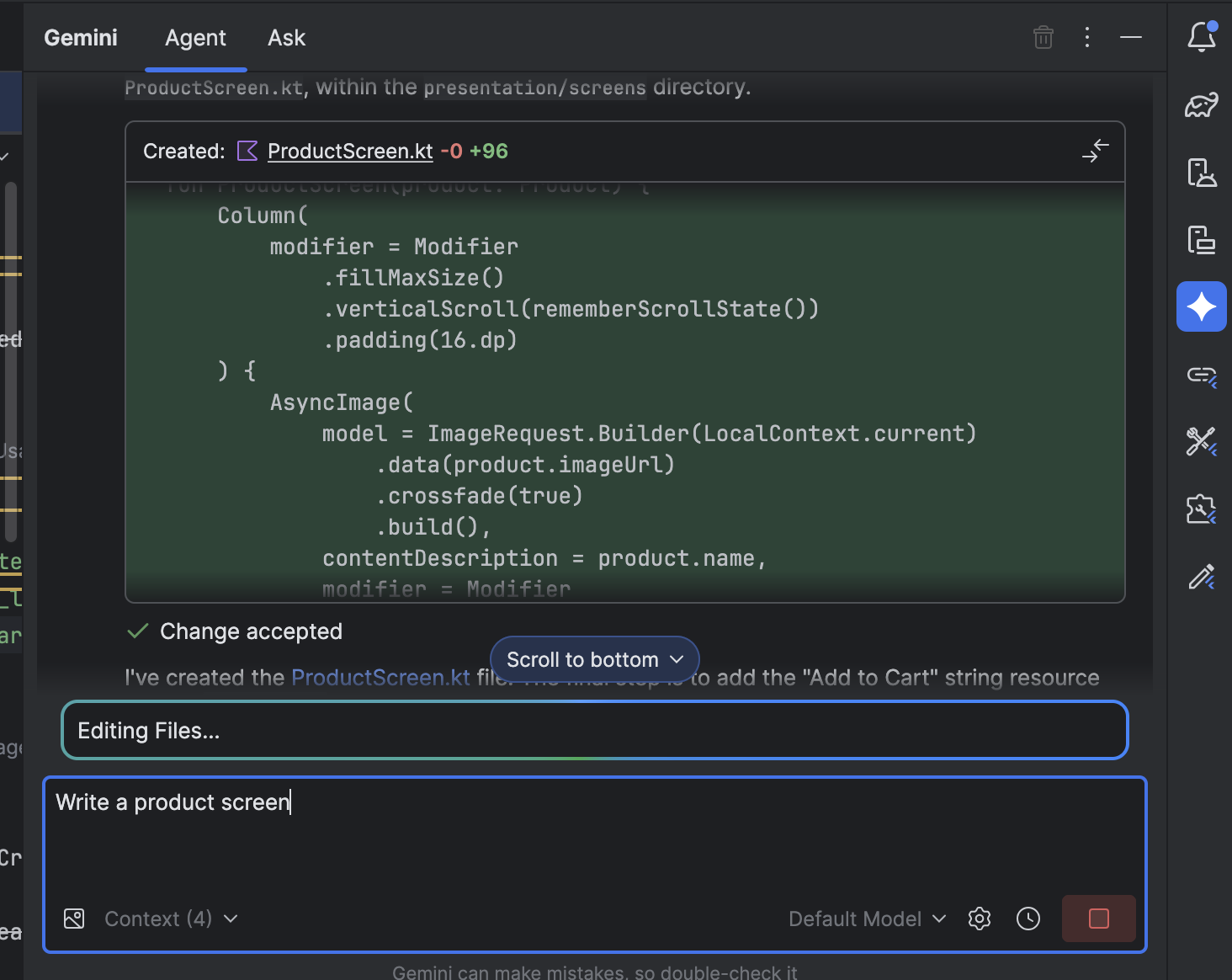
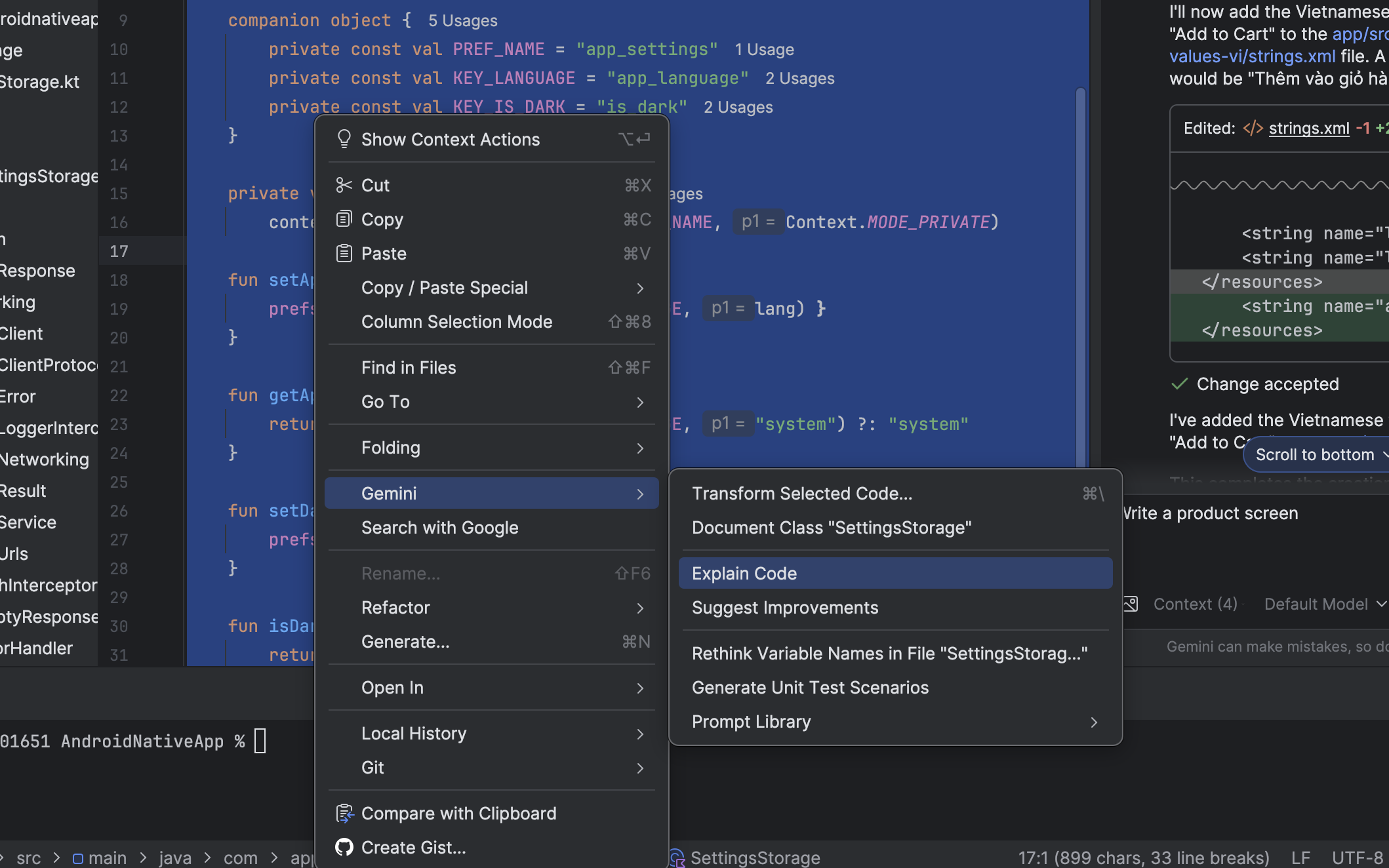
Explain & Refactor Code
Another powerful capability of the assistant lies in how effectively it helps developers understand and improve their code. It can take complex functions, classes, or even entire architectural patterns and translate them into simple, human-readable explanations—making it easier for developers to grasp what’s happening under the hood. This becomes especially valuable for onboarding new team members or revisiting older parts of a project.
When debugging, the assistant can spot logic errors, inefficiencies, and risky patterns that might otherwise go unnoticed. It doesn’t just highlight problems—it also proposes automated refactoring options that are cleaner, safer, and more performant. For projects that still rely on older patterns, it even helps modernize the codebase by converting legacy implementations to Kotlin, Jetpack Compose, Coroutines, or updated Android APIs.
By aligning suggestions with official Android best practices, MVVM architecture standards, and style conventions already present in the project, the assistant helps maintain a consistent and professional codebase. Over time, this directly reduces technical debt, improves maintainability, and enhances long-term code quality without requiring massive rewrites or manual cleanup.
Gemini’s 2025 Upgrades – Smarter, More Capable,More Visual
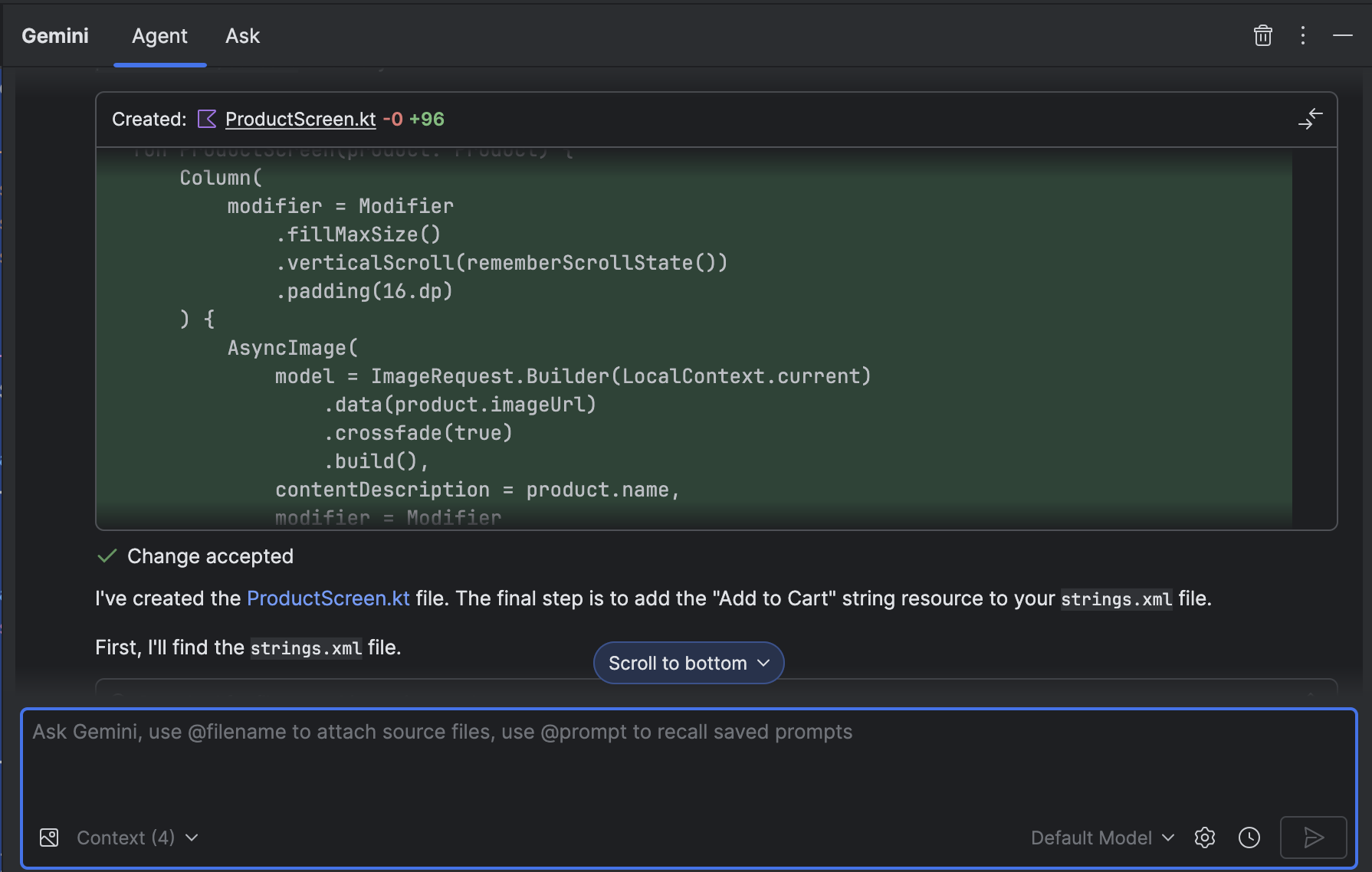
Gemini Agent Mode
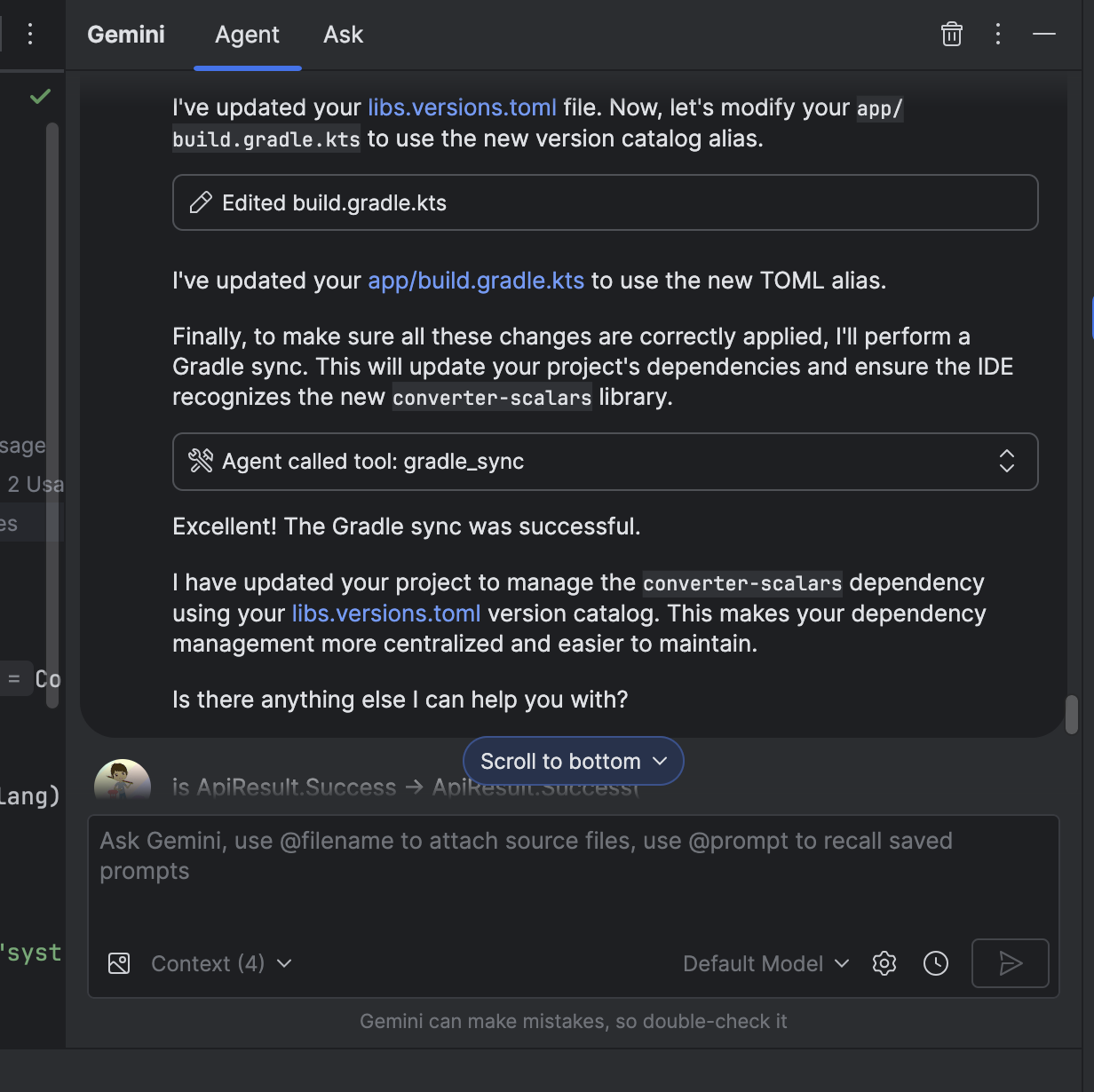
What truly elevates the assistant beyond a simple code helper is its ability to execute autonomous workflows. It can take on multi-step tasks—such as updating UI components, cleaning up old code, or generating entire file structures—and carry them out in a coordinated, consistent manner. This is possible because the assistant understands the deeper layers of your project, from module organization and build scripts to resource files and established coding patterns.
Its tool-level and file-level actions allow it to read, edit, refactor, or create code across multiple files at once, making it ideal for operations that would normally take developers hours to perform manually. Every decision it makes is driven by contextual reasoning: it evaluates your goals, interprets project constraints, and selects the most suitable approach based on your instructions.
Importantly, all modifications require explicit developer approval, ensuring control and safety throughout the workflow. This makes the assistant a perfect fit for complex, repetitive, or large-scale tasks—whether you’re migrating to a new UI framework, restructuring architecture layers, or standardizing patterns across the entire codebase.
Multimodal Inputs
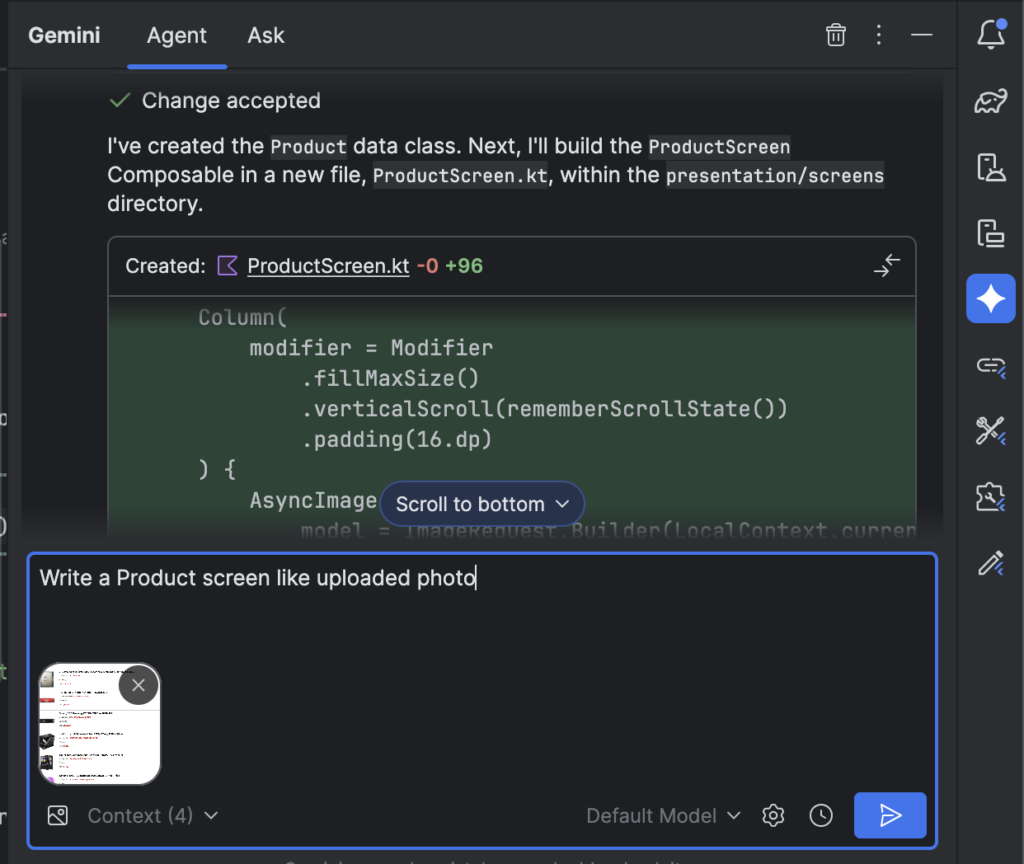
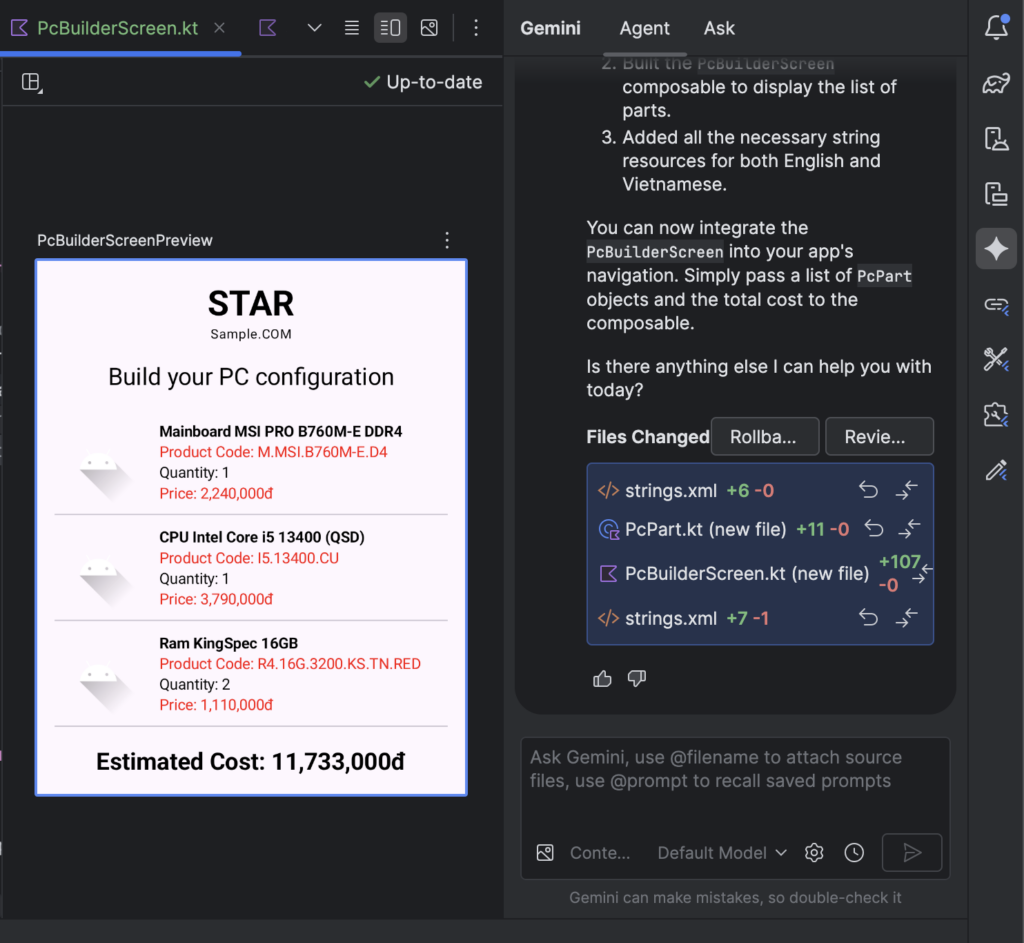
Another standout capability is the assistant’s ability to transform design mock-ups directly into production-ready UI code. Developers can simply upload screenshots, wireframes, or full design mock-ups and let the assistant interpret layout structures, component hierarchies, spacing, typography, and colors. Combined with text-based instructions, Gemini can translate both visual and textual cues into clean XML layouts or Jetpack Compose code that fits naturally into the project.
This happens right inside the Gemini chat window in Android Studio, where developers can provide images, add clarifying prompts, or request alternate design variations. The result is a dramatic reduction in the time spent manually recreating designs, making the design-to-code workflow smoother, faster, and far more intuitive.
Transform UI with Gemini
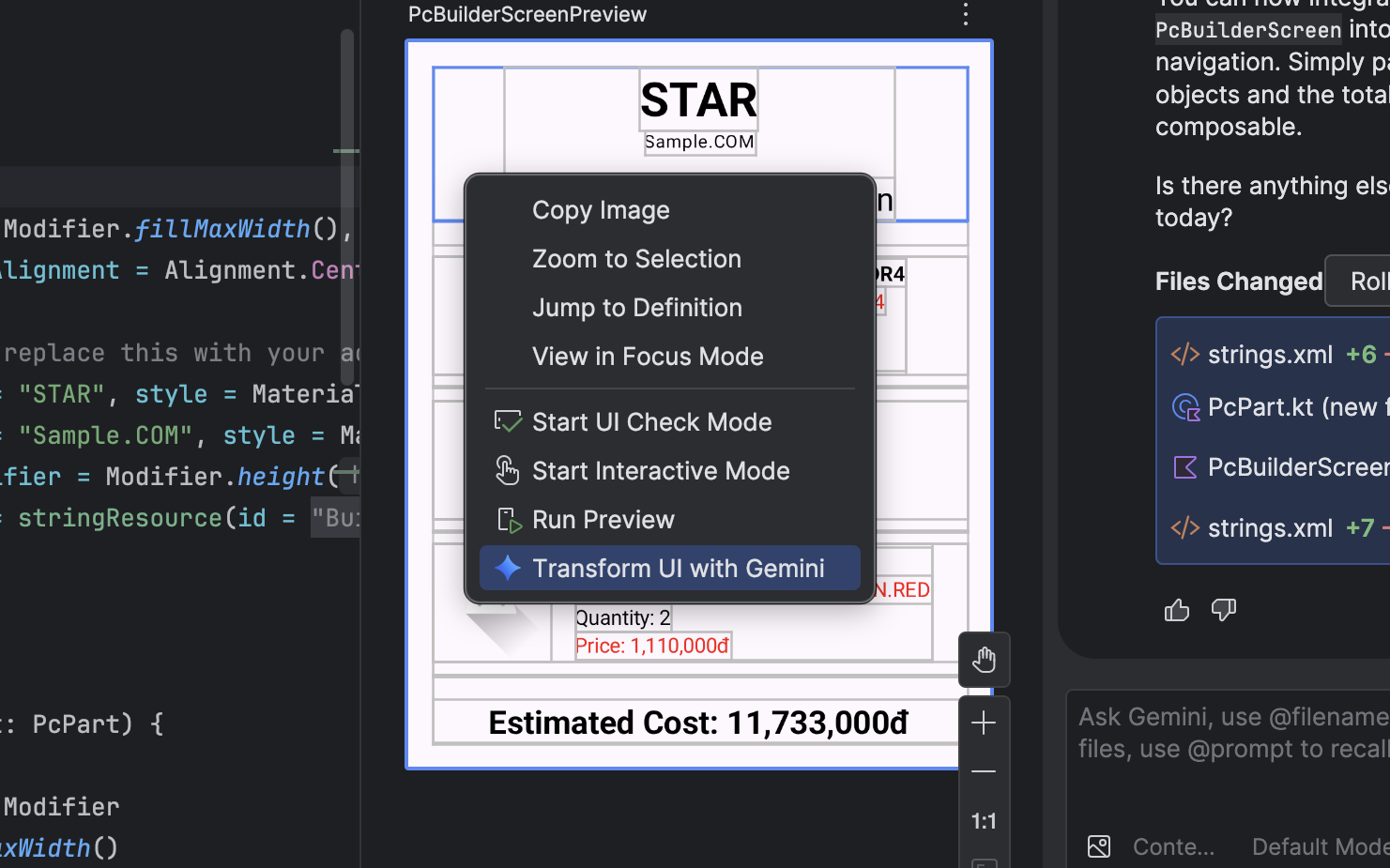
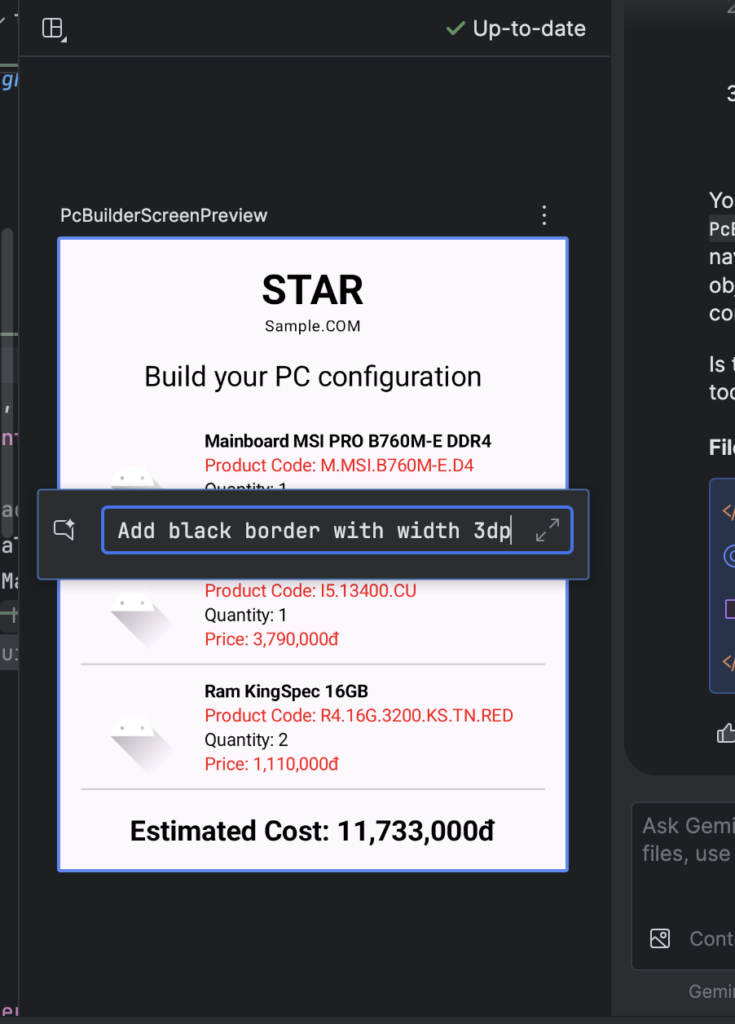
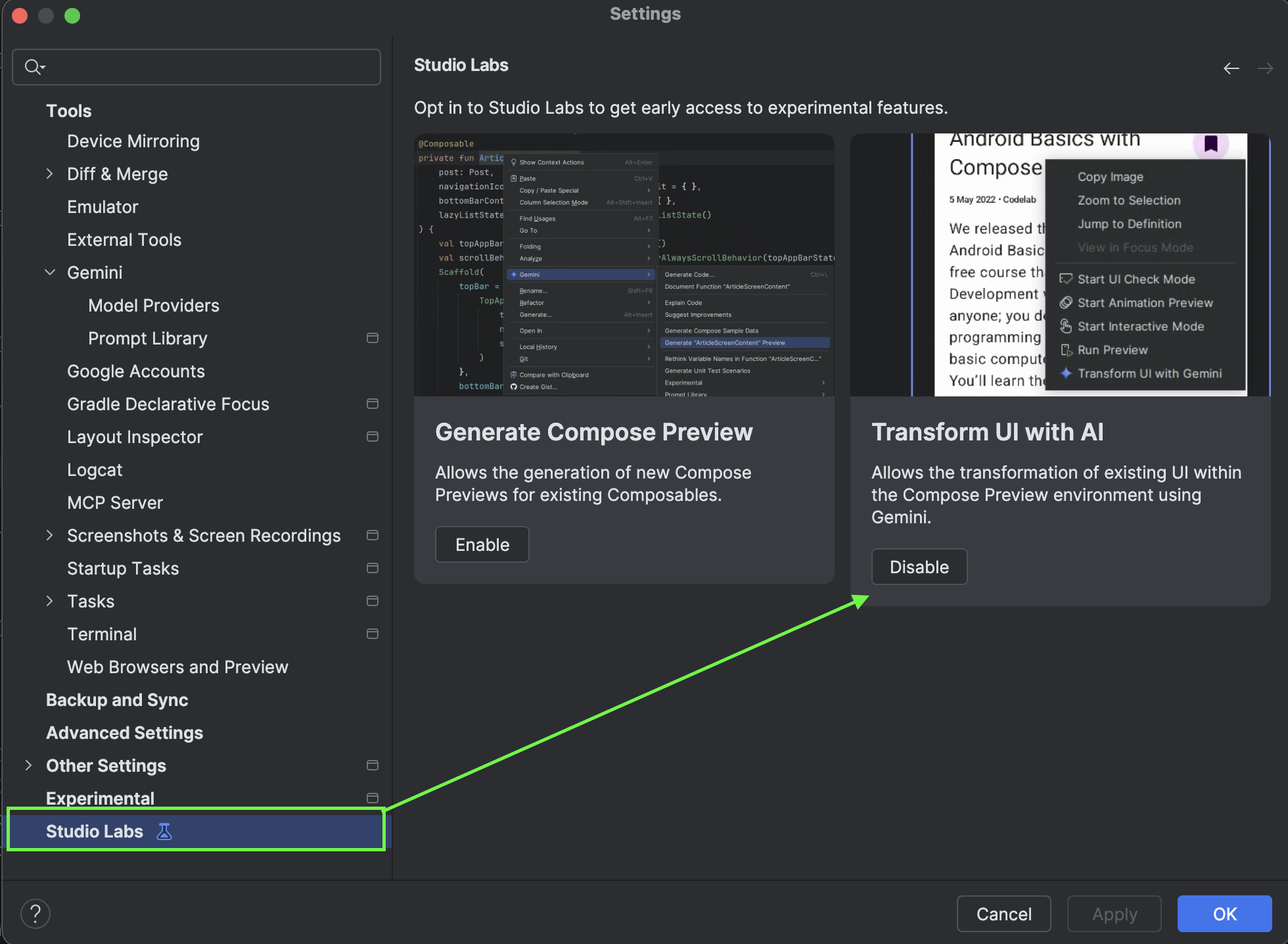
This capability builds on a Studio Labs feature introduced in early 2025 with Android Studio Narwhal (2025.1.1). For the first time, developers can modify or generate Jetpack Compose UI directly from natural-language prompts inside the Compose Preview itself. Instead of manually adjusting composables or tweaking layout parameters, you can simply describe what you want—“make the card rounded,” “add a search bar at the top,” or “convert this layout to a responsive column”—and the assistant updates the preview accordingly.
This creates a much more fluid development experience, where design and implementation converge in real time. It’s an especially powerful tool for rapid iteration, experimentation, and polishing UI components without constantly switching between code and visual previews.
To Enable Transform UI with Gemini
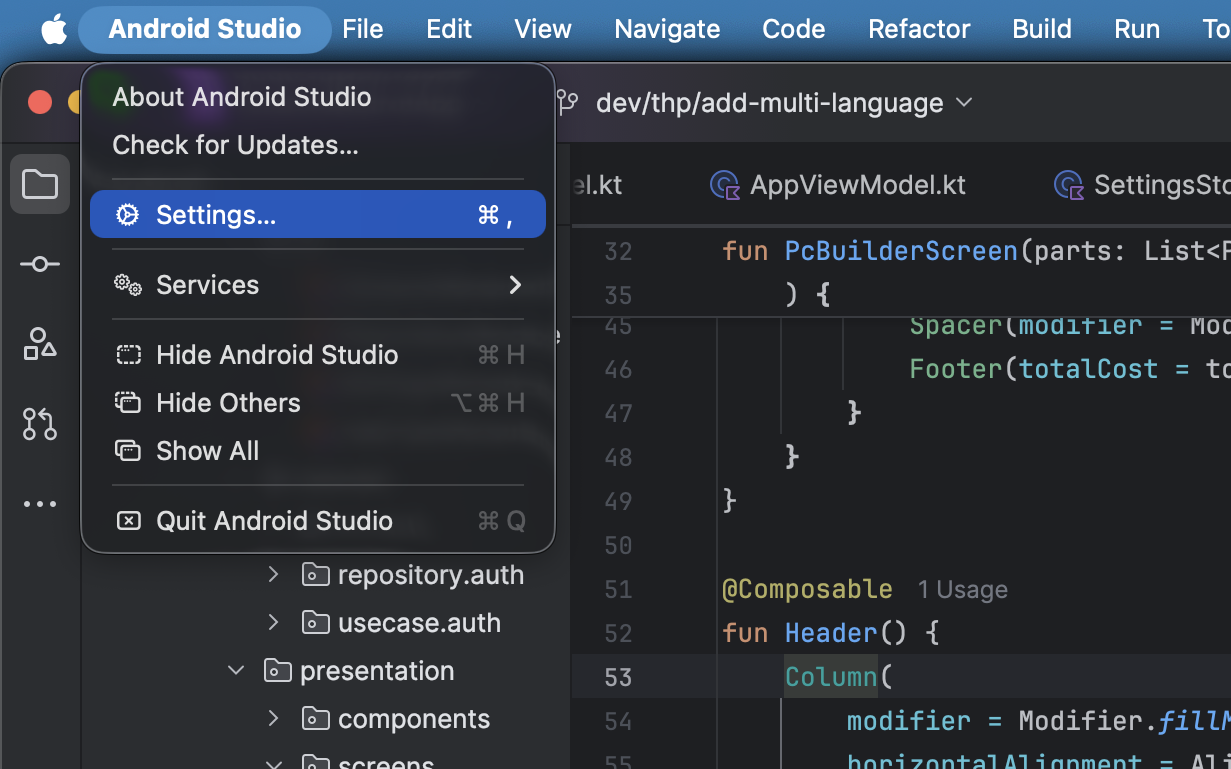
- Open Android Studio settings
- Select Studio Labs -> Enable Transform UI with AI
Tips for Effective Use for Transform UI with Gemini
To get the most out of Transform UI with Gemini, it helps to follow a few practical guidelines. Always start by providing clear context so the assistant understands which part of the interface you’re working on and what you want to achieve. Make sure you’ve selected the correct UI element in Compose Preview before sending a request—this ensures the assistant applies changes exactly where you intend.
Use natural, conversational language, but keep your instructions precise. If you’re planning a more complex transformation, break it down into smaller steps to maintain control and clarity. And as powerful as the automation may be, reviewing the generated source code is still essential to ensure everything aligns with your architecture, styling rules, and project conventions. It’s also a good idea to commit your current work before using these features, giving you a safe rollback point as you iterate.
Managing Rules in Android Studio
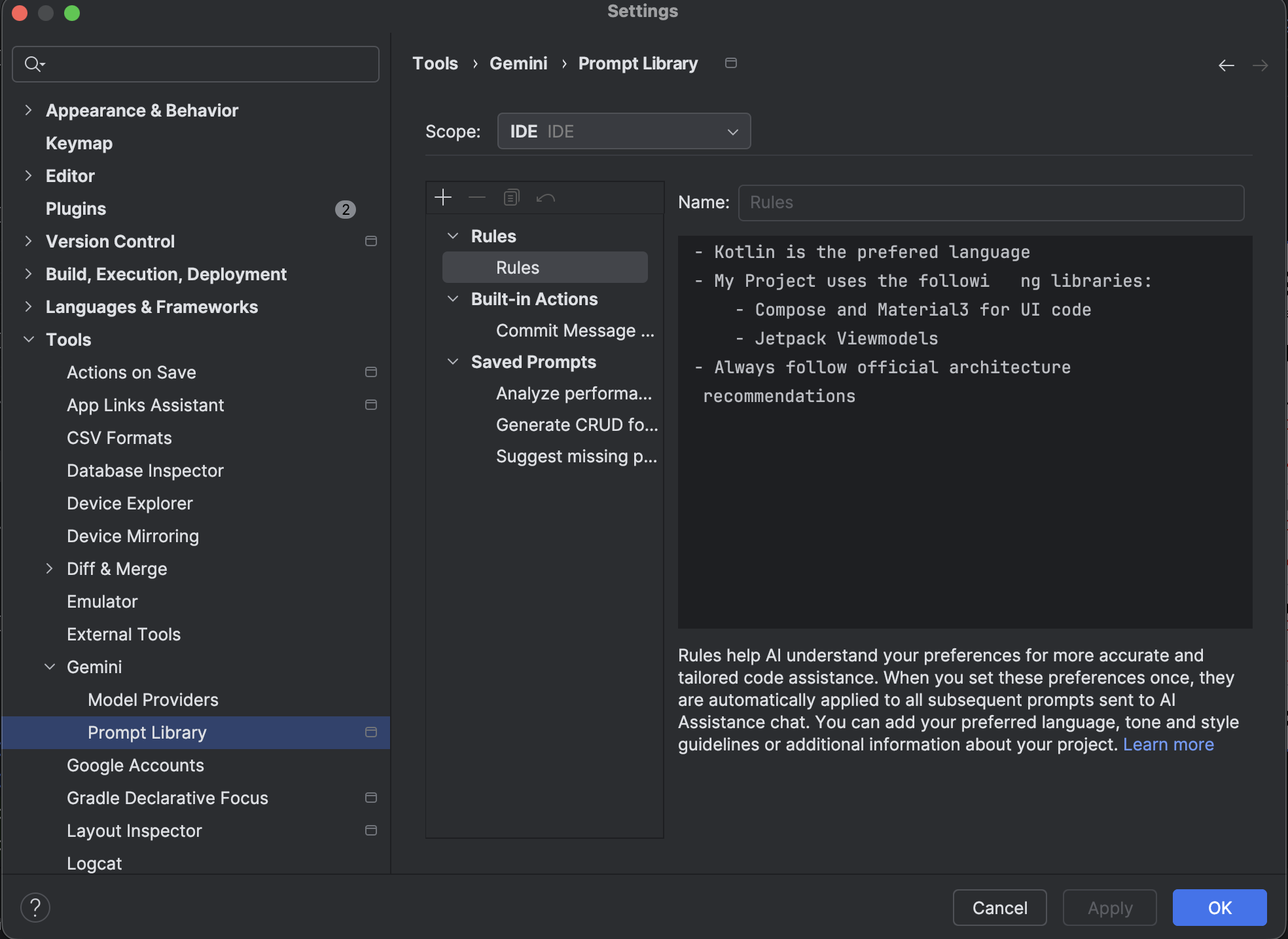
Managing rules in Android Studio allows developers to shape how Gemini behaves across different projects and workflows. You can start by opening the Prompt Library, either through the Gemini Status Icon under Configure Gemini → Prompt Library, or by navigating to Settings → Tools → Gemini → Prompt Library. From here, you can define how the assistant should respond in your environment.
Choosing the right scope is key. IDE-level rules remain private and apply across all your projects, making them ideal for personal preferences or consistent coding habits. Project-level rules, on the other hand, are stored in .idea/project.prompts.xml and automatically shared with your teammates, ensuring alignment with team conventions and company standards.
When creating rules, aim for clear, actionable instructions—such as “Always provide code examples in Kotlin,” “Use Material 3 components for UI,” or “Follow company naming conventions.” These rules help the assistant generate more relevant, consistent output. Once everything is configured, simply click Apply or OK to save your rule set and put it into effect.
Conclusion
As Android Studio continues to evolve, the integration of Gemini marks a major shift in how developers build, debug, and refine their apps. By combining deep project awareness with natural-language interaction, the assistant streamlines everything—from UI generation and code modernization to large-scale refactoring and complex architectural guidance. Tasks that once required manual effort across multiple files can now be executed intelligently, safely, and with far greater speed.
While Gemini doesn’t replace the need for thoughtful engineering, it enhances developers with a powerful layer of automation and insight. Whether you’re rapidly prototyping UI, cleaning up legacy code, or coordinating multi-step workflows, Gemini becomes a collaborative partner that accelerates development without compromising quality. With careful rule management, clear prompts, and consistent review practices, teams can harness this new AI-assisted workflow to build more maintainable, scalable, and polished applications.
Ultimately, Gemini isn’t just a tool—it’s a shift in how modern Android development happens. And for developers ready to embrace it, the boost in productivity, clarity, and creativity is unmistakable.