



Writing test cases is an essential part of software development, but it often comes with common challenges:
- Time-consuming manual work
- Inconsistent formats between testers
- Missing edge cases
- Repetitive effort for similar user stories
With Microsoft Copilot 365 and Copilot Studio, we can build a custom AI Agent that automatically generates test cases, presents them in a structured table, and exports them directly to Excel — all without writing any code.
This article walks you through a step-by-step guide to building such an agent.
1. Getting Started with Copilot 365
Before creating your agent, make sure you remind yourself of the prerequisites.
Requirements
- Microsoft 365 Business or Enterprise account
- Microsoft Copilot license enabled
- Access to Copilot Studio
Personal Microsoft accounts (Outlook, Hotmail) do not support agent creation.
2. What Is a Copilot Agent?
A Copilot Agent is a purpose-built AI assistant configured with:
- A clear role
- Instructions that define how it behaves
- Structured responses based on user prompts
Typical workflow:
User inputs requirements↓Copilot Agent analyzes input↓Test cases are generated↓Results exported to Excel
3. Step-by-Step: Creating a Test Case Agent in Copilot Studio
Step 1: Create a New Agent
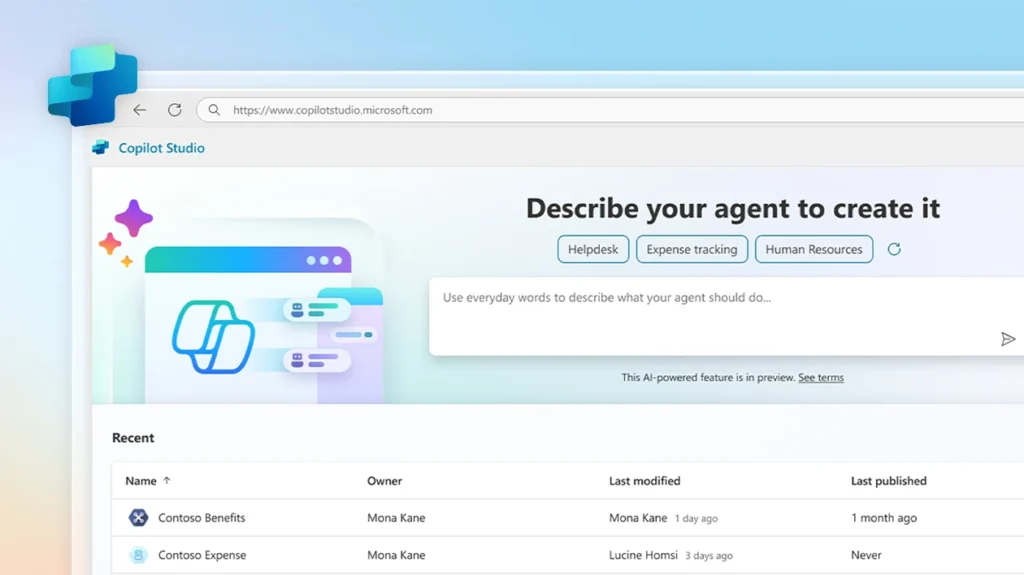
- Open Copilot Studio
- Select Create → New agent
- Name your agent, for example:
Write TestcasesStep 2: Define the Agent Description

Use a clear description such as:
This agent assists users in generating test cases based on their descriptions, displaying them in a table format, and exporting the table to a CSV Excel file.
A well-written description helps Copilot understand the agent’s purpose.
Step 3: Configure Instructions (Most Important Step)
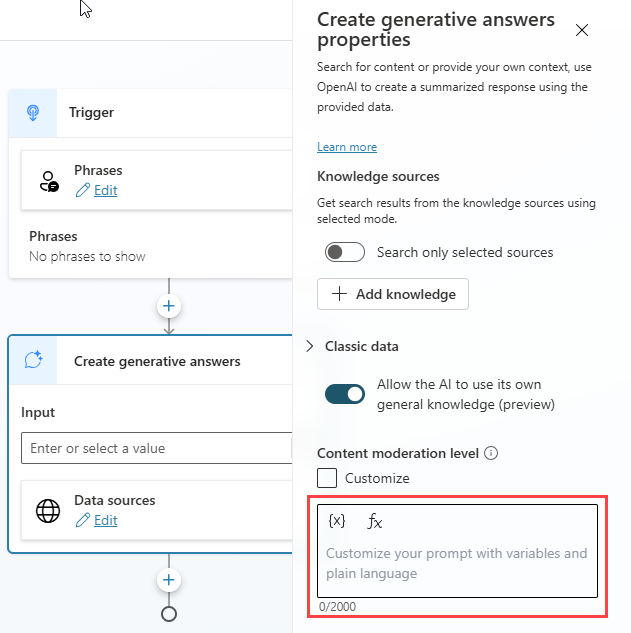
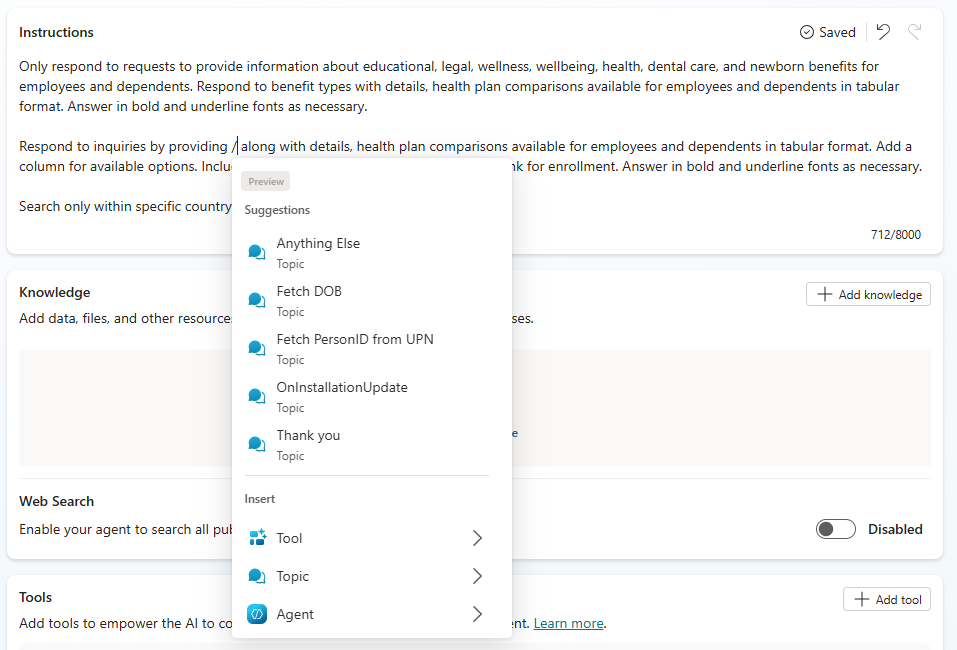
Instructions define how the agent thinks and responds.
Example instructions:
- Generate test cases based on the user’s description- Display test cases in a table with columns:Test Case ID, Description, Action, Expected Result, Test Data- Mark smoke test cases with prefix [SM]- Sort all [SM] test cases on the top- Generate edge test cases- Group test cases under Acceptance Criteria- Allow exporting the table to a CSV Excel file
This ensures consistent and structured output every time.
Step 4: Knowledge Configuration (Optional)
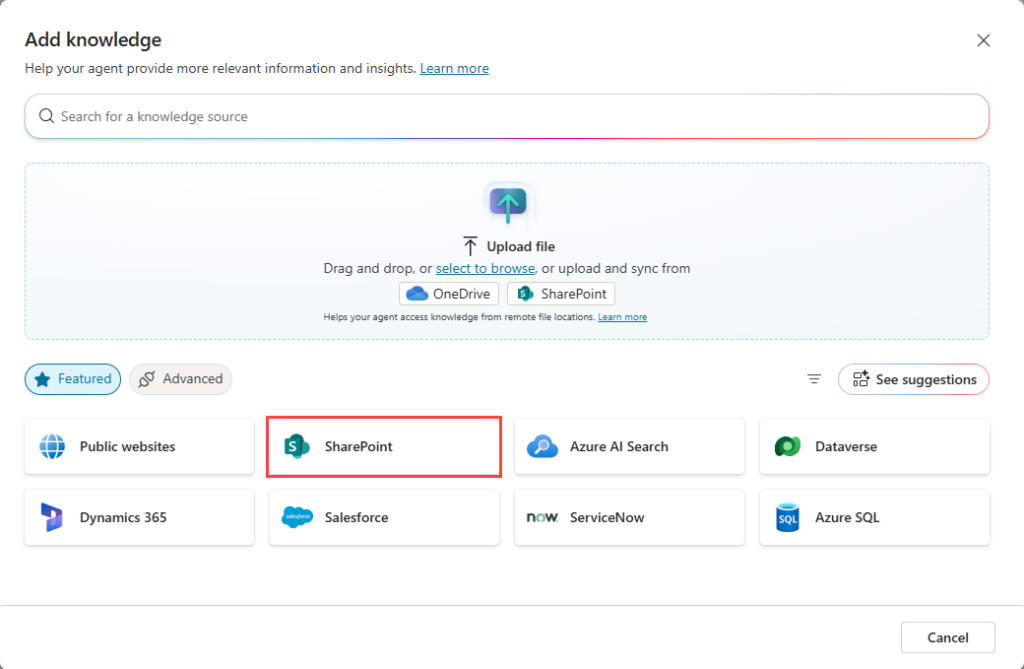
You may optionally connect:
- Jira
- Confluence
- Internal documentation sites
For basic test case generation, this step can be skipped.
Step 5: Enable Capabilities for Excel Export
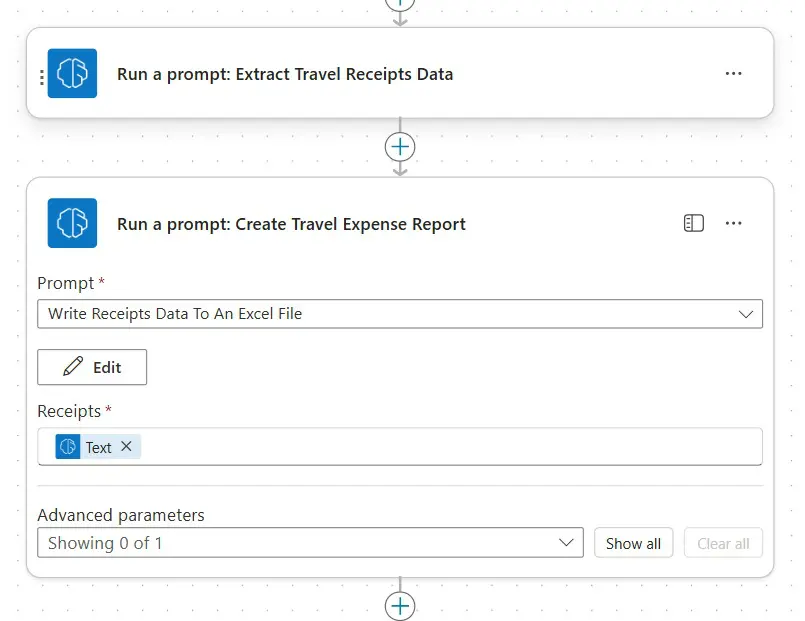
Enable:
- Create documents, charts, and code
This allows the agent to generate:
- CSV files
- Excel spreadsheets
- Structured tables
4. Sample Prompts for Writing Test Cases
Simple Prompt
Generate test cases for login functionality using email and passwordDetailed Business Prompt
Generate test cases for:- User logs in with email and password- Email must be in a valid format- Password must be at least 8 characters- Lock account after 5 failed login attempts
Acceptance Criteria-Based Prompt
Generate test cases based on the following acceptance criteria:1. User can login with valid credentials2. Error message appears for invalid password3. Account is locked after 5 failed attempts
The agent automatically generates:
- Positive cases
- Negative cases
- Edge cases
- Smoke tests marked with [SM]
5. Real-World Usage: Exporting Test Cases to Excel

Typical Workflow
- Tester or BA pastes requirements into Copilot chat
- Agent generates structured test cases
- Output is displayed in a table
- User selects Export → CSV / Excel
- File is downloaded and ready to use
Excel Structure
| Test Case ID | Description | Action | Expected Result | Test Data |
Time saved:
- Before: 1–2 hours per feature
- After: 3–5 minutes
6. Advanced Extension: Integrating Copilot with Azure
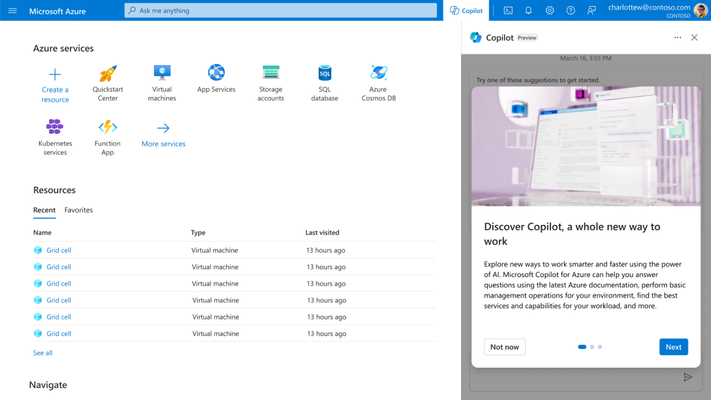

Advanced Scenario
Grant the agent permission to:
- Access Azure DevOps or Jira
- Automatically fetch:
- User Stories
- Descriptions
- Acceptance Criteria
Architecture Overview
Copilot Agent↓Azure Active Directory↓Azure Function / API↓Azure DevOps / Jira
Ideal for Agile teams needing synchronized test cases.
7. Data Security & Customer Information Considerations
When using Copilot 365 Agents in real projects, data security and confidentiality are critical.
Customer Data Protection and Consent
- Never input sensitive or personally identifiable information (PII)
- Usage must be approved by the customer and Project Manager (PM)
- Always anonymize or mask real customer data
Use Licensed Copilot 365 Only
- Always use Copilot 365 (paid enterprise license)
- Avoid public or consumer AI tools
- Licensed Copilot ensures enterprise-grade security and data isolation
Compliance and Internal Policies
- Follow internal security policies and customer NDAs (Non-Disclosure Agreement)
- Ensure alignment with GDPR, and company compliance standards
Restrict Access and Permissions
- Apply least-privilege access
- Limit agent usage to non-production data where possible
- Carefully scope permissions when integrating with Azure DevOps or Jira
Human Review Is Mandatory
- AI-generated test cases must be reviewed by QC engineers
- Final responsibility remains with the QC team
8. Strengths and Limitations
Strengths
- No coding required
- Easy adoption for QC and BA teams
- Consistent test case formatting
- Fast Excel export
- Scalable with Azure integration
Limitations
- Cannot replace human testing expertise
- Complex business logic still requires manual validation
- Output quality depends on prompt clarity
- Requires Copilot 365 licensing
9. Conclusion
Microsoft Copilot 365 can be more than a productivity assistant — when configured correctly, it becomes a powerful AI Test Assistant.
With a single agent, teams can:
Automate up to 80% of test case writing
- Reduce repetitive manual work
- Improve consistency and quality
- Scale securely in enterprise environments
With proper licensing, governance, and security controls, Copilot 365 Agents can be safely adopted even in highly regulated projects.