


1. What is visual testing in Playwright?
Playwright Test includes the ability to produce and visually compare screenshots. Help detect differences between baseline images and those captured during subsequent test runs.
2. How to use it?
We achieve this through methods toHaveScreenshot() in Playwright. First, we will create base-line screenshot, and compare it with the new screenshot that is generated after the test run. If two screenshots are the same, the test will pass. And if two screenshots are different, the test will fail, test reports contain information about how many different pixels, which parts differ from base-line screenshot.
Let’s explore details with demo website ToDo Page: https://demo.playwright.dev/todomvc.
2.1 Generate first base line screenshot
First, capture a screenshot of the entire page with 1 item added to the list.
const TODO_ITEMS = [
  'buy some cheese',
  'feed the cat',
  'book a doctors appointment'
] as const;

test.describe('Todo Page - Visual Testing', () => {
  test.only('Todo Page - Init screenshot for 1 item added', async ({ page}) => {
    const newTodo = page.getByPlaceholder('What needs to be done?');

    // Create 1st todo.
    await newTodo.fill(TODO_ITEMS[0]);
    await newTodo.press('Enter');

    // Make sure the list only has one todo item.
    await expect(page.getByTestId('todo-title')).toHaveText([
      TODO_ITEMS[0]
    ]);
    //Using page for entire screenshot.
    //Using element for capture screenshot of specific element.
    await expect(page).toHaveScreenshot();
  })
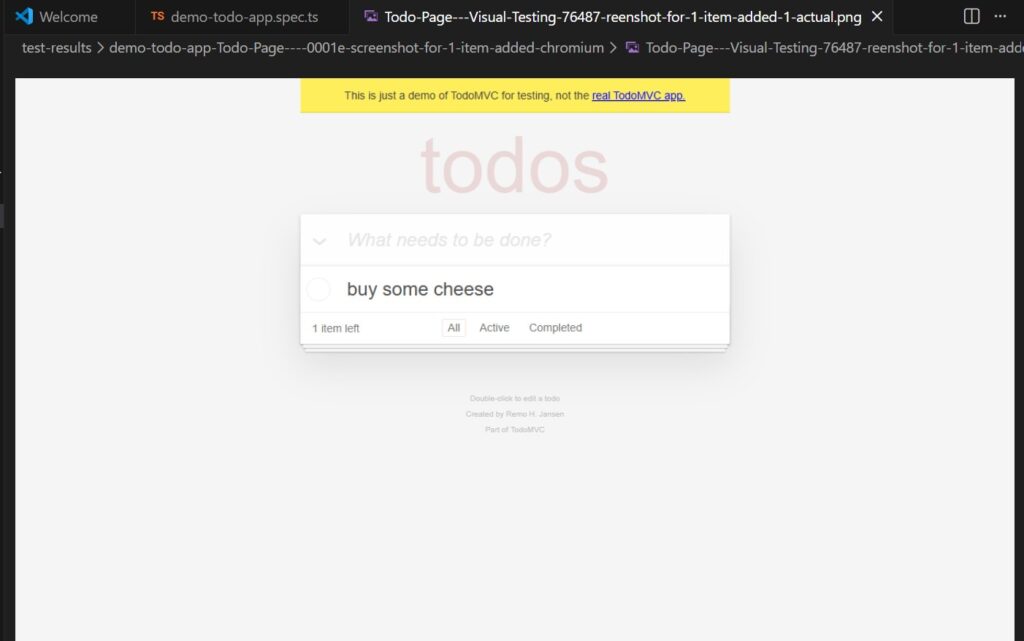
After the test run, it will fail with the error “A snapshot doesn’t exist”. That’s normal, and Playwright creates the initial screenshot (Image 1) of the entire page and saves it into the test-results folder.
2.2 Screenshot Comparison
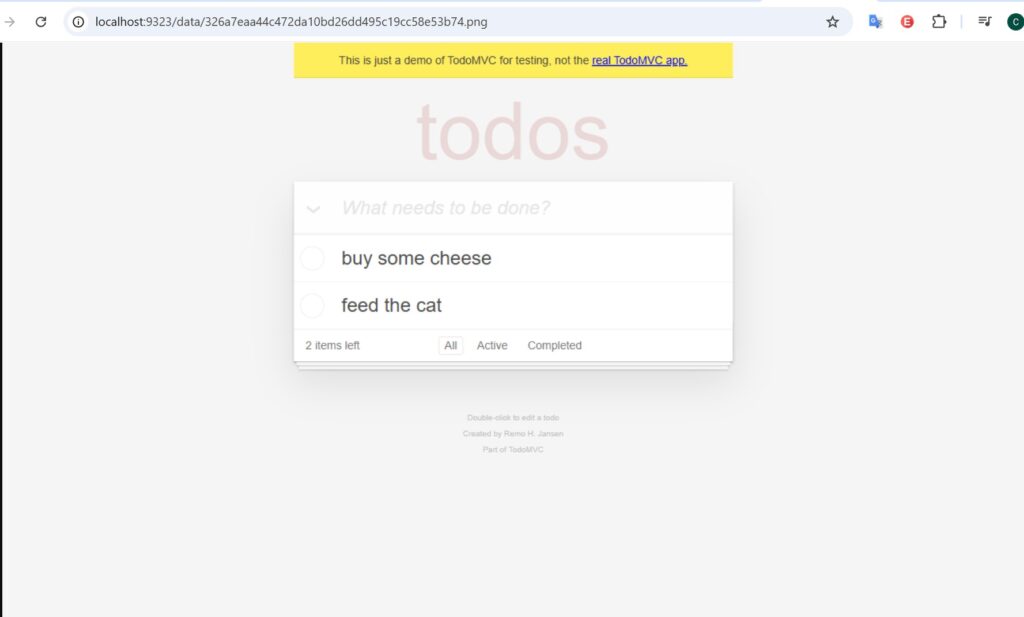
Now I’m changing the test case, I added one more 1 item into the list. When I rerun this test, Playwright will understand that we have a baseline screenshot that was created on the first run. In the second run, Playwright will compare the current screenshot Todo list has 2 items ,with the baseline screenshot which already saved in the project.
const TODO_ITEMS = [
  'buy some cheese',
  'feed the cat',
  'book a doctors appointment'
] as const;
test.describe('Todo Page - Visual Testing', () => {
  test.only('Todo Page - Init screenshot for 2 item added', async ({ page}) => {
    const newTodo = page.getByPlaceholder('What needs to be done?');
    // Create 1st todo.
    await newTodo.fill(TODO_ITEMS[0]);
    await newTodo.press('Enter');

    // Make sure the list only has one todo item.
    await expect(page.getByTestId('todo-title')).toHaveText([
      TODO_ITEMS[0]
    ]);
    // Create 2nd todo.
    await newTodo.fill(TODO_ITEMS[1]);
    await newTodo.press('Enter');

    // Make sure the list now has two todo items.
    await expect(page.getByTestId('todo-title')).toHaveText([
      TODO_ITEMS[0],
      TODO_ITEMS[1]
    ]);
    await checkNumberOfTodosInLocalStorage(page, 2);

    await expect(page).toHaveScreenshot()
  })
});
After the test run, Playwright generates a new screenshot (Image 2)
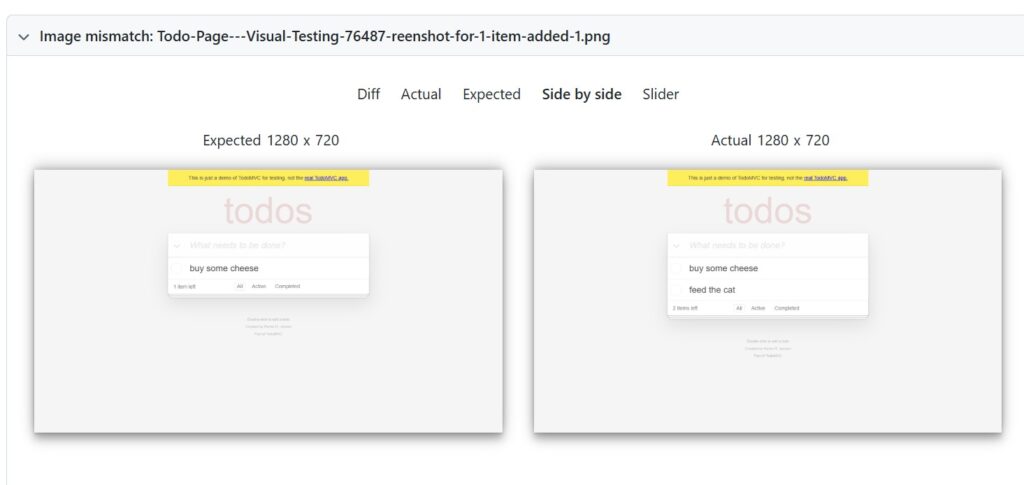
You can see a detailed Diff of 2 screenshots in the test report using the command line: npx playwright show-report (Image 3)
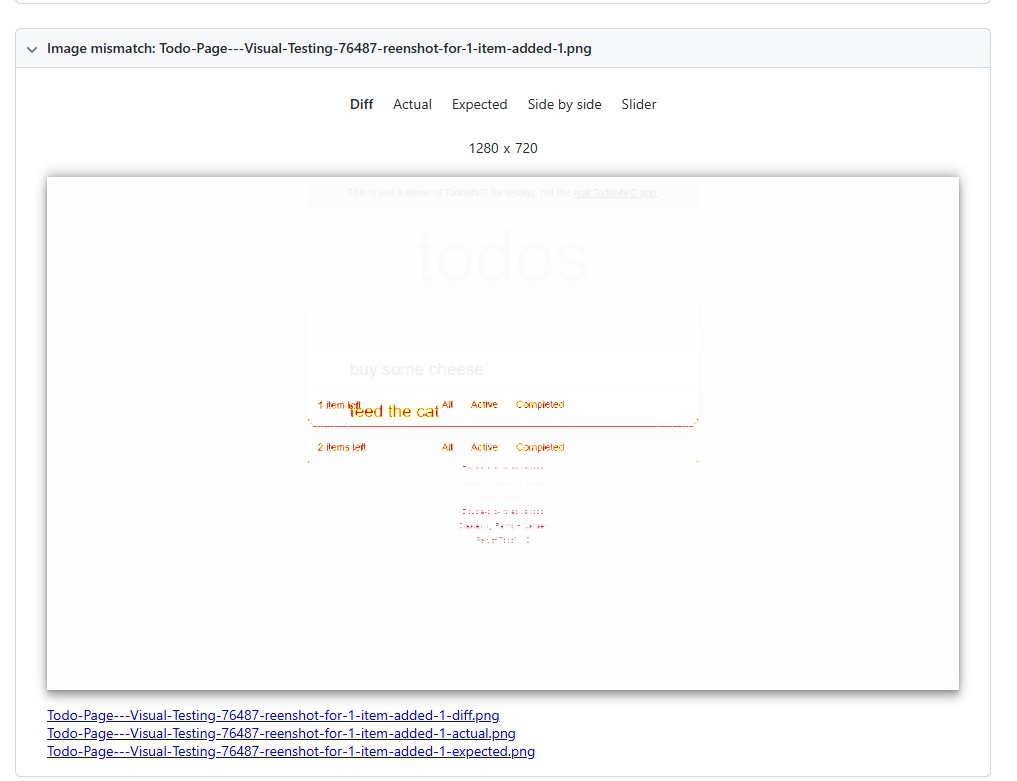
As you can see, all highlighted element is the diff part of the two screenshots (Image 3). To more easy to understand, you can choose Side by side / Slider (Image 4)
2.3 Update baseline image
If the test failed and all the diff parts are correct, we will update the baseline screenshot to a new one. Baseline screenshot file is in the same place as the test folder. We are using the command line: npx playwright test –update-snapshots
2.4 Config test pass/fail with max diff pixels
In the case, the layout has changed slightly—for example, the font size is a bit larger—but since it’s still acceptable
We using maxDiffPixels. Playwright compares the current page/element pixel-by-pixel against a reference image with a condition
If the number of differing pixels ≤ maxDiffPixels: The test passes.
If the number of differing pixels > maxDiffPixels: The test fails.
Example, if we add maxDiffPixels to 2000 pixels, the test will pass if 1959 pixels are different
await expect(page).toHaveScreenshot({maxDiffPixels: 2000});
2.5 Ignore dynamic element
You can apply a custom stylesheet to your page while taking a screenshot. This allows filtering out dynamic or volatile elements, hence improving the screenshot determinism.
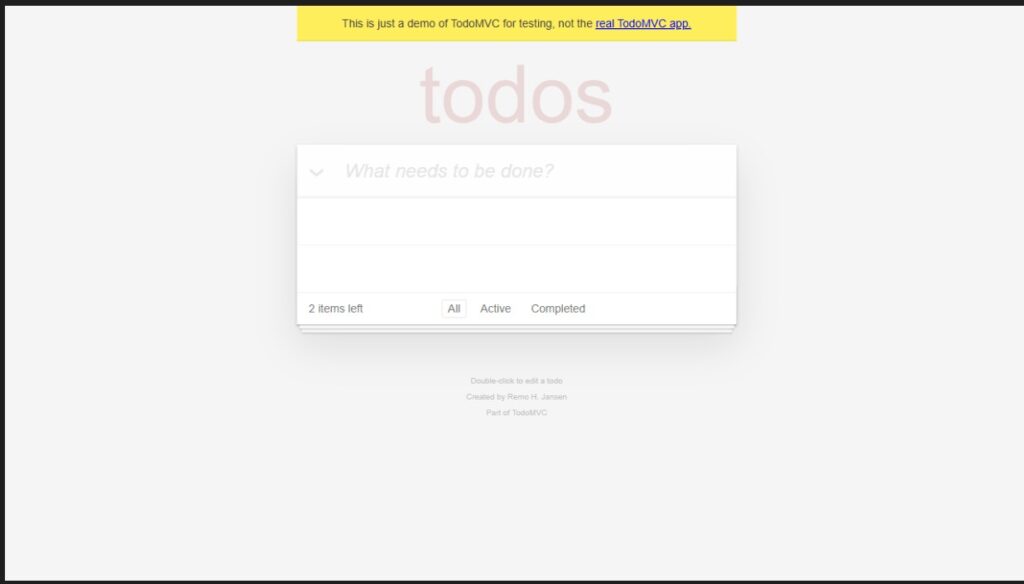
Goal: I want Playwright to ignore 2 items in the todo list during visual comparison.
Step 1: Create an ignoreElement.css file to set the visibility of these items to hidden when the screenshot function is executed.
label[data-testid="todo-title"] {
  visibility: hidden;
}
Step 2 – Add CSS file direction in the style Path
await expect(page).toHaveScreenshot({stylePath: path.join(__dirname, 'visual-testing-options/ignoreElement.css') })Result: List 2 items are failing to render in Playwright screenshots. (Image 5)
2.6 Non-image snapshots
Apart from screenshots, you can use expect(value).toMatchSnapshot(snapshotName) to compare text or arbitrary binary data. Playwright Test auto-detects the content type (text, json, html, css) and uses the appropriate comparison algorithm.
A robust mechanism designed to compare diverse content types, similar to how screenshots are processed. Snapshots are stored next to the test file, in a separate directory. For example, my.spec.ts file will produce and store snapshots in the my.spec.ts-snapshots directory.
Note:
If you want to compare with html file, use page.innerHTML(locator)
If you want to compare with text file, use the page.textContent(locator)
expect(await page.innerHTML("ul.todo-list")).toMatchSnapshot('todolist.html');3. Advantages/Disadvantages when using Visual Testing of Playwright
Advantage :
- No need external library
- The test report is very clear and understandable
- Capture screenshots of multiple devices (mobile, tablet)
- It’s free!
Disadvantages :
- Inflexible. If I want to ignore the comparison visual of some dynamic element like DateTime, Price, which changes frequently. Playwright does not provide mechanics to drag and drop directly on a screenshot.
- Only baseline screenshot saved. Hard to monitor the change screenshots over time
4. Conclusion
Visual comparison in Playwright helps us quickly identify unexpected UI changes, saving time and improving our bug-catching efficiency
Reference: Playwright doc for visual Test