


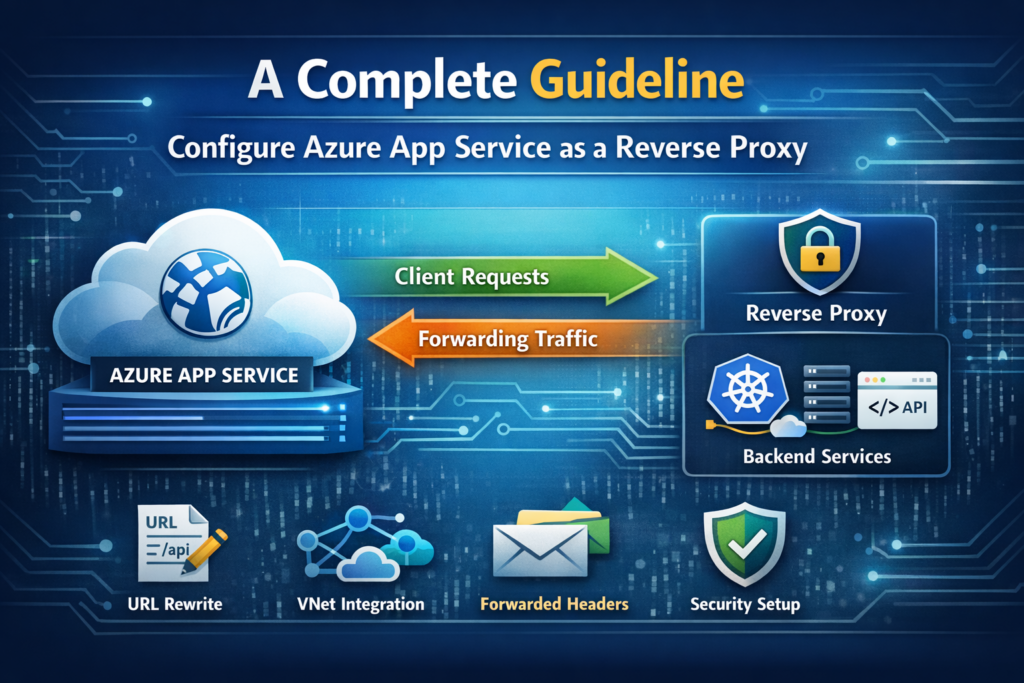
As cloud architectures become increasingly complex, the need for flexible routing and traffic management grows. Azure App Service, primarily known for hosting web applications, can also function as a powerful reverse proxy. This guide explores multiple approaches to configure Azure App Service as a reverse proxy, complete with practical examples and best practices.
Understanding Reverse Proxy in Azure App Service
A reverse proxy sits between clients and backend servers, forwarding client requests to appropriate backends and returning responses. In Azure App Service, this capability enables you to:
- Route traffic to multiple backend services from a single endpoint
- Implement API gateway patterns
- Add a layer of abstraction and security
- Handle legacy system integration
- Implement custom routing logic
Method 1: IIS Application Request Routing (Windows App Service)
Azure App Service on Windows runs on IIS, which includes Application Request Routing (ARR). While pre-installed, ARR is disabled by default and requires manual configuration.
Step 1: Enable ARR via XDT Transform
Access your App Service through Kudu Console (Advanced Tools) and create a file named applicationHost.xdt in the site directory:
<?xml version="1.0"?>
<configuration xmlns:xdt="http://schemas.microsoft.com/XML-Document-Transform">
  <system.webServer>
    <proxy xdt:Transform="InsertIfMissing"
           enabled="true"
           preserveHostHeader="false"
           reverseRewriteHostInResponseHeaders="false" />
  </system.webServer>
</configuration>
Key Parameters:
enabled="true": Activates ARR proxy functionalitypreserveHostHeader="false": Forwards the backend’s hostname (set totrueif backend validates Host header)reverseRewriteHostInResponseHeaders="false": Controls header rewriting in responses
Step 2: Configure URL Rewrite Rules
Create or update web.config in your application root:
<?xml version="1.0" encoding="UTF-8"?>
<configuration>
  <system.webServer>
    <rewrite>
      <rules>
        <!-- Proxy API requests to backend service -->
        <rule name="ProxyApiRequests" stopProcessing="true">
          <match url="^api/(.*)$" />
          <action type="Rewrite"
                  url="https://backend-api.azurewebsites.net/{R:1}"
                  logRewrittenUrl="true" />
        </rule>

        <!-- Proxy specific path to different backend -->
        <rule name="ProxyAuthService" stopProcessing="true">
          <match url="^auth/(.*)$" />
          <action type="Rewrite"
                  url="https://auth-service.example.com/{R:1}" />
        </rule>

        <!-- Default catch-all rule -->
        <rule name="ProxyDefault" stopProcessing="true">
          <match url="^(.*)$" />
          <conditions>
            <add input="{REQUEST_URI}" pattern="^/(api|auth)" negate="true" />
          </conditions>
          <action type="Rewrite"
                  url="https://default-backend.azurewebsites.net/{R:1}" />
        </rule>
      </rules>

      <!-- Optional: Outbound rules for response headers -->
      <outboundRules>
        <rule name="AddCorsHeader">
          <match serverVariable="RESPONSE_Access-Control-Allow-Origin" pattern=".*" />
          <action type="Rewrite" value="*" />
        </rule>
      </outboundRules>
    </rewrite>
  </system.webServer>
</configuration>
Step 3: Deploy and Restart
- Deploy both configuration files to your App Service
- Restart the App Service to apply XDT transforms
- Test your proxy endpoints
Common Scenarios and Solutions
Handling Authentication/Sessions: If your backend uses cookie-based authentication, preserve the original host header:
<proxy xdt:Transform="InsertIfMissing"
       enabled="true"
       preserveHostHeader="true" />
Query String Preservation: URL rewrite automatically preserves query strings. To modify this behavior:
<action type="Rewrite"
        url="https://backend.com/{R:1}"
        appendQueryString="false" />
Method 2: NGINX Reverse Proxy (Linux App Service)
For Linux-based App Services or containerized workloads, NGINX provides a robust reverse proxy solution.
Step 1: Create Custom NGINX Configuration
Create an nginx.conf file:
worker_processes 1;

events {
    worker_connections 1024;
}

http {
    upstream backend_api {
        server backend-api.azurewebsites.net:443;
    }

    upstream auth_service {
        server auth-service.example.com:443;
    }

    server {
        listen 80;
        listen 8080;

        server_name _;

        # API proxy
        location /api/ {
            proxy_pass https://backend_api/;
            proxy_ssl_server_name on;
            proxy_set_header Host backend-api.azurewebsites.net;
            proxy_set_header X-Real-IP $remote_addr;
            proxy_set_header X-Forwarded-For $proxy_add_x_forwarded_for;
            proxy_set_header X-Forwarded-Proto $scheme;
            proxy_set_header X-Forwarded-Host $host;

            # Timeouts
            proxy_connect_timeout 60s;
            proxy_send_timeout 60s;
            proxy_read_timeout 60s;
        }

        # Auth service proxy
        location /auth/ {
            proxy_pass https://auth_service/;
            proxy_ssl_server_name on;
            proxy_set_header Host auth-service.example.com;
            proxy_set_header X-Real-IP $remote_addr;
            proxy_set_header X-Forwarded-For $proxy_add_x_forwarded_for;
            proxy_set_header X-Forwarded-Proto $scheme;

            # Handle redirects
            proxy_redirect off;
        }

        # Health check endpoint
        location /health {
            access_log off;
            return 200 "healthy\n";
            add_header Content-Type text/plain;
        }

        # Default location
        location / {
            proxy_pass https://default-backend.azurewebsites.net/;
            proxy_ssl_server_name on;
            proxy_set_header Host default-backend.azurewebsites.net;
            proxy_set_header X-Real-IP $remote_addr;
            proxy_set_header X-Forwarded-For $proxy_add_x_forwarded_for;
            proxy_set_header X-Forwarded-Proto $scheme;
        }
    }
}
Step 2: Create Dockerfile
FROM nginx:alpine

# Copy custom nginx configuration
COPY nginx.conf /etc/nginx/nginx.conf

# Expose ports
EXPOSE 80 8080

# Start nginx
CMD ["nginx", "-g", "daemon off;"]
Step 3: Deploy to Azure App Service
# Build and push to Azure Container Registry
az acr build --registry <your-acr-name> \
             --image reverse-proxy:latest \
             --file Dockerfile .

# Configure App Service to use the container
az webapp config container set \
    --name <app-service-name> \
    --resource-group <resource-group> \
    --docker-custom-image-name <your-acr-name>.azurecr.io/reverse-proxy:latest \
    --docker-registry-server-url https://<your-acr-name>.azurecr.io
Method 3: Azure Application Gateway (Enterprise Solution)
For production environments requiring advanced features, Azure Application Gateway provides enterprise-grade reverse proxy capabilities:
Key Features:
- Layer 7 Load Balancing: Content-based routing
- SSL Termination: Offload SSL/TLS processing
- Web Application Firewall (WAF): Built-in security
- URL Path-Based Routing: Route based on URL patterns
- Multi-site Hosting: Host multiple sites behind one gateway
Configuration Example:
# Create Application Gateway with path-based routing
az network application-gateway create \
    --name MyAppGateway \
    --resource-group MyResourceGroup \
    --location eastus \
    --sku WAF_v2 \
    --capacity 2 \
    --vnet-name MyVNet \
    --subnet MySubnet \
    --public-ip-address MyPublicIP

# Add backend pool for API
az network application-gateway address-pool create \
    --gateway-name MyAppGateway \
    --resource-group MyResourceGroup \
    --name ApiBackendPool \
    --servers backend-api.azurewebsites.net

# Add path-based rule
az network application-gateway url-path-map create \
    --gateway-name MyAppGateway \
    --resource-group MyResourceGroup \
    --name PathMap \
    --paths /api/* \
    --address-pool ApiBackendPool \
    --default-address-pool DefaultBackendPool
Comparison Matrix
| Method | Platform | Complexity | Cost | Best For | Performance |
|---|---|---|---|---|---|
| IIS ARR | Windows | Medium | Low (App Service only) | Simple routing, small-medium apps | Good |
| NGINX Container | Linux/Container | Medium | Low-Medium (App Service + ACR) | Complex routing, custom logic | Excellent |
| Application Gateway | Platform-agnostic | Low-Medium | High (dedicated resource) | Enterprise, WAF, multi-site | Excellent |
Best Practices
1. Security Considerations
<!-- Restrict backend access to App Service only -->
<rule name="SecureProxy">
  <match url=".*" />
  <action type="Rewrite" url="https://backend.azurewebsites.net/{R:0}" />
  <serverVariables>
    <set name="HTTP_X_SECRET_KEY" value="{YOUR_SHARED_SECRET}" />
  </serverVariables>
</rule>
2. Health Checks
Always implement health check endpoints:
location /health {
    access_log off;
    return 200 "healthy\n";
}
3. Logging and Monitoring
Enable Application Insights for comprehensive monitoring:
az webapp config appsettings set \
    --name <app-service-name> \
    --resource-group <resource-group> \
    --settings APPINSIGHTS_INSTRUMENTATIONKEY=<key>
4. Performance Optimization
- Enable HTTP/2: Improves connection multiplexing
- Use Connection Pooling: Reuse backend connections
- Implement Caching: Cache static responses
- Set Appropriate Timeouts: Prevent hanging connections
# NGINX optimization
proxy_http_version 1.1;
proxy_set_header Connection "";
proxy_buffering on;
proxy_cache_valid 200 10m;
5. CORS Handling
For cross-origin requests, configure CORS headers:
<outboundRules>
  <rule name="CorsSupport">
    <match serverVariable="RESPONSE_Access-Control-Allow-Origin" pattern=".*" />
    <action type="Rewrite" value="*" />
  </rule>
  <rule name="CorsMethods">
    <match serverVariable="RESPONSE_Access-Control-Allow-Methods" pattern=".*" />
    <action type="Rewrite" value="GET, POST, PUT, DELETE, OPTIONS" />
  </rule>
</outboundRules>