



Extracting information from documents has always been a tedious process. Whether it is financial institutions where they deal with KYC (Know Your Customer)/Payment processing or whether it is insurance organizations where they deal with thousands of claims processing daily. Moreover, manual data entry is slow, expensive, and error‑prone. Also, many out-of-box OCR tools struggle analyzing complex layouts.
This is where Amazon Textract steps in to solve these challenges by offering automated, ML‑powered document analysis.
In this blog, we’ll walk through the capabilities of Amazon Textract and explore how it processes IDs and structured documents.
What is Amazon Textract?
Amazon Textract is a fully managed machine learning service from AWS that automatically extracts text, handwriting, forms, tables, and structured data from documents. It goes far beyond what traditional OCR offers.
Features
- Detecting Typed/Handwritten Text
- Analyzing Forms (Key-Value Pairs)
- Reconstructing Tables
- Understanding Document Layouts
- Specialized APIs for Complex Document Types
Unlocking Documents’ Intelligence
Out-of-box features of Amazon Textract are quite well-suited for analyzing documents, processing IDs, constructing tables, etc. However, in case, the provided features do not fit our business use case, we can use Custom Queries of Amazon Textract. To understand how Amazon Textract Custom Queries work, we’ll walkthrough a live example, where we’ll see how to recognize handwritten notes.
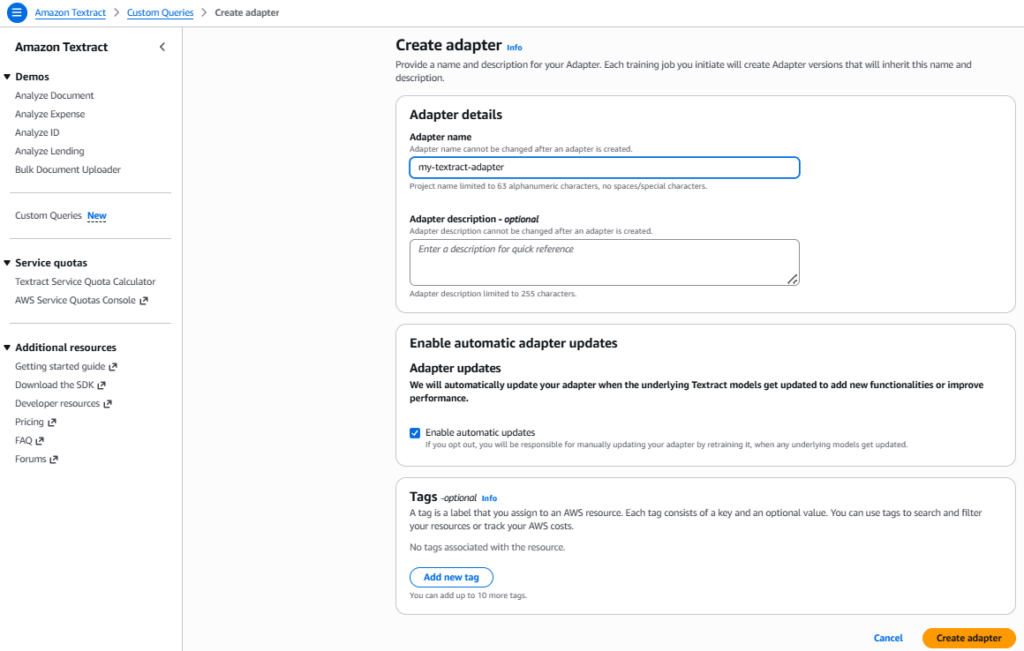
Step 1: Create Adapter
Each training job we initiate will create a new version of an adapter. To let the new version inherit a name and description, we need to create an Adapter. For this demo, we’ll name the adapter as my-textract-adapter, but you can give it any name we want.
Step 2: Upload Dataset
A dataset is a collection of documents, and labels, that we’ll use to train or test an adapter. One point we need to take care of while creating a dataset is, Amazon Textract requires separate files for training and testing. Hence, for this demo, we’ll be using 2 separate S3 folders – /train and /test.
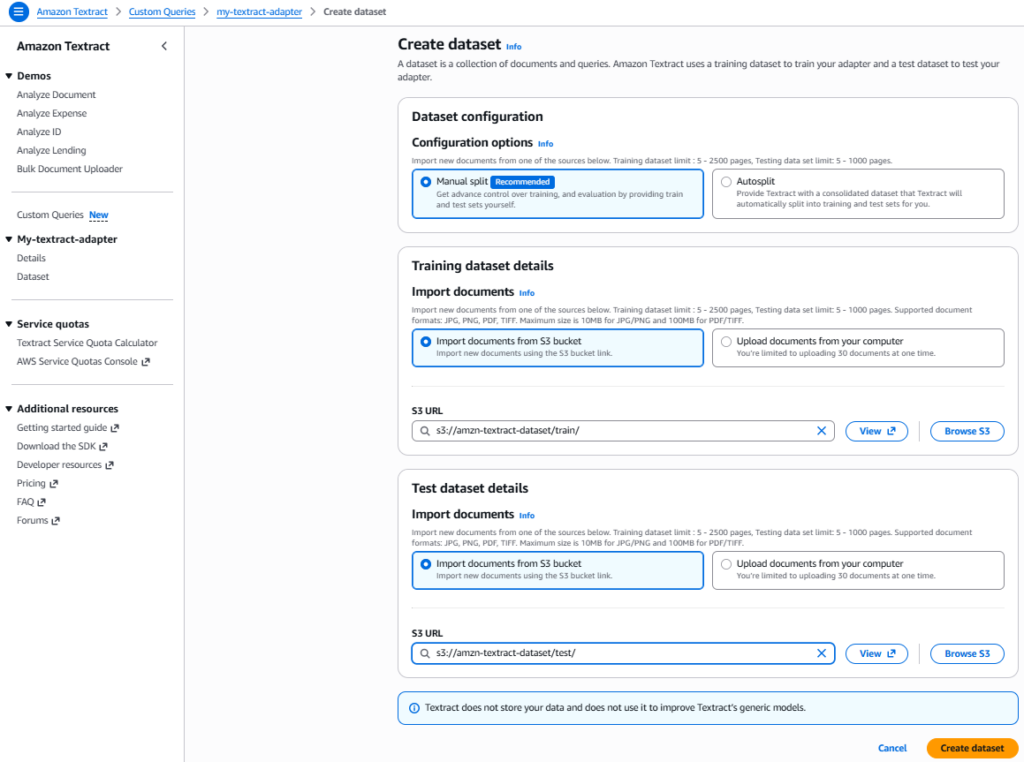
Although, we can select Autosplit option too for configuring dataset, however, it is recommended to manually split the training/testing dataset.
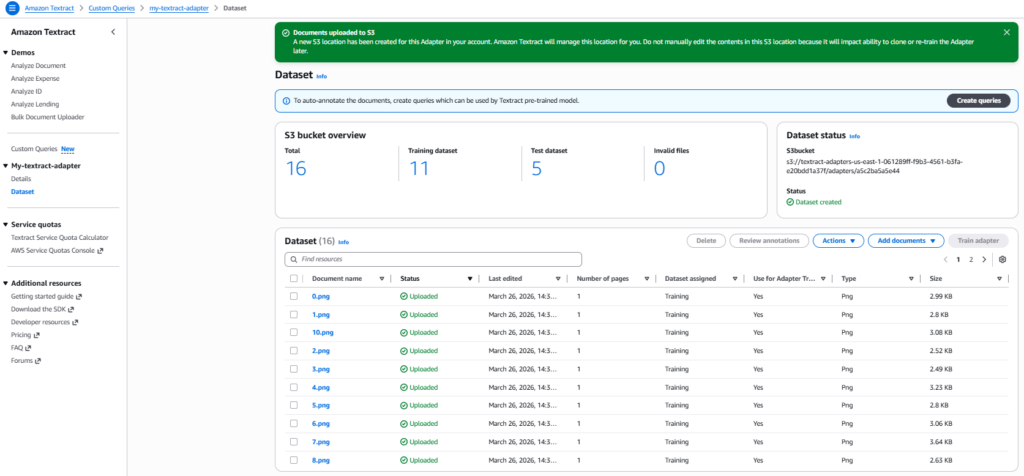
Step 3: Create Queries
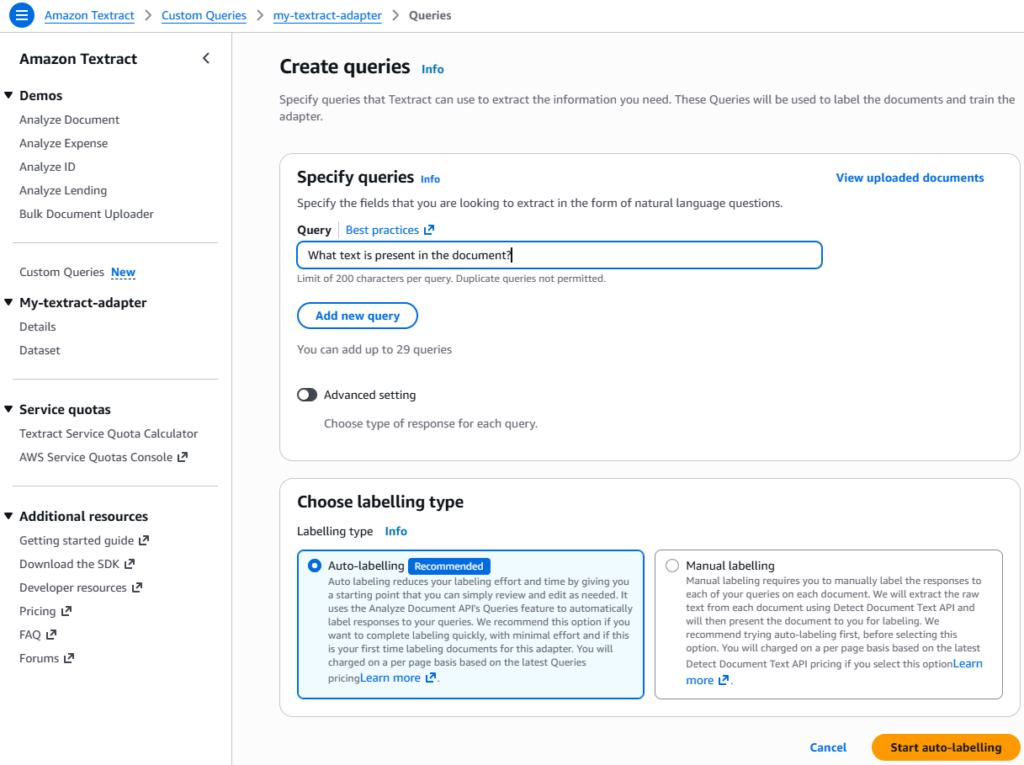
After creating a dataset, next step is to specify the query we are looking to extract from documents using natural language questions. For example,
- What’s the full name?
- What was the last month’s invoice?
- How much units were delivered?
For this demo, we’ll use query, What text is present in the document? to extract all the handwritten information from the notes.
Step 4: Verify Documents
To ensure that the documents uploaded in the dataset are labeled correctly and meet the business requirements, we have to review them.
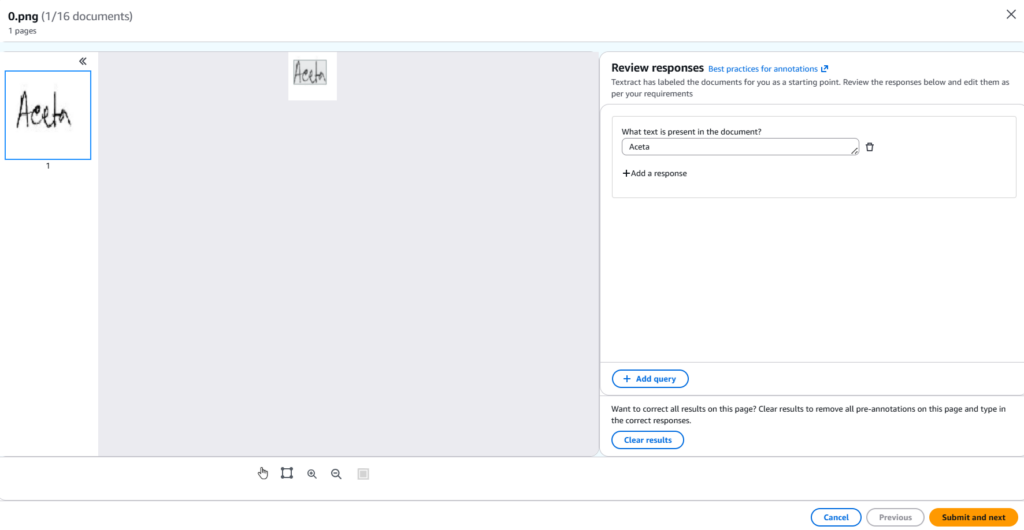
Step 5: Train Adapter
Once the documents are verified, training an adapter version using labeled (verified) documents to extract information with higher accuracy, is the next step. To store Adapter output we need to specify a location, like for this demo we are using S3. Also, in case a location in an Amazon S3 bucket that doesn’t yet exist, it will be auto-created.
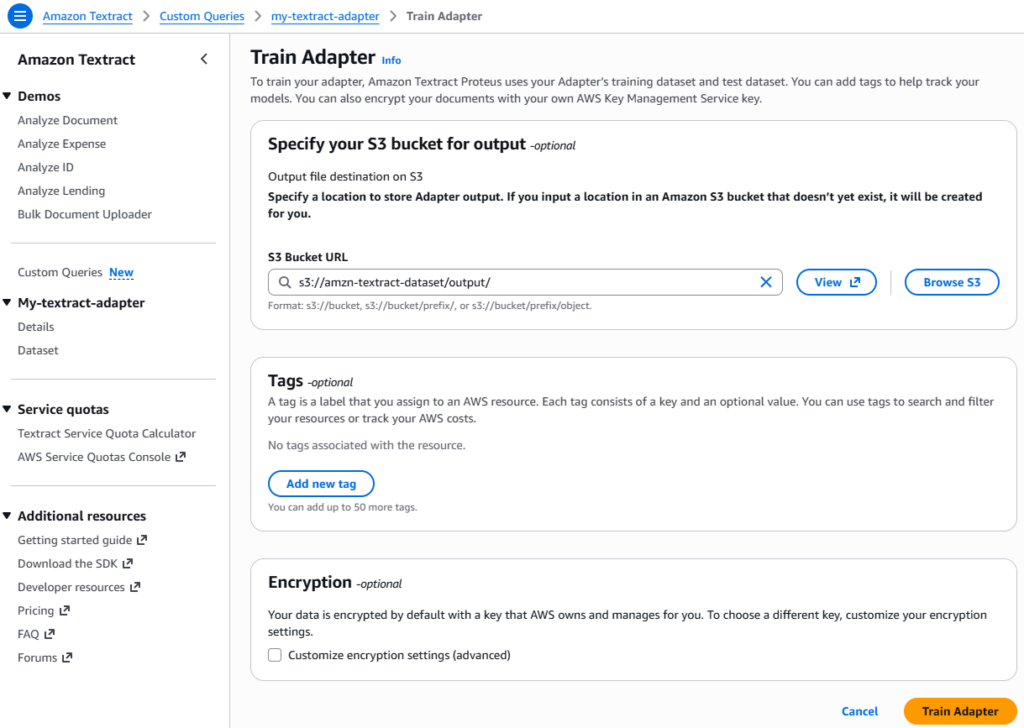
Note: The adapter training duration depends on the dataset size. It can range from 1 hour – 30 hours. Hence, we need to check the adapter details page for status updates.
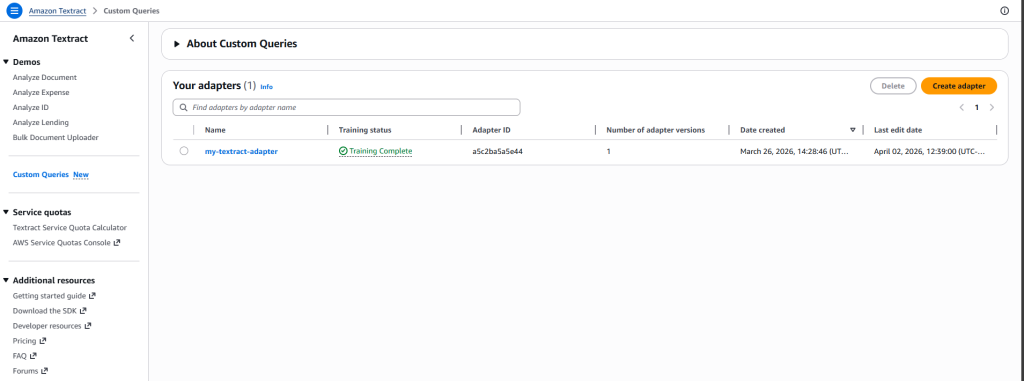
Step 6: Evaluate the Adapter Version
Evaluating the adapter version will tell us if the Adapter needs additional training before we can use it for production purpose or not. To evaluate the adapter version, we need to select “Try Adapter“.
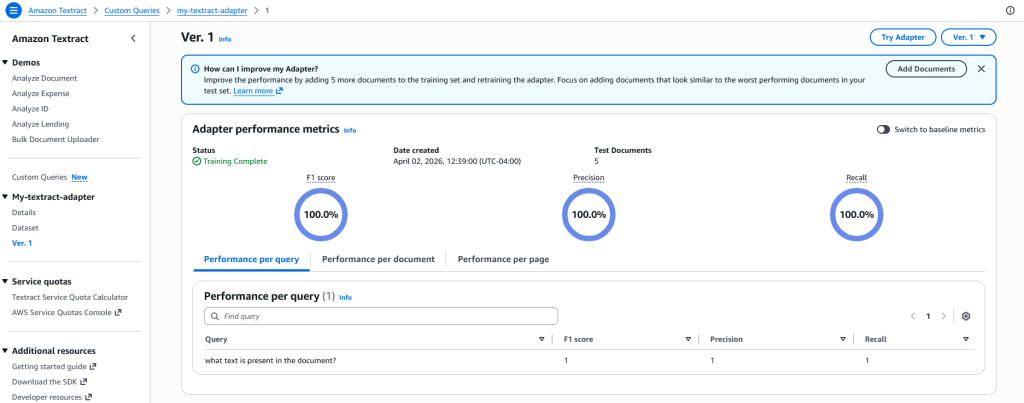
Once, the “Try Adapter” dialogue is open, we need to select a test image which adapter has not seen before. If the adapter is working as expected, then we’ll be able to see the text, present in the image, in the “Results” section.
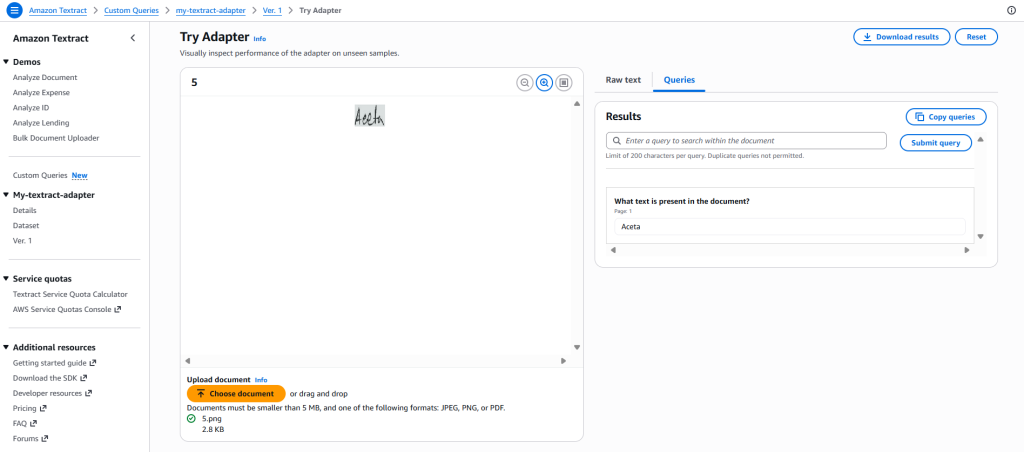
We can clearly see in the “Results” section that the adapter was able to infer the text from the image.
Note: In case the adapter is not performing as expected, we can always improve the performance by adding more documents to the training set and retrain the adapter. The point to take care is that new documents should look similar to the worst performing documents in our test dataset.
In-Summary
With Amazon Textract we can intelligently extract the information from documents, while keeping the operational tasks as light as it can get and letting the stakeholders focus on the core business. Since, it provides both breadth and depth for modern document intelligence use cases. With its ability to seamlessly process documents, support for standard formats, and accessible SDK integrations, the service enables businesses to focus on building features rather than managing infrastructure.
Hopefully you found this blog insightful. In case you want to share your thoughts, please do so via comments 🙂