


Introduction
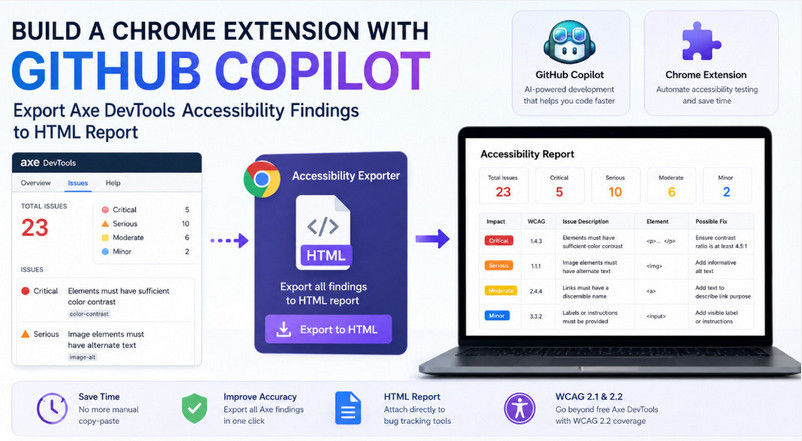
Manual accessibility testing is still an important part of ensuring websites comply with standards such as WCAG and the European Accessibility Act (EAA). Many QA engineers and accessibility testers use tools such as Axe Devtools to scan web pages and identify accessibility violations. However, one common challenge during manual testing is that accessibility findings often need to be copied manually one by one into bug tracking systems such as Jira or Azure DevOps. For large websites with dozens or even hundreds of issues, this process becomes repetitive, time-consuming, and error-prone. Testers may spend more time documenting defects than actually analyzing accessibility problems. To solve this pain point, a custom Chrome extension can significantly improve efficiency by automatically exporting all Axe DevTools findings into a structured HTML report. The report can then be attached directly to defect tickets or shared with developers, reducing manual effort and helping QA teams focus more on accessibility validation rather than administrative work.
With the rise of AI-assisted development, building a Chrome extension is now much faster and easier than before. Tools such as Github Copilot can help developers and QA engineers generate boilerplate code, suggest JavaScript functions, create manifest files, and even troubleshoot errors directly inside Visual Studio Code. Instead of spending hours searching documentation or writing repetitive code manually, testers can describe what they want in plain English and let Copilot generate the initial implementation. This is especially useful for QA professionals who may not be full-time developers but want to build lightweight automation tools to improve testing efficiency. In this article, we will explore how GitHub Copilot can assist in creating a Chrome browser extension that exports accessibility findings from Axe DevTools into an HTML report, helping testers streamline accessibility bug reporting and save significant manual effort.
Prerequisites
Before starting, make sure you have the following tools and basic knowledge prepared:
- Google Chrome
Install the latest version of Chrome because the extension will be loaded and tested directly in the browser. - VS Code
Use VS Code as the development environment for creating and editing the extension files. - GitHub Account
Required for accessing GitHub Copilot features. - Github Copilot Subscription or Trial
Copilot will help generate code, explain functions, and speed up development. - GitHub Copilot VS Code Extensions
Install:- GitHub Copilot
- GitHub Copilot Chat
- Basic Knowledge of Web Technologies
Familiarity with the following will help you understand and customize the generated code:- HTML
- CSS
- JavaScript
- Basic Understanding of Chrome Developer Tools
Useful for debugging and testing the extension. - Axe Devtools Knowledge
Basic experience using Axe DevTools for accessibility testing will help you follow the tutorial and understand how the extension exports accessibility findings into HTML reports.
Create the Chrome browser extension
Open VSCode, open chat session.
In the chat session, ask Github Copilot to create a Chrome browser extension, for example:
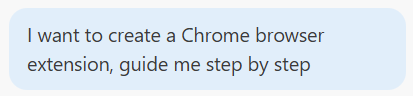
GHCP will response a structure like this:
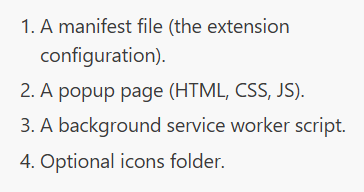
Then we ask GHCP to create those files.
We continue to ask GHCP the extension read the Axe devtools result on the browser then extract to html report, export only issue not best practice.
GHCP will automatically generate the code for this, for example:
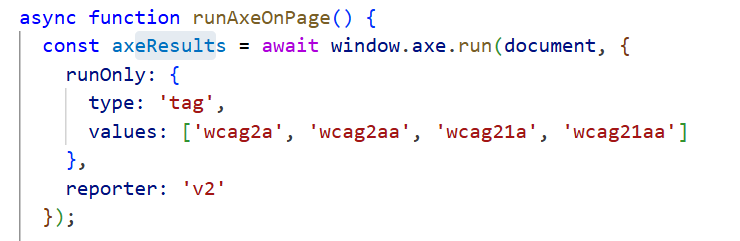
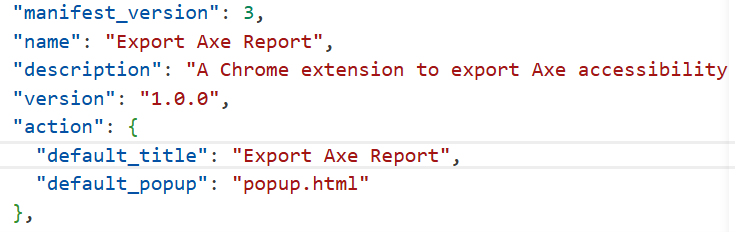
After that, we rename our extension. We can also ask the report follow our predefined templates….
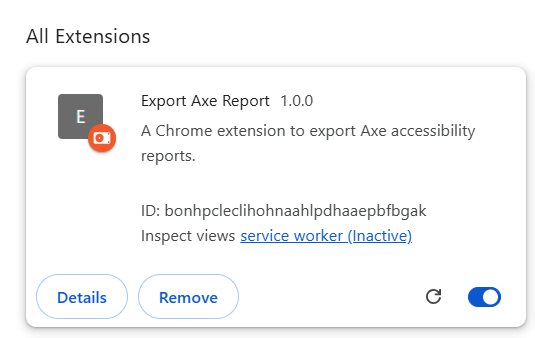
Loading extension into Chrome
After that, open Chrome browser extension, Developer mode:

Click Load unpacked and choose our extension folder. We will see our extension in the extension list and pin it so that it is sticked to the toolbar.
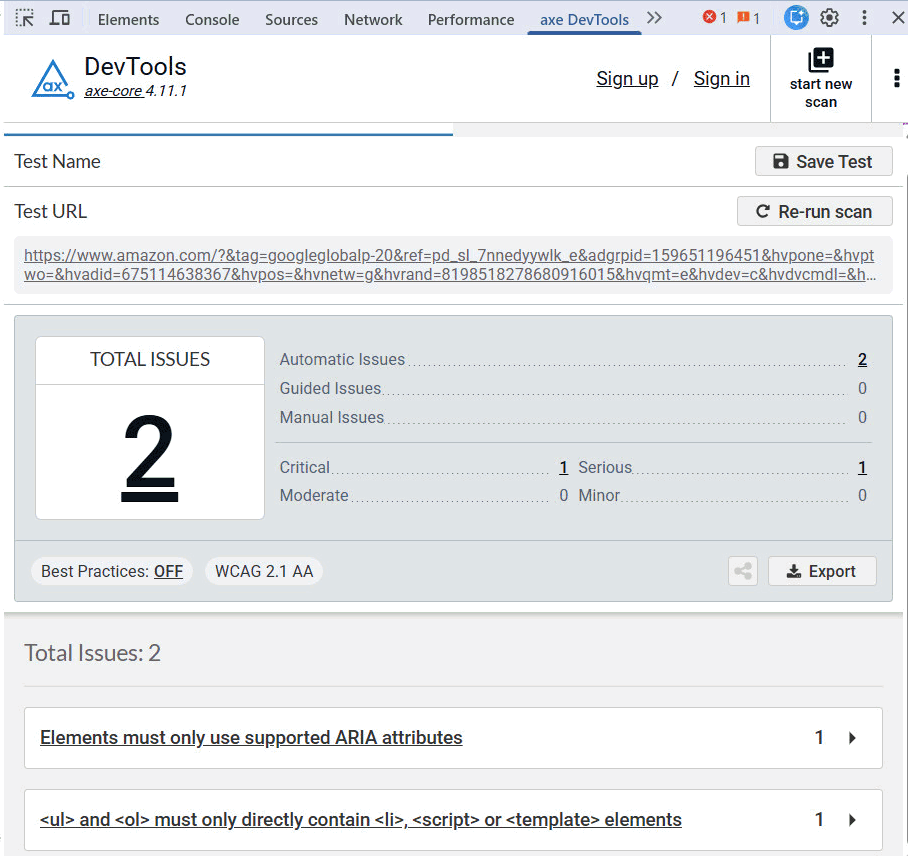
Test extension
Open a web page for example amazon.com and using Axe Devtools to scan full page, the result is:
Close the Axe Devtools and click our extension on the toolbar to see the result:
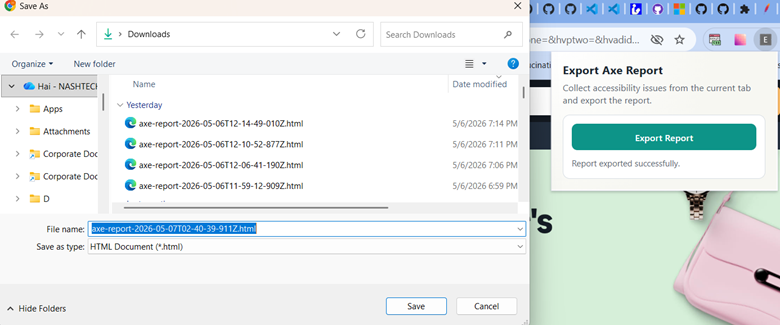
Save the report and open it to check:
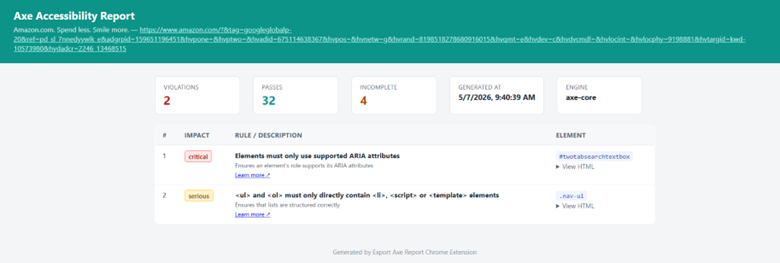
Tada, it is the same with what we saw on Axe Devtools.
And our extension is event more powerful as Axe Devtools free version only support WCAG 2.1 AA, however, we can ask our extension to scan for WCAG 2.2 and the result will be:
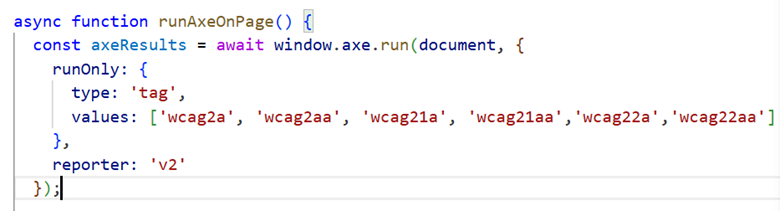
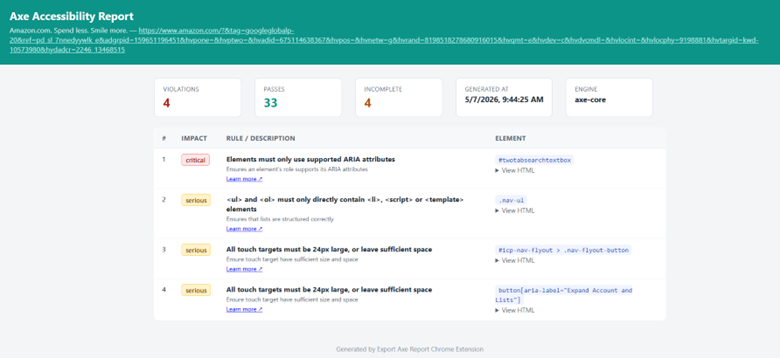
Our extension now finds violates related to WCAG 2.2.
Conclusion
In this article, we explored how Github Copilot can greatly simplify the development of a Chrome browser extension, even for QA engineers and testers with limited frontend programming experience. By combining AI-assisted coding with real-world accessibility testing requirements, we built a solution that exports Axe Devtools sfindings into an HTML report, eliminating the need to manually copy accessibility issues one by one into bug tracking systems. In addition, this approach helps overcome one of the limitations of the free version of Axe DevTools, which primarily supports WCAG 2.1 scanning, by extending the capability to identify potential WCAG 2.2 accessibility violations as well. This not only improves testing efficiency and productivity but also allows testers to focus more on analyzing accessibility issues instead of spending time on repetitive documentation work. As AI-powered development tools continue to evolve, testers can increasingly create lightweight automation solutions tailored to their daily testing activities, helping bridge the gap between manual testing and modern developer productivity.