


1. Introduction
In almost every .NET application, the database connection is configured using a connection string like this:
{
  "ConnectionStrings": {
    "DefaultConnection": "Server=...;Database=...;User ID=...;Password=..."
  }
}
Some teams improve this approach by storing the connection string in a secret management solution such as Kubernetes Secrets, Azure Key Vault, or GitHub Secrets instead of committing it to source control.
While this is more secure than hardcoding credentials, the application still relies on a username and password to authenticate with the database.
This approach introduces several challenges:
- Credentials must be securely stored and managed.
- Passwords need to be rotated periodically.
- A misconfigured pipeline or deployment can accidentally expose secrets.
- Managing credentials across multiple environments becomes increasingly complex.
This raises an important question:
Can a .NET application connect to Azure SQL without storing a username or password at all?
The answer is yes—by using Azure Managed Identity.
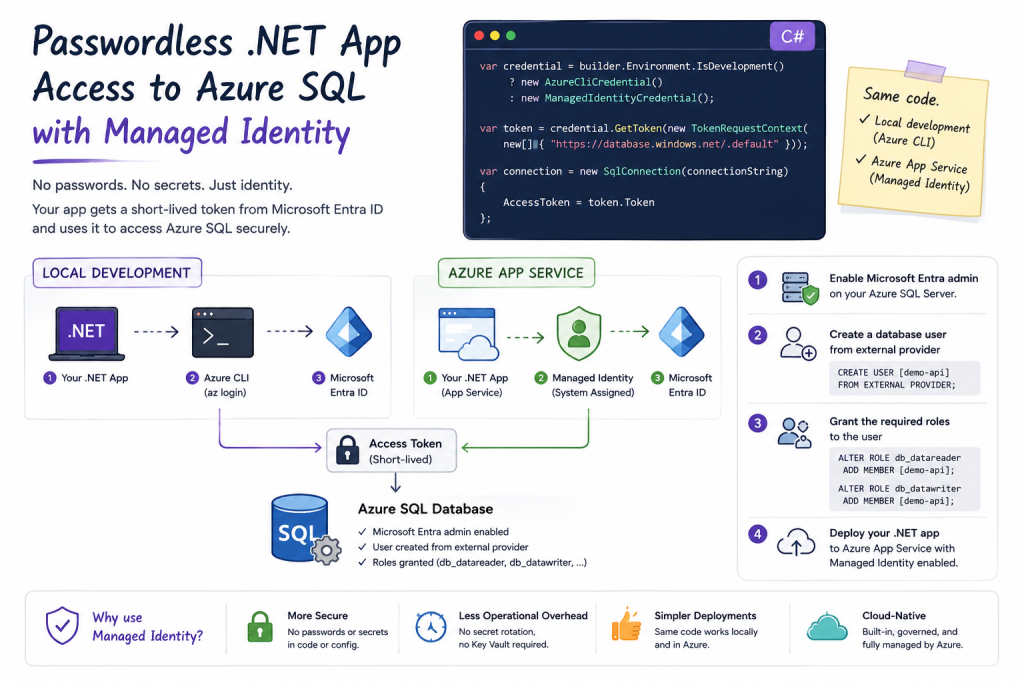
Instead of managing credentials yourself, Azure can provide your application with an identity that is automatically authenticated by Microsoft Entra ID. Your application requests an access token at runtime and uses that token to connect securely to Azure SQL, eliminating the need to store sensitive credentials.
In this article, you’ll learn how to configure Azure Managed Identity for a .NET application and use it to authenticate with Azure SQL step by step.
2. What is Azure Managed Identity?
Before diving into the implementation, let’s first understand what Managed Identity actually is.
Azure Managed Identity is a feature of Microsoft Entra ID that automatically provides an identity for your Azure resource.
Instead of creating and managing credentials yourself, Azure creates and manages them for you.
For example, when an App Service needs to access Azure SQL:
Traditional authentication
ASP.NET Core
      │
Username & Password
      │
      ▼
Azure SQL
The application is responsible for storing and protecting the credentials.
Managed Identity authentication
ASP.NET Core
      │
Managed Identity
      │
      ▼
Microsoft Entra ID
      │
Access Token
      │
      ▼
Azure SQL
In this model:
- No username or password is stored.
- Azure automatically manages the identity.
- Authentication is performed using OAuth 2.0 access tokens.
- Credentials are rotated automatically by Azure.
3. How Managed Identity Works
When your application starts, it doesn’t connect directly to Azure SQL using a password.
Instead, the authentication flow looks like this:
Application
      │
Request Access Token
      │
      ▼
Managed Identity Endpoint
      │
      ▼
Microsoft Entra ID
      │
Returns Access Token
      │
      ▼
Azure SQL
The process can be summarized in four steps:
- The application requests an access token.
- Microsoft Entra ID verifies the Managed Identity.
- An OAuth access token is issued.
- Azure SQL validates the token and grants access.
The application never handles passwords.Your Attractive Heading
4. Prerequisites
Before starting, make sure you have:
- Azure Subscription
- Azure SQL Database
- Azure App Service
- .NET 8 (or later)
- Azure CLI (for local development)
- SQL Server Management Studio or Azure Data Studio
5. Enable Managed Identity on App Service
Open your App Service.
Navigate to
Identity
    ↓
System Assigned
    ↓
Status = On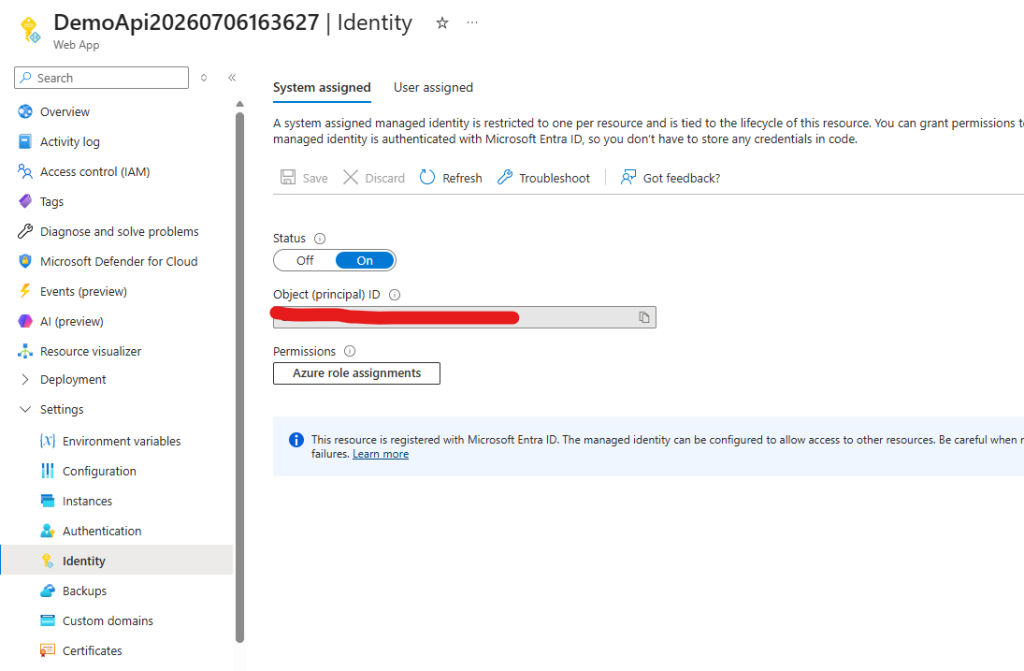
Click Save.
Azure will automatically create an identity for this App Service in Microsoft Entra ID.
There is nothing else to configure regarding credentials.
6. Configure Azure SQL
Before your application can authenticate using Managed Identity, you need to configure Azure SQL to trust Microsoft Entra identities.
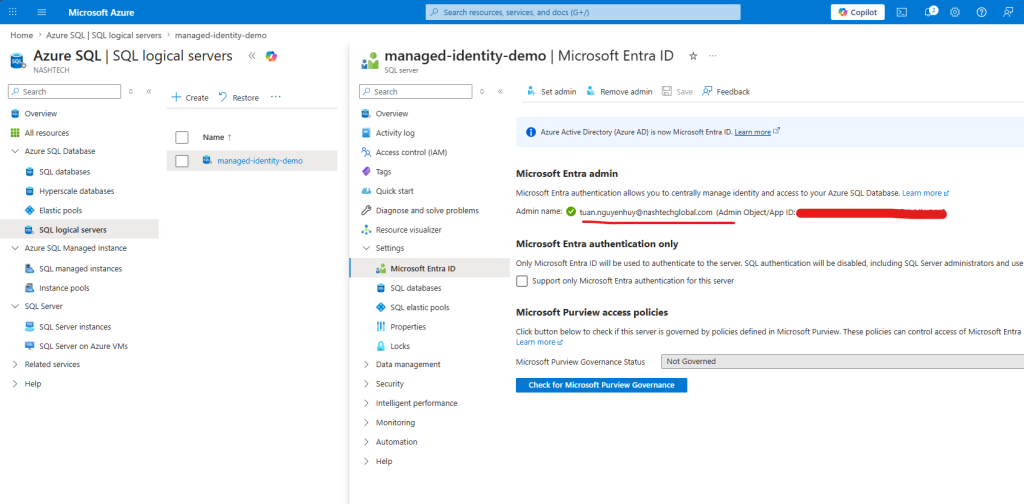
Step 1. Configure a Microsoft Entra Administrator
Navigate to your Azure SQL Server:
Azure SQL
└── SQL logical servers
└── your-sql-server instance
└── Microsoft Entra ID
└── Set Admin
Select a Microsoft Entra user or group as the server administrator and save the changes.
This administrator is allowed to create database users from Microsoft Entra identities.
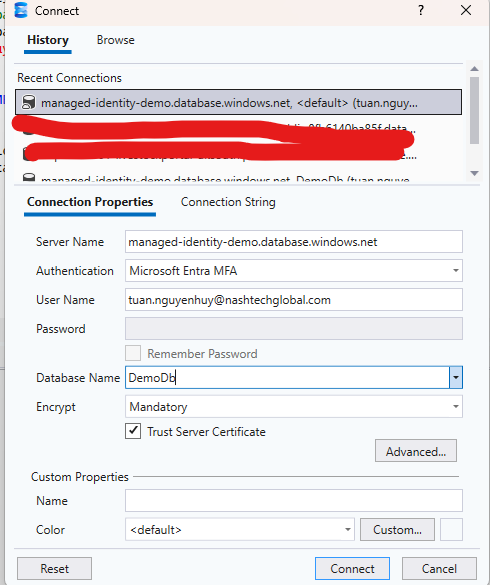
After this step, you can connect to the server using Microsoft Entra authentication in SQL Server Management Studio (SSMS) or Azure Data Studio without using a SQL username and password.
Step 2. Create a Database User for the Application
Now create a database user for your App Service’s Managed Identity.
USE [your-db-instance]
CREATE USER [your-web-api-name]
FROM EXTERNAL PROVIDER;
Grant only the permissions your application requires:
ALTER ROLE db_datareader ADD MEMBER [your-web-api-name];
ALTER ROLE db_datawriter ADD MEMBER [your-web-api-name];
7. Configure the Connection String
Since authentication will be handled by Managed Identity, the connection string becomes much simpler.
Server=tcp:managed-identity-demo.database.windows.net;Database=DemoDb;Authentication=Active Directory Default;Encrypt=True;TrustServerCertificate=False;Notice that there is no:
- User ID
- Password
- Authentication Secret
Authentication will be handled entirely through the access token.
8. Authenticate Using Managed Identity in .NET
Install the required NuGet package:
dotnet add package Azure.Identity
dotnet add package Microsoft.EntityFrameworkCore.SqlServer
dotnet add package Microsoft.EntityFrameworkCore.Tools
Since a Managed Identity is only available in Azure, the application needs a different authentication method during local development.
In this example:
- Local development uses
AzureCliCredential. - Azure App Service uses
ManagedIdentityCredential.
Register the appropriate credential based on the current environment:
using Azure.Core;
using Azure.Identity;

builder.Services.AddSingleton<TokenCredential>(_ =>
{
    if (builder.Environment.IsDevelopment())
    {
        // Authenticate using the Azure CLI account.
        return new AzureCliCredential();
    }

    // Authenticate using the App Service's Managed Identity.
    return new ManagedIdentityCredential();
});
Next, request an access token from Microsoft Entra ID and use it to authenticate the SQL connection.
builder.Services.AddDbContext<AppDbContext>((sp, options) =>
{
    var credential = sp.GetRequiredService<TokenCredential>();

    var token = credential.GetToken(
        new TokenRequestContext(new[]
        {
            "https://database.windows.net/.default"
        }),
        CancellationToken.None);

    var connection = new SqlConnection(
        builder.Configuration.GetConnectionString("DefaultConnection"))
    {
        AccessToken = token.Token
    };

    options.UseSqlServer(connection);
});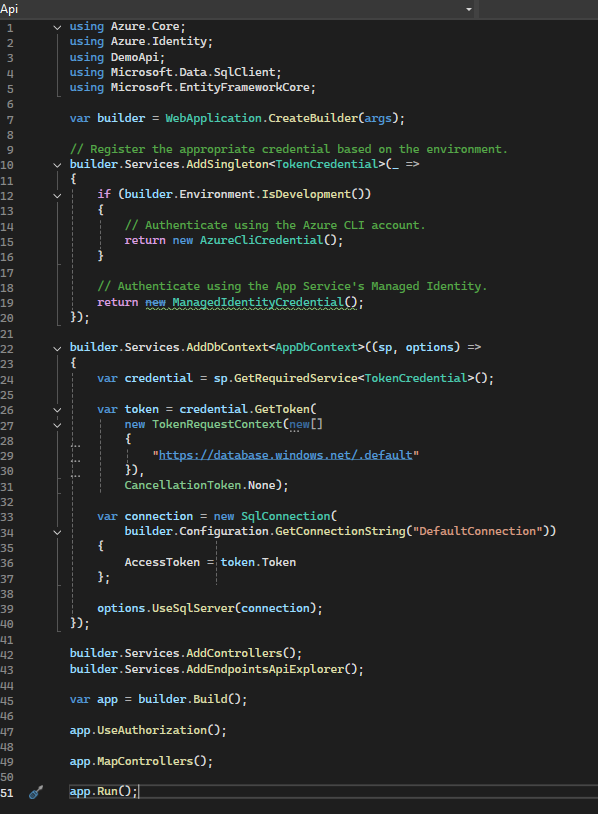
The connection string no longer contains a username or password. Instead, the application obtains an OAuth 2.0 access token from Microsoft Entra ID and uses that token to authenticate with Azure SQL.
The same codebase works in both environments:
| Environment | Credential |
|---|---|
| Local Development | AzureCliCredential |
| Azure App Service | ManagedIdentityCredential |
No code changes are required when deploying the application. The only requirement is that the App Service has Managed Identity enabled and the identity has been granted the necessary permissions in Azure SQL.
Note: Before running the application locally, make sure you’re signed in to Azure CLI:
az loginThe signed-in account must have permission to access the target Azure SQL database, such as being configured as the Microsoft Entra administrator or being granted access with
CREATE USER ... FROM EXTERNAL PROVIDER.
Local Development
ASP.NET Core
      │
AzureCliCredential
      │
Azure CLI (az login)
      │
Microsoft Entra ID
      │
Access Token
      ▼
Azure SQL
Azure App Service
ASP.NET Core
      │
ManagedIdentityCredential
      │
Managed Identity
      │
Microsoft Entra ID
      │
Access Token
      ▼
Azure SQL
9. Test the Application
Now it’s time to verify that the application can authenticate with Azure SQL without using a username or password.
Run Locally
First, sign in to Azure using the Azure CLI:
az loginThen start the application.
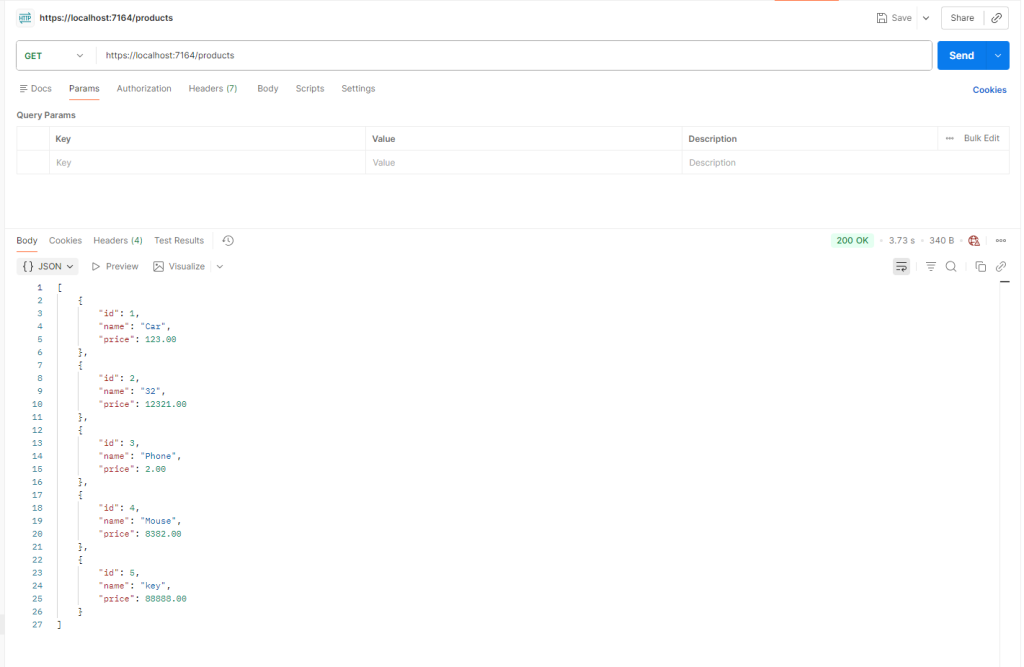
If everything is configured correctly, the application will successfully connect to Azure SQL using your Microsoft Entra account through AzureCliCredential.
📷 Screenshot: Successful API response when running locally.
Deploy to Azure App Service
Publish the application to Azure App Service.
Before testing, make sure that:
- System Assigned Managed Identity is enabled.
- A database user has been created for the App Service.
- The required database roles have been granted.
No code changes are required after deployment.
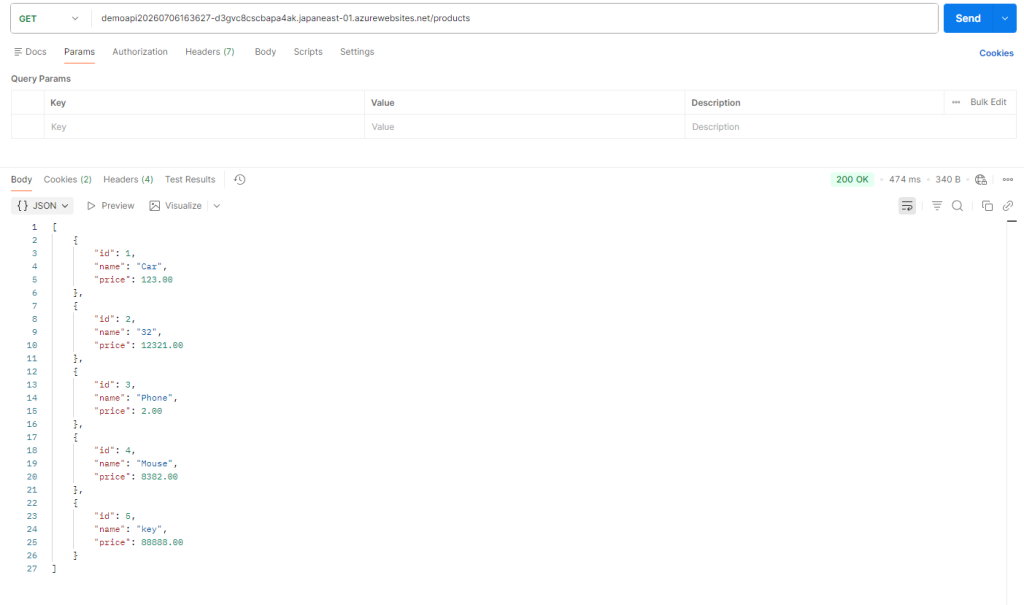
When running inside Azure, ManagedIdentityCredential automatically authenticates the application and retrieves an access token from Microsoft Entra ID.
📷 Screenshot: Successful API response after deploying to Azure App Service.
10. Common Issues
Although the setup is straightforward, there are a few common issues you may encounter.
Login failed for user ‘<token-identified principal>’
Login failed for user '<token-identified principal>'.This usually means Azure SQL cannot map the access token to a database user.
Solution
Verify that a database user exists for the Managed Identity:
CREATE USER [your-web-api-name] FROM EXTERNAL PROVIDER;Then grant the required database roles.
The server is not currently configured to accept this token
Login failed for user '<token-identified principal>'.
The server is not currently configured to accept this token.
This usually occurs during local development.
Possible causes include:
- Microsoft Entra administrator has not been configured for the Azure SQL Server.
- The signed-in Azure CLI account doesn’t have permission to access the database.
DefaultAzureCredentialselected a different credential than expected.
Solution
- Verify the Microsoft Entra administrator configuration.
- Run
az loginusing an account with database access. - If necessary, use
AzureCliCredentialexplicitly during local development.
Login failed for the Managed Identity
If the application works locally but fails after deployment, verify that the App Service’s Managed Identity has been added as a database user.
CREATE USER [your-web-api-name] FROM EXTERNAL PROVIDER;Then check its assigned roles:
SELECT
    u.name AS UserName,
    r.name AS RoleName
FROM sys.database_role_members rm
JOIN sys.database_principals r
    ON rm.role_principal_id = r.principal_id
JOIN sys.database_principals u
    ON rm.member_principal_id = u.principal_id
WHERE u.name = 'my-web-api-name';
The result should include the required roles, such as db_datareader and db_datawriter.
Managed Identity Doesn’t Exist Locally
A Managed Identity is only available for Azure resources.
When running the application on your local machine, ManagedIdentityCredential cannot obtain a token.
Use AzureCliCredential instead:
az loginThis authenticates the application using your Azure CLI session.
11. Security Benefits
Using Managed Identity significantly reduces the operational burden of managing credentials.
| Traditional Authentication | Managed Identity |
|---|---|
| Store database username and password | No stored credentials |
| Password rotation required | Azure manages credentials automatically |
| Secrets stored in configuration | Secretless authentication |
| Higher risk of credential leakage | Reduced attack surface |
| Manual credential management | Automatic identity management |
In addition to improving security, Managed Identity simplifies deployments by removing the need to distribute or update secrets across different environments.
12. Conclusion
In this article, we replaced traditional SQL authentication with Microsoft Entra ID and Azure Managed Identity.
The application authenticates using short-lived access tokens instead of storing a username and password, resulting in a more secure and maintainable solution.
With just a few configuration steps, we achieved:
- Passwordless authentication to Azure SQL
- No secrets stored in configuration files
- Seamless authentication in both local and Azure environments
- Centralized identity management through Microsoft Entra ID
Managed Identity isn’t limited to Azure SQL. The same authentication pattern can be used with many other Azure services, making it a key building block for building secure, cloud-native .NET applications.
If you’d like to follow along or try it yourself, you can find the complete source code here:
What’s Next?
In future articles, we’ll explore how to use Managed Identity with other Azure services, including:
- Azure Key Vault
- Azure Storage
- Azure Service Bus
- Azure Event Hubs
- Azure Cosmos DB
Once you’re familiar with the pattern, you’ll be able to eliminate secrets across your entire Azure ecosystem.