


Demo Agentic AI in Power BI (Part 2)
In part 1, we have installed and configured neccessary tools, in part 2 we will jump into the real demos.
Make sure one Power BI Desktop Instance is running from Part 1.
For each demo, please copy and paste the example prompt to Github Copilot.
Demo 1: Analyze dataset
We will use semantic-model-authoring skills:
/semantic-model-authoring
Connect to the currently open Power BI Desktop model.
Perform a read-only assessment of the model. Inventory all tables and columns, identify the likely fact and dimension tables, inspect candidate primary and foreign keys, and propose a star-schema relationship plan.
Do not create or modify anything yet. Present the proposed relationships for my approval.
Expected Result:
Salesis identified as the fact table- The remaining tables are identified as dimension tables.
- The AI checks the uniqueness of the dimension keys.
- The AI recommends the appropriate cardinality and cross-filter direction.
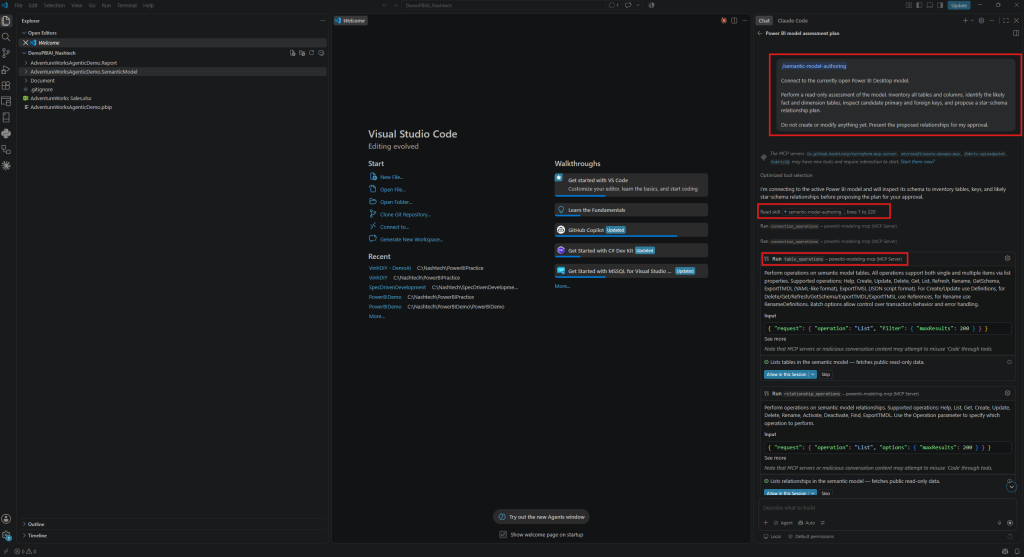
As screenshot below, we see it informs ‘I connected to the active Power BI Desktop…’
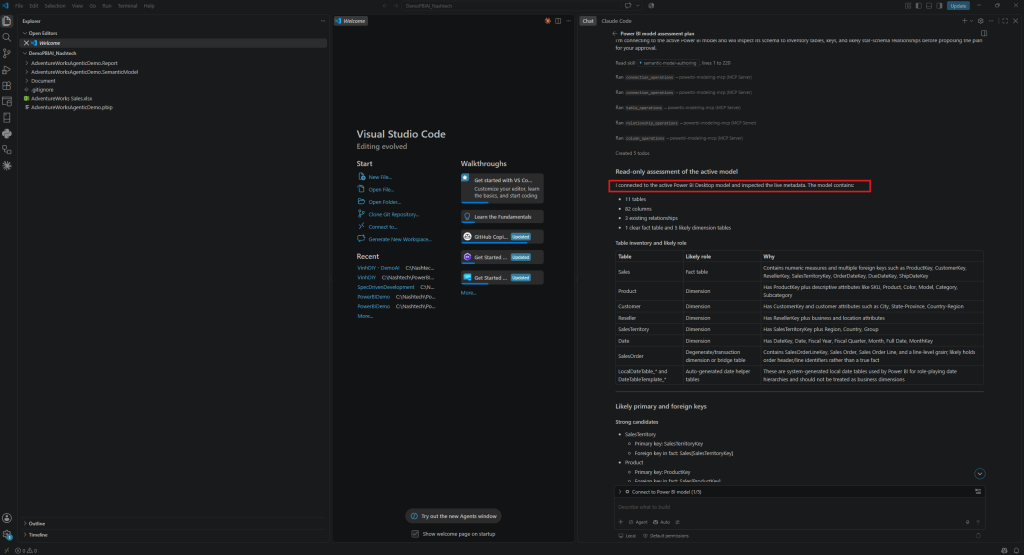
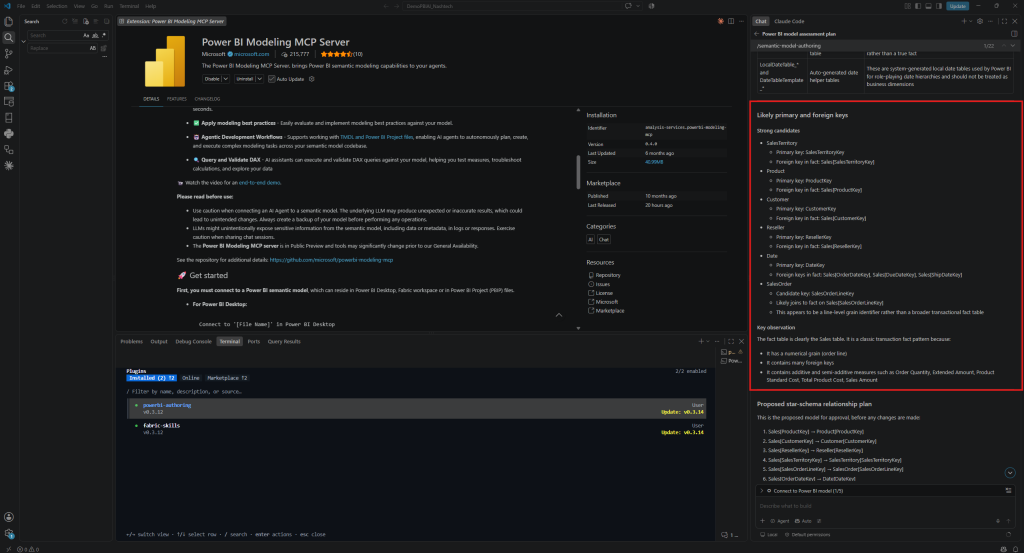
By reading the output of Github Copilot, we can learn many insights:
Likely primary and foreign keys:
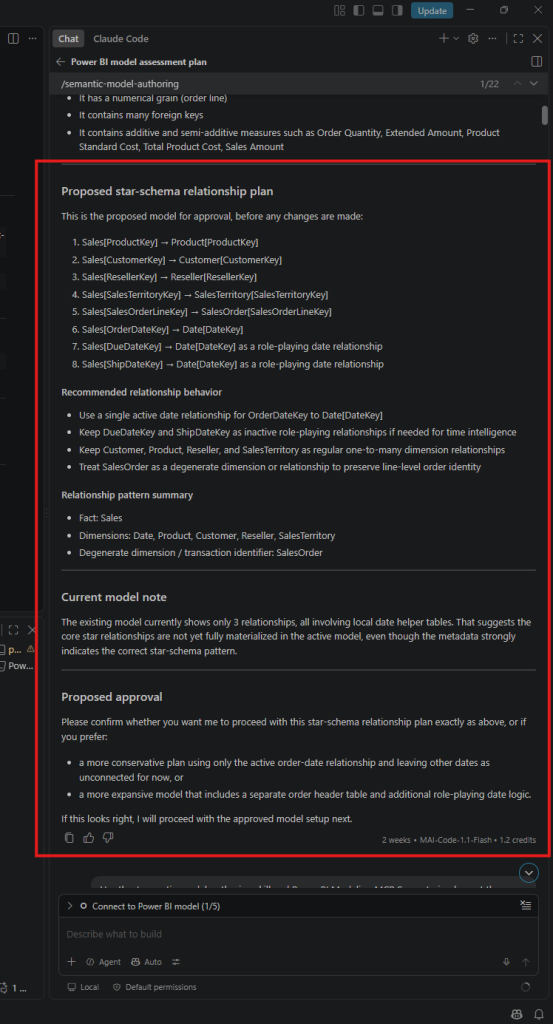
Proposed star-schema relationship plan
Demo 2: Create relationships
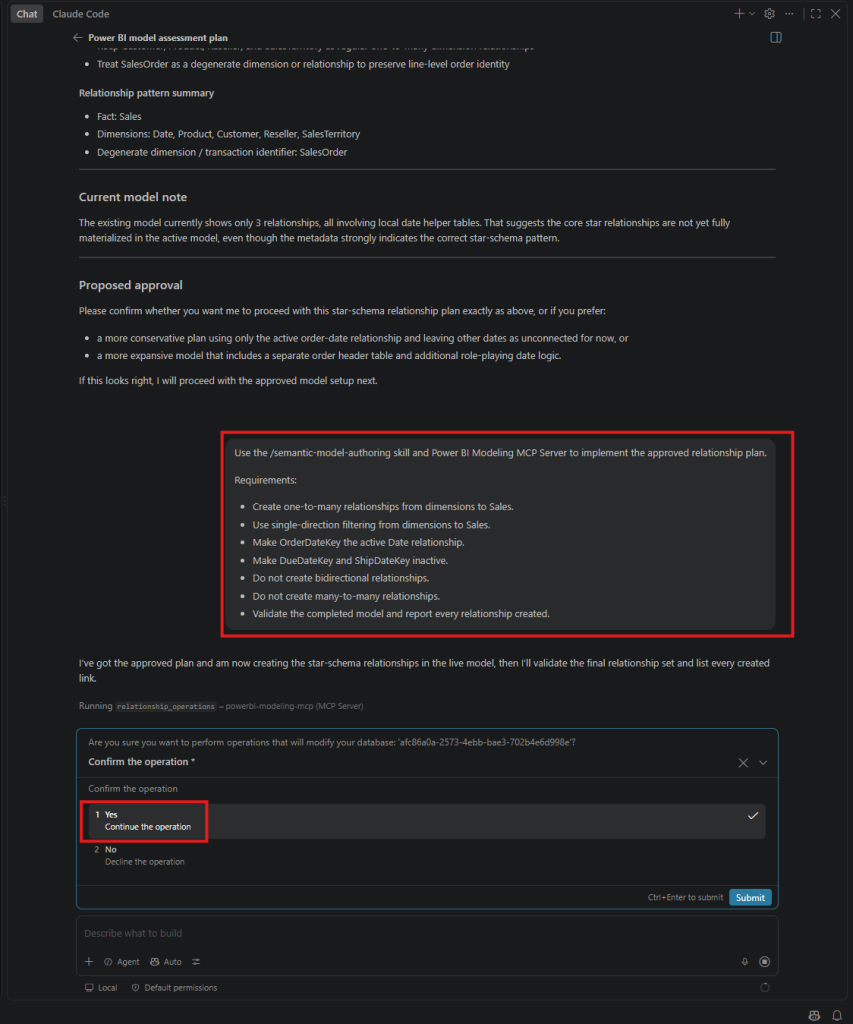
Use the /semantic-model-authoring skill and Power BI Modeling MCP Server to implement the approved relationship plan.
Requirements:
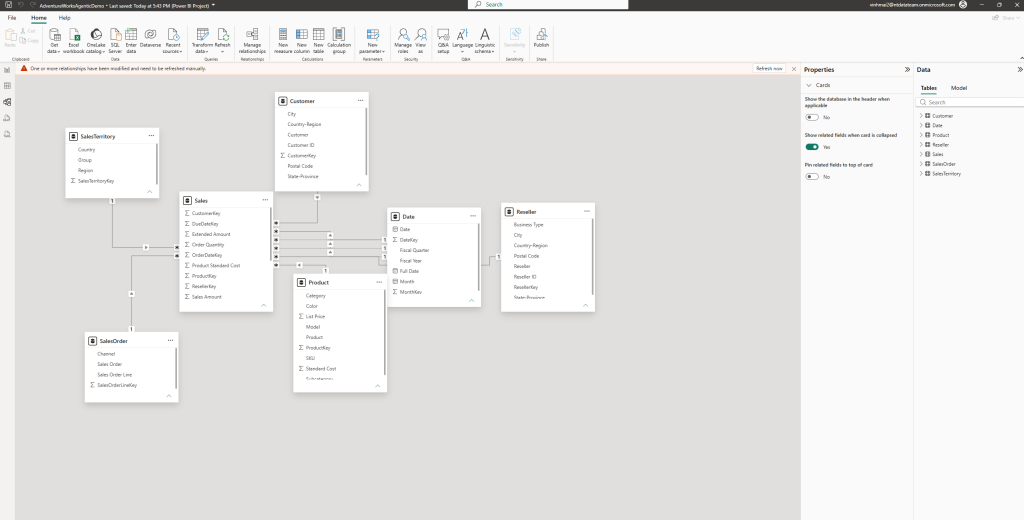
- Create one-to-many relationships from dimensions to Sales.
- Use single-direction filtering from dimensions to Sales.
- Make OrderDateKey the active Date relationship.
- Make DueDateKey and ShipDateKey inactive.
- Do not create bidirectional relationships.
- Do not create many-to-many relationships.
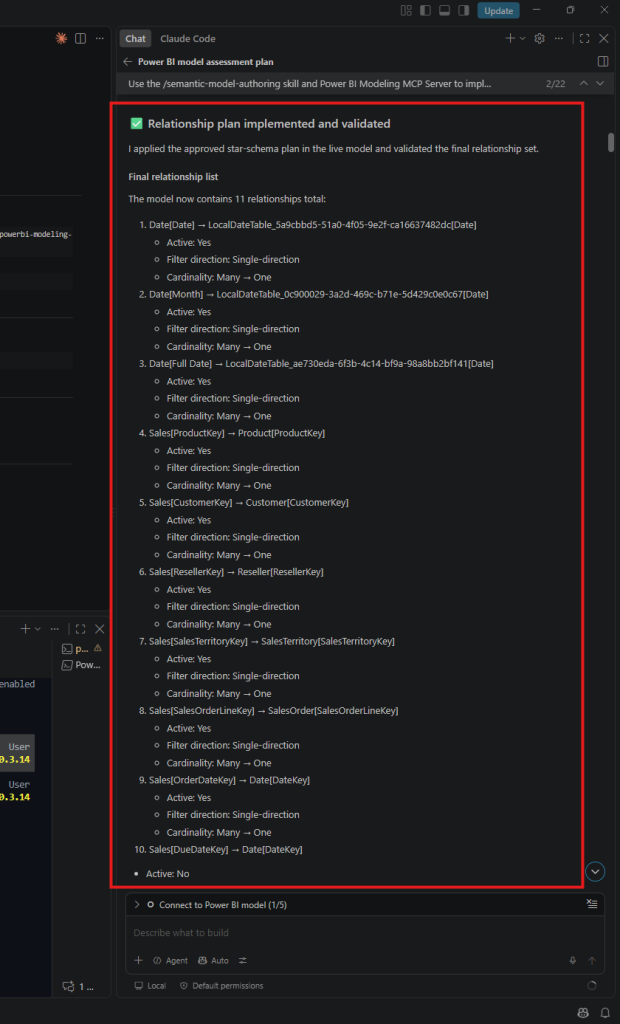
- Validate the completed model and report every relationship created.
As the screenshot below, you see the powerbi-modelling-mcp server ran the relationship_operation tool to create relationships:
Demo 3 — AI completes semantic model
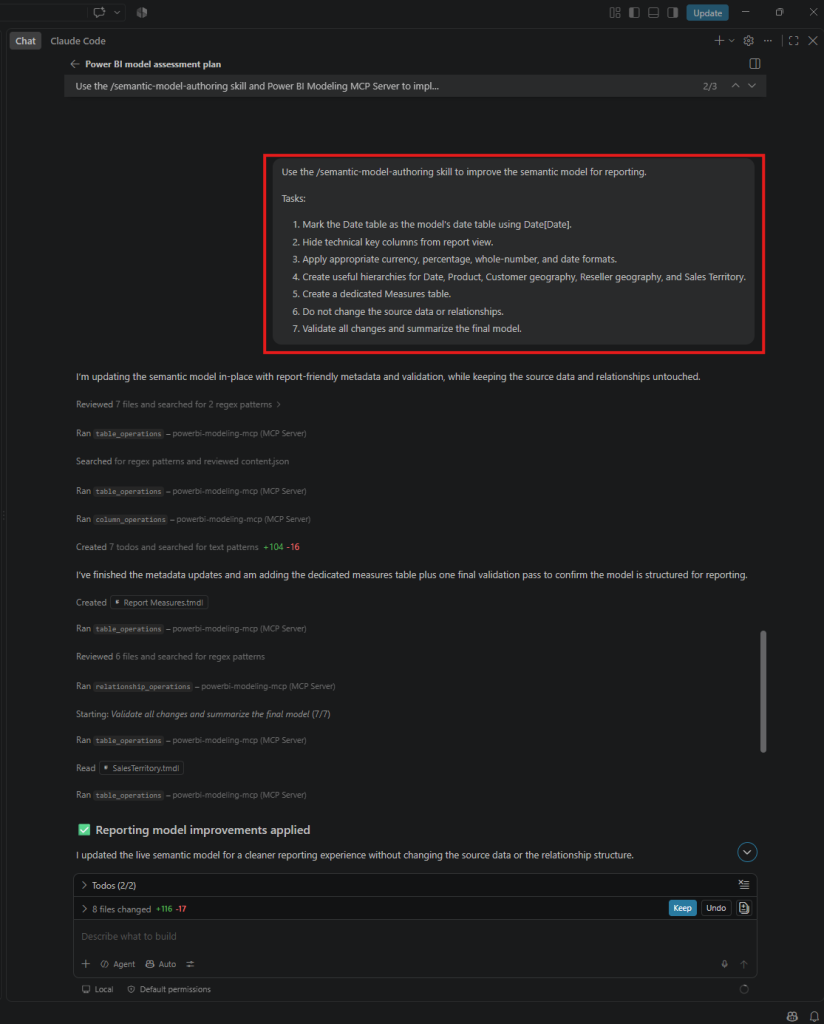
Use the /semantic-model-authoring skill to improve the semantic model for reporting.
Tasks:
- Mark the Date table as the model’s date table using Date[Date].
- Hide technical key columns from report view.
- Apply appropriate currency, percentage, whole-number, and date formats.
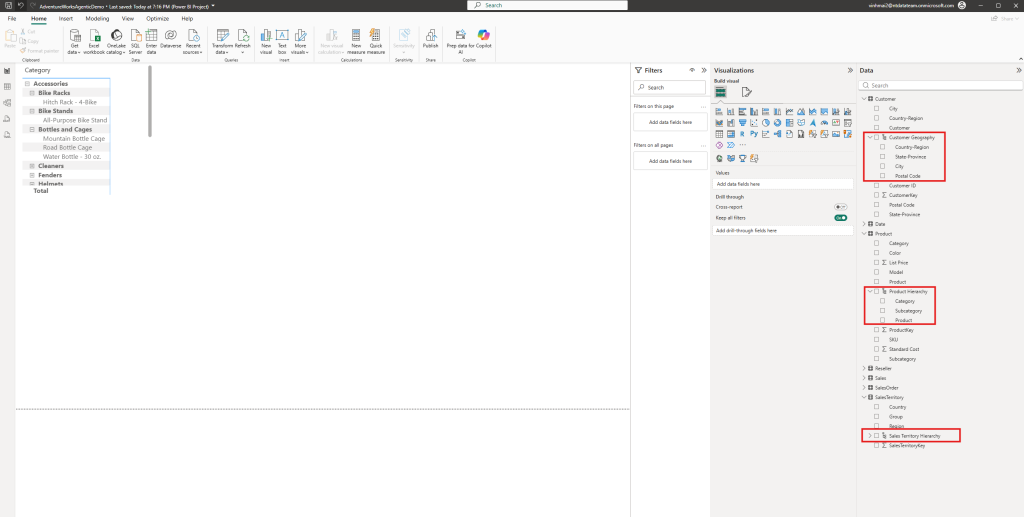
- Create useful hierarchies for Date, Product, Customer geography, Reseller geography, and Sales Territory.
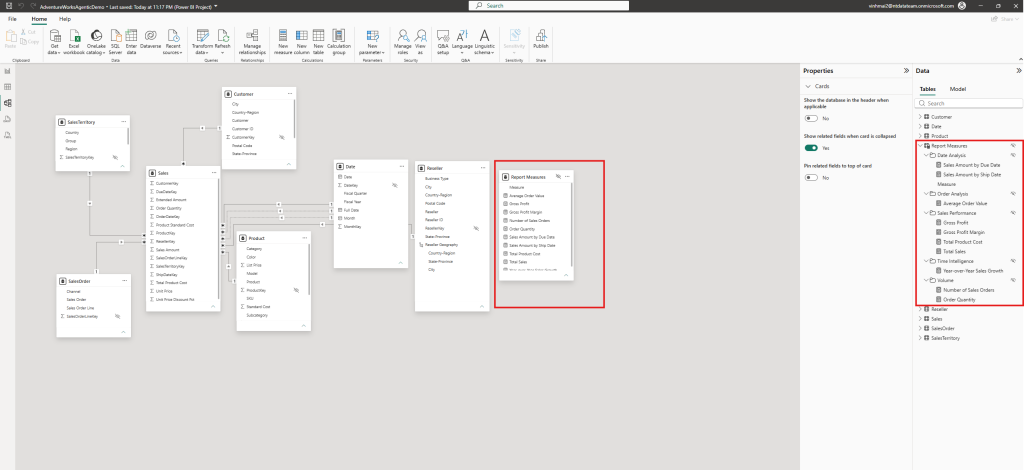
- Create a dedicated Measures table.
- Do not change the source data or relationships.
- Validate all changes and summarize the final model.
Demo 4 — AI create DAX
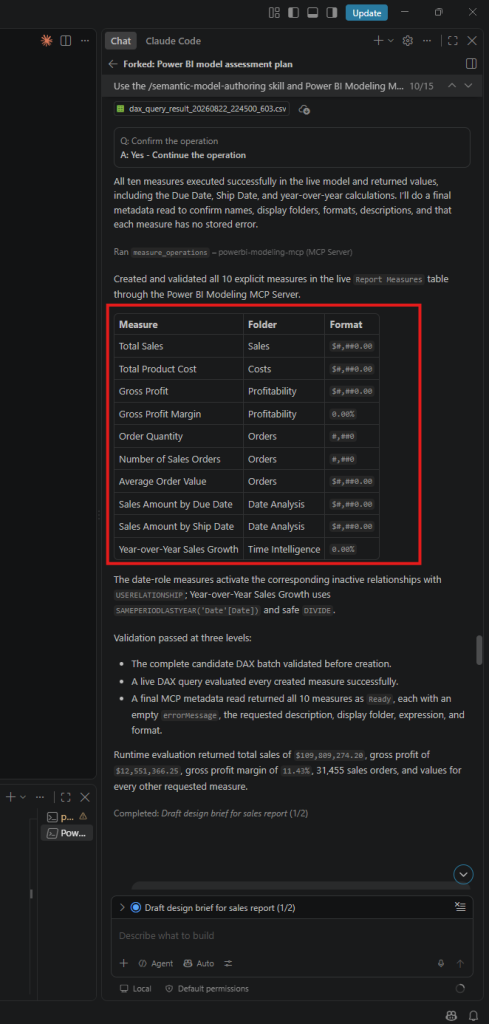
Use the /semantic-model-authoring skill and Power BI Modeling MCP Server to create and validate these business measures in the Measures table:
- Total Sales
- Total Product Cost
- Gross Profit
- Gross Profit Margin
- Order Quantity
- Number of Sales Orders
- Average Order Value
- Sales Amount by Due Date
- Sales Amount by Ship Date
- Year-over-Year Sales Growth
Use explicit measures, meaningful display formats, descriptions, and display folders. Validate every DAX expression before completing the task.
Demo 5 — AI plans reports
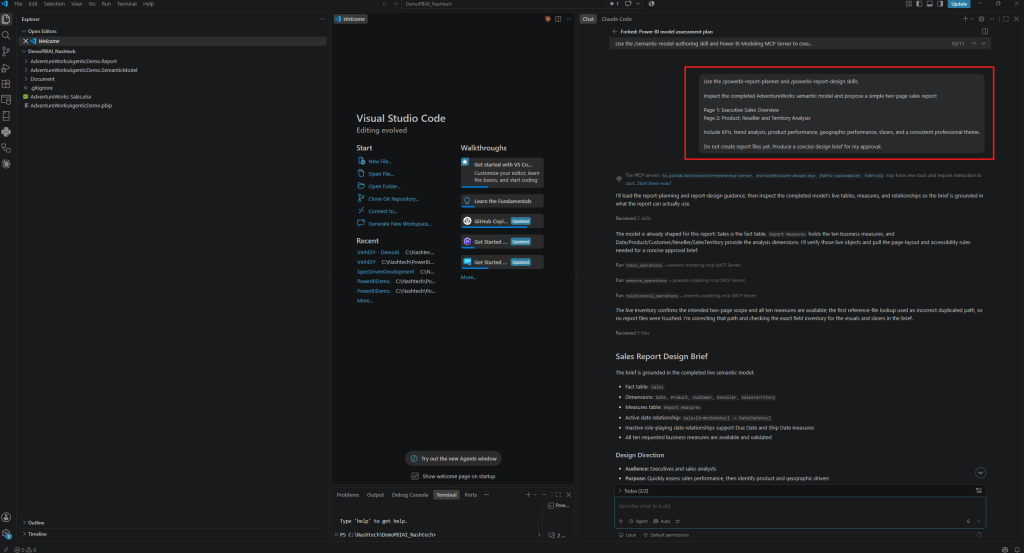
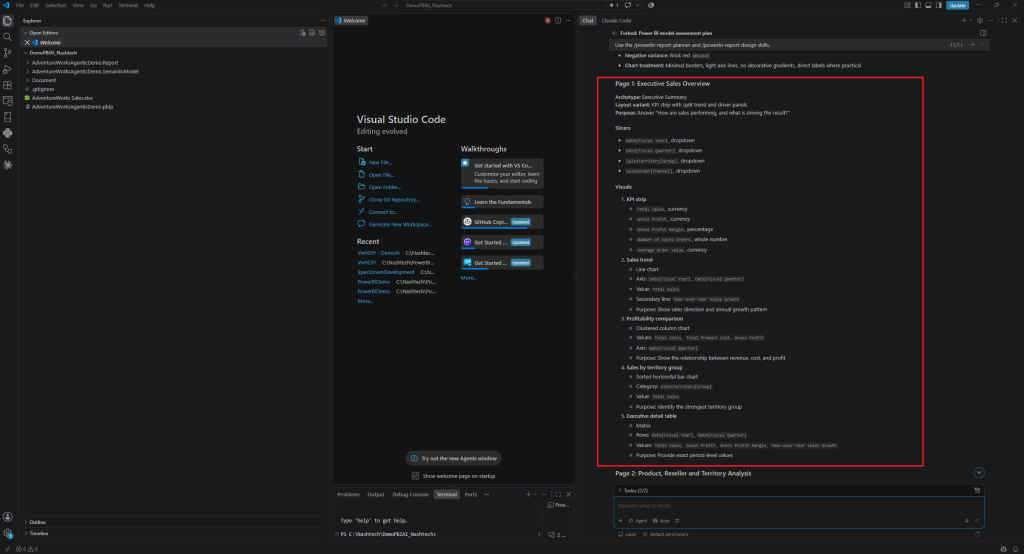
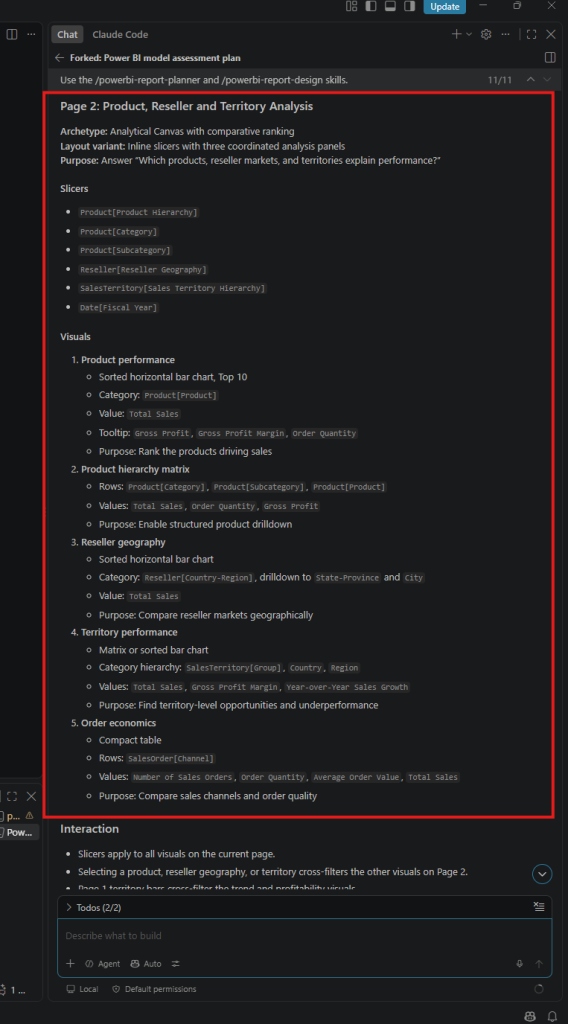
Use the /powerbi-report-planner and /powerbi-report-design skills.
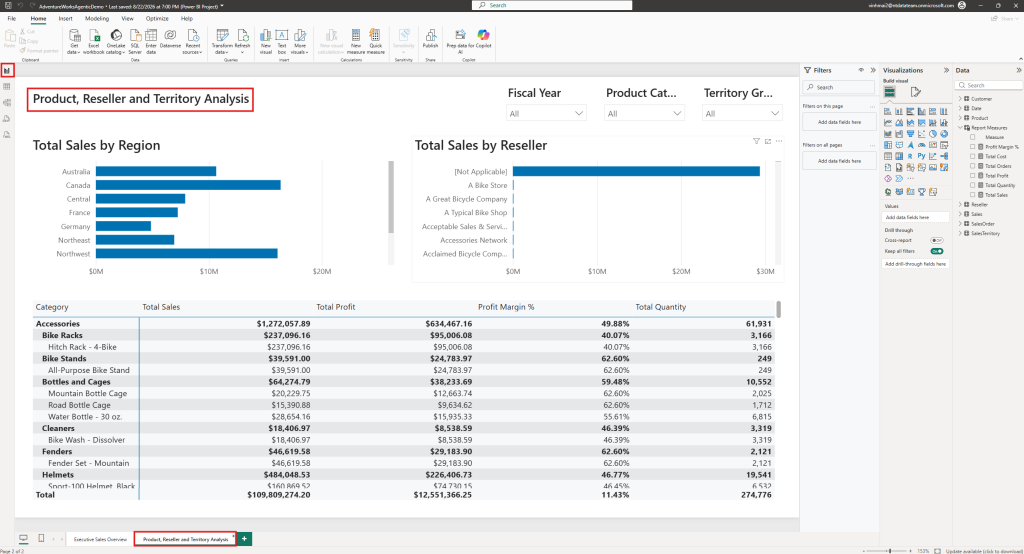
Inspect the completed AdventureWorks semantic model and propose a simple two-page sales report:
Page 1: Executive Sales Overview
Page 2: Product, Reseller and Territory AnalysisInclude KPIs, trend analysis, product performance, geographic performance, slicers, and a consistent professional theme.
Do not create report files yet. Produce a concise design brief for my approval.
Demo 6 — AI creates reports
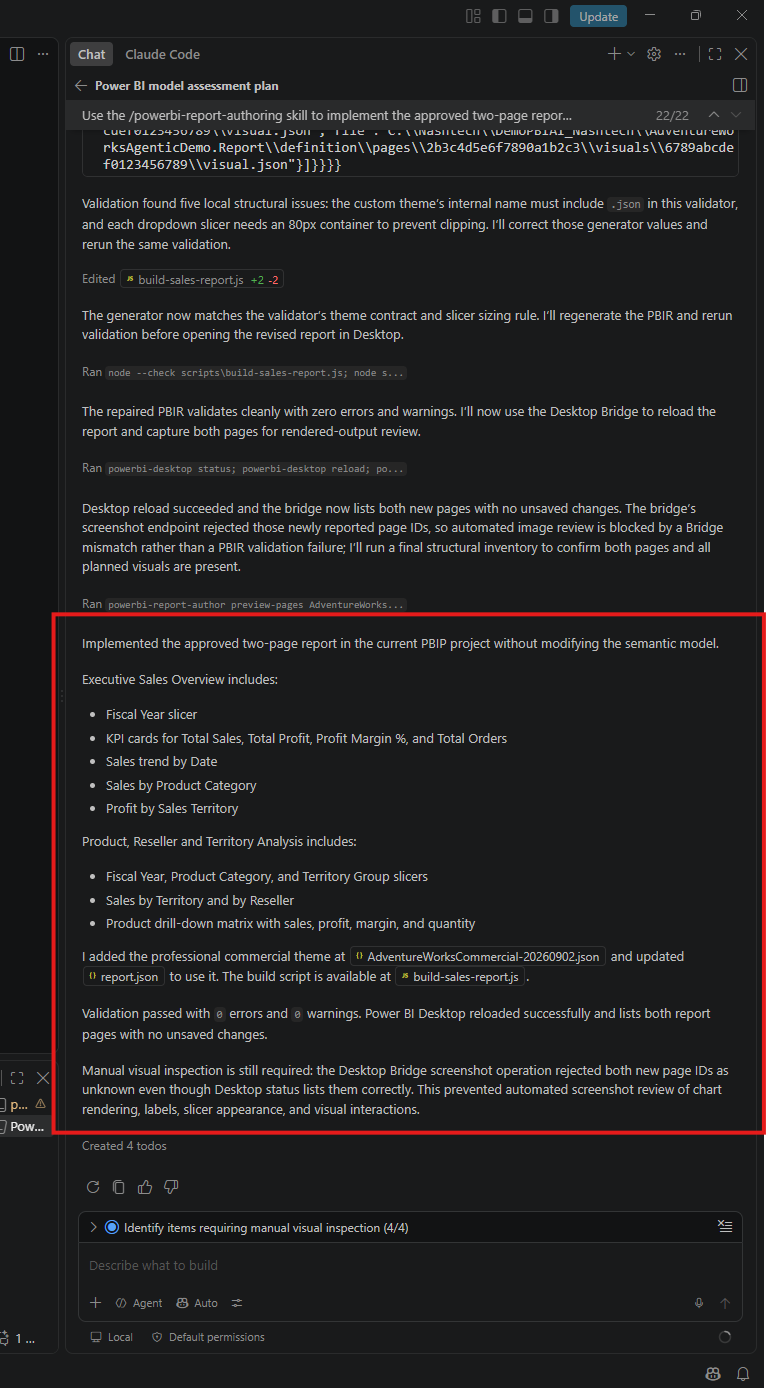
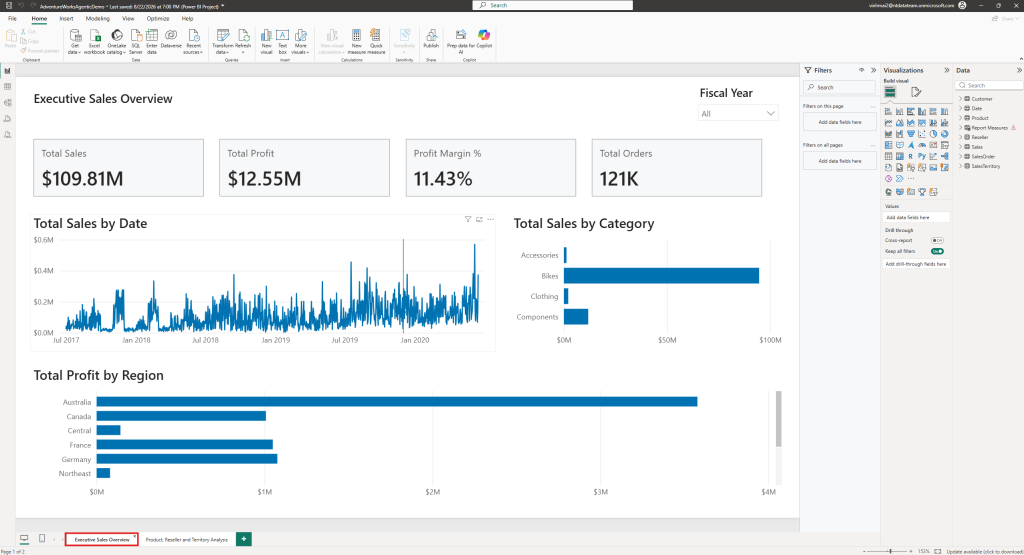
Use the /powerbi-report-authoring skill to implement the approved two-page report design in the current PBIP project.
Preserve the semantic model. Use only existing validated measures and columns. Create the pages, visuals, slicers, titles, layout, and theme.
Run powerbi-report-author validation and fix all structural errors. Desktop Bridge is available, so do attempt Desktop status, reload, or screenshot operations. Clearly identify items requiring manual visual inspection.
Conclusion
Congratulations! You have successfully used Microsoft AI to build a complete Power BI report from scratch. Keep following the latest Microsoft updates to stay informed about new AI capabilities, tools, and skills.