


I. Introduction
Building a reliable performance test plan requires more than generating traffic against an application. Before meaningful load can be applied, the test plan must represent the intended business flow with sufficient accuracy, including its requests, test data, dynamic values, validations, and dependencies between steps.
In Apache JMeter, these behaviors are organized as a tree of test elements. Even a relatively simple API flow may require several components:
- Thread Groups to define virtual-user execution and scheduling
- HTTP Request samplers to send requests that represent application interactions
- Configuration Elements for shared request settings, headers, cookies, credentials, and test data
- Extractors to obtain dynamic values from responses
- Assertions to check response correctness and expected conditions
- Timers to introduce delays, support pacing, or regulate request execution
- Controllers to organize requests and control execution flow
- Variables and data sources to parameterize requests and provide data for different users or iterations
Creating these elements is only the beginning. A test plan typically goes through several iterations before it is ready for load execution. Requests must be verified individually, relevant hard-coded values must be parameterized, dynamic data must be correlated where required, and the complete flow must remain stable when multiple virtual users execute it concurrently.
Much of this work requires performance-engineering knowledge and an understanding of the application. However, part of it also consists of repetitive configuration: creating components, entering properties, reorganizing elements, renaming test elements, and applying similar changes across a test plan.
Recent advances in generative AI create an opportunity to reduce some of this mechanical effort. Large Language Models (LLMs) can interpret natural-language instructions, explain JMeter concepts, generate or refactor scripts, and recommend configuration changes.
However, generating a suggestion or file change is different from interacting with the test plan currently loaded in JMeter. General-purpose AI tools do not automatically know which test plan is open, which element is selected, or how the latest change behaves when executed.
The more important question, therefore, is not whether AI can produce JMeter-related content, but how it can participate effectively within the active scripting workflow.
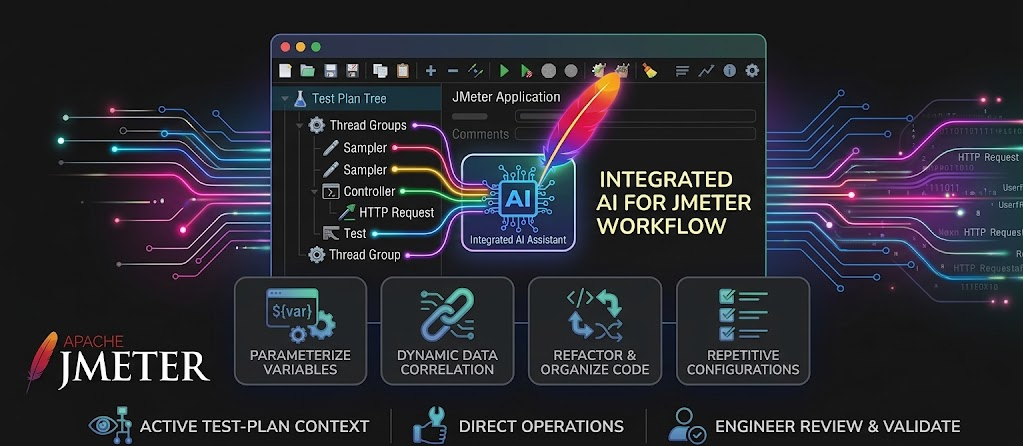
This article explores how to bring AI assistance into the active JMeter workflow. The following sections begin by examining the challenges of conventional JMeter scripting and file-based AI support and then introduce a practical approach, walks through its installation and configuration, and demonstrates the workflow using a basic JMeter scripting scenario.
II. Problem Statement
A conventional JMeter scripting workflow involves frequent interaction with the graphical test-plan tree. To add and validate an API request, a performance engineer may need to perform several steps, depending on the existing Test Plan structure:
- Identify or create the appropriate Thread Group.
- Add an HTTP Request sampler.
- Configure or inherit the protocol, server, port, method, and path.
- Enter the request parameters or body.
- Add or reuse the required headers.
- Add an assertion for the relevant response expectations.
- Add an extractor when a value from the response is required by a later step.
- Rename and organize the new elements.
- Run the request and inspect the result.
- Return to the relevant elements to correct any issues.
None of these steps is particularly difficult in isolation. The accumulated effort becomes more noticeable as the test plan grows or when similar changes must be repeated across multiple requests.
1. Repetitive GUI operations
JMeter’s component-based structure provides flexibility, but it also requires many manual operations. Performance engineers repeatedly navigate menus, add elements, enter properties, and reorganize the Test Plan tree.
For experienced JMeter users, these operations are familiar but still consume time. For new users, they introduce an additional learning curve because the user must first determine:
- Which component should be added
- Where the component should be placed
- Which properties control the required behavior
- How the component interacts with the rest of the Test Plan
As a result, attention may shift from the intended transaction flow to the mechanics of configuring the tool.
2. File-Based AI support and active test-plan context
General-purpose AI tools can support many JMeter-related tasks, such as explaining components, generating Groovy scripts, reviewing .jmx content, and suggesting test-plan changes. However, the quality of this support depends on the context and tools available.
Without JMeter-specific documentation or tools, an AI system mainly relies on the provided files, prompt context, and the model’s existing knowledge. It may suggest a change that looks correct but may not be able to verify whether the change is supported by the installed JMeter version, placed correctly in the test-plan tree, or appropriate for the test plan currently being edited.
An AI coding agent can go further by reading and modifying .jmx files as structured XML. Depending on its available capabilities, it may also search a repository, compare changes, invoke JMeter from the command line, and inspect logs or result files. This is useful for repository-based automation, bulk modifications, version-controlled changes, and operations across multiple test assets.
JMeter-specific tools or MCP servers can extend a coding agent with capabilities such as documentation retrieval, test execution, or result analysis. However, the agent can only use the context and operations exposed by those tools. Tool access does not automatically provide awareness of the active JMeter session, including:
- Which test plan is currently open
- Which test-plan element is currently selected
- Whether the open test plan contains unsaved changes
- Whether an external change has been reflected in the GUI
- Whether the latest Test Plan changes have been executed and checked
When a .jmx file is open in JMeter, the performance engineer typically works directly with the test-plan tree to inspect elements, update configurations, run requests, and review the results. These manual interactions can require repeated time and effort as the script evolves. Although general-purpose AI tools can provide suggestions or modify the file on disk, they do not automatically interact with the test plan currently loaded in the JMeter GUI. This leaves a gap between AI-generated assistance and the performance engineer’s active JMeter workflow.
This gap creates an opportunity to bring integrated AI assistance closer to the active JMeter workflow. The next section explores how this can be achieved in practice.
III. Approach
1. Extending JMeter with an AI Assistant
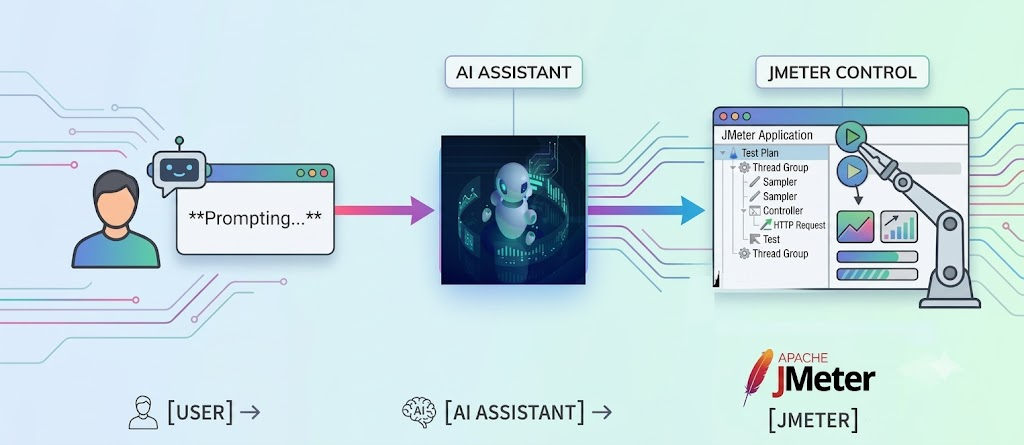
For AI-assisted test-plan development, Feather Wand brings AI support directly into the JMeter workflow. Instead of moving between JMeter and an external AI application, the performance engineers can describe the test scenario or required change in natural language and work with the result within the JMeter interface.
Feather Wand is not an AI model itself. It is an open-source JMeter plugin that connects the active Test Plan with supported AI models. The selected model interprets the request and reasons about the intended configuration, while Feather Wand provides the relevant JMeter context and the capabilities needed to inspect, create, update, run, and validate the Test Plan.
With the appropriate capabilities enabled, the AI Assistant can create a test script, update an existing one, run the open Test Plan, and inspect the execution result. The performance engineer remains responsible for reviewing the generated configuration, controlling the target environment and execution scope, and determining whether the resulting script and observed behavior match the intended test flow.

For example, instead of manually creating and configuring each component, the performance engineer can describe a basic test scenario such as:

Based on the request, the AI Assistant can help create the initial test-plan structure and configure the corresponding JMeter elements. The performance engineer can then inspect the resulting Thread Group, HTTP Request, Header Manager, and other generated components directly in JMeter.
The same workflow can also be used to refine an existing script. For example, the performance engineer may ask the AI Assistant to:
- Add a missing request header
- Update an HTTP method or request path
- Add a JSON request body
- Create a basic response assertion
- Replace a hard-coded value with a variable
- Rename test-plan elements for better readability
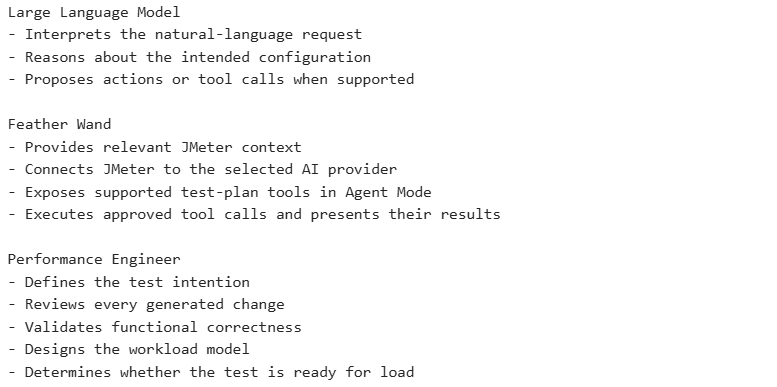
At a high level, the AI model, Feather Wand, and the performance engineer have different responsibilities within this process:
2. Start with a Minimal Workload
Whether the AI Assistant creates a new JMeter script or updates an existing one, the generated changes should be validated before the Test Plan is saved, developed further, or prepared for a larger workload.
For a newly created Test Plan, the initial validation normally covers the complete generated flow. For an existing Test Plan, the validation can focus on the modified elements and any related request flows that may be affected by the changes.
In practice, the performance engineer provides the test scenario or requested change, and the AI Assistant creates or updates the corresponding JMeter elements. Within the same workflow, the AI Assistant can run the open Test Plan, inspect the result, and report the validation findings. The performance engineer then reviews the generated changes and reported findings before deciding on the appropriate next actions.
This process can be summarized as follows:
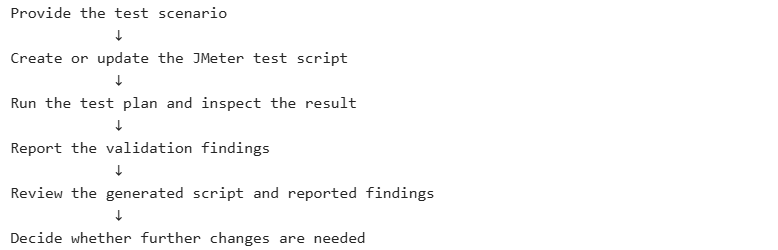
When a Test Plan is newly created or significantly updated, the first priority should be confirming that the intended request flow works correctly. Introducing multiple concurrent users at this stage would add unnecessary complexity and could make request, assertion, variable, or configuration issues more difficult to isolate.
The initial execution should therefore use a minimal workload, typically:

This setup makes it easier to isolate script and configuration issues. The performance engineer can then verify that:
- The intended requests execute successfully.
- Request headers and payloads are configured correctly.
- JMeter variables resolve to the expected values.
- Assertions are applied to the intended requests and behave as expected.
- Script-related errors can be identified.
- Recent changes have not introduced unexpected failures.
For a new Test Plan, these checks may cover the complete generated flow. For an existing Test Plan, the checks can focus on the modified elements and any related requests that may be affected.
A successful initial run confirms only that the script can complete its intended functional flow under a minimal workload. The result does not demonstrate application performance, scalability, stability, or behavior under concurrent load.
Once the functional flow is stable, the Test Plan can be developed further through parameterization, correlation, workload modeling, and preparation for controlled load execution. The AI Assistant may continue to support these activities, while the performance engineer remains responsible for reviewing the proposed changes, defining an appropriate workload, and deciding when the Test Plan is ready for performance testing.
IV. Plugin Installation
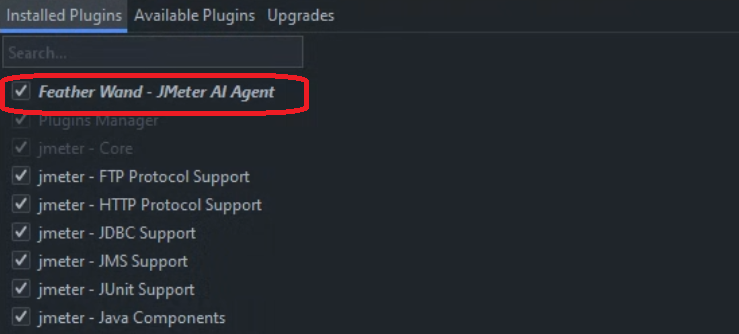
The recommended way to install Feather Wand is through the JMeter Plugins Manager. This approach automatically downloads the required plugin files and places them in the appropriate JMeter directories. The plugin is listed in the JMeter plugin catalog as Feather Wand.
1. Install JMeter Plugins Manager
If Plugins Manager is already available in JMeter, skip this step.
Otherwise:
- Download
plugins-manager.jarfrom the JMeter Plugins website. - Copy the downloaded file to:
JMETER_HOME/lib/ext- Restart JMeter.
- Verify that Plugins Manager appears in the JMeter Options menu.
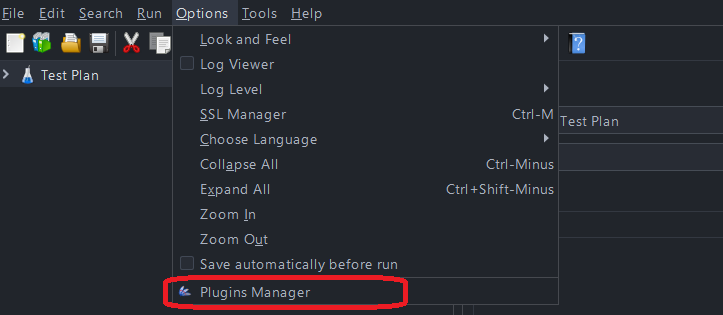
The Plugins Manager documentation identifies this as the standard installation process for adding plugin-management support to JMeter.
2. Install Feather Wand
After Plugins Manager is available:
- Start JMeter.
- Open Options → Plugins Manager.
- Select the Available Plugins tab.
- Search for: Feather Wand
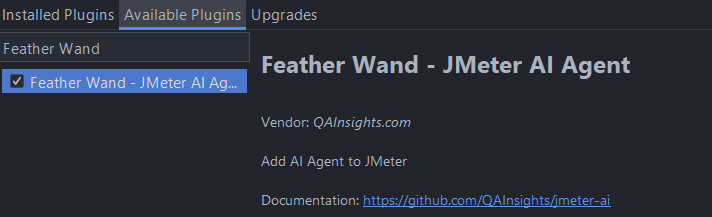
- Select the Feather Wand plugin.
- Review the pending installation changes and dependencies displayed by Plugins Manager.
- Click Apply Changes and Restart JMeter.
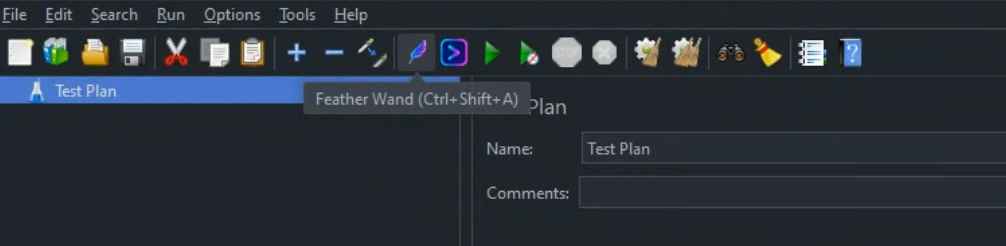
JMeter installs the plugin and restarts with the Feather Wand AI Assistant available. The relevant plugin can also be found through the JMeter Plugins catalog.
3. Configuration
After installing Feather Wand, the next step is to connect the AI Assistant to a supported AI provider. For the workflow demonstrated in this article, the configuration must allow the AI Assistant to call a selected model and use Agent Mode to create, update, run, and inspect the active test plan.
The official
Feather Wand repository
provides a sample configuration file named
jmeter-ai-sample.properties,
which contains the available provider and Agent Mode settings.
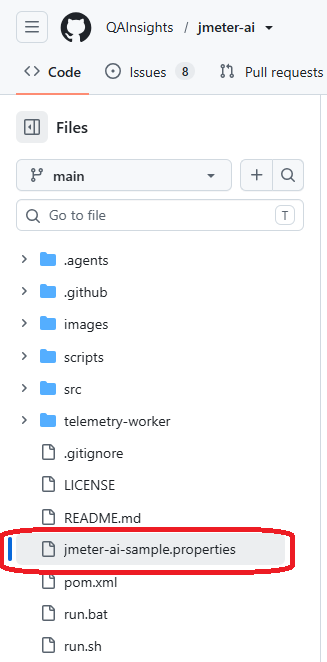
The following steps use this file as the starting point for configuring the AI Assistant:
– Step 1: Add the Feather Wand properties to JMeter
+ Open the sample configuration file provided by the official Feather Wand repository:
jmeter-ai-sample.properties
+ Then open the local JMeter configuration:
JMETER_HOME/bin/jmeter.properties
+ At the end of jmeter.properties, add a clearly labeled section:

+ Copy the complete contents of jmeter-ai-sample.properties and paste them below this section.
– Step 2: Enable Agent Mode
Locate the Agent Mode setting in the copied configuration and ensure that it is enabled:
jmeter.ai.agent.enabled=true
– Step 3: Configure AI provider
Configure at least one AI Provider supported by Feather Wand using valid provider credentials. Feather Wand supports multiple AI Providers, such as OpenAI, Grok, DeepSeek, and additional providers listed in the repository.
Each AI Provider has its own properties and configuration requirements. Refer to the Feather Wand repository (README) and the jmeter-ai-sample.properties file included with the installed version for detailed setup instructions.
A configured AI Provider may make multiple models available. You may therefore configure one or more providers, depending on the models you want to access.
4. Verify the Installation
After saving jmeter.properties:
– Close JMeter completely.
– Start JMeter again.
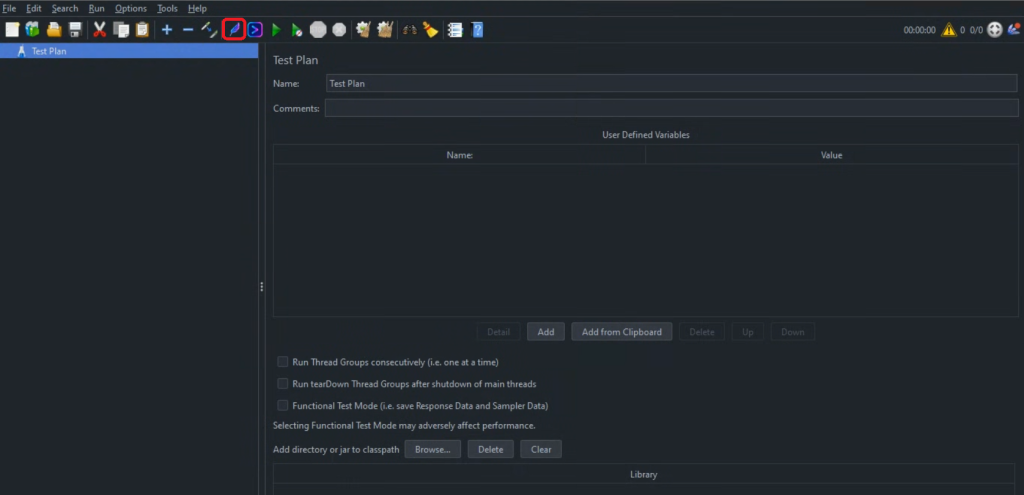
– Open the Feather Wand AI Assistant.
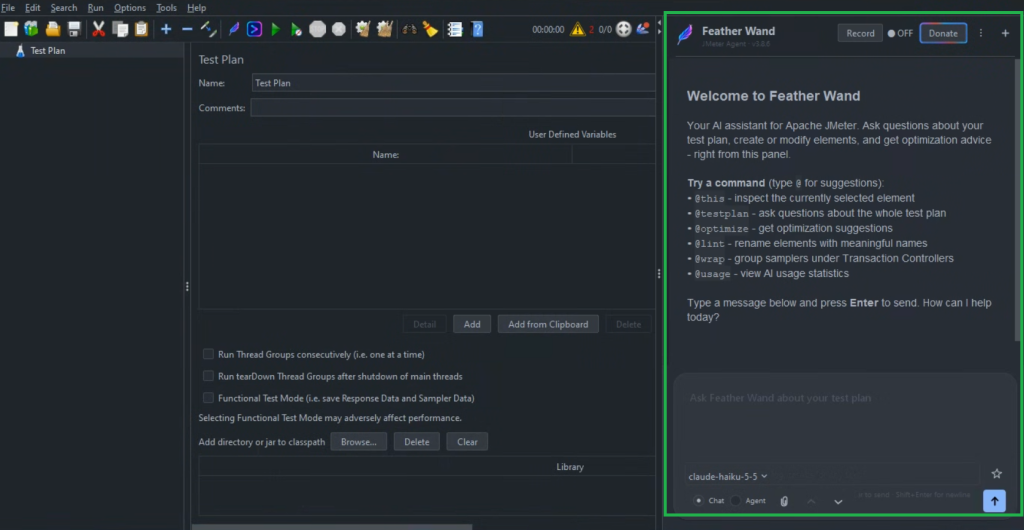
– Open the model picker & Select a model from the configured provider.
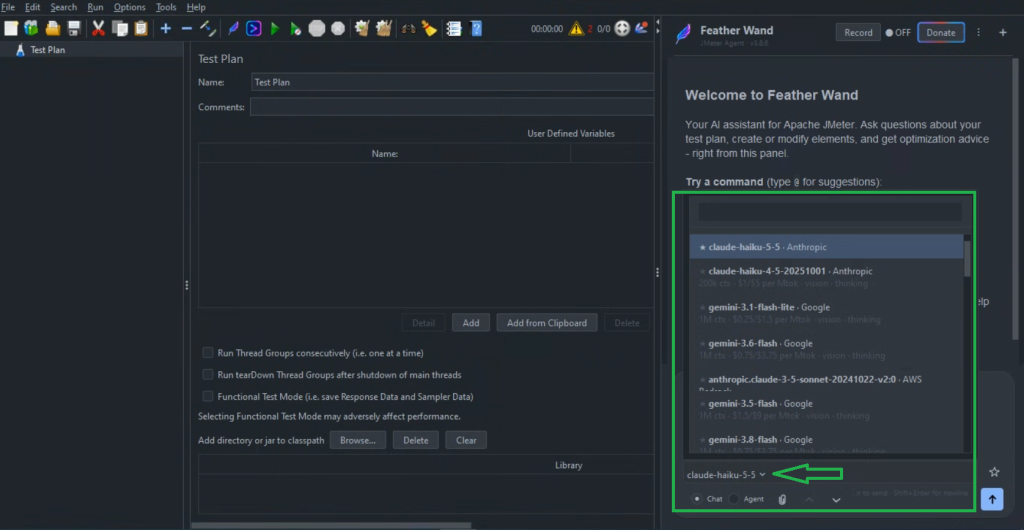
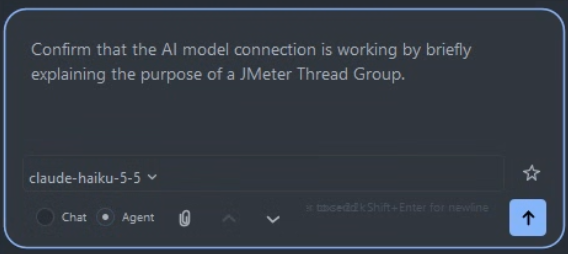
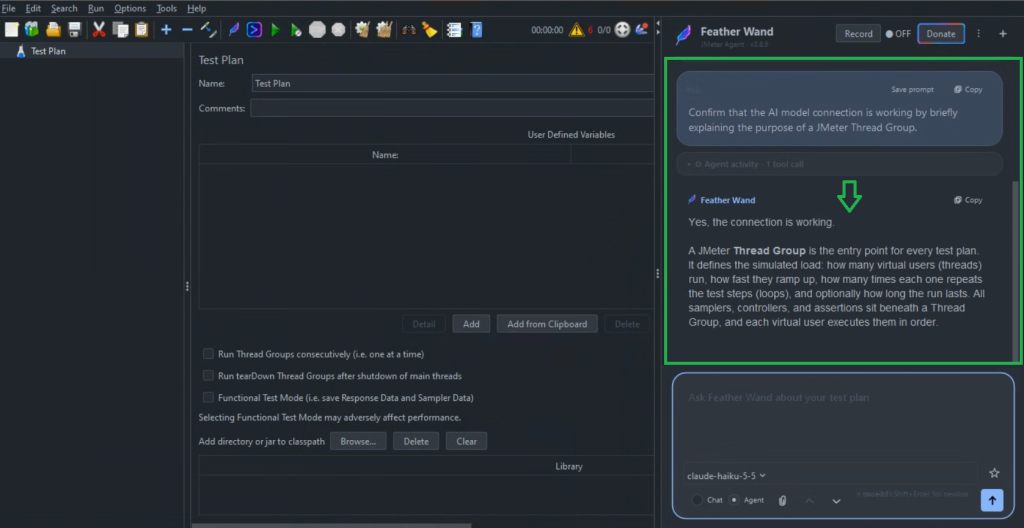
– Confirm that Agent Mode is enabled.
V. Demonstration
1. Sample Application
> Application Overview:
The Personal Finance Tracker, named Flow, is a sample web application that helps users understand their financial habits and manage personal income and expenses.

The application provides two main areas:
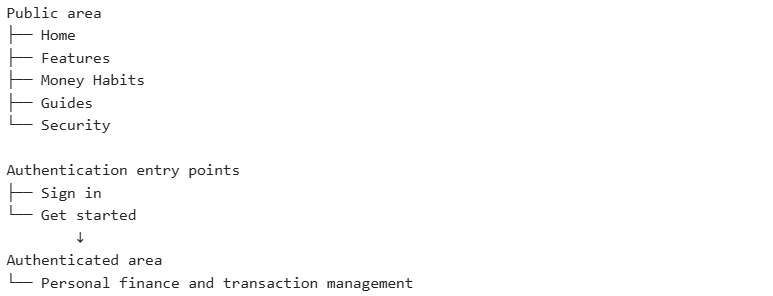
- A public area containing general product information, financial guidance, and an interactive Money Habits questionnaire
- An authenticated area containing the core personal-finance features available to authenticated users
At a high level, the application is organized as follows:
> Demonstration Scope:
This demonstration focuses only on the public area available from the navigation menu and the public Money Habits API. Authentication and transaction-management flows are intentionally excluded so that this article can remain focused on the basic Feather Wand workflow for creating, running, and validating a JMeter Test Plan.
A future blog article will extend this scenario to the authenticated area and its transaction-management flows. The article will explore more advanced Test Plan design and demonstrate how Feather Wand can support specialized challenges involving protected requests, authentication, dependent API calls, dynamic test data, and deeper validation.
The current demonstration covers the following public routes:

These pages provide the following resources:
– Home introduces the application and its purpose.
– Features presents the personal-finance capabilities available in the authenticated area.

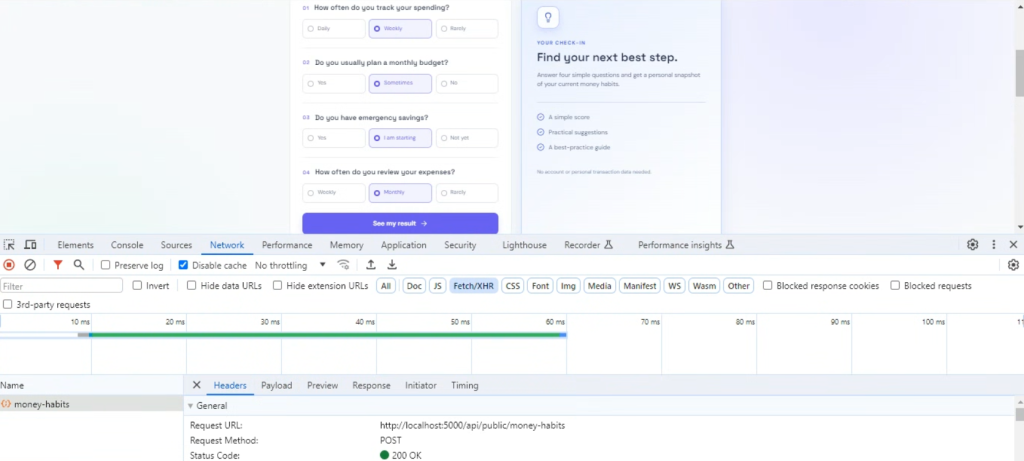
– Money Habits provides an interactive questionnaire for evaluating basic financial habits.

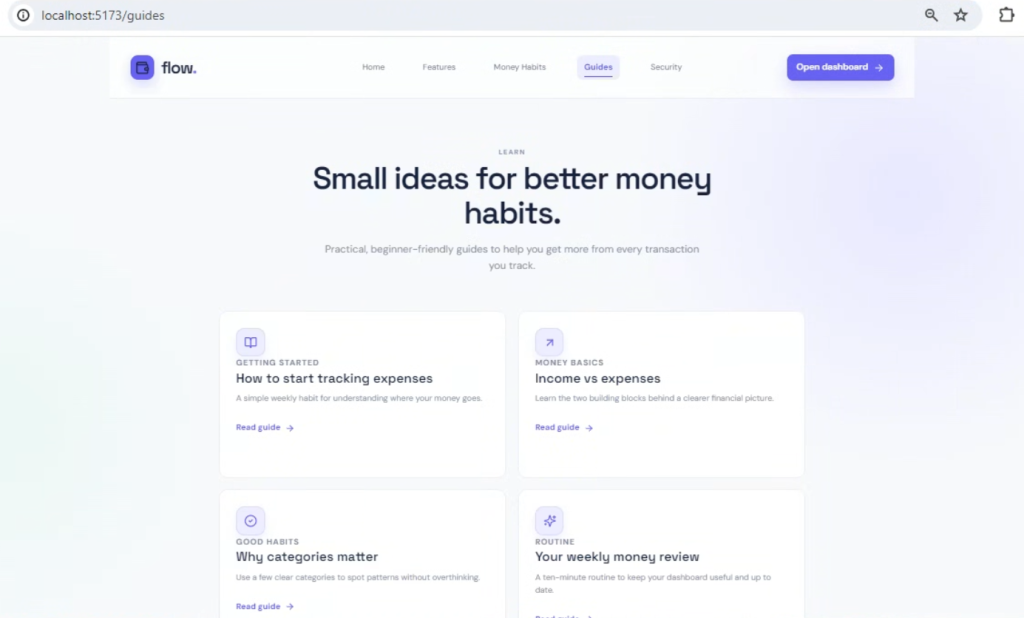
– Guides contains introductory financial-education content.
– Security explains the application’s basic security and privacy principles.

For this demonstration, JMeter sends one HTTP GET request to each public route to confirm that the corresponding resource is accessible and returns the expected HTTP status.
The Money Habits page is the primary interactive feature in the public flow, asking users four questions about:
- Spending-tracking frequency
- Monthly budgeting
- Emergency savings
- Expense-review frequency
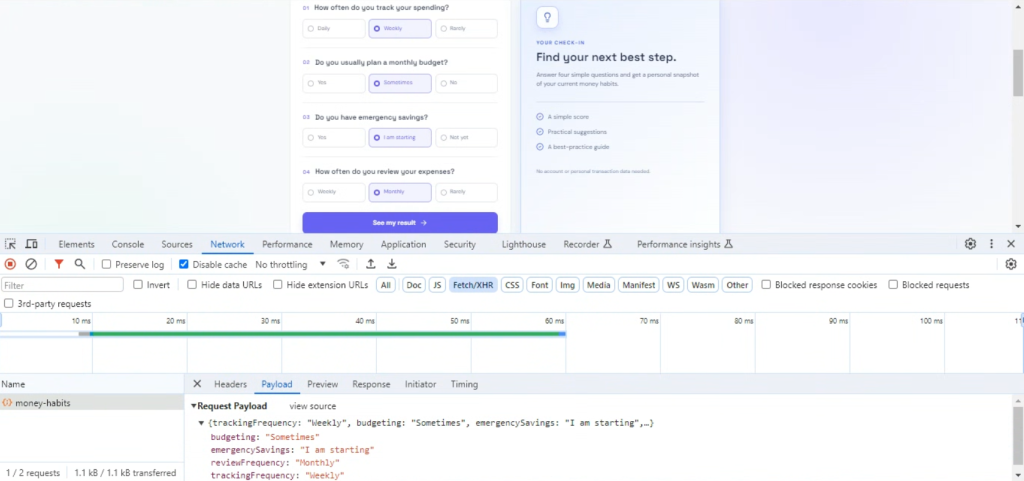
After the questionnaire is completed, the frontend sends the selected answers to the following public REST API:
POST http://localhost:5000/api/public/money-habitsExample request body:

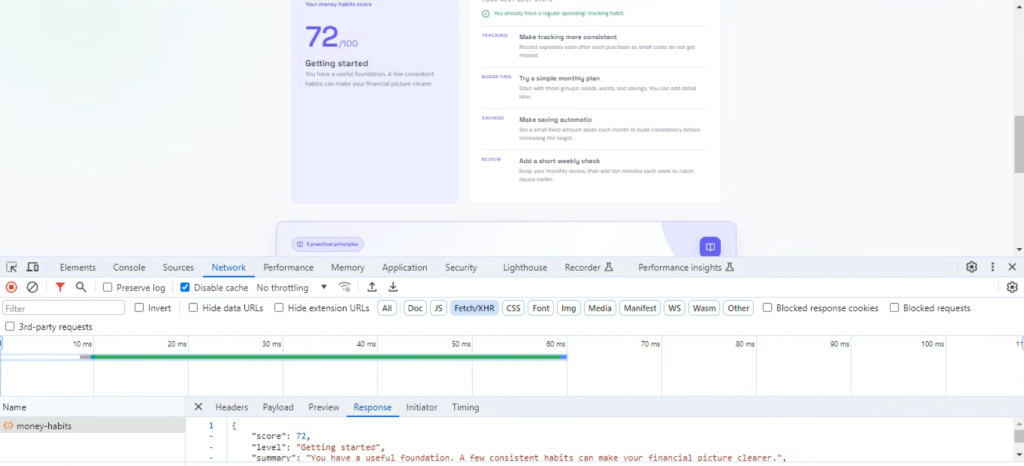
The API evaluates the submitted answers and returns a financial-habits assessment containing:
- A numeric score
- A habit level
- A summary
- Identified strengths
- Personalized recommendations
Example response:
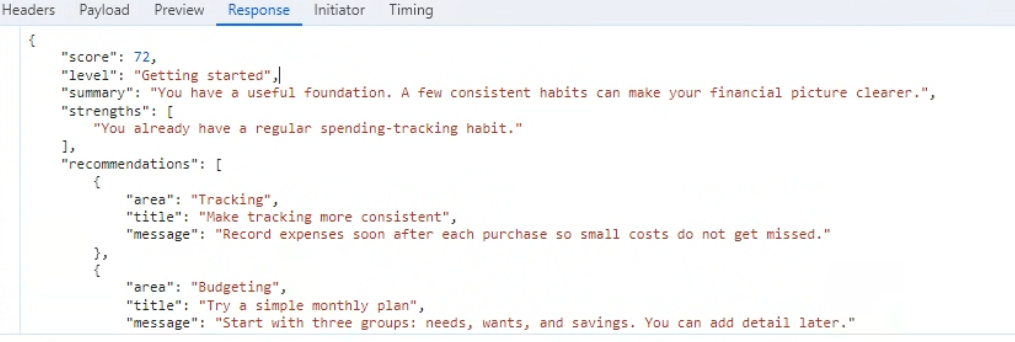
This API provides the main functional interaction for the demonstration. It allows Feather Wand to assist with creating:
- A
POSTHTTP Request - A JSON request body
- An HTTP Header Manager
- HTTP response-code assertions
- JSON response checks
- Validation of the returned
score - A basic execution and result-reporting flow
Because the endpoint is public, no authentication token, session handling, or dynamic-value correlation is required.
2. Prompting
A clear prompt helps Feather Wand understand not only what Test Plan should be created, but also A clear prompt helps Feather Wand understand what Test Plan should be created, how it should be configured, and how the initial execution result should be reported.
As introduced under Start with a Minimal Workload in the Approach section, a newly created or significantly updated script should first be executed with a small workload. This allows the request flow, configuration, and assertions to be checked before concurrency or a larger workload is introduced.
For this introductory demonstration, the prompt follows a new-script scenario and therefore describes the request flow, required JMeter elements, initial workload, and expected execution result. Similar prompts can also be adapted to update existing Test Plans.
The prompt used in this demonstration is organized into four sections:
- Execution Limits define the minimal workload for the initial run.
- Test Flow defines the requests and their execution order.
- Test-Plan Requirements define the JMeter elements, request configuration, and basic assertions to be created.
- Run Test Plan and Report instructs Feather Wand to execute the Test Plan, wait for the completed result, and return a concise execution summary for engineering review.
This organization separates the application flow from the JMeter configuration and execution instructions, making the prompt easier to read and adapt.
The following prompt is suggested as a practical starting point for the Feather Wand AI Assistant. It can be adapted to the target application, test flow, and validation requirements:
Create a JMeter test script to validate the public flow of the Personal Finance Tracker.
This is an initial functional validation.
Execution Limits:
– Use 1 virtual user
– Use 1 iteration
– Use a 1-second ramp-up
Test Flow:
- GET http://localhost:5173/
- GET http://localhost:5173/features
- GET http://localhost:5173/money-habits
- POST http://localhost:5000/api/public/money-habits
- GET http://localhost:5173/guides
- GET http://localhost:5173/security
Use the following request body for the POST request:
{
“trackingFrequency”: “Weekly”,
“budgeting”: “Sometimes”,
“emergencySavings”: “I am starting”,
“reviewFrequency”: “Monthly”
}Test-Plan Requirements:
– Create the requests in the order listed under Test Flow
– Add an HTTP Header Manager with Content-Type set to application/json for the POST request
– Add an assertion that verifies HTTP status code 200 for each request
– For the money-habits POST response, verify that the JSON response contains these fields: score, level, summary, strengths, recommendations
– Add View Results Tree for this initial debugging run
– Add Aggregate Report for a basic result summary
– Do not create requests for external links referenced by the guides or page content
Run Test Plan and Report:
– Run the currently open Test Plan using only the workload defined under Execution Limits
– Wait until the entire test execution has completed or reached its timeout
– Use the completed results to report the findings in the Feather Wand chat
– Include the status of each request and assertion
– Include any error details returned by the validation run
– Leave the Test Plan open for engineering review without saving or overwriting any .jmx file
– When all requests and assertions pass:
+ Report the overall result as PASS
+ Summarize the successful test execution
– When any request or assertion fails:
+ Report the overall result as FAIL
+ Identify each failed request or assertion
+ Explain the likely cause
+ Do not modify the Test Plan before reporting the findings
The Execution Limits section establishes a minimal workload for the initial run. Using a single virtual user removes concurrency from the first execution, making request, assertion, and configuration issues easier to isolate before additional workload complexity is introduced.
The Test Flow section defines the requests and their execution order, including the public frontend resources, the Money Habits REST API, and its JSON request body. Listing the flow explicitly helps Feather Wand create only the intended requests and avoid following unrelated links found in the page content.
The Test-Plan Requirements section specifies what Feather Wand should add and configure in the Test Plan, these requirements remain intentionally basic so that the demonstration focuses on Test Plan creation and initial script validation.
The Run Test Plan and Report section instructs Feather Wand to execute the Test Plan with the minimal workload, wait for completion, and report request, assertion, and available error details in the chat. The Test Plan remains open and unsaved so that the performance engineer can review the generated structure and findings before deciding on the next action.
3. Execution
– Open the Feather Wand AI Assistant, select a configured AI model, and ensure that Agent Mode is enabled.
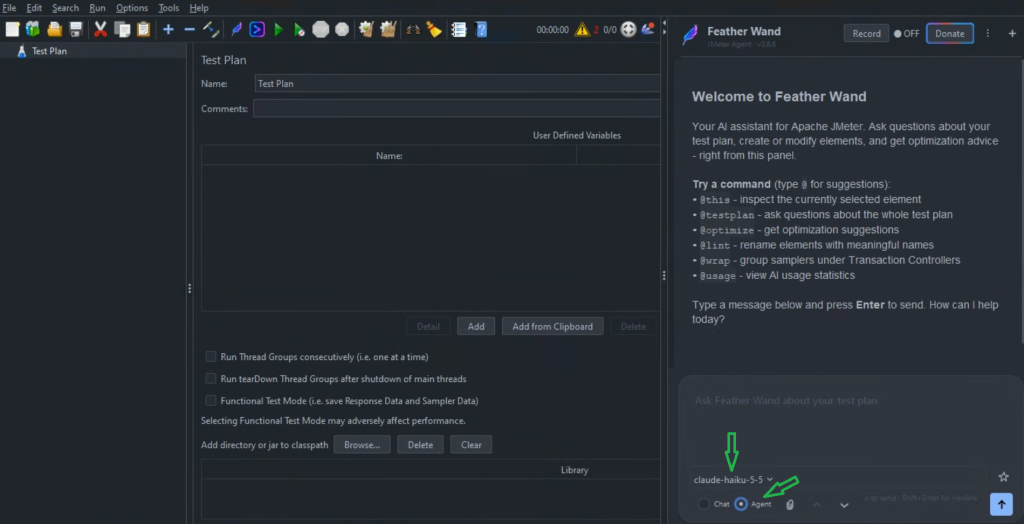
– Paste the prompt prepared in the previous section (Prompting) into the chat input and submit it.
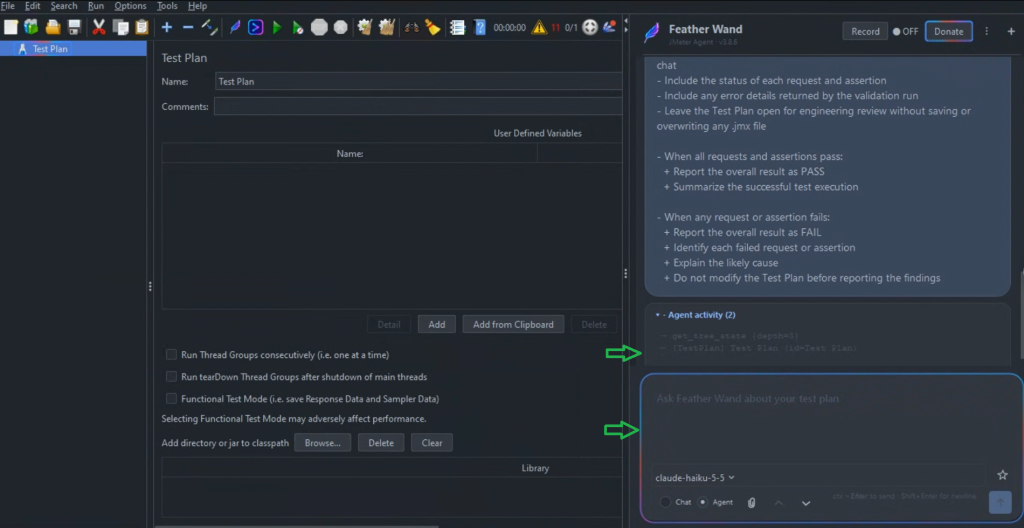
– After the prompt is submitted, an animated colored border appears around the Feather Wand chat input, indicating that the AI Agent is actively processing the request. At the same time, the Agent activity panel displays the operations being performed, allowing the user to follow how Feather Wand reads and updates the active Test Plan.
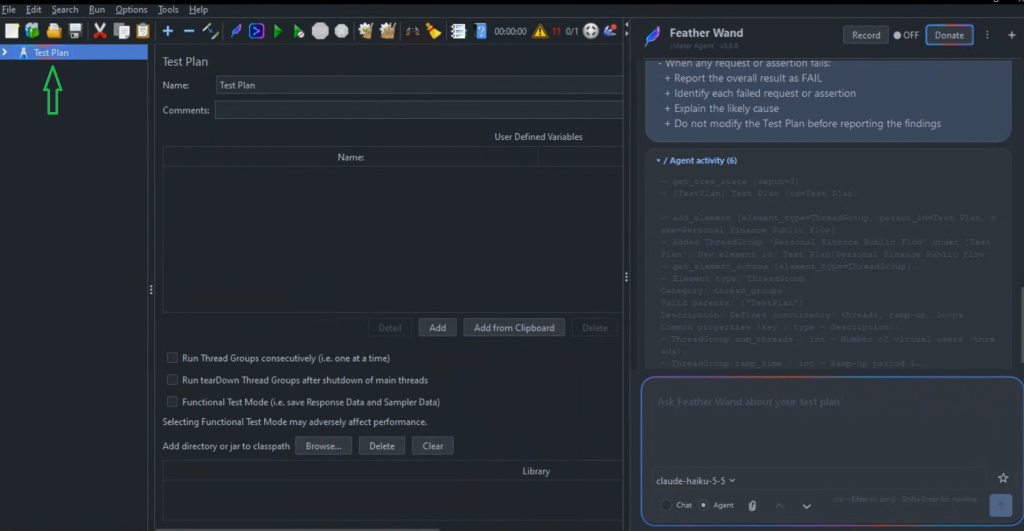
– While Feather Wand is updating the Test Plan, an animated colored border appears around the active Test Plan node. This visual activity indicator shows that the AI Assistant is currently applying changes to the JMeter test tree.
– After Feather Wand finishes processing the prompt, the requested JMeter Test Plan appears in the test tree, and the initial execution completed with six successful samples. View Results Tree displays the individual request results, while the Feather Wand chat reports an overall PASS result.
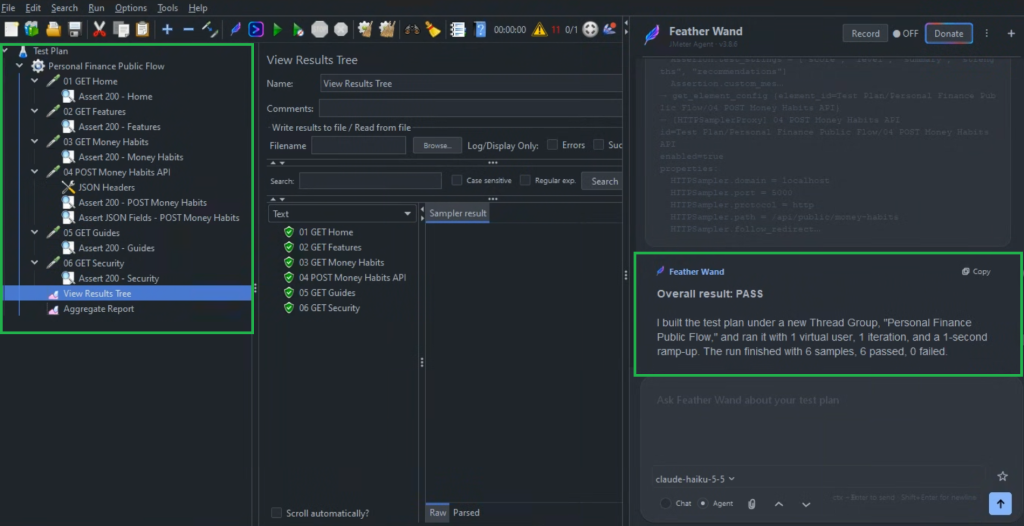
This demonstration completes the basic Feather Wand workflow: describe the test scenario, generate the JMeter Test Plan, execute it with a minimal workload, and review the reported result. The successful run confirms that the generated script can complete the intended flow and provides a practical baseline for the performance engineer to review the Test Plan and determine the appropriate next steps.
VI. Conclusion
Building a JMeter Test Plan involves both performance-engineering decisions and repetitive configuration work. This article demonstrated how Feather Wand can bring AI assistance directly into the JMeter workflow by helping create or update test-plan elements, run an initial execution, inspect the execution result, and report the findings.
The main value of this approach is not simply that AI can generate JMeter components. Feather Wand can also shorten the feedback cycle between defining a test scenario, implementing the required configuration, executing the Test Plan, and reviewing the outcome. This allows the performance engineer to spend less time on repetitive GUI operations and more time evaluating test intent, application behavior, and the quality of the generated script.
An important principle introduced in this article is to start with a minimal workload. Whether Feather Wand creates a new Test Plan or updates an existing one, the resulting changes should first be checked with a small and controlled execution, such as one virtual user and one iteration.
For a newly created Test Plan, this initial validation can cover the complete generated flow. For an existing Test Plan, the validation can focus on the modified elements and any related requests that may be affected by the changes. Starting with a minimal workload makes request, assertion, variable, and configuration problems easier to identify before concurrency introduces additional complexity.
A successful initial validation does not mean that the Test Plan is ready for performance testing. It confirms only that the script can execute its intended functional flow under a minimal workload. Realistic concurrency, test duration, workload distribution, pacing, parameterization, correlation, monitoring, and result interpretation still require application context and performance-engineering judgment.
Feather Wand can continue supporting many of these activities, but the performance engineer remains responsible for reviewing the generated changes, defining an appropriate workload, controlling the target environment, and deciding when the Test Plan is ready for controlled load execution.
Used with clear prompts, controlled execution boundaries, and appropriate engineering review, Feather Wand can reduce repetitive JMeter work without removing the technical judgment required for trustworthy performance testing.
VII. References
https://github.com/QAInsights/jmeter-ai
https://qainsights.com/introducing-feather-wand-your-ai-powered-companion-for-jmeter