


Microsoft Azure offers a range of database services to meet various data storage and management needs. One of the popular choices is MySQL Database on Azure. In this blog, we’ll dive into what MySQL Database on Azure is, its benefits, and how to get started with a practical example. So, lets understand MySQL Database on Microsoft Azure.
MySQL Database on Azure: An Overview
MySQL Database on Azure is a fully managed database service provided by Microsoft Azure for hosting MySQL databases in the cloud. It combines the widely-used open-source MySQL database engine with Azure’s cloud capabilities, delivering high availability, scalability, and security. Here are some of the prominent features and advantages of using MySQL Database on Azure:
Key Features:
- Highly Available
- Scalable
- Security
- Integration with other Azure Services
Advantages
- Reliability: With high availability and data replication, MySQL Database on Azure ensures your database is reliable and can recover from failures quickly.
- Scalability On-Demand: The ability to scale your database up or down based on demand is a significant benefit.
- Seamless Integration: Integration with other Azure services allows you to build complex and interconnected applications with ease.
- Cost-Efficiency: The pay-as-you-go pricing model of Azure means you only pay for the resources you use.
Lets get started with MySQL Database on Azure
Prerequisites
- Azure Account, if you don’t have it you can create one on hitting https://azure.microsoft.com/en-in/get-started/azure-portal. You can try a free trail account.
- Any tool to connect to database for example-MYSQL Workbench.
Azure Account
If you don’t already have an Azure account, you can sign up for one. Azure offers a free trial to get started.
Create a MySQL Database
- Sign in to the Azure Portal.
- Click on Create a resource.
- Search for “MySQL” in the Azure Marketplace, and select Azure Database for MySQL.
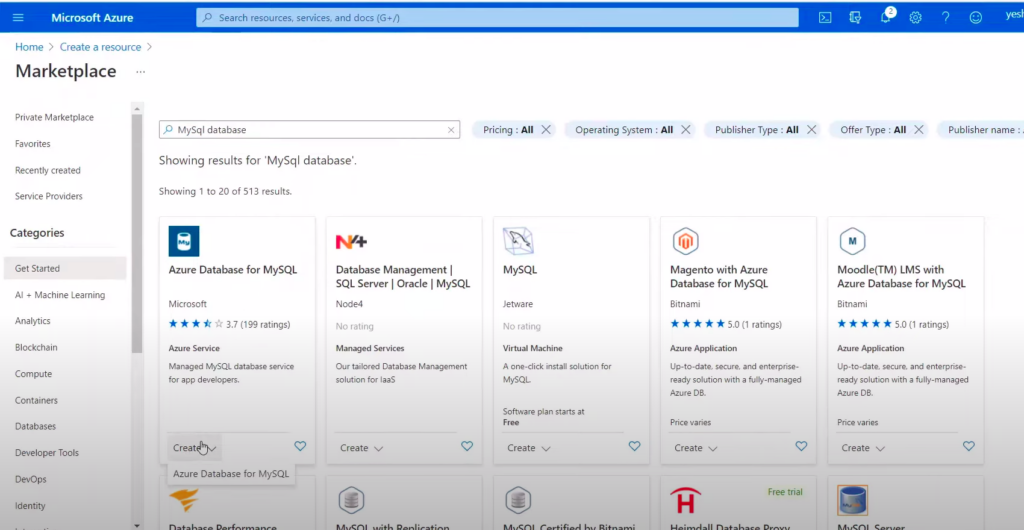
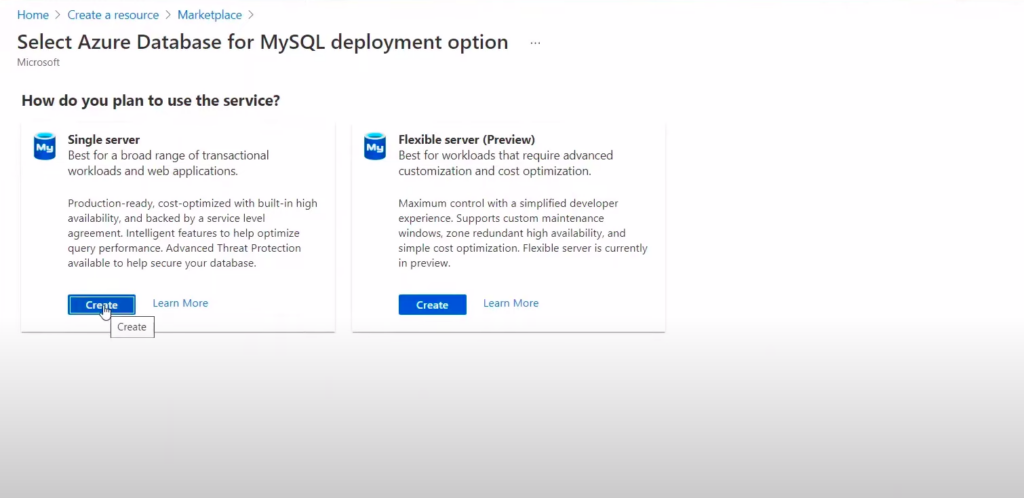
4. Click the Create button.
5. Fill in the required information, including server details, authentication methods, and pricing tier.
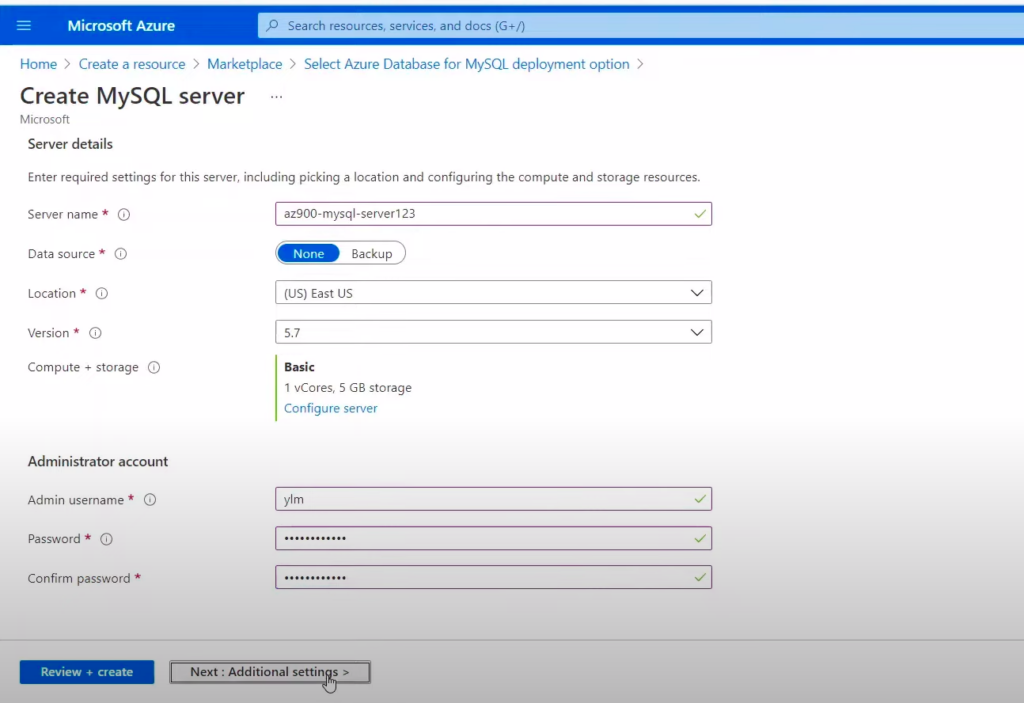
6. Click Review + create and then Create to initiate the provisioning of your MySQL database.
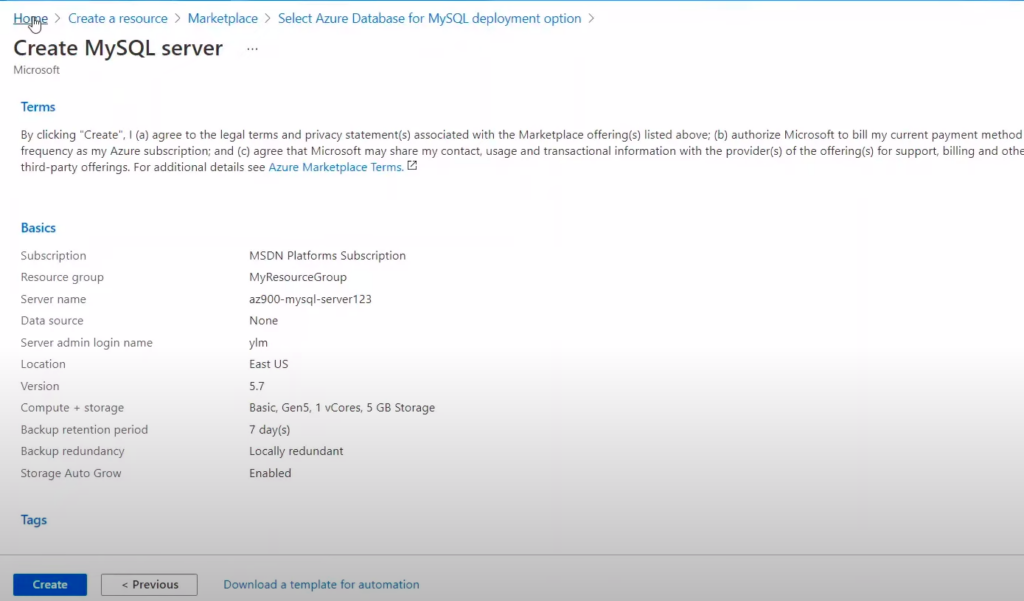
7. After the deployment is complete, navigate to your MySQL Database resource in the Azure Portal.
8. Under Settings, select Connection security to configure firewall rules that allow access to your database.
9. You can connect to your database using various tools and libraries. Here’s an example using the MySQL command-line client:
Create a Sample Database
Once connected to your MySQL Database, you can create a sample database and table. For example:
CREATE DATABASE my_sample_db;
USE my_sample_db;
CREATE TABLE users (id INT, name VARCHAR(255));
Insert some sample data:
INSERT INTO users (id, name) VALUES (1, 'John');
INSERT INTO users (id, name) VALUES (2, 'Vicky');
Query Your Database
You can run queries on your database as you would with any MySQL database. Here’s a simple example to fetch the data:
SELECT * FROM users;
delete from users where id=2;
update users set name='Vicky' where id=2;
Conclusion
In summary, MySQL Database on Azure combines the familiarity of MySQL with the power and flexibility of Azure’s cloud infrastructure. It provides a fully managed, high-performance, and secure environment for hosting MySQL databases, making it a valuable choice for developers and organizations seeking a reliable database solution in the cloud. For more such blogs, stay connected with blogs https://blog.nashtechglobal.com/