



Hello Readers!!! I am back with a new blog and in this we’ll see how we can create URL failure Alerts with UptimeCheck the Uptime Check feature provides a robust mechanism for detecting URL failures and disruptions in real-time. Let’s get started!
Overview
Monitoring the availability and performance of API endpoints is a critical aspect of ensuring a seamless user experience. In Apigee X, the Uptime Check feature provides a robust mechanism for detecting URL failures and disruptions in real-time. This comprehensive guide outlines a step-by-step process to set up alerts for URL failure using Uptime Checks, allowing you to proactively manage and maintain the reliability of your APIs.
Prerequisites
Before proceeding, make sure you have the following prerequisites:
- Access to Apigee management console
- Uptime check configured for the target URL
- Knowledge of Apigee alert policies
Configuring Uptime Checks
To configure the uptime checks for the specified URL using the Google Cloud console, do the following:
Step-1
In the Google Cloud console, select Monitoring or click the following button: Go to Monitoring
Step-2
In the navigation pane, select Uptime checks.
Step-3
Click Create Uptime Check.
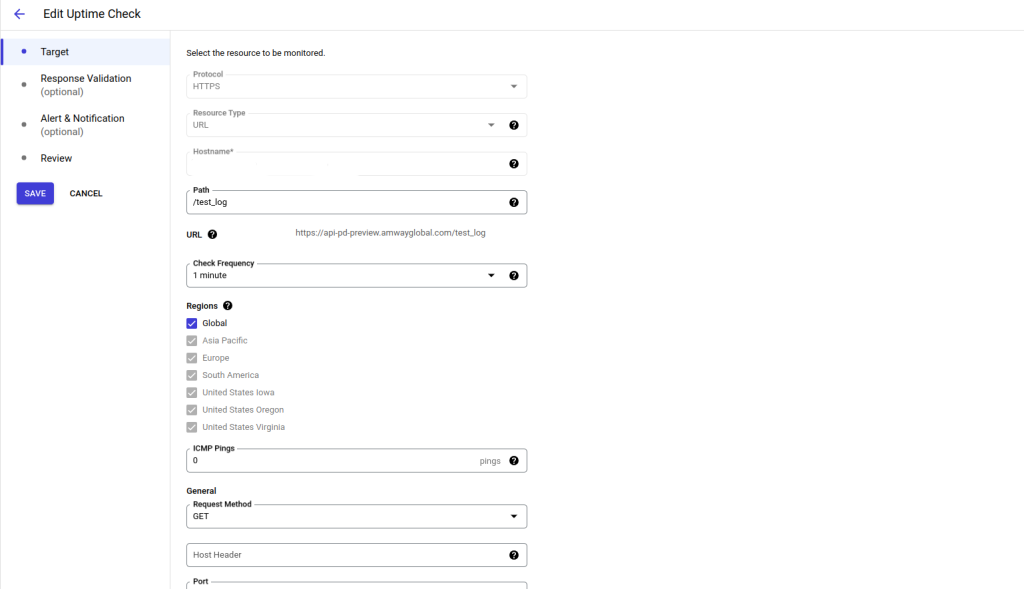
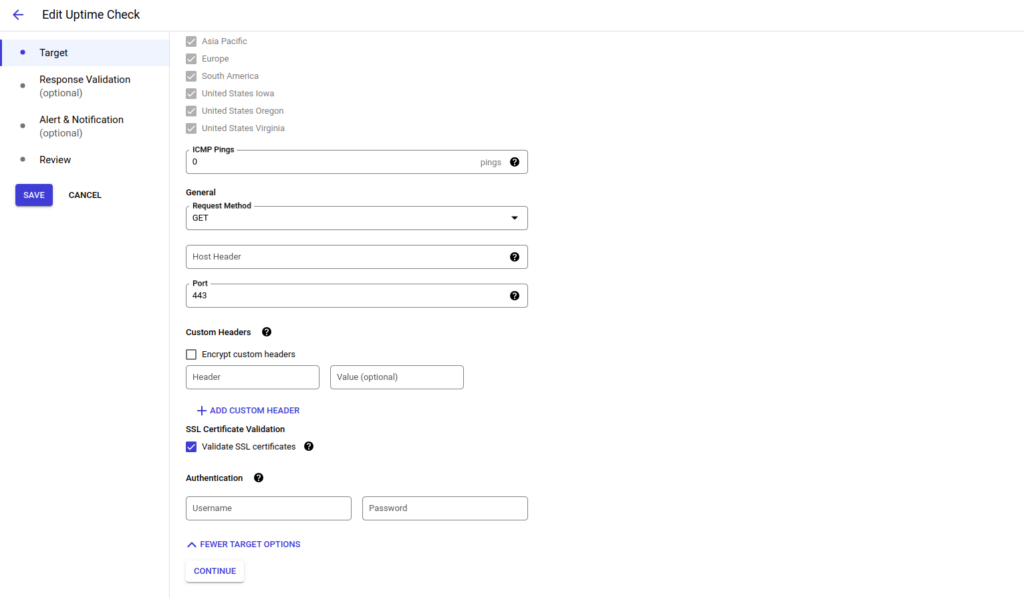
Step-4
Specify the target of the uptime check:
- Select the protocol. You can select HTTP, HTTPS, or TCP.
- Choose one of the following resource types:
- URL: Any IPv4 address or hostname.
- Path and port entered separately.
- choose the other information as shown in above image and then click on Continue.
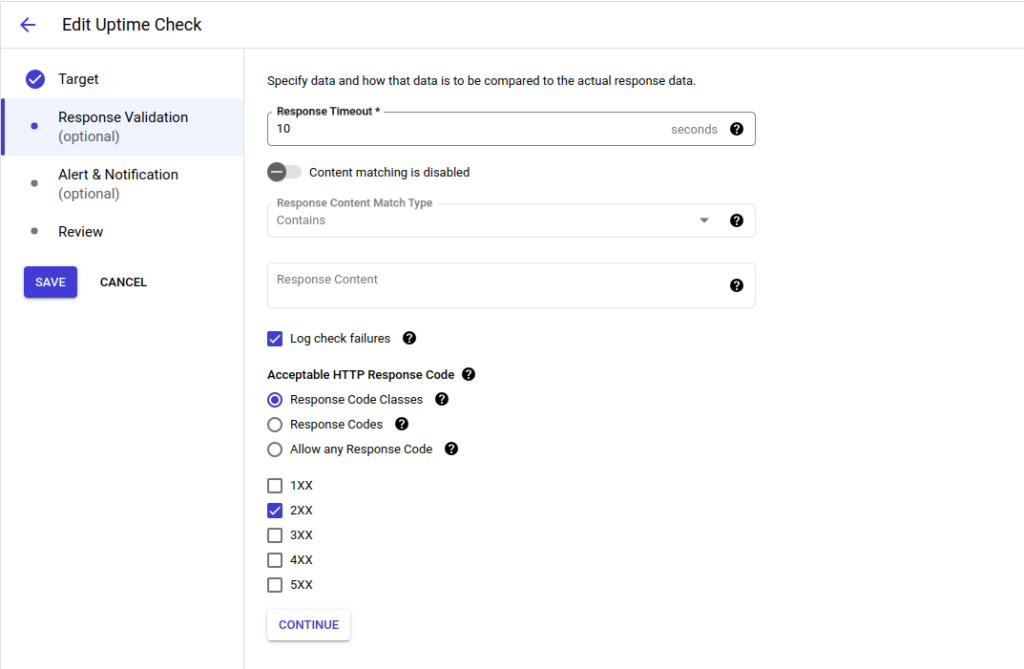
Step-5
Now configure the response requirements. All settings in this section have default values but you can change them as per your requirement like below image:
Step-6
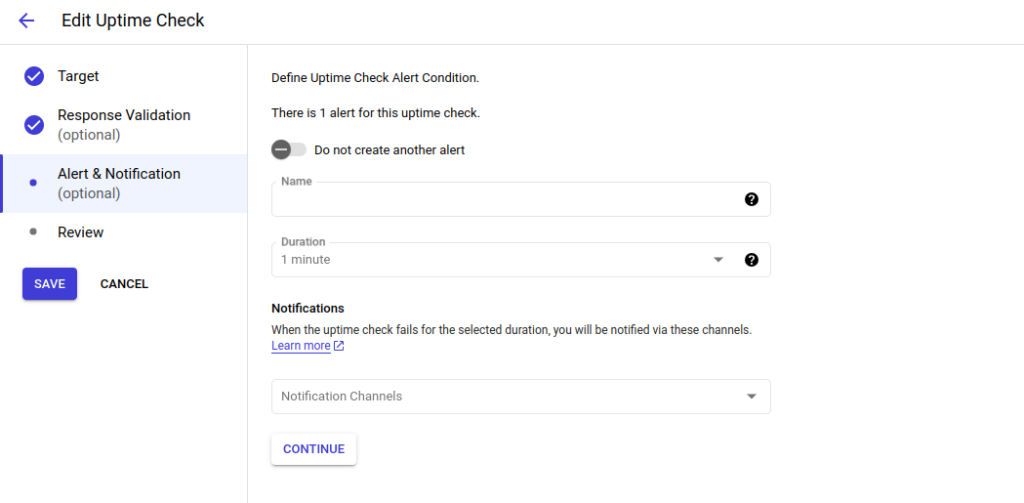
Click Continue and configure alerts and notifications. This step is optional here you can simply go to the alerting policy and create an alert policy for the uptime check and then you can notify that with the help of uptime check id.
I will show you how we can create an alerting policy in last.
Step-7
Click Continue and complete your uptime check:
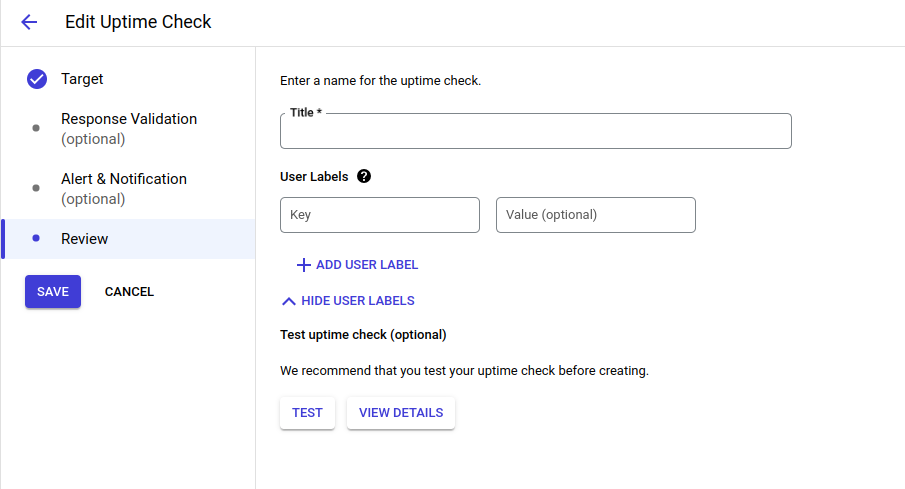
- Enter a descriptive title for the uptime check, and the other things are optional for now.
Step-8
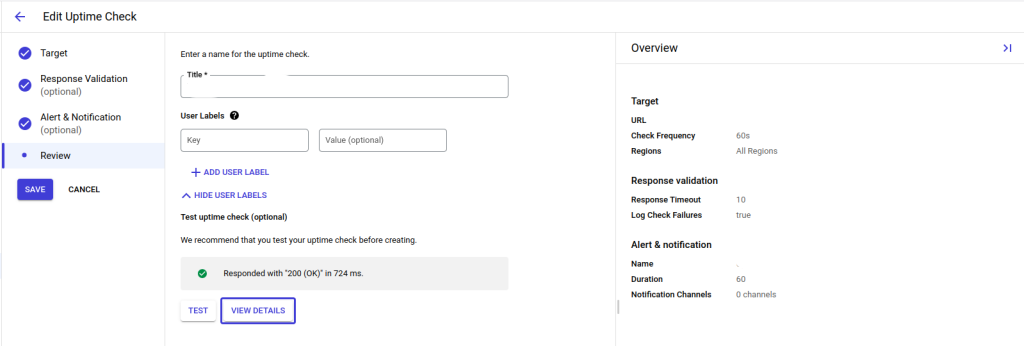
To verify your uptime check configuration, click Test. If the result isn’t what you expect, see Check failures, correct your configuration, and then repeat the verification step.
AS, I have tested, and it is showing the status as: 200 OK.
Step-9
Click Create and SAVE the configuration done your uptime checks is created and yes done. If you select Create and a required field isn’t populated, then an error message is displayed.
Creating Alerting Policy for URL failure with Uptime Check
Now let’s see the steps to creating an alerting policy for expiration of SSL Certificate with uptime checks. Follow the below steps to do so:
Step-1
In the Google Cloud console, go to the Monitoring page Go to Monitoring and In the Monitoring navigation pane, select notifications Alerting.
Step-2
If you haven’t created your notification channels and if you want to be notified, then click Edit Notification Channels and add your notification channels.
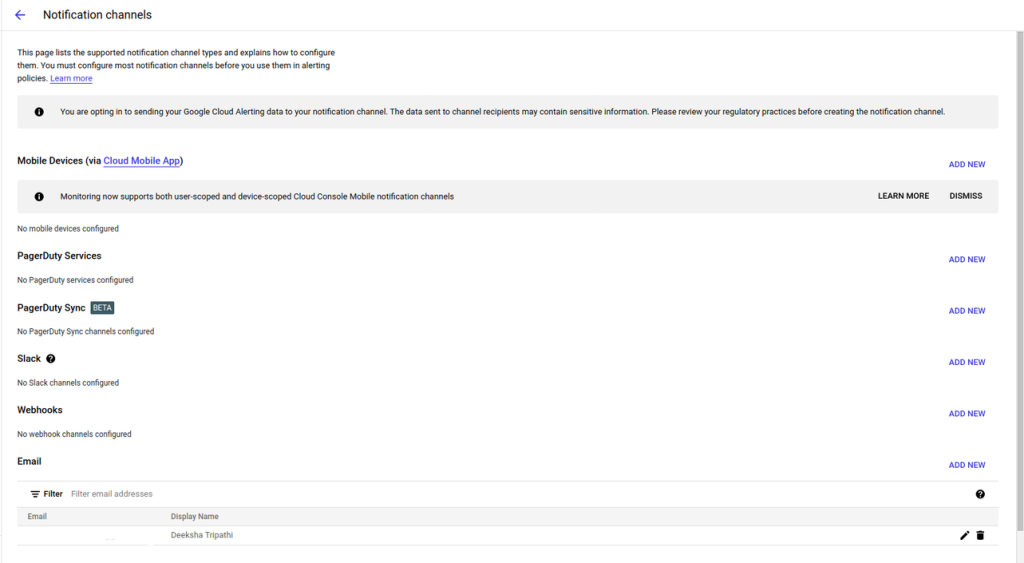
Return to the Alerting page after you add your channels.
Step-3
From the Alerting page, select Create Policy.
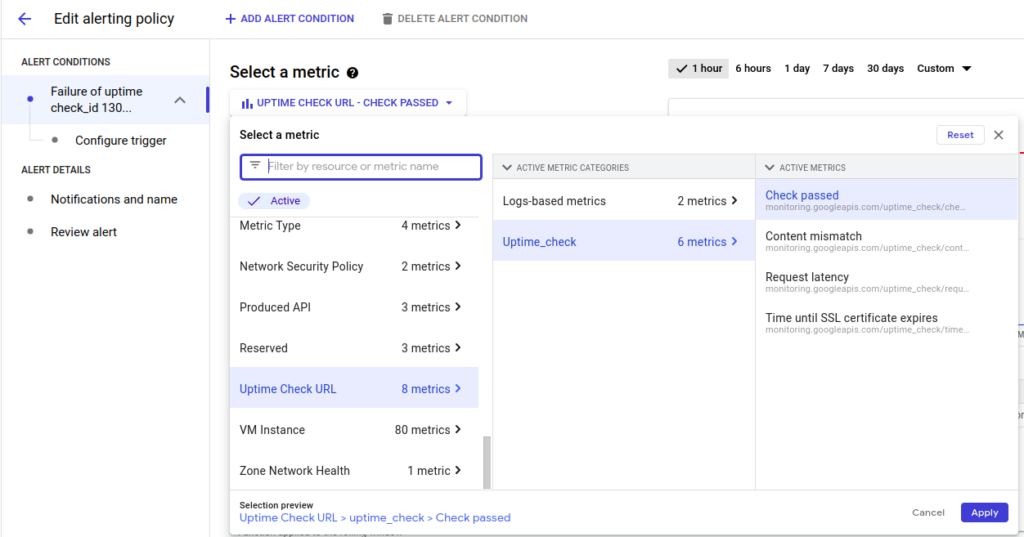
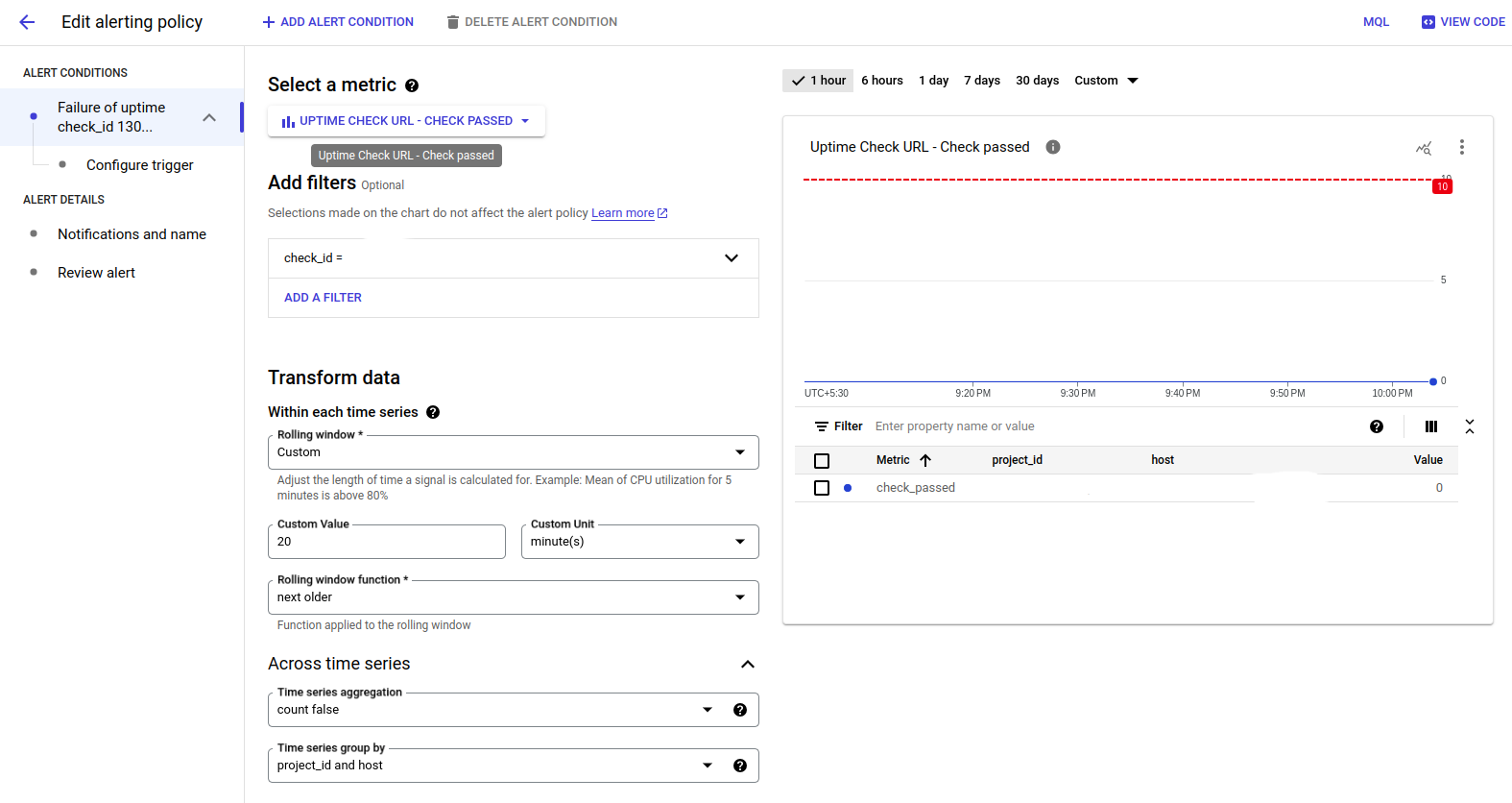
- To select the metric, expand the Select a metric menu and then do the following:
- To limit the menu to relevant entries, enter
Uptime Check URLinto the filter bar. If there are no results after you filter the menu, disable the Show Only active resources & metrics toggle.
| Uptime Check URL > uptime_check > Check passed |
- For the Resource type, select Uptime Check URL
- For the Metric category, select uptime_check
- For the Active Metric, select a metric check passed.
- Select Apply, as shown below:
- Add filter for the check_id and this is the uptime check id the uptime check that we have created above
- In the Transform Data section set the Rolling window as custom and the custom value as 20 and custom unit as minutes(s) and rolling window function as next older.
- Click Next.
Step-4
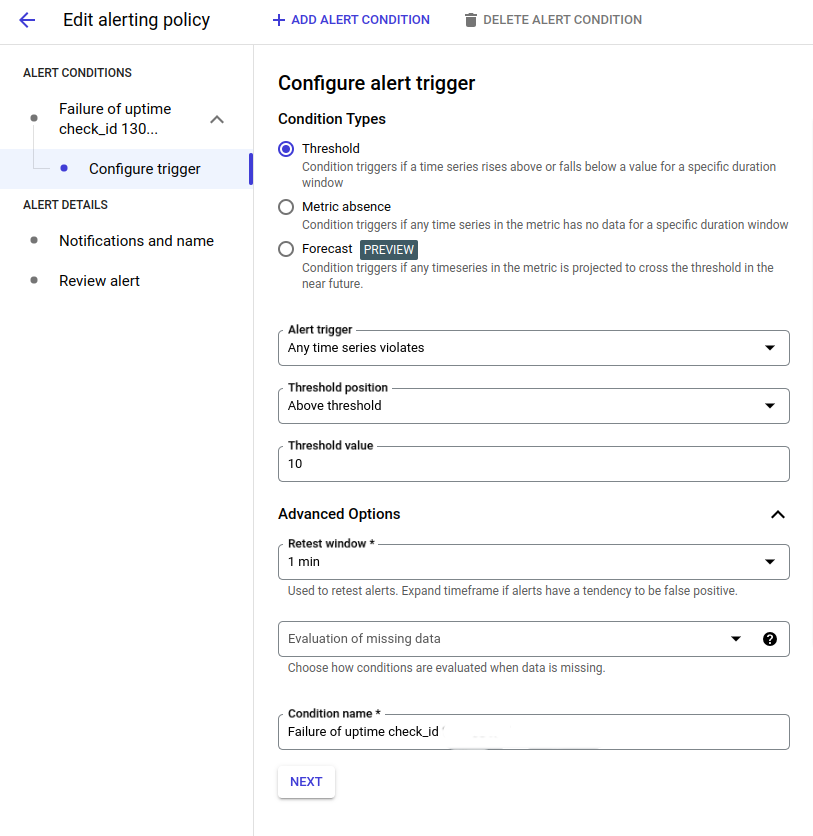
The settings in the Configure alert trigger page determine when the alert is triggered. Select a condition type as Threshold.
- Alert Trigger: Any time series violates.
- Threshold position: Above threshold
- Threshold value: 10
- In Advanced option set retest window as 1.
and, if necessary, specify a threshold. For more information, see Create metric-threshold alerting policies.
- Click Next.
Step-5
Configure notification and finalise Alerts.
- Optional: To add notifications to your alerting policy, click Notification Channels. In the dialog, select one or more notification channels from the menu, and then click OK.
- Optional: Update the Incident auto close duration. This field determines when Monitoring closes incidents in the absence of metric data.
- Optional: Click Documentation, and then add any information that you want to be included in a notification message.
- Click Alert name and enter a name for the alerting policy.
- Click Create Policy.
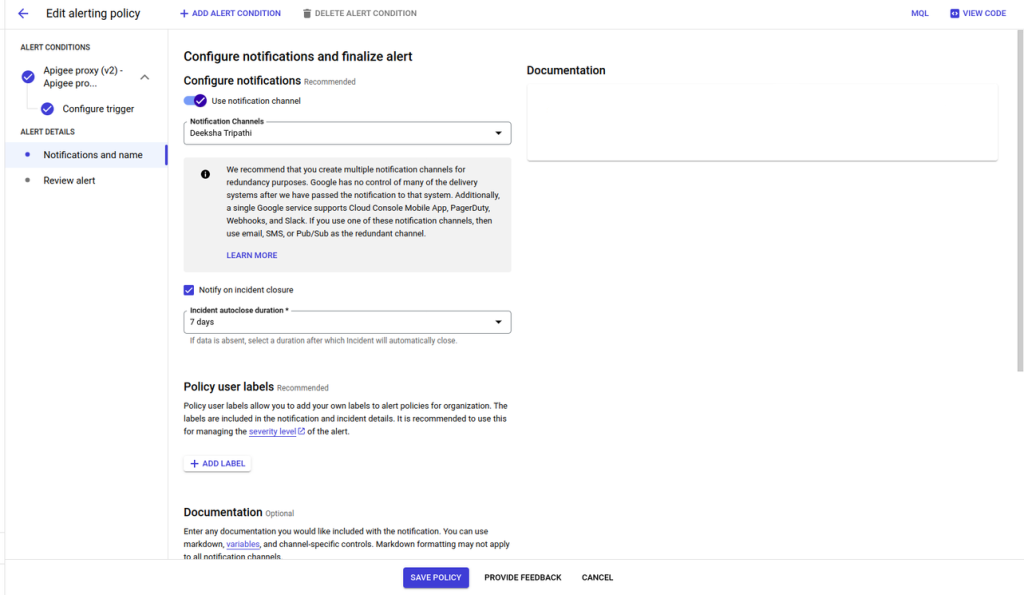
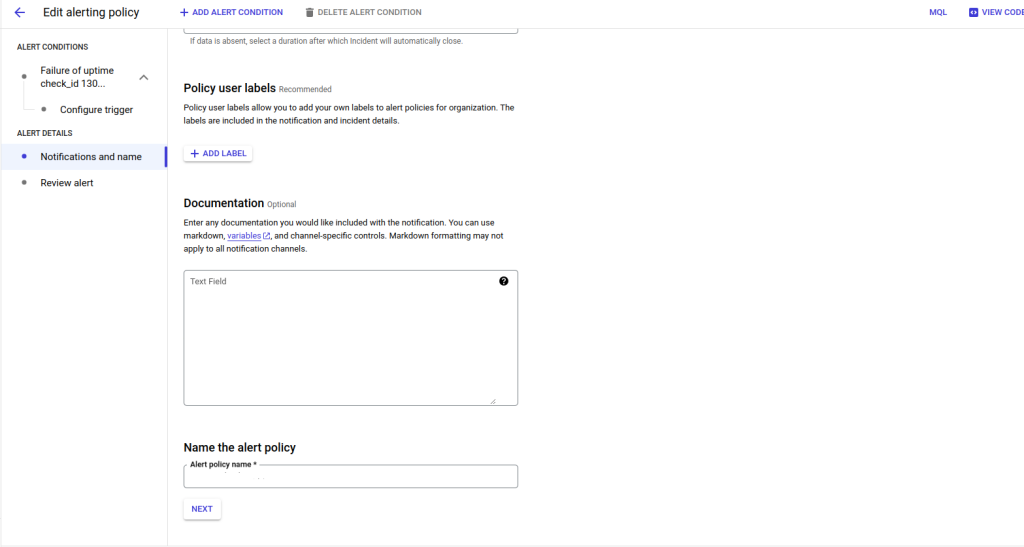
Now you will be notified with the email notification when the threshold value matches the condition for URL failure. This is how URL Failure with uptime check alerts are configured.
Conclusion
Setting up alerts for URL failure with Uptime Checks in Apigee X is a proactive strategy to ensure your APIs remain reliable. By continuously monitoring endpoint health, you can swiftly identify and address issues, minimising downtime and optimising the user experience. This automated approach enhances operational efficiency and empowers your team to focus on strategic tasks while maintaining a high standard of service quality.
Reference
https://cloud.google.com/monitoring/uptime-checks#:~:text=To%20force%20an%20HTTPS%20uptime,must%20disable%20SSL%20certificate%20validation
https://cloud.google.com/monitoring/uptime-checks/uptime-alerting-policies