



Azure Kubernetes Service (AKS) can be set up to utilize Microsoft Azure Active Directory (now shown as Entra ID in the Azure portal) for user authentication. Users can sign in to an AKS cluster using a Microsoft AAD authentication token in this setup. Once authenticated, the built-in Kubernetes Role-Based Access Control (RBAC) can govern access to namespaces and cluster resources based on a user’s identity or group membership.
This blog post provides a one-by-one step guide on:
- Managing access through Kubernetes RBAC in an AKS cluster, leveraging Microsoft Entra ID group membership.
- Creating an admin group and user groups within Microsoft Entra ID.
- Establishing Roles and RoleBindings in the AKS cluster to allocate appropriate permissions for resource creation and viewing.
Prerequisites:
- An existing AKS cluster with Microsoft Entra ID integration enabled. If you need assistance configuring an AKS cluster with this setup, refer to the guide on Integrating Microsoft Azure Active Directory with AKS.
- Kubernetes RBAC is automatically enabled during AKS cluster creation. To integrate Microsoft Entra ID and Kubernetes RBAC into your existing cluster, follow the steps outlined in Enabling Microsoft Azure Active Directory Integration on Your Existing AKS Cluster.
So in this blog, we are going to create two groups. We take one group name as the admin group in this group we add members who can manage our cluster and have full authentication over our azure k8s cluster and another group name is the user group in this group we add those members who can only access our azure k8s cluster but didn’t perform any action on the cluster and didn’t have any permission to access any resource of the cluster. We give those users permission by Kubernetes RBAC through role and role binding.
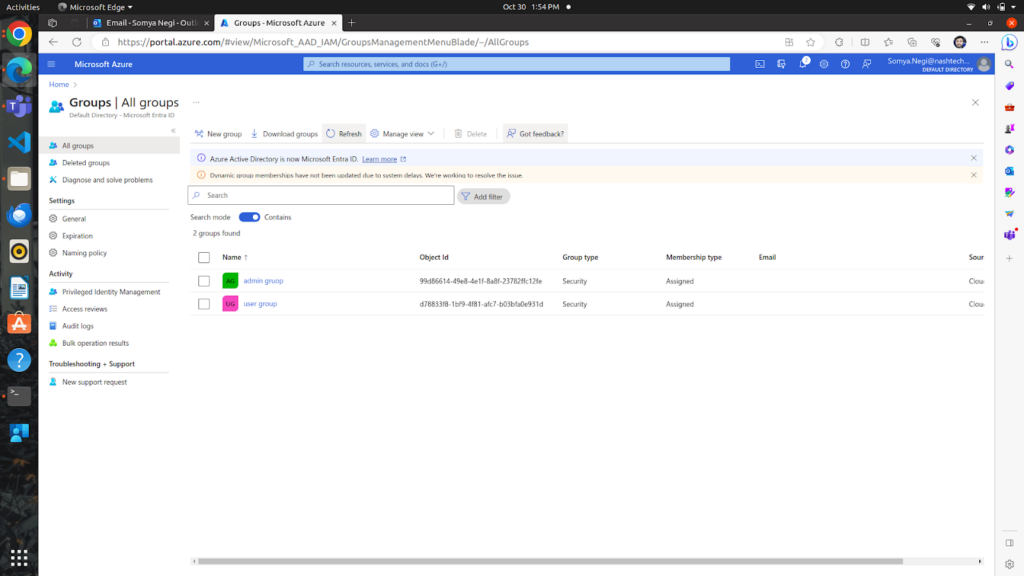
In the upper image, we can see that we have created two groups:-
- Admin Group
- User Group
In both groups, we have one member.
After that, we have to go to the Settings of our cluster where we have to click on cluster configuration and select the Azure AD authentication with Kubernetes RBAC.
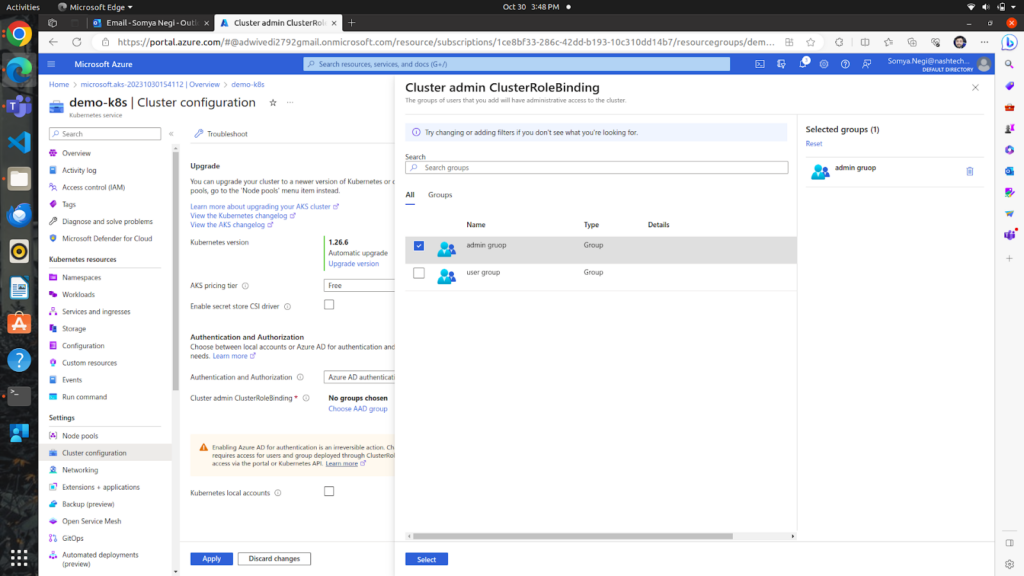
In the upper images, we can see that I have added the admin group to the Cluster admin ClusterRole Binding.
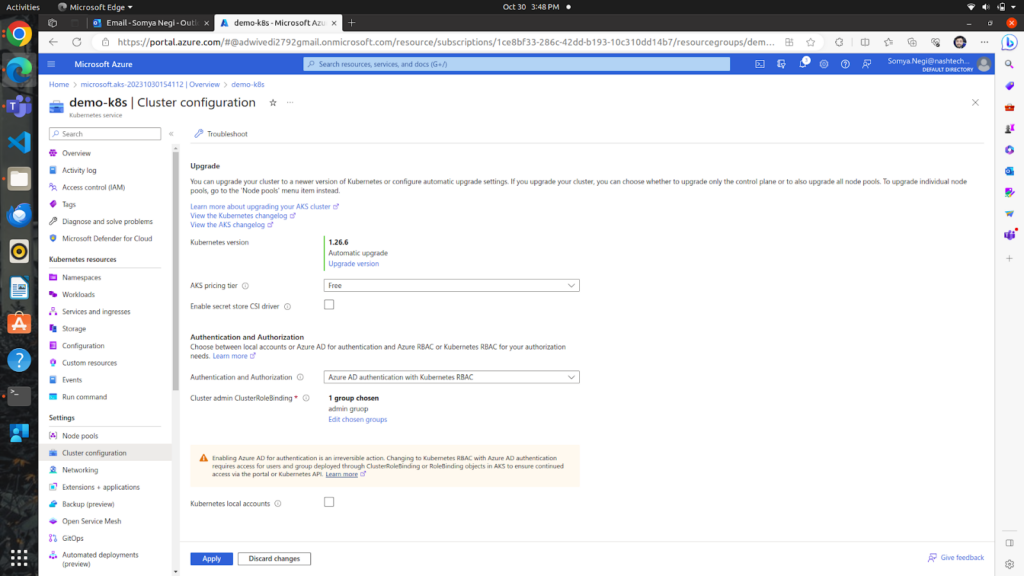
So now our admin group can manage all resources of the demo-k8s cluster. While accessing the cluster through the admin group member we can give role and role binding to the user group in our cluster.
Now we must access our cluster through Azure CLI and apply role and role binding to the user group.
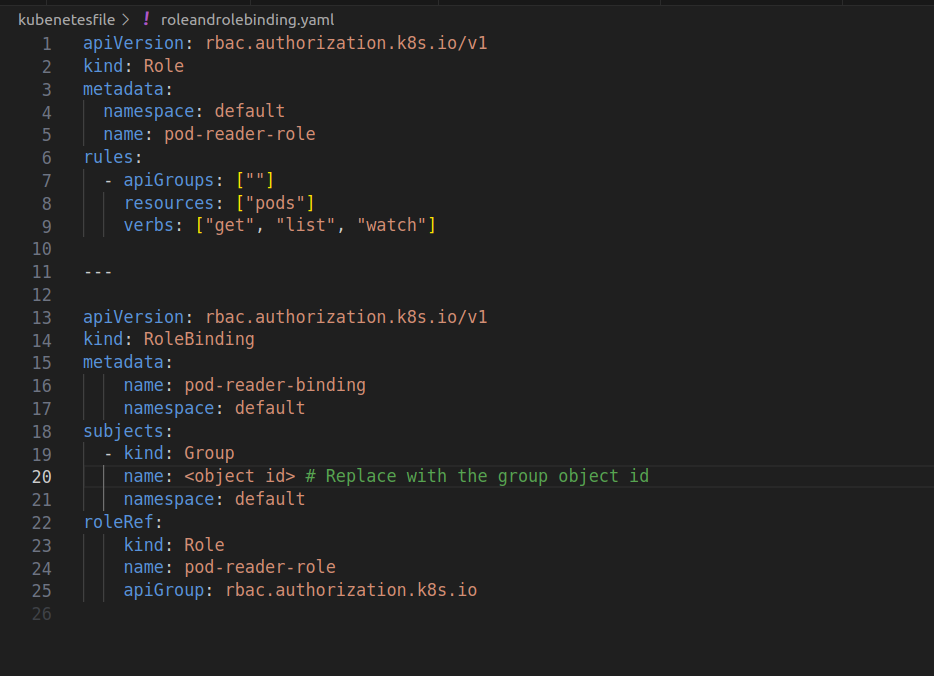
After applying this file through the admin group member we can bind our user group members so that he/she can only access pods in the default namespace and can only get, list, and watch pods.
Conclusion
In summary, this blog outlines the seamless integration of Microsoft Entra ID with Azure Kubernetes Service (AKS) and the effective implementation of Kubernetes RBAC. By creating distinct admin and user groups, configuring roles, and utilizing role bindings, the setup ensures secure and controlled access to AKS resources based on user roles and group memberships. This approach enhances overall cluster security and facilitates granular control over user permissions in the Kubernetes environment.
2 thoughts on “Use Kubernetes RBAC with Microsoft Entra ID in Azure Kubernetes service”
Very helpfull
Thank you, this really helped me ! ♥ï¸
Comments are closed.