



Continuous Integration and Continuous Deployment (CI/CD) pipelines have become integral to modern software development, automating the process of building, testing, and deploying applications. Kaniko, a powerful open-source tool developed by Google, offers a unique solution for building container images within CI/CD pipelines without the need for Docker daemon privileges. In this comprehensive guide, we will walk through the steps of integrating Kaniko with CI/CD pipelines, demonstrating how to seamlessly incorporate container image builds into your automated workflows.
Why Kaniko in CI/CD Pipelines?
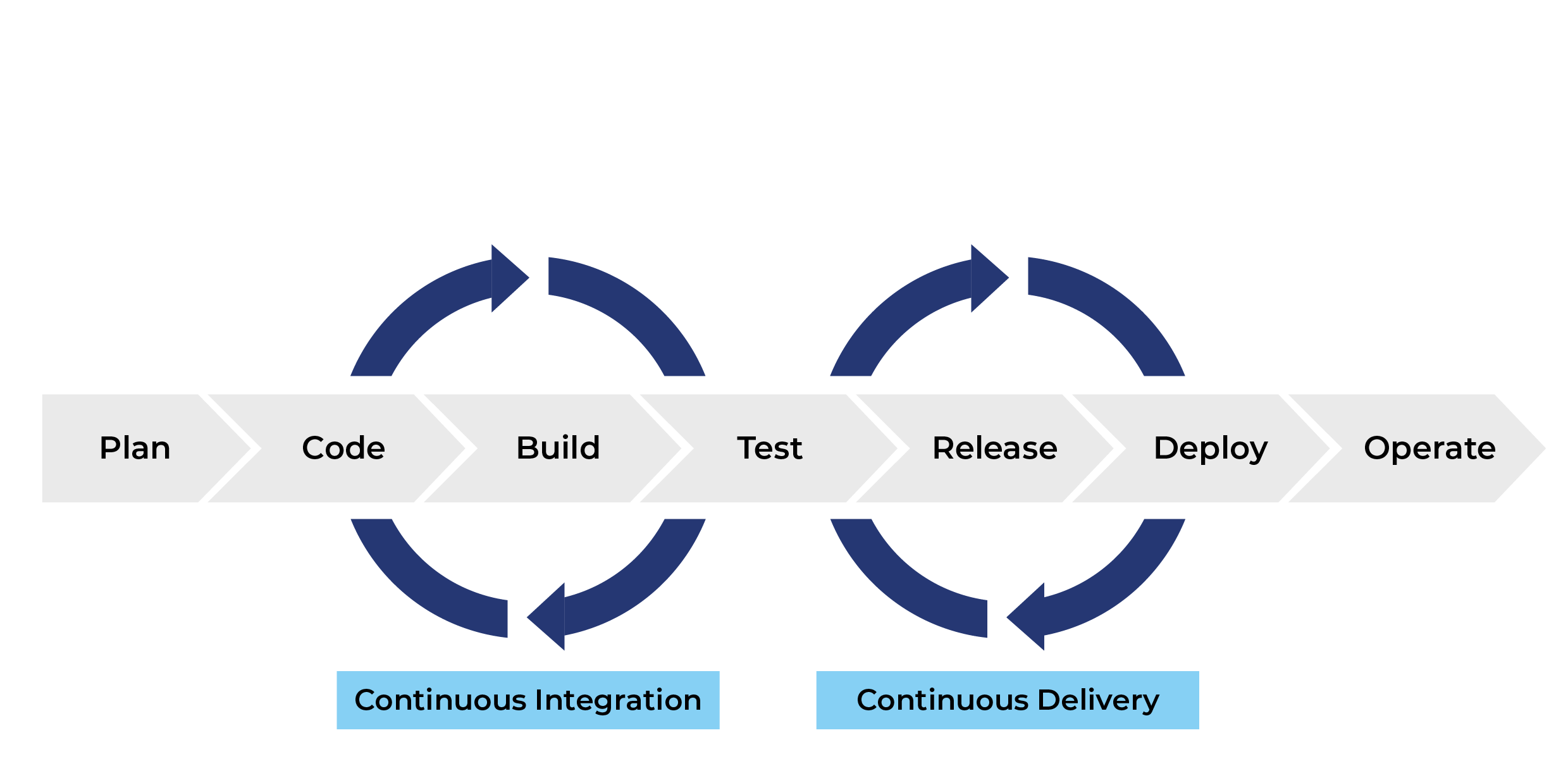
Before we dive into the integration steps, let’s briefly highlight why Kaniko is an excellent choice for CI/CD pipelines:
- Containerized Build Process: Kaniko operates entirely within containers, eliminating the need for a Docker daemon. This containerized approach enhances security and ensures consistent image builds across different environments.
- No Privileged Access Required: Unlike traditional Docker-based builds, Kaniko doesn’t require privileged access. This makes it suitable for environments where escalating privileges is restricted, such as CI/CD pipelines.
- Layered Image Builds: Kaniko follows the layered image build approach, allowing for efficient caching of intermediate layers. This results in faster build times, especially when dealing with large and complex applications.
- Compatibility with Kubernetes: Kaniko aligns seamlessly with Kubernetes environments, making it an ideal choice for building container images within Kubernetes clusters.
Step 1: Set Up Your CI/CD Pipeline
Assuming you already have a CI/CD pipeline in place, the first step is to set up the pipeline to trigger Kaniko for building container images. Here, we’ll use Jenkins as an example, but the principles can be adapted to other CI/CD tools.
- Install Jenkins Kaniko Plugin: If you haven’t already, install the Jenkins Kaniko plugin. This plugin allows you to easily integrate Kaniko into your Jenkins pipelines.
- Configure Jenkins Pipeline: Create or modify your Jenkins pipeline script to include a stage for Kaniko. Here’s a simplified example:
pipeline {
agent any
stages {
    stage('Build Image') {
        steps {
            container('kaniko') {
                script {
                    sh '/kaniko/executor --context /workspace --dockerfile /workspace/Dockerfile --destination myregistry.com/myuser/myapp:latest'
                }
            }
        }
    }
    // Additional stages for testing, deployment, etc.
}
}
Step 2: Set Up Kaniko Executor Container
For Kaniko to function within your CI/CD pipeline, you need to set up the Kaniko executor container. This container encapsulates the Kaniko binary and serves as the runtime for building container images.
- Create Kaniko Executor Dockerfile: Create a Dockerfile for the Kaniko executor container. Here’s a basic example:
FROM gcr.io/kaniko-project/executor:latestSave this asDockerfile.kaniko.
- Build Kaniko Executor Image: Build the Kaniko executor image using Docker. Ensure you have Docker installed, navigate to the directory containing
Dockerfile.kaniko, and run:docker build -t mykanikoexecutor:latest -f Dockerfile.kaniko .
- Push Kaniko Executor Image: If your CI/CD environment requires it, push the Kaniko executor image to a container registry:
docker push myregistry.com/myuser/mykanikoexecutor:latest
Step 3: Configure Jenkins to Use Kaniko Executor
Now that you have the Kaniko executor image, you need to configure Jenkins to use this image as an agent.
- Add Kaniko Executor as a Jenkins Agent: In your Jenkins instance, navigate to “Manage Jenkins” -> “Manage Nodes and Clouds” -> “New Node.” Add a new node and select “Docker” as the launch method. Enter the details, including the Kaniko executor image.
- Configure Jenkinsfile: Modify your Jenkinsfile to use the Kaniko executor as the agent. Update the
container('kaniko')section to use the Kaniko executor image:
pipeline {
agent {
docker {
image 'myregistry.com/myuser/mykanikoexecutor:latest'
args '--privileged'
}
}
stages {
    stage('Build Image') {
        steps {
            script {
                sh '/kaniko/executor --context /workspace --dockerfile /workspace/Dockerfile --destination myregistry.com/myuser/myapp:latest'
            }
        }
    }
    // Additional stages for testing, deployment, etc.
}
}
Step 4: Execute the CI/CD Pipeline
With Kaniko integrated into your CI/CD pipeline, it’s time to execute the pipeline and witness the seamless building of container images.
- Trigger the Pipeline: Depending on your CI/CD tool, manually trigger the pipeline or set up webhook-based triggers.
- Monitor the Pipeline Execution: Monitor the pipeline execution through your CI/CD tool’s interface. Observe the Kaniko build stage, and inspect the console logs for any build-related information.
- Verify the Built Image: Once the pipeline completes successfully, verify that the container image has been built and pushed to the specified registry.
Conclusion
Integrating Kaniko with CI/CD pipelines provides a streamlined and secure approach to building container images within automated workflows. By leveraging Kaniko’s containerized build process and compatibility with Kubernetes environments, developers can ensure consistent and efficient image builds without the need for privileged access.
This step-by-step guide covered the essential aspects of integrating Kaniko with a Jenkins CI/CD pipeline. Adapt the principles to other CI/CD tools based on your organization’s preferences. As you embrace Kaniko in your CI/CD workflows, you’ll experience the benefits of faster builds, improved security, and enhanced agility in deploying containerized applications.
I hope this gave you some useful insights. Please feel free to drop any comments, questions or suggestions. Thank You !!!