


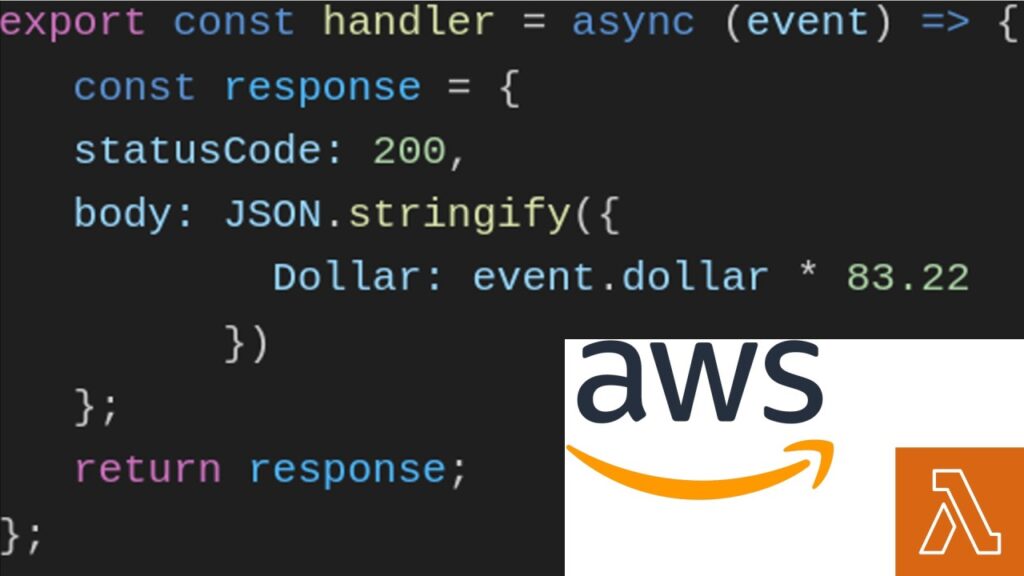
Introduction
Deploying a Node.js API with AWS Lambda involves utilizing a serverless compute service. AWS Lambda allows code execution in response to events without the need for server provisioning. It natively supports various programming languages, and developers can extend it to nearly any language using custom runtimes.
What does “serverless compute service” mean?
Serverless compute services eliminate the need for users to set up servers themselves, requiring no manual infrastructure setup for running an application. For instance, in a traditional setup (like using AWS EC2), if you wanted to run a Node.js application, you’d need to:
- Provision of an EC2 instance (essentially a virtual machine).
- Set up the operating system and any necessary software (like Node.js).
- Deploy the application to the EC2 instance.
- Manually scale by adding more EC2 instances if application receives more traffic.
With serverless computing services, like AWS Lambda:
- Simply upload your Node.js code.
- The service automatically runs the code in response to triggers (like HTTP requests).
- It scales automatically, running your code in parallel if there are many incoming requests.
- Billing is typically based on the actual compute time your code uses, not the total time your server is running.
[ Demo ]
Step 1: API creation
In the demo, we are making an API-based application that will convert money from dollar to Indian rupee here is the detailed explanation
- Takes the currency in dollar like { “Dollar” : “1” }.
- Return the currency in rupee like { “Rupee” : “83.22” }.
For that, we have that node js code
export const handler = async (event) => {
   const response = {
     statusCode: 200,
     body: JSON.stringify({
           Rupee: parseFloat(JSON.parse(event.body).dollar) * 83.22,
         })
   };
   return response;
};
In the above code, handler is an arrow function of async type having parameter event obejct .
Here the event parameter contains the body that are passed further with the request. The below code is the response that we are providing to the user who which is rupee after conversion. Here we are also adding statusCode 200 which tell the user that request is successfully received and processed.
const response = {
     statusCode: 200,
     body: JSON.stringify({
           Rupee: parseFloat(JSON.parse(event.body).dollar) * 83.22,
         })
 };
Step 2: AWS Lambda Configuration
- Open AWS console from here https://console.aws.amazon.com/
- Log in with your credentials.
- Type Lambda on the navigation bar of the AWS console dashboard.

- Click on the Lambda result below the service.
- Click on the create function.

- Select the author from scratch option and provide the function name, here I am using my_app and select Runtime as Node.js 18.x and click on create function.

- Scroll down to Code Source and replace the content of index.mjs file code with step 1 code.

- Click on the Save button and then deploy the code by pressing Deploy button.
- Your function has been successfully deployed to AWS Lambda.
- Now to access you need to configure a trigger through which this function will get called, in my case I am using API Gateway as a trigger to do so go to the function overview menu on the same page of AWS console and click on Add trigger select API Gateway as a source.

- In the intent option select Create a new API.
- Select HTTP API for API type option for Security option select open and click add.

- Now you will be able to see API endpoint from where you can trigger this function.

Test API using this command
$ curl -X POST your_endpoint_gateway_url -H "Content-Type: application/json" -d '{"dollar": 1}'In response you will get the output
Output
{"Rupee":83.22}
In conclusion, deploying a Node.js API with AWS Lambda offers unparalleled flexibility and scalability. The serverless architecture simplifies infrastructure management, allowing developers to focus solely on crafting efficient and scalable code.