



Hello Readers!!! We are again back with an exciting service offered by AWS i.e. AWS Transcribe. In this blog we will explore this amazing AWS service. In today’s fast-paced digital landscape, the ability yo transcribe spoken words into text with accuracy and efficiency has become increasingly important. Transcription technology plays here a vital role in unlocking the potential of spoken language data. Here enters, AWS Transcribe.
What is AWS Transcribe?
It is a fully managed powerful automatic speech recognition service offered by AWS which is used for transcribing videos or audios into written text. It is based on machine learning algorithms used for providing high quality and affordable speech to text transcription. AWS Transcribe provides transcript customisation options such as customised vocabulary and customised language model. It also provides user safety and privacy features such as vocabulary filtering and automatic content redaction. It has audio processing features like streaming and batch transcriptions and automatic language identification.
How to convert Speech to Text with Amazon Transcribe?
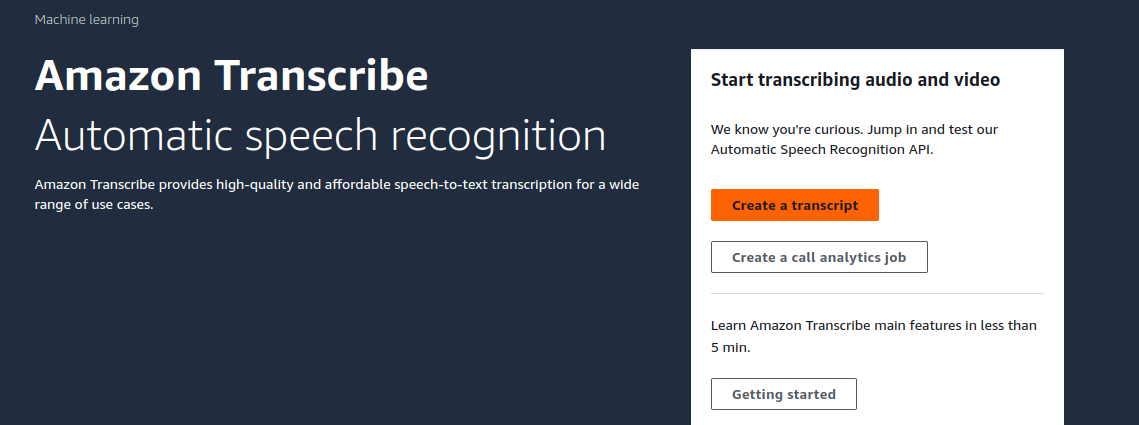
Let’s see how we can convert speech to text with AWS Transcribe. Move to AWS console, open AWS Transcribe. For real-time transcription, click on create transcript.
Click on start streaming, start your speech and see real time transcription.
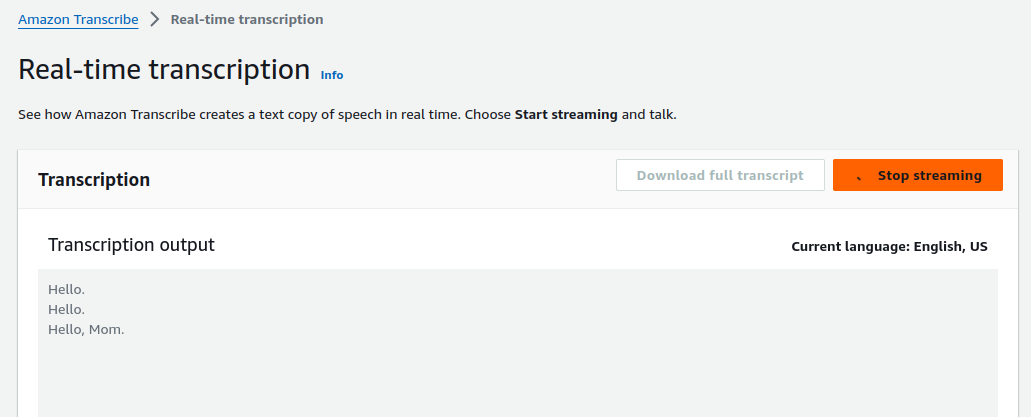
Here we can see our speech real-time transcription. Also, it gives option to download full transcript.
AWS Transcribe also gives option for Transcription jobs. We can create transcription job to transcribe audio and video files. And here it is.
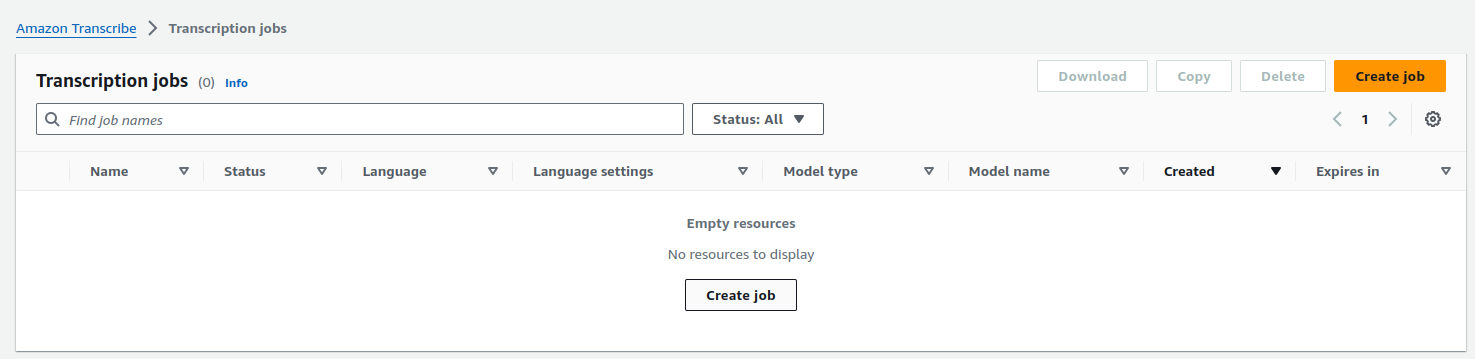
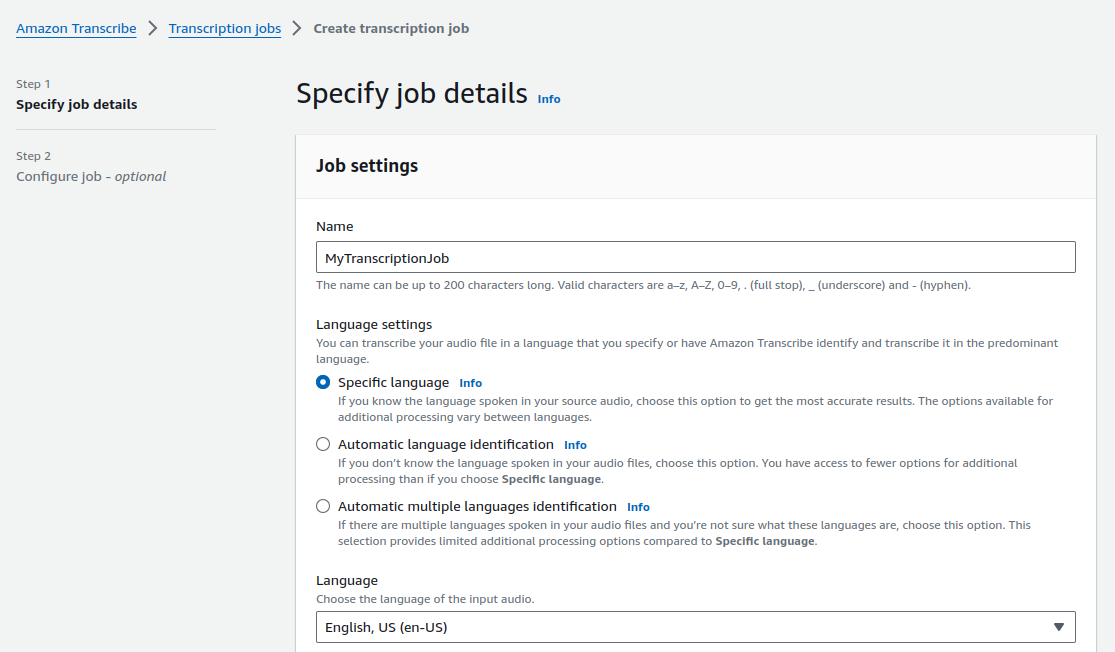
Click on create job. Specify job details such as name for your job. Select language settings, it gives us three options to choose here depending on us: specific language, automatic language identification and automatic multiple language identification.
Choose the type of model to use for your transcription job based on the need.
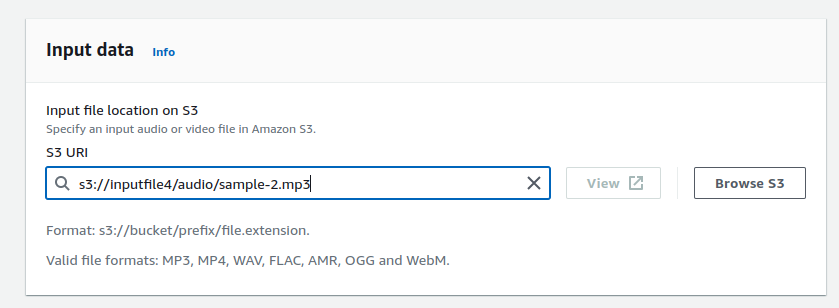
Now, select input location of audio/video files which we want to transcribe.
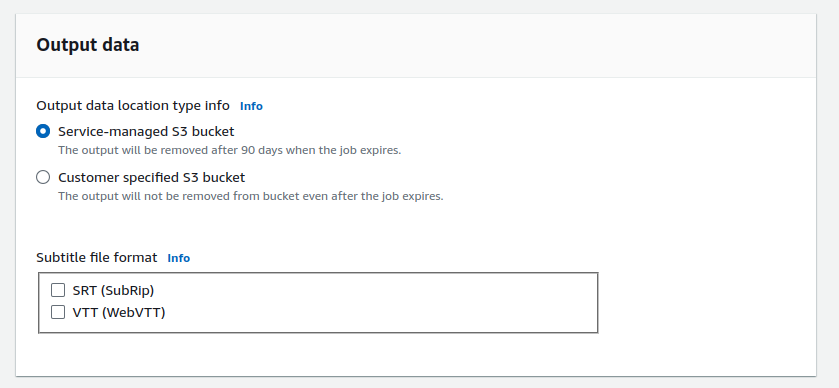
After this choose output location type. It gives two option service managed S3 bucket and other is customer specified S3 bucket. So, in service managed S3 bucket the output will be removed after 90 days when the job expires. And in customer specified S3 bucket the output will not be removed from bucket even after the job expires.
Review your setting once, click on Next and click on create job.

Now, we can see its status is complete.

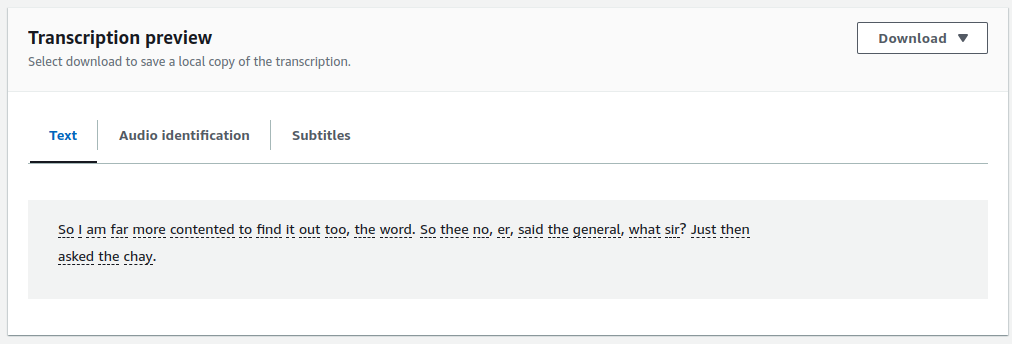
To see its transcription open the job, move to transcription preview. And here you can see that input audio file in text.
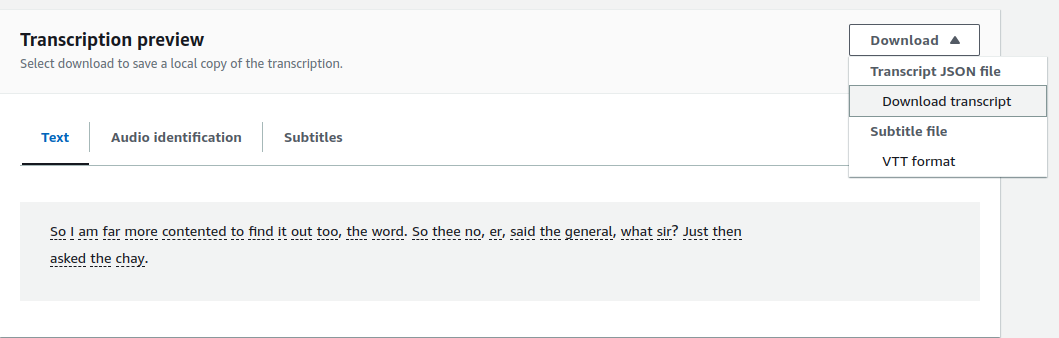
We can also download this transcription.
Its successfully done!!! So, I hope you enjoyed doing this.
Conclusion
Thanks for being with me till the end. In this blog we have seen that Amazon Transcribe offers a comprehensive solution for converting speech into text, you can streamline your workflows, enhance accessibility. If this blog helped you somewhere do like this post and share this with the needful. If you have any queries, please contact me at Naincy.kumari@Nashtechglobal.com.
Happy Learning!!