


Web accessibility has become an important aspect of web development. Ensuring that your website is accessible to all users, including those with disabilities, is not just a legal requirement in many jurisdictions, but also a moral imperative and a good business practice. Fortunately, there are tools available to help us automate accessibility testing, and one such tool is Axe that can be integrated with selenium very easily using its library.
Accessibility testing ensures that web applications are usable by people with disabilities. Integrating accessibility testing into Continuous Integration (CI) pipelines is crucial for maintaining inclusive web experiences. Axe Selenium, a powerful accessibility testing tool, can be seamlessly integrated into CI pipelines via GitLab to automate accessibility checks. In this blog, we’ll discuss the significance of accessibility testing, introduce Axe Selenium, and demonstrate how to integrate it into GitLab CI pipelines.
Why Accessibility Testing Matters:
Web accessibility ensures that people with disabilities can perceive, understand, navigate, and interact with websites effectively. Failure to address accessibility issues not only excludes users but can also lead to legal liabilities and tarnished reputations for organizations.
Introducing Axe Selenium:
Axe Selenium is an open-source library that integrates the Axe accessibility engine with Selenium WebDriver. It allows us to perform automated accessibility testing within their Selenium-based test suites. Axe Selenium scans web pages for accessibility violations and provides detailed reports, making it a valuable tool for ensuring compliance with accessibility standards such as WCAG (Web Content Accessibility Guidelines).
Why Integrate Axe into CI Pipelines?
Integrating accessibility testing into your CI pipelines offers several advantages:
- Early Detection of Issues: By running accessibility tests automatically with every code change, you can catch issues early in the development lifecycle, making them easier and cheaper to fix.
- Consistency: Automation ensures that accessibility tests are performed consistently across different environments and by everyone on your team.
- Compliance: Automated accessibility testing helps ensure that your website meets accessibility standards and complies with regulations such as the Web Content Accessibility Guidelines (WCAG).
Integrating Axe Selenium with GitLab CI:
GitLab CI provides a robust framework for automating build, test, and deployment processes. Integrating Axe Selenium into GitLab CI pipelines enables us to perform accessibility testing as part of their automated workflows. To integrate Axe into your GitLab CI/CD pipelines, follow below steps:
Prerequisites
- Java Installed
- IntelliJ IDEA IDE or any of your choice
- Maven should be installed, Click here to see steps of installation.
- Selenium WebDriver Java bindings
- Axe-selenium-java Library
- GitLab: Have a GitLab account or access to an existing GitLab instance. If you don’t have one, you can sign up for a free account at https://gitlab.com/users/sign_in
Step 1: Create a Selenium Test Script
let’s start by creating a basic selenium test script where we will navigate to a web page and check the accessibility violations with the help of axe.min.js library. Simply open your IDE and create a new java class add the below code, in this case i have created the class named AmazonAllyTest.java.
public class AmazonAllyTest {
WebDriver driver;
private static final URL scriptURL = AmazonAllyTest.class.getResource("/axe.min.js");

@BeforeMethod
public void setup(){
ChromeOptions options = new ChromeOptions();
options.addArguments("--headless");
options.addArguments("start-maximized");
options.addArguments("--window-size=1920x1080");
options.addArguments("--no-sandbox");
options.addArguments("--disable-dev-shm-usage");
options.addArguments("--no-sendbox");
options.addArguments("--remote-allow-origins=*");
driver = new ChromeDriver(options);
String websiteUrl= "https://www.amazon.in/";
driver.get(websiteUrl);
}

@Test
public void amazonAllyTest(){

JSONObject responseJson = new AXE.Builder(driver,scriptURL).analyze();
JSONArray violations = responseJson.getJSONArray("violations");

if(violations.length()==0){
System.out.println("No Errors");
}
else{
AXE.writeResults("amazonAllyTest",responseJson);
Assert.assertTrue(false, AXE.report(violations));
}
}

@AfterMethod
public void tearDown(){
driver.quit();
}

}
Ensure that axe.min.js(axe-selenium library) is located in /src/test/resources.
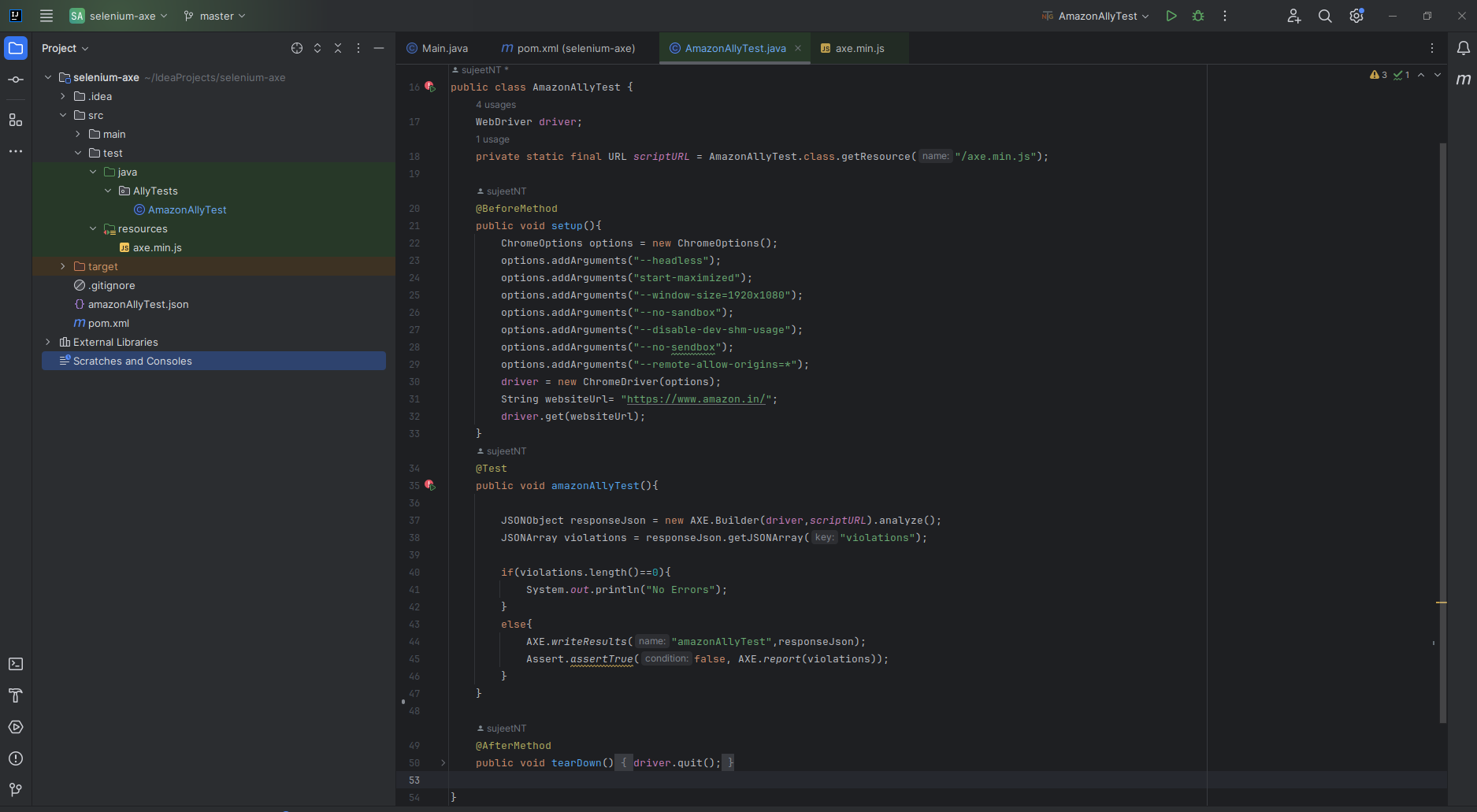
In this code, we are using axe.min.js library to execute accessibility tests over a web page. we have BeforeMethod where we are initializing the chrome browser and navigate to our webpage. Then we have Test method where we are executing our axe library to check accessibility violations. At the end of script we have AfterMethod where we are quitting the driver.
Step 2: Integrating with GitLab
To integrate axe selenium test with GitLab, we will set up a GitLab CI/CD pipeline that runs the tests on every commit. Create a .gitlab-ci.yml file in the root of your project directory with the following content:
Accessibility_Test:
image:
name: 'maven:3.6-jdk-11'
before_script:
- apt-get update
- apt-get install -y xvfb
- apt-get install -y zip
- apt-get install -y wget
- apt-get install -y ca-certificates
- >-
apt-get install -y libnss3-dev libasound2 libxss1 libappindicator3-1
libindicator7 gconf-service libgconf-2-4 libpango1.0-0 xdg-utils
fonts-liberation libgbm1
- >-
wget
http://archive.ubuntu.com/ubuntu/pool/main/libu/libu2f-host/libu2f-udev_1.1.4-1_all.deb
- dpkg -i libu2f-udev_1.1.4-1_all.deb
- apt-get -y install libvulkan1
- >-
wget
https://dl.google.com/linux/direct/google-chrome-stable_current_amd64.deb
- dpkg -i google-chrome*.deb
- rm google-chrome*.deb
- >-
wget -N
http://chromedriver.storage.googleapis.com/89.0.4389.23/chromedriver_linux64.zip
- unzip chromedriver_linux64.zip
- chmod +x chromedriver
script:
- cd selenium-axe
- mvn clean test
allow_failure: true
Step 3: Trigger the Pipeline
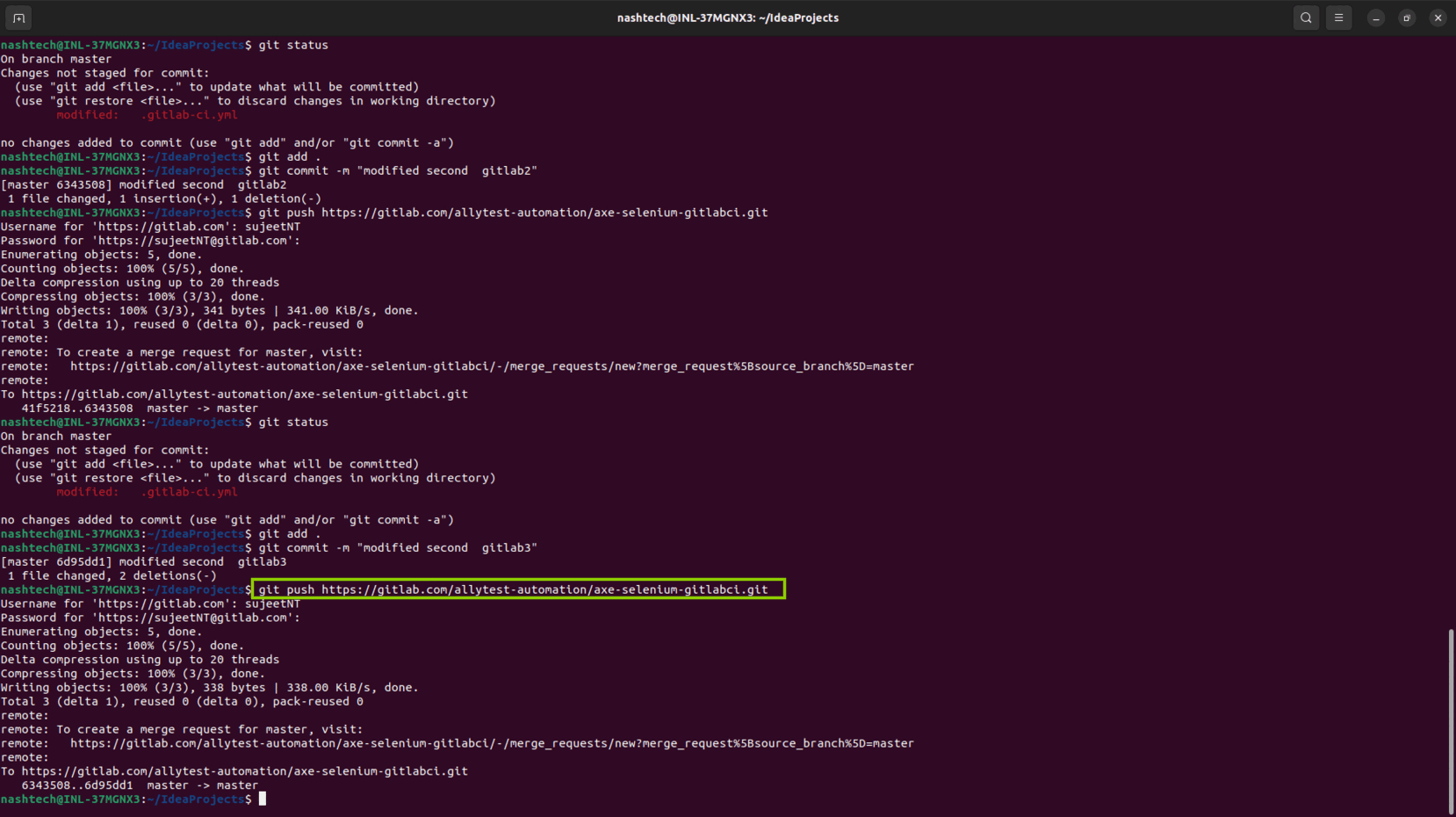
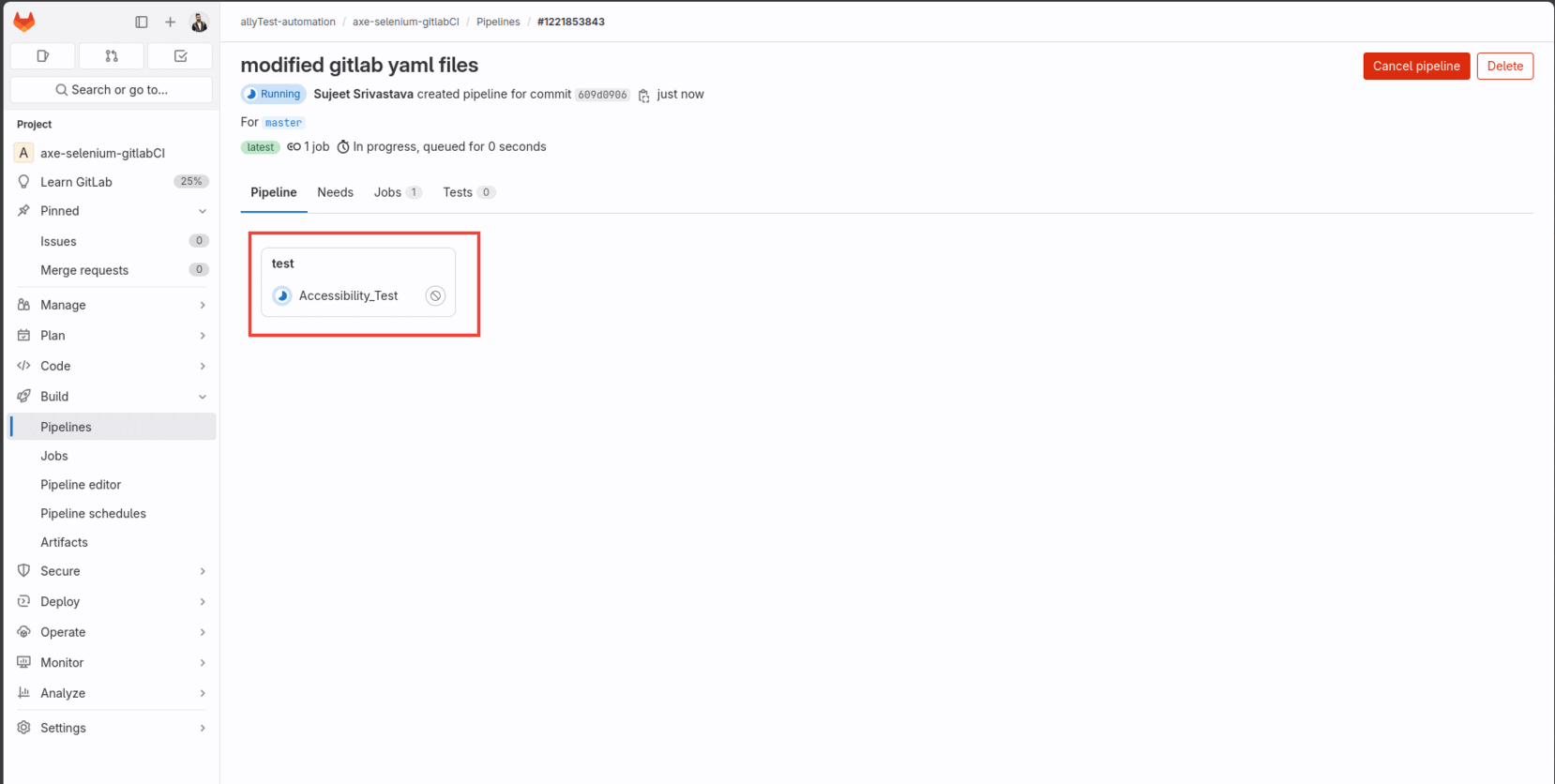
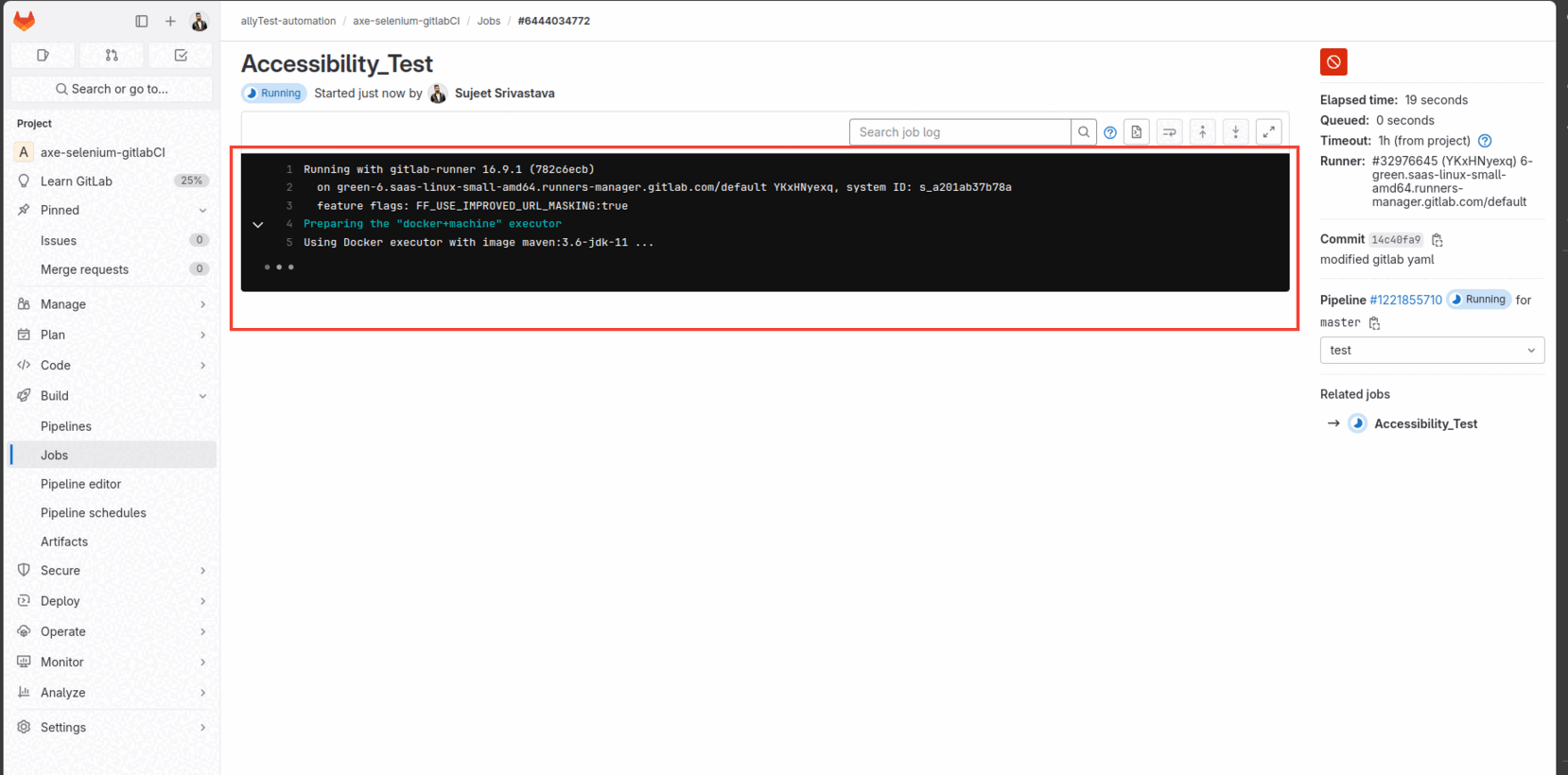
Commit your changes and push them to your GitLab repository. GitLab CI/CD will automatically trigger a pipeline, including the accessibility test job.
Step 4: Viewing Results
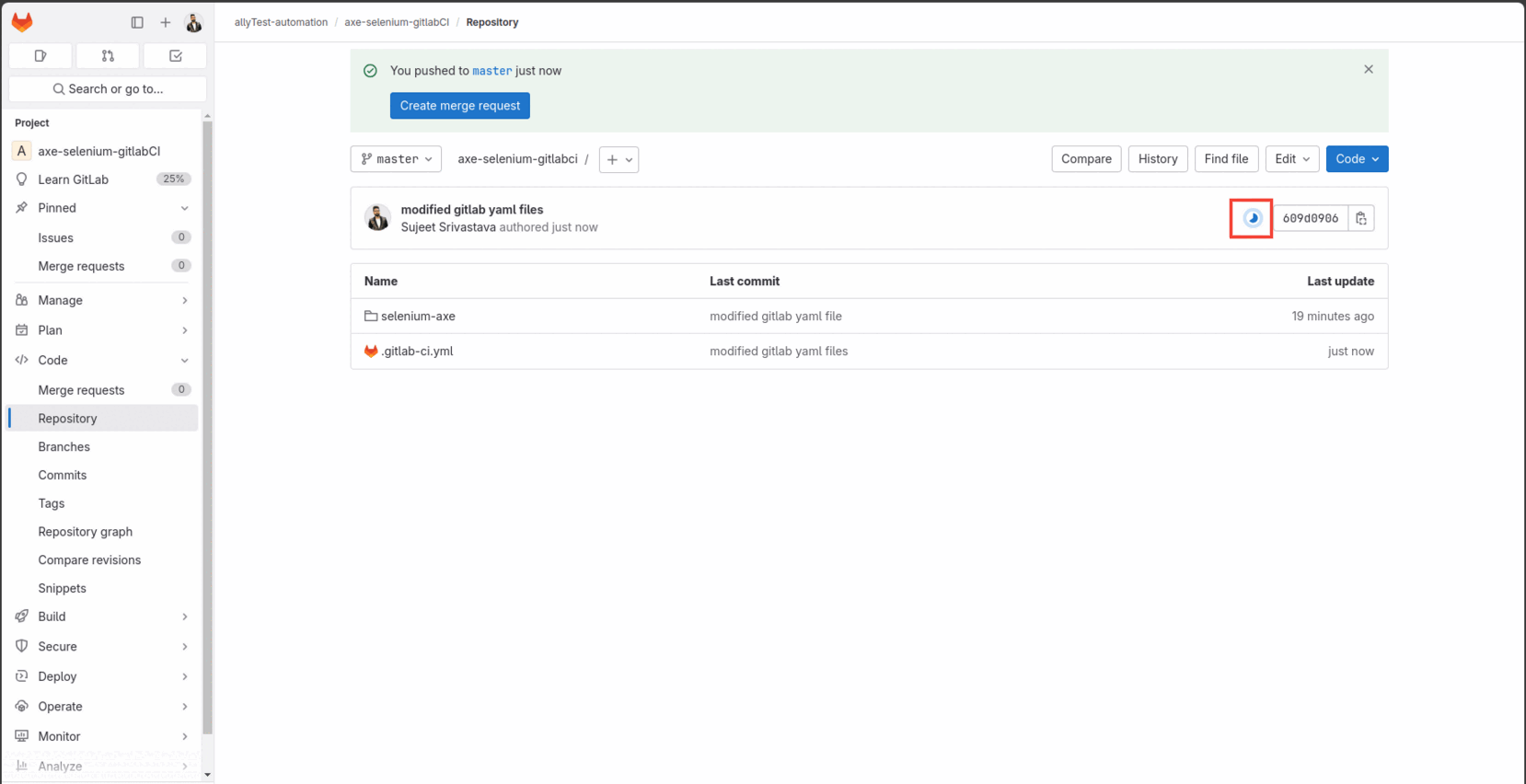
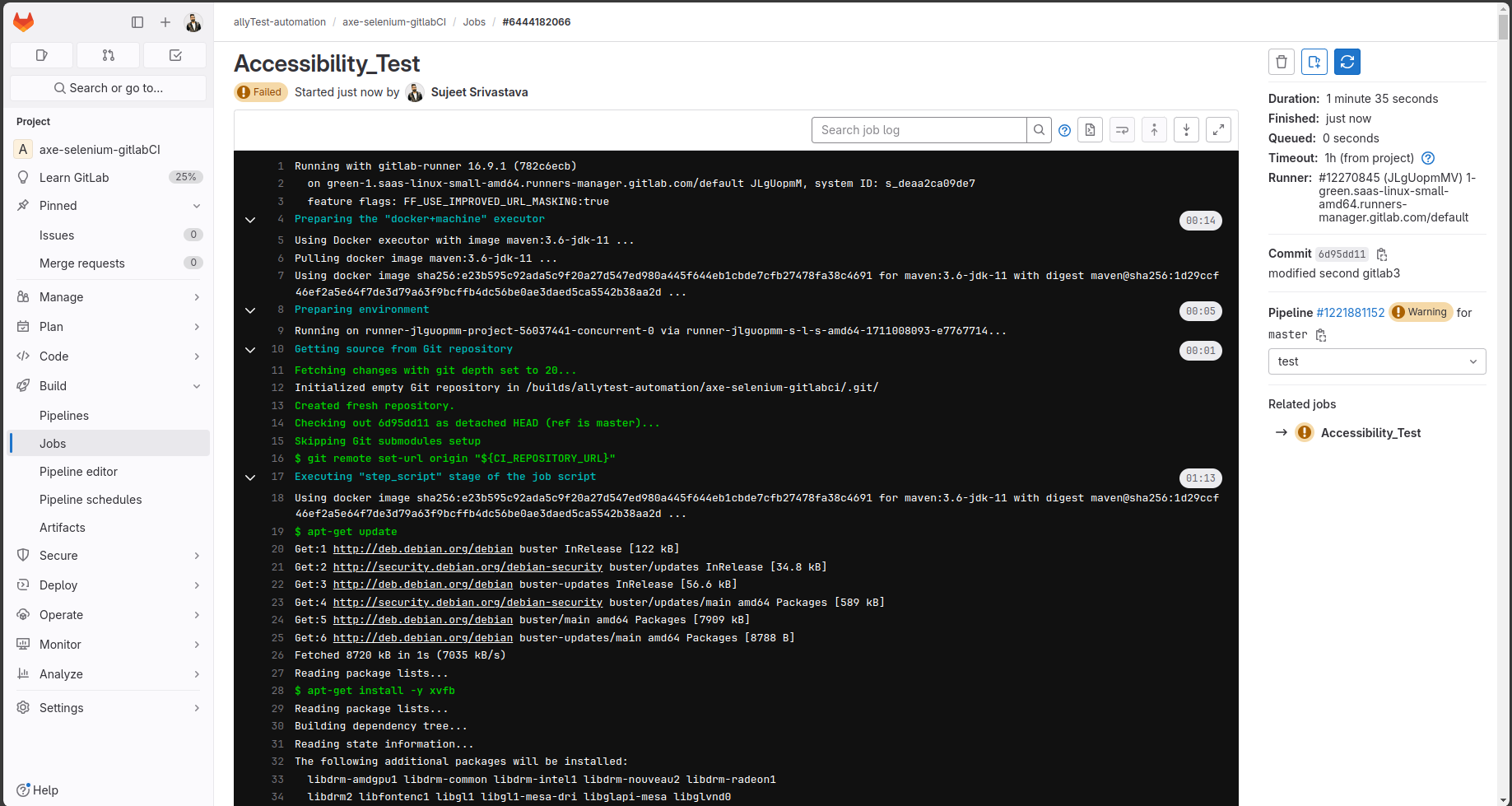
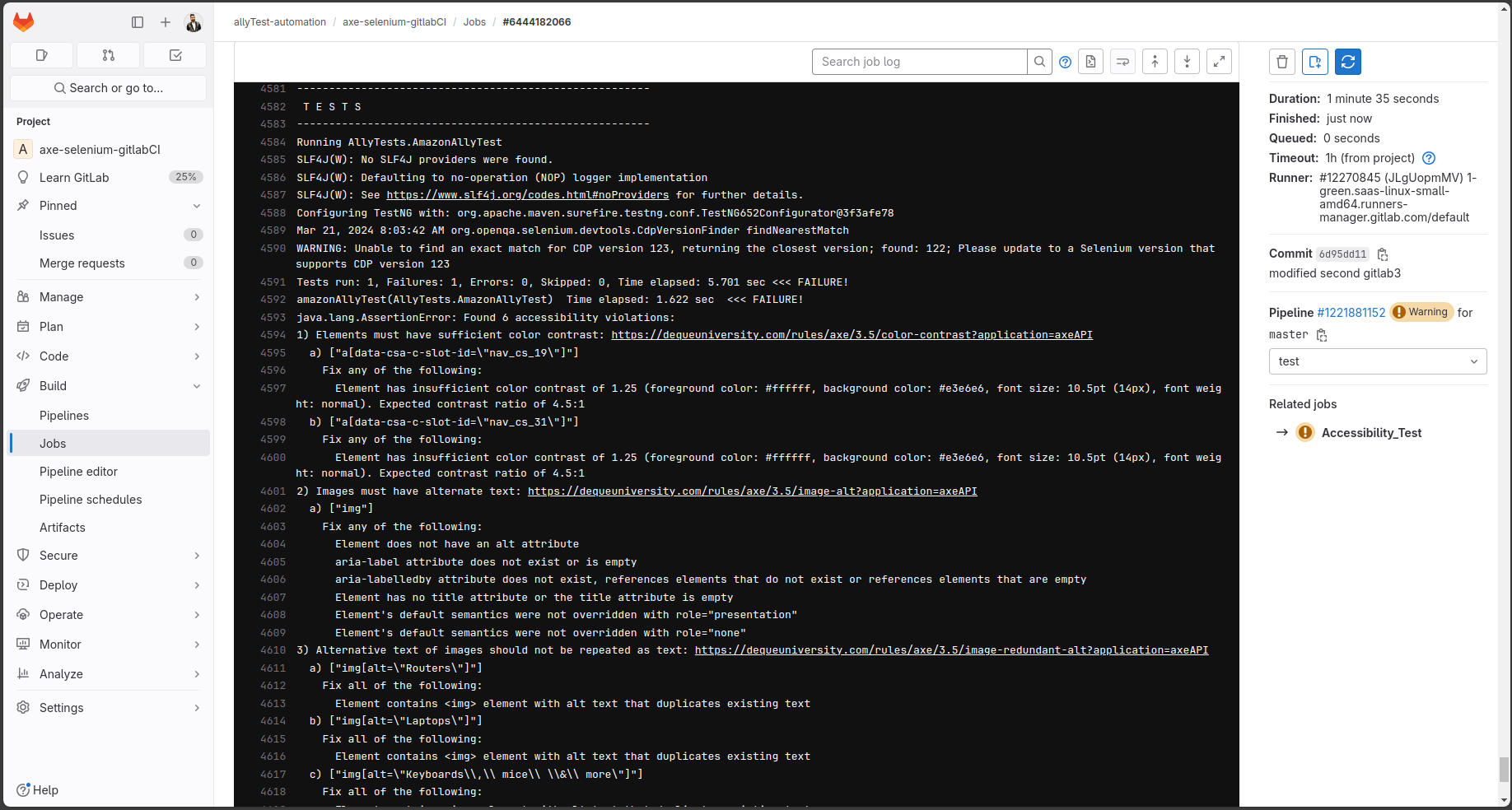
Once the pipeline completes, you can view the accessibility test results in the pipeline’s logs.
Conclusion
Integrating Axe into your GitLab CI/CD pipelines empowers your development team to prioritize accessibility from the earliest stages of development. By automating accessibility testing, you can ensure that your website is inclusive and compliant with accessibility standards. In this article, we’ve covered the basic steps to integrate Axe into GitLab CI/CD pipelines.