



If your project is using Jira for tracking tickets, then Xray tool from Jira themselves can support you to manage Test Cases.
Although it’s a premium feature, which means your organization has to pay to use it. But after more than 2 years with it, it’s really bringing out the freshness in preparing test cases. Let’s take a look in your Jira board, or try creating a new ticket, if you see an issue type as Test, it’s already there for you.
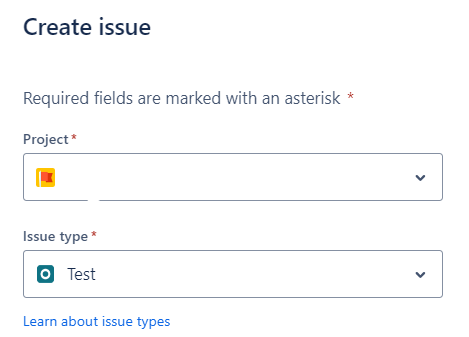
Here’s the walkthrough showing how this tool is actually working.
-
Preparing Test cases
- Click Create button.
- Select your working project.
- Select Issue type as Test.
- Enter Summary as Test cases Title as usual.
- Description is where you describe the issue as well as the Test steps, Expected Result,…
- Enter needed information such as Assignee, Sprint,.. And click on Create.
-
Organizing your test cases
Jira provides a space to manage all the test cases called Test Repository within the Testing board. Every Test you create from step 1 is stored in this screen.
- Create a parent folder. Name a folder with your purpose like Regression test, Functional test, or even Sprint name.
- Add Test items into individual folders.
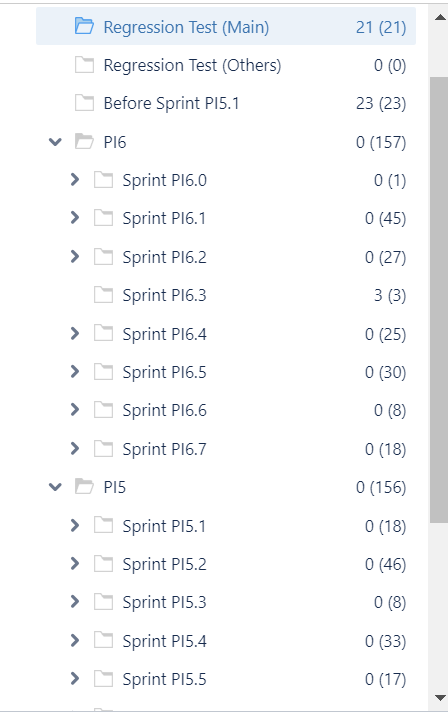
-
Executing test cases
To mark a test case Passed or Failed, you need another issue type is Test Execution. A test case can be executed multiple times as long as it’s added to different Test Execution. So that you can reuse a test for many purposes such as in Sprint or in Regression test without cloning a test case again.
- Create an issue with type is Test Execution
- Enter Summary as your purpose of execution.
- After creating, add issues/test cases into Test Execution by using Existing tests or creating a new Test.
- After all, you can start testing and mark the result.
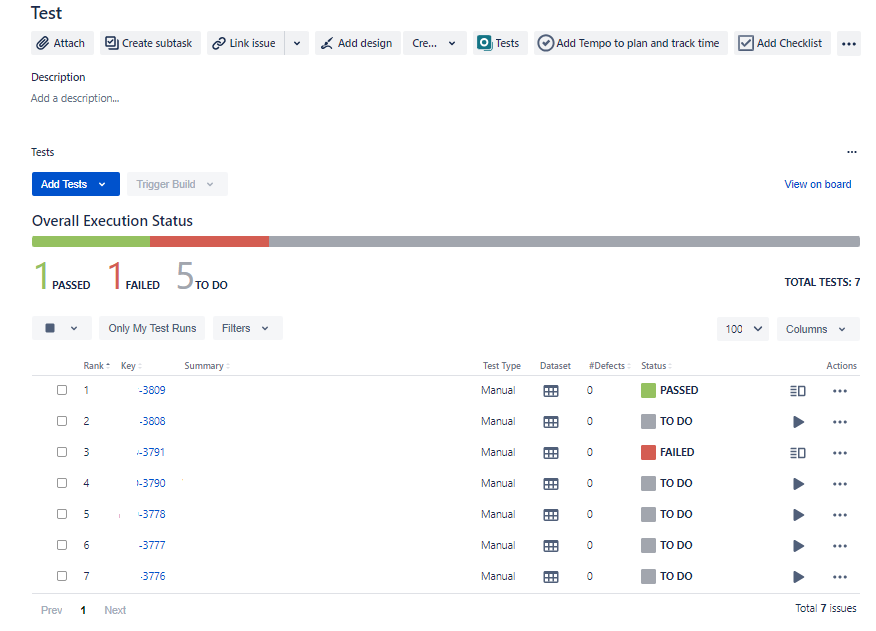
This view is also considered as a report as it’s showing the result of your test. Based on how you’re organizing the execution, it could be used as a Sprint Report or Regression Test report.
-
Conclusion
Above guide is just showing the most basic features of Xray, from creating a new Test to showing a report. There are still many other awesome things such as Test Plans, Automation,… which can fulfill your job requirements. Feel free to share your though, or comments about the blog, or even your tools you’re using in your projects.
Reference: How to create and manage test cases with Xray and Jira (atlassian.com)
Cheers.