


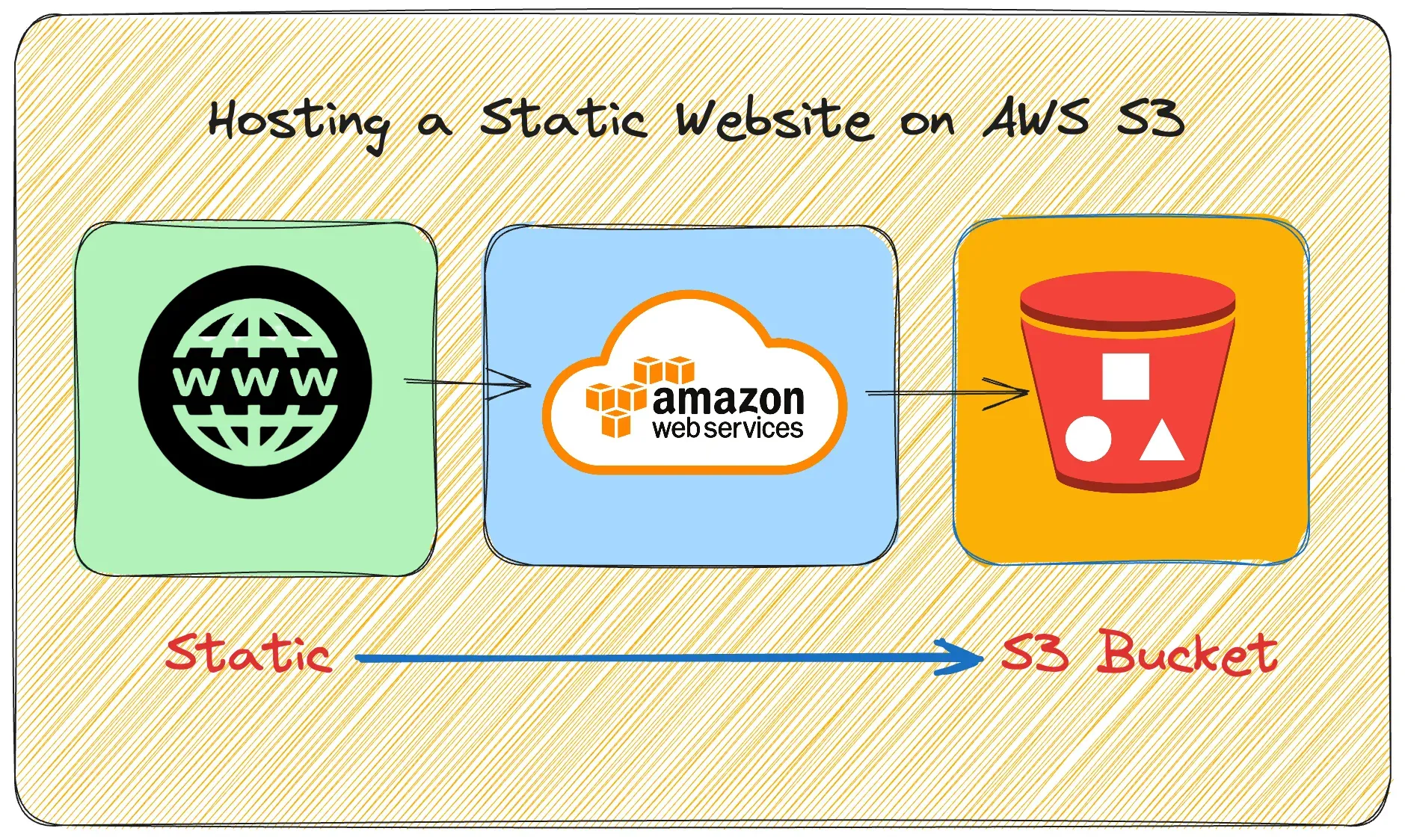
What is a Static Website?
- They require no server administration.
- Static websites deliver HTML, JavaScript, images, video, and other files to your website visitors.
- Static websites are very low-cost.
- They can scale to handle enterprise-level traffic with no additional work.
- They are speedy because there is no true backend to fetch information from.
- A dynamic website relies on server-side processing including server-side scripts, such as PHP, JSP, or ASP.NET.
Amazon S3 is object storage with a simple web service interface to store and retrieve any amount of data from anywhere on the web. It is designed to deliver 99.999999999% durability and scale past trillions of objects worldwide.
To use S3 for a static website, you simply upload files to an S3 bucket and configure your S3 bucket for web hosting.
Let’s get started!
Steps:
1. Sign into the AWS Management Console.
2. Create the error.html and index.html files
3. Create a S3 bucket and upload error.html and index.html files
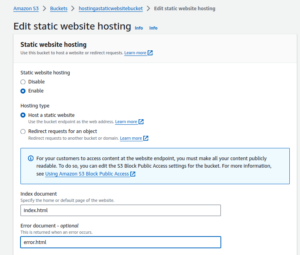
4. Enable Static Website hosting settings
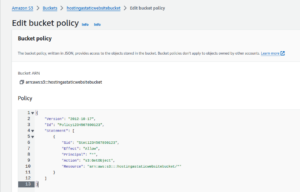
5. Apply Bucket Policy
6. Test the website
Pre-requisites:
- AWS user account with admin access, not a root account.
Steps for implementation of this project:
1. Sign into the AWS Management Console.
- Choose the region where you want to create the bucket.
2. Create the error.html and index.html files
- index.html
<html>
<head>
<title>Hosting a static website on AWS S3</title>
</head>
<body>
<h1><Center>Welcome to AWS S3</Center></h1>
<h2><Center>Static website is deployed successfully</Center></h2>
</body>
</html>
- error.html
<html>
<head>
<title>Error</title>
</head>
<body>
<h1><Center>Error</Center></h1>
</body>
</html>
3. Create a S3 bucket and upload error.html and index.html files
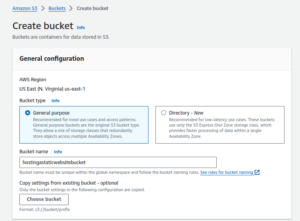
- Create an S3 bucket with a series of numbers at the end to make it globally unique, in US East (N. Virginia) us-east-1.
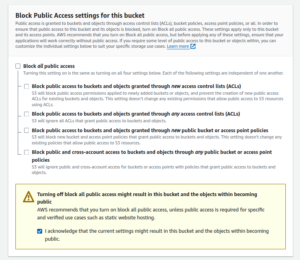
- Un-check Block all public access.
- Ensure all four permissions restrictions beneath it are also unchecked.
- Check the box to acknowledge that turning off all public access might result in the bucket and its objects becoming public.

- Take all defaults.
- Create Bucket
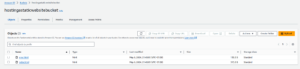
- Upload error.html and index.html files.
4. Enable Static Website hosting settings
- Click the Properties tab.
- Find the Static website hosting section.
- On the right in the Static website hosting section, click Edit.

5. Apply Bucket Policy
- Click the Permissions tab and edit the bucket policy.
6. Test the website
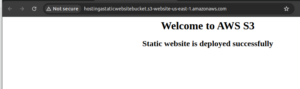
- In the Static website hosting section, open the listed endpoint URL in a new browser tab.

- The website is deployed successfully.
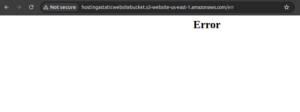
- Add anything at the end of the URL to check the error page.
Conclusion
Thanks for being with me till the end. In this blog, we have seen how we can host a static website on AWS S3. By following the above-mentioned steps, we can easily create a website. I hope you liked this blog, do like and share this blog with the needful.