



Introduction
Progressive Web Applications (PWAs) have revolutionized how we experience the web by combining the best web and mobile applications, offering a seamless user experience across various devices. Blazor, the innovative web framework by Microsoft, allows developers to build interactive web applications using C# instead of traditional JavaScript.
What is a Blazor PWA (Progressive Web Application)?
PWA is an enhanced version of Web Applications. Blazor PWA is an extension of the Blazor framework, allowing developers to build Progressive Web Applications using C# and .NET. PWAs are web applications designed to provide a native app-like user experience while maintaining the versatility and accessibility of traditional web applications. Blazor PWA leverages the capabilities of modern web browsers to deliver offline functionality, push notifications, and an immersive user experience.
What is problem statement and when to create PWA?
- When we can provide data even in the offline
- When your application to be used frequently without typing URL when you are developing the application as a Startup or in a small organization.
Developers need to create a web application that offers offline support, responsive design, and a native-like experience across different devices and platforms, while leveraging their existing .NET skills and codebase.
Solution with Blazor PWA in .NET:
- Offline Support: Blazor PWAs utilize service workers to cache application resources, enabling the application to work offline or in low-connectivity situations. Users can continue using the application and access previously loaded content even without an active internet connection.
- Responsive Design: Blazor’s component-based architecture and support for responsive web design techniques allow developers to create web applications that adapt to various screen sizes and orientations. This ensures a consistent user experience across desktops, tablets, and mobile devices.
- Native-like Experience: By combining Blazor’s capabilities with Progressive Web App features, developers can create web applications that behave and feel like native apps. This includes features such as push notifications, home screen installation on mobile devices, and smooth navigation and interactions.
- Cross-platform Development: With Blazor, developers can write web applications using C# and .NET, which can be deployed to multiple platforms, including web browsers, desktops (via Electron), and mobile devices (via PWAs). This streamlines the development process and allows for code reuse across different platforms.
- Security: Blazor applications benefit from the security features provided by the .NET ecosystem, including built-in protection against common web vulnerabilities such as cross-site scripting (XSS) and cross-site request forgery (CSRF). Additionally, Blazor’s server-side execution model helps mitigate client-side security risks.
Building a Progressive Web App with Blazor
Step 1: Start Visual Studio and select Create a new project. Choose Blazor App as a project template.
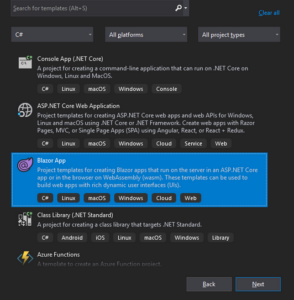
Step 2: Save the project in the location by giving proper names.
Step 3: Choose Blazor WebAssembly App, from the option. In order to create PWA, we need to choose Blazor WebAssembly App, since PWA always does not have a server. We also need to enable the Progressive Web Application as shown below. By enabling, it will turn our Blazor WebAssembly Application into a Progressive Web Application.
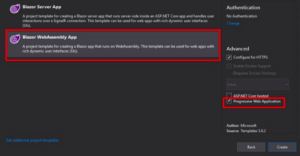
Step 4: Click Create button and now we have successfully created our project.
Project Structure
- Blazor WebAssembly project structure.
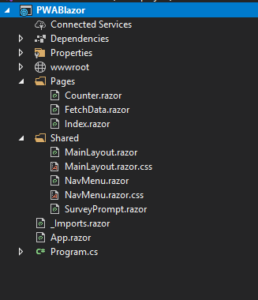
- The place we do have changes in files for PWA is under the wwwroot folder
- We can see four new files as icon-512.png, manifest.json, service-worker.js, and service-worker.published.js
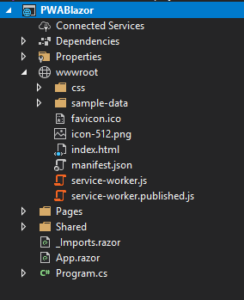
- icon-512.png – The Desktop Icon for our application, which is the default blazor icon
- manifest.json – This JSON file is the root heart of the PWA. This is an industrial standard life. In this file we will declare and setup the PWA. Now let’s discuss the JSON nodes in the manifest.json
- name – Display name of the Application.
- short_name – The short name of our application.
- start_url – Denotes the Root Directory
- background_color – We can set the background color of the application
- theme_color – Sets theme color of the application.
- icons – The desktop icon of our application
- Below few pieces code of manifest.json file, we can modify and add more data.
{
    "name": "PWABlazor",
    "short_name": "PWABlazor",
    "start_url": "./",
    "display": "standalone",
    "background_color": "#ffffff",
    "theme_color": "#03173d",
    "icons": [{
        "src": "icon-512.png",
        "type": "image/png",
        "sizes": "512x512"
   }]
}
- Run the application and make sure IIS Express is selected because we need unique ports to run PWA.
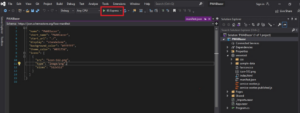
- After running, the application still looks like a normal Blazor application. The difference is tiny. If we look into the URL, you can see an Icon as plus for the first time (If the current PWA is not installed before). Once we click that plus icon, it prompts us to Install this application, and once installed, it looks like the Desktop application.
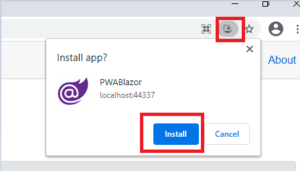
- Once we clicked install, as said before, the browser application will be closed, and a desktop application will be opened.
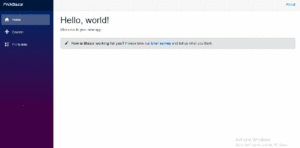
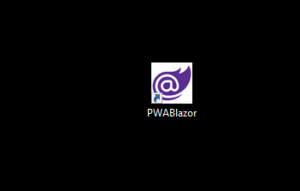
- This is our same Blazor application, but it is running as PWA. It does not have any browser URL, navigational bars and it just looks like a desktop application. And if we move to our Desktop, we can see a shortcut icon of our PWABlazor application.
Conclusion
Blazor PWA emerges as a powerful technology, providing developers with a streamlined and efficient development experience. Progressive Web Applications (PWAs) introduce exciting possibilities, enabling the creation of web applications with native app-like features. Also we had a discussion on how to create a PWA in Blazor and its purpose.