



In this blog, we will see how we can use Azure Virtual Machine as self-hosted agent for Azure Devops Pipelines.
Pre-Requisites:
- Azure Account
- Azure VMs
Configure a self-hosted agent using Azure VMs
Creating an Agent Pool for self-hosted agent
Go to the Project Settings
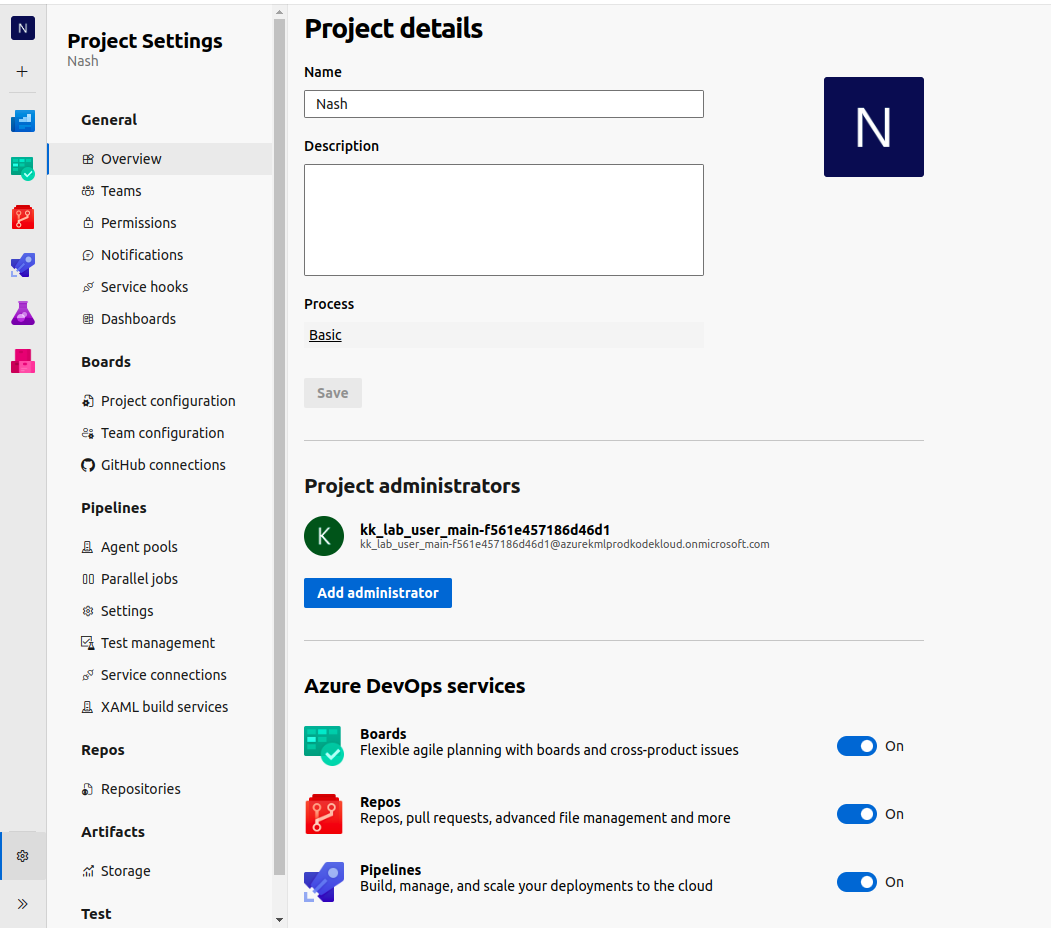
In the left bar, click on Agent Pools.
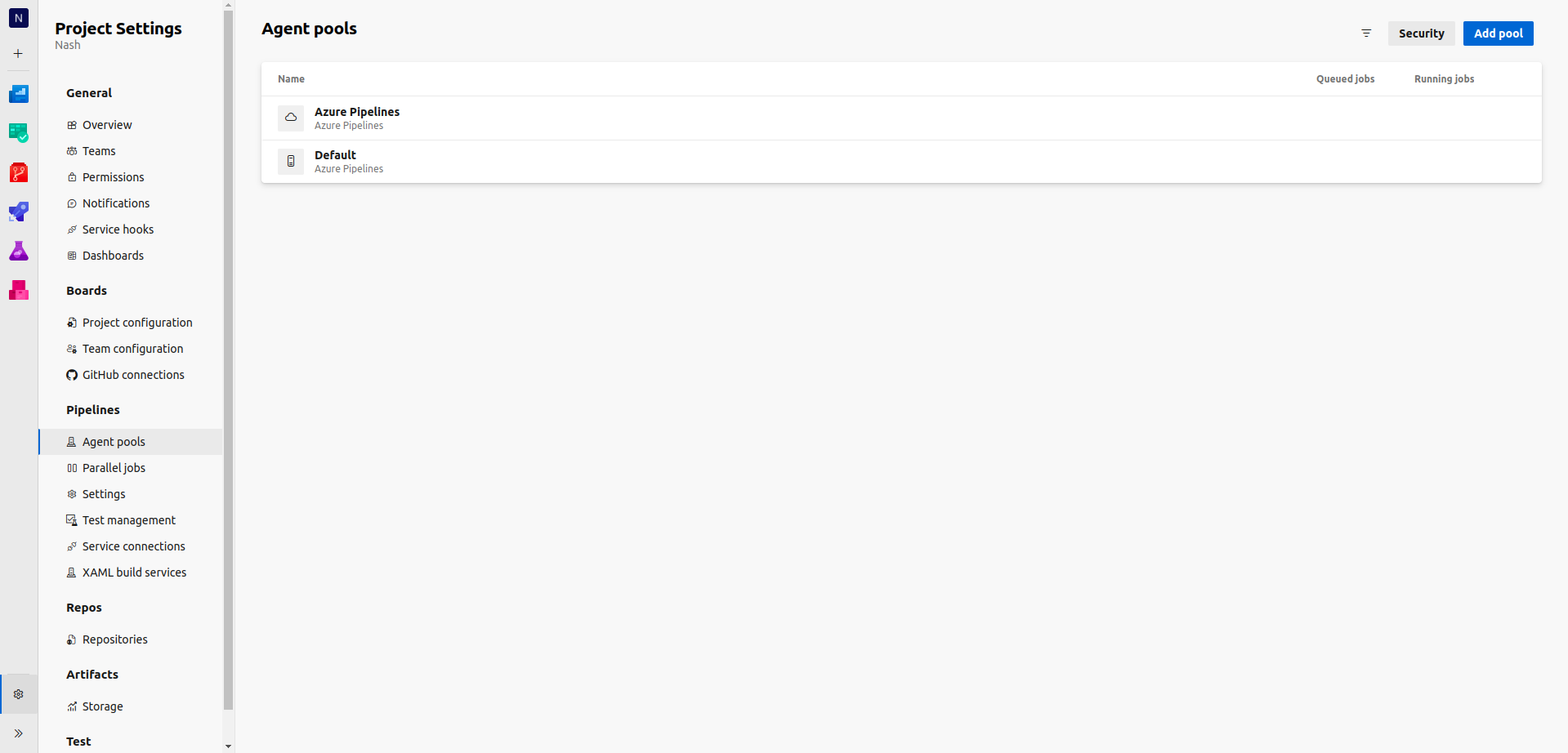
Click on Add Pool.
Select Pool type as Self hosted. and give a name to it.
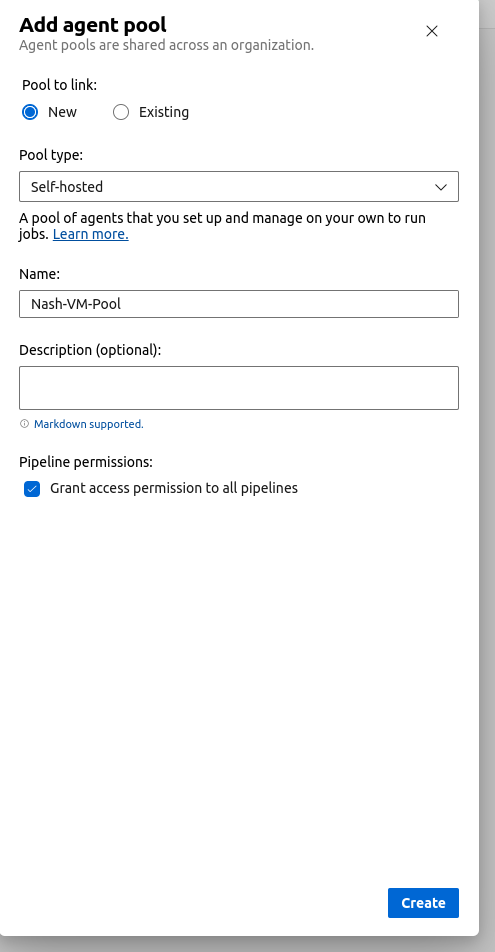
Click on Create
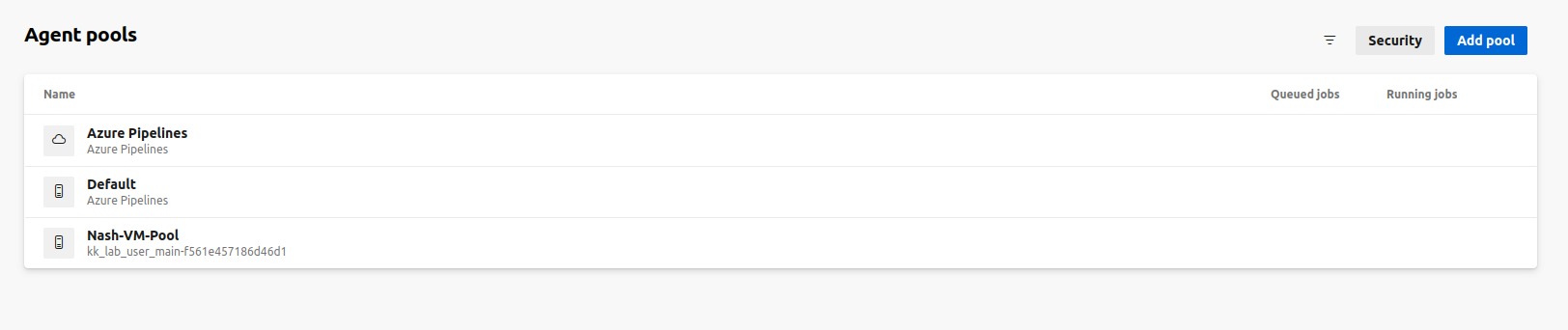
The newly added pool is visible in Agent Pools. Select it to configure agents in this pool.
Adding self-hosted agents to the Agent Pool
Now we will add Azure Virtual Machine as agents to this pool.
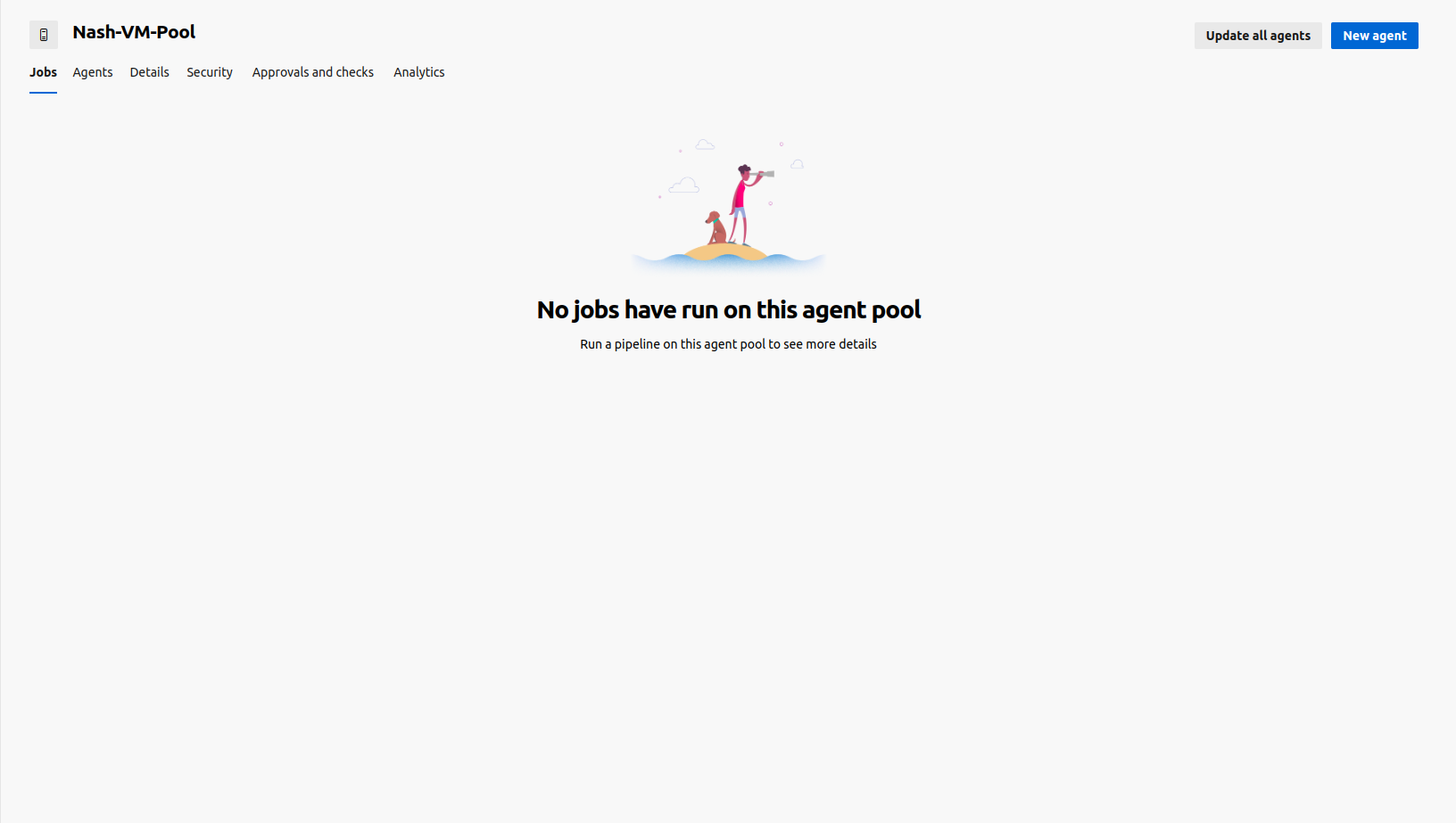
Select the Agents tab.
Click on New agent. You will now be able to see the steps you need to perform to configure Azure VM as the agent.
SSH into the Azure VM you want to configure as an agent. Accept the Team Explorer Everywhere License agreement.
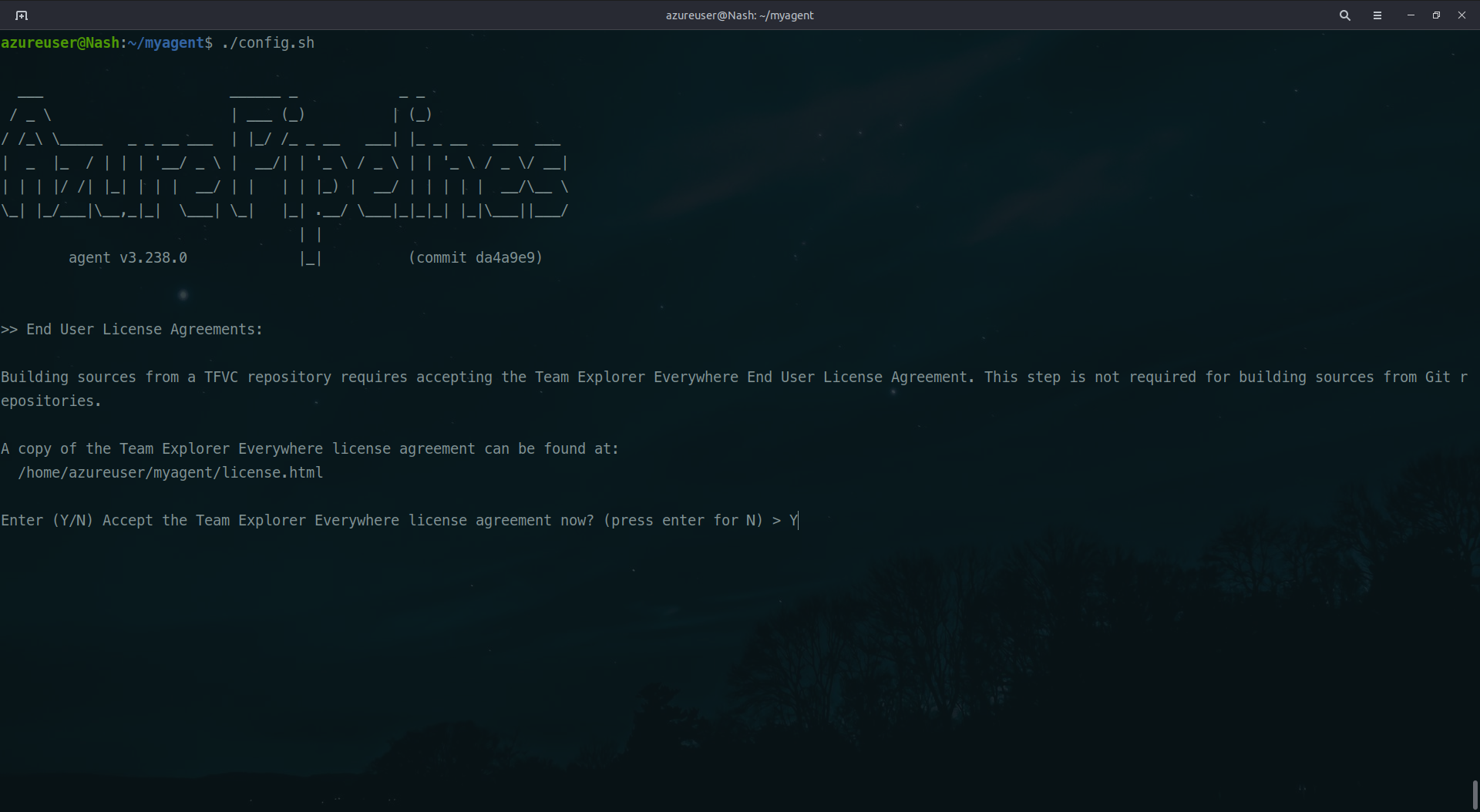
Enter the server URL as https://dev/azure.com/<your-org>
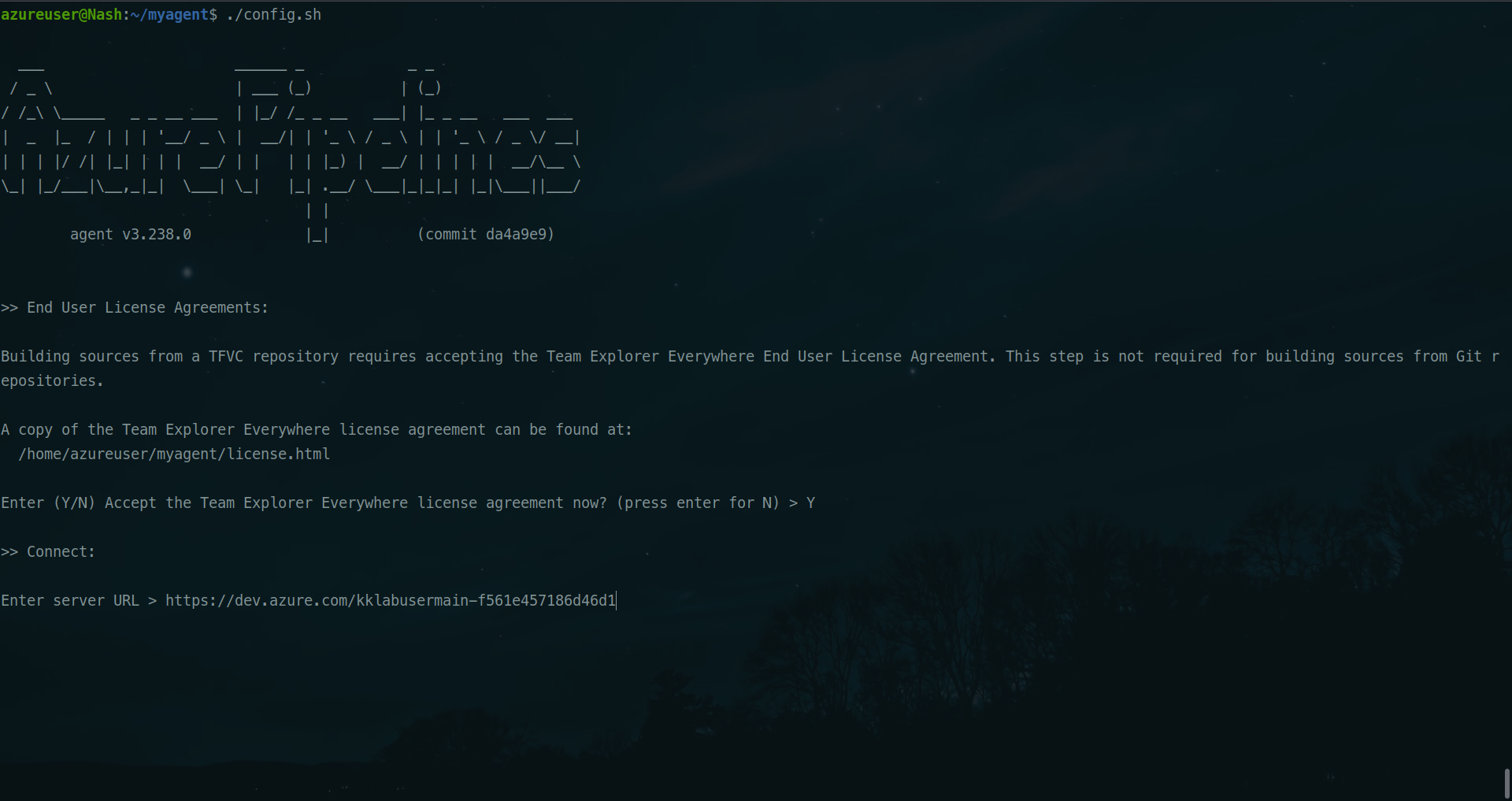
Enter the authentication type as PAT token, and add the Personal Access Token from the portal.
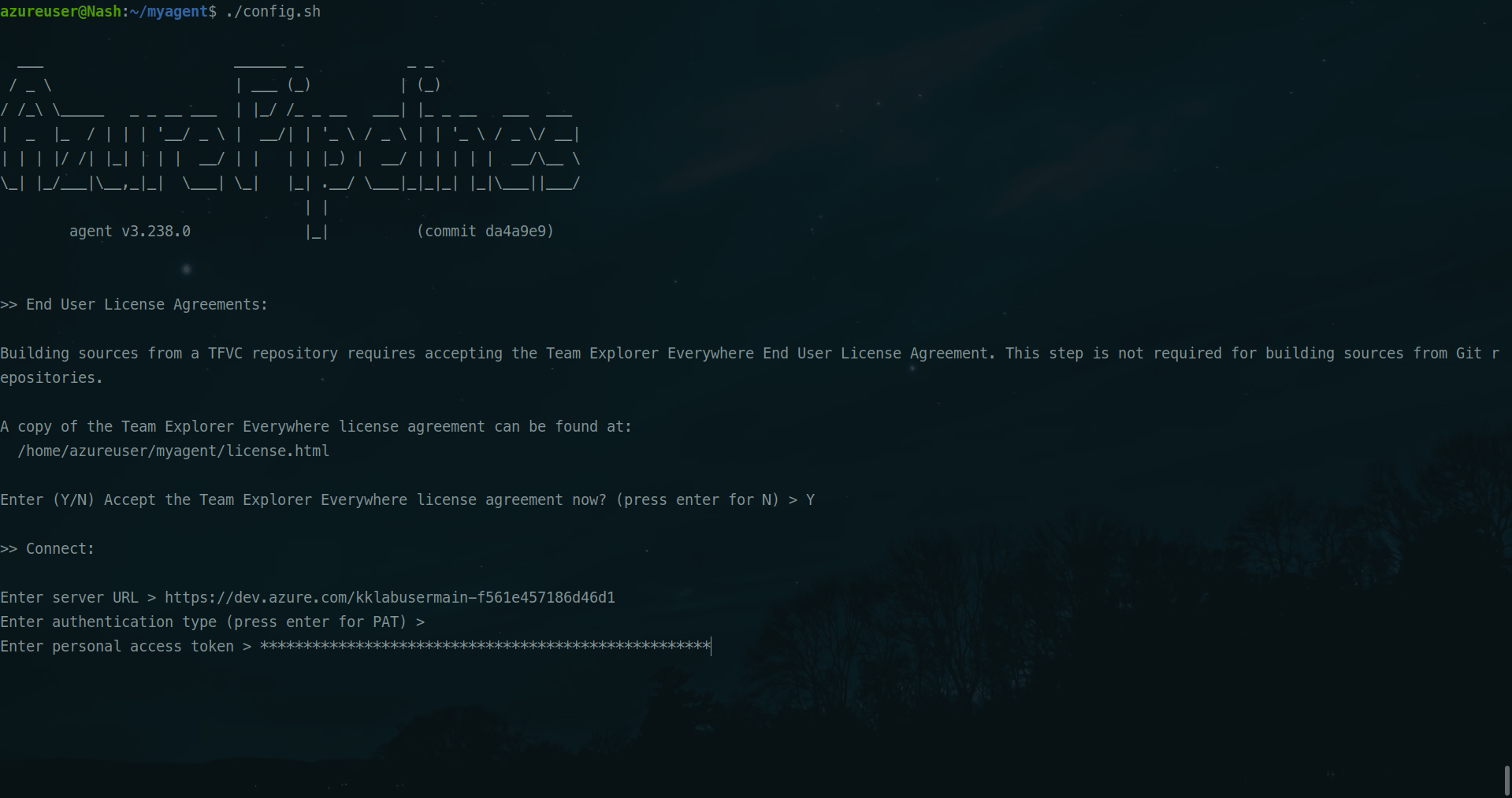
Download the script as mentioned in the Adding agent document.
We will run the configuration script as ./config.sh
Enter the Pool name you want to configure this agent on.
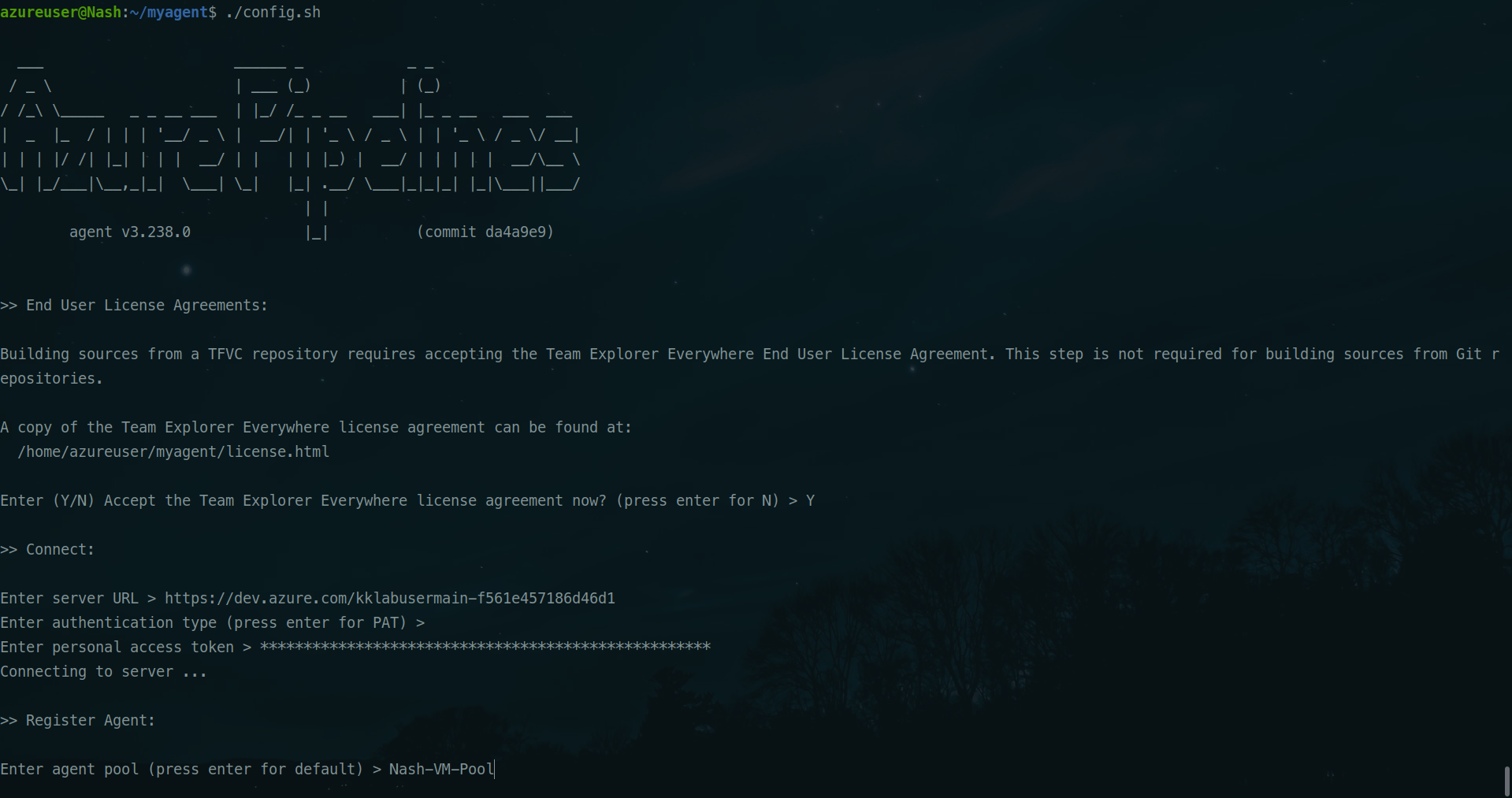
Enter the name of the agent. The default work directory for the agent is set to _work path, however, you can change to any other folder if need be.
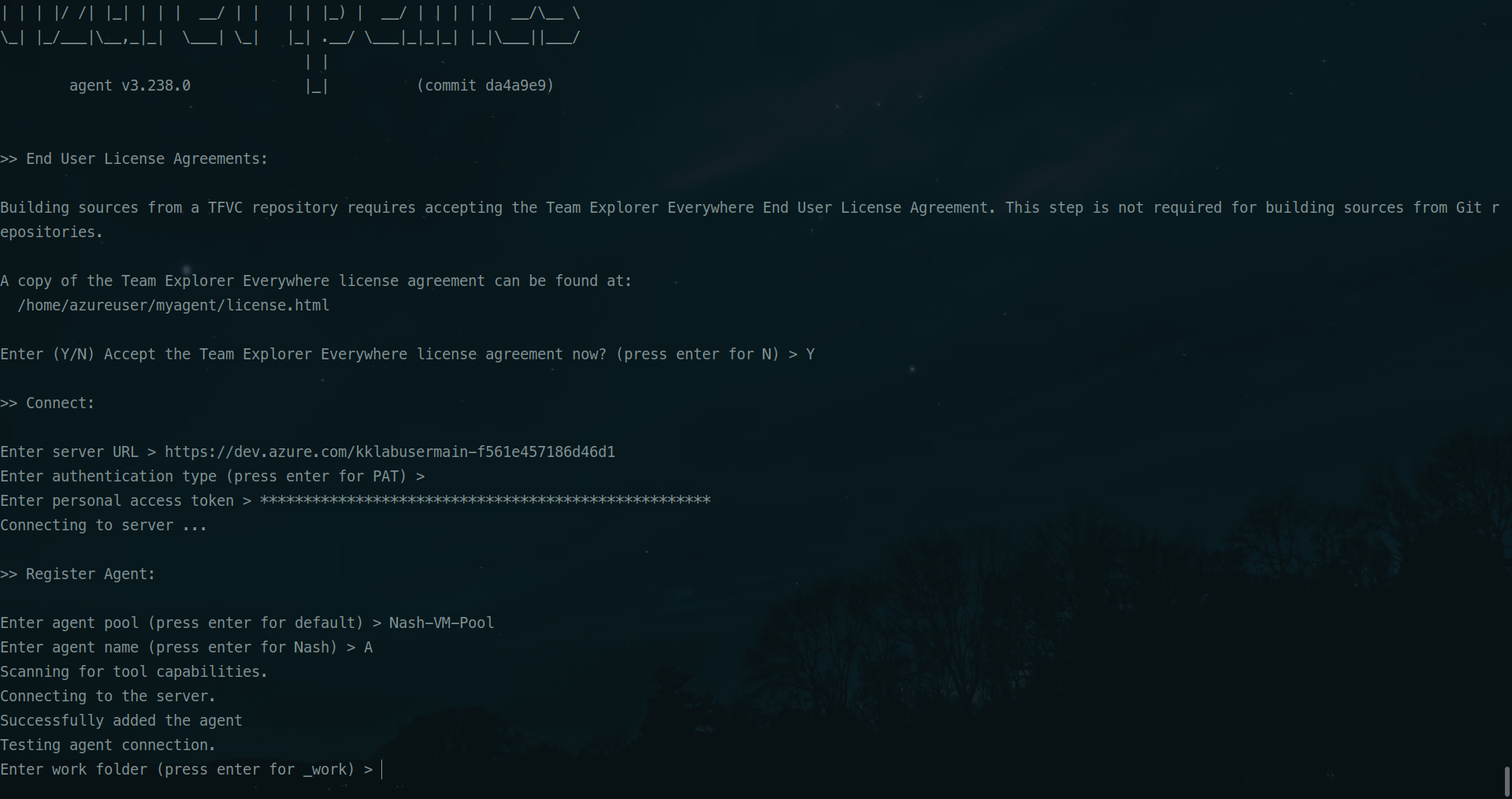
Now we will run this agent using ./run.sh.
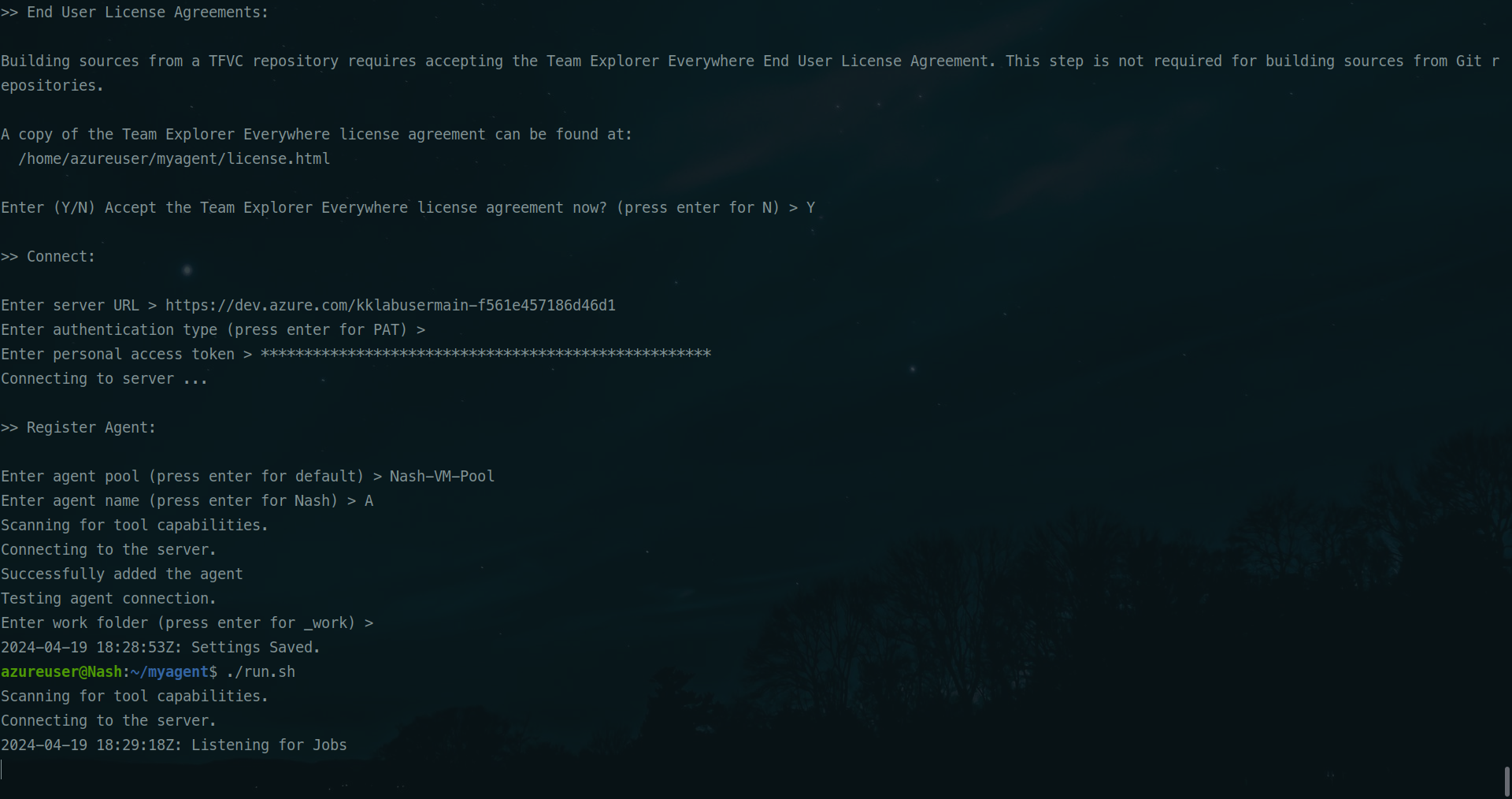
It will begin listening for Jobs.
Go to Azure Devops portal to check if the Agent is visible there or not.

The agent has been successfully added.
Running the pipeline on a self-hosted agent
This is a basic azure-pipeline script to check if it runs successfully on the agent we just configured. We will add the name of the pool.
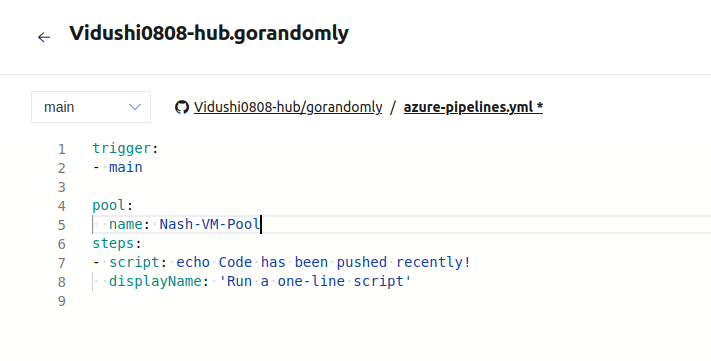
Save and Run it.
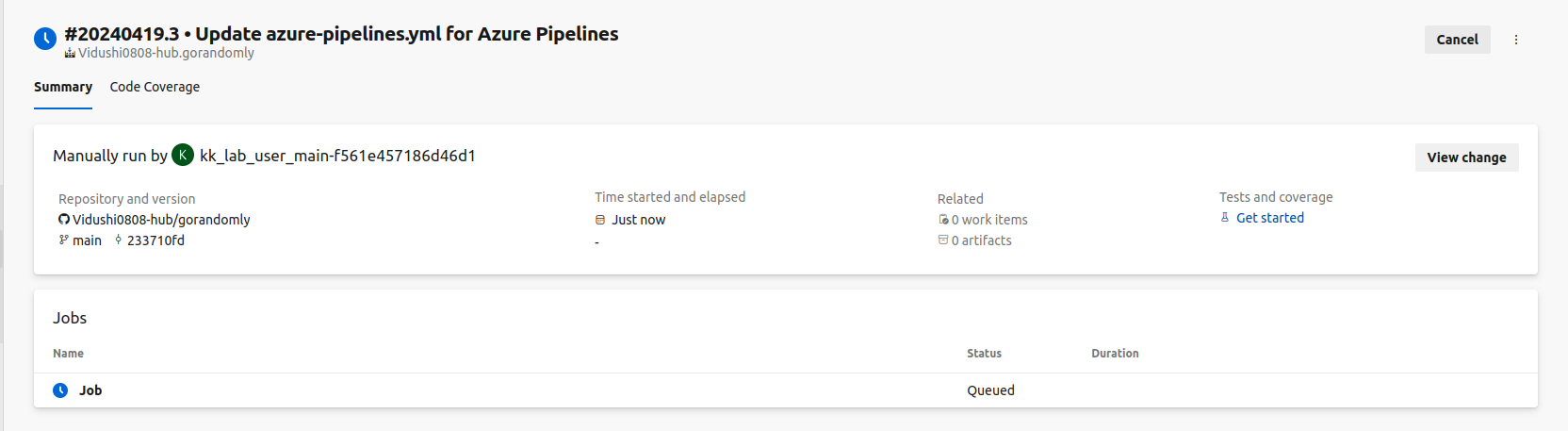
Click on Job to see the logs.
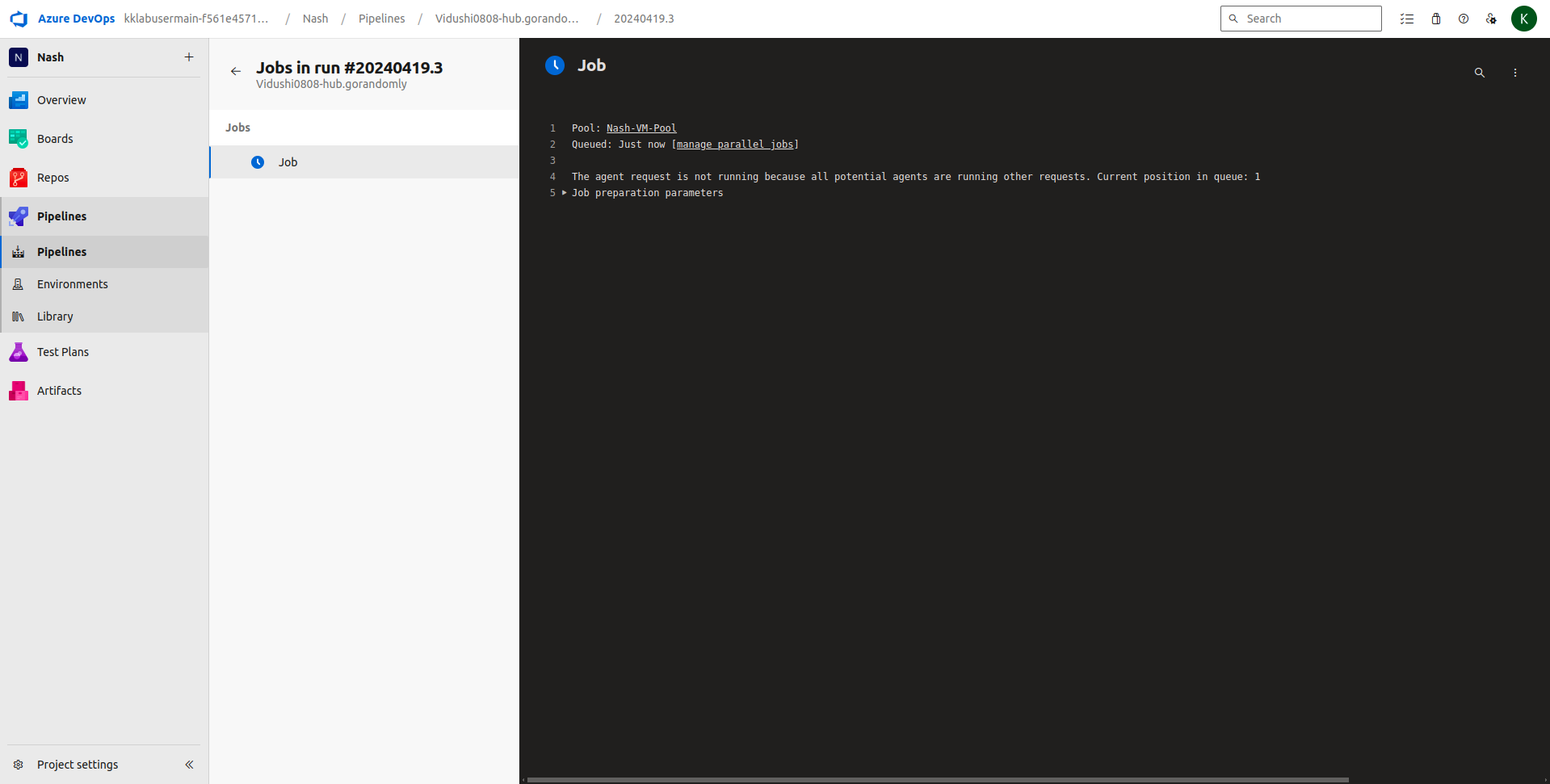
Job is now running. Lets see the logs of our agent on the side.
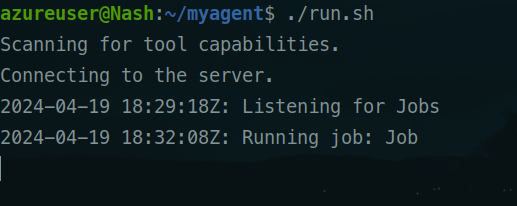
The job ran successfully.
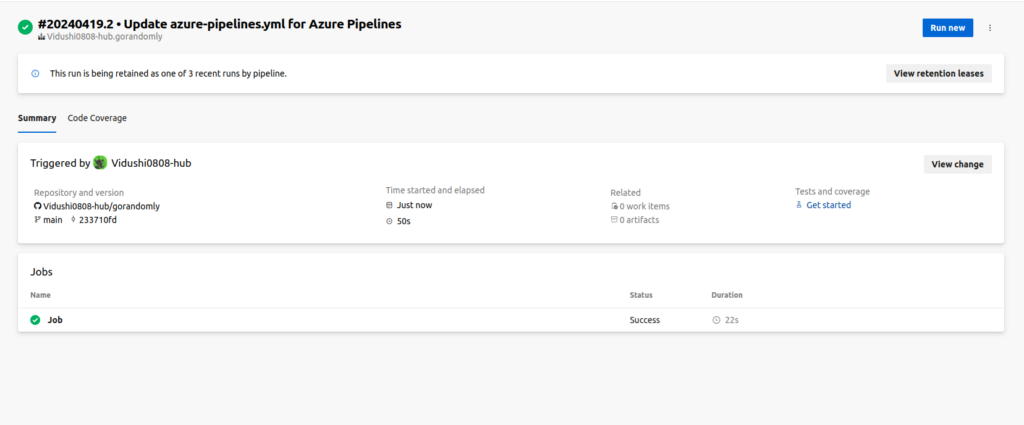
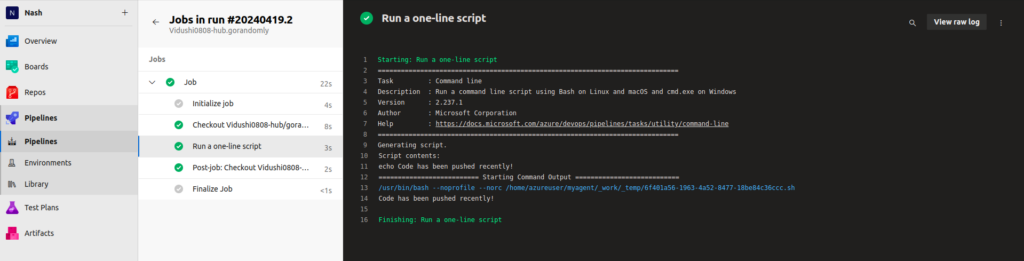
You can also see the build logs of the pipeline.
This is how you can configure self-hosted agent in the Azure Devops pipeline. If you have any questions/feedbacks regarding this blog, I am reachable at vidushi.bansal@nashtechglobal.com. You can find more of my blogs here.