



Authorisation for data operations in Storage Account
There are several ways in which we can restrict access in our Azure Storage account services. These are the options available in Azure Storage access:
- Shared Key (Storage account key)
- Shared Access signature
- Microsoft EntraID
- On premises AD domain services
- Anonymous read access
- Storage Local Users
In this blog, we will see how the authorisation for data operations using storage access keys and shared access signature to access the content of a private blog storage.
Storage Account Keys
In Microsoft Azure, storage account keys are essentially the primary means of authenticating and accessing storage accounts. These keys are like passwords, granting access to the resources stored within Azure Storage, such as blogs, files, queues, and tables. Azure generates two keys for each storage account by default, allowing for redundancy and security. Users can manage these keys through the Azure Portal or via APIs, rotating them periodically to enhance security measures. Given their critical role in accessing and managing Azure storage resource, safeguarding storage account keys is paramount to maintaining the integrity and confidentiality of data stored in the Azure cloud.
Creating a container in storage account
Go to the storage account portal in Azure and select container from the left bar. Click on Create
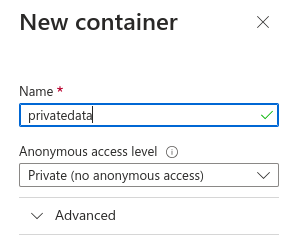
In Anonymous access level, select Private. That means the data in this container won’t be available publicly to the users.
Upload data to the container.
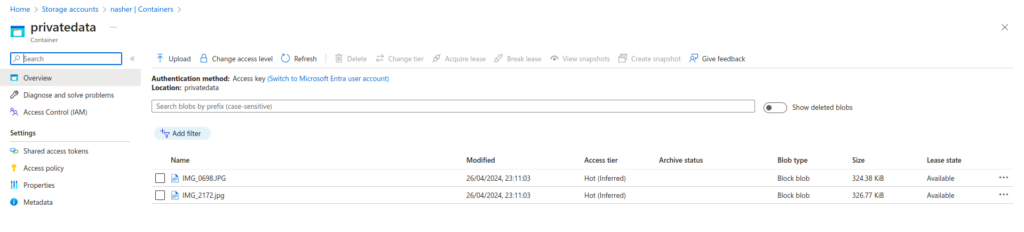
Click on any file to view the URL.
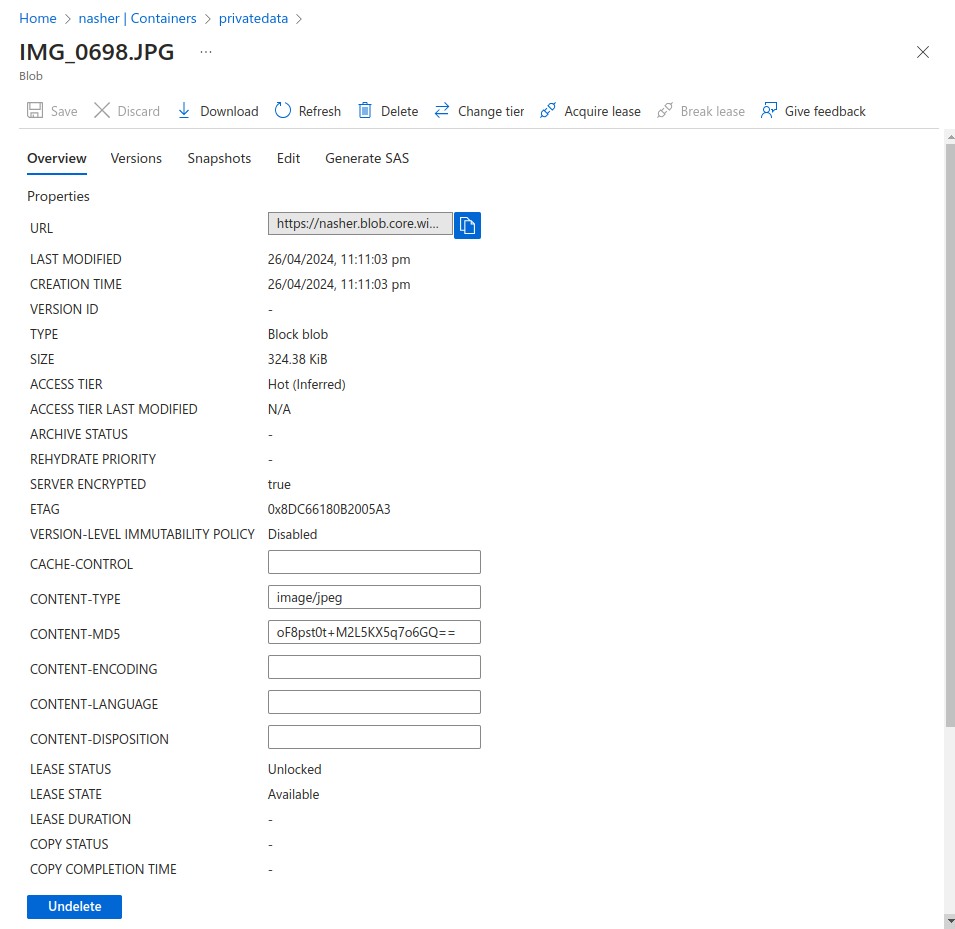
Copy the URL and open it in a new tab.

Since the data is private, we won’t be able to access it over the internet.
Configuring Access keys and Shared Access Signature
Click on the storage account you need to configure the access keys for. Under Security + Networking, select the Access keys.
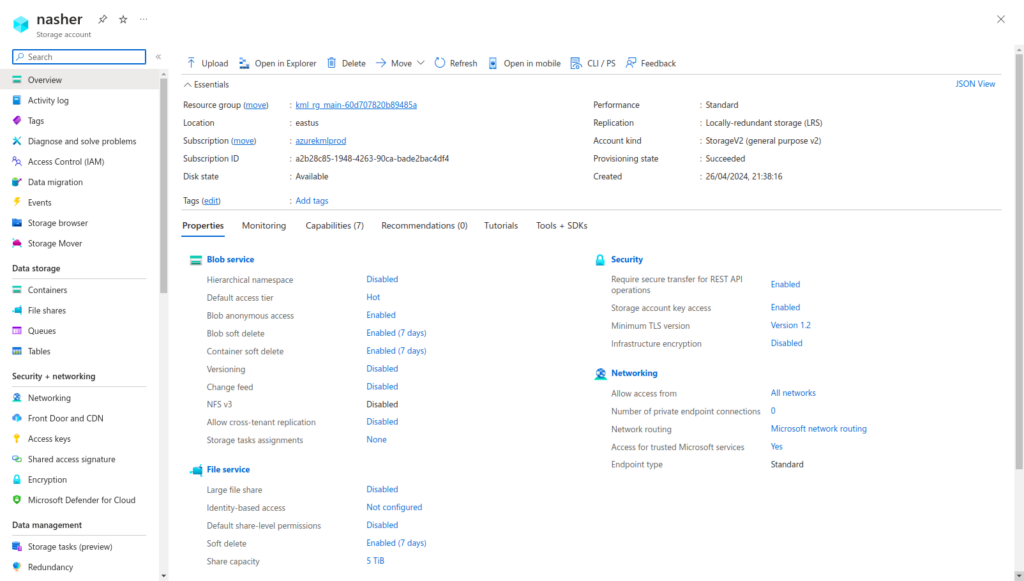
You will be able to see two access keys by the name of key1 and key2.
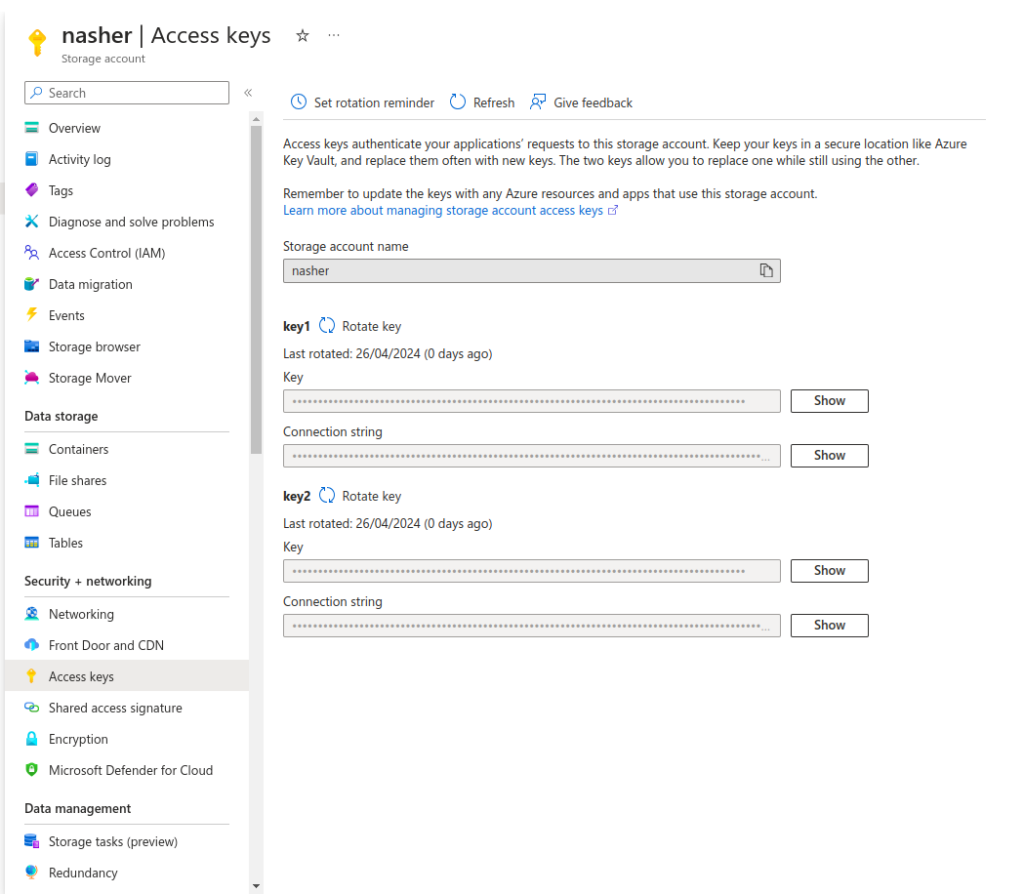
Every storage account has two access keys created by default. We will use these keys to access the content in our private containers.
Click on Shared Access Signature from the left bar.
You can restrict access according to your needs here and also mention the time span of the SAS token for the user to view the content.
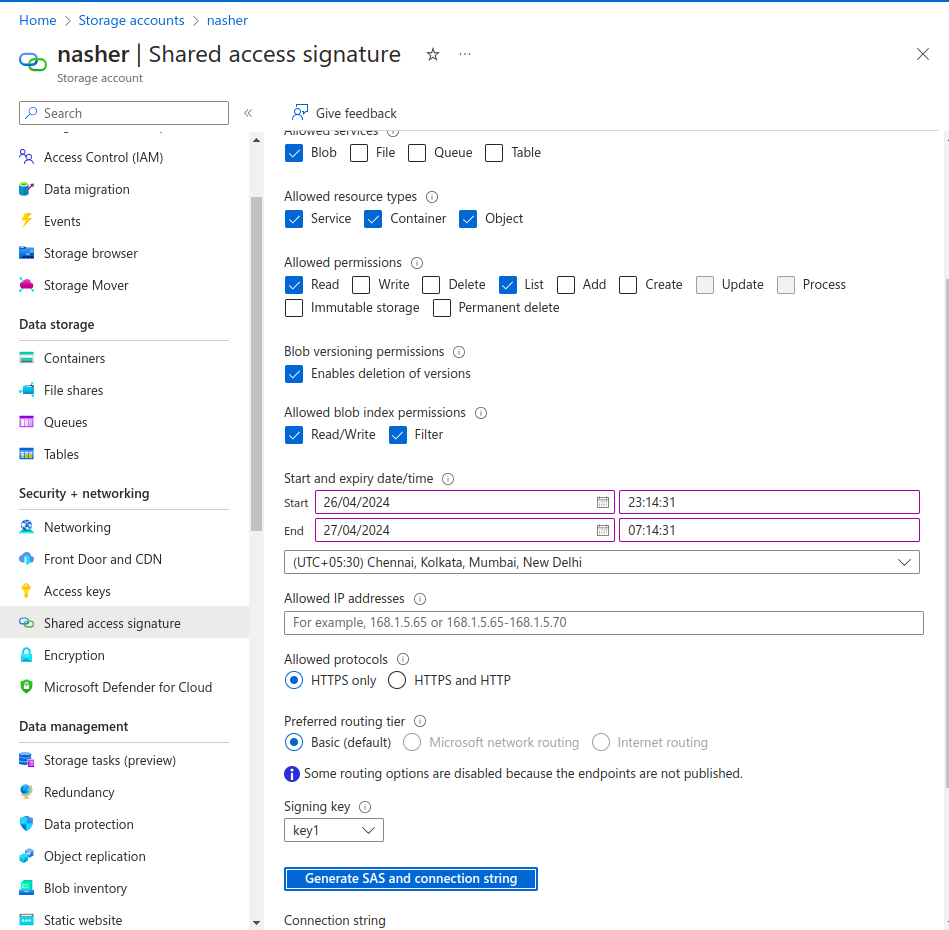
Once everything is tuned, click on Generate SAS and connection string.
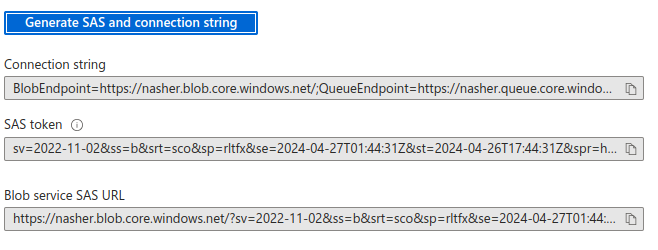
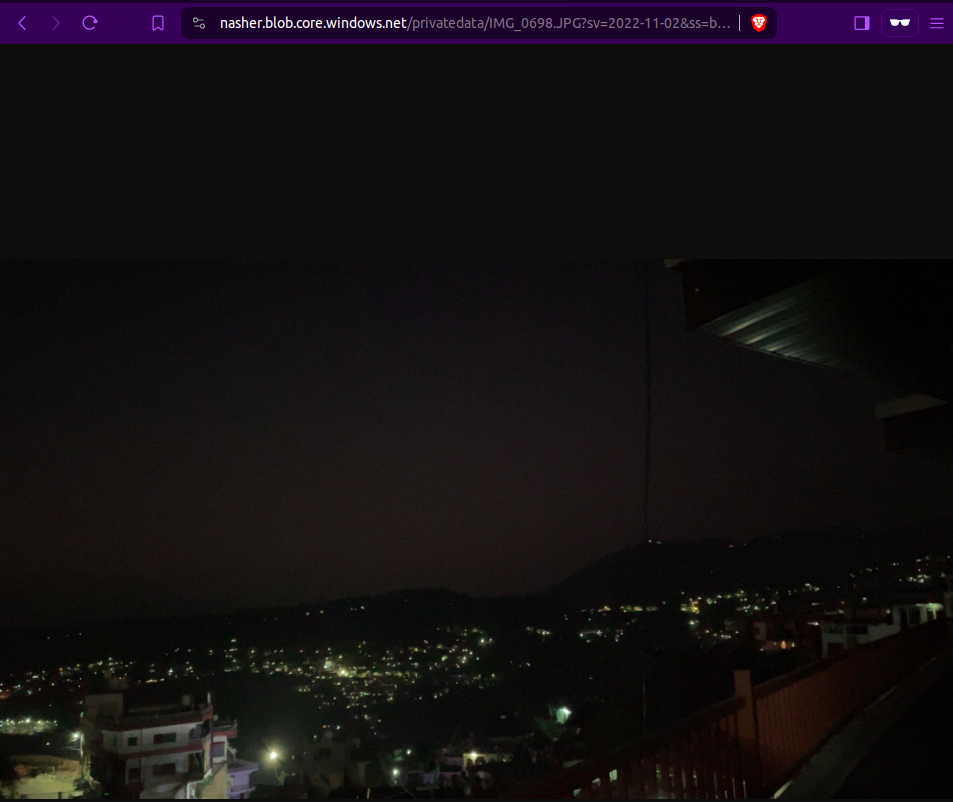
It will create three values for you. We will copy the SAS token and append it ahead of our URL.
Use the following syntax:
<EndpointURL>?<SAS-Token>
You can also rotate the keys periodically. Go to access keys and click on Rotate key.
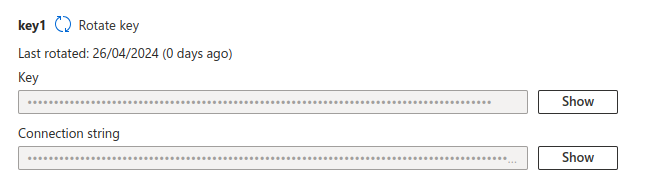
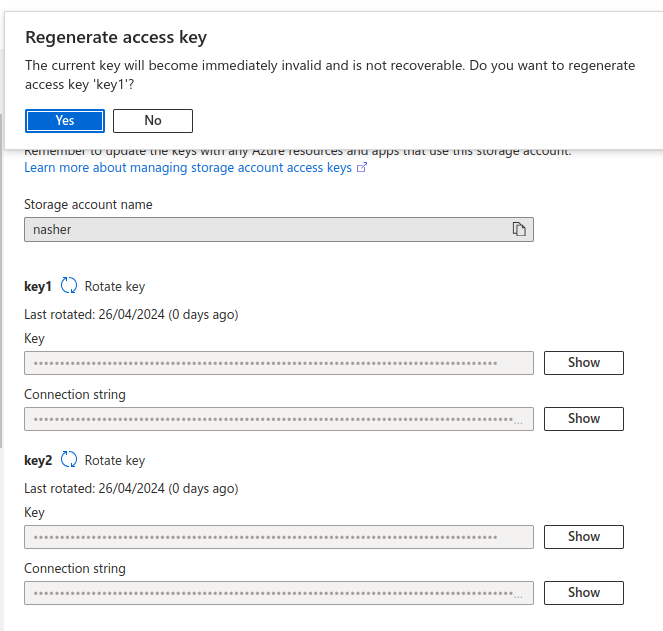
Click Yes.
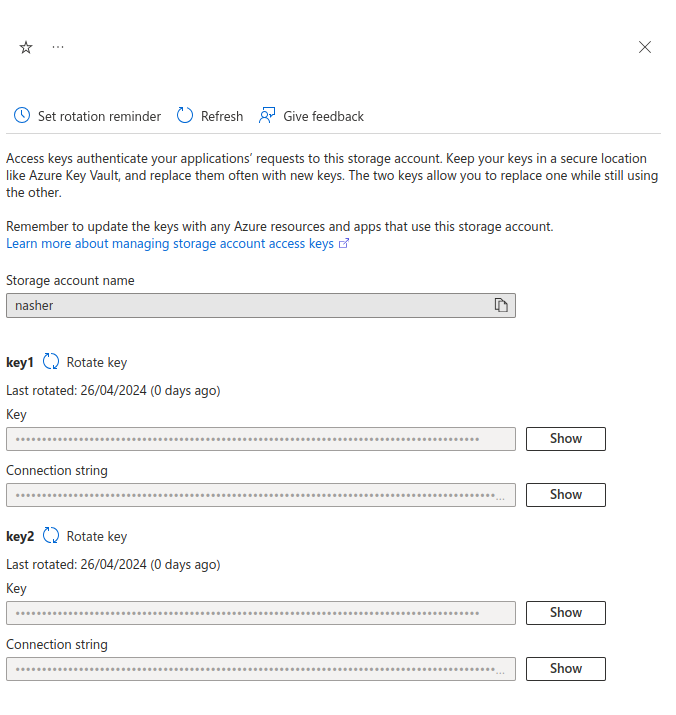
The key has been rotated. If you try accessing the content again from the same SAS token, you will see an error now.
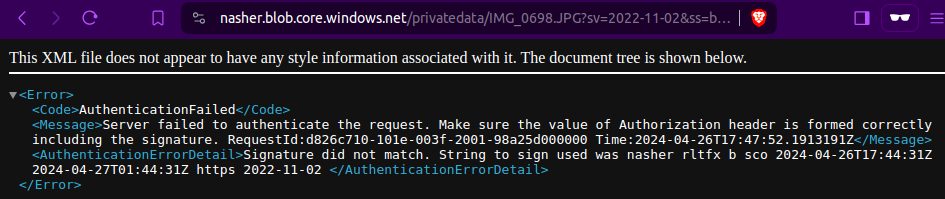
You will repeat the same process for creating a new SAS token.
If you have any questions/feedbacks regarding this blog, I am reachable at vidushi.bansal@nashtechglobal.com. You can find more of my blogs here.