


Introduction
Containerization is a lightweight form of virtualization that allows developers to package and run applications in isolated environments called containers. Unlike traditional virtual machines, containers bundle only the application and its dependencies.
Importance & Benefits of Docker
Docker has become synonymous with containerization due to its ease of use and widespread adoption. It provides a platform for developers to develop, deploy, and run applications with containers. The key advantages include:
- Simplified Configuration: Docker simplifies the process of configuring applications, as containers are isolated from each other and the host system.
- Rapid Deployment: Docker containers can be created, started, stopped, moved, and deleted quickly, which accelerates the development cycle.
- Scalability: Docker makes it easy to scale out applications by adding new containers as needed, without increasing the hardware resources.
- Version Control Management: Docker provides versioning-related things that can track container versions and roll back the same if required.
-
Security: Docker ensures the applications running inside the different containers are isolated from each other, and it has different security layers to manage that.
Prerequisites
To follow through this post for containerization of your ASP .NET Core MVC Application, you must have the following things:
- A Windows, Linux, or Mac machine
- .NET 6 SDK (or newer), you may download it from official Microsoft’s website.
- .NET Code/Text Editor or IDE (for e.g. VSCode/Visual Studio etc.)
- Existing .NET Core MVC Project. – (If not, you may create a new project for following through the post to containerize your .NET application.)
- Docker Engine (you can install the engine using Docker Desktop (Windows, macOS, and Linux) or manually on any OS.
Docker Key Concepts
- Images:
- Read-only templates for creating containers.
- Layers typically include the base operating system, application code, and dependencies.
- Can be downloaded and shared from public registries (e.g., Docker Hub).
- Containers:
- Executable instances of Docker images.
- Run isolated processes with their own filesystem, memory, and network interfaces (namespaces).
- Lightweight and portable, making them ideal for microservices architectures.
- Dockerfile:
- Text file containing instructions for building a Docker image.
- Uses commands like
FROM,RUN,COPY,CMD, andENTRYPOINTto specify the base image, installation steps, application copying, and startup commands within the container.
- Namespaces:
- Provide process isolation by creating virtual environments for resources like filesystems, networks, and processes.
- Ensure containers don’t interfere with each other or the host system.
- Control Groups (cgroups):
- Limit resource allocation (CPU, memory, disk I/O) for each container.
- Ensure fair resource sharing and allow developers to define resource constraints for their applications.
- Docker Registry:
- Centralized repository for storing and sharing Docker images.
- Public registries (e.g., Docker Hub) offer pre-built images for various applications and libraries.
- Private registries allow organizations to manage their own image repositories for internal use.
- Docker Engine:
- Open-source software that builds, runs, and manages Docker containers.
- Provides a command-line interface (CLI) for interacting with Docker.
- Can be configured to use different Docker daemons (engines) for managing container lifecycle.
- Docker Daemon:
- Background process responsible for running containers.
- Listens for Docker commands (e.g.,
docker run,docker stop) and executes them. - Manages container creation, execution, and resource allocation.
Create & Containerize your First .NET Core MVC App

If you don’t have an existing ASP.NET Core application, you can quickly create a new one using the .NET CLI. Open your terminal or command prompt and follow these steps:
-
- Create a New ASP.NET Core Web Application using the following CLI command –
dotnet new web -n MyAspNetCoreApp - Navigate to the Project Directory –
cd MyAspNetCoreApp - Run the Application – dotnet run
- Create a New ASP.NET Core Web Application using the following CLI command –
Start the ASP.NET Core application. You should see output indicating that the application is running locally on port 5000 (HTTP) or 5001 (HTTPS). Now that your default .NET Core project is up and running, we can finally move ahead and containerize our application using Docker. Follow the steps below to containerize your app:
Containerizing Your ASP.NET Core Application
This section will guide you through creating a Dockerfile for your application, discussing Dockerfile best practices, and building a Docker image.
Sample Dockerfile:
# Use an official ASP.NET Core runtime as a base image

FROM mcr.microsoft.com/dotnet/aspnet:5.0 AS base

WORKDIR /app

# Expose port 80 for the application

EXPOSE 80
# Use the SDK image to build the application
FROM mcr.microsoft.com/dotnet/sdk:5.0 AS build
WORKDIR /src
# Copy the project files into the container
COPY [“MyAspNetCoreApp/MyAspNetCoreApp.csproj”, “MyAspNetCoreApp/”]
RUN dotnet restore “MyAspNetCoreApp/MyAspNetCoreApp.csproj”
COPY . .
WORKDIR “/src/MyAspNetCoreApp”
# Build the application
RUN dotnet build “MyAspNetCoreApp.csproj” -c Release -o /app/build
# Publish the application
FROM build AS publish
RUN dotnet publish “MyAspNetCoreApp.csproj” -c Release -o /app/publish
# Create the final runtime image
FROM base AS final
WORKDIR /app
COPY –from=publish /app/publish .
# Set the entry point for the application
ENTRYPOINT [“dotnet”, “MyAspNetCoreApp.dll”]
In this Dockerfile:
- We are using the official ASP.NET Core images as base images for both building and running the application.
- We copy the ASP.NET Core project files, restore dependencies, build the application, and publish it.
- We create a final runtime image from the base image, copying the published application files and specifying the entry point.
Building a Docker Image:
Navigate to the folder containing the Dockerfile and run the following command in order to build a Docker image from your Dockerfile:
docker build -t my-aspnet-core-appReplace my-aspnet-core-app with a meaningful name for your Docker image. The -t flag specifies the image name or tag.
This command will execute the instructions in your Dockerfile, creating a Docker image containing your ASP.NET Core application.
Running Your Docker Container
The docker run command is used to run a docker container based on the desired docker image, in our case, ASP.NET Core application image. Replace my-aspnet-container with your chosen container name and my-aspnet-core-app with the image name you have build:
docker run -d -p 80:80 --name my-aspnet-container my-aspnet-core-app
Breakdown:
-d: Runs the container in detached mode, allowing you to continue using your terminal.-p 80:80: Maps port 80 on your host machine to port 80 within the container, enabling you to access the ASP.NET Core application.--name my-aspnet-container: Assigns the namemy-aspnet-containerto the running container.
Common Docker Commands
-
docker version:
- Prints the installed Docker engine version information.
-
docker build -t <image_name>:<tag> .:
- Builds a Docker image from a Dockerfile in the current directory.
-
docker pull <image_name>:<tag>:
- Downloads a pre-built Docker image from a registry.
-
docker run -d <image_name>:<tag> [command]:
- Creates and starts a detached container from a specified image.
-druns the container in the background.
-
docker stop <container_id>:
- Stops a running container gracefully.
Container Focused Commands:
-
docker exec -it <container_id> bash:
- Starts an interactive shell session within a running container.
-
docker logs <container_id>:
- Prints the logs generated by a container.
-
docker attach <container_id>:
- Attaches to a running container’s standard input, output, and error streams.
- Useful for monitoring ongoing processes within the container.
-
docker cp <source> <dest>:
- Copies files or directories between the host machine and a running container.
<source>specifies the path to the file or directory on the host.<dest>specifies the path to the destination within the container.- Allows developers to copy code, configuration files, or data into containers.
-
docker inspect <container_id>:
- Displays detailed information about a container, including its configuration, resources, networking, and more.
<container_id>specifies the ID of the container to inspect.
-
docker port <container_id>:
- Shows the port mappings between the container and the host machine.
- Useful for understanding how containerized applications are exposed externally.
-
docker start <container_id>:
- Starts a previously stopped container.
<container_id>specifies the ID of the container to start.
Best Practices
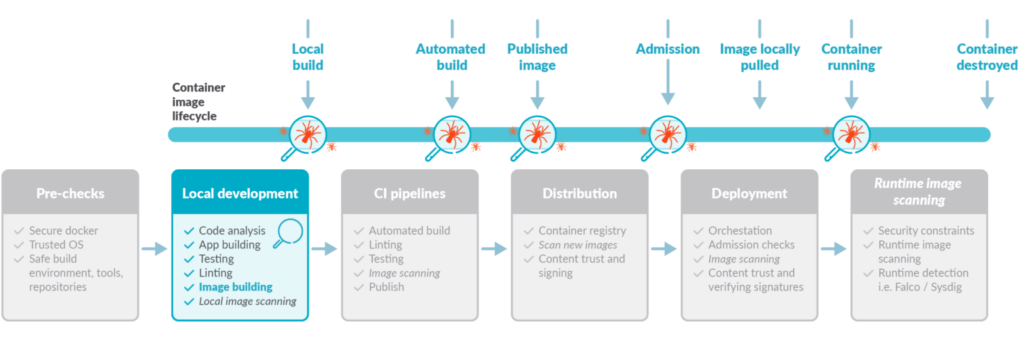
-
Leverage Multi-Stage Builds:
- Create smaller and more efficient images by separating the build and runtime environments in your Dockerfile.
- Use a slim base image for the build stage, containing only the tools needed to build your application.
- Copy the final application artifacts into a separate, smaller image for runtime.
-
Favor Immutability:
- Treat Docker containers as immutable units.
- Avoid modifying the container’s filesystem after it’s created. This promotes consistency and simplifies deployments.
-
Utilize Volumes for Persistent Data:
- Store application data outside of container file systems using Docker volumes.
- Mount volumes into containers to provide a persistent storage layer.
-
Minimize Layers in Images:
- Streamline your Dockerfile to reduce the number of layers in your image.
- Smaller images download and start faster, improving deployment efficiency.
-
Define Explicit Commands:
- Use the
CMDorENTRYPOINTinstruction in your Dockerfile to specify the default command for your application within the container. - This ensures consistency in how your application runs across different environments.
- Use the
-
Expose Services Clearly:
- Clearly define the ports your application exposes within the container using the
EXPOSEinstruction in your Dockerfile. - During container creation, map these exposed ports to ports on the host machine using the
-pflag withdocker run. - This allows external applications to communicate with your containerized service.
- Clearly define the ports your application exposes within the container using the
-
Environmental Variables:
- Manage application configuration using environment variables.
- Set environment variables during container creation using the
-eflag withdocker run. - This keeps sensitive configuration data out of the Dockerfile and allows for easy configuration changes.
-
Version Control Your Dockerfiles:
- Store your Dockerfile in a version control system (like Git) alongside your application code.
- This allows for tracking changes, collaboration, and rollbacks if necessary.
Conclusion
In conclusion, Docker provides a powerful and versatile toolkit for containerizing ASP.NET Core applications. By following the best practices outlined above, you can create efficient, portable, and secure deployments for your .NET applications. From multi-stage builds to environment variables, Docker empowers developers to streamline their development workflows and deliver applications faster.
References
- Docker Official Documentation – https://docs.docker.com/
- Medium Post – https://medium.com/@craftingcode/dockerizing-asp-net-core-applications-a-comprehensive-guide-4689bc3220f1