


As we know, mobile application becomes very popular nowadays. For testing these applications, we can use simulator, emulator or real devices. Especially, we need to test on various types of devices so that we can make sure that our application works well on them. This will take a lot of effort for setting up test environment, and we need to purchase many devices for testing. In this article, I’d like to share about the solution with Appium and BrowserStack, a cloud provider, for mobile application testing.
1. What is Appium?
Appium is an open-source tool designed to automate user interface (UI) testing across various platforms, including mobile (iOS, Android, Tizen), web browsers (Chrome, Firefox, Safari), desktop applications (macOS, Windows), and TV platforms (Roku, tvOS, Android TV, Samsung)
Key Features
- Open-source: Appium is free and supported by a vibrant community, ensuring it evolves with the latest technological advancements.
- Cross-platform: Appium can automate tests on both Android and iOS devices, eliminating the need for separate testing tools for each platform.
- Multiple programming languages: Supports writing test scripts in various languages like Java, Python, Ruby, and JavaScript, allowing you to choose the language and framework you’re most comfortable with.
- Automated testing capabilities: Appium enables you to write tests that can be executed on both Android and iOS platforms as well as emulators and simulators, providing flexibility and extensive coverage.
2. Why Integrate with BrowserStack?
BrowserStack is a cloud-based platform that offers a wide range of testing solutions for web and mobile applications. It allows developers and testers to perform cross-browser testing, mobile app testing, and responsive website testing across various devices and browsers without the need for an extensive physical device lab.
Key Features
- Real Device Cloud: BrowserStack grants access to a wide range of actual devices and browsers for testing that accurately reflects real-world conditions.
- Cross-Browser Testing: BrowserStack supports assessments across various browsers, including Chrome, Firefox, Safari, Edge, and Internet Explorer, to ensure consistent application performance.
- Parallel Test Execution: With BrowserStack, you have the capability to conduct several tests at the same time, which can greatly decrease the amount of time spent on testing. This feature enables you to enhance the scope of your tests and obtain quicker responses regarding how well your app is performing.
- CI/CD Integration: Seamlessly connects with continuous integration and deployment tools such as Jenkins and CircleCI, enabling automated testing within the software delivery process.
- Debugging Tools: Provides detailed logs, screenshots, and video recordings of test sessions, and works with bug tracking tools like Jira, Trello, and Asana for efficient debugging.
3. Getting Started
3.1. Set Up the Development Environment
- Install Java Development Kit (JDK 8 or later)
- Install Maven
- Install Node.js
- Install Appium
Install Appium globally using npm:npm install -g appium - Create BrowserStack account
– Create an account on BrowserStack.
– Navigate to the Automate dashboard and get your userName and accessKey. These credentials are necessary for connecting your tests to BrowserStack.

3.2. Write Test Script
3.2.1. Creating a Maven project
This guide details the integration of Java TestNG with BrowserStack via the BrowserStack SDK. Initially, you must add specific Maven dependencies to your project, which equip you with the libraries and tools needed to connect with BrowserStack and carry out your tests. Below are the essential Maven dependencies you’ll need to install:
- Selenium WebDriver:
org.seleniumhq.selenium:selenium-java
Selenium WebDriver is a tool designed for automating actions in a web browser. It enables you to engage with elements on a webpage and carry out various tasks, such as clicking buttons or entering text. - Java Client:
io.appium:java-client
The Appium Java Client library offers a collection of classes and methods that facilitate interaction with mobile devices and apps through Appium. This allows you to write Appium in Java. - TestNG:
org.testng:testng - BrowserStack Java SDK:
com.browserstack:browserstack-java-sdk
BrowserStack SDK provides a seamless integration for running your entire test suite on the BrowserStack Cloud. It is a plug-and-play solution that enables you to run your entire test suite on BrowserStack’s real devices and browsers. - Maven Surefire Plugin:
org.apache.maven.plugins:maven-surefire-plugin
Executes tests during the Maven build process, integrating with TestNG and generating test reports, crucial for automated test execution.
Here is an example list of necessary dependencies and plugins to be installed in pom.xml file
<dependencies>
    <dependency>
        <groupId>org.testng</groupId>
        <artifactId>testng</artifactId>
        <version>7.5</version>
    </dependency>
    <dependency>
        <groupId>org.seleniumhq.selenium</groupId>
        <artifactId>selenium-java</artifactId>
        <version>4.13.0</version>
    </dependency>
    <dependency>
        <groupId>io.appium</groupId>
        <artifactId>java-client</artifactId>
        <version>8.6.0</version>
    </dependency>
    <dependency>
        <groupId>com.browserstack</groupId>
        <artifactId>browserstack-java-sdk</artifactId>
        <version>LATEST</version>
        <scope>compile</scope>
    </dependency>
    <dependency>
        <groupId>org.apache.maven.plugins</groupId>
        <artifactId>maven-surefire-plugin</artifactId>
        <version>3.2.5</version>
    </dependency>
    <dependency>
        <groupId>org.apache.maven.plugins</groupId>
        <artifactId>maven-dependency-plugin</artifactId>
        <version>3.3.0</version>
    </dependency>
</dependencies>

<build>
    <plugins>
        <plugin>
            <artifactId>maven-dependency-plugin</artifactId>
            <executions>
                <execution>
                    <id>getClasspathFilenames</id>
                    <goals>
                        <goal>properties</goal>
                    </goals>
                </execution>
            </executions>
        </plugin>
        <plugin>
            <groupId>org.apache.maven.plugins</groupId>
            <artifactId>maven-surefire-plugin</artifactId>
            <version>3.2.5</version>
            <configuration>
                <argLine>-javaagent:${com.browserstack:browserstack-java-sdk:jar}</argLine>
            </configuration>
        </plugin>
    </plugins>
</build>
- Install dependencies
mvn compile3.2.2. Create your BrowserStack config file
After installing the SDK, create a browserstack.yml config file at the root level of your project. This YAML file holds all the necessary configurations for running your tests on BrowserStack’s. Here’s what you can modify and configure within this file:
- Credentials: Replace BROWSERSTACK_USERNAME and BROWSERSTACK_ACCESSKEY with your actual BrowserStack username and access key to authenticate your sessions.
- Platforms: Choose the operating systems, browsers, and devices you want to test on by specifying them under the platforms section. You can list multiple platforms to run tests across different environments.
- Capabilities: Set device-specific capabilities like deviceName, osVersion, browserName, browserVersion, and deviceOrientation to define the exact testing conditions.
- Parallel Testing: Adjust parallelsPerPlatform to specify the number of parallel tests you want to run per platform, optimizing your test execution time.
- Local Testing: Use browserstackLocal to enable or disable local testing, allowing you to test apps and websites hosted on your local machine or private network.
- Project Details: Modify buildName and projectName to organize your test runs and easily identify them in the BrowserStack dashboard.
- Debugging Options: Set debug to true to capture additional debugging information during test runs.
- Logs: Control the level of logging with networkLogs and consoleLogs. Set networkLogs to true to capture network traffic, and use consoleLogs to define the verbosity of console logs (info, warn, error).
Here’s an example of what the content of a browserstack.yml file might look like
userName: BROWSERSTACK_USERNAME
accessKey: BROWSERSTACK_ACCESSKEY
platforms:
  - deviceName: Google Pixel 4
    osVersion: 10.0
    browserName: chrome
    deviceOrientation: portrait
  - os: OS X
    osVersion: Monterey
    browserName: Safari
    browserVersion: 15.6
  - deviceName: iPhone 13
    osVersion: 15
    browserName: chrome
    deviceOrientation: portrait
parallelsPerPlatform: 1
browserstackLocal: true
buildName: bstack-demo
projectName: BrowserStack Demo
debug: true
networkLogs: true
consoleLogs: info
By configuring the browserstack.yml file, you can tailor the BrowserStack environment to meet the specific needs of your testing strategy, ensuring that your tests are as effective and efficient as possible. For a comprehensive set of options you can use to customize your tests, please refer to BrowserStack SDK Configurator
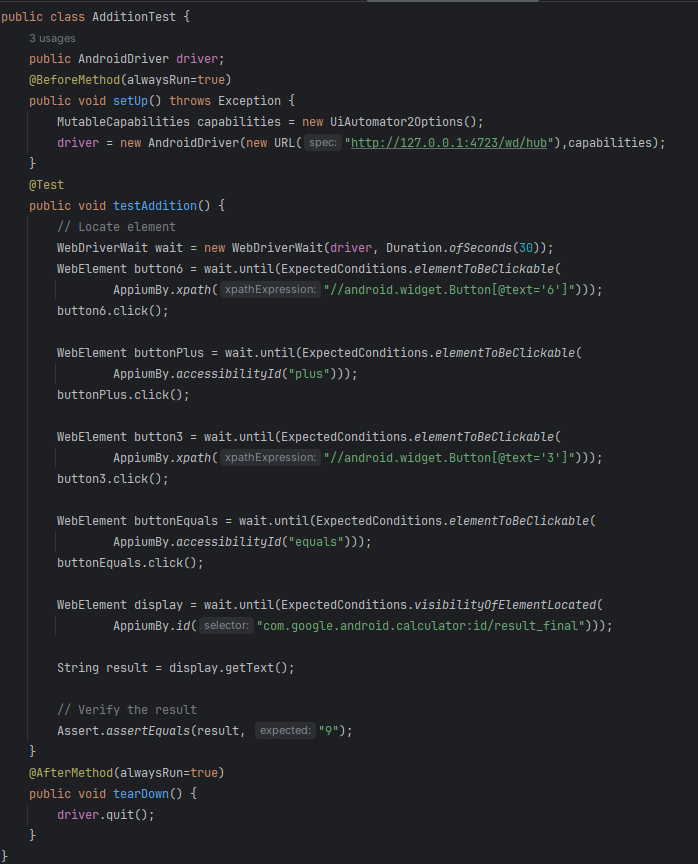
3.2.3. Write The First Test
3.4. Run Test
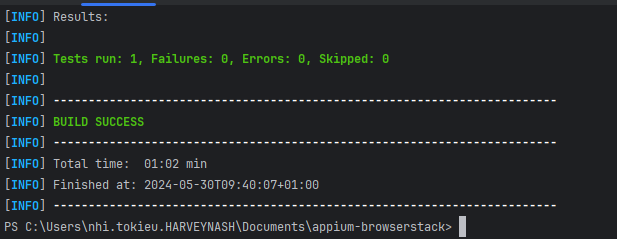
To launch your test, you can initiate the process with the following Maven command.
mvn testWhen your test script is finalized, the next step is to deploy it on the BrowserStack platform. This segment will illustrate the process of orchestrating your Appium tests using BrowserStack’s real Android devices or emulators. We will also delve into how to utilize BrowserStack’s capabilities to their fullest by conducting parallel tests, which can lead to significant time savings and ensure extensive device coverage.
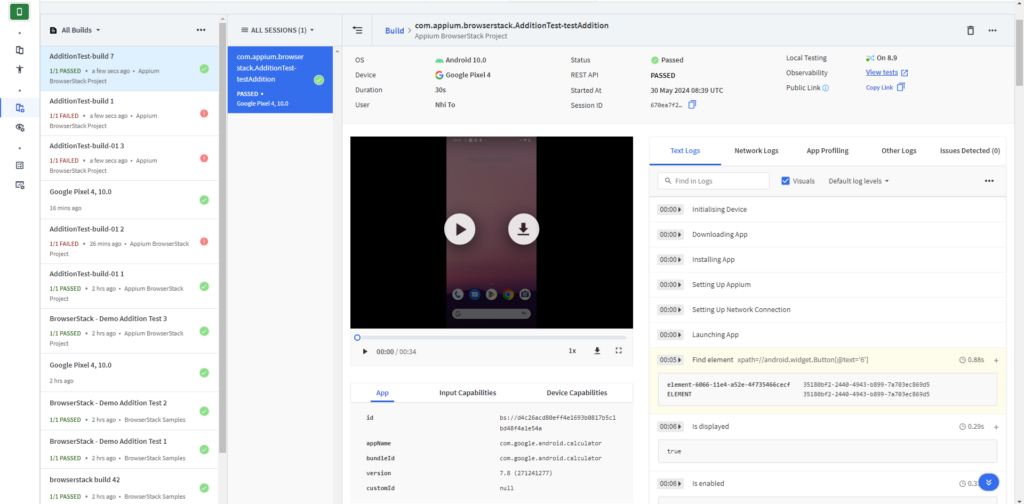
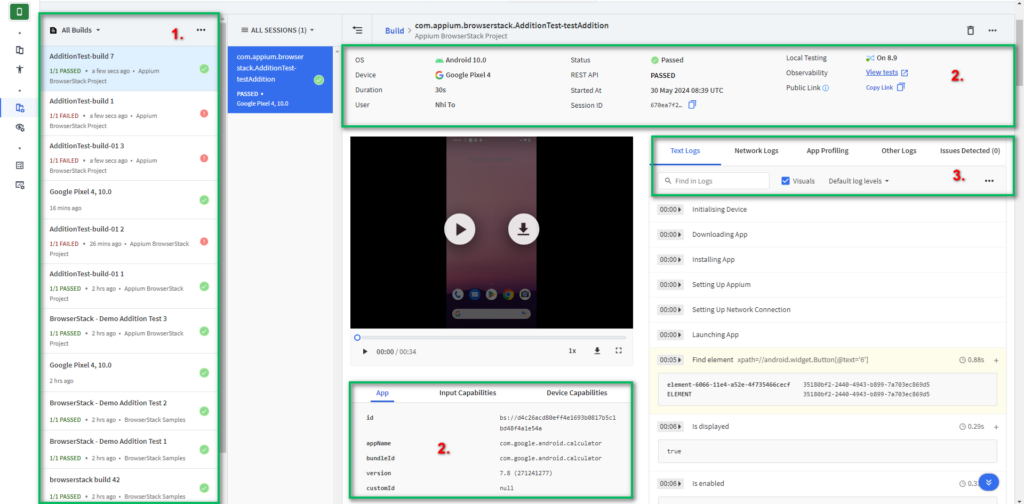
After you run your test, visit the Automate dashboard to view your test results.
3.5. Review Report
BrowserStack’s report visualization is a robust feature that provides a comprehensive overview of your test executions. It’s designed to give you actionable insights into various aspects of your testing activities, helping you evaluate progress, identify issues, and allocate resources efficiently.
- Detailed Test Reports: These reports offer a wealth of information, including the test status (passed/failed), execution time, and include pictures, detailed records, and specific info about the devices used.
- Visual Elements: BrowserStack includes screenshots and videos within the reports, allowing you to visually compare the app’s state across different devices and browsers.
- Console Logs and Error Messages: Console and network logs are captured during test execution. These logs are invaluable for debugging and identifying the root cause of any issues encountered during testing.
- Network and Performance Metrics: BrowserStack also provides performance metrics, such as page load times and resource timings.
- Interactive Dashboards: Test Insights offers an interactive dashboard with advanced analytics, enabling you to explore your test data on BrowserStack in a more granular and intuitive way.
- Filtering and Scheduling: You can filter analytics based on various criteria like date range, user, team, or app ID. Additionally, you can schedule reports to be generated at specified dates and times, ensuring you have the latest data when you need it.
4. Conclusion
With some simple steps, we can easily integrate our Appium automation framework with BrowserStack. Thanks to this, we can save the effort for setting up the test environment and cost for purchasing the devices. Moreover, after the test execution, we’ll have the detailed report with attached video. It will help to analyze test results and investigate issues quickly.
Reference: http://www.browserstack.com