


Introduction
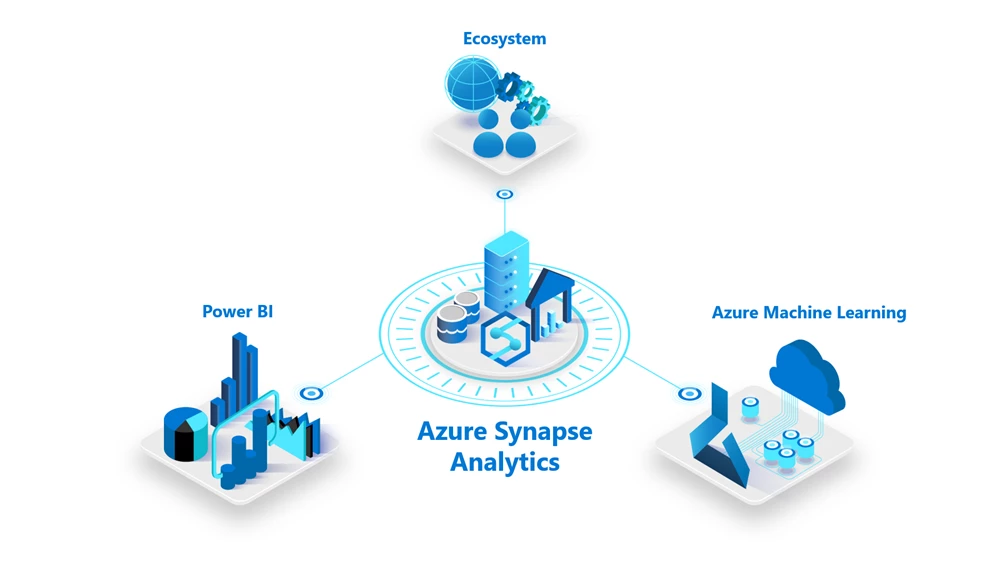
Microsoft Fabric offers a robust data warehousing solution and a suite of data and analytics tools within its range. This blog explores specifically Synapse Data Warehouse, a core component of Microsoft Fabric, exploring its architecture, functionalities, and advantages.
Overview
Microsoft Fabric offers a lake-centric data warehouse which provides best performance at scale without requiring much configuration. It integrates with Power BI which provides easy analysis and reporting. By merging data lakes and warehouses, the Warehouse aims to streamline the analytics for an organization. It also leverages the advanced features of the SQL engine with an open data format.
Role & Importance
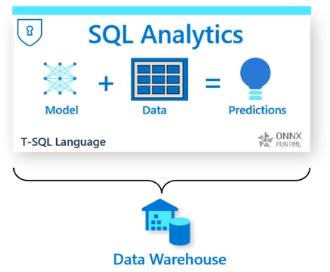
- Transforming Data Management
Synapse Data Warehouse supports open data formats like Delta-Parquet within Microsoft OneLake, it ensures that data is not siloed in proprietary formats but is accessible and interoperable across various workloads. - Enhancing Developer Experience
It simplifies traditional complexities associated with data warehousing. It eliminates the need for resource provisioning and management. The serverless compute infrastructure provisions resources in milliseconds. - Scalability and Efficiency
Its most significant roles is the auto-scaling capability, which ensures that resources are scaled instantly as query and usage requirements increase, and scaled down when they are no longer needed.
SQL Analytics Endpoint Vs Synapse Data Warehouse

- SQL analytics endpoint of the Lakehouse:
A SQL analytics endpoint is an automatically generated warehouse derived from a Lakehouse. This allows users to switch from the “Lake” view, which supports data engineering and Apache Spark, to the “SQL” view of the same Lakehouse.
Through this, users can utilize a limited set of SQL commands to define and query data objects without altering the data. The following actions are available in the SQL analytics endpoint:
i) Query tables that reference data within Delta Lake folders in the lake.
ii) Create views and procedures to encapsulate semantics and business logic using T-SQL.
iii) Manage permissions on the objects. - Synapse Data Warehouse:
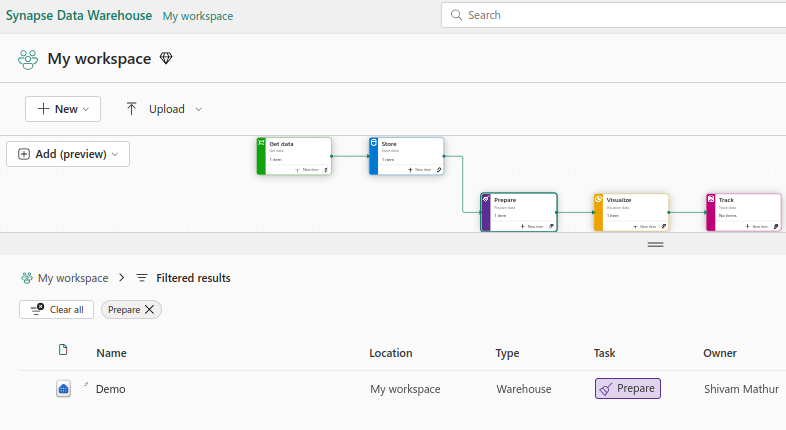
In MS Fabric workspace, a Synapse Data Warehouse is labelled as ‘Warehouse’ under the Type column, as shown in image below. It supports transactions, DDL, and DML queries and is created by customer. It is populated by one of the supported data ingestion methods such as COPY INTO, Pipelines, Dataflows, or cross database ingestion options such as CREATE TABLE AS SELECT (CTAS), INSERT..SELECT, or SELECT INTO.
| MS Fabric Features | Warehouse | SQL analytics endpoint |
| Primary capabilities | ACID compliant, full data warehousing with transactions support in T-SQL. | Read only, system generated SQL analytics endpoint for Lakehouse for T-SQL querying and serving. |
| Use case | i) Data Warehousing for enterprise use ii) Data Warehousing supporting departmental, business unit or self service use iii) Structured data analysis in T-SQL with tables, views, procedures and functions and Advanced SQL support for BI | i) Exploring and querying delta tables from the lakehouse ii) Staging Data and Archival Zone for analysis iii) Medallion lakehouse architecture with zones for bronze, silver and gold analysis Pairing with Warehouse for enterprise analytics use cases |
| T-SQL capabilities | Full DQL, DML, and DDL T-SQL support, full transaction support | Full DQL, No DML, limited DDL T-SQL Support such as SQL Views and TVFs |
| Data loading | SQL, pipelines, dataflows | Spark, pipelines, dataflows, shortcuts |
Key Features
- Autonomous workload management:
Warehouses in Microsoft Fabric utilize a distributed query processing engine, giving customers workloads with inherent isolation boundaries. The system autonomously allocates and releases resources, ensuring top-tier performance with built-in automatic scaling and concurrency, all without requiring any manual adjustments. - Open format:
In the Warehouse, data is stored in the Parquet file format and published as Delta Lake Logs. This setup supports ACID transactions and cross-engine interoperability, making it compatible with other Microsoft Fabric workloads like Spark, Pipelines, Power BI, and Azure Data Explorer. As a result, customers no longer need to create multiple data copies to accommodate professionals with varying skill sets. - Storage and Compute Separation:
In a Warehouse, compute and storage are separated, allowing customers to scale quickly to meet business needs. This architecture enables various compute engines to access any supported storage source while maintaining strong security and full ACID transaction guarantees.
Working: Setting up Data Warehouse
Create your first Warehouse
Create a warehouse using the Home hub:
The Home hub is the first hub in the navigation pane. To create your warehouse, select the Warehouse card under the New section within the Home hub. This action generates an empty warehouse where you can begin creating objects.
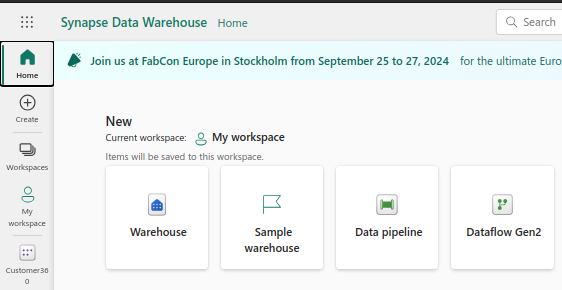
Create a warehouse using the Create hub:
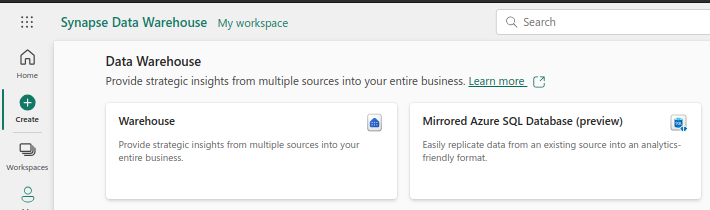
You can also create your warehouse through the Create hub, the second hub in the navigation pane. In the Create hub, select the Warehouse card under the Data Warehousing section. This will generate an empty warehouse, allowing you to start creating objects
Create a warehouse from the workspace list view:
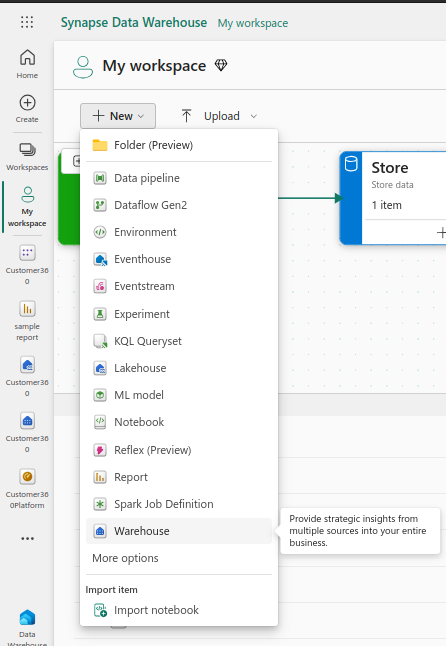
To create a warehouse, navigate to your workspace, select + New and then select Warehouse to create a warehouse.
Create a warehouse with sample data:
Follow through the steps for creating a sample Warehouse from scratch.
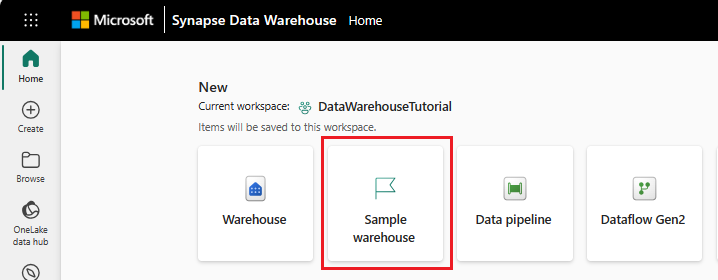
- The first hub in the navigation pane is the Home hub. You can start creating your warehouse sample from the Home hub by selecting the Warehouse sample card under the New section.
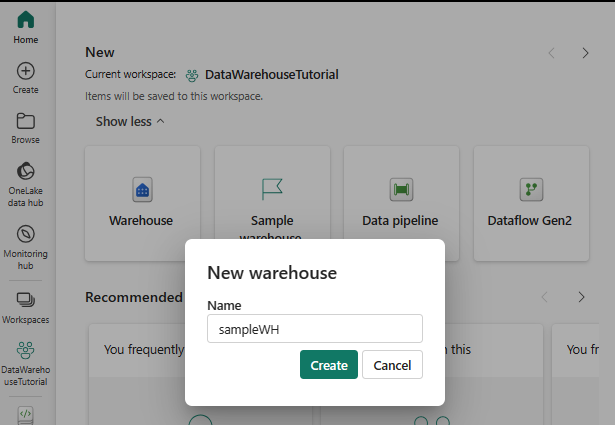
- Provide the name for your sample warehouse and select Create.
- The create action creates a new Warehouse and start loading sample data into it. The data loading takes few minutes to complete.
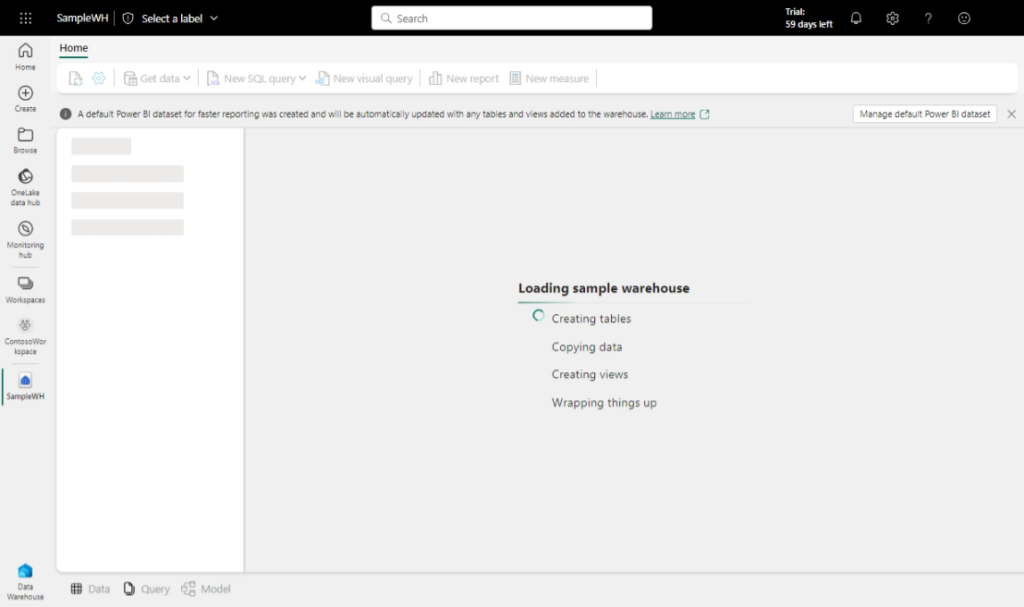
- On completion of loading sample data, the warehouse opens with data loaded into tables and views to query.
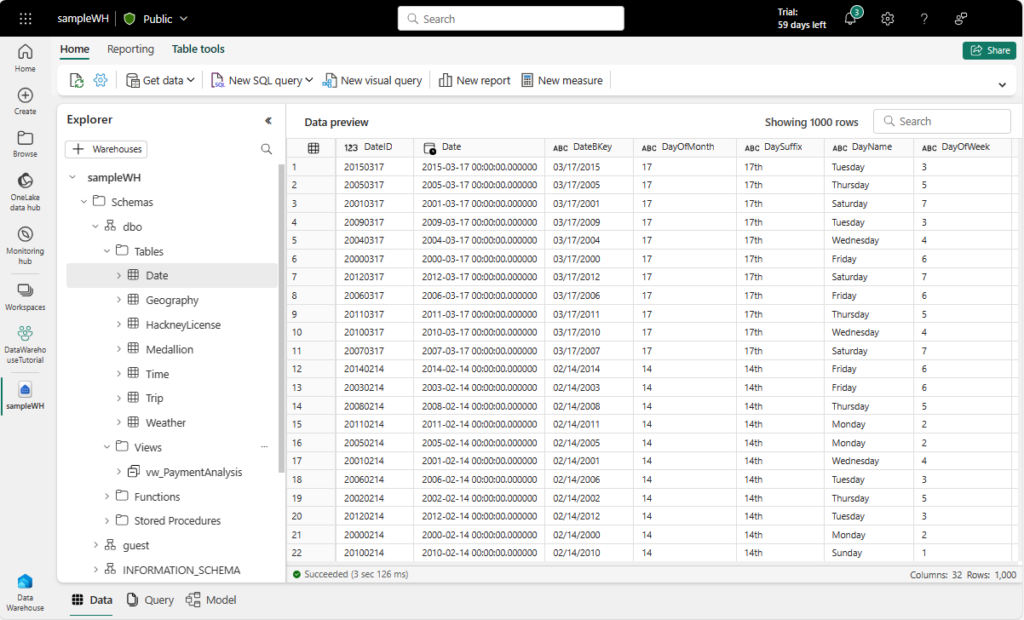
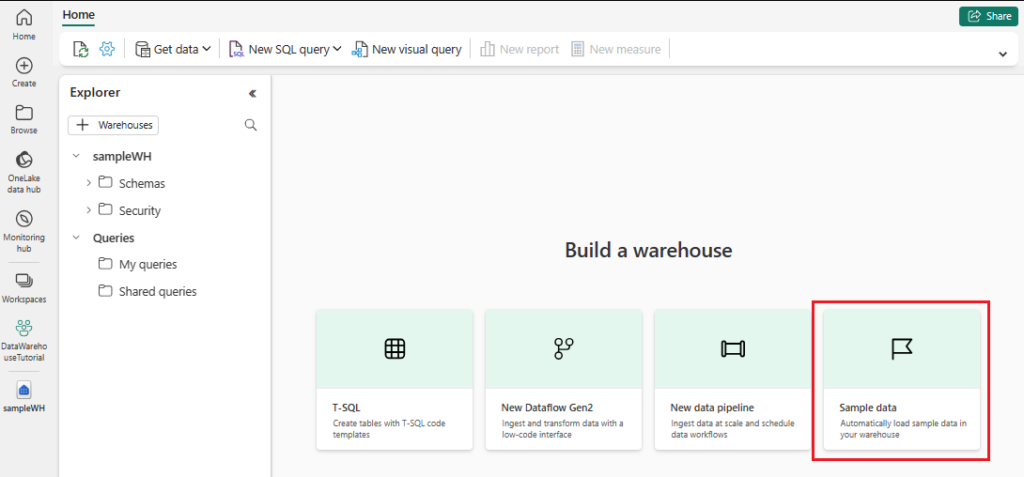
Now, you’re ready to load sample data.
- Once you have created your warehouse, you can load sample data into warehouse from Use sample database card.
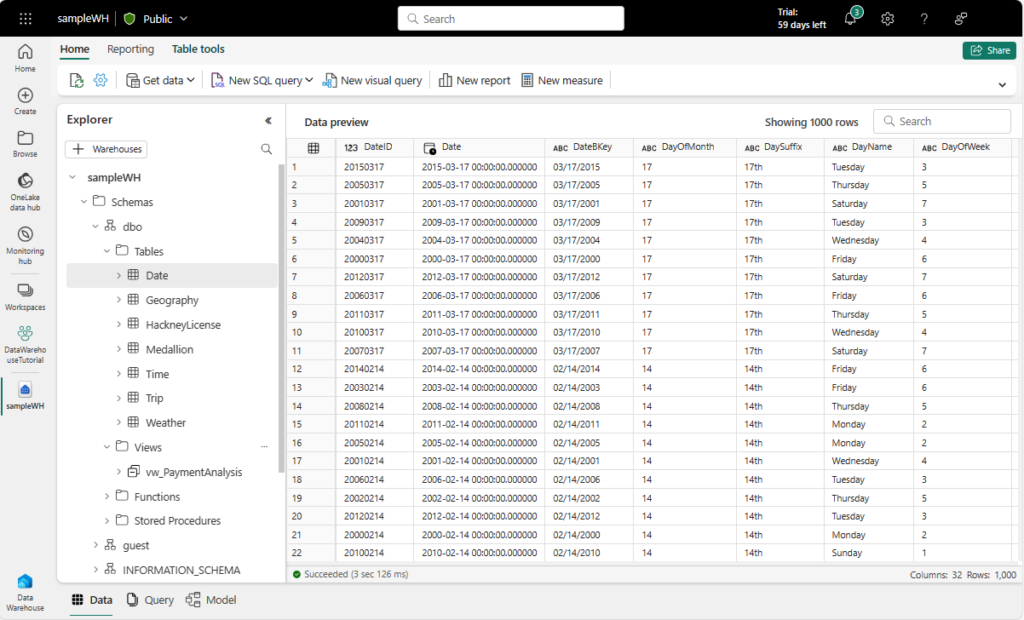
- On completion of loading sample data, the warehouse displays data loaded into tables and views to query.
Integrations and Interoperability
Connections with your Warehouse
- Connect with SQL Server Management Studio (SSMS): Microsoft Fabric Warehouse supports SSMS. You can refer to the full guide using the links mentioned under references heading of this blog.
- Connect using Power BI: It is fully supported within Power BI, and there is no need to use the SQL Connection string. The Data pane exposes all of the warehouses you have access to directly.
- Connect using OLE DB: Microsoft Fabric support connectivity to the Warehouse or SQL analytics endpoint using OLE DB. Make sure you’re running the latest Microsoft OLE DB Driver for SQL Server.
- Connect using ODBC: Microsoft Fabric supports connectivity to the Warehouse or SQL analytics endpoint using ODBC. Make sure you’re running the latest ODBC Driver for SQL Server. Use Microsoft Entra ID (formerly Azure Active Directory) authentication.
- Connect using JDBC: Microsoft Fabric also supports connectivity to the Warehouse or SQL analytics endpoint using a Java database connectivity (JDBC) driver. When establishing a connection do check for following dependencies:
<dependency>
   <groupId>com.microsoft.azure</groupId>
   <artifactId>msal4j</artifactId>
   <version>1.13.3</version>

</dependency>

<dependency>
   <groupId>com.microsoft.sqlserver</groupId>
   <artifactId>mssql-jdbc_auth</artifactId>
   <version>11.2.1.x86</version>
</dependency>

 <dependency>
   <groupId>com.microsoft.sqlserver</groupId>
   <artifactId>mssql-jdbc</artifactId>
   <version>12.1.0.jre11-preview</version>
</dependency>

 <dependency>
   <groupId>com.microsoft.aad</groupId>
   <artifactId>adal</artifactId>
   <version>4.2.2</version>
</dependency>
Best Practices
Adhering to best practices is crucial for optimizing performance and ensuring security. Here are some key points to remember:
- Design for Scale: Leverage the serverless nature to design systems that can scale automatically with your data needs. Structure your data and queries such that it can dynamically allocate resources.
- Security First: Always prioritize security by implementing row-level and column-level security measures. Utilize the built-in security features of Microsoft Fabric to protect your data.
- Efficient Data Ingestion: Use the Copy activity in Data pipelines to efficiently move data into the Lakehouse. Group INSERT statements into batches to minimize transaction sizes.
- Monitor Performance: Utilize dynamic management views (DMVs) to monitor query execution and performance.
- Keep Data Models Simple: Define clear and concise semantic models in Power BI to facilitate easy reporting and analysis.
By following these best practices, developers and data engineers can maximize the potential of Synapse Data Warehouse within Microsoft Fabric
Conclusion
As we wrap up our exploration of the Synapse Data Warehouse within Microsoft Fabric, it’s clear that this platform is a game-changer for data analytics. Integration of various data analytics services under the Microsoft Fabric has improved data warehousing. With its serverless compute infrastructure, Synapse Data Warehouse offers unparalleled scalability and performance, helping modern businesses. Handling transactional workloads while supporting an open data format like Delta-Parquet helps data engineers and business users collaborate effortlessly.
References
- Official MS Fabrics Documentation – https://learn.microsoft.com/en-us/fabric/data-warehouse/data-warehousing
- MS T-SQL Reference – https://learn.microsoft.com/en-us/sql/t-sql/language-reference?view=fabric&preserve-view=true