




Introduction
Snowflake is a cutting-edge, cloud-based data warehousing platform designed to provide enterprises with a single, integrated solution for managing, analyzing, and sharing their data. Unlike traditional data warehouses, Snowflake is built for the cloud from the ground up, offering unique features and capabilities that address the challenges of modern data management.
Key Features of Snowflake
Scalability
- Elasticity: Snowflake allows compute and storage to scale independently, letting you adjust resources up or down based on your needs without any downtime.
- Concurrency Handling: It supports numerous concurrent users and queries, making it suitable for organizations with multiple teams accessing data simultaneously.
Performance
- Query Optimization: Snowflake automatically optimizes queries for speed using advanced algorithms, including caching and indexing.
- Auto-Scaling: The platform scales compute resources automatically to handle heavy workloads, ensuring consistent performance.
- Data Clustering: Snowflake uses data clustering to enhance the storage and retrieval of large datasets, improving query performance.
Ease of Integration
- Support for Multiple Data Formats: Snowflake can natively ingest and query semi-structured data formats like JSON, Avro, and Parquet.
- Seamless Connectivity: It integrates easily with popular ETL tools, BI platforms, and data lakes, facilitating smooth data movement and analysis.
- APIs and Drivers: Snowflake offers a wide range of APIs and drivers for programming languages like Python, Java, and Go, enabling custom application development.
Data Sharing and Collaboration
- Secure Data Sharing: Snowflake allows secure, governed data sharing between organizations without moving the data, which is ideal for collaborative projects.
- Data Marketplace: The platform features a data marketplace where users can access and share datasets, fostering data collaboration and insights.
Security and Governance
- Built-in Security: Snowflake includes robust security features such as end-to-end encryption, network isolation, and multi-factor authentication.
- Compliance: It complies with industry standards and regulations like GDPR, HIPAA, and SOC 2, ensuring data protection and regulatory compliance.
Simplified Management
- Zero Management: Snowflake handles infrastructure management tasks such as provisioning, configuration, and optimization automatically, reducing the workload on IT teams.
- Automatic Updates: The platform applies updates and patches automatically, ensuring users always have access to the latest features and security enhancements.
Importance of Proper Setup
Setting up your Snowflake account correctly is essential for maximizing the platform’s capabilities. A well-configured account ensures a secure, efficient, and high-performing data environment.
Data Security
- Access Control: Proper setup restricts access to authorized users, protecting sensitive data.
- Encryption: Configuring encryption settings safeguards data at rest and in transit, preventing breaches.
- Compliance: Ensuring settings meet industry standards like GDPR and HIPAA helps maintain regulatory compliance.
Optimal Performance
- Resource Allocation: Properly configured virtual warehouses provide the necessary compute power for queries without over-provisioning.
- Query Optimization: Correct data clustering and indexing improve query speed and efficiency.
- Auto-Scaling: Setting up auto-scaling allows the system to handle varying workloads seamlessly, maintaining performance and controlling costs.
Efficient Management
- Ease of Use: A well-configured account makes data loading, querying, and sharing straightforward.
- Monitoring and Maintenance: Initial setup of monitoring tools and alerts helps manage system health proactively.
- Cost Management: Proper configuration includes cost controls and usage monitoring to optimize resource utilization and avoid overspending.
Prerequisites
Cloud Provider Account
You need an account with AWS, Azure, or Google Cloud to set up a Snowflake account. Snowflake relies on these cloud platforms for storage and compute resources.
Internet Access and Browser
Ensure you have a reliable internet connection and a compatible web browser. A stable connection is crucial for accessing and managing your Snowflake account, while a modern browser ensures compatibility with Snowflake’s features.
Creating a Snowflake Account
Sign Up Process:


- Visit the Snowflake Website: Go to the Snowflake website and click “Start for Free” or “Sign Up.”
- Register: Enter your email, create a password, and provide the required information.
- Verify Email: Check your email for a verification link and click on it.
- Complete Profile: Fill in additional details like your name, company, and job role.
- Set Up Account: Follow the prompts to complete the setup.
Choosing a Cloud Platform
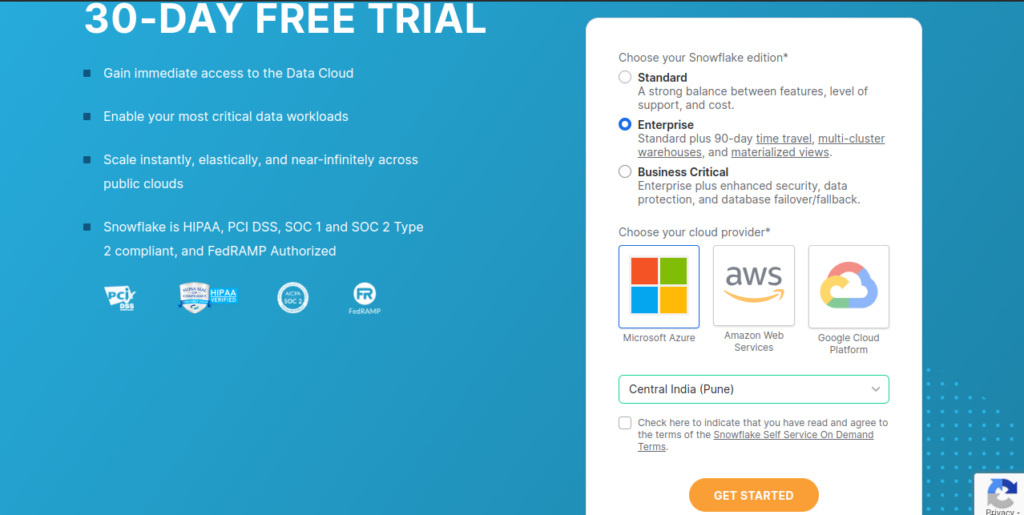
During registration, select a cloud platform: AWS, Azure, or Google Cloud. Choose based on your existing infrastructure, preferences, and specific service offerings.
Subscription Plan
- Standard Edition: For small to medium-sized businesses with basic data needs.
- Enterprise Edition: For larger organizations needing advanced features and security.
- Business Critical Edition: For enterprises requiring the highest level of security and compliance.
- Virtual Private Snowflake (VPS): For businesses needing a dedicated, isolated instance.
Choosing the Right Plan
- Scalability: Ensure the plan can scale with your data needs.
- Assess Needs: Consider your organization’s size, data volume, and workload complexity.
- Budget: Evaluate the cost and select a plan that fits your budget.
Configuring Your Account
Account Setup Wizard
- Log In: After verifying your email, log in to Snowflake with your credentials.
- Select Cloud Platform: Choose the cloud provider (AWS, Azure, or Google Cloud) for your Snowflake instance.
- Choose Region: Pick the geographic region where you want your Snowflake account to be hosted, ideally close to your data sources.
- Create Account: Enter your organization’s name and any additional required details.
- Set Initial Configurations: Set up basic options such as the default warehouse, database, and schema. These can be adjusted later.
- Review and Confirm: Review your settings and confirm to finalize the account creation.
Admin Console
- Billing and Usage: View billing details and usage reports to manage costs and track resource utilization.
- Access Console: Access the Admin Console from the Snowflake dashboard or directly through the interface.
- Dashboard Overview: View an overview of your Snowflake environment, including active warehouses, databases, and user activity.
- Manage Users: Add or remove users, assign roles, and set permissions to control data access.
- Manage Warehouses: Monitor and manage virtual warehouses, including starting, stopping, resizing, and configuring them.
- Monitor Resources: Check usage statistics and performance metrics to ensure efficient operation.
Setting Up a Warehouse
Creating a Virtual Warehouse
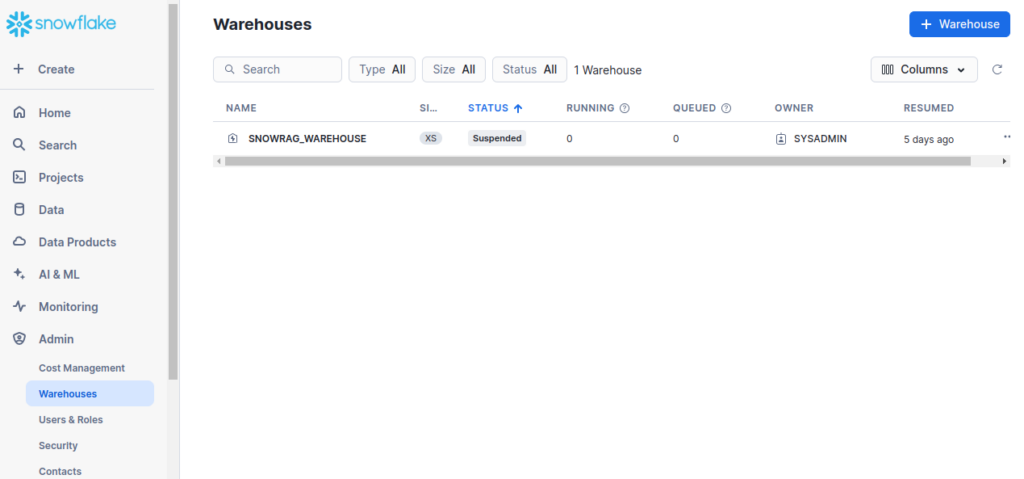
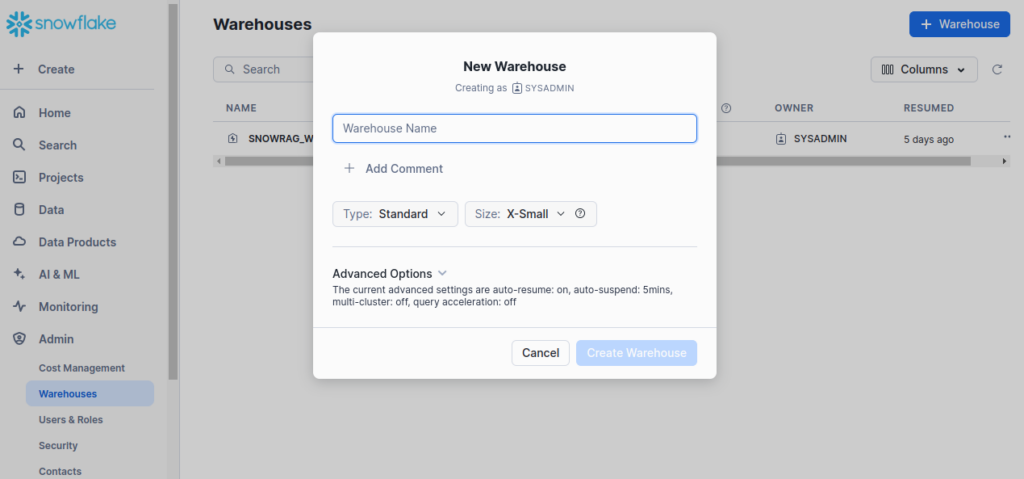
- Access Admin Console: Log in to Snowflake and go to the Admin Console.
- Find Warehouses: Click on the “Warehouses” tab.
- Create Warehouse: Click “Create” to start a new virtual warehouse.
- Name the Warehouse: Provide a descriptive name for the warehouse.
- Choose Size: Select the warehouse size from options like X-Small to Large. (Details on sizing are covered below.)
- Enable Auto-Scaling: If desired, enable auto-scaling to adjust the warehouse size automatically based on workload.
- Set Additional Parameters: Configure other settings, such as the maximum number of clusters.
- Save and Launch: Review your settings and click “Create” to finalize.
Sizing and Scaling
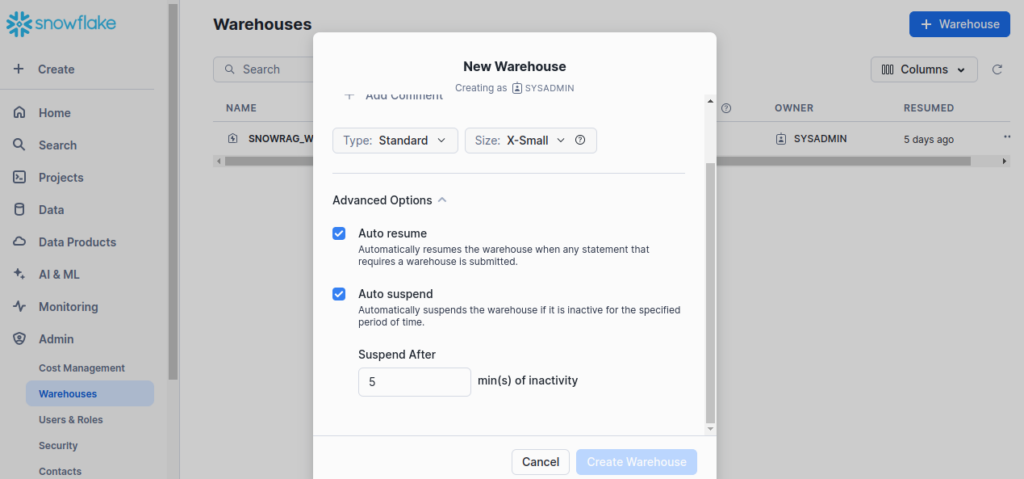
- Adjust as Needed: Resize the warehouse or adjust auto-scaling settings if you encounter performance issues or inefficiencies.
- Assess Workload: Determine the complexity and volume of your queries. Larger queries need more compute power.
- Select Size: Choose from sizes ranging from X-Small to 4X-Large. Larger sizes handle more data but cost more.
- Manage Concurrency: For many concurrent users or queries, opt for a larger warehouse or enable multi-cluster warehouses.
- Use Auto-Scaling: Enable auto-scaling to adjust the size automatically based on workload, improving performance during busy times and saving costs when not needed.
- Monitor Performance: Regularly check performance metrics to ensure the warehouse size meets your needs.
Configuring Security Settings
User Roles and Permissions
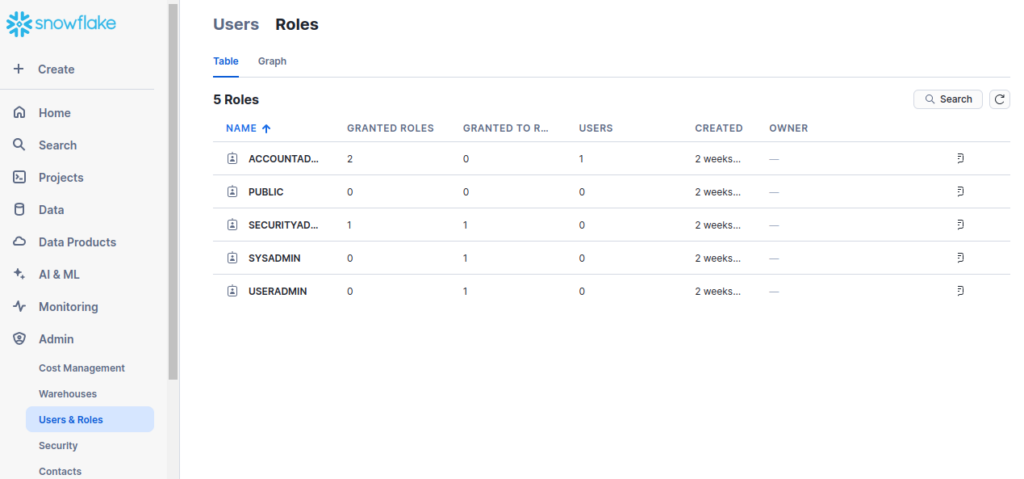
- Access Admin Console: Log in to Snowflake and go to the Admin Console.
- Navigate to Roles: Click on the “Roles” tab to view existing roles or create new ones.
- Create Roles: Click “Create Role” to define new roles based on job functions or access needs.
- Assign Permissions: For each role, assign specific permissions such as read, write, or admin rights to databases, schemas, or warehouses.
- Assign Roles to Users: Go to the “Users” tab, select a user, and assign one or more roles to them based on their responsibilities.
- Review and Update: Regularly review roles and permissions to ensure they are up-to-date and aligned with current access needs.
Multi-Factor Authentication (MFA)
- Access Security Settings: Navigate to the security settings in the Admin Console.
- Enable MFA: Find the option to enable Multi-Factor Authentication and follow the prompts to activate it.
- Set Up MFA: Users will need to set up MFA on their accounts, typically by linking to a mobile authentication app or receiving SMS codes.
- Verify MFA: Ensure that MFA is functioning correctly by testing it during login.
Importance: Enabling MFA significantly enhances security by requiring users to provide an additional verification method, making it much harder for unauthorized users to gain access to your Snowflake account.
Network Policies
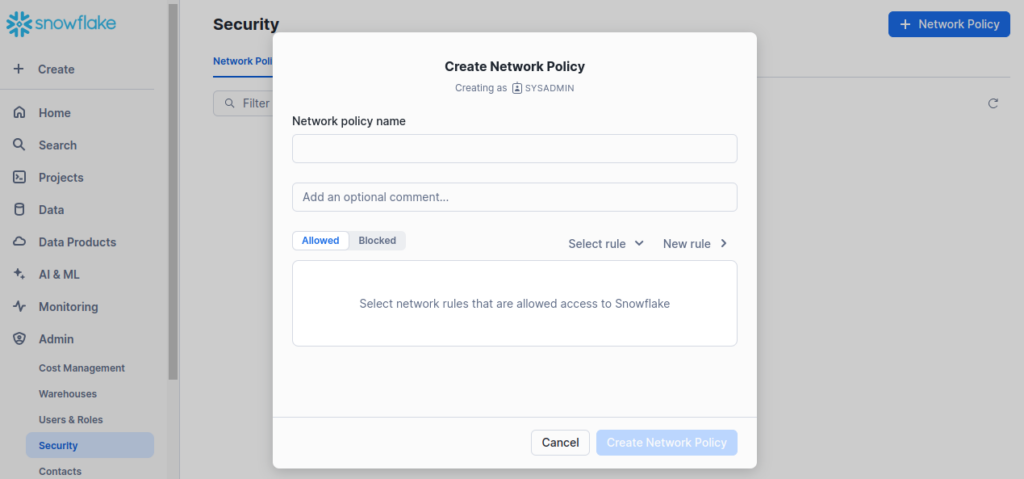
- Access Network Policies: Go to the “Network Policies” section in the Admin Console.
- Create a Policy: Click “Create Policy” to define new network access rules.
- Set IP Allowlist: Specify IP addresses or address ranges that are permitted to access your Snowflake account. You can restrict access to specific trusted networks.
- Apply Policy: Assign the network policy to relevant users or roles to enforce the access controls.
- Review and Update: Regularly review and update network policies to ensure they reflect current security requirements and organizational changes.
Purpose: Network policies help control access to your Snowflake account by restricting connections to approved IP addresses, adding an extra layer of security against unauthorized access.
NOTE :
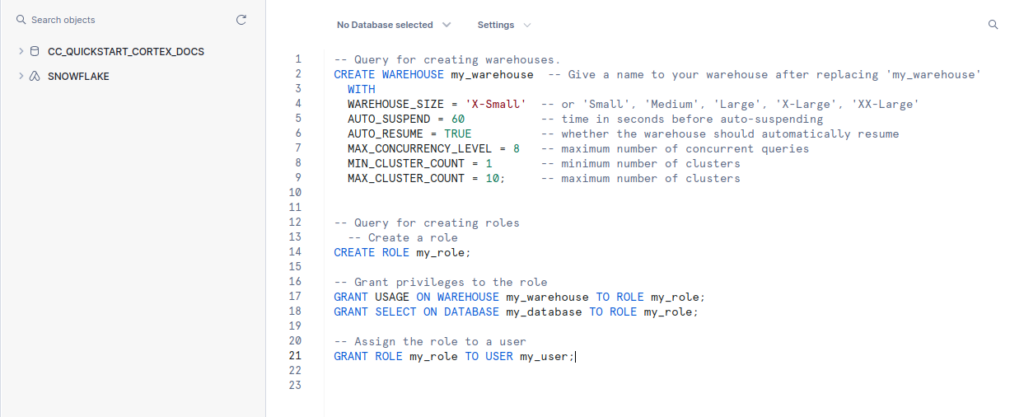
- You can also create a “Warehouse” or “Roles” using the SQL queries with “SQL Worksheet”.
- First you need to create “SQL Worksheet” from tabs of homepage in snowflake.
- And then use the above queries to create warehouse or role.
Data Loading and Management
Creating Databases and Schemas
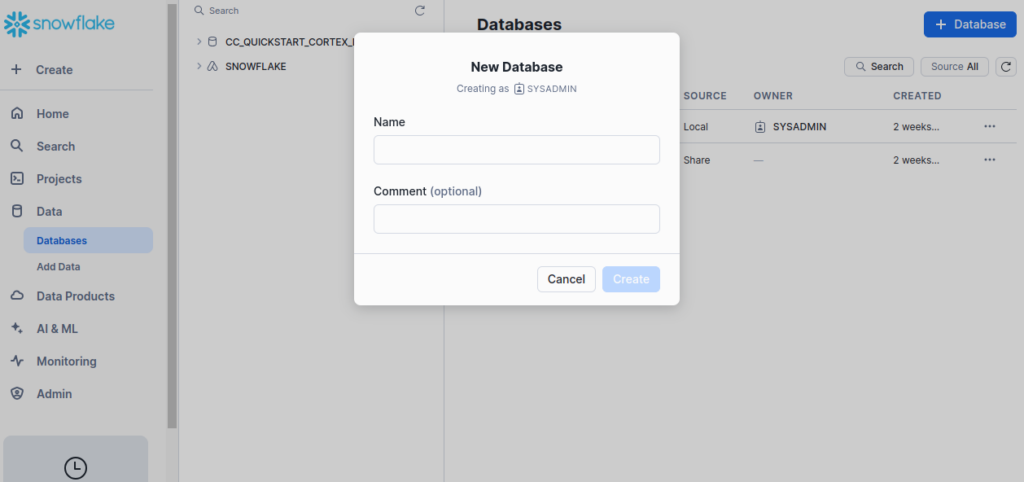
- Log In: Access Snowflake and log in to your account.
- Navigate to Databases: Go to the “Databases” tab in the Snowflake interface.
- Create a Database:
- Click the “Create Database” button.
- Enter a name for the database and configure any additional settings if needed.
- Click “Create” to finalize the creation of the database.
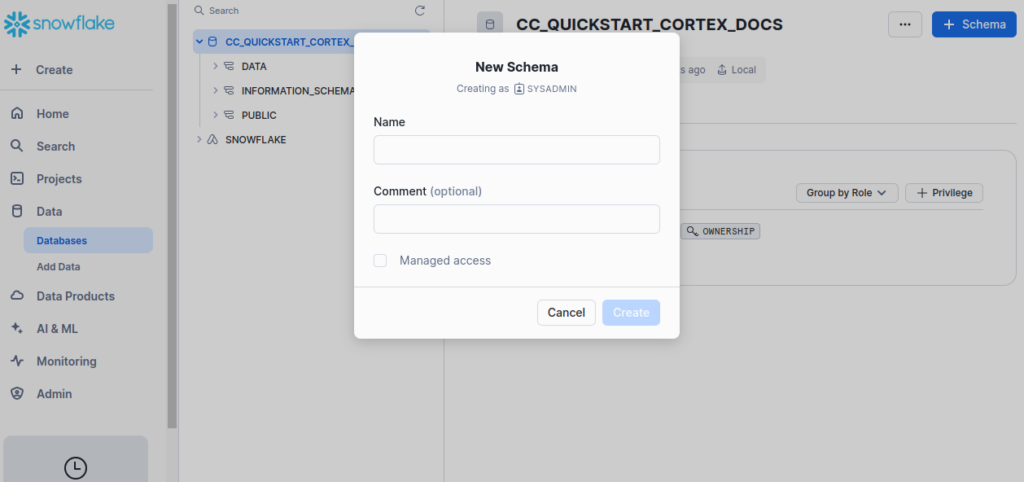
- Create a Schema:
- Navigate to the “Schemas” section within the newly created database.
- Click the “Create Schema” button.
- Provide a name for the schema and configure any relevant settings.
- Click “Create” to set up the schema.
Purpose: Databases and schemas help organize your data efficiently within Snowflake. A database can contain multiple schemas, which in turn, organize tables and other objects.
NOTE :
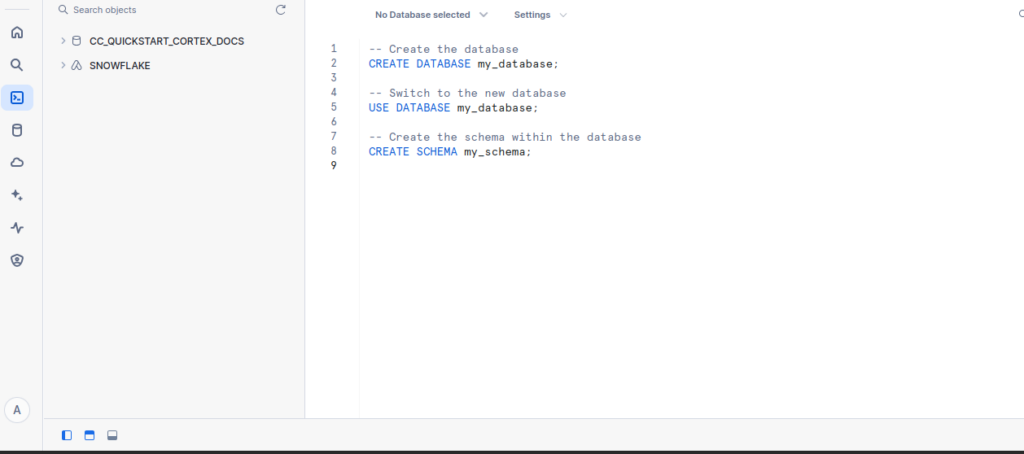
- Create a “SQL Worksheet or use the already created one.
- Write the above query to create a “Databases” or “Schema’s”.
- And write the above query to use that particular database and schema.
Loading Data
- Snowpipe:
- Set Up Snowpipe: Configure Snowpipe by creating a pipe object in Snowflake. This involves defining the source stage where your data files are located and setting up the automatic loading process.
- Create a Stage: Create a named stage to point to your data source, like an S3 bucket in AWS or a Blob storage in Azure.
- Create the Pipe: Define a pipe with SQL commands to automatically ingest data from the stage into a target table as new data arrives.
- Monitor: Use the Snowpipe interface to monitor data loading progress and handle any errors.
- Bulk Loading:
- Prepare Data Files: Ensure your data files are in a format supported by Snowflake (e.g., CSV, JSON, Parquet).
- Create a Stage: Create an internal or external stage in Snowflake to reference the location of your data files.
- Use COPY Command: Write and execute the
COPY INTOSQL command to load data from the stage into a Snowflake table. - Monitor: Check the loading process and review any errors or warnings that occur during the bulk load.
Methods
- Bulk Loading: Suitable for large-scale data transfers where you can handle the data load in batches. This method is often used for initial data loads or periodic updates.
- Snowpipe: Ideal for continuous, automated data ingestion with minimal manual intervention. It handles real-time data loading as files arrive.
Integrating with Other Tools
BI Tools Integration
Tableau
- Open Tableau: Launch Tableau Desktop or Tableau Online.
- Connect to Data:
- Click on “Connect” in Tableau and select “Snowflake” from the list of available connectors.
- Enter your Snowflake account details, including the account URL, warehouse, database, schema, and your credentials.
- Authenticate: Follow the prompts to authenticate your Snowflake account. You may need to enter your username and password or use OAuth if configured.
- Import Data: Once connected, select the data you want to import from Snowflake into Tableau. You can drag and drop tables or write custom SQL queries.
- Visualize Data: Use Tableau’s tools to create dashboards and visualizations based on the imported data.
Power BI
- Open Power BI: Launch Power BI Desktop.
- Get Data:
- Click on “Home” and then “Get Data.”
- Select “Snowflake” from the list of data sources.
- Connect to Snowflake:
- Enter your Snowflake account details, including the server, warehouse, database, schema, and your credentials.
- Click “Connect” to establish the connection.
- Authenticate: Authenticate using your Snowflake credentials or through OAuth.
- Load Data: Select the tables or views you want to load from Snowflake into Power BI. You can also use DirectQuery for real-time data access.
- Create Reports: Use Power BI’s features to build reports and visualizations with the loaded data.
Monitoring and Maintenance
Monitoring Usage
- Check Usage Metrics: Log in to Snowflake and go to the Admin Console. View usage statistics for each warehouse under the “Warehouses” tab.
- Monitor Query Performance: Use the “Query History” feature to track how queries perform, including their execution times and resource use. Look for slow queries and address any issues.
- Review Storage Usage: In the Admin Console, check the “Databases” section to see how much storage is being used. Identify any tables or schemas using excessive storage.
- Examine Billing Reports: Regularly review billing and usage reports to understand your costs and ensure they align with your budget.
- Set Alerts: Configure alerts for critical metrics, such as high CPU usage or large data loads, to quickly address potential issues.
Optimizing Performance
1. Clustering Keys
- Define Clustering Keys: Set up clustering keys to organize large tables and improve query performance.
- Review and Adjust: Regularly check how well clustering keys are working and make adjustments based on your query patterns.
2. Query Tuning
- Analyse Queries: Use the “Query Profile” tool to identify performance issues in your queries.
- Optimize SQL: Rewrite queries for better efficiency and use appropriate filters and joins.
- Leverage Caching: Take advantage of Snowflake’s result caching to speed up frequently run queries.
3. Warehouse Sizing
- Adjust Size: Change the size of your virtual warehouses based on workload. Scale up during busy times and scale down when activity is lower.
- Enable Auto-Scaling: Set up auto-scaling to automatically adjust the warehouse size according to workload changes.
Regular Maintenance
1. Data Management
- Archive Old Data: Regularly archive or delete outdated data to free up storage and enhance performance.
- Rebuild Indexes: Periodically rebuild indexes and clustering keys to keep performance optimal.
2. Update Statistics
- Gather Statistics: Keep table statistics up-to-date to help the query optimizer make better decisions.
3. Security Reviews
- Review Access Control: Regularly check user roles and permissions to ensure proper access control.
- Update MFA Settings: Ensure multi-factor authentication settings are current and enforce security best practices.
4. Backup and Recovery
- Regular Backups: Make sure backups are taken regularly and that they can be restored if needed.
- Test Recovery Procedures: Periodically test your recovery procedures to ensure data integrity and availability.
Conclusion
Snowflake is a powerful cloud-based platform that can greatly enhance your data management and analytics capabilities. This guide has covered everything you need to know about setting up your Snowflake account, integrating it with essential tools, and optimizing its performance.
I have shown in this blog that how to create and configure databases and schemas, which helps keep your data organized and accessible. Integrating Snowflake with BI tools like Tableau and Power BI allows you to generate insightful reports and visualizations. Connecting with ETL tools like Talend and Informatica streamlines your data processing, making it more efficient.
Regular monitoring and maintenance are key to keeping Snowflake running smoothly. By tracking usage, optimizing queries, and performing routine checks, you ensure your environment remains secure and efficient.