



In today’s digital landscape, maintaining optimal performance and a seamless user experience is paramount for any web application. Performance monitoring is a critical aspect of this process, and automated tools have become indispensable in ensuring consistent performance. One such powerful tool is Lighthouse CI, which automates the performance auditing of web applications, providing valuable insights and actionable data. This blog will delve into the world of automated performance monitoring using Lighthouse CI, exploring its features, benefits, and how to implement it effectively in your workflow.
What is Lighthouse CI?
Lighthouse CI (Continuous Integration) is an open-source tool developed by Google, designed to run Lighthouse performance audits as part of your CI/CD pipeline. Although, Lighthouse itself is a tool that analyzes web pages and provides performance, accessibility, SEO, and best practices scores. Lighthouse CI extends this capability by integrating these audits into your development workflow, enabling automated performance monitoring with every code change.
Key Features of Lighthouse CI
- Automated Audits: Lighthouse CI allows you to automate Lighthouse audits, ensuring that performance checks are consistently applied to every commit, pull request, or deployment.
- Historical Comparisons: It stores historical performance data, enabling comparisons over time. In addition, this helps in identifying trends and regressions, making it easier to maintain performance standards.
- Thresholds and Assertions: You can set performance thresholds and assertions, allowing the CI to fail if a certain performance benchmark is not met. This ensures that performance remains a priority throughout the development cycle.
- Integrations: Lighthouse CI integrates seamlessly with various CI/CD tools like GitHub Actions, CircleCI, Travis CI, and more. Hence, this flexibility makes it a versatile choice for different development environments.
Benefits of Using Lighthouse CI
- Consistency in Performance Monitoring: By automating performance audits, Lighthouse CI ensures that performance checks are consistently applied, eliminating human error and oversight.
- Early Detection of Performance Issues: Integrating Lighthouse CI into your CI/CD pipeline allows you to catch performance issues early in the development process, preventing them from reaching production.
- Data-Driven Decision Making: The historical performance data and trends provided by Lighthouse CI enable data-driven decision making, helping teams prioritize performance improvements based on real data.
- Enhanced User Experience: Lastly, by maintaining optimal performance, you can enhance the user experience, leading to higher engagement, better retention rates, and improved SEO rankings.
Implementing Lighthouse CI in Your Workflow
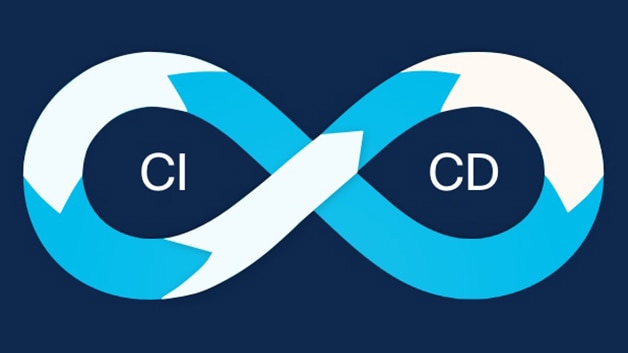
Implementing Lighthouse CI involves a few key steps: setting up your project, configuring Lighthouse CI, and integrating it into your CI/CD pipeline. Let’s walk through these steps in detail.
Step 1: Setting Up Your Project
First, before you can use Lighthouse CI, you need to have a project where you want to perform the audits. This can be any web application that you are developing. First, ensure that you have a CI/CD pipeline in place to integrate Lighthouse CI.
Step 2: Installing Lighthouse CI
Lighthouse CI can be installed via npm. Open your terminal and run the following command:
npm install -g @lhci/cliSo, this will install the Lighthouse CI CLI globally on your system.
Step 3: Configuring Lighthouse CI
Next, you need to create a configuration file for Lighthouse CI. In the root of your project, create a file named lighthouserc.js and add the following configuration:
module.exports = {
  ci: {
    collect: {
      startServerCommand: 'npm start',
      url: ['http://localhost:3000'],
    },
    assert: {
      assertions: {
        'categories:performance': ['error', {minScore: 0.9}],
        'categories:accessibility': ['error', {minScore: 0.9}],
      },
    },
    upload: {
      target: 'temporary-public-storage',
    },
  },
};
In this configuration:
startServerCommandspecifies the command to start your application.urlis the URL of the application to be audited.assertionsdefine the performance and accessibility thresholds.uploadspecifies where to store the audit results. Here,temporary-public-storageis used for demonstration purposes.
Step 4: Running Lighthouse CI Locally
Furthermore, before integrating into your CI/CD pipeline, it’s a good idea to run Lighthouse CI locally to ensure everything is set up correctly. Run the following command in your terminal:
lhci autorunSo, this command will start your application, perform the Lighthouse audits, and output the results. If everything is configured correctly, you should see the audit results in your terminal.
Step 5: Integrating Lighthouse CI into CI/CD Pipeline
To integrate Lighthouse CI into your CI/CD pipeline, you need to add the necessary commands to your pipeline configuration. Here, we’ll demonstrate how to do this with GitHub Actions.
Create a file named lighthouse-ci.yml in the .github/workflows directory of your project and add the following configuration:
name: Lighthouse CI

on:
  push:
    branches:
      - main
  pull_request:
    branches:
      - main

jobs:
  lighthouse-ci:
    runs-on: ubuntu-latest
    steps:
      - name: Checkout code
        uses: actions/checkout@v2

      - name: Set up Node.js
        uses: actions/setup-node@v2
        with:
          node-version: '14'

      - name: Install dependencies
        run: npm install

      - name: Start application
        run: npm start &

      - name: Run Lighthouse CI
        run: lhci autorun
In this configuration:
- The workflow runs on every push and pull request to the
mainbranch. - It checks out the code, sets up Node.js, installs dependencies, starts the application, and runs Lighthouse CI.
Best Practices for Using Lighthouse CI
- Set Realistic Thresholds: Set performance thresholds based on your application’s requirements and user expectations. Regularly review and adjust these thresholds as needed.
- Monitor Trends: Use the historical performance data to monitor trends and identify areas for improvement. Regularly review the data to stay on top of performance issues.
- Collaborate with Your Team: Ensure that all team members understand the importance of performance and are aware of the Lighthouse CI setup. Foster a culture of performance awareness.
- Integrate Early: Integrate Lighthouse CI into your CI/CD pipeline early in the development process. This helps catch performance issues before they become harder to fix.
- Automate Reports: Set up automated reports and notifications to keep the team informed about performance metrics and any regressions.
Conclusion
To conclude, automated performance monitoring with Lighthouse CI is a powerful way to ensure your web application maintains optimal performance throughout its lifecycle. By integrating Lighthouse CI into your CI/CD pipeline, you can automate performance audits, detect issues early, and make data-driven decisions to enhance the user experience. With its robust features and seamless integrations, Lighthouse CI is an invaluable tool for any development team committed to delivering high-performance web applications. Embrace Lighthouse CI and take your performance monitoring to the next level.
I hope this gave you some useful insights. Please feel free to drop any comments, questions or suggestions. Thank You !!!