


Introduction
Hi readers. In this blog, we are going to learn how we can use the transloco library in angular for supporting multiple languages in your application.
What is Transloco?
Transloco is a popular internationalization library for Angular applications. It allows us to seamlessly translate text within an Angular app and adapt it for different languages.
It provides support for lazy loading of translation files, thereby improving performance. Additionally users doesn’t need to refresh the page for changing languages. It can dynamically switch languages at run time.
Installation
After creating a new angular application, you can use the following command to install it:
npm i @jsverse/translocoI am using Angular version 17, so the configurations will be added in the app.config.ts . Here you can see the code for app config:
import { ApplicationConfig, isDevMode } from '@angular/core';
import { provideRouter } from '@angular/router';

import { routes } from './app.routes';
import { provideTransloco } from '@jsverse/transloco';
import { TranslocoHttpLoader } from './transloco-loader';
import { provideHttpClient } from '@angular/common/http';


export const appConfig: ApplicationConfig = {
  providers: [provideRouter(routes), provideHttpClient(),
    provideTransloco({
    config: {
      availableLangs: ['en', 'es'],
      defaultLang: 'en',
      reRenderOnLangChange: true,
      prodMode: !isDevMode(),
    },
    loader: TranslocoHttpLoader,
  }),]
};
As you can see provideTransloco has all the options. The available language you can add here. I have added English and Spanish. The default language is English. Then you can see the option reRenderOnLangChange, which allows user to change language at run time.
Below is the transloco-loader file. This file is used to fetch the translation files.
import { inject, Injectable } from '@angular/core';
import { Translation, TranslocoLoader } from '@jsverse/transloco';
import { HttpClient } from '@angular/common/http';

@Injectable({ providedIn: 'root' })
export class TranslocoHttpLoader implements TranslocoLoader {
  private http = inject(HttpClient);

  getTranslation(lang: string) {
    return this.http.get<Translation>(`/assets/i18n/${lang}.json`);
  }
}
Translation in the Template
Before this, make sure you have created two files for tranlation under assets folder. Given below are two simple translation files.
en.json
{
    "hello": "Hello",
    "description": "This is a test description"
}
es.json
{
    "hello": "Hola",
    "description": "Esta es una descripción de la prueba."
}
Now, let us see how we can update our HTML files based on the translation. Here is the example for it:
<ng-container *transloco="let t">
  <h3><p>{{ t('hello') }}</p></h3>
  <p>{{ t('description') }}</p>
  <select id="language-select" (change)="onChange($event)">
    <option value="en">En</option>
    <option value="es">Es</option>
  </select>
</ng-container>
It uses a structural directive approach which creates only one subscription per template. This approach is DRY and efficient.
Then we have a dropdown to change language and check language change.
There is another approach as well which is through attribute directive. You can refer that approach here.
Now, let us see the functionality for onChange.
@Component({
  selector: 'app-root',
  standalone: true,
  imports: [RouterOutlet, TranslocoDirective],
  templateUrl: './app.component.html',
  styleUrl: './app.component.scss'
})
export class AppComponent {
  title = 'translocoDemo';
  currentLang: string = "";

  constructor(private translocoService: TranslocoService) {
    translocoService.langChanges$.subscribe(language => {
      this.currentLang = language;
      console.log('Current Language: ', this.currentLang);
    });
  }

  onChange(event: any) {
    const language = event.target.value;
    this.translocoService.setActiveLang(language);
  }
}
Make sure you import the TranslocoDirective, other wise you will face issues. First of all, inject the Transloco Service in the constructor. Then to check the current language, you can subscribe to the langChange$ which will give you the active language on every change.
While changing language from dropdown, we need to set the new one. For that we have used setActiveLang function and have passed the new language to it.
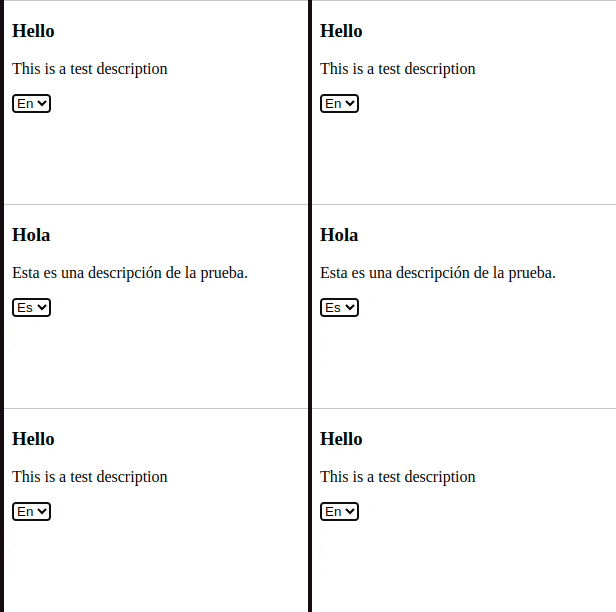
After this, we are ready to run our application.
Run the ng serve command.
Conclusion
Overall, Transloco is a powerful tool for building scalable and maintainable multi lingual Angular applications. By integrating Transloco, you not only enhance user experience by supporting multiple language but also position your application for a broader, global audience. To check out more features and details about Transloco, explore its official Docs here.
Finally, for more such posts like this, please follow our LinkedIn page- FrontEnd Competency. OR have a look at such blogs here.