


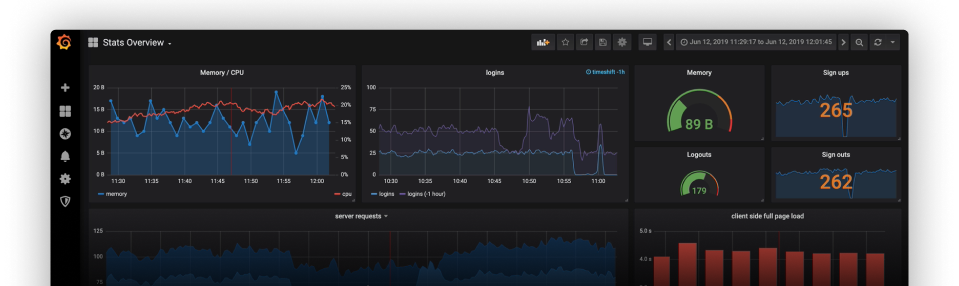
Monitoring and alerting are essential for maintaining the health of any production-grade system. Grafana, known for its powerful visualization capabilities, also enables you to set up robust alerting mechanisms. This guide walks you through setting up alerting in Grafana for infrastructure metrics, including Kubernetes and system metrics. We’ll cover the basics, delve into best practices for production-grade monitoring, and explore dynamic alerting strategies for effective monitoring.
Why Do We Need Alerting in Grafana?
In any production environment, system downtime or performance issues can lead to significant costs, whether in terms of revenue, productivity, or customer satisfaction. With Grafana’s alerting, you can monitor critical metrics in real time and receive notifications about potential issues before they escalate. Alerting empowers you to take proactive measures, improve system stability, and deliver reliable user experiences.
Setting Up Alerting in Grafana: The Basics
To set up alerting in Grafana, first ensure you have configured data sources such as Prometheus, InfluxDB, or any other relevant data source. Here’s how to get started with alerting in Grafana:
Step 1: Configure the Alert Notification Channel
- Navigate to Alerting: Go to the Grafana sidebar and select Alerting > Notification channels.
- Add a New Channel: Click Add Channel and configure your desired notification channel. Grafana supports various notification methods, including Slack, email, and webhooks.
- Set Parameters: Choose parameters for your notifications, such as the frequency of alerts and the message format.
Step 2: Set Up Alert Rules on Panels
- Select the Panel: Open the dashboard panel you wish to monitor and alert on.
- Define Alert Conditions: Click Edit for the panel, then go to the Alert tab.
- Add Conditions: Define the alert conditions by specifying thresholds for your metrics. For instance, if you’re monitoring CPU usage, set a condition for CPU exceeding 80% for more than five minutes.
- Define the Evaluation Interval: Specify how often Grafana should evaluate this condition.
- Save the Alert Rule: After setting up your conditions and intervals, save the alert rule.
Setting Up Alerting for Kubernetes Metrics
In Kubernetes, you deal with a range of dynamic resources such as nodes, pods, and containers, each generating vital metrics that need constant monitoring. Here’s how to configure alerting for Kubernetes metrics:
Prerequisites: Ensure Prometheus Monitoring for Kubernetes
Since Kubernetes produces vast amounts of data, Prometheus is a common choice for scraping and storing these metrics, as it integrates well with both Kubernetes and Grafana.
Step 1: Import Kubernetes Metrics into Grafana
- Add Prometheus as a Data Source in Grafana if you haven’t done so.
- Import Kubernetes Dashboards: Grafana has pre-built dashboards for Kubernetes. You can search for Kubernetes dashboards on Grafana’s dashboard library (e.g.,
kube-prometheus).
Step 2: Define Alert Rules for Kubernetes Metrics
For a production-grade Kubernetes cluster, monitor the following critical metrics and set up alert rules:
- Node CPU and Memory Usage: High CPU or memory usage on a node may signal an impending issue. Set alerts if node CPU usage exceeds 80% or memory usage exceeds 90%.
- Pod Availability: If critical pods are down or restarting frequently, it could indicate application instability.
- Disk Space Usage: Disk space issues can lead to Kubernetes pod evictions. Set alerts if disk space usage on a node exceeds 85%.
- Container Restarts: Frequent container restarts indicate application issues. Set an alert if a container restarts more than a certain number of times within a specified timeframe.
Example Alert Setup for Kubernetes Metrics
- Open the Kubernetes Node Dashboard in Grafana.
- Edit the CPU Usage Panel and go to the Alert tab.
- Define a Condition: Set a threshold alert for CPU usage above 80%.
- Save the Alert Rule and assign it to the Notification Channel created earlier.
Setting Up Alerting for System Metrics
System metrics cover a wide range of infrastructure elements, including CPU, memory, disk, and network usage on your servers. Monitoring these metrics allows you to maintain a stable infrastructure and prevent issues such as outages or performance degradation.
Important System Metrics for Infrastructure Monitoring
For a production-grade system, focus on these system metrics:
- CPU Usage: High CPU usage can indicate performance bottlenecks.
- Memory Usage: Monitor for memory leaks or inadequate memory allocation.
- Disk Usage: Track disk usage to prevent storage-related outages.
- Network Bandwidth: High network usage can signal abnormal activities or potential DDoS attacks.
- System Load: This provides an overall indicator of server health.
Example Alert Setup for System Metrics
- Open the System Metrics Dashboard.
- Select a Metric Panel, such as CPU Usage.
- Configure an Alert Condition: Define a condition where CPU usage should not exceed 80% for more than 10 minutes.
- Save and Assign the Alert: Save the alert and link it to your preferred notification channel.
Implementing Dynamic Alerting
Static thresholds might not always capture fluctuations in production environments. This is where dynamic alerting comes in, allowing you to adapt thresholds based on real-time trends.
How to Implement Dynamic Alerting
- Use Predictive Thresholds: Tools like Prometheus allow you to set up anomaly detection or predictive alerts based on historical data.
- Apply Aggregated Metrics: Set alerts based on aggregated metrics over multiple nodes or containers to prevent alert fatigue.
- Leverage Grafana’s Alerting Plugin: Grafana plugins, such as Grafana Machine Learning, allow you to set up dynamic alert thresholds by learning from past data trends and automatically adjusting thresholds.
Example of Dynamic Alerting for a Production System
Let’s say you want to set up a predictive alert for CPU usage in a way that flags abnormal usage patterns rather than a fixed threshold. Prometheus provides functions like predict_linear to forecast future values based on historical data. This function lets you calculate where the metric should be, based on past behavior, allowing you to alert only when the metric deviates significantly from the predicted trend.
Step-by-Step Example:
- Define a Predictive Query in Prometheus: Suppose we want to forecast CPU usage over the next 10 minutes based on the past 30 minutes of data. The following PromQL expression achieves this:
predict_linear(node_cpu_seconds_total{job="node_exporter"}[30m], 10 * 60)
node_cpu_seconds_total{job="node_exporter"}: This metric tracks CPU usage time. Adjust it to match the actual metric for CPU usage in your environment.[30m]: This part of the query specifies that we’re looking at data from the past 30 minutes to make our prediction.10 * 60: This sets the prediction window to 10 minutes in the future (600 seconds).
2. Set a Dynamic Alert Condition: You can then create an alert rule in Prometheus or Grafana that triggers if the actual CPU usage deviates significantly from this predicted value. For instance:
(node_cpu_seconds_total{job="node_exporter"} - predict_linear(node_cpu_seconds_total{job="node_exporter"}[30m], 10 * 60)) > 0.1
Example: Setting Up Dynamic Alert Thresholds with the Grafana Machine Learning Plugin
Let’s walk through an example of using the Grafana Machine Learning plugin to set up dynamic alert thresholds for network latency. In this scenario, we want to avoid triggering alerts during normal peak hours or expected spikes, while still detecting outlier events that may indicate an issue.
Prerequisites:
- Install Grafana Machine Learning Plugin: First, you need to install and configure the Grafana Machine Learning plugin. This plugin enables machine-learning-driven insights in Grafana and allows you to apply algorithms to your data for anomaly detection, forecast trends, and create dynamic thresholds.
- Add a Data Source: Ensure your metrics are available in a supported data source like Prometheus or InfluxDB, as these will feed the data into Grafana for analysis and alerting.
Step 1: Configure Data for Machine Learning Analysis
- Identify Your Metric: Choose a metric to monitor, such as network latency, CPU usage, or memory consumption. In this example, we’ll monitor network latency using a metric like
http_request_duration_seconds. - Apply Machine Learning Models: In Grafana’s Machine Learning settings, you can choose from various algorithms that fit your needs. For dynamic alert thresholds, use an anomaly detection algorithm such as Seasonal Decomposition or Smoothing models. These models help identify patterns and set variable thresholds based on typical historical data.
Step 2: Set Up Dynamic Thresholds with Anomaly Detection
- Open the Metric Panel for Network Latency: Create or open a panel in Grafana that visualizes
http_request_duration_seconds(the network latency metric). - Configure the ML Model: In the panel settings, navigate to Machine Learning Models and add a model:
- Select Anomaly Detection as the model type.
- Choose Seasonal Decomposition if you want the model to account for recurring daily or weekly trends.
- Set the Training Window to define how much past data the model should consider for analysis (e.g., the last 30 days of data).
- Configure the Anomaly Threshold level to determine how sensitive the model is to deviations from expected values (e.g., 1.5 standard deviations from the mean).
- Define the Dynamic Alert Condition: After configuring the anomaly detection model, set an alert based on the output of this model:
- Alert Condition: Set a condition that triggers when the network latency metric exceeds the dynamically adjusted threshold.
- Example: “Trigger alert if latency deviates by more than 1.5 standard deviations for over 5 minutes.”
- Select Notification Channels: Choose the notification channels where you want to receive alerts, such as Slack, email, or other integrations.
Step 3: Test and Tune the Alert
Once the alerting rule is configured, test the alert to ensure it functions as expected:
- Simulate Past Data Trends: Use historical data to simulate various scenarios, such as peak hours, regular fluctuations, or occasional high spikes.
- Adjust Sensitivity if Needed: Fine-tune the sensitivity by modifying the Anomaly Threshold or adjusting the Model’s Training Window to include more data points. This will help you capture anomalies accurately without triggering unnecessary alerts.
Wrapping Up: Best Practices for Grafana Alerting
- Prioritize Critical Alerts: Not all metrics require alerts. Focus on metrics that have the highest impact on user experience and system reliability.
- Avoid Alert Fatigue: Too many alerts can lead to ignored notifications. Use dynamic thresholds and aggregate metrics to minimize unnecessary alerts.
- Use Descriptive Alert Messages: Ensure that alert messages are descriptive and provide enough information for troubleshooting.
- Test Your Alerts: Regularly test alerts to ensure they trigger as expected, and adjust the thresholds based on your production experience.
Reference: https://grafana.com/docs/grafana-cloud/alerting-and-irm/machine-learning/forecasts/
Conclusion
Grafana’s alerting capabilities offer an essential toolset for proactive monitoring and issue resolution. By setting up alerts for Kubernetes and system metrics, you can ensure your infrastructure remains stable and high-performing. Combining basic alerting with dynamic alerting further enhances Grafana’s functionality, allowing you to adapt to real-time changes and prevent false positives.
With these practices in place, you’ll be well-equipped to maintain a resilient production system and respond quickly to any issues that arise. Happy monitoring!