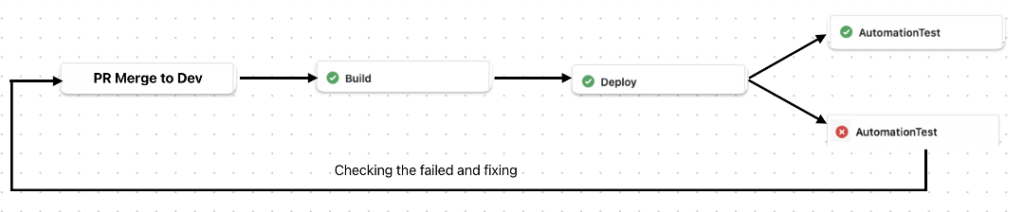
1. Background
- When new features are added, unexpected issues can arise on existing pages. Since manual testing may overlook these problems, implementing an automated testing tool will help identify them more reliably.
- Additionally, frequent code modifications and UI updates in each sprint result in recurring bugs, highlighting the importance of automation for maintaining consistent test coverage.
2. Overview of automation frameworks
- Playwright https://playwright.dev/ (Apache License 2.0)
Playwright Test was created specifically to accommodate the needs of end-to-end testing. Playwright supports all modern rendering engines including Chromium, WebKit, and Firefox. Test on Windows, Linux, and macOS, locally or on CI, headless or headed with native mobile emulation of Google Chrome for Android and Mobile Safari.
- Puppeteer https://pptr.dev/ (Apache License 2.0)
Puppeteer is a JavaScript library which provides a high-level API to control Chrome or Firefox over the DevTools Protocol or WebDriver BiDi. Puppeteer runs in the headless (no visible UI) by default
- Cypress https://www.cypress.io/ (MIT License – Start with open source, scale with Cypress Cloud
With Cypress, you can easily create tests for your modern web applications, debug them visually, and automatically run them in your continuous integration builds.
- Nightwatch https://nightwatchjs.org/ (MIT license)
No-compromise test automation framework with a powerful set of tools to write, run and debug your tests across web and native mobile applications.
- Selenium https://www.selenium.dev/ (Apache-2.0 license)
Primarily it is for automating web applications for testing purposes, but is certainly not limited to just that. Boring web-based administration tasks can (and should) also be automated as well.
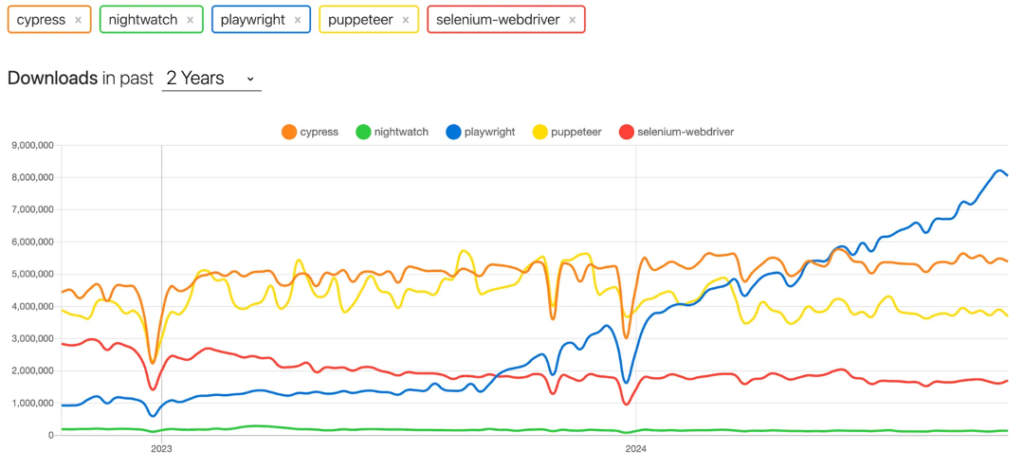
- Comparison:
- Features:
| Playwright | Puppeteer | Selenium | Cypress | |
| Primary Purpose | End-to-end testing, cross-browser automation | Chromium-based browser automation | Cross-browser testing | Front-end testing (JavaScript focus) |
| Browser Support | Chromium, Firefox, WebKit | Chromium (Chrome, Edge) | Chrome, Firefox, Safari, Edge, IE | Chrome, limited Firefox/WebKit |
| Cross-platform Support | Windows, macOS, Linux, mobile | Windows, macOS, Linux | Windows, macOS, Linux, mobile | Windows, macOS, Linux (focus on web apps) |
| Languages Supported | JavaScript, TypeScript, Python, C#, Java | JavaScript, TypeScript | Java, Python, C#, JavaScript, Ruby, PHP | JavaScript, TypeScript |
| Chromatic Integration | Yes | No | No | Yes |
| Support iframe, Shadow DOM | Full | Full | Limited (Shadow DOM) | Limited (iframe) |
| Parallelism | Yes, built-in | Manual parallelism via Node.js | Yes (via Selenium Grid) | Yes, built-in |
| Network Interception | Yes, supports stubbing and mocking | Yes, supports stubbing and mocking | Limited | Yes, stubbing and mocking |
| Headless Mode | Yes, in all browsers | Yes, in Chrome/Chromium | Yes, supported for modern browsers | Yes (mainly Chrome) |
| Automatic Waiting | Yes | No | No (manual wait required) | Yes |
| Debugging | Good, detailed logs | Good, basic error handling | Moderate (less real-time feedback) | Excellent, real-time interaction |
| Distributed Testing | No, requires manual setup | No, manual setup required | Yes (Selenium Grid) | Yes, built-in |
| Screenshots/PDFs | Yes | Yes | Yes (via browser drivers) | Yes (screenshots, no PDFs) |
| Best For | Cross-browser testing, multi-platform | Chrome-specific automation | Large-scale, distributed cross-browser testing | Fast front-end testing, CI environments |
If the project looking for a comprehensive, flexible, and modern testing tool that balances cross-browser compatibility, performance, and ease of use, Playwright stands out as an excellent choice.
3. Playwright
Built by Microsoft, Playwright is currently the most used automation framework. It is stable for running automation and supports almost everything we need to write test cases.
1. Cross-Browser, Cross-Platform Testing
- Multi-Browser Support: Playwright supports Chromium (Chrome, Edge), WebKit (Safari), and Firefox, ensuring that your tests can be executed across all major browsers.
- Consistency Across Platforms: It works seamlessly on Windows, macOS, and Linux, providing flexibility in development and testing environments.
2. Rich Feature Set for Modern Web Apps
- Support for Single-Page Applications (SPAs): Playwright can handle complex, dynamic websites that use modern JavaScript frameworks like React, Angular, and Vue, offering powerful APIs to interact with web elements reliably.
- Shadow DOM & Iframes: Playwright natively supports testing for elements within iframes or shadow DOM, which is critical for modern web apps.
3. Highly Reliable and Stable Tests
- Auto-Waiting Mechanism: Playwright automatically waits for elements to be ready before performing actions (like clicks or input), reducing flaky test failures. This makes tests much more reliable.
- Test Isolation: With browser contexts, you can create isolated testing environments for each test, ensuring that no state or data is shared across tests.
- Debugging Tools: Playwright has features like the trace viewer, screenshots, and video recording during test execution, making it easier to debug failures and pinpoint issues.
4. Parallel Testing for Speed and Efficiency
- Parallel Test Execution: Playwright allows you to run tests in parallel, leveraging multiple cores, which can significantly reduce the time required to run large test suites.
- Headless Mode for CI/CD: It supports headless execution for faster test runs, making it ideal for integration into CI/CD pipelines, where speed is crucial.
5. Flexibility with API, Mobile, and UI Testing
- API Testing Support: Playwright can test REST APIs and GraphQL queries along with UI tests, enabling full-stack testing (frontend and backend in one framework).
- Mobile Emulation: You can simulate different mobile devices, screen resolutions, and geolocations to test responsive designs and mobile-specific features.
- Network Mocking and Interception: Playwright gives you control over network requests, allowing you to mock server responses, simulate network conditions, or handle different request/response scenarios.
6. Fast and Easy Setup
- Minimal Configuration: Playwright is relatively easy to set up, with built-in browser binaries, so you don’t need complex configurations to get started. It supports multiple languages (JavaScript, TypeScript, Python, C#, Java), making it flexible for different development teams.
- All-in-One Solution: It provides a unified solution for writing, running, and managing your automation tests, eliminating the need for multiple tools or frameworks.
7. Developer-Friendly API
- Simple yet Powerful API: Playwright’s API is well-documented and easy to use. Its clear syntax and intuitive commands allow developers to write concise, readable tests.
8. Great for Continuous Integration (CI) Pipelines
- CI/CD Compatibility: Playwright integrates well with popular CI tools like Jenkins, GitHub Actions, GitLab, CircleCI, and Azure Pipelines, supporting headless execution and parallel testing for faster test cycles.
- Screenshots and Video Recording: Playwright’s ability to capture screenshots and record videos during tests helps identify and diagnose problems when tests fail in CI environments.
9. Long-Term Support and Active Development
- Backed by Microsoft: Playwright is backed by Microsoft, ensuring it has solid long-term support, regular updates, and improvements. This guarantees that the framework stays up to date with modern web technologies and browser updates.
- Open-Source with Active Community: It has an active community, frequent releases, and detailed documentation, which ensures developers can find help or contribute to improving the tool.
10. Support tools
- Playwright Test for VSCode: This extension integrates Playwright into your VS Code workflow. Here is what it can do: run tests with a single click, run multiple tests, and pick locators,…
- Code Generation Tool: Playwright Codegen is a tool that records your interactions with the browser and generates test scripts in your chosen language (JavaScript, Python, etc.).
- Automated Locator Suggestions: It provides suggestions for selectors and locators as you interact with the page, allowing you to create scripts more quickly and accurately.
- Editable Scripts: The generated code is editable, so you can refine and optimize the script as you see fit.
11. Persistent Contexts for Authentication
- Persistent Login Sessions: Playwright allows you to use persistent browser contexts to store cookies and localStorage, making it easier to run tests with pre-authenticated sessions. This is particularly useful for testing scenarios where logging in repeatedly would slow down the process.
12. Playwright Reporter
- Customizable Reporting: Playwright’s Reporter tool provides a wide variety of reporting options (HTML, JSON, etc.), which makes it easier to visualize and analyze test results.
- Built-in HTML Reports: The built-in HTML reporter generates visually appealing and detailed reports, showing test results, logs, and failed assertions with stack traces.
- Custom Reporters: You can also implement custom reporters to format and display test results according to your project’s specific needs.
4. How do you write a test case (TC)?
1. Define Testing Scope and Objectives
- Identify Test Cases for Automation: Not every test case should be automated. Prioritize the following:
- High-repeatability: Test cases that will be run frequently (e.g., regression tests).
- High-risk areas: Features that are critical to business functionality.
- Time-consuming manual tests: Tests that require significant effort if done manually.
- Cross-browser/ Cross-device tests: Tests that need to ensure compatibility on multiple devices or browsers.
- Non-Automation Scenarios: Some tests, like complex UI validations, exploratory testing, or one-time tests, are often better left for manual testing.
2. Test Script Development
- Follow Coding Best Practices:
- Keep tests small, focused, and modular. Each test should validate one piece of functionality.
- Use reusable functions and components to avoid duplication.
- Synchronization Handling: Explicit waits are important to handle asynchronous elements on pages. Avoid hard-coded sleep, pause, waitForTimeout, and use waitForSelector, toBeVisible, or other Playwright utilities to handle dynamic content.
- Organize Test Suites: Group related tests together into suites for better management.
3. Integrate CI/CD
- Integrating CI/CD (Continuous Integration/Continuous Deployment) for a Playwright testing setup typically involves running your Playwright tests automatically whenever there’s a change in the codebase (CI) and, if the tests pass, deploying the changes to production or other environments (CD).
- It will take time to deploy if we wait for the automation process.
4. Support tools
- Codegen https://playwright.dev/docs/codegen-intro
- Run tests in UI mode https://playwright.dev/docs/running-tests#run-tests-in-ui-mode
- VS Code https://playwright.dev/docs/getting-started-vscode
5. Example
- Define a TC that you want. What is expected?
- Adding some attributes HTML to select the element of the website (id, classname, data-testid. How to define a better value for data-testid to make it unique?).
- Implement the automation codes to perform the TC – should make it as simple as possible.
Ex:
- Going to the website → Login → Go to the page by URL → Prepare the data if it is needed for the TC.
- Define the possible scenarios for a TC
- What are visible elements?
- Compare the values or texts
login.test.ts
setup('authenticate', async ({ page }) => {
  // Perform authentication steps. Replace these actions with your own.
  await page.goto('<https://your-website.dev/login?destination=home>');
  await expect(page.getByRole('img')).toBeVisible();
  await page.getByPlaceholder('you@example.com').click();
  await page.getByPlaceholder('you@example.com').fill('yourmail@gmail.com');
  await page.getByPlaceholder('Password').click();
  await page.getByPlaceholder('Password').fill('11223344');
  await page.getByRole('button', { name: 'Log in' }).click();
  // Wait until the page receives the cookies.
  //
  // Sometimes login flow sets cookies in the process of several redirects.
  // Wait for the final URL to ensure that the cookies are actually set.
  await page.waitForURL('<https://your-website.dev/home>');
  // Alternatively, you can wait until the page reaches a state where all cookies are set.
  await expect(page.locator('.topbar-logo')).toBeVisible({ timeout: 10000 });
  await expect(page.locator('#screen-name-id')).toHaveText('Home');
});
5. Chromatic
Chromatic (https://www.chromatic.com/) is a visual testing & review tool that scans every possible UI state across browsers to catch visual and functional bugs. Assign reviewers and resolve discussions to streamline team sign-off.
Chromatic’s visual regression testing lets you gain full confidence in your UI’s visual fidelity on every commit and code change.
Chromatic is made by the team behind Storybook and integrates with Storybook, Playwright, and Cypress.
You can think of Chromatic’s visual testing as “before-and-after” snapshots of your app’s interface. You begin by capturing a perfect “before” image—this becomes your baseline. After any code changes, Chromatic compares a new “after” snapshot pixel-by-pixel against the baseline, revealing any visual differences.
Chromatic’s streamlined workflow involves four steps:
- Cloud Rendering: Chromatic renders your UI components in a cloud-based browser.
- Snapshot Capture: Chromatic takes a snapshot for each test, with all tests running simultaneously to save you time.
- Automated diffing: Whenever you update your code, Chromatic generates new snapshots and compares them to the baselines.
- Review and Verification: When Chromatic detects changes, you’re prompted to review them to ensure they’re intentional. Any unexpected changes trigger notifications so you can fix them quickly.
Chromatic integrates with Playwright by extending its test and expect utilities. While your Playwright tests run, Chromatic captures an archive of the page (including DOM, styling, and assets) and uploads it to the cloud. There, Chromatic generates snapshots and performs pixel diffing to identify any unintended visual changes.
Playwright offers native visual testing capabilities, but Chromatic’s unique snapshot approach and powerful diffing tools provide a more comprehensive testing experience.
6. Suggestion CI/CD
- Production: If you want to release the PR to production has to pass all the automation tests.

- Development If PRs or the codes want to merge with “development” we should keep the current process. Automation will trigger after deploying and we will fix the codes of the website or automation codes after we finish developing the feature because I see we have many changes that impact the old features. But we should check the result of the automation test after each PR to make sure we don’t break any the features that are not related to.