



In this session, we’re going to explore permission boundary policy with a specific use-case and best practices for IAM policy. If you haven’t read the first part (https://blog.nashtechglobal.com/?p=96067) of this series, please find and read it before continuing this one.

Source: https://datascientest.com/en/aws-identity-access-management-iam-how-does-it-work
Privileges Escalation
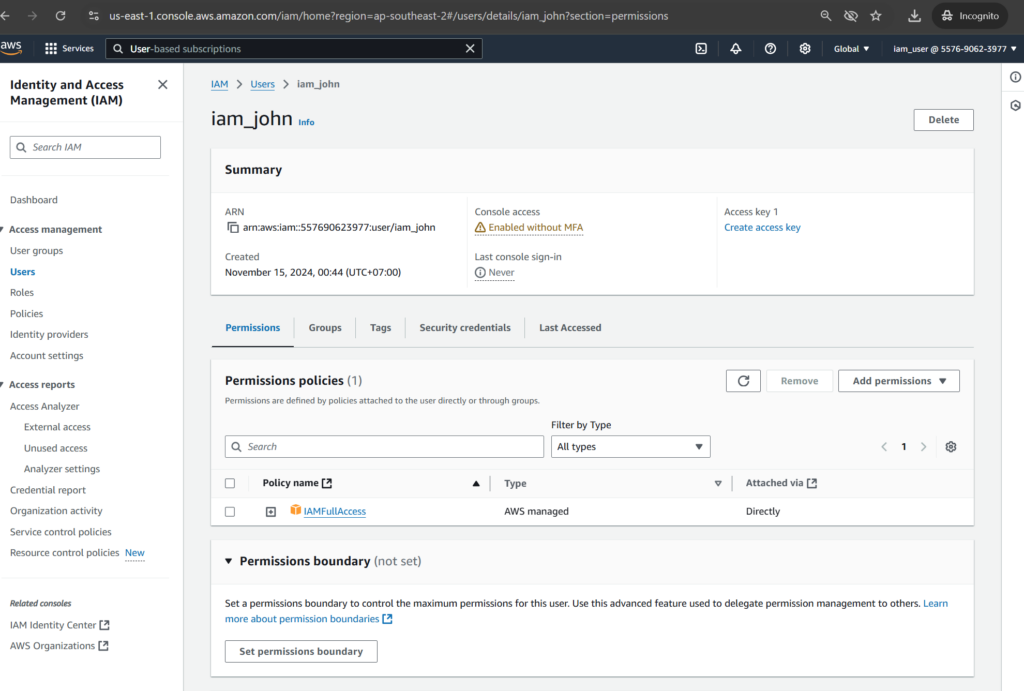
Privileges escalation is one of the use cases for why we implement permissions boundaries policy. Suppose that we have a user called [John]. He can create a user in AWS IAM, but he can’t have any other permissions like launch any AWS resources.
Let’s see how John might be able to get around that restriction. He can create a user in IAM, let’s called [Jane], and then can apply the administrator access permission policy to that account.
So, John is now able to get full administrative privileges by log in as the account he has just created.
Main Steps
Creating John user with IAMFullAccess policy
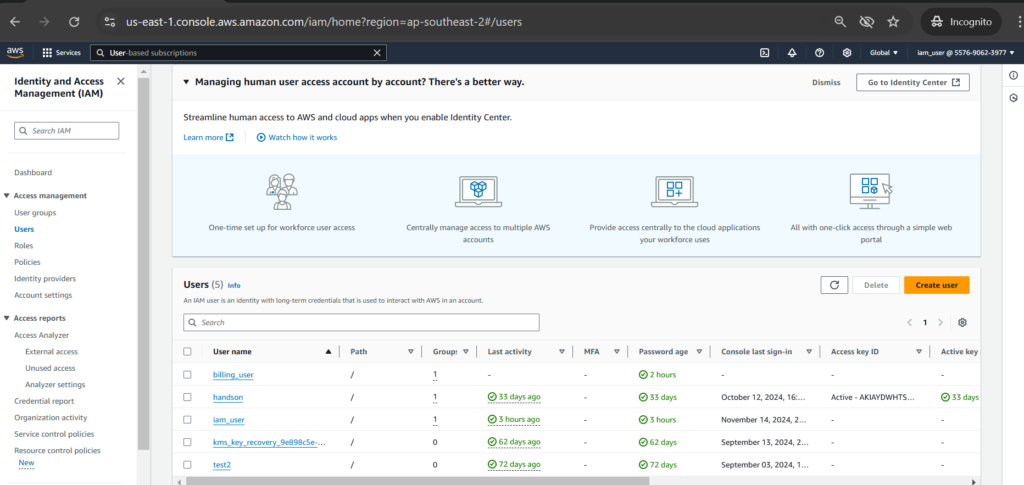
Let’s create John user as [iam_john] by going to [IAM] section then click [Create user]
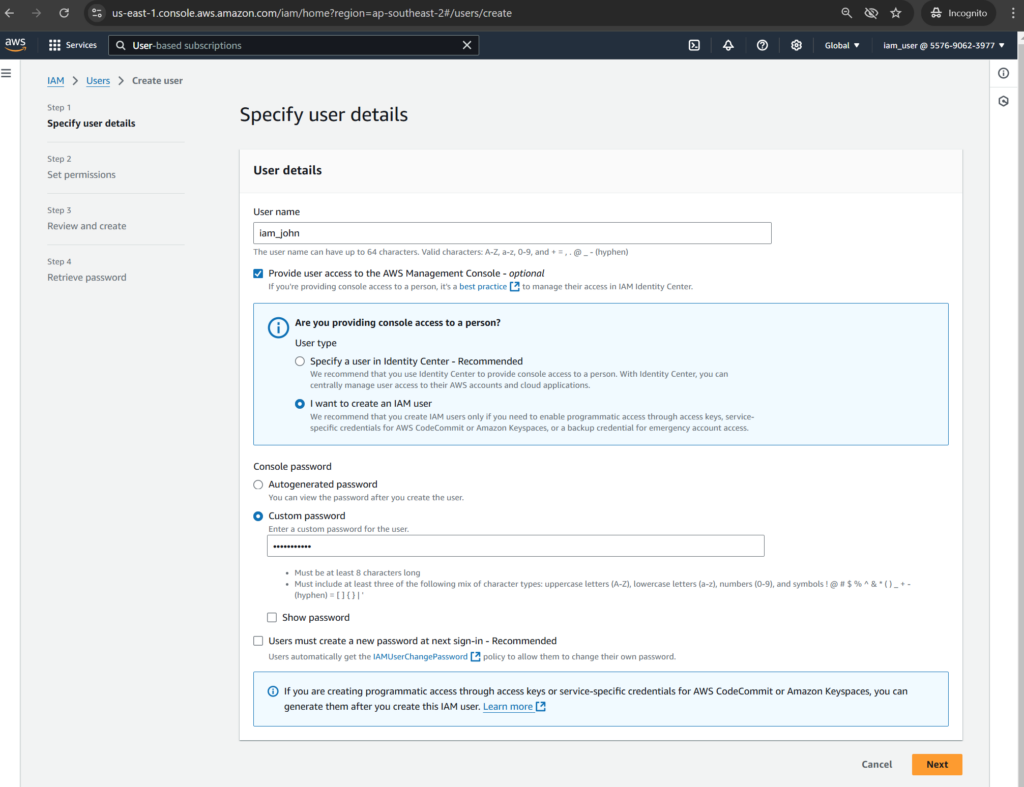
Input [User name] as [iam_john], select [Provide user access to the AWS Management Console], input a value for [Custom password] then click [Next]
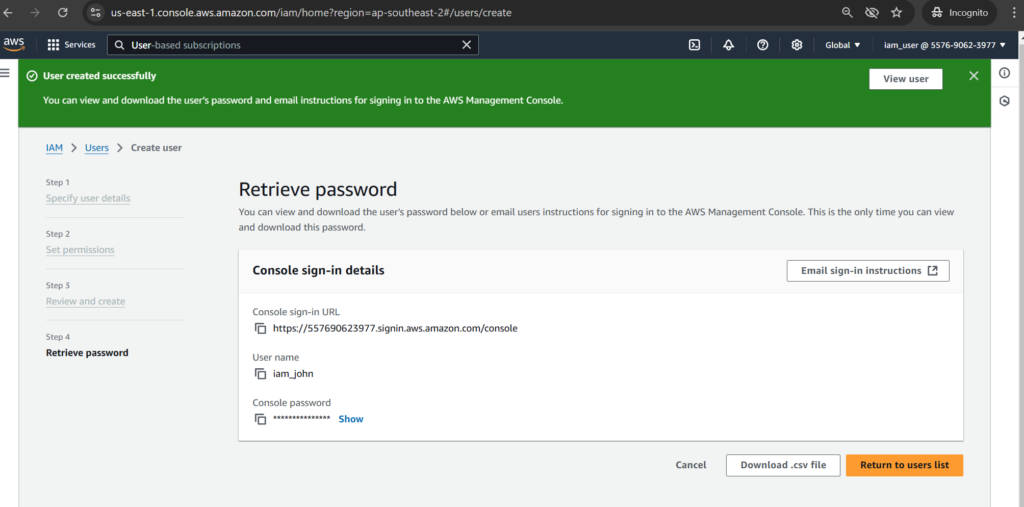
Click [Next] to finishing the step
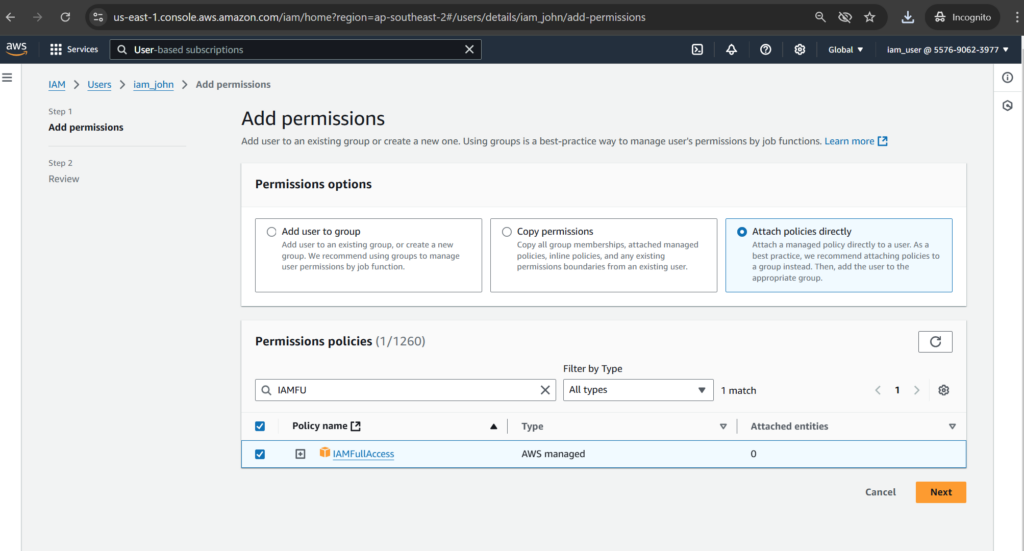
Select [Attach policies directly] with [IAMFullAccess] and click [Next]
Click [Next] to finishing the step

Creating Jane user with AdministratorAccess policy
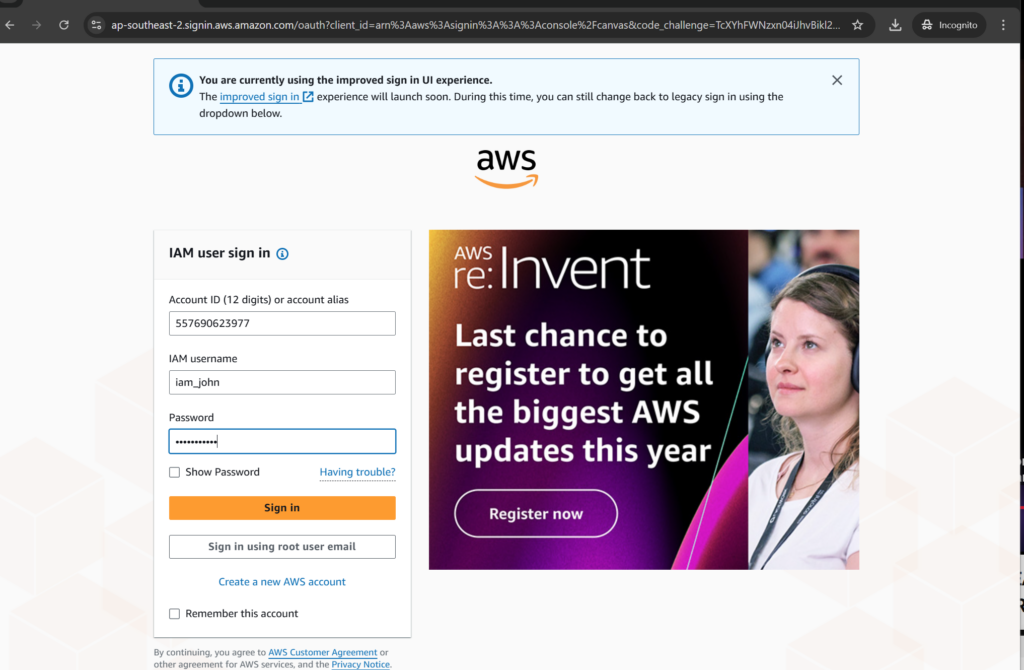
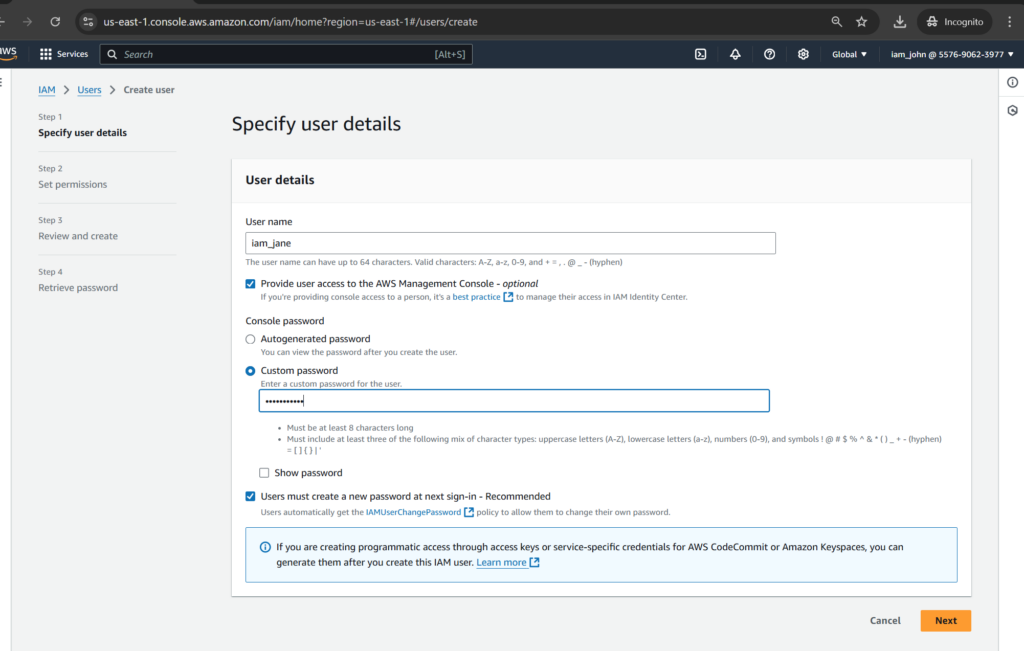
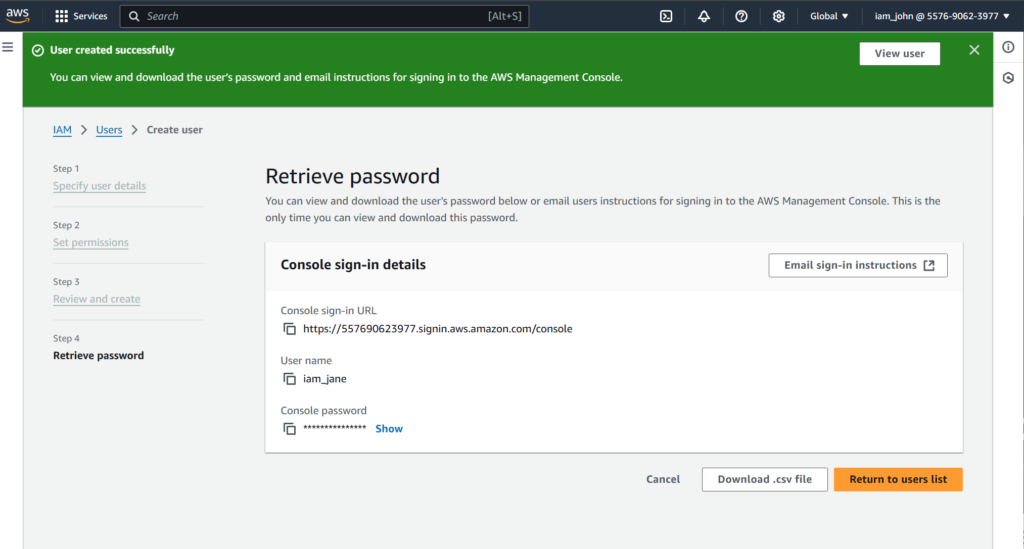
Let’s login as John user and create Jane user with the AdministratorAccess permission policy
Input [iam_jane] as user and a value for custom password.
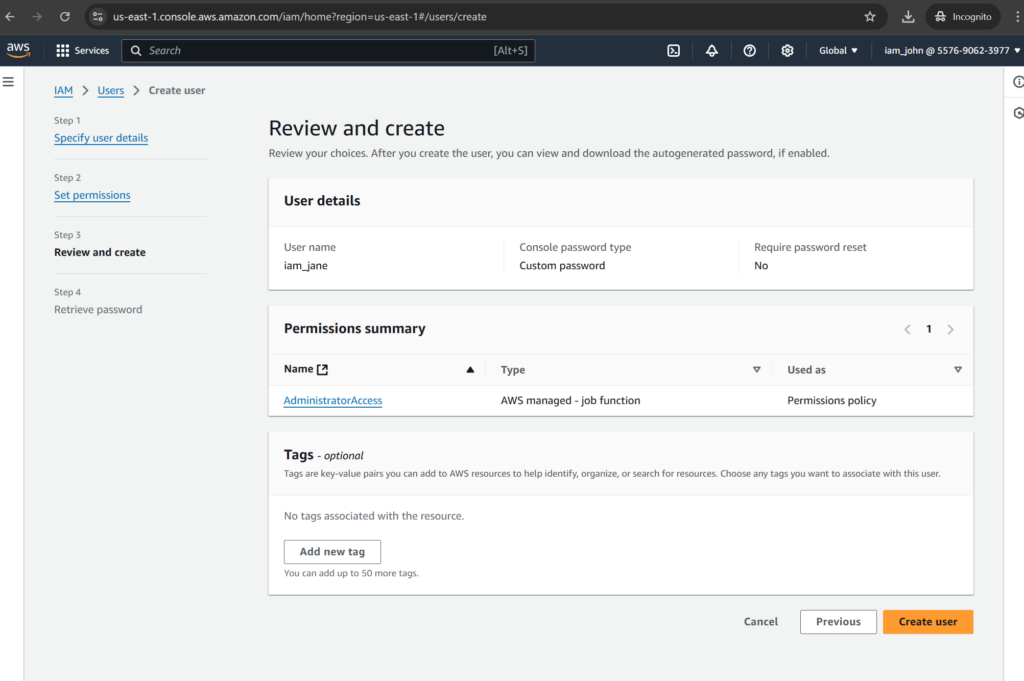
Add AdministratorAccess permission policy

Click [Create user] to finishing the step
Test it out
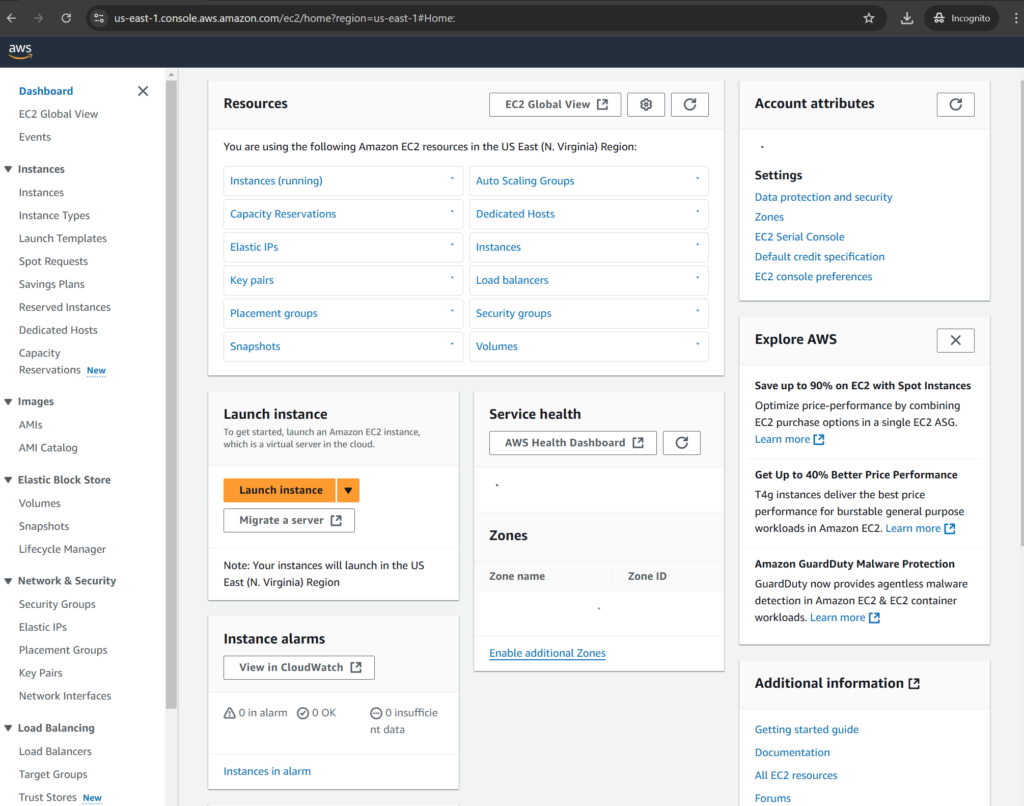
Now log in as Jane user

Let’s check with AWS EC2, we can see that Jane has ability to launching an AWS service like AWS EC2 while John doesn’t have.
Permission Boundary Policy
Now, let’s apply the permission boundary policy to John user to prevent privilege escalation.
Creating the policy
Go to IAM > Policies, then click [Create policy] button.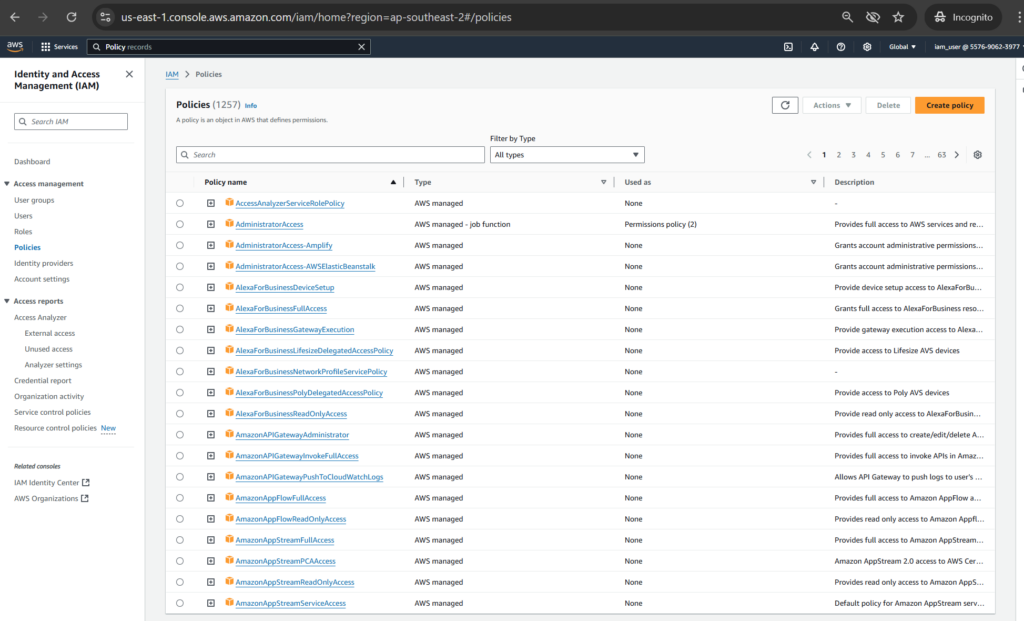
Input the JSON policy as [PermissionBoundary.json]:
{
    "Version": "2012-10-17",
    "Statement": [
        {
            "Sid": "IAMAccess",
            "Effect": "Allow",
            "Action": "iam:*",
            "Resource": "*"
        },
        {
            "Sid": "DenyPermBoundaryIAMPolicyAlteration",
            "Effect": "Deny",
            "Action": [
                "iam:DeletePolicy",
                "iam:DeletePolicyVersion",
                "iam:CreatePolicyVersion",
                "iam:SetDefaultPolicyVersion"
            ],
            "Resource": [
                "arn:aws:iam::ACCOUNT_ID:policy/PermissionsBoundary"
            ]
        },
        {
            "Sid": "DenyRemovalOfPermBoundaryFromAnyUserOrRole",
            "Effect": "Deny",
            "Action": [
                "iam:DeleteUserPermissionsBoundary",
                "iam:DeleteRolePermissionsBoundary"
            ],
            "Resource": [
                "arn:aws:iam::ACCOUNT_ID:user/*",
                "arn:aws:iam::ACCOUNT_ID:role/*"
            ],
            "Condition": {
                "StringEquals": {
                    "iam:PermissionsBoundary": "arn:aws:iam::ACCOUNT_ID:policy/PermissionsBoundary"
                }
            }
        },
        {
            "Sid": "DenyAccessIfRequiredPermBoundaryIsNotBeingApplied",
            "Effect": "Deny",
            "Action": [
                "iam:PutUserPermissionsBoundary",
                "iam:PutRolePermissionsBoundary"
            ],
            "Resource": [
                "arn:aws:iam::ACCOUNT_ID:user/*",
                "arn:aws:iam::ACCOUNT_ID:role/*"
            ],
            "Condition": {
                "StringNotEquals": {
                    "iam:PermissionsBoundary": "arn:aws:iam::ACCOUNT_ID:policy/PermissionsBoundary"
                }
            }
        },
        {
            "Sid": "DenyUserAndRoleCreationWithOutPermBoundary",
            "Effect": "Deny",
            "Action": [
                "iam:CreateUser",
                "iam:CreateRole"
            ],
            "Resource": [
                "arn:aws:iam::ACCOUNT_ID:user/*",
                "arn:aws:iam::ACCOUNT_ID:role/*"
            ],
            "Condition": {
                "StringNotEquals": {
                    "iam:PermissionsBoundary": "arn:aws:iam::ACCOUNT_ID:policy/PermissionsBoundary"
                }
            }
        }
    ]
}
The policy will enforce the following:
– IAM principal can’t alter the permission boundary
– IAM principals created by IAM admins can’t create IAM principals with more permissions than IAM admins
– IAM principal must attach the permission boundary to any IAM principal they create
– IAM admins can’t create IAM principals with more privileges than they already have
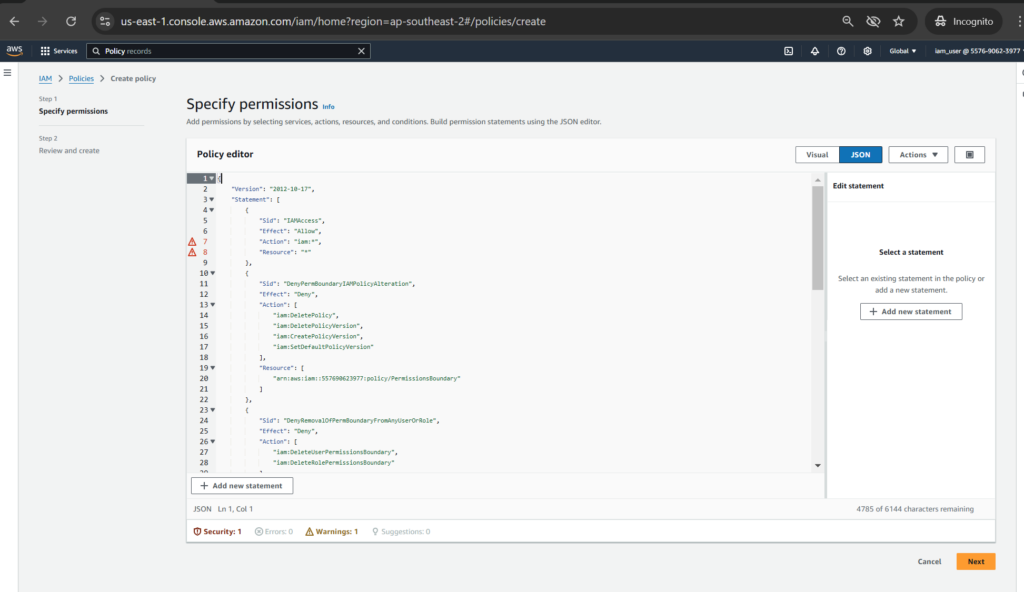
Enter the Policy name as [PermissionBoundary]
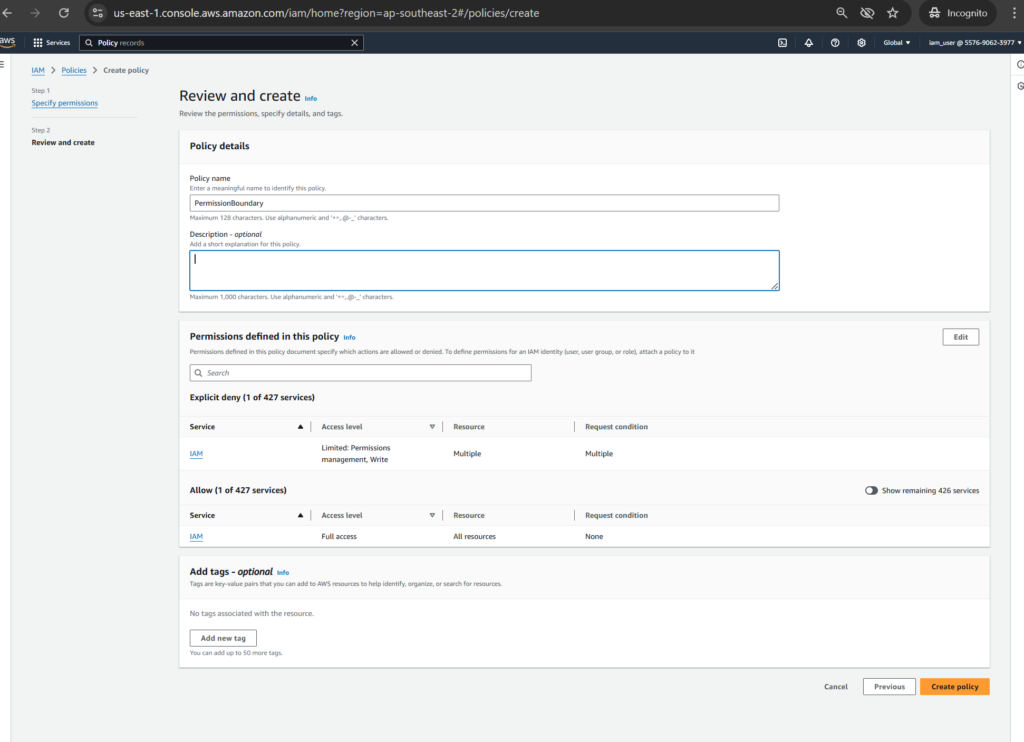
Click [Create policy] to finishing the step

Applying it
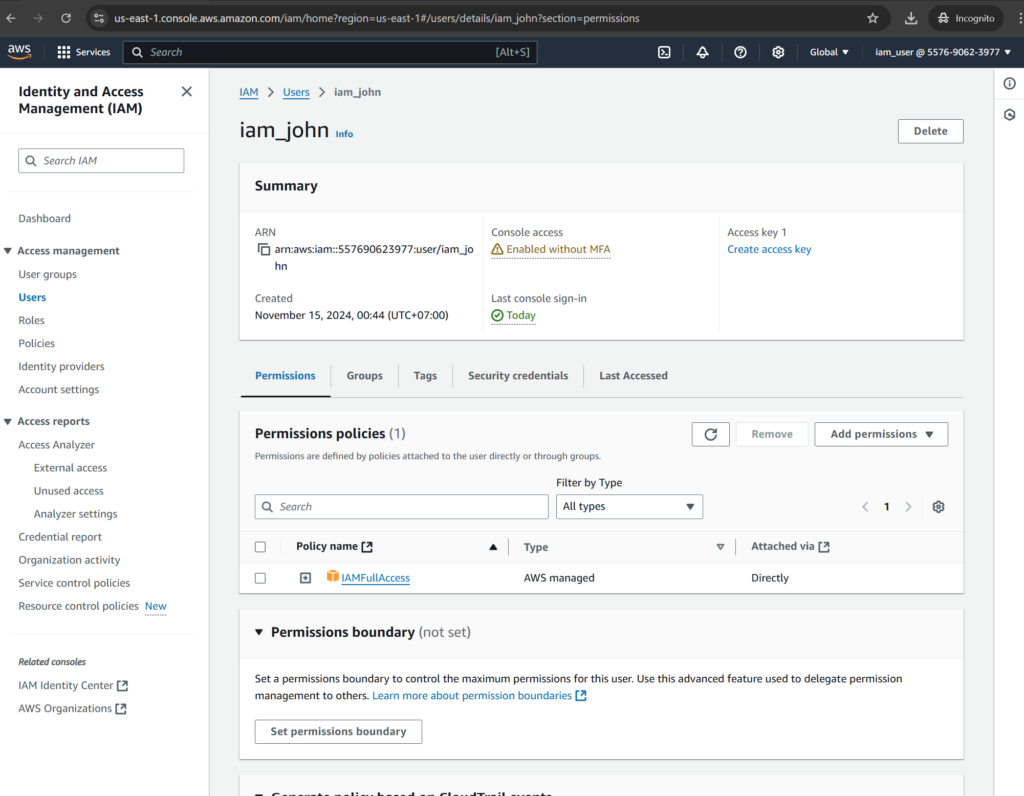
In IAM > Users > iam_john section, let’s click [Set permission boundary] for John
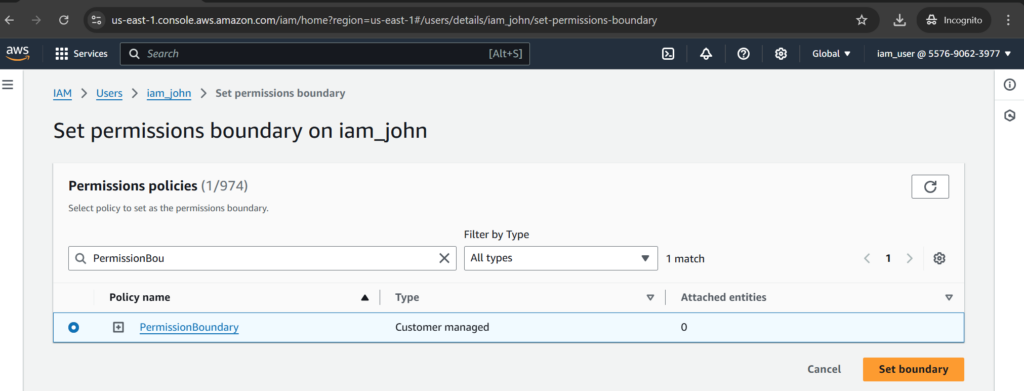
Select PermissionBoundary policy then click [Set boundary]
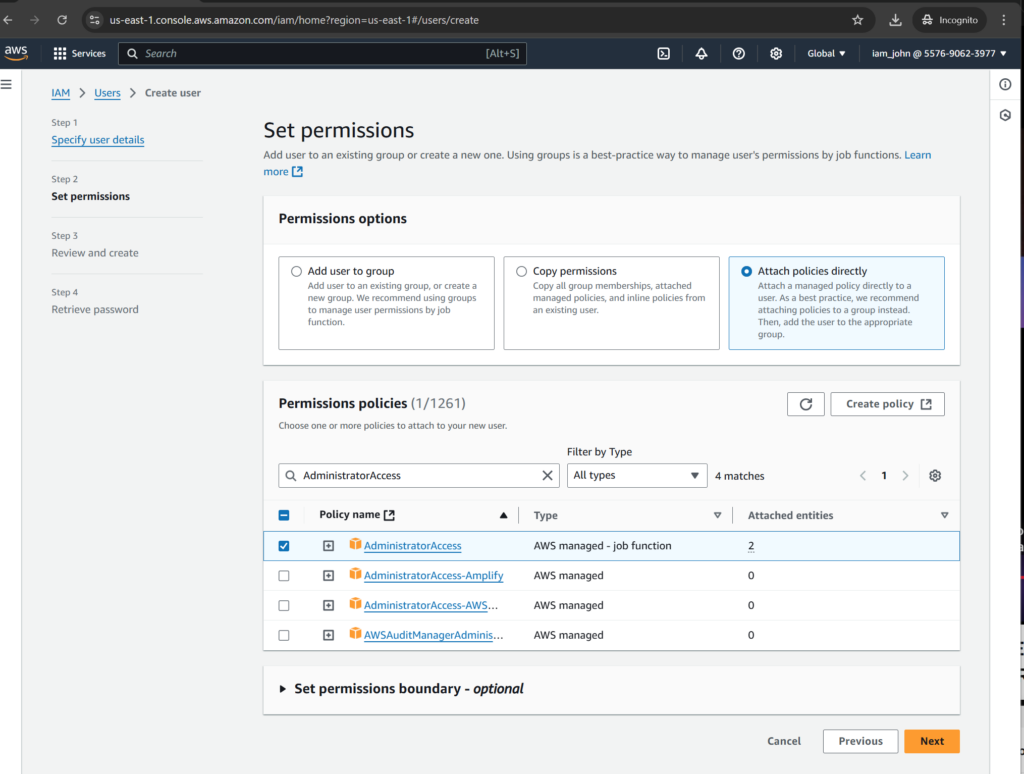
Test it out
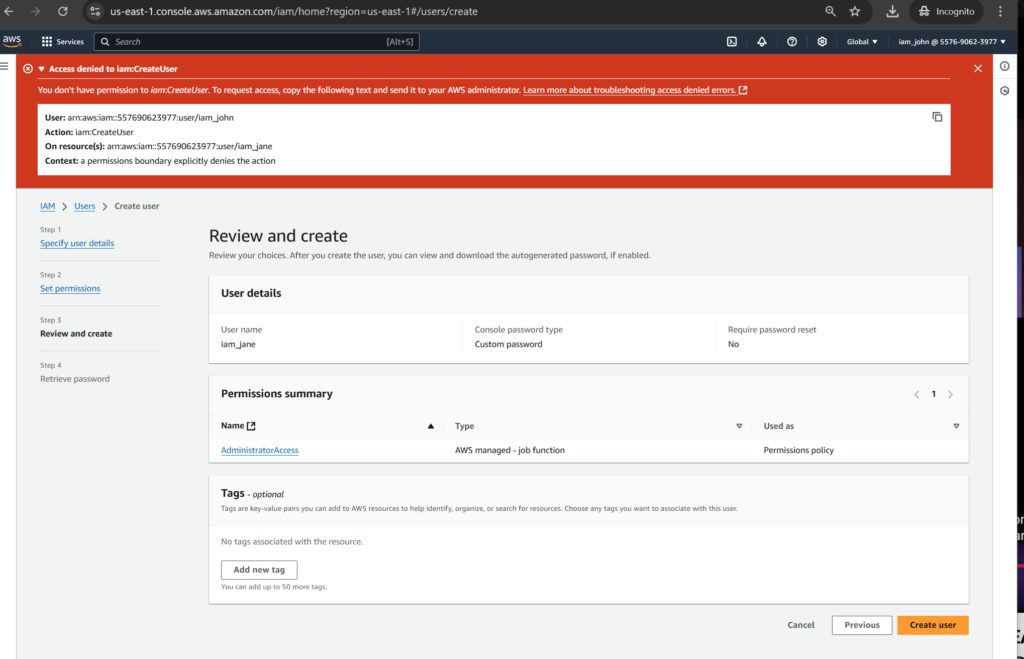
Let’s re-create a user again with [AdministratorAccess] permission policy. You can see the error like [You don’t have permission to iam::CreateUser]
Best practices for IAM policy
To ensure your AWS environment is secure, it’s important to follow best practices as below:
- Principle of least privilege:
- You should grant the minimum permissions necessary for a user or service
- Use managed policies where possible:
- AWS provides pre-defined policies for common tasks (like administrative access, read-only access, and service-specific permissions) to simply policy management and reduce errors. Should limit use of line policies to make your life easier with maintaining and updating the policies
- Regularly review and rotate policies:
- To ensure the policies still necessary and valid. Use tools like IAM Access Analyzer to support checking for overly permissive policies.
- Enable multi-factor authentication (MFA):
- To ensure that sensitive resources are protected with an additional layer of security
- Monitor IAM policy usage:
- Using AWS CloudTrail to help you detect any anomalies or security threats
- Avoid wildcards in sensitive actions (resources):
- Be cautious when using wildcards like [s3:*] or [iam:*]
References:
https://docs.aws.amazon.com/IAM/latest/UserGuide/access_policies.html