



Introduction
Single Sign-On (SSO) is a user authentication process that allows a user to access multiple applications with one set of login credentials. Microsoft Single Sign-On integrates seamlessly with various Microsoft services and third-party applications, enhancing security and user experience.
Overview
What is Microsoft Single Sign-On?
Microsoft Single Sign-On (MSSO) is a feature of Microsoft Entra ID (formerly Azure Active Directory) that enables users to authenticate once and gain access to multiple applications and services without needing to log in again. This is achieved through various authentication protocols such as SAML, OAuth, and OpenID Connect.
Importance
Why is SSO Important?
- Enhanced Security: Reduces the risk of maintaining multiple passwords and the possibility of phishing attacks by minimizing the number of passwords users need to remember.
- Improved User Experience: Users can access all their applications with a single login, reducing the time spent on logging in multiple times.
- Increased Productivity: Streamlines access to applications, allowing users to focus on their tasks without interruption.
- Centralized Management: Simplifies user account management for IT administrators, enabling easier enforcement of security policies.
SSO Methods/Options selection
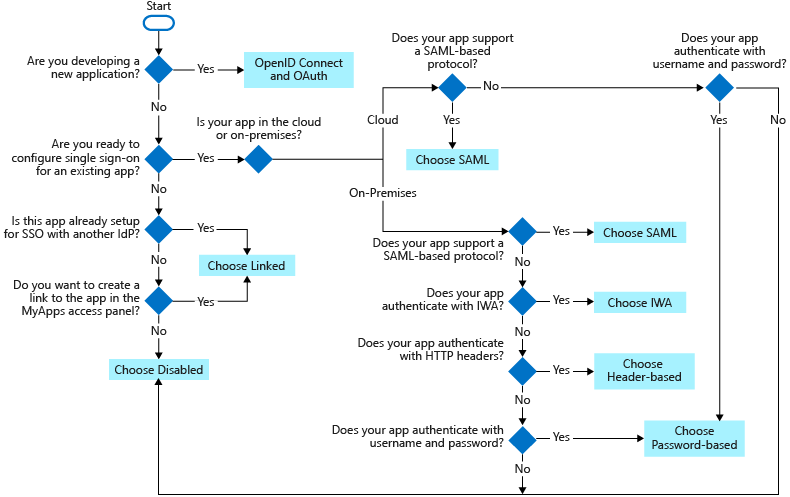
There are several SSO methods for different application configurations. Cloud applications use federation protocols like OpenID Connect, OAuth, and SAML.
- SSO via Federation:
Establishing SSO functionality between multiple identity providers is known as federation. This approach offers several advantages over other SSO methods, including enhanced security, reliability, improved user experience, and easier implementation.
Federated SSO with Microsoft Entra:
Microsoft Entra can ease user authentication for applications by using their Microsoft Entra account. This method functions with applications that support SAML 2.0, WS-Federation, or OpenID Connect. For applications that support it, prioritize federated SSO with Microsoft Entra ID over any other SSO methods. - Password-Based SSO:
- For on-premises applications configured for Application Proxy, a password-based SSO method can be implemented. This approach functions as follows:
- During the first application access, users log in with their standard username and password.
- Subsequent logins are provided by Microsoft Entra ID, which securely transmits the credentials to the application.
- It offers secure storage and replay functionality for application passwords, achieved through a web browser extension or mobile app.
- For on-premises applications configured for Application Proxy, a password-based SSO method can be implemented. This approach functions as follows:
- Linked SSO:
It provides a smooth user experience during application migration phases. When moving applications to Microsoft Entra ID, you can leverage linked-based SSO to rapidly publish links for all applications included in the migration plan. This ensures users can easily find all relevant applications within the Microsoft 365 portals - SAML:
Choose SAML whenever possible for existing applications that don’t use OpenID Connect or OAuth. For more information, see single sign-on SAML protocol. - Disabled – When SSO is disabled, it isn’t available for the application. When single sign-on is disabled, users might need to authenticate twice. First, users authenticate to Microsoft Entra ID, and then they sign in to the application.
Components
- Identity Provider (IdP): Microsoft Entra ID acts as the IdP, managing user identities and providing authentication services.
- Service Provider (SP): Applications and services that users access using SSO.
- Authentication Protocols: Protocols like SAML, OAuth, and OpenID Connect facilitate the communication between IdP and SP.
- Tokens: Security tokens (JWT, SAML assertions) are used to convey authentication information between IdP and SP.
Setup your first MSSO
- Prerequisites:
- Microsoft Entra ID subscription.
- Administrative access to the Entra ID portal.
- Application registered in Entra ID.
- Steps:
- Register the Application:
- Navigate to the Entra ID portal.
- Go to “App registrations” and click “New registration”.
- Enter the application name and redirect URI, then click “Register”.
- Configure SSO:
- In the registered application, go to “Authentication”.
- Add a platform (e.g., Web) and configure the redirect URIs.
- Enable ID tokens for OpenID Connect.
- Set Up Claims:
- Go to “Token configuration” and add necessary claims (e.g., email, name).
- Assign Users:
- Go to “Users and groups” and assign users or groups to the application.
- Test the Configuration:
- Use the provided redirect URI to test the SSO setup.
- Register the Application:
Enable SSO via SAML
To enable SSO for an application:
- Sign in to the Microsoft Entra admin center as at least a Cloud Application Administrator.
- Browse to Identity > Applications > Enterprise applications > All applications.
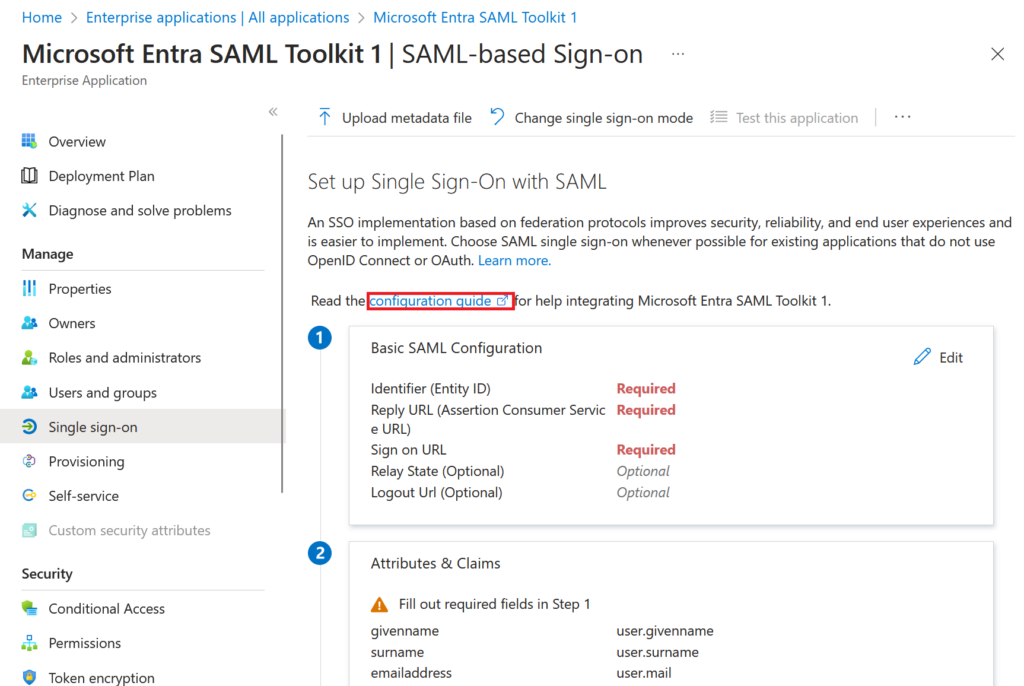
- Enter the name of the existing application in the search box, and then select the application from the search results. For example, Microsoft Entra SAML Toolkit 1.
- In the Manage section of the left menu, select Single sign-on to open the Single sign-on pane for editing.
- Select SAML to open the SSO configuration page. After the application is configured, users can sign in to it by using their credentials from the Microsoft Entra tenant.
- In the Set up Microsoft Entra SAML Toolkit 1 section, record the values of the Login URL, Microsoft Entra Identifier, and Logout URL properties to be used later.
Configure Tenant SSO
Add sign-in and reply URL values to download a certificate to begin the configuration of SSO in Microsoft Entra ID.
To configure SSO in Microsoft Entra ID:
- In the Microsoft Entra admin center, select Edit in the Basic SAML Configuration section on the Set up Single Sign-On with SAML pane.
- For Reply URL (Assertion Consumer Service URL), enter
https://samltoolkit.azurewebsites.net/SAML/Consume. - For Sign on URL, enter
https://samltoolkit.azurewebsites.net/. - Select Save.
- In the SAML Certificates section, select Download for Certificate (Raw) to download the SAML signing certificate and save it to be used later.
Register User Account
To register a user account with the application:
- Open a new browser window and browse to the sign-in URL for the application. For the Microsoft Entra SAML Toolkit application, the address is
https://samltoolkit.azurewebsites.net. - Select Register in the upper right corner of the page.
- For Email, enter the email address of the user that can access the application. Ensure that the user account is already assigned to the application.
- Enter a Password and confirm it.
- Select Register.
Configure SAML settings
To configure SAML settings for the application:
- On the application’s sign-in page, sign in with the credentials of the user account that you already assigned to the application, select SAML Configuration at the upper-left corner of the page.
- Select Create in the middle of the page.
- For Login URL, Microsoft Entra Identifier, and Logout URL, enter the values that you recorded earlier.
- Select Choose file to upload the certificate that you previously downloaded.
- Select Create.
- Copy the values of the SP Initiated Login URL and the Assertion Consumer Service (ACS) URL to be used later.
Key Features / Advantages
- Seamless Integration: Integrates with a wide range of Microsoft and third-party applications.
- Enhanced Security: Supports multi-factor authentication (MFA) and conditional access policies.
- Scalability: Suitable for organizations of all sizes, from small businesses to large enterprises.
- User-Friendly: Simplifies the login process, reducing the need for multiple passwords.
- Centralized Management: Provides a single point of management for user identities and access policies.
Limitations
- Complexity: Initial setup and configuration can be complex, requiring a good understanding of authentication protocols.
- Dependency on Internet: Requires internet connectivity for authentication, which can be a limitation in offline scenarios.
- Cost: Depending on the subscription plan, costs can be significant for large organizations.
Best Practices
- Enable Multi-Factor Authentication (MFA): Adds an extra layer of security.
- Regularly Review Access Policies: Ensure that access policies are up-to-date and reflect current security requirements.
- Monitor and Audit: Regularly monitor and audit SSO activities to detect and respond to any suspicious behavior.
- Educate Users: Provide training to users on the importance of SSO and how to use it securely.
- Backup and Recovery: Implement backup and recovery plans to handle any potential issues with the SSO system.
Conclusion
Mastering Microsoft Single Sign-On can significantly enhance the security and user experience within an organization. By understanding its components, setup process, and best practices, software developers can effectively implement and manage SSO, ensuring seamless and secure access to applications and services.
References
- Microsoft SSO Blog – https://learn.microsoft.com/en-us/entra/identity/enterprise-apps/what-is-single-sign-on
- Microsoft SSO Deployment – https://learn.microsoft.com/en-us/entra/identity/enterprise-apps/plan-sso-deployment