



Introduction
The Role of Design and Wireframing in Business Analysis
In business analysis, the creation of designs and wireframes plays a critical role. These visual tools are not just about aesthetics; they are integral to the successful planning, development, and implementation of business solutions. Here’s why design and wireframing are so vital for business analysts:
- Clarifying Requirements: Wireframes and design prototypes help in translating these requirements into visual representations.
- Facilitating Stakeholder Engagement: Wireframes and design prototypes serve as communication tools that bridge the gap between stakeholders with different expertise and perspectives.
- Improving User Experience: Business analysts use wireframes to focus on UX by planning the layout, navigation, and flow of an application or website.
- Streamlining Development Processes: Wireframes and design prototypes provide a clear and detailed guide on what needs to be built, how it should function, and how it should look.
- Ensuring Consistency and Quality: Consistency in design and functionality is essential for a cohesive user experience and a quality product.
- Enhancing Collaboration: Collaboration between different teams (business, design, development, and QA) is crucial for project success. Wireframes foster collaboration by providing a common visual reference.
Purpose and Scope of the Blog
Artificial Intelligence (AI) is revolutionizing the design industry, transforming how designers approach their work and creating new possibilities for innovation and efficiency. This blog provides a comprehensive analysis of Uizard.io – Revolutionizing Design and Wireframing with AI
Overview of AI in Design and Wireframing
Definition of AI in the Design Process
Artificial Intelligence (AI) in the design process refers to the application of machine learning algorithms, data analysis, and automated tools to enhance, streamline, and innovate various aspects of design. AI technology mimics human intelligence to perform tasks such as generating design ideas, optimizing layouts, personalizing user experiences, and automating repetitive tasks.
AI is set to revolutionize UI design by introducing new levels of efficiency, personalization, and innovation. With the ability to learn from vast amounts of design data, AI can identify emerging trends and adapt designs to stay ahead of the curve. It also opens possibilities for more personalized user experiences by dynamically adjusting UI elements to suit individual user preferences and behaviors. Furthermore, as AI technology advances, we can expect to see more intuitive design tools that anticipate designers’ needs, offering suggestions and automations that streamline the creative process. In the future, AI could enable the creation of adaptive UIs that evolve in real-time based on user interactions, making digital experiences more responsive and engaging.
Historical context
The evolution of design processes from manual methods to AI-driven solutions is a fascinating journey that highlights the continuous quest for efficiency, creativity, and user-centricity. Here’s an overview of how design practices have transformed over the decades:

Benefits of Using AI in Design and Wireframing
The integration of AI into design and wireframing processes offers numerous advantages, transforming how designers work and enhancing the overall quality and efficiency of the design process. Here are some of the key benefits:
- Increased Efficiency and Speed: AI significantly accelerates the design and wireframing process by automating routine tasks and generating design elements quickly.
- Enhanced Creativity and Innovation: AI supports designers by providing new ideas and solutions that might not be immediately obvious, fostering creativity and innovation.
- Improved User Experience (UX): AI helps create more user-centric designs by analyzing user data and providing insights into user behavior and preferences.
- Data-Driven Decision Making: AI leverages vast amounts of data to inform design decisions, ensuring that designs are based on solid insights rather than guesswork.
- Cost Savings: By improving efficiency and reducing the time required for design iterations, AI can lead to significant cost savings in the design process.
- Enhanced Collaboration: AI facilitates better collaboration among design teams and stakeholders by providing real-time feedback and suggestions.
- Consistency and Quality Assurance: AI ensures consistency in design elements and adherence to best practices, improving the overall quality of the final product.
- Accessibility and Inclusivity: AI can help make designs more accessible and inclusive by providing tools and features that accommodate diverse user needs.
Understanding Uizard.io
Overview of Uizard.io
Uizard.io is a cutting-edge design tool that leverages artificial intelligence (AI) to simplify and accelerate the creation of user interfaces (UI), wireframes, and prototypes. It aims to make the design process more accessible and efficient for both designers and non-designers alike.
Here’s a detailed overview of what Uizard.io offers:
- Automated wireframe generation.
- User interface (UI) design enhancements.
- Enhancing User Experience (UX) with AI
- Integration with other design tools and platforms.
- Real-time collaboration and feedback.
- Personalization and customization options for Specific Business Needs
Uizard.io’s Key Features
- Sketch-to-Design Conversion
- Text-to-Design Conversion
- Drag-and-Drop Interface
- Real-Time Collaboration
- Responsive Design Capabilities
- AI-Powered Insights and Recommendations
- Integration and Export Options
- Interactive Prototyping
- Customizable Themes and Styles
Detailed Examination of Uizard.io’s Features
From starting screen, Uizard.io offers users 4 options:
- Create a new blank project
- Generate a project with Autodesigner
- Generate a project from screenshots
- Start form predefined templates
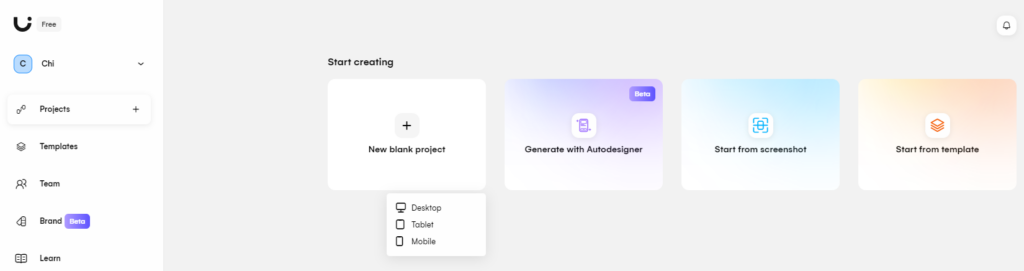
New blank project
The “New Blank Project” feature allows users to start their design process with a clean slate. This is designed to provide users with maximum flexibility and control over their design process. By offering a blank canvas and a comprehensive set of tools, Uizard.io empowers users to create unique, customized designs from scratch.
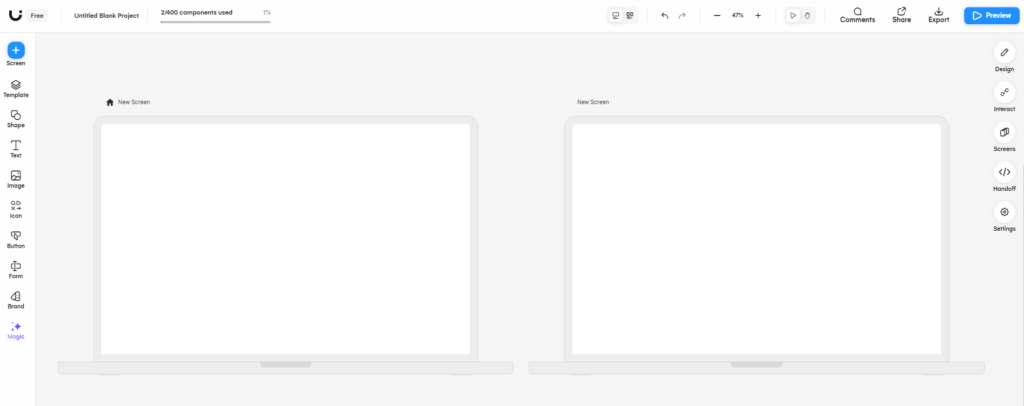
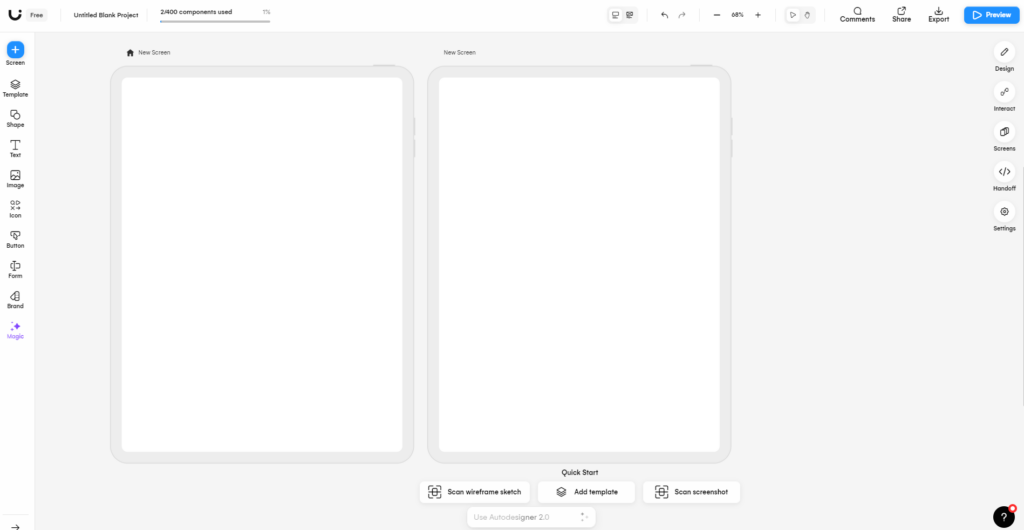
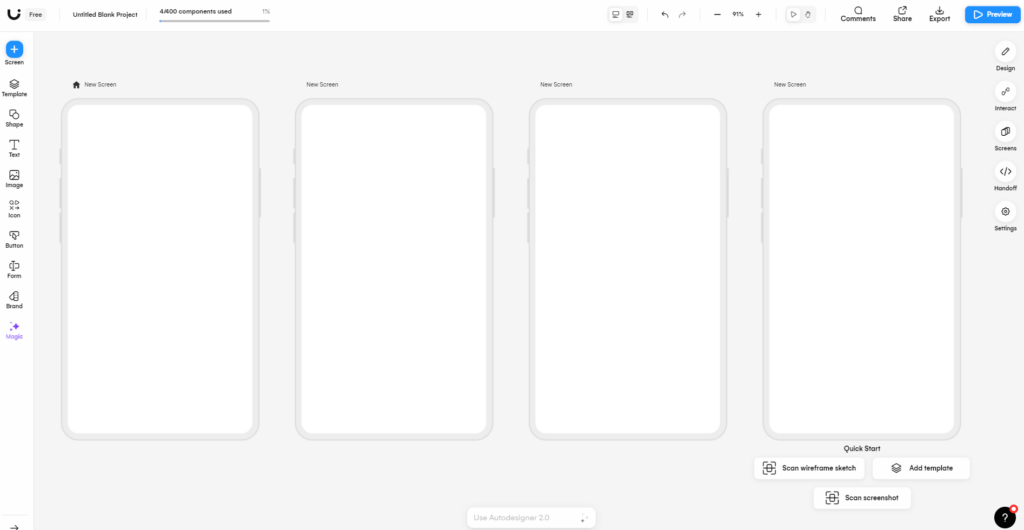
Users can start with a blank project in 1 of 3 frames: Desktop, Tablet, Mobile.
- Desktop screen:
- Tablet screen:
- Mobile screen:
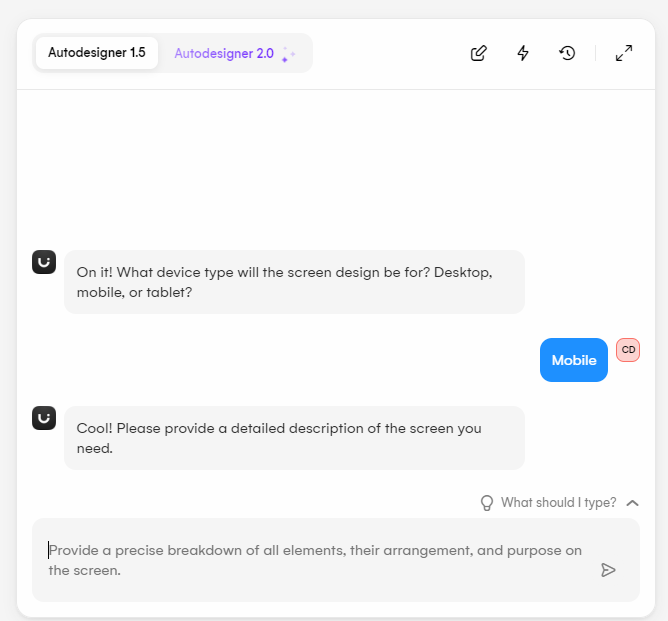
Generate with Autodesigner
Autodesigner tool allows users to quickly generate sophisticated and professional designs with minimal effort, making it an invaluable asset for both experienced designers and those with little to no design background.
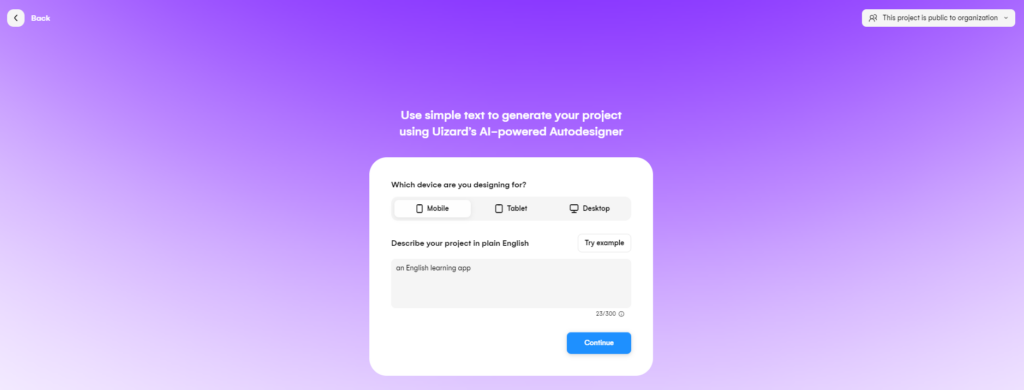
Upon selecting device type and entering project description, users can choose to generate a style in 1 of 4 options as in image below:
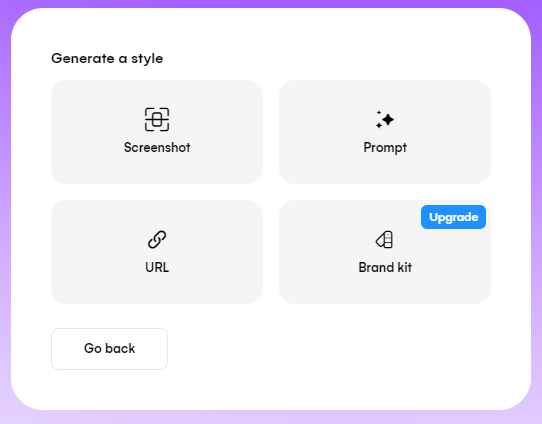
Uploading a screenshot
When using the “Generate with Autodesigner” feature in Uizard.io, the option to upload a screenshot means that you can provide the system with an existing visual design or user interface (UI) layout that you want to use as a starting point for your project.
Based on the analysis, Uizard.io reconstructs the design digitally. It creates a new project with the identified UI elements positioned similarly to those in the uploaded screenshot. The generated design is fully editable within the Uizard.io platform. Users can modify, adjust, and customize each UI element as needed.
Example:
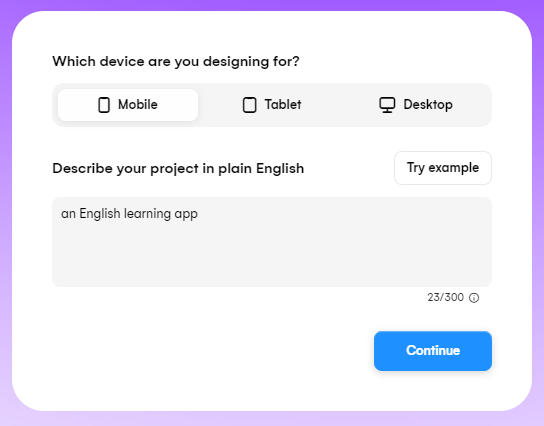
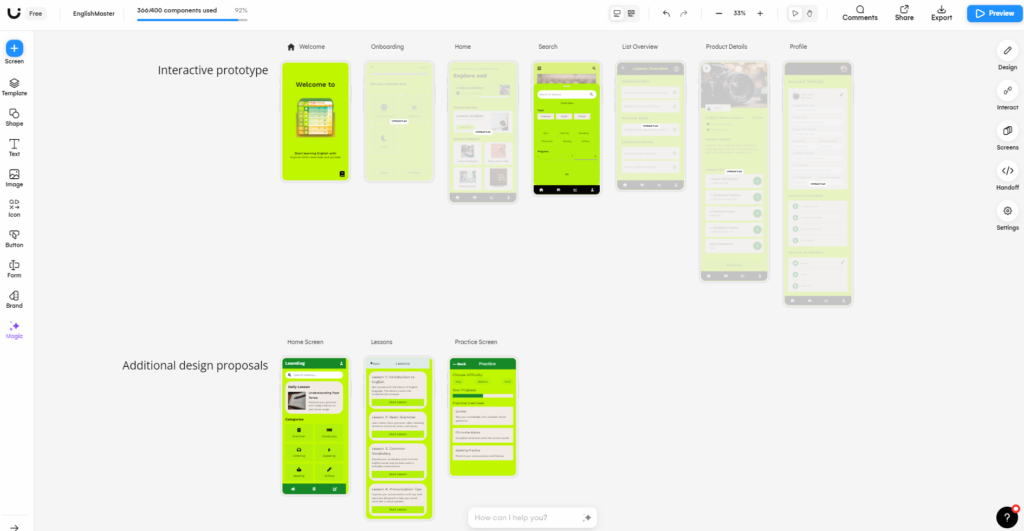
- Step 1: Select device type as mobile and enter project description: “an English learning app”
- Step 2: Select “Screenshot” option and upload a screenshot which represents the design idea and style that I want my English learning app to have
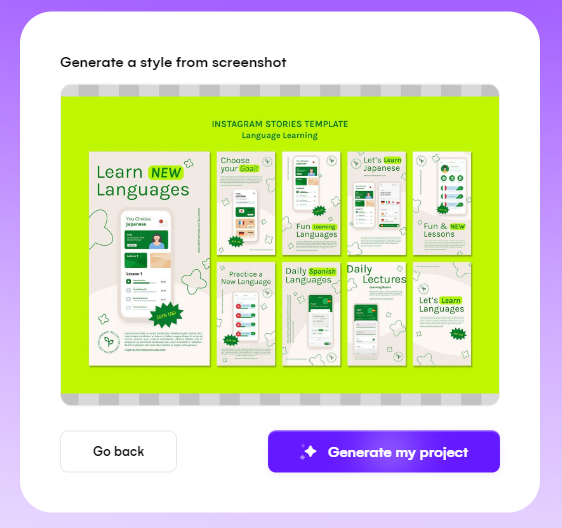
- Step 3: Uizard.io will automatically generate a set of designs based on the project description and having design style the same as uploaded screenshot.
Generate with a prompt
When using the “Generate with Autodesigner” feature in Uizard.io, selecting the option to generate with a prompt means you provide a textual description of your design idea or a set of instructions describing the design you want to create. The more precise and clear your prompt, the better the AI will be able to understand and translate your vision into a design.
Uizard.io’s AI utilizes Natural Language Processing to interpret the textual description. NLP helps the system understand the context, structure, and specific requirements outlined in your prompt.
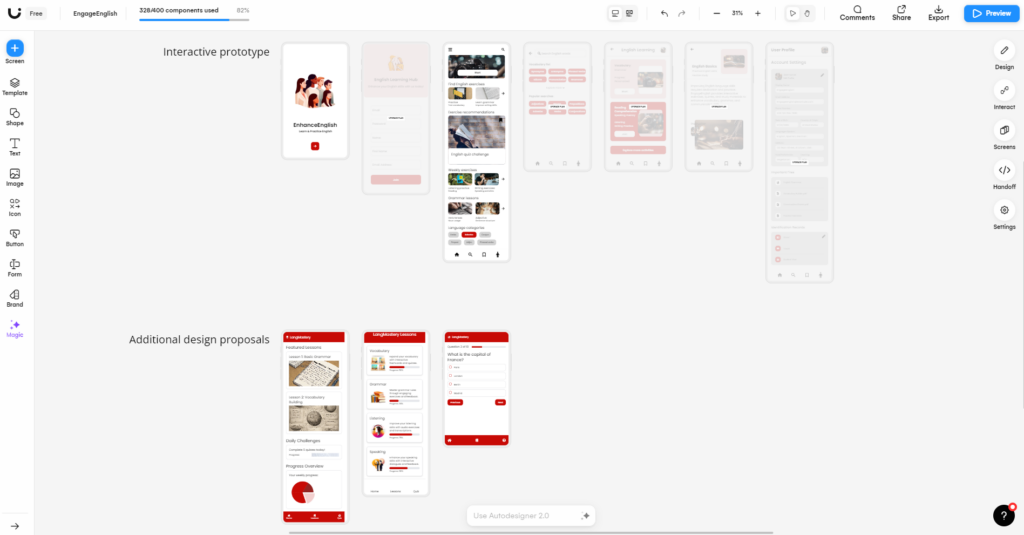
Based on the interpreted prompt, the AI generates a design layout that aligns with your description. This includes placing the specified UI elements in the appropriate positions and creating the overall structure of the design. The system also applies styles and other component-specific attributes based on the details provided in the prompt. For instance, if you mention a blue background with white text, the AI will apply these styling choices to the design
The generated design is fully editable, allowing you to review and modify each element as needed.
Example:
- Step 1: Select device type as mobile and enter project description: “an English learning app”
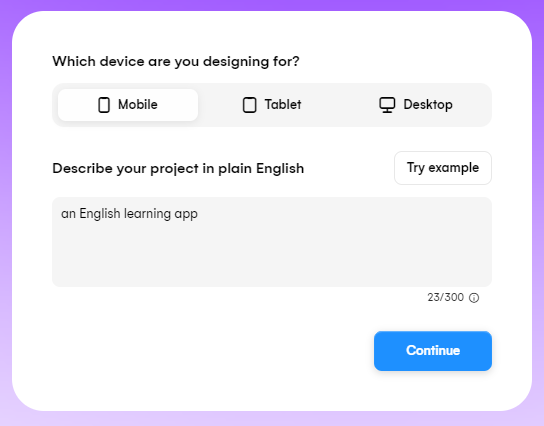
- Step 2: Select “Prompt” option and input a detailed textual description of the design idea and select some style that I want my design to have
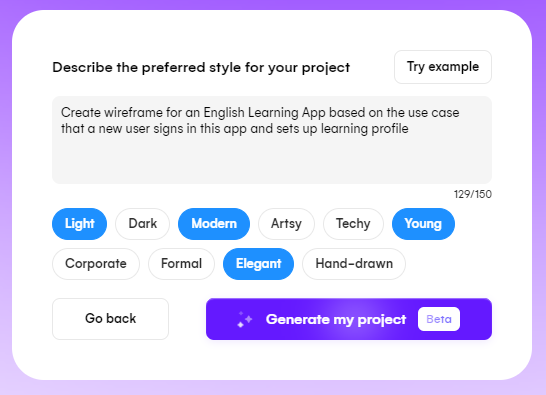
- Step 3: Uizard.io will automatically generate a set of designs based on the prompt that I provided and having design style the same as selected options.
Generate with an URL
When using the “Generate with Autodesigner” feature in Uizard.io and choosing the option to generate a design using a URL, you will be prompted to enter the URL of a website that you want to use as a basis for your new design. This can be any publicly accessible web page that you find inspiring or want to replicate in some way.
Once you input the URL, Uizard.io’s AI will scrape the web page. This involves extracting the HTML, CSS, and visual elements of the page. The AI will analyze the structure of the web page, identifying different UI components such as headers, footers, navigation bars, buttons, images, forms, and text blocks.
Based on the analysis, the AI reconstructs the design of the web page in Uizard.io. This involves recreating the layout and positioning the identified elements similarly to how they appear on the original website. The AI also applies the styles (e.g., colors, fonts, spacing) extracted from the website to the generated design, ensuring it closely matches the original look and feel.
The generated design is fully editable within the Uizard.io platform. Users can modify, adjust, and customize each UI element as needed.
Example:
- Step 1: Select device type as mobile and enter project description: “an English learning app”
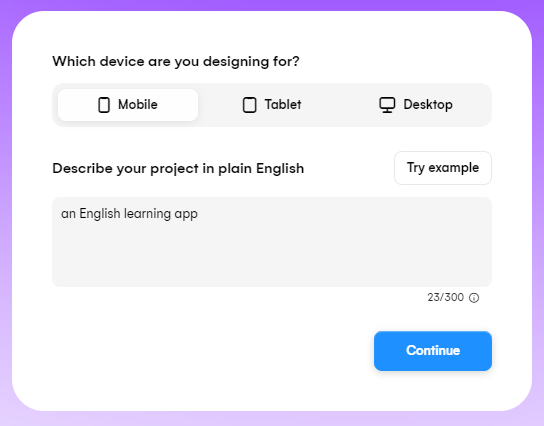
- Step 2: Select “URL” option and enter the URL that I want to be a starting point for my design
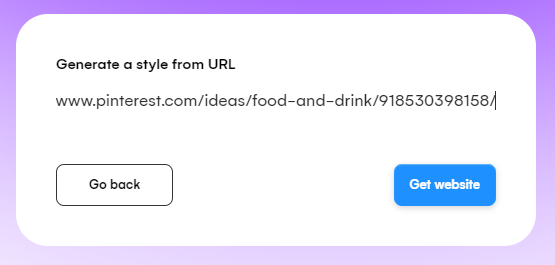
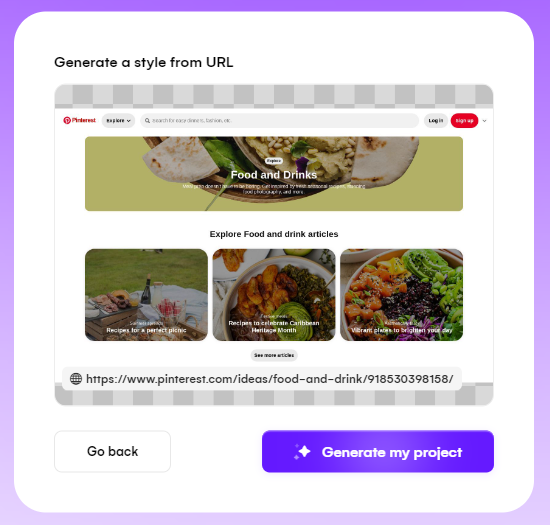
- Step 3: Uizard.io will automatically generate a set of designs based on the project description and the style of URL that I provided
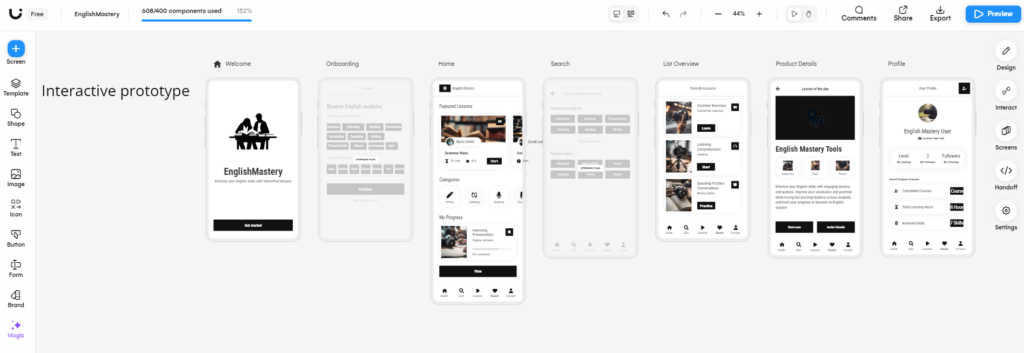
Generate with a brand kit
When using the “Generate with Autodesigner” feature in Uizard.io and choosing the option to generate a design using a brand kit, you will be prompted to upload or provide details about your brand assets. This typically includes your brand’s logo, color palette, fonts, imagery, and any other design elements that define your brand identity. You may also include brand guidelines that detail how these assets should be used, such as specific color combinations, font usage rules, and logo placement instructions.
Uizard.io’s AI will analyze the provided brand assets and guidelines. This involves understanding the visual and stylistic elements that make up your brand’s identity. The AI will identify any specific design rules or constraints outlined in your brand guidelines to ensure consistency with your brand identity.
Based on the analysis, the AI generates a design that incorporates your brand’s assets and adheres to the provided guidelines. This includes using the correct colors, fonts, and logos in the appropriate places. The generated design will maintain the consistency with your brand, ensuring that all elements reflect your brand’s look and feel. The generated design is fully editable within the Uizard.io platform. Users can modify, adjust, and customize each UI element as needed.
Start from screenshot
When you select to start a project from a screenshot in Uizard.io, you are utilizing an AI-powered feature that allows you to kickstart your design process by uploading an image of an existing user interface or design.
You will be prompted to upload a screenshot file from your device. This screenshot should be an image of the UI or design you wish to use as a starting point.
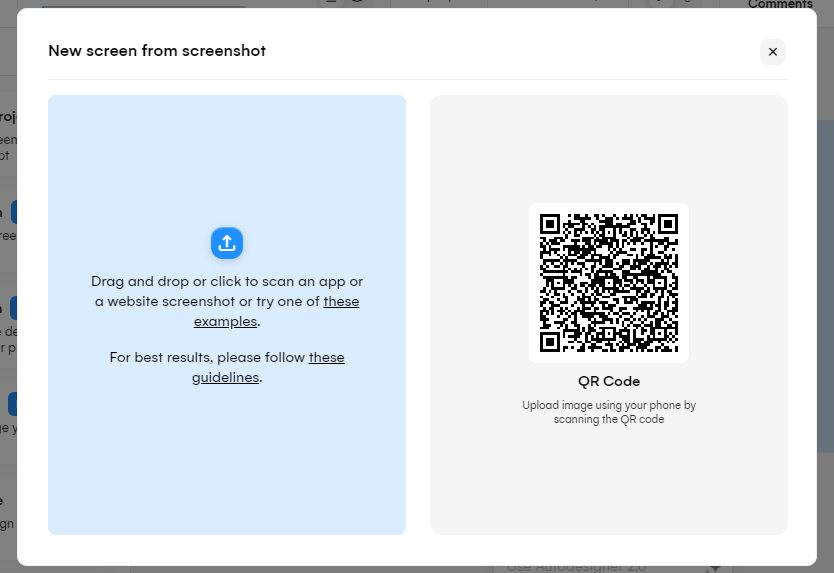
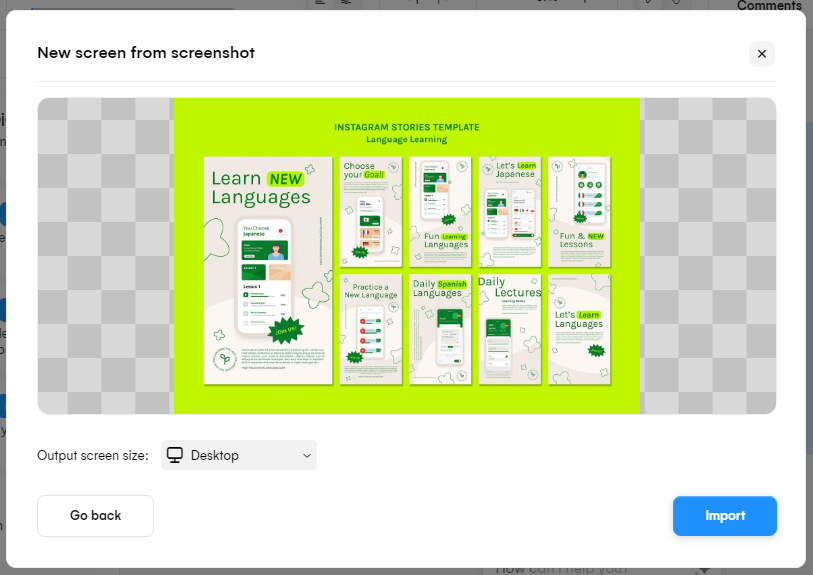
Once the screenshot is uploaded, Uizard.io’s AI begins processing the image. This involves analyzing the visual content to detect various UI elements. The AI identifies different components within the screenshot, such as buttons, text fields, images, menus, headers, and footers.
The AI reconstructs the layout based on the elements it has identified. It creates a new project that mirrors the design of the uploaded screenshot. All detected UI components are recreated as editable elements within Uizard.io. This means that buttons, text fields, and other elements are not just static images but functional components you can modify.
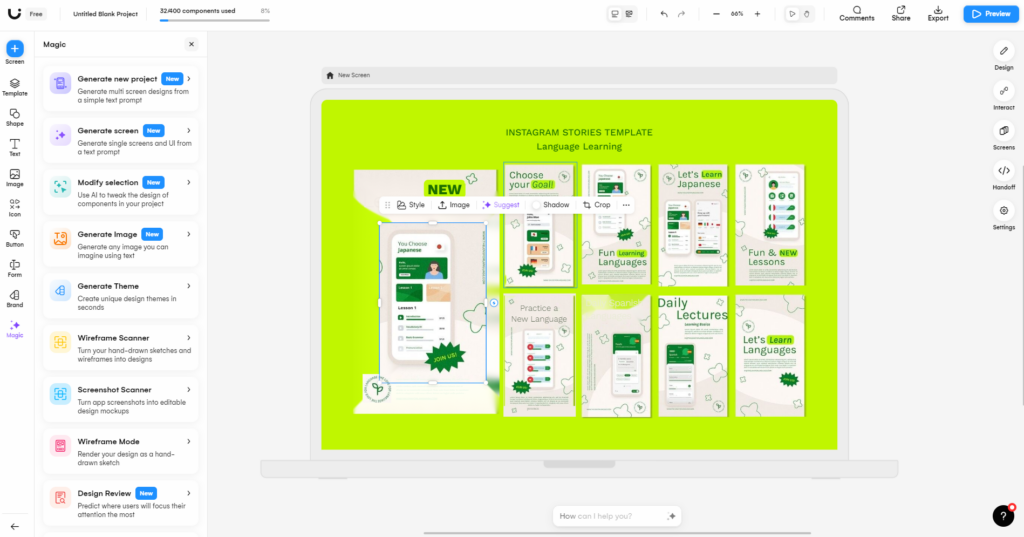
You can use Uizard.io’s design tools to customize the generated design. This includes changing text, adjusting positions, modifying styles, and adding or removing elements as needed.
Start from template
When you select to start a project from a template in Uizard.io, you are choosing a predefined design layout that serves as a foundation for your project. This feature is particularly useful for rapidly creating professional-looking designs without starting from scratch.
Upon selecting this option, you will be presented with a library of templates to choose from. These templates cover a wide range of use cases, such as landing pages, mobile app interfaces, dashboards, e-commerce sites, and more.
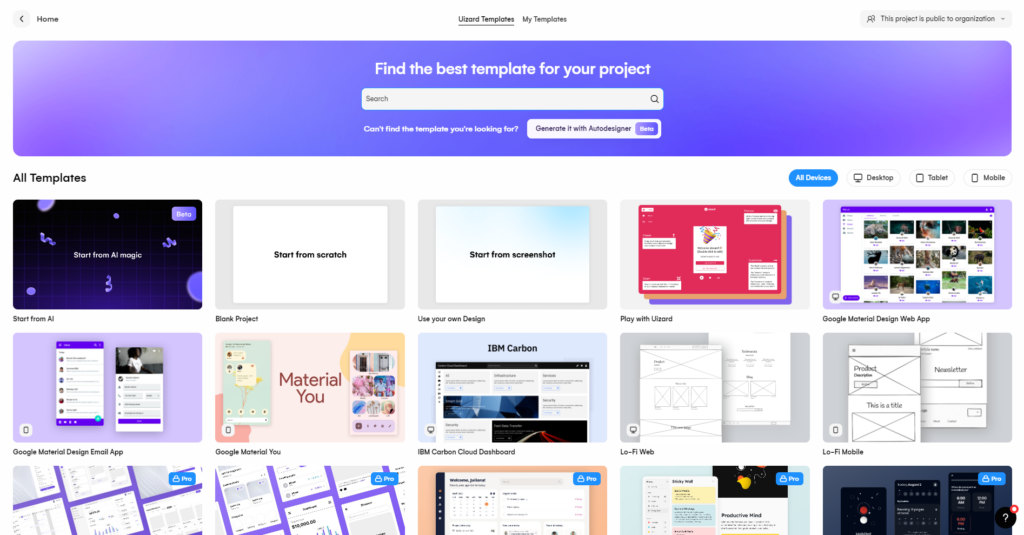
In order to choose your preferred template, you can browse through the available templates to find one that closely matches the type of design you need. You can preview each template to see its layout and components before making a selection.
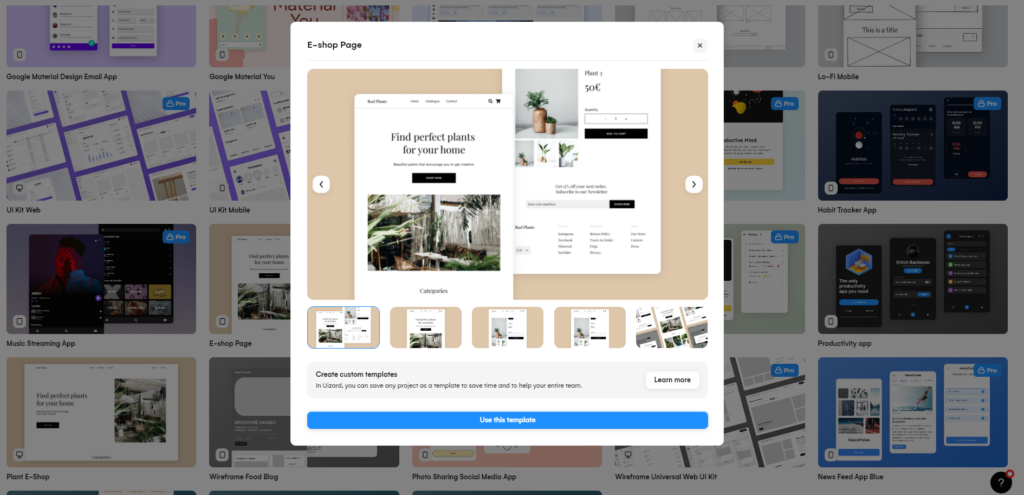
Once you find a suitable template, select it to begin your project. Uizard.io will load the selected template, automatically setting up the design canvas with the predefined layout and components. The template comes with pre-arranged UI elements such as headers, footers, navigation bars, content sections, forms, and more. These elements are designed to be easily customizable.
The elements within the template are fully editable. You can change text, images, colors, fonts, and styles to match your brand or project requirements. Use Uizard.io’s drag-and-drop functionality to rearrange elements, add new components from the library, or remove any unwanted elements.
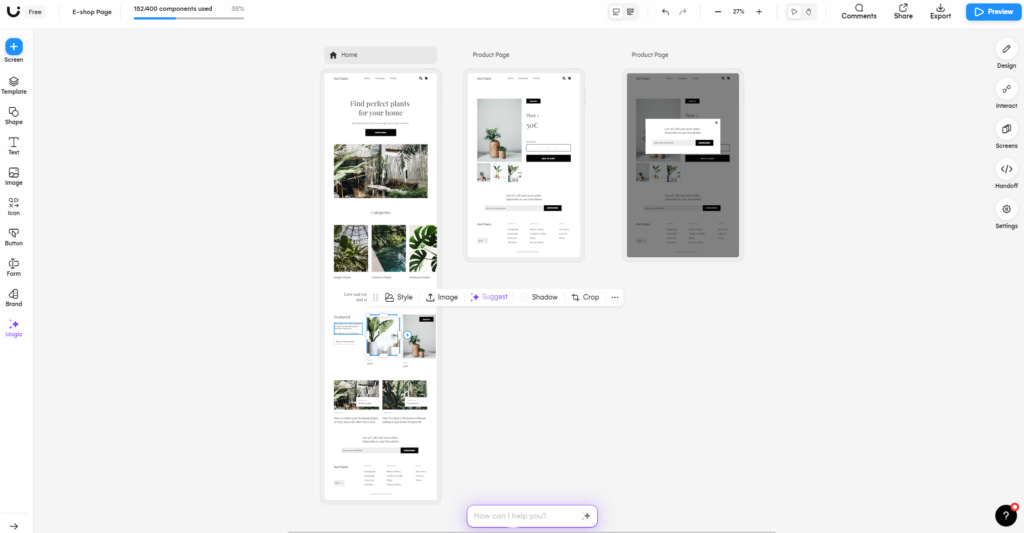
Design tool kits
Screen component
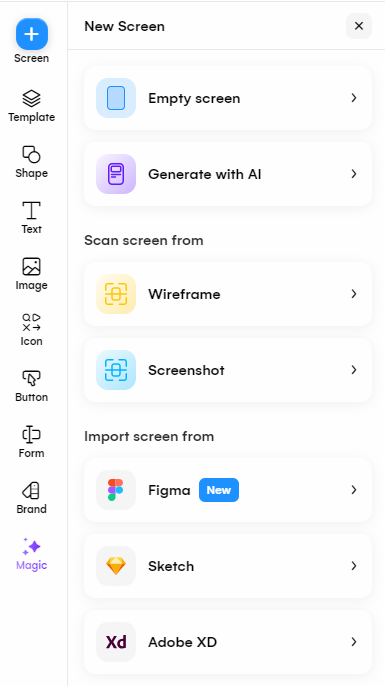
- Using ‘Generate with AI’ to create design automatically based on the textual description of your design.
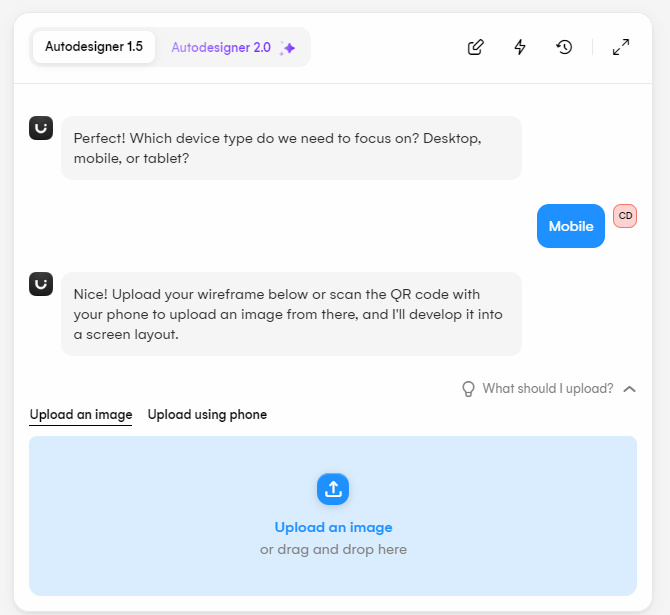
- Using ‘Scan screen from Wireframe’, ‘ Scan screen from Screenshot’, ‘Import screen from Sketch’, ‘Import screen from Adobe XD’ to upload an image of wireframe, a screenshot of your design, a sketch or an Adobe XD image and the uploaded image is fully editable within the Uizard.io platform. Users can modify, adjust, and customize each UI element as needed.
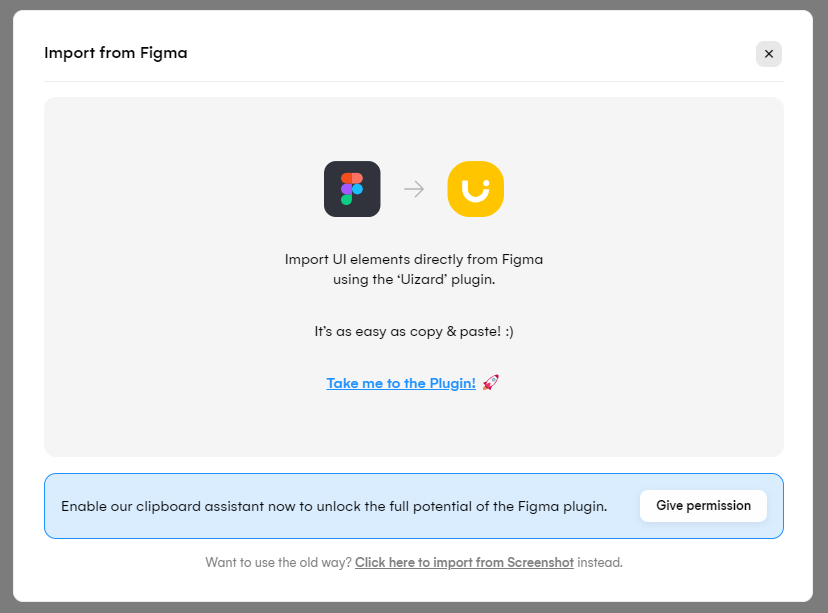
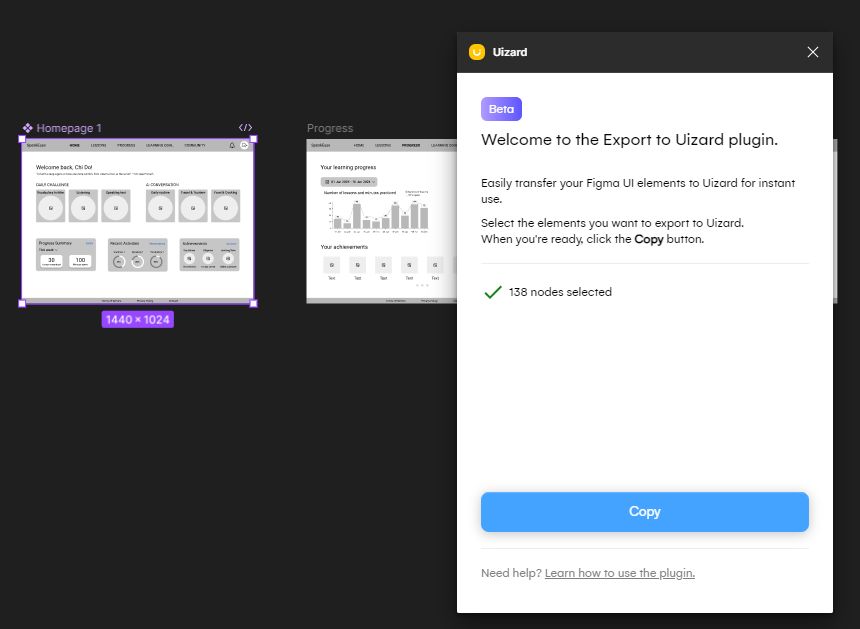
- Using ‘Import screen from Figma’ to import UI elements directly from Figma by installing Uizard plugin in Figma
Layout Components
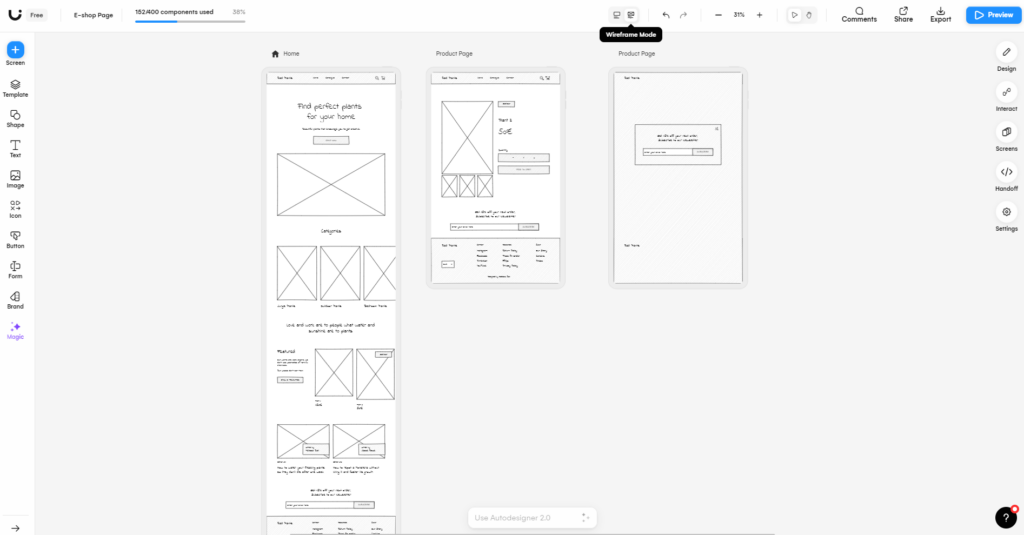
- Ability to change from Mockup mode to Wireframe mode by just one click.
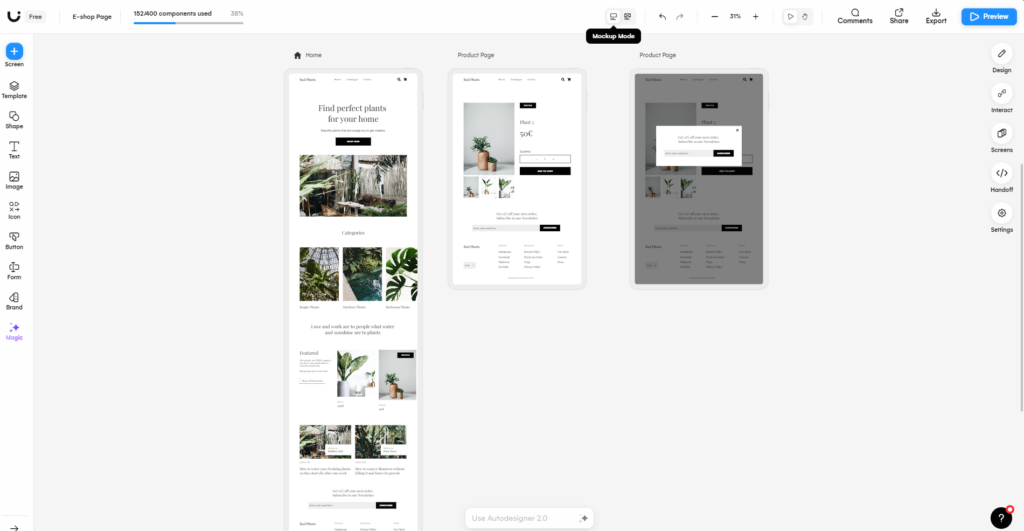
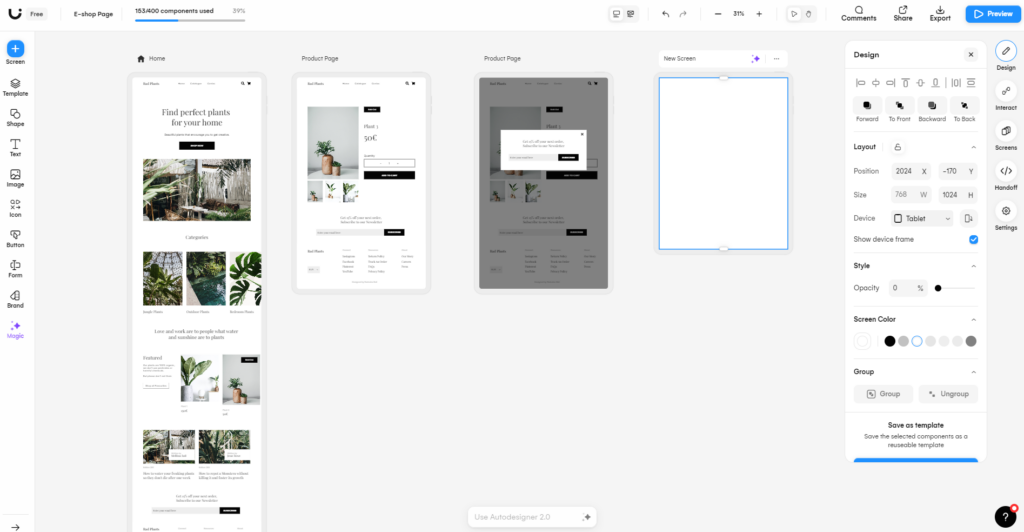
- Design customization: Create the basic structure of your design with align components, layout and device type, screen style, screen color, group section, template creation.
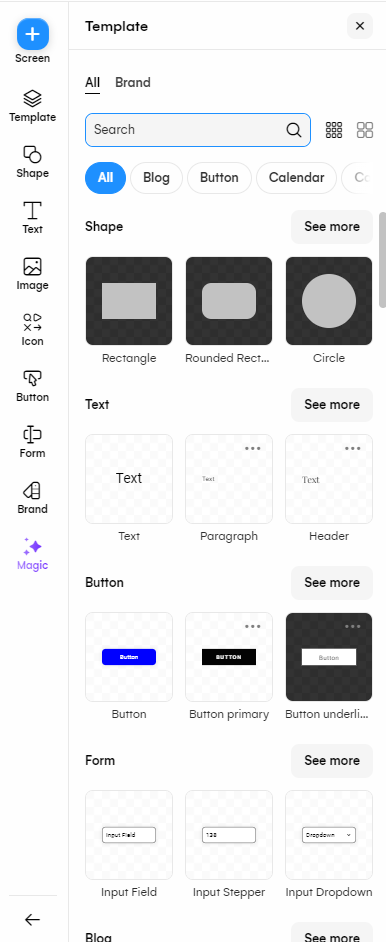
- Template options: Add various shapes, blog, button, calendar, form, card, content, table, video… and more.
Text Elements
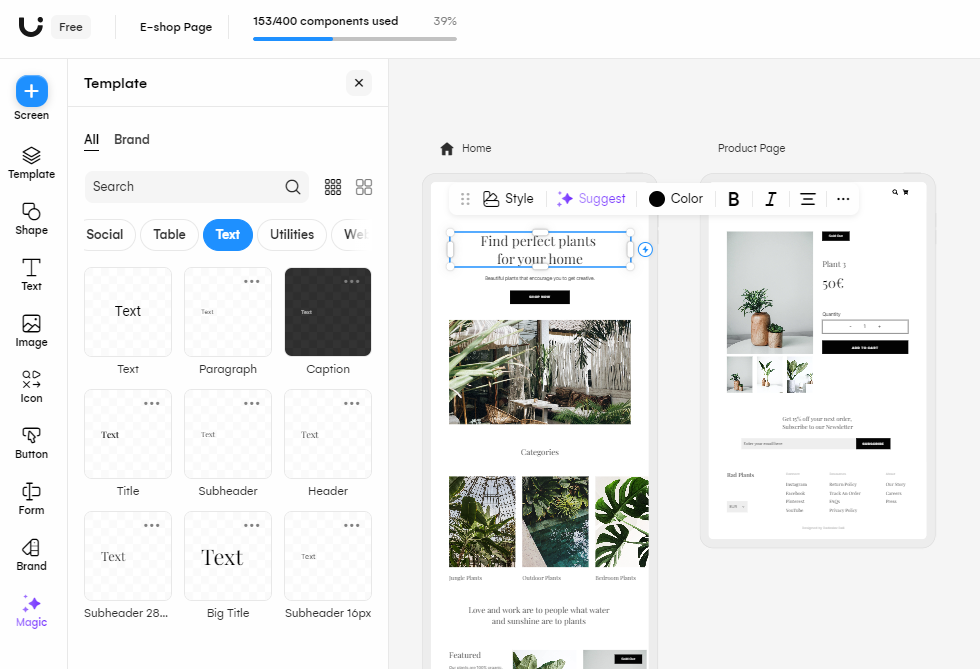
Add and edit text within your design by using elements provided by Uizard.io. Besides, you can use ‘Suggest’ feature to get alternative text suggestions.
Media Components
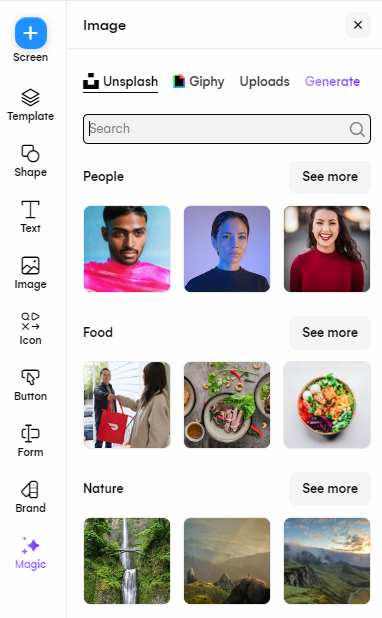
- Images: Upload and position images in your design. Using ‘Generate’ feature to ask autodesigner to create a photo/ illustration/ logo/…. based on your textual description of your design idea.
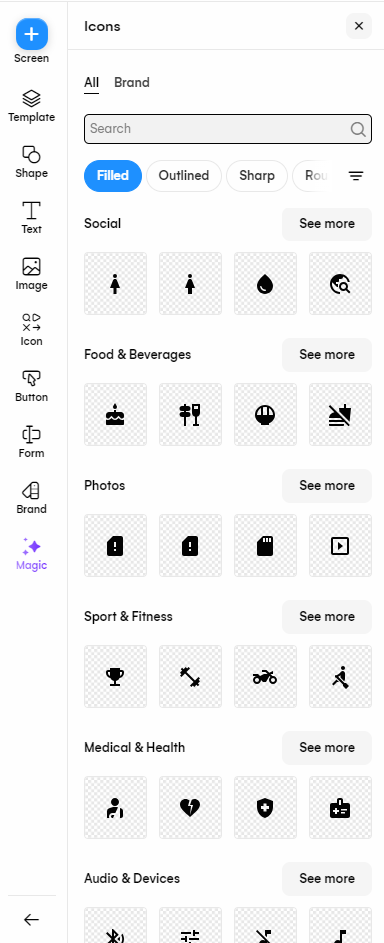
- Icons: Use a wide range of icons to enhance visual communication.
Magic Elements
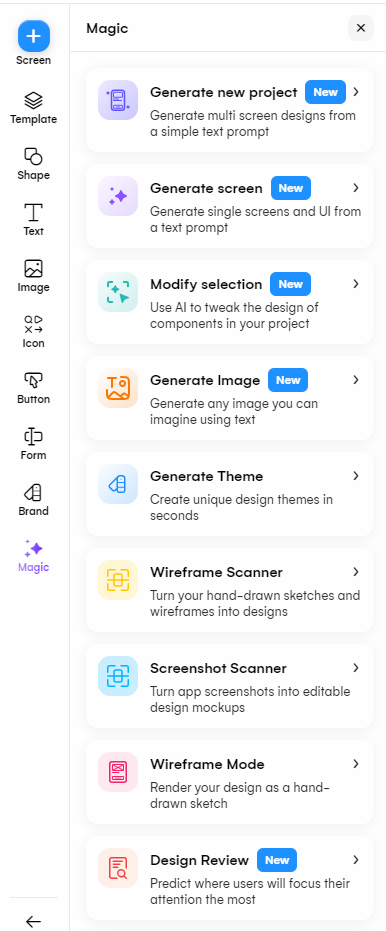
The “Magic” feature in Uizard.io leverages advanced AI to streamline and enhance the design process, making it easier and faster to create high-quality, professional designs. It uses Autodesigner assistant to transform textual descriptions to screen, image, theme,…
Exporting and Sharing Designs
Uizard.io provides robust exporting and sharing functionalities, making it easy to distribute, collaborate, and integrate your designs with other tools and stakeholders.
Exporting Designs
Formats Supported:
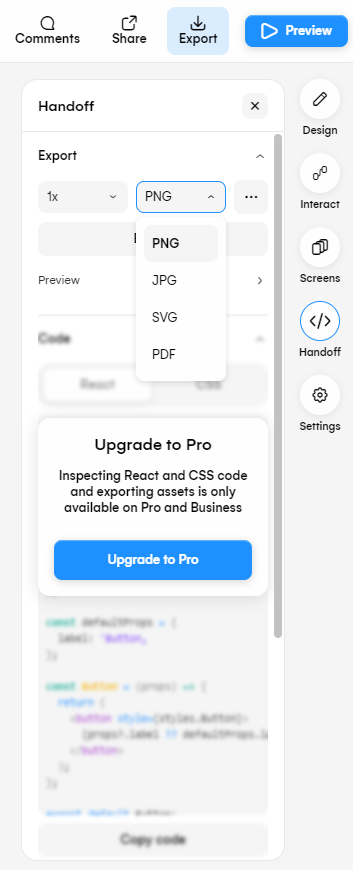
- PNG/JPG: Export your design as high-resolution images. This is useful for sharing visual mockups or including them in presentations.
- SVG: Export designs as Scalable Vector Graphics (SVG) files. SVG format is ideal for web and digital applications because it retains high quality at any scale and allows for easy manipulation of individual design elements.
- PDF: Export designs as PDF files, which are ideal for sharing complete design documents or for printing.
- HTML/CSS: Export your design as HTML and CSS files, enabling you to directly integrate your designs into web projects. This is particularly useful for developers.
- Project Files: Export the entire project as a file that can be imported back into Uizard.io or shared with other Uizard.io users.
Export Options:
- Selective Export: Choose specific components, screens, or parts of your design to export, rather than exporting the entire project.
- Customization: Customize export settings, such as image resolution, file format options, and layout preferences.
Sharing Designs
Real-Time Collaboration:
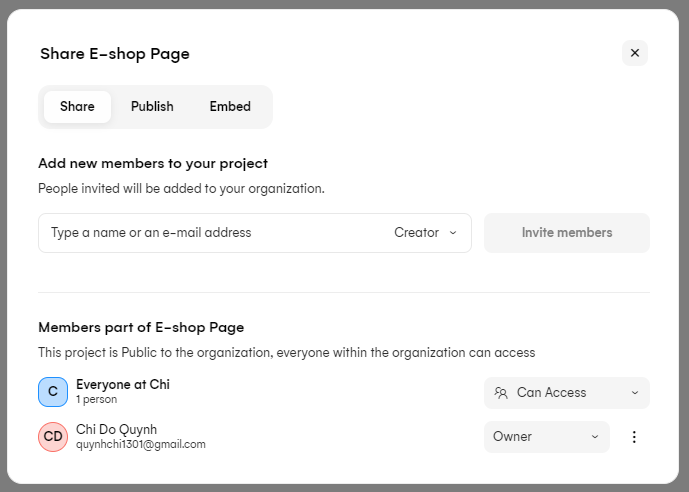
- Collaborative Editing: Share your design project with team members for real-time collaborative editing. Multiple users can work on the same project simultaneously.
- Comments and Feedback: Enable commenting on designs, allowing team members and stakeholders to provide feedback directly within the project. Comments can be resolved, tracked, and managed efficiently.
Sharing Links:
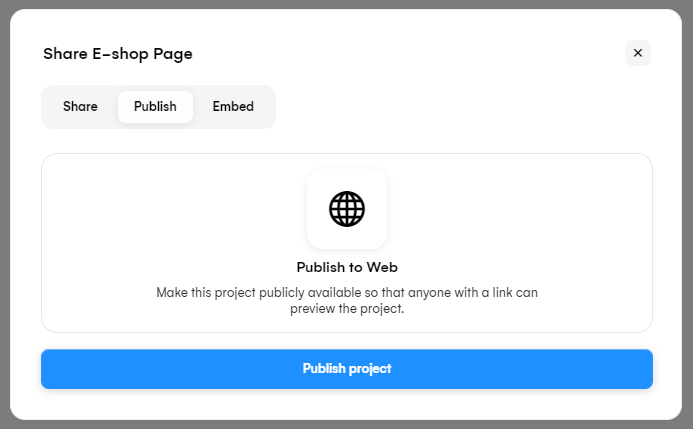
- Public Links: Generate public links to your design projects, which can be shared with anyone. These links provide view-only access to the design.
- Private Links: Create private, password-protected links for more secure sharing. This ensures that only authorized individuals can access the design.
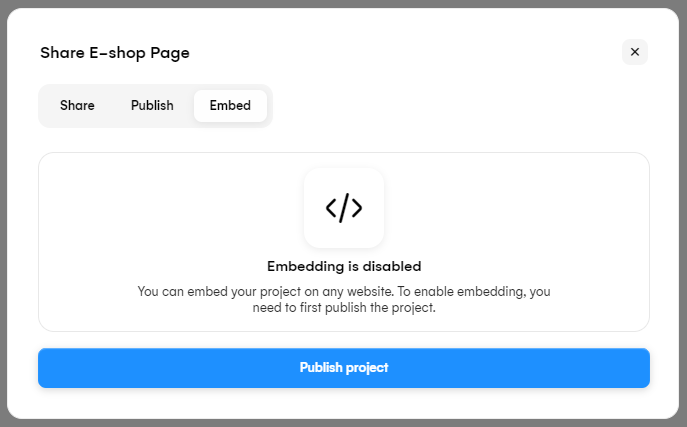
- Embed Codes: Generate embed codes to include your designs in websites, blogs, or other platforms. This is useful for showcasing your work or integrating it into documentation.
Practical Applications of Uizard.io in Business Analysis
Requirements Gathering and Visualization
- Visual Prototypes: Quickly create visual prototypes to represent business requirements.
- User Stories: Convert user stories and requirements into visual wireframes, making it easier to validate requirements with stakeholders.
- Scenario Mapping: Design user scenarios and workflows to visualize how users will interact with the system. This helps in identifying potential issues and gaps in requirements early.
Improving Stakeholder Communication
- Interactive Prototypes: Use interactive prototypes to demonstrate how the system will work.
- Collaboration Tools: Leverage Uizard.io’s collaboration features to invite stakeholders to review and comment on designs in real-time, ensuring everyone is aligned and engaged in the process.
- Presentation Mode: Utilize the presentation mode to showcase designs in meetings, providing a clear and professional way to present ideas and solutions.
Streamlining the Design Process
- AutoDesigner: Use the AutoDesigner feature to quickly generate design prototypes from textual descriptions, screenshots, or URLs. This speeds up the initial design phase and allows BAs to focus more on refining requirements.
- Templates: Start from pre-built templates that align with common business applications, reducing the time needed to create designs from scratch.
- Version Control: Track changes and maintain version history to manage iterations effectively and revert to previous designs if necessary.
- Export Options: Export designs in various formats (PDF, PNG, SVG, HTML, CSS) for inclusion in documentation or for sharing with stakeholders and development teams.
Account Licensing and Fees for Uizard.io
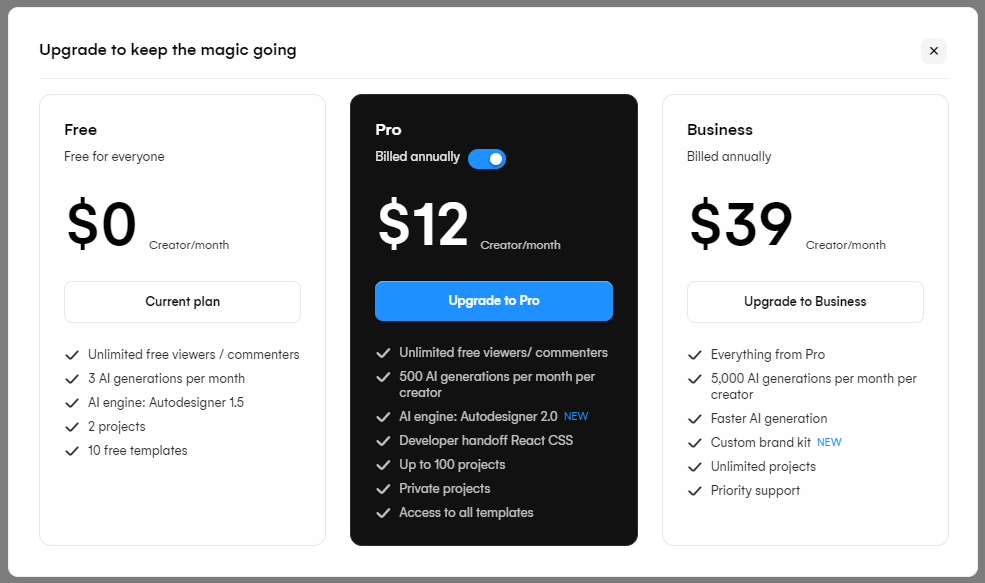
Uizard.io offers several pricing plans to accommodate different user needs. Here’s a breakdown of their pricing structure:
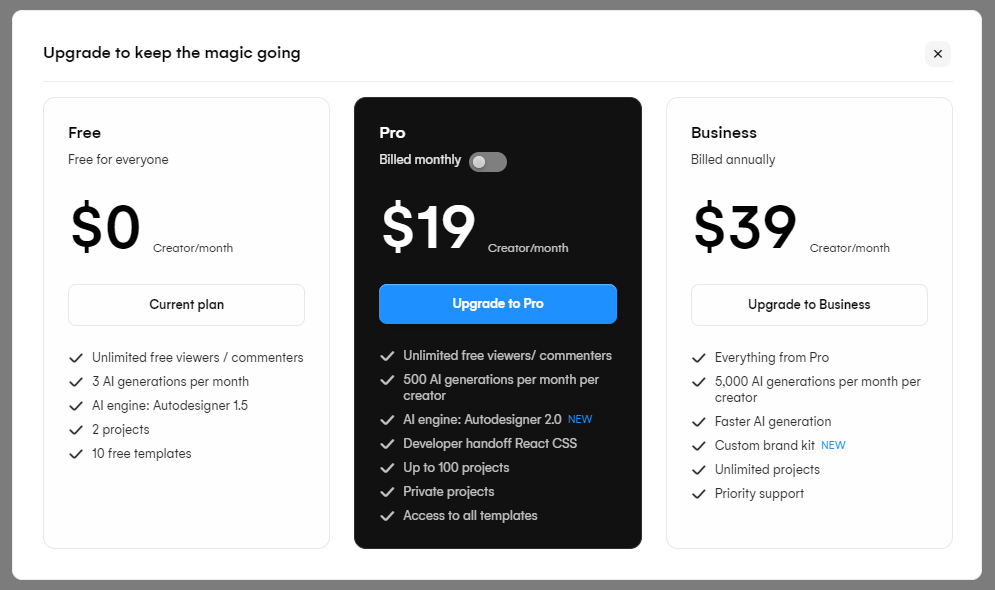
Free Plan:
- Limited features available.
- Ideal for basic use and getting a feel for the tool.
Pro Plan:
- Costs $12 per user per month if billed yearly.
- Costs $19 per user per month if billed monthly.
- Includes unlimited screens and access to all templates.
- Suitable for individual creators or small teams needing more advanced features than the free plan offers.
Business Plan:
- Costs $39 per user per month, billed yearly.
- Includes everything in the Pro plan, plus everything is unlimited and comes with priority support.
- Designed for larger organizations that need comprehensive features and support.
Conclusion
Uizard.io is a powerful AI-driven design tool that democratizes the design process, making it accessible to everyone from seasoned designers to complete novices. By automating many aspects of design creation and providing intelligent recommendations, Uizard.io helps users create high-quality, user-friendly designs quickly and efficiently. Its features, such as real-time collaboration, responsive design, and seamless integration with other tools, make it a valuable asset in any design workflow.