


Hello Readers!!! Today in this blog we’ll see How to create Alerts for pub/sub Backlog Size. Pub/Sub backlog size refers to the number of messages that have not been processed by the subscribers. It’s crucial to monitor this metric to ensure that your system can handle the incoming traffic efficiently. So, let’s get started!
Overview
Effective monitoring of Pub/Sub backlog size is essential for ensuring optimal performance and reliability in your Google Cloud Platform (GCP) environment. This guide provides a detailed step-by-step process for creating alerts to proactively manage Pub/Sub backlog size, enabling timely detection and response to potential issues.
Prerequisites
- Google Cloud Project Access
- pub/sub sink, topic and subscription creation access enable roles roles/logging.admin and roles/logging.configwriter.
Creation of pub/sub Backlog Size Alerts
To create pub/sub Backlog Size Alerts in Apigee for monitoring pub/sub message backlog size follow the below steps to do so:
Configure Metric Based Alerts:
Step-1 These alerts are triggered by changing in API Metrics. Open the Create alerting policy page in the Google Cloud console.
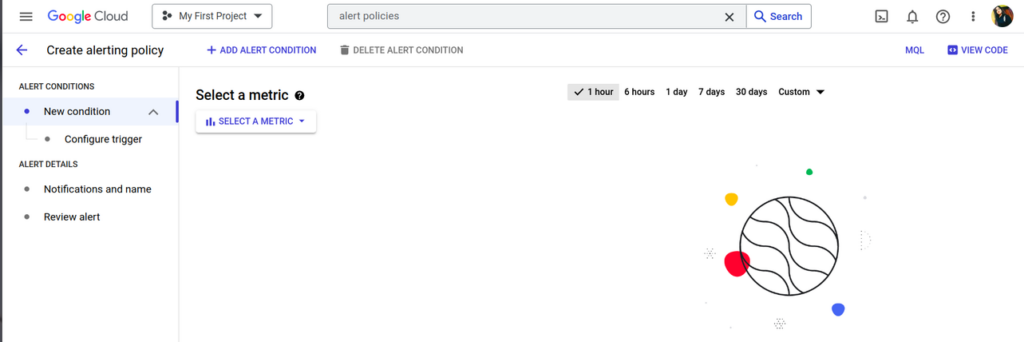
STEP-2 Select a metric
STEP-3 Deselect Show only active resources & metrics
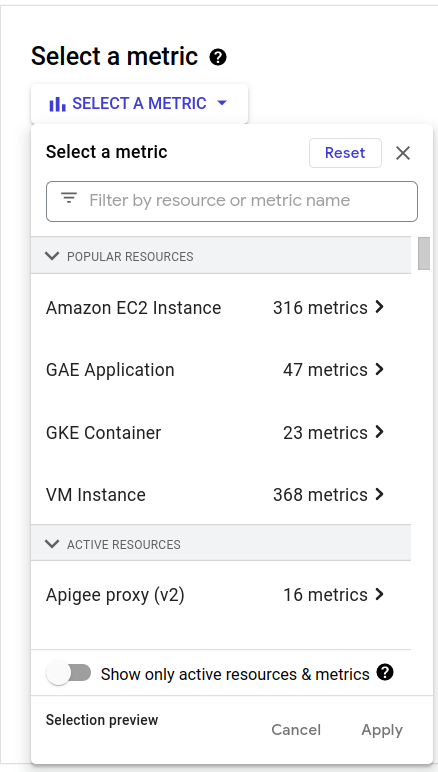
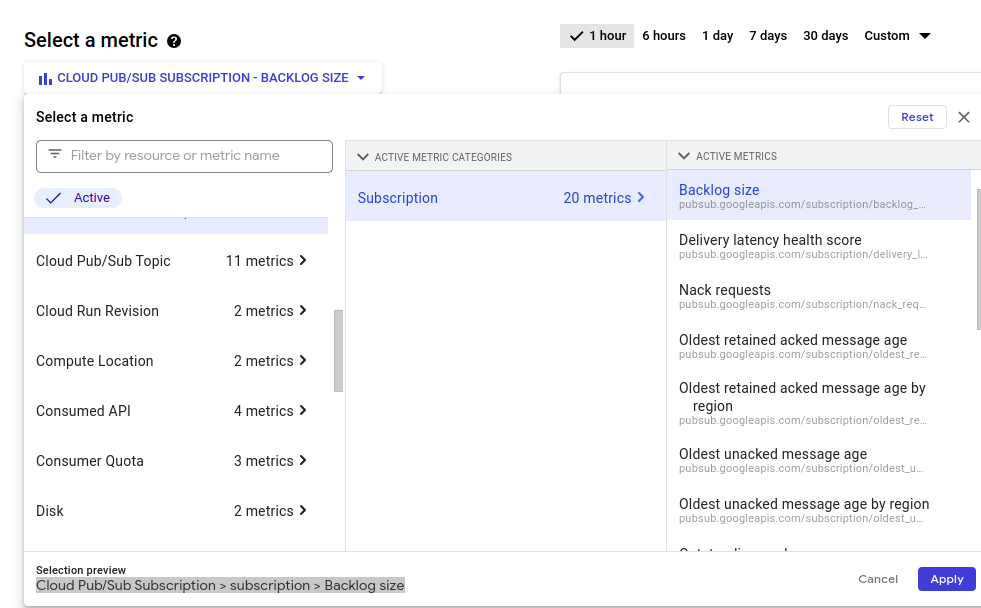
STEP-4 Select a metric as follows:
- Copy and paste the following in the Select metric field:
| apigee.googleapis.com/Cloud Pub/Sub Subscription/subscription/Backlog size |
- Select Cloud Pub/Sub Subscription
- In the pane that opens to the right, select subscription
- Then, Backlog size in the next pane
- Click Apply
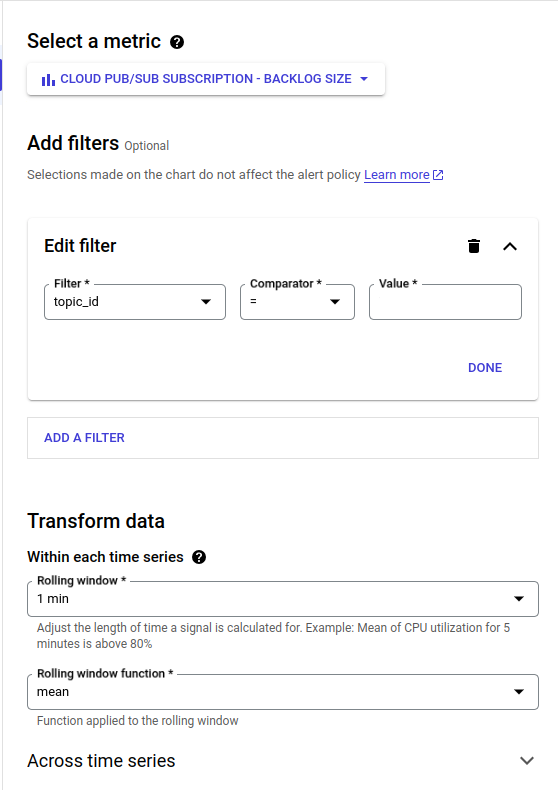
STEP-5 Add a filter for the Latency you want to monitor as follows:
- Click Add Filter
- Click in the Filter field and select topic_id from the drop-down menu.
- In the Comparator, select =.
- In the Value field, type API_Call_Logs which is the id of your topic.
- Click Done.
- Scroll down and select Transform Data
- Give value for Rolling Window as 1 min.
- Rolling window function as mean.
- click next.
Configure the alert trigger!
To configure the event that triggers the alert, first click Configure trigger in the left-hand pane. Then do the following steps:
- Under Condition type, select Threshold.
- In the Alert trigger field, select Any time series violates.
- In the Threshold position field, select Above threshold.
- In the Threshold Value field set value as 10737418240 which is 10 GB.
- And in Advanced Options* set Retest Window to no retest.
- In the Condition Name field, enter Cloud Pub/Sub Subscription – Backlog size.
- Click Next.
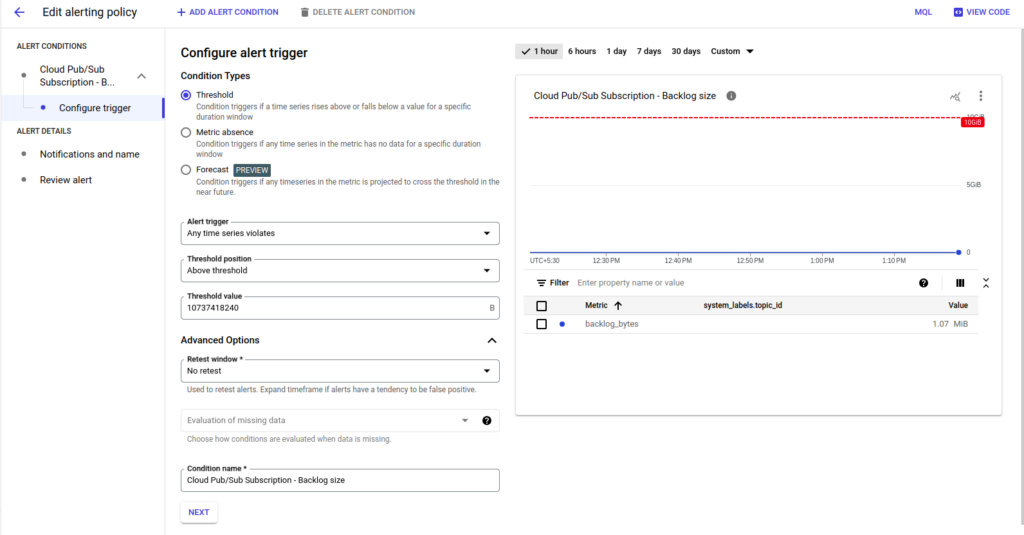
With these settings, an alert will be triggered whenever a pub/sub Backlog size crosses threshold value.
Click Next to open the Configure notifications and finalise alert pane.
Set up a notification for the Alert!
- Click in the Notification Channels field. If you have already created a channel for the notification, such as an email address or SMS number, you can select it under Notification Channels. Otherwise, you need to add a channel by selecting Manage Notification Channels. This opens the Notification channels pane, where you can add one or more channels. See Manage notification channels for more information.
- To add notification channel, Click on Manage Notification Channels as shown below:
- Again, when you click on Next a page will appear like this:
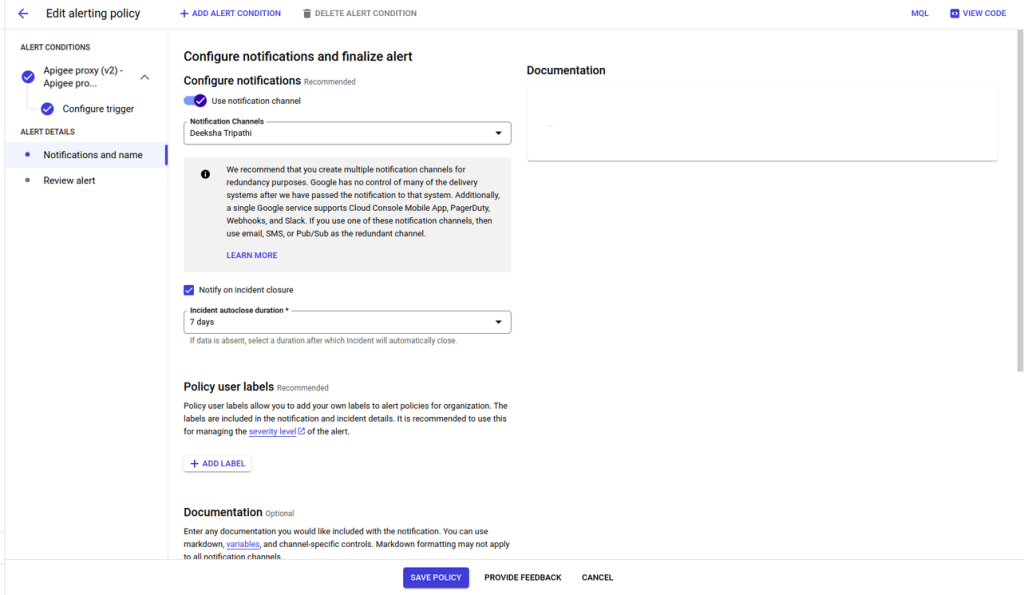
- Once you have selected one or more notification channels, click OK.
- In the Documentation field, you can add a message that will be sent with the notification.
- Click Next to review the details of the alert. If you are satisfied with them, click Create Policy to create the alerting policy.
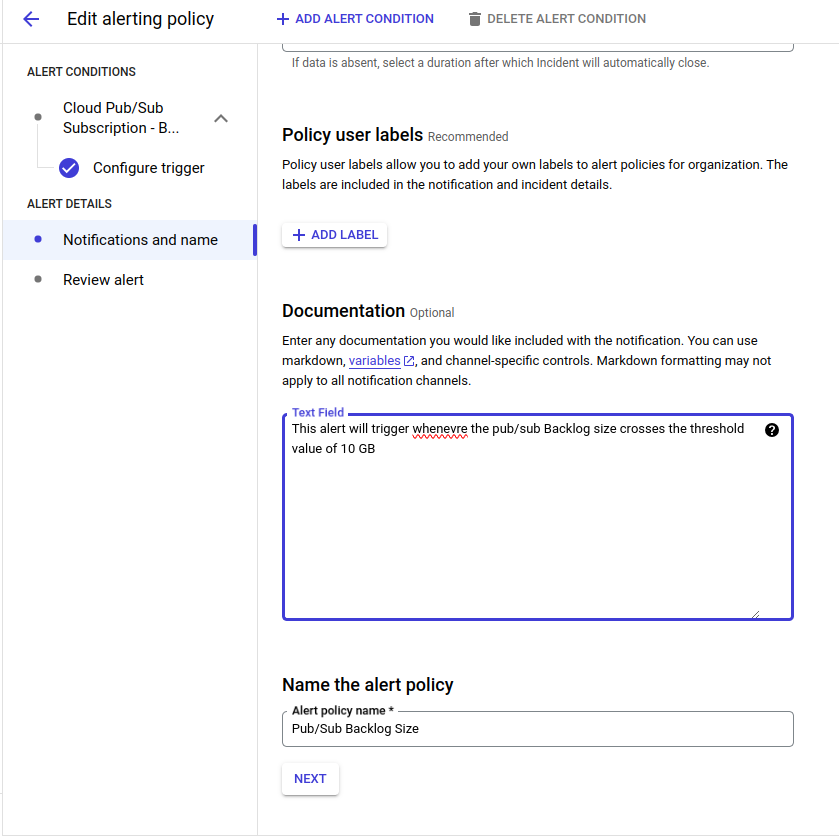
- Click Next to check the Alert condition created and click Save to save the policy.
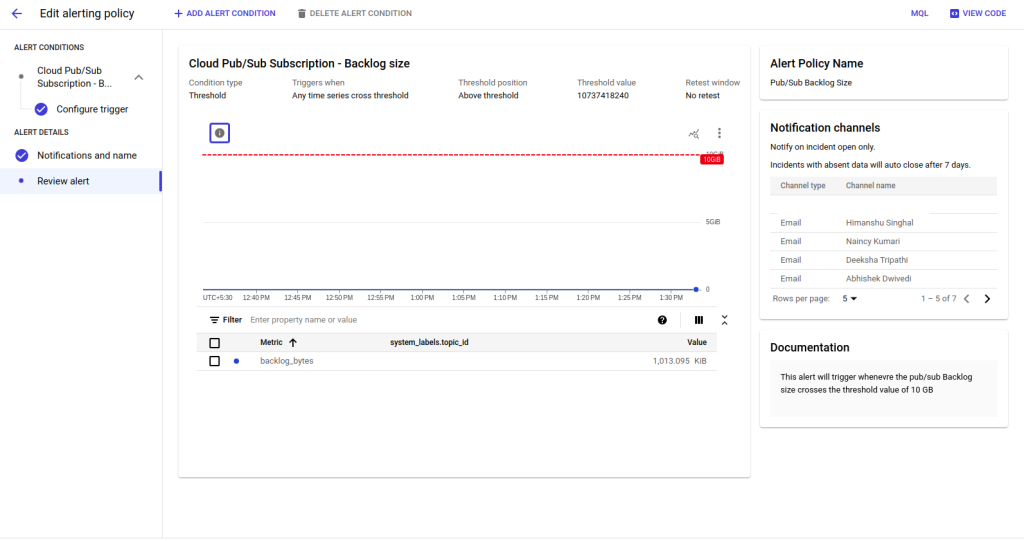
- Once the Alert Policy is saved you will see your alert policy as:
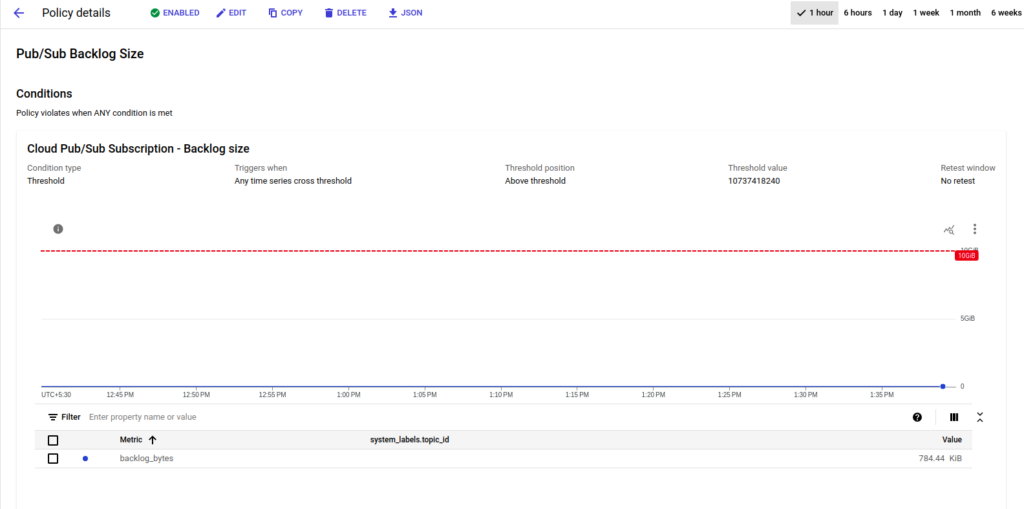
In the above image you can see your alert policy is created but it will only trigger an alert when incident is open .
Configure notifications and finalize Alert!
Add you notification channel from MANAGE NOTIFICATION CHANNEL as Mobile Devices, Pager Duty, Email, web hook etc as per your choice where you want to get notified for an incident.
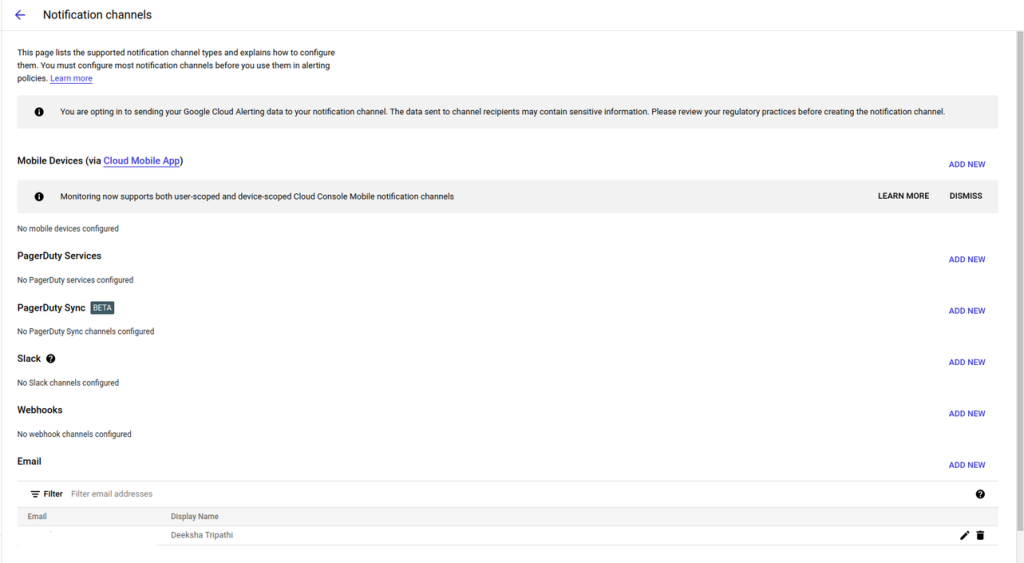
- To add Email, Click on ADD NEW to add the notification Channel like I have added for Email Notification below:
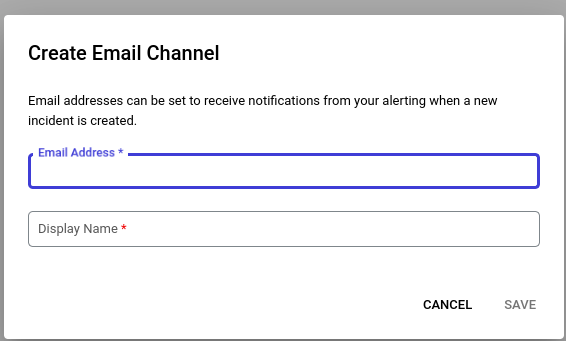
when you click on ADD NEW a box will open like above and in that you have to give the Email Address and Display Name for your notification channel. Click Save and the Notification Channel type and the Channel Display Name will look like below:

This is how pub/sub backlog size Alerts are configured. You will receive an email once the threshold value matches its condition.
Conclusion
Implementing Pub/Sub backlog size alerts enhances your ability to monitor and manage the health of your messaging system. This proactive approach ensures that you can respond promptly to changes in backlog size, preventing potential bottlenecks and optimizing the performance of your Pub/Sub infrastructure.
Reference
https://cloud.google.com/pubsub/docs/monitoring#monitoring_the_backlog
Keep Learning !!!
Thankyou 🙂