


While web applications, APIs, and mobile applications have become the primary focus of automation testing in today’s digital landscape, the importance of automating desktop applications should not be overlooked. There are different tools available for automating desktop applications, each with its own strengths and weaknesses. Among these, WinAppDriver stands out as a prominent open-source tool backed by Microsoft. In this article, we’ll delve into WinAppDriver and explore its key benefits.
I. What is WinAppDriver?
WinAppDriver is a service to support Selenium-like UI Test Automation on Windows Applications. It is supported by Microsoft.
WinAppDriver supports testing Universal Windows Platform (UWP), Windows Forms (WinForms), Windows Presentation Foundation (WPF), and Classic Windows (Win32) applications. It supports both windows 10 and 11.
II. Advantage of WinAppDriver:
- WinAppDriver is completely free to use.
- WinAppDriver is developed and maintained by Microsoft, which gives us confidence in its reliability and stability.
- Building upon the established development frameworks of Appium and Selenium, WinAppDriver provides a familiar automation environment for those experienced with Appium and Selenium, enabling them to easily automate Windows desktop applications.
- Like Selenium and Appium, WinAppDriver supports a variety of test automation frameworks such as Nunit or xUnit (for C#) and Junit (for Java), … Therefore, we can integrate WinAppDriver with Selenium, which allows us to automate both web and desktop applications within the same test framework.
- WinAppDriver can automate a wide range of UI elements, including buttons, text boxes, menus, and lists.
- WinAppDriver can be run as a standalone server or as a plugin for Appium. This gives us flexibility in how we set up your test environment.
- WinAppDriver easily integrates with popular CI/CD platforms like Azure DevOps, TeamCity, Bamboo, and more.
- WinAppDriver can integrate with Selenium Grid which help us to run automation tests for both Web and Desktop applications on a Selenium Grid server.
III. Disadvantages of WinAppDriver:
- WinAppDriver only supports Windows 10 and advanced versions. It doesn’t support other popular operating systems like macOS and Linux.
- While WinAppDriver has a growing community, it’s not as large as that of Selenium or Appium.
- Lack of recent release: The last official release was version 1.2.99 on July, 2021.
- Win App Driver is not compatible with Selenium 4.
IV. Setup WinAppDriver Environment:
a. Prerequisites
- Windows 10 or above.
- Administrator permission.
- Any development IDE like Eclipse, Visual Studio or Visual Studio Code, …
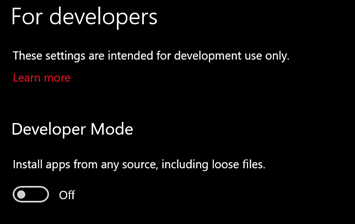
- Enable Developer Mode for Windows.
b. WinAppDriver Installation
We can download WinAppDriver from this link: https://github.com/microsoft/WinAppDriver. Then we run the installer to install WinAppDriver.
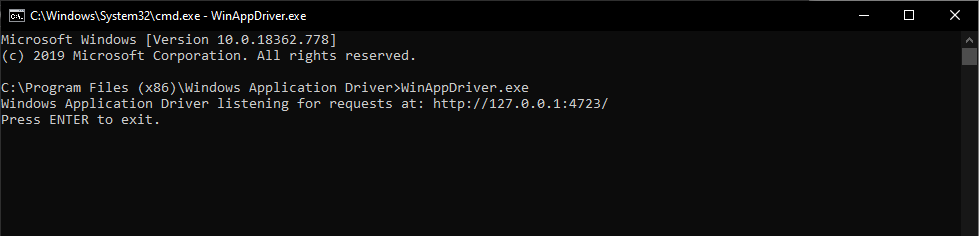
By default, WinAppDriver is installed in the C:Program Files (x86)Windows Application Driver directory.
WinAppDriver will listen on port 4723.
V. WinAppDriver Locators:
To help us interact with element, WinAppDriver supports the following locators:
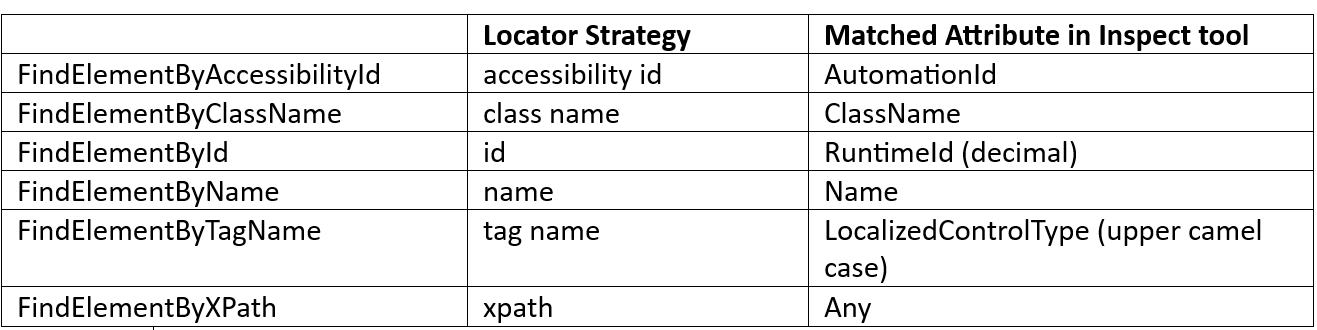
AccessibilityId is the preferred and most reliable locator.
VI. How to inspect UI elements:
After knowing which locators supported by WinAppDriver, let’s get acquainted with tools which help us to identify the properties of the elements in the application:
a. Accessibility Insights:
Accessibility Insights is a set of two free and open-source tools developed by Microsoft to help developers identify and fix accessibility issues in web and Windows applications.
You can download it from here: https://accessibilityinsights.io/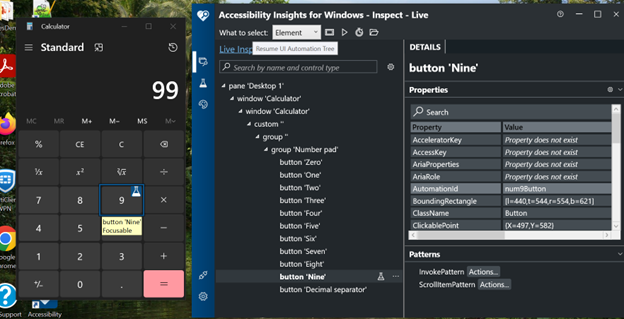
b. Inspect.exe:
To use Inspect.exe tool, we need to install the Microsoft SDK(https://developer.microsoft.com/en-us/windows/downloads/windows-sdk/).
Inspect.exe provides detailed information about each element, including its accessibility properties, automation IDs, and even allows you to perform basic actions like clicking or entering text.
[videopress 8ZOewlLH]
c. WinAppDriver UI Recorder:
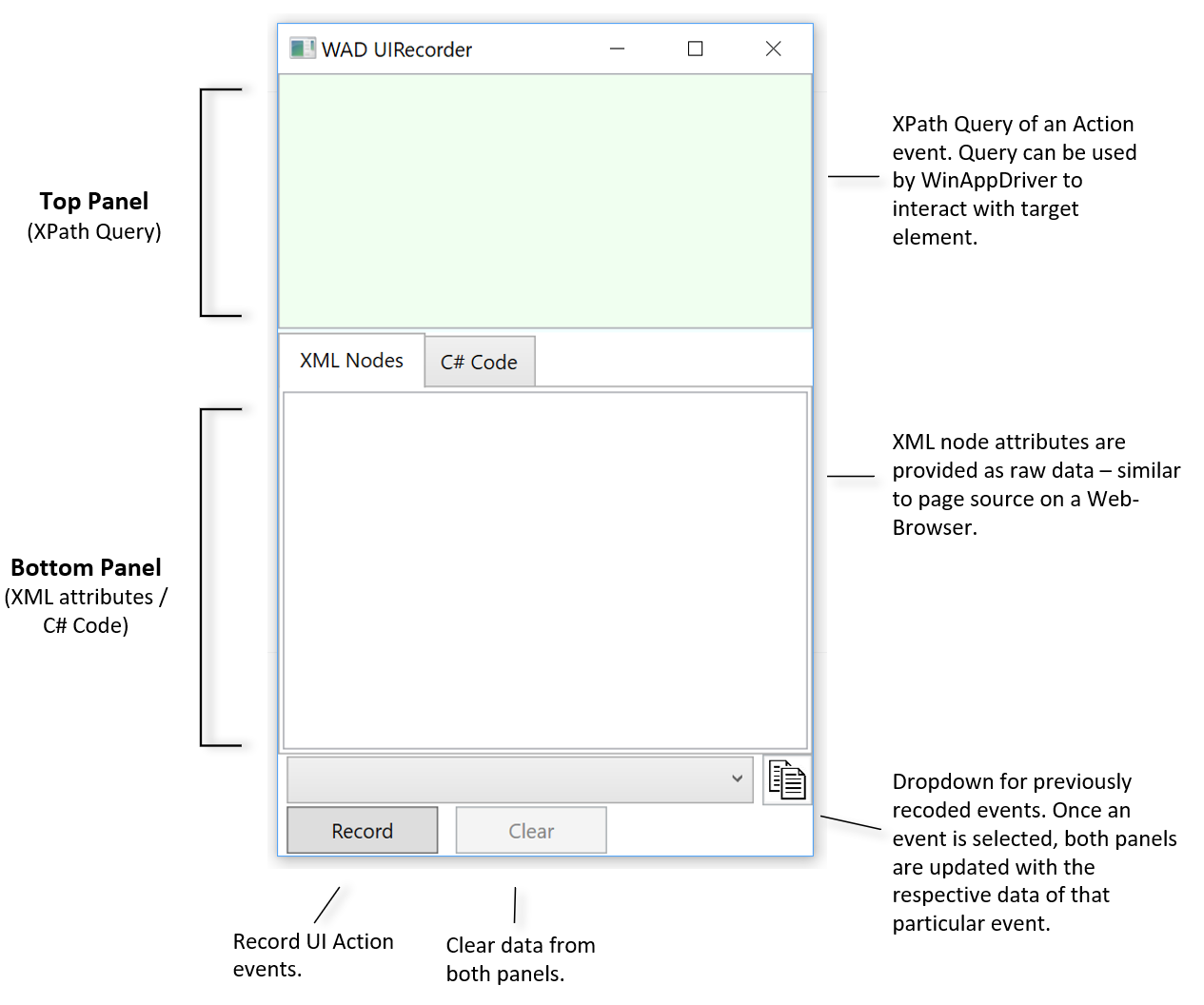
This tool allows UI element inspection and generates an XPath query to the element. You can download it from here: https://github.com/microsoft/WinAppDriver/releases/tag/UiR_v1.0-RC.
This tool can also capture both keyboard as well as mouse interactions. It can generate XPath expressions of UI elements and C# code from recorded UI input events.

VII. Demo
VIII. Conclusion:
WinAppDriver is a free and powerful tool that help us to automate Windows Desktop Applications. It is also supported by Microsoft which help it more reliable and stable. With its extensive features and ease of use, WinAppDriver is becoming the preferred choice for automating Windows desktop applications.