


1. What is the Selenium?
Selenium is an open-source suite of tools and libraries designed for automating web browsers. It’s primarily used for automating web application testing, but it can also be used for automating repetitive web-based tasks. It has three main components:
- Selenium WebDriver: This is the core component that allows you to create robust, browser-based automation suites and tests. It supports multiple programming languages like Java, C#, Python
- Selenium IDE: A browser extension for Chrome, Firefox, and Edge that provides a simple record-and-playback tool for creating quick bug reproduction scripts and exploratory tests
- Selenium Grid: This component allows you to run tests on multiple machines and manage different environments from a central point, making it easier to run tests across various browser and OS combinations
You can refer for this blog for more details: The impressive features of Selenium
2. What is the TestGrid?
TestGrid is an AI-powered, offers a comprehensive suite of features for end-to-end mobile testing automation, from app testing to load testing to visual testing. It allows users to conduct both manual and AI based codeless automation on real devices hosted on the cloud, on-premises or in a hybrid manner. This helps you achieve exceptional efficiency and high precision throughout your Android app testing journey.
It offers a variety of testing solutions, including:
- Codeless Automation: TestGrid covers every level of codeless testing, from record and playback, AI automation to low code/no code testing.TestGrid is a comprehensive platform designed that helps users to perform end-to-end automation testing in a codeless manner. The platform is designed to run tests on real devices and browsers, providing a centralized platform for test planning, authoring, and execution. TestGrid is an AI-powered scriptless testing solution that allows users to build logical workflows and leave the test creation to the platform. The self-healing feature eliminates the need for manual test maintenance by allowing executed tests to automatically fix themselves. It allows you to create test cases without writing scripts, making the process easier and more accessible.
- Cross-Browser Testing: Perform cross browser testing on 1000+ real windows, mac browsers & OS. Test apps/website manually, install any app or test website on latest and legacy Android & iOS browsers, debug and mark bugs for faster resolution. It enables testing across multiple browsers which is including the latest versions of Chrome, Firefox, Edge, Safari, and Opera and operating systems to ensure compatibility. It integrates with a variety of other tools, such as Jira, Slack, and GitHub, so you can easily track your cross-browser testing results and share them with your team. It auto-heals your codeless tests and prevents tests from failing by automatically relocating valid locators of broken objects.
- Appium Test Automation: Users can execute local Appium scripts on TestGrid’s scalable & secure Appium test execution cloud. Test native, hybrid and web applications on a combination of 1000+ real iOS and Android devices. Test better & release faster.
- Selenium Test Automation: Test your website & web apps faster on a secure & scalable selenium grid powered by TestGrid. Run tests on real browsers & OS running on real devices at a data center near you.
- Visual Testing: TestGrid is an end-to-end AI-powered testing platform with a built-in visual testing feature. Visual testing leverages the potential of artificial intelligence and empowers you to detect even the slightest changes in the appearance of your applications or websites across devices and browsers; it guarantees pixel-perfect precision. It doesn’t need to add any external SDK to your projects to assess your apps or website’s visual changes. It automatically compares the visual output of the current tests with baseline tests and subsequent tests.
- Performance Testing: Ensure seamless performance: prevent app/website failures during critical times. Upload your performance Script (Jmeter script), tweak your parameters, run, view results and perform performance testing of your app/website to make sure you provide the best UX to your users.
- API Testing: automate end to end API testing with TestGrid Improve quality, performance, security & functionality of your API’s. Validate data including checking data types, formats, and ranges.
- IoT Testing: eliminate up to 100% manual dependency on hardware testing. TestOS simplifies IoT testing by allowing your team to accurately simulate real component behavior, removing time and access limitations for connected services and components.
The open-source Selenium toolkit is primarily used to automate web browsers
Prerequisites
- TestGrid login credentials
- Java Development Kit (JDK): Install the latest version of JDK on your machine. Appium is compatible with JDK 8 or later versions.
- Integrated Development Environment (IDE): Choose an IDE to write and execute your Java Appium code. Popular choices include IntelliJ IDEA, Eclipse, or NetBeans. Make sure your IDE is properly installed and configured.
- Appium Java Client: Add the Appium Java Client dependency to your Java project. Using a build automation tool like Maven or Gradle, you can include the dependency. The Appium Java Client allows you to interact with the Appium server using Java code.
- There are client libraries in Java that support Appium’s WebDriver protocol extensions. You should use these client libraries instead of your regular WebDriver client when using Appium.
Start configuring your local Java or other language code right away.
Step 1: Open the Device Cloud tab and locate the appropriate browser’s information for running.
Login with TestGrid credentials and go to the Devices Cloud option tab. Once the device cloud screen appears, you can find several devices and browsers there.
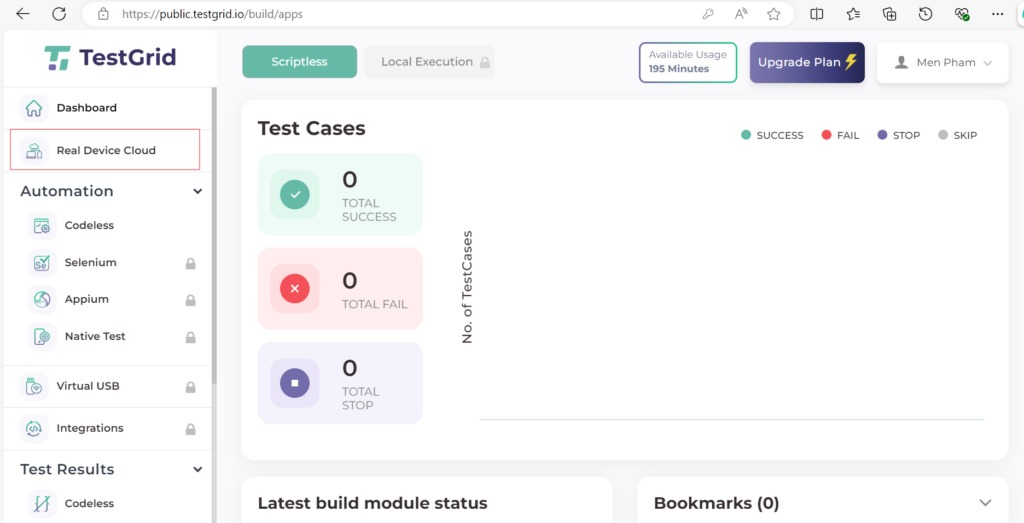
Step 2: Choose the browser in which you want to run your local Selenium code.
The image below shows TestGrid’s real device cloud dashboard
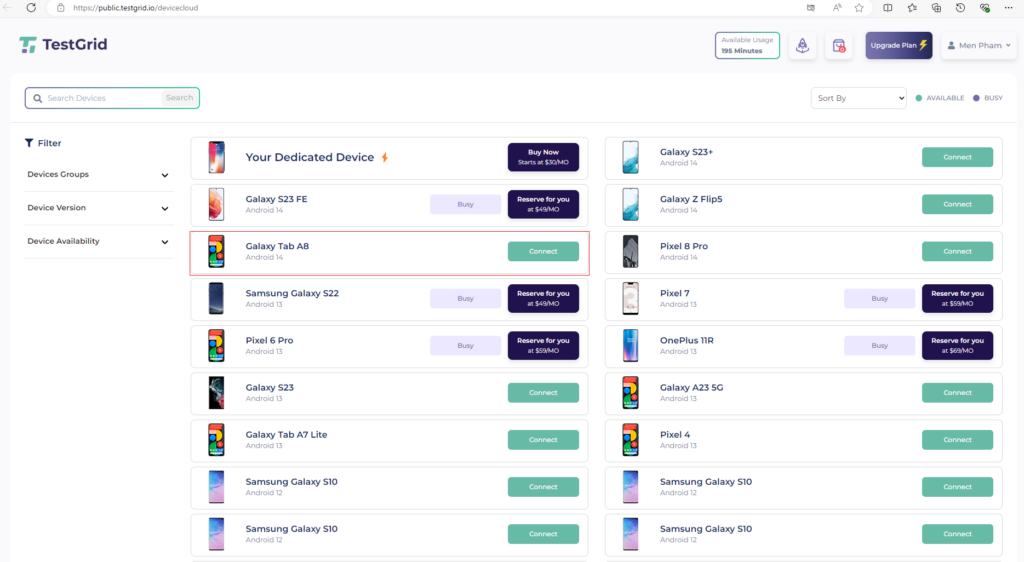
Step 3: Select the browser and update the “Browser Run URL (Public)” and “Browser Type” provided in your local Selenium code.
When you click into the “i” button, you see the device information and desired capabilities window
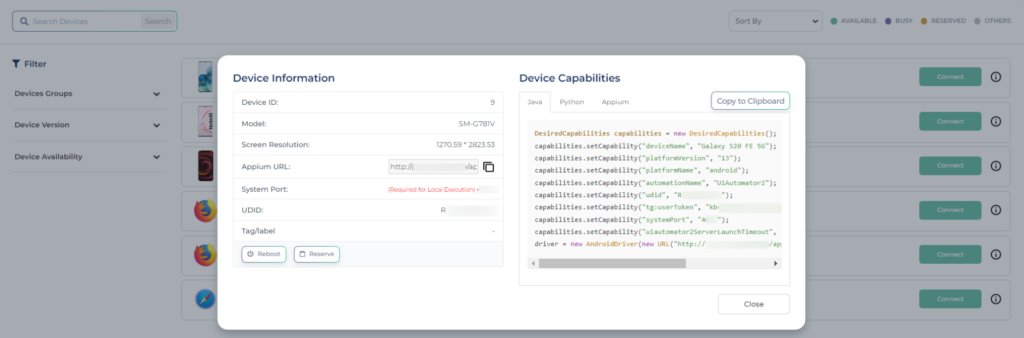
To use your device cloud with Web local execution, the list of capabilities must be used
- TG_BROWSER_URL
- setBrowserName capability to one of the following:
- BrowserType.CHROME
- BrowserType.FIREFOX
- BrowserType.EDGE
- BrowserType.SAFARI
- TG_UDID
- TG_USER_TOKEN
Example:
{
"browserName": "Chrome",
"platformName": "Linux",
"tg:userToken": "4dro2mqijmffubwp9qtnx6frg2nuiuzmynjh",
"browserUrl": "http://{Your_Domain}.testgrid.io:351411/wd/hub",
"tg:udid": "101",
}
Step 5: Determine the user’s token capabilities
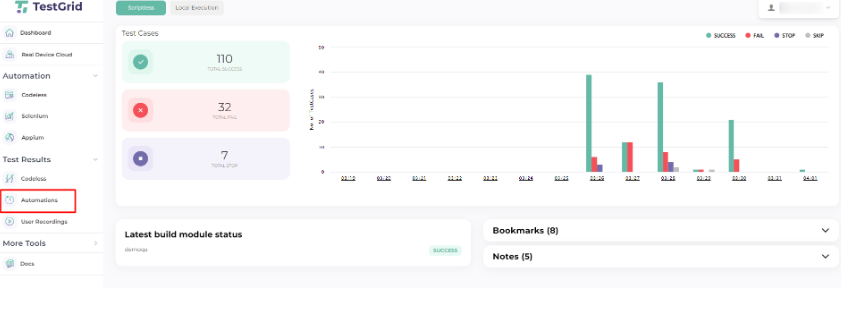
Go to the Dashboard and then click on the Created “Test Runs Application”. After that, click on “Test Case Writer” and then click on “Versions.” On the same screen, look for the “i” button in the upper right corner.
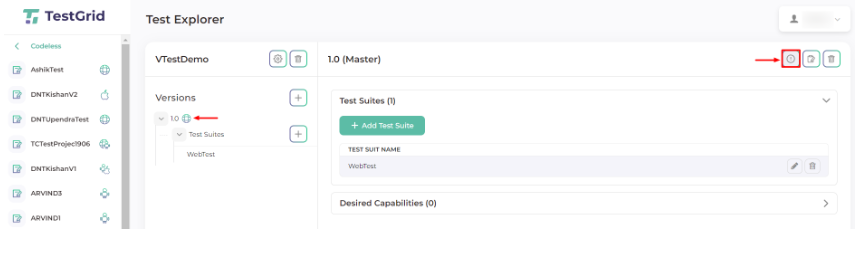
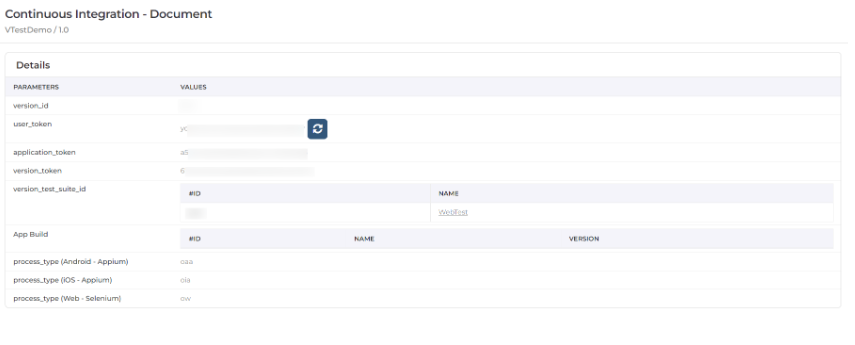
b. Select the “i” button icon and obtain the user token from there.
Step6: Execute your local Selenium code
import org.openqa.selenium.By;
import org.openqa.selenium.WebDriver;
import org.openqa.selenium.chrome.ChromeOptions;
import org.openqa.selenium.remote.DesiredCapabilities;
import org.openqa.selenium.remote.RemoteWebDriver;
import java.net.MalformedURLException;
import java.net.URL;

public class ChromeGridTest {
    public static void main(String[] args) {
        String url = "https://demoqa.com/";
        try {
          //  ChromeOptions chromeOptions = new ChromeOptions();
            DesiredCapabilities chromeOptions = new DesiredCapabilities();
            chromeOptions.setCapability("browserName", "firefox");
            chromeOptions.setCapability("platformName", "linux");
            chromeOptions.setCapability("tg:userToken", "Your_User_token_here");
            capabilities.setCapability("tg:projectName", "GoodWeather");

            // Either you can use a user token or username and password for authentication
            chromeOptions.setCapability("tg:userName", "< Your_Emails_ID >");
            chromeOptions.setCapability("tg:password", "< Your_Password >");
            chromeOptions.setCapability("tg:udid", "201");
            WebDriver driver = new RemoteWebDriver(new URL("http://{_YOUR_Domain_}.testgrid.io:34555/wd/hub"), chromeOptions);
            Thread.sleep(15000);
            driver.get(url);
            System.out.println("Redirected to "+url+" successfully. ");
            Thread.sleep(15000); // Replace driver.wait with Thread.sleep for the desired delay
            driver.quit();
        } catch (MalformedURLException e) {
            e.printStackTrace();
        } catch (InterruptedException e) {
            e.printStackTrace();
        }
    }
}
Step7: View live results on the TestGrid Device cloud
Additionally, the remote execution of code can also be viewed live on the TestGrid Device Cloud.
4. Conclusion
TestGrid is a powerful tool for automating, scaling, and optimizing the testing process, particularly in cloud-native environments. It supports modern development practices like continuous integration and deployment, helping teams improve software quality and accelerate release cycles.