



1. The Key Role of Web Element Locator Capture in Automation Testing
In the realm of automation testing, capturing the web element locators holds paramount importance for efficient and robust test automation. The Web Element Locator acts as the bridge between the automation script and the elements on a website/app, enabling seamless interaction and verification of functionalities.
In this article, we will delve into significance of learning locator capture on a website. Before we explore the techniques for capturing locators, it’s crucial to understand the foundation upon which web elements are built. This foundation is known as the Document Object Model, or DOM.
While discussing Automation Testing, it’s essential to understand the DOM (Document Object Model), which represents the structure of a web page. To delve deeper into this topic, you can explore in the following links:
- https://www.w3schools.com/js/js_htmldom.asp
- https://blog.nashtechglobal.com/mastering-dom-manipulation-with-javascript/
Types of Locators:
There are several common types of locators in use, and their effectiveness can vary depending on the context and the nature of the web application being tested. Here are some types and their priority order based on speed, from fastest to slowest:
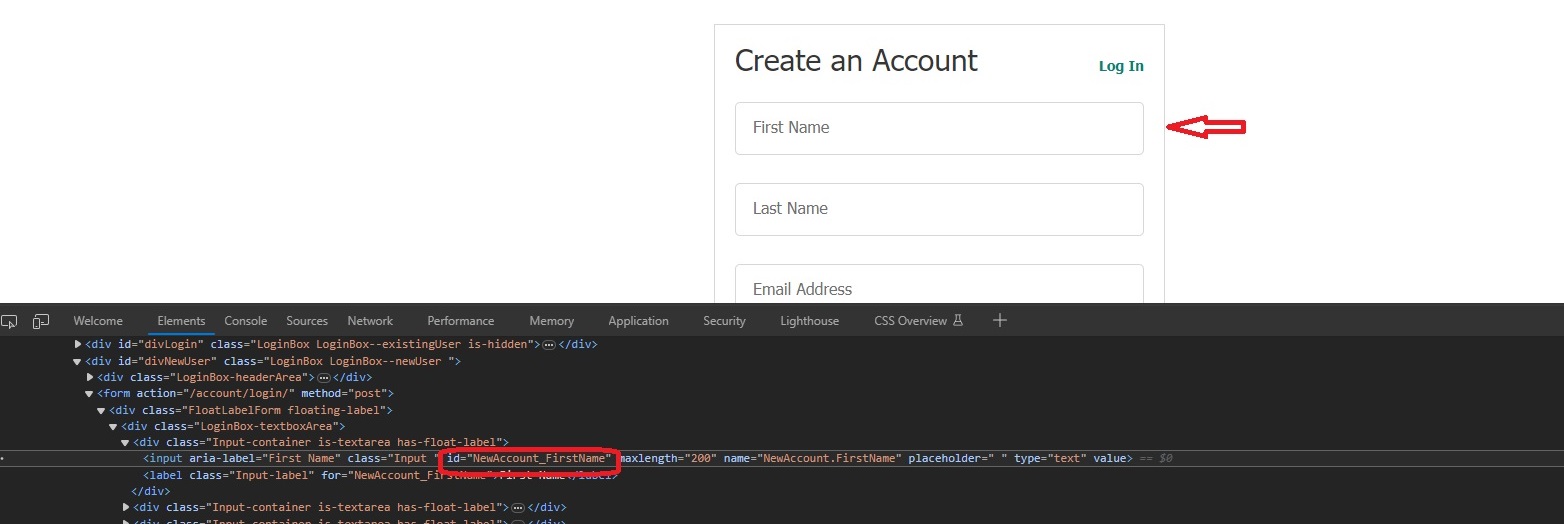
- Id Locator: Used to identify an element by its unique ID attribute on a web page. Often a top choice due to its high specificity and efficiency.
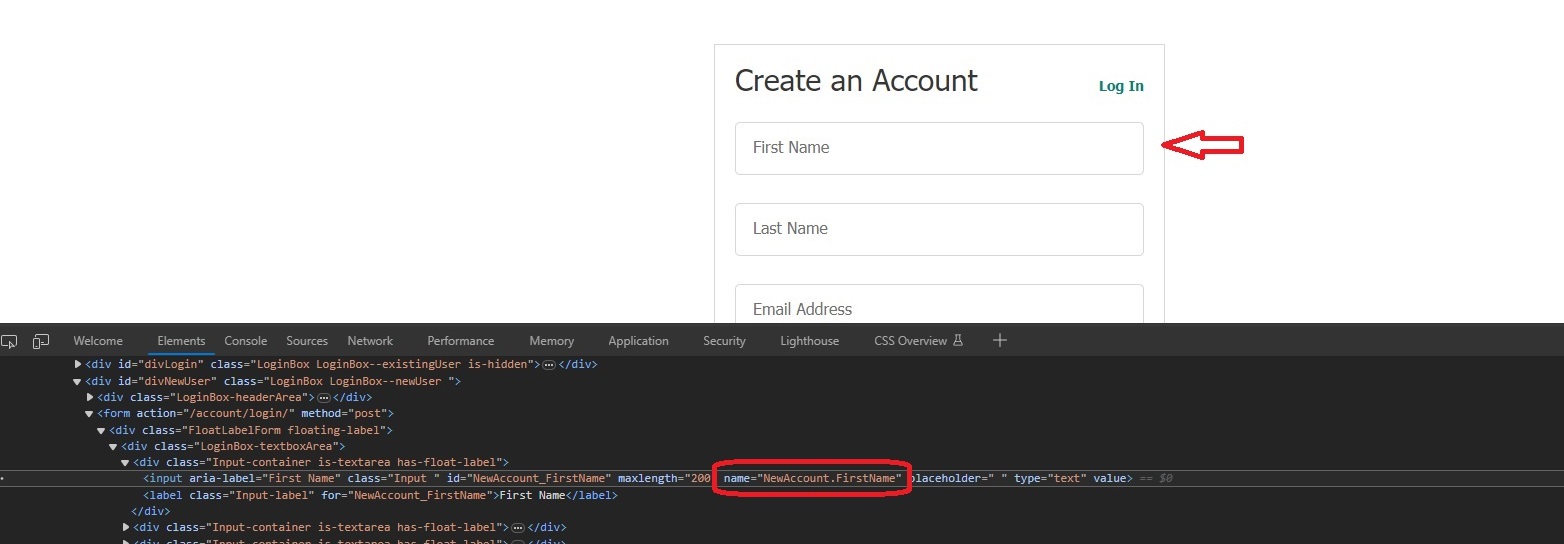
- Name Locator: Utilized to find elements by their “name” attribute. Particularly useful for form fields and elements with name attributes.
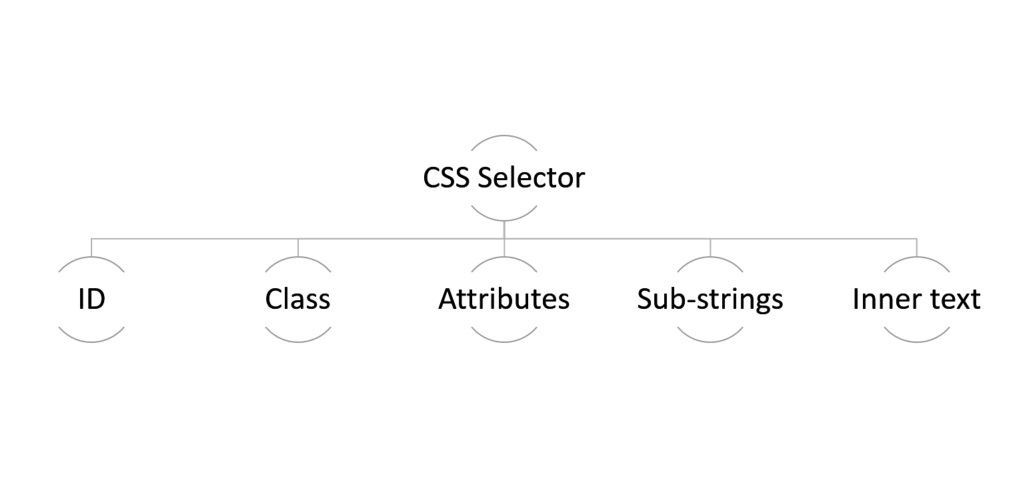
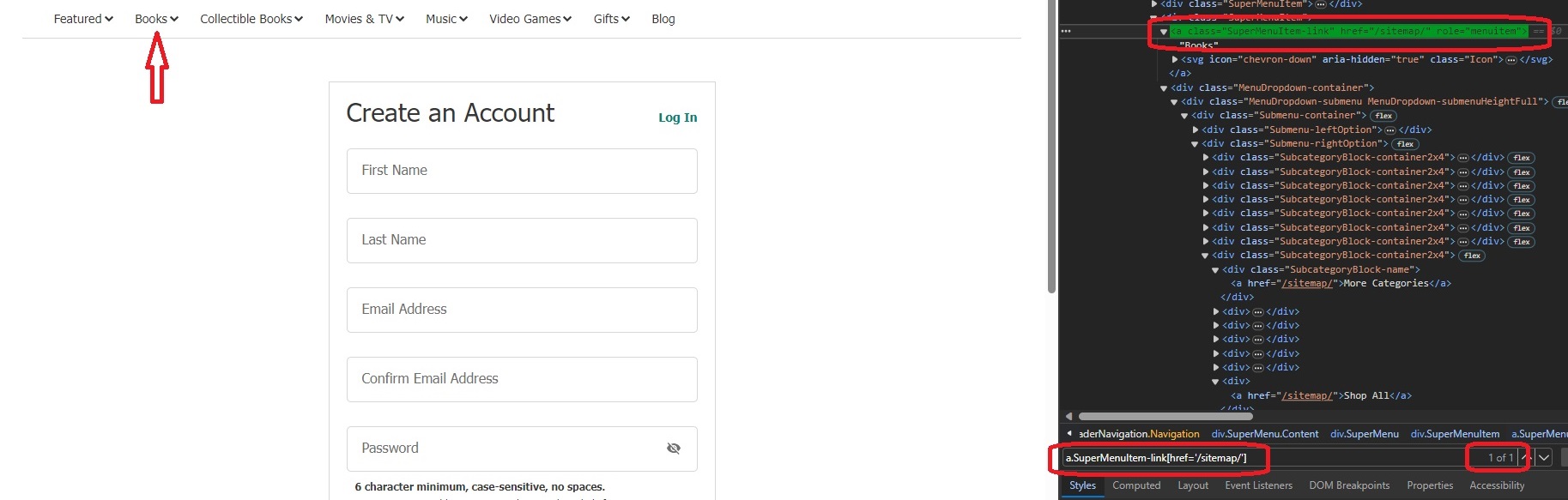
- CSS Locator: Based on CSS attributes and properties, it is used for element identification. CSS selectors are known for their conciseness and readability, making them ideal for combining ID, Class, Attributes, Sub-strings, and Inner text, allowing the selection of elements based on styling.
- Tag Name Locator: Identifies elements based on their HTML tag name. Useful when interacting with multiple elements of the same type.

- Class Name Locator

- Link Text and Partial Link Text Locator: Used to locate links and hyperlinks on a web page. Link Text finds elements by their entire link text, while Partial Link Text allows for partial matches.
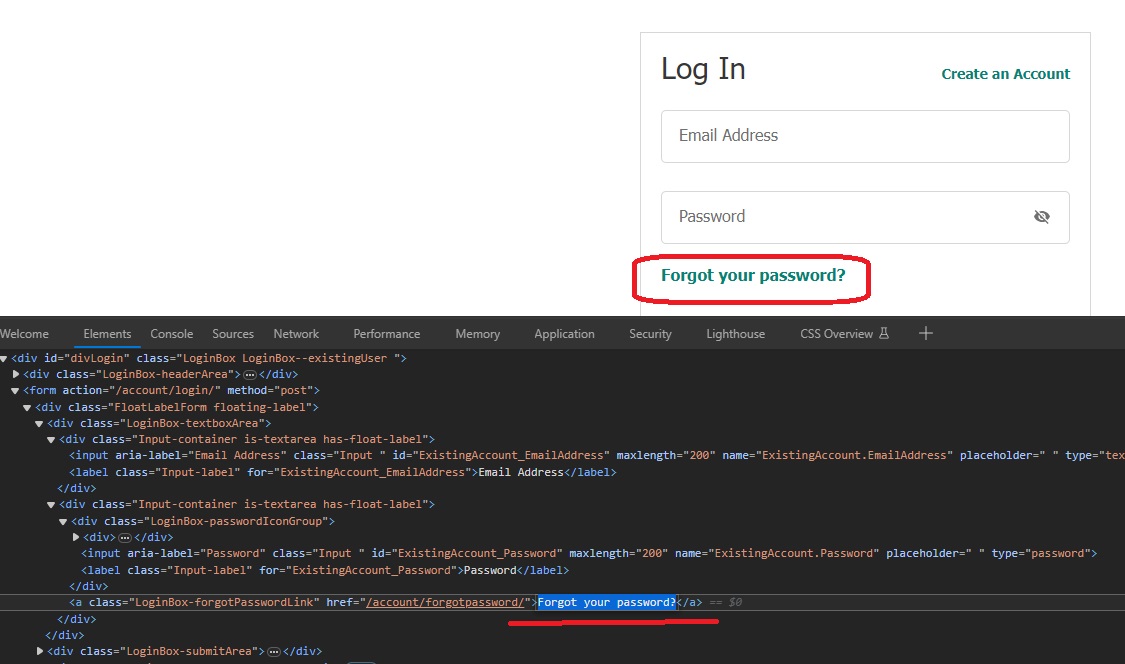
- XPath Locator: XPath represents the location or path of an element within a web page’s XML structure, and it follows a standard syntax for constructing these paths.

Remember, the choice of locator depends on the context and specific elements in your web application. It’s crucial to understand the application’s structure and choose the most reliable and efficient locator strategy for your automation tests.
2. XPath for Web Automation: Tips and Tools
2.1 Tips for Using XPath in Web Automation
Here are some tips for using XPath to find locators in scripts, in order of priority from high to low:
- Prioritize Uniqueness: Ensure that your XPath expressions uniquely identify the target element. This is the most critical factor for reliable locators.
- Never use Absolute XPaths, use Relative XPaths: Refrain from using absolute XPaths starting from the root of the document as they are prone to breaking when the page structure changes. Prefer using relative XPaths based on the element’s structure within the DOM. They are more stable and resilient to changes.
- Select for Id and Name Attributes: If available, use the id and name attributes in your XPath as they are generally stable and unique identifiers.
- Leverage Attributes: Utilize other attributes, such as class, data-, or custom attributes, that are stable and relevant to the element you’re targeting.
- Combine Conditions Sparingly: Use predicates (conditions) in your XPath expressions only when necessary. Overusing them can make your XPath complex and brittle.
- Avoid Dynamic Values: Steer clear of XPath expressions that depend on dynamic values or attributes that change frequently, as they can lead to unreliable locators.
- Avoid capturing by text in XPath because text is subject to change, lacks uniqueness, creates fragile locators, and has low reusability.
- Use ‘ (single-quote) rather than ” (double-quote): avoid conflicts with HTML attributes that often use double quotes, ensuring more robust and valid expressions.
- Minimize XPath Length: Keep XPath expressions as short and concise as possible. Long, complex expressions can be error-prone and challenging to maintain.
2.2 Exploring the Best Browser Extensions for XPath Locating
Here is a list of some of the best browser extensions for XPath locating:
- ChroPath (for Chrome): ChroPath is a user-friendly extension for Chrome that assists in generating and evaluating XPath expressions. It offers real-time suggestions, syntax highlighting, and robust element inspection capabilities.
- SelectorsHub (for Chrome and Firefox): SelectorsHub is a browser extension that simplifies the process of generating and refining XPath and CSS selectors. It offers a user-friendly interface with real-time selector suggestions, helping testers and developers pinpoint web elements more efficiently. Whether you’re a novice or an experienced user, SelectorsHub can enhance your locator strategy and streamline automation testing efforts.
- XPath Helper (for Firefox and Chrome): XPath Helper is a simple yet powerful extension available for both Firefox and Chrome. It provides an interactive environment to test and fine-tune your XPath expressions.
- Relative XPath (for Chrome): This extension helps you generate relative XPath expressions, making it easier to locate elements based on their relationships with other elements.
- XPath Finder (for Chrome): Xpath Finder is a straightforward tool for creating XPath locators quickly. It’s particularly suitable for those who want a simplified and user-friendly interface.
- SelectorGadget (for Chrome and Firefox): While not exclusively for XPath, SelectorGadget is a handy tool to interactively identify elements, and it can help you create XPath expressions.
- Katalon Recorder (for Chrome and Firefox): Katalon Recorder is a versatile automation tool that also offers robust XPath generation features. It’s suitable for both beginners and experienced testers.
These browser extensions can significantly simplify the process of generating and validating XPath expressions for you.
3. Conclusion
In this article, you have grasped the essential significance of locator identification and demystified the inner workings of the Document Object Model (DOM). And gaining the manual locator capture step by step and introduced user-friendly browser extensions.
Now, armed with these practical insights and handy tools, hope they prove helpful in your work.
Reference:
- https://www.browserstack.com/guide/chrome-extensions-to-find-xpath-in-selenium
- https://www.guru99.com/xpath-selenium.html
- https://www.softwaretestinghelp.com/css-selector-selenium-locator-selenium-tutorial-6/