


The Problem We’ve All Faced
Picture this: You’re working on a .NET solution with 15 projects. Your team lead asks you to update Newtonsoft.Json from version 12.0.3 to 13.0.1. You open the first project file, update the version. Then the second. Then the third. By the time you reach project 10, you’re questioning your career choices. Worse yet, you accidentally miss updating project 7 and project 12, creating a version mismatch nightmare that will haunt you during the next production deployment.
But when you have multiple child projects within the same repository or solution — for example, 5, 10, or 20 projects — adding the Version attribute for each package in every .csproj file makes it incredibly easy for versions to diverge between projects. This leads to version inconsistency (e.g., Project A uses Serilog 4.0.0, Project B uses 4.1.0…). This causes numerous problems: inconsistent builds, difficult updates, easy confusion, and emerging bugs.
If this scenario sounds familiar, you need Central Package Management (CPM).
What is Central Package Management?
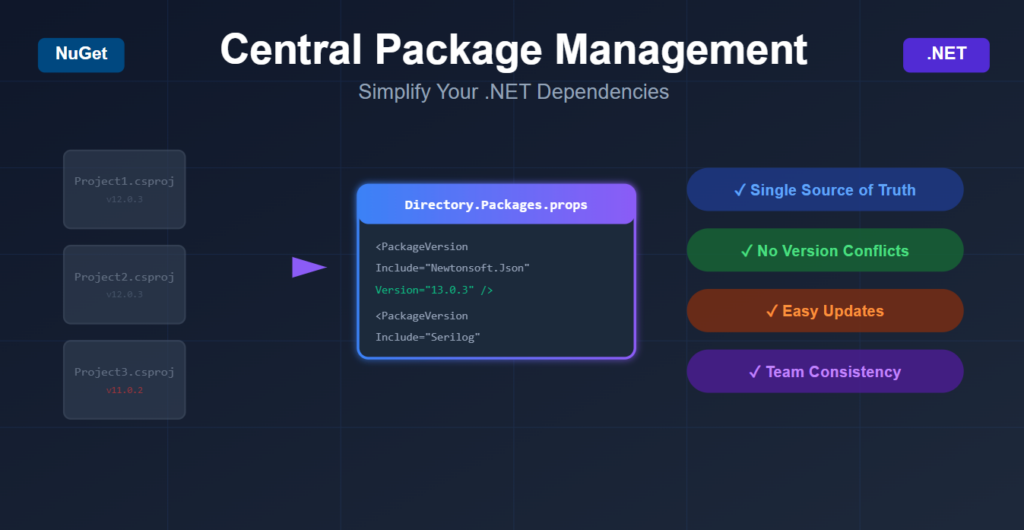
Central Package Management is a NuGet feature introduced in .NET 6.2 that allows you to manage all your package versions from a single, centralized location. Instead of specifying package versions in every project file, you define them once in a Directory.Packages.props file at your solution root.
Think of it as a “single source of truth” for all your NuGet dependencies.
When Should You Use Central Package Management?
You SHOULD Use CPM When:
1. You Have Multiple Projects Sharing Common Dependencies
If your solution has 3 or more projects that reference the same packages, CPM will save you significant time and reduce version conflicts.
Example Scenario:
YourSolution/
├── WebAPI/
├── BusinessLogic/
├── DataAccess/
├── Shared/
└── Tests/
All five projects likely use packages like Serilog, AutoMapper, or EntityFramework. Without CPM, you’d manage versions in 5 different places.
2. You Frequently Update Packages
Security patches, bug fixes, and feature updates are constant. If you regularly update packages across your solution, CPM transforms a tedious multi-file editing task into a single-line change.
3. You Have a Growing Team
More developers = more potential for version inconsistencies. CPM enforces consistency and prevents scenarios where Developer A adds Polly 7.2.0 to ProjectX while Developer B adds Polly 8.0.0 to ProjectY.
4. You’re Building Microservices or Modular Solutions
When managing multiple services that share infrastructure dependencies (logging, messaging, data access), CPM ensures all services use compatible versions.
5. You Want to Enforce Standards
CPM makes it easy to establish and maintain organizational standards for package versions, especially important in enterprise environments.
You Might NOT Need CPM When:
- You have a single-project solution
- You rarely update dependencies
- Your projects intentionally require different package versions (rare but possible)
- You’re working on a quick prototype or proof-of-concept
How to Implement Central Package Management
Step 1: Create Directory.Packages.props
Create a file named Directory.Packages.props at the root of your solution (same level as your .sln file):
<Project>
  <PropertyGroup>
    <ManagePackageVersionsCentrally>true</ManagePackageVersionsCentrally>
  </PropertyGroup>

  <ItemGroup>
    <PackageVersion Include="Newtonsoft.Json" Version="13.0.3" />
    <PackageVersion Include="Serilog" Version="4.1.0" />
    <PackageVersion Include="AutoMapper" Version="13.0.1" />
    <PackageVersion Include="Polly" Version="8.5.0" />
    <PackageVersion Include="FluentValidation" Version="11.9.0" />
  </ItemGroup>
</Project>
Key Points:
- Use
PackageVersion(notPackageReference) to define versions - Set
ManagePackageVersionsCentrallytotrue - List all packages used across your solution
Step 2: Update Your Project Files
In your individual .csproj files, remove version specifications:
Before CPM:
<ItemGroup>
  <PackageReference Include="Newtonsoft.Json" Version="13.0.3" />
  <PackageReference Include="Serilog" Version="4.1.0" />
  <PackageReference Include="AutoMapper" Version="13.0.1" />
</ItemGroup>
After CPM:
<ItemGroup>
  <PackageReference Include="Newtonsoft.Json" />
  <PackageReference Include="Serilog" />
  <PackageReference Include="AutoMapper" />
</ItemGroup>
Notice how versions are gone? They’re now managed centrally!
Real-World Example: E-Commerce Solution
Let’s say you’re building an e-commerce platform with this structure:
ECommerce.sln
├── Directory.Packages.props         ← Central version management
├── ECommerce.WebAPI/
├── ECommerce.OrderService/
├── ECommerce.PaymentService/
├── ECommerce.InventoryService/
├── ECommerce.Shared/
└── ECommerce.Tests/
Your Directory.Packages.props:
<Project>
  <PropertyGroup>
    <ManagePackageVersionsCentrally>true</ManagePackageVersionsCentrally>
  </PropertyGroup>

  <ItemGroup>
    <!-- Logging -->
    <PackageVersion Include="Serilog" Version="4.1.0" />
    <PackageVersion Include="Serilog.Sinks.Console" Version="6.0.0" />

    <!-- Database -->
    <PackageVersion Include="Microsoft.EntityFrameworkCore" Version="8.0.0" />
    <PackageVersion Include="Microsoft.EntityFrameworkCore.SqlServer" Version="8.0.0" />

    <!-- API -->
    <PackageVersion Include="Swashbuckle.AspNetCore" Version="6.5.0" />

    <!-- Messaging -->
    <PackageVersion Include="RabbitMQ.Client" Version="6.8.1" />

    <!-- Testing -->
    <PackageVersion Include="xUnit" Version="2.6.2" />
    <PackageVersion Include="Moq" Version="4.20.70" />
  </ItemGroup>
</Project>
Now, when you need to update EntityFrameworkCore for a security patch, you change ONE line in ONE file, and all six projects automatically use the new version. That’s the power of CPM!
Advanced Scenarios
Different Versions for Different Projects (Rare Cases)
Sometimes you genuinely need different versions. You can override the central version:
<!-- In a specific .csproj -->
<ItemGroup>
  <PackageReference Include="OldLegacyPackage" Version="2.0.0" />
</ItemGroup>
Organizing by Category
You can organize your packages logically:
<Project>
  <PropertyGroup>
    <ManagePackageVersionsCentrally>true</ManagePackageVersionsCentrally>
  </PropertyGroup>

  <ItemGroup Label="Logging">
    <PackageVersion Include="Serilog" Version="4.1.0" />
    <PackageVersion Include="Serilog.Sinks.Console" Version="6.0.0" />
  </ItemGroup>

  <ItemGroup Label="Database">
    <PackageVersion Include="Microsoft.EntityFrameworkCore" Version="8.0.0" />
    <PackageVersion Include="Dapper" Version="2.1.28" />
  </ItemGroup>

  <ItemGroup Label="Testing">
    <PackageVersion Include="xUnit" Version="2.6.2" />
    <PackageVersion Include="FluentAssertions" Version="6.12.0" />
  </ItemGroup>
</Project>
Disabling CPM for Specific Projects
If one project needs to opt-out:
<Project Sdk="Microsoft.NET.Sdk">
  <PropertyGroup>
    <ManagePackageVersionsCentrally>false</ManagePackageVersionsCentrally>
  </PropertyGroup>
</Project>
Benefits at a Glance
| Aspect | Without CPM | With CPM |
| Update Time | Minutes per package × number of projects | Seconds (single file edit) |
| Version Conflicts | Common | Virtually eliminated |
| Onboarding New Devs | Need to understand each project’s dependencies | Clear, centralized dependency overview |
| Code Reviews | Version changes scattered across PR | One file to review |
| Maintenance | High cognitive load | Low, simplified |
Requirements
To use CPM, ensure you have:
- NuGet: Version 6.2 or later
- Visual Studio: 2022 version 17.2 or later
- .NET SDK: 6.0.300 or later
Older tooling will ignore CPM configurations, so make sure your entire team and CI/CD pipelines use compatible versions.
Common Pitfalls and Solutions
Pitfall 1: Multiple Package Sources
If you see a NU1507 warning about multiple package sources, either use package source mapping or consolidate to a single source in your nuget.config.
Pitfall 2: Forgetting to Enable CPM
The most common mistake is creating Directory.Packages.props but forgetting to set <ManagePackageVersionsCentrally>true</ManagePackageVersionsCentrally>.
Pitfall 3: Mixing Styles
Don’t mix version specifications. Either go all-in with CPM or don’t use it. Partial adoption creates confusion.
Migration Strategy
If you have an existing solution, here’s how to migrate:
- Create Directory.Packages.props at solution root
- Extract all package versions from your
.csprojfiles - Add them to Directory.Packages.props using
PackageVersion - Remove version attributes from all
PackageReferenceelements - Test build to ensure everything resolves correctly
- Commit and communicate the change to your team
Conclusion
Central Package Management is one of those features that seems simple but delivers outsized value. If you’re managing more than a couple of projects, the time savings, consistency benefits, and reduced maintenance burden make it a no-brainer.
The setup takes 10 minutes. The benefits last the lifetime of your solution.
Your action item: Next time you create a multi-project solution, add Directory.Packages.props from day one. Your future self will thank you when that inevitable “update all packages” request comes in.