Upon completion of the installer job in the default namespace, retrieve the URL and password displayed at the bottom of the logs. Then, utilize the provided URL, username, and password to access the console and sign in accordingly.
Now to monitor the logs of the installer job using the command –
kubectl logs jobs/otomi -n default -f
Step 2 -Create a License Key for using Otomi Console and Otomi API
To access the Otomi Console (Web UI) and Otomi API for code validation and creation, you must initially generate a Community Edition License key within Otomi Cloud. Follow the below instructions to create the License Key.
First go to Otomi Cloud using the below URL
Go to Otomi CLoud
Create an account using your email ID
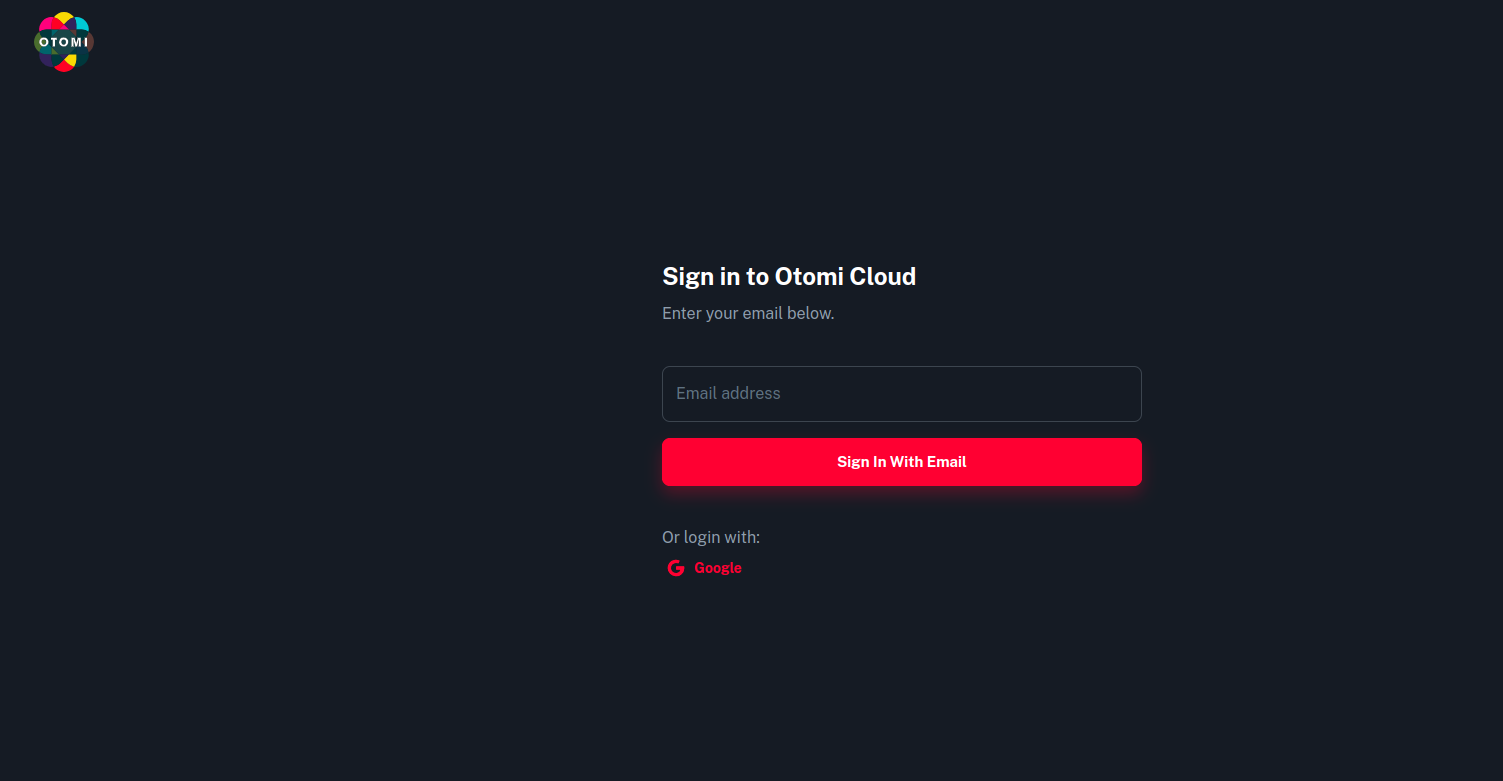
Once you sign in and verify your account, you will see the below UI.
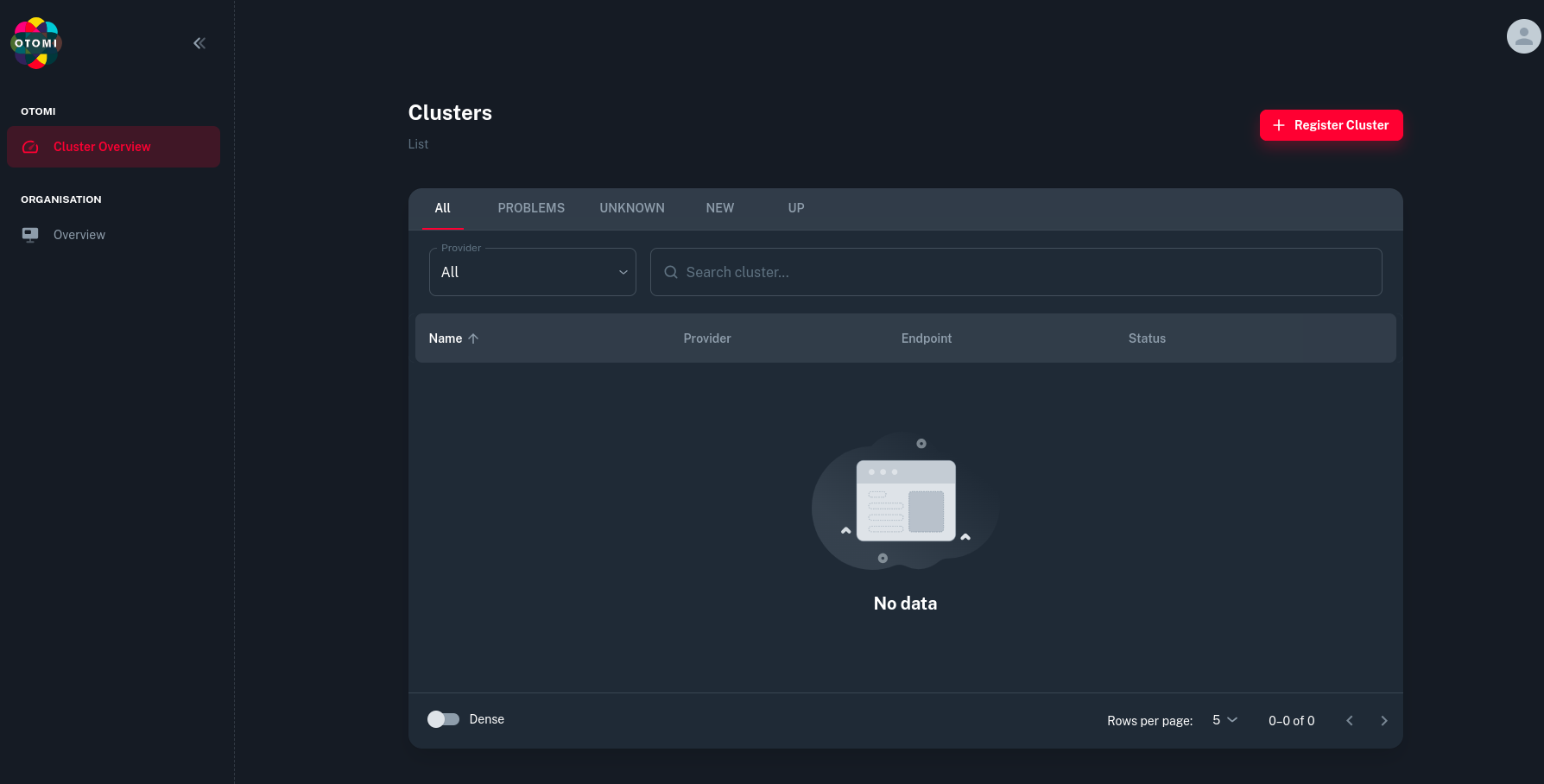
Now click on Register Cluster.
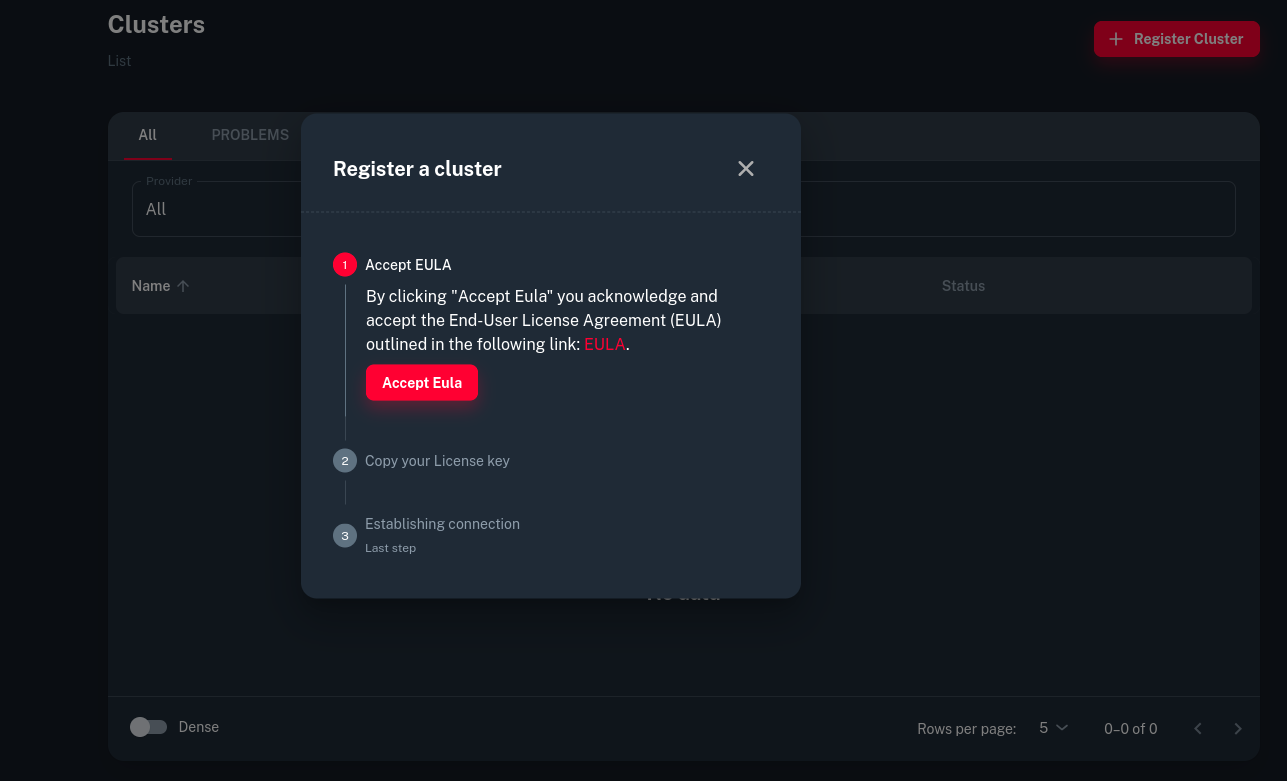
Now click on Accept EULA
Once that is done, you will get a licence key which you need to copy.
After that Log in to Otomi Console. You can find the link in the logs of the installer from the First Step.
Then add the License key to Otomi Console and Click Activate
Now you are ready use the Otomi which is installed using Helm.
Incase of using Helm with custom values
And now if you want to do the installation from source-
You can also clone the otomi-core source code from the Github and install otomi using the chart source code.
git clone https://github.com/redkubes/otomi-core.git
cd otomi-core
Before installing the chart from source, first change the CHART_VERSION_PLACEHOLDER in the chart/otomi/Chart.yaml to v1.0.0
otomi:
version: main
Use the below command to install the chart with the name my-otomi-release (any custom name which you kept)
helm install -f values.yaml my-otomi-release chart/otomi
Conclusion
In conclusion, deploying Otomi using the Helm chart offers a streamlined and efficient approach to setting up a powerful platform for cloud-native applications. By leveraging Helm, users can easily manage configurations and dependencies, ensuring a smooth installation process. With Otomi, organizations gain access to a feature-rich platform equipped with developer- and operations-centric tools, automation capabilities, and self-service functionalities. Whether deploying on-premises or in the cloud, Otomi simplifies the deployment and management of Kubernetes workloads, empowering teams to innovate and thrive in today’s rapidly evolving digital landscape.