


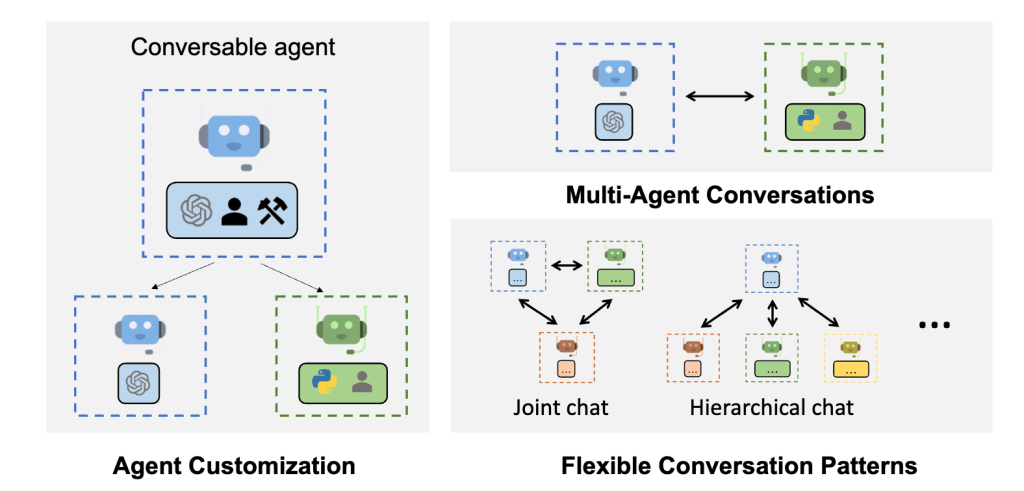
AutoGen.Net is a powerful framework for creating intelligent agents capable of performing a wide range of tasks. This blog focuses on two of the main types of agents in AutoGen.Net: `AssistantAgent` and `UserProxyAgent`. We will explore their functionalities, real-life applications, and provide detailed code examples to help you get started.
Additionally, we’ll demonstrate how to use both agents together in a cohesive example. If you have no idea about AutoGen, please go through this article.
Now, let’s start working with Agents in AutoGen.
Assistant Agent in AutoGen(.NET)
Assistant Agent acts as an AI assistant that utilizes Large Language Models (LLMs) to generate responses to user input. It can handle a variety of tasks, such as answering questions, providing information, and even executing function calls if supported by the underlying LLM.
Use Cases
1. Virtual Assistants:
Virtual assistants can be crafted for various tasks such as scheduling appointments, providing customer support, or responding to general inquiries, enhancing productivity and efficiency.
2. Automated Responders:
These agents can handle and respond to emails or chat messages automatically, ensuring timely and consistent communication without manual intervention.
3. Intelligent Bots:
Intelligent bots can be deployed on social media platforms or websites to engage users, provide information, and improve user interaction and experience.
Real-life Example: Travel Planning Assistant
Imagine you’re developing a virtual assistant tailored to assist users in planning their travel itineraries. This assistant will understand natural language input, interpret travel preferences, and generate personalized travel recommendations.
Code Example:
using AutoGen.Agents;
using AutoGen.Models;
using AutoGen.Config;
using System;
using System.Threading.Tasks;

public class VirtualAssistantExample
{
    public static async Task Main(string[] args)
    {
        // Get OpenAI Key and create config
        var openAIKey = Environment.GetEnvironmentVariable("OPENAI_API_KEY")
            ?? throw new Exception("Please set OPENAI_API_KEY environment variable.");
        var gpt35Config = new OpenAIConfig(openAIKey, "gpt-3.5-turbo");

        // Create assistant agent
        var assistantAgent = new AssistantAgent(
          name: "travel-planner",
          systemMessage: "You are a virtual assistant specialized in helping users plan their travel itineraries.",
          llmConfig: new ConversableAgentConfig
          {
              Temperature = 0,
              ConfigList = new[] { gpt35Config },
          });

        // Simulate a user query
        var userMessage = "I'm planning a trip to Italy next month. Can you suggest some must-visit attractions?";
        var response = await assistantAgent.SendAsync(userMessage);
        Console.WriteLine($"Assistant: {response}");
    }
}
In this example, our TravelPlanningAssistant is configured with OpenAI’s robust GPT-3.5-turbo model. When a user seeks travel recommendations, the assistant generates personalized suggestions based on the input, helping users plan their trips with ease.
Here’s the output of the code:

Key Code Components
1. OpenAIConfig:
This component is responsible for configuring the language model, including setting up API keys and specifying model details necessary for the model’s operation.
2. ConversableAgentConfig:
This component manages the configuration of conversational parameters, such as ‘temperature,’ which controls the randomness and creativity of the responses generated by the language model.
User Proxy Agent in AutoGen(.NET)
The User Proxy Agent is designed to forward user input to other agents or groups of agents, facilitating seamless communication and data exchange between different system components. It supports various human input modes—ALWAYS, NEVER, and AUTO—allowing for flexible interaction patterns.
The ALWAYS mode ensures manual oversight by always requesting user input for every action. The NEVER mode streamlines processes by using predefined or language model-generated responses without asking the user. The AUTO mode strikes a balance by requesting user input only, when necessary, thereby efficiently combining automation with human oversight.
Use Cases
1. User Confirmation or Input Validation:
Ideal for scenarios where user confirmation or input validation is critical, ensuring accuracy and adherence to user preferences.
2. Workflow Automation with Human Oversight:
Useful in automated workflows where certain steps require human review or decision-making, enhancing reliability and control.
3. Mediating Interactions Between Multiple Agents:
Facilitates coordination and communication between multiple agents, ensuring smooth and efficient interactions.
Real-life Example:
Consider a scenario where you need an agent to always ask for user confirmation before proceeding with any action. This can be useful in situations where user approval is crucial, such as submitting a form or making a purchase.
Code Example:
using AutoGen.Agents;
using AutoGen.Models;
using AutoGen.Config;
using System;
using System.Threading.Tasks;

public class UserProxyAgentExample
{
    public static async Task Main(string[] args)
    {
          // Create a user proxy agent which always asks for user input
   var userProxyAgent = new UserProxyAgent(
       name: "user",
       humanInputMode: HumanInputMode.ALWAYS
);
   // Simulate a user query
   var initialMessage = "Do you want to proceed with the purchase?";
   Console.WriteLine("Assistant: " + initialMessage); // Display the question on the console
   await userProxyAgent.SendAsync(initialMessage);

   // Prompt the user for input
   Console.WriteLine("Please enter your response:");
   var userResponse = Console.ReadLine(); // Simulating user input

   // Send the user's response to the agent
   await userProxyAgent.SendAsync(userResponse);
    }
}
In this example, the user proxy agent always asks the user for input before proceeding. The agent sends a message asking if the user wants to proceed with a purchase, and then waits for the user’s response before taking any further action.
Here’s the output of the code:

Key Code Components
1. HumanInputMode:
An enumeration that defines how user input is handled, specifying the different modes (ALWAYS, NEVER, AUTO) for interaction.
2. SendAsync:
A method responsible for sending messages and managing user input, ensuring that the communication process is smooth and responsive to user needs.
Using AssistantAgent and UserProxyAgent Together
Let’s create a scenario where an `AssistantAgent` helps a user with a task (e.g., finding a restaurant) and a `UserProxyAgent` confirms the user’s choice before finalizing the action.
Code Example:
using AutoGen.Agents;
using AutoGen.Models;
using AutoGen.Config;
using System;
using System.Threading.Tasks;

public class CombinedAgentExample
{
    public static async Task Main(string[] args)
    {
        // Get OpenAI Key and create config
        var openAIKey = Environment.GetEnvironmentVariable("OPENAI_API_KEY")
            ?? throw new Exception("Please set OPENAI_API_KEY environment variable.");

        var llmConfig = new OpenAIConfig(openAIKey, "gpt-3.5-turbo");

        // Create assistant agent
        var assistantAgent = new AssistantAgent(
            name: "assistant",
            systemMessage: "You are an assistant that helps users find restaurants.",
            llmConfig: new ConversableAgentConfig
            {
                Temperature = 0,
                ConfigList = new[] { gpt35Config },
            });

        // Create user proxy agent which always asks for user input
        var userProxyAgent = new UserProxyAgent(
            name: "user",
            humanInputMode: HumanInputMode.ALWAYS
);

        // User asks the assistant to find a restaurant
        var message = new TextMessage(Role.User, "Can you find a good Italian restaurant nearby Delhi?");
        IMessage reply = await assistantAgent.GenerateReplyAsync(new List<IMessage> { message });

        Console.WriteLine($"User: {message}");
        Console.WriteLine($"Assistant: {reply}");
        Console.WriteLine(new string('-', 50)); // Line break for separation

        // Proxy agent asks for user confirmation
        var confirmationMessage = "Do you want to make a reservation at this restaurant?";
        Console.WriteLine($"Assistant: {confirmationMessage}");
        await userProxyAgent.SendAsync(confirmationMessage);

        // Simulate user input
        var userResponse = Console.ReadLine(); // User types "Yes"
        await userProxyAgent.SendAsync(userResponse);
        Console.WriteLine($"User: {userResponse}");
        Console.WriteLine(new string('-', 50)); // Line break for separation

        // Finalize the action based on user confirmation
        if (userResponse.ToLower() == "yes")
        {
            Console.WriteLine("Reservation confirmed.");
        }
        else
        {
            Console.WriteLine("Reservation canceled.");
        }
}
In this combined example,
- The code gets the OpenAI API key from the environment and sets up the language model with “gpt-3.5-turbo.”
- It creates an assistant agent called “assistant” that helps users find restaurants, with a configuration for clear and predictable responses.
- The code sets up a user proxy agent named “user” to always ask for input, ensuring the user is involved in every decision.
- The user asks the assistant to find a good Italian restaurant near Delhi, and the assistant replies with a suggestion.
- The assistant then asks if the user wants to make a reservation, and the user proxy agent prompts the user for a response. Depending on the user’s answer, the code confirms or cancels the reservation.
Here’s the output of the code:

Conclusion
AutoGen.Net provides powerful tools for creating intelligent agents in .NET. By understanding and utilizing `AssistantAgent` and `UserProxyAgent`, you can develop sophisticated applications that enhance user interactions and automate complex tasks. These examples show how AutoGen.Net agents offer flexibility and potential, enabling beginners to start and build on their knowledge more easily. By combining these agents, you can create more dynamic and interactive experiences, tailoring your applications to better meet user needs.