In the previous blog, we learned how to set up and authenticate Google Cloud CLI using a service account. We now have a working CLI setup, ready for scripting, automation, and DevOps workflows.
Now in this blog, we’ll explore how to:
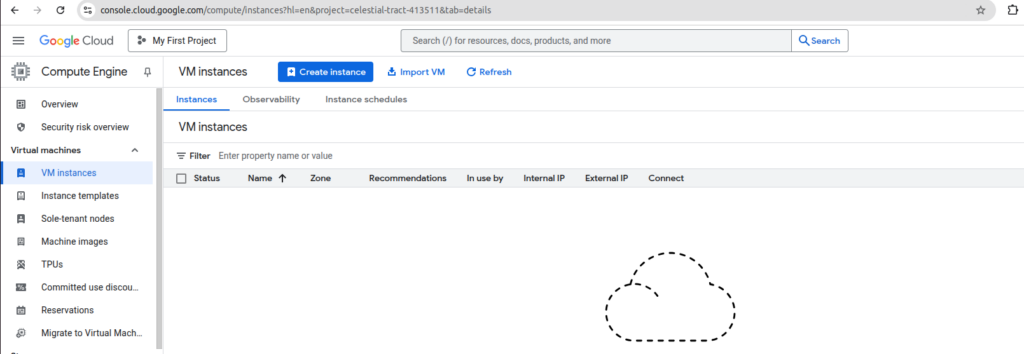
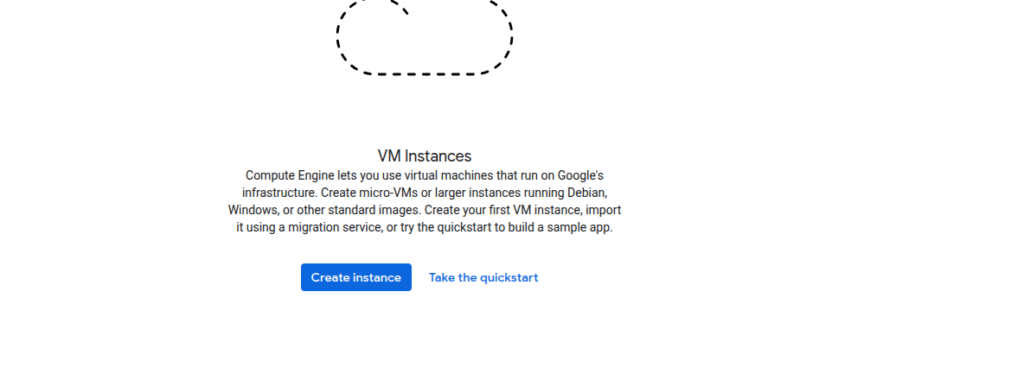
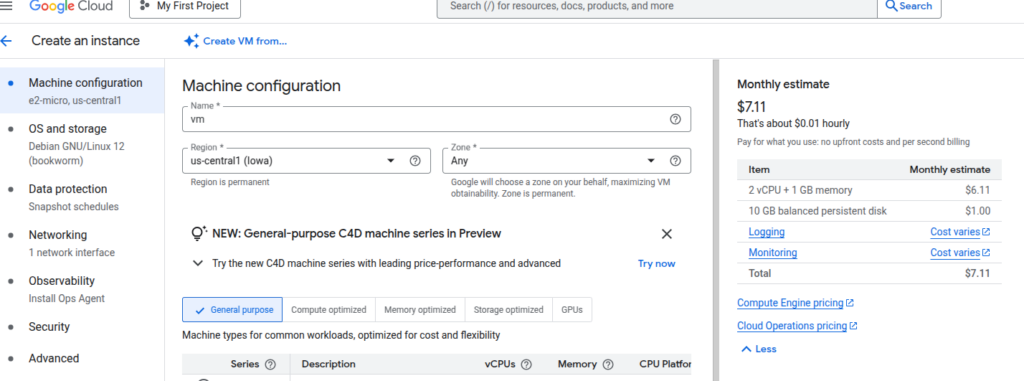
Create a Virtual Machine (VM) using both the Google Cloud Console and the gcloud CLI.
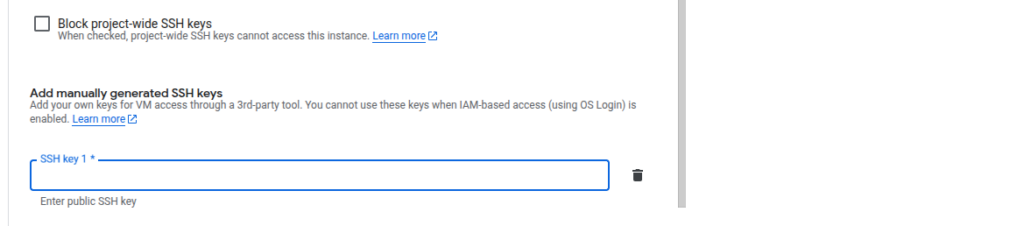
Add SSH keys for secure access.
Enable the Serial Port to help with advanced debugging.
Tip: If you get a permissions error, ensure your service account has the Compute Viewer or Compute Admin IAM role.
Connect to the VM via SSH
If you’re connecting manually (without gcloud), use the external IP of the instance and run:
ssh -i <key-file><username>@<external ip>
Conclusion
In this blog we learned how to create a VM instance from both the Google Cloud Console and gcloud CLI. You also learned how to:
Enable serial port access during VM creation,
Add custom SSH keys for secure connections,
And connect to your VM using both serial port and SSH.
These methods are essential for managing infrastructure in both interactive and automated environments. Whether you’re debugging a VM via serial output or deploying services over SSH, you now have a solid foundation to move forward.
In the next blog, we’ll explore how to create firewall rules, assign static IPs, and automate VM provisioning with startup scripts. Stay tuned!