



In this blog, we will explore how to establish a VPN tunnel between your Google Cloud Platform (GCP) account and your Amazon Web Services (AWS) account. This connectivity is essential for seamless migration and communication between the two cloud platforms. We will walk through the process of creating a VPN tunnel between the default Virtual Private Clouds (VPCs) in both GCP and AWS.
Overview of the Process
To create a VPN tunnel between AWS and GCP, we will follow these steps:
- Create a Cloud Router in GCP
- Set up a VPN Gateway in GCP
- Create Customer Gateways in AWS
- Establish a Virtual Private Gateway in AWS
- Create VPN Connections in AWS
- Configure BGP sessions
- Test the connectivity
1: Create a Cloud Router in GCP
- Access GCP Console:
- Navigate to the GCP Console.
- Open the hamburger menu and select Network Connectivity.
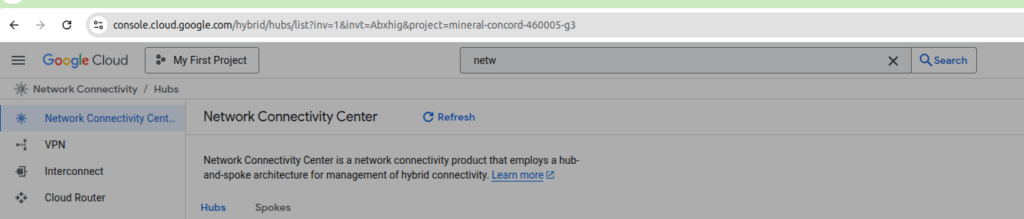
- Create a Cloud Router:
- Click on Create Router.
- Name the router (e.g.,
aws-gcp-router). - Link it to the default network.
- Set the ASN (Autonomous System Number) to
650000. - Choose to advertise all subnets.
- Click Create.
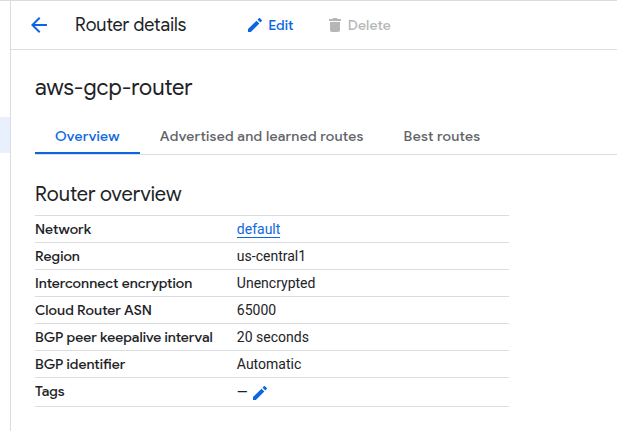
2: Set Up a VPN Gateway in GCP
- Create a VPN Gateway:
- In the GCP Console, go to Hybrid Connectivity and select VPN.
- Click on Create VPN Connection.
- Choose High Availability and click Continue.
- Name the VPN Gateway (e.g.,
aws-gcp-vpn-gateway). - Link it to the default network and set the region.
- Click Create to generate two IP addresses.
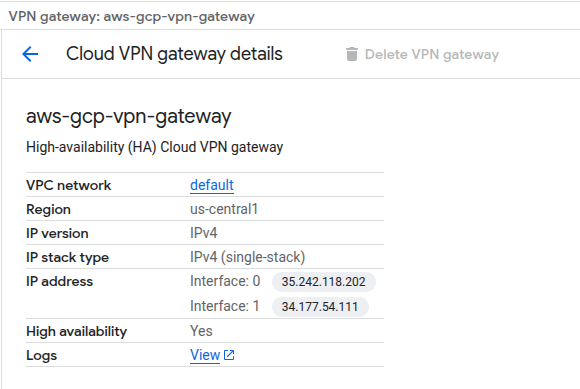
- Note the IP Addresses:
- Copy the two IP addresses generated for use in AWS.
3: Create Customer Gateways in AWS
- Access AWS Console:
- Navigate to the AWS Management Console and select VPC.
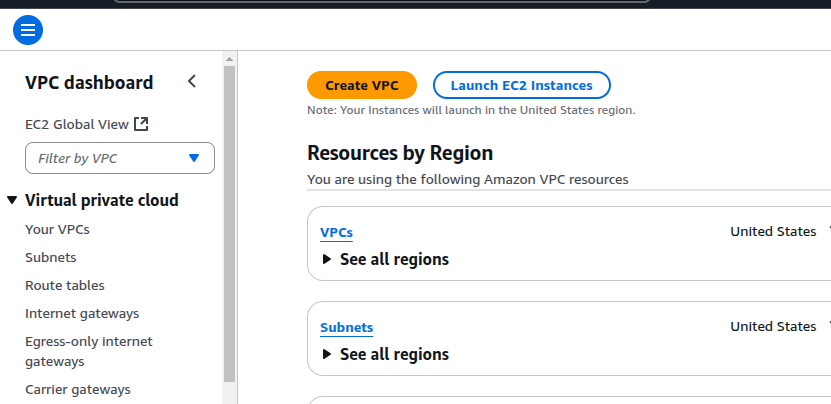
- Create Customer Gateways:
- Go to Customer Gateways and click Create Customer Gateway.
- Enter the ASN
650000and one of the IP addresses from GCP. - Repeat the process for the second IP address to create another Customer Gateway.

4: Establish a Virtual Private Gateway in AWS
- Create a Virtual Private Gateway:
- In the AWS VPC console, select Virtual Private Gateways and click Create Virtual Private Gateway.
- Set the ASN to
650001(ensure it is unique). - Click Create.

- Attach the Virtual Private Gateway:
- Attach the Virtual Private Gateway to the default VPC.
5: Create VPN Connections in AWS
- Create VPN Connections:
- Go to Site-to-Site VPN Connections and click Create VPN Connection.
- Select the Virtual Private Gateway and one of the Customer Gateways.
- Repeat the process to create a second VPN connection using the other Customer Gateway.

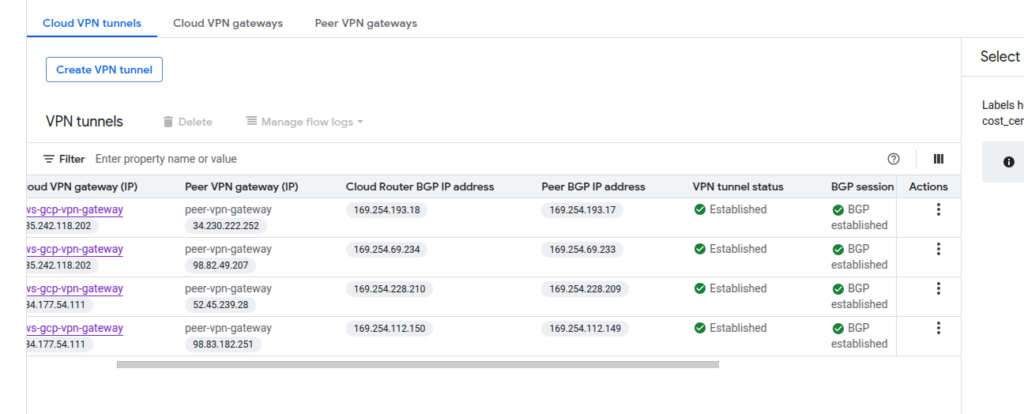
6: Configure BGP Sessions
- Configure BGP for Each Tunnel:
- For each VPN connection, configure the BGP settings.
- Use the internal IP addresses from the configuration files downloaded from AWS.
- Ensure the ASN is set to
650001for the AWS side.
7: Test the Connectivity
- Create EC2 Instance in AWS:
- Launch an EC2 instance in AWS (e.g., Amazon Linux).
- Ensure the security group allows ICMP traffic for pinging.

- Create Instance in GCP:
- Launch a VM instance in GCP.
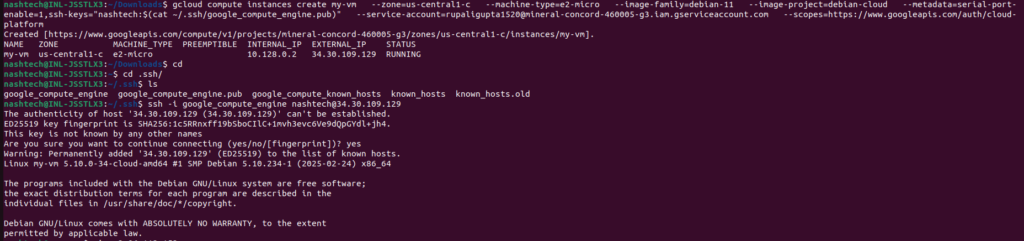
- Ping the EC2 Instance:
- SSH into the GCP instance and ping the private IP address of the EC2 instance.
- Verify that you receive a response, confirming successful connectivity.

Conclusion
In this guide, we successfully created a VPN tunnel between the default VPCs in AWS and GCP. This setup allows for secure communication and data transfer between the two cloud platforms, facilitating migration and integration of services. By following these steps, you can establish a reliable connection that enhances your cloud infrastructure.