



Hello Readers! We are again back with a new excited topic that is creation of alerts in GCP using Jenkins. As we all are aware of, Alerts play a crucial role in maintaining the health and performance of applications and infrastructure in Google Cloud Platform (GCP).
Automation of alerts allows us to streamline the process of creating and managing alert policies, ensuring timely detection and response to critical events.This blog provides you step-by-step instructions on how to automate the creation of alerts in GCP using Jenkins.
Steps to create alerts in GCP using Jenkins:
Step 1: Create a Jenkins Pipeline. Following is the pipeline script for the creation of alerts in GCP:
properties([
    parameters([
        // Separator
        separator(name: "CREATE_ALERTS", sectionHeader: "Create Alerts",
          separatorStyle: "border-width: 0",
          sectionHeaderStyle: """
            background-color: #7ea6d3;
            text-align: left;
            padding: 4px;
            color: #343434;
            font-size: 22px;
            font-weight: normal;
            text-transform: uppercase;
            font-family: 'Orienta', sans-serif;
            letter-spacing: 1px;
            font-style: italic;
          """
        ),
        [
          $class: 'DynamicReferenceParameter',
          choiceType: 'ET_FORMATTED_HTML',
          description: 'Enter the Alerts Name to create in GCP',
          name: 'ALERTS_NAME',
          omitValueField: true,
          referencedParameters: 'ENVIRONMENT',
          script: [
              $class: 'GroovyScript',
              fallbackScript: [
                  classpath: [],
                  sandbox: true,
                  script:
                      'return [\'Error message\']'
              ],
              script: [
                  classpath: [],
                  sandbox: true,
                  script:
                      """
                          html=""
                          if (ENVIRONMENT.contains('')){
                              html="<input name='value' value='' class='setting-input' type='text'>"
                          }
                          else {

                              html="Enter value in ALERTS_NAME to create alerts in GCP"
                          }
                          return html
                      """
              ]
          ]
        ]
    ])
])

pipeline {
    agent any
    environment {
        GCLOUD_DIR = "$JENKINS_HOME/google-cloud-sdk/bin"
    }
    stages {
        stage('Installing Dependencies') {
            steps {
                sh '''#!/bin/bash
                    echo "Checking for pre-installed dependencies..."
                    echo ""
                    if [ ! -d "$GCLOUD_DIR" ]; then
                        echo "Installing GCloud CLI..."
                        echo ""
                        cd $JENKINS_HOME
                        curl -O https://dl.google.com/dl/cloudsdk/channels/rapid/downloads/google-cloud-cli-412.0.0-linux-x86_64.tar.gz
                        tar -xf google-cloud-cli-412.0.0-linux-*.tar.gz
                        ./google-cloud-sdk/install.sh -q
                        source $JENKINS_HOME/google-cloud-sdk/completion.bash.inc
                        source $JENKINS_HOME/google-cloud-sdk/path.bash.inc
                    else--
                        echo "GCloud CLI is already Installed!"
                        echo ""
                    fi
                '''
            }
        }
        // Logging into GCloud
        stage('Logging into Google Cloud and Get Access Token') {
            steps {
                script {
                    withCredentials([file(credentialsId: '<CREDENTIALS_ID>', variable: 'GOOGLE_SERVICE_ACCOUNT_KEY')]) {
                        sh '${GCLOUD_DIR}/gcloud auth activate-service-account --key-file ${GOOGLE_SERVICE_ACCOUNT_KEY}'
                        env.TOKEN = sh([script: "${GCLOUD_DIR}/gcloud auth print-access-token", returnStdout: true]).trim()
                    }
                }
            }
        }

        stage('Create Alerts') {
            steps {
                script {
                    def selectedAlerts = params.ALERTS_NAME.split(',')
                    for (alerts in selectedAlerts) {
                    sh "${GCLOUD_DIR}/gcloud --quiet alpha monitoring policies create --project=<GCP_PROJECT_NAME> --policy-from-file='${WORKSPACE}/${alerts}.json'"
                    }
                }
            }

        }
    }
}
For using this jenkinsfile we need to update our <CREDENTIALS_ID> and <GCP_PROJECT_NAME> name in the following stage in jenkinsfile for logging into GCloud:
stage('Logging into Google Cloud and Get Access Token')
stage('Create Alerts')
Update this and save the configurations.
Move to Jenkins > Jenkins Pipeline > Build with Parameters.
Give here the parameter to create alerts. Mention here the names of the alerts.json file and put all these alerts files and Jenkinsfile in Github Repository. Configure Jenkins pipeline accordingly.
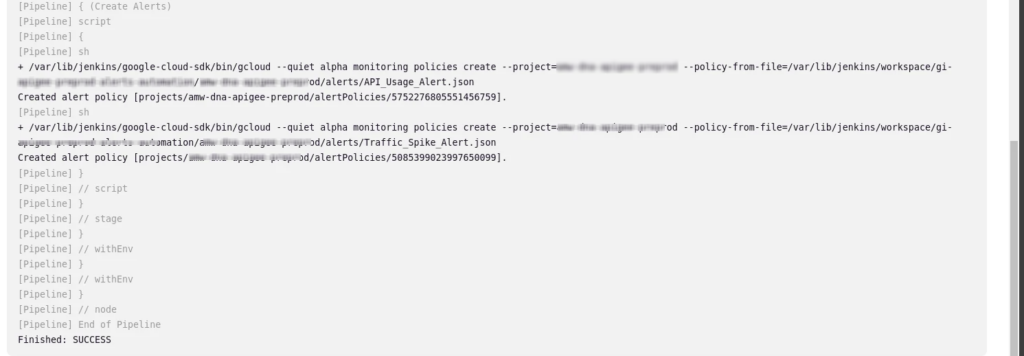
Step 2: Click on Build. It will create successfully create alerts in GCP.

Here we can see its created successfully.
For verifying it Move to GCP Project > Alerting > Policies. Alerts are created successfully as mentioned below:

We are all done now!!
Conclusion
In this blog we have learnt how we can automate the process of creation of alerts in GCP. If this blog helped you somewhere do like this post and share this with needful. Thanks for being with me till end.
Happy Learning!!