


Introduction to Data-Driven Testing with Playwright
Data-driven testing is an approach where the test data is separated from the test script. This allows the same test script to be run with different sets of data. This method makes your tests more flexible and scalable. In this blog, we will understand how to use data-driven testing with Playwright, specifically using JSON and CSV files.
Playwright is a powerful automation tool that supports browser testing for modern web apps. By using Playwright, we can easily automate user interactions in a browser. When combined with data-driven testing, we can test the same functionality with multiple data sets.

Understanding Data-Driven Testing in Playwright
In simple terms, data-driven testing means running the same test multiple times but with different sets of input data. This is helpful because we don’t have to write separate test cases for each data set. Instead, we keep the data in external files (like JSON or CSV) and feed it to the test script.

For example, imagine we are testing a login form. Instead of creating multiple test cases for each user (with different usernames and passwords), we store these user credentials in a file and loop through them during the test execution.
Why Use JSON and CSV for Data-Driven Testing?
- JSON is easy to read and widely used for web services. It stores data in a key-value pair format, which is useful for structured data.
- CSV (Comma Separated Values) is a simple format where data is stored in rows and columns. It’s widely used for storing tabular data, like spreadsheets.
Both formats allow us to organize test data efficiently, making it easy to manage and update.
Setting Up Data-Driven Testing in Playwright (Java Guide)
Before getting started, let me tell you about the tools that we are going to use for writing and running test scripts:
- Programming Language: Java version 11
- Build Tool: Maven
- Automation Framework: Playwright
- IDE: IntelliJ IDEA (You can use any)
- Test Data Formats: JSON and CSV
1. Set Up Playwright in Java Project with Maven
To begin, you need to set up Playwright in your Java project. If you haven’t already created a project, follow these steps:
- Create a Maven project: If you’re using an IDE like IntelliJ IDEA or Eclipse, you can create a new Maven project.
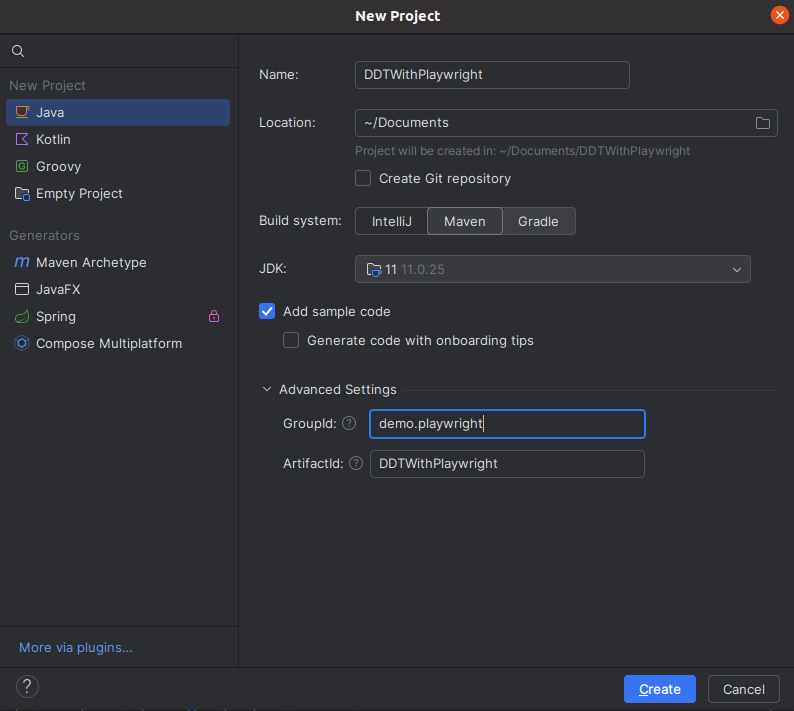
Here’s what the project structure looks like:

- Add Playwright Dependency: Open your pom.xml file and add the necessary dependencies to use Playwright, JSON, and CSV libraries.
<dependencies>
<!– https://mvnrepository.com/artifact/com.microsoft.playwright/playwright –>
<dependency>
<groupId>com.microsoft.playwright</groupId>
<artifactId>playwright</artifactId>
<version>1.48.0</version>
</dependency>
<dependency>
<groupId>com.opencsv</groupId>
<artifactId>opencsv</artifactId>
<version>5.6</version>
</dependency>
<dependency>
<groupId>org.json</groupId>
<artifactId>json</artifactId>
<version>20210307</version>
</dependency>
</dependencies>
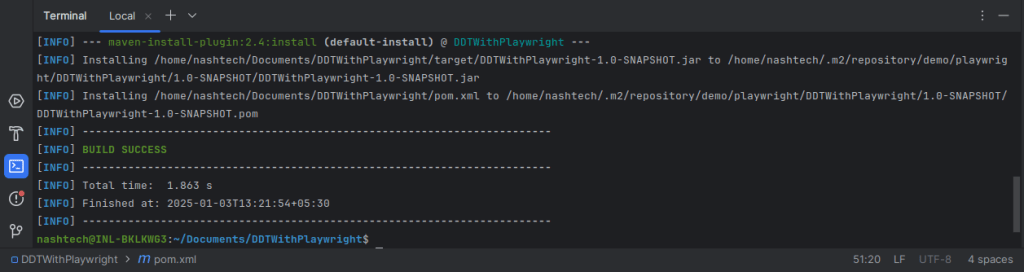
- Download Dependencies Using Maven: Run the following Maven command in the terminal to download all required dependencies:
mvn clean install
This command will download the necessary libraries and set up your project.

2. Writing a Data-Driven Test Script in Playwright
Now, let’s write the Playwright test script. This script will open a browser, navigate to a login page, and input data (from JSON and CSV files) to perform login tests.
Here is a simple Playwright script in Java:
import com.microsoft.playwright.*;
import org.json.JSONArray;
import org.json.JSONObject;
import java.io.File;
import java.io.FileReader;
import java.io.IOException;
import java.util.List;
import com.opencsv.CSVReader;
public class PlaywrightDataDrivenTest {
public static void main(String[] args) throws IOException, CsvException
{
// Set up Playwright
Playwright playwright = Playwright.create();
Browser browser = playwright.chromium().launch(new BrowserType.LaunchOptions().setHeadless(false)); // Set headless to false for seeing the browser
BrowserContext context = browser.newContext();
Page page = context.newPage();
// Read test data from JSON and CSV
JSONArray jsonData = readDataFromJson(“src/main/resources/data.json”);
List<String[]> csvData = readDataFromCsv(“src/main/resources/data.csv”);
// Run tests for JSON data
for (int i = 0; i < jsonData.length(); i++) {
JSONObject data = jsonData.getJSONObject(i);
loginTest(page, data.getString(“username”), data.getString(“password”));
}
// Run tests for CSV data
for (String[] row : csvData) {
loginTest(page, row[0], row[1]);
}
// Close the browser
browser.close();
}
private static void loginTest(Page page, String username, String password) {
page.navigate(“https://example.com/login”);
page.fill(“input#username”, username);
page.fill(“input#password”, password);
page.click(“button#submit”);
// Click the submit button and wait for navigation
page.waitForNavigation(() -> { page.click(“button#submit”); });
System.out.println(“Test completed for user: ” + username);
}
private static JSONArray readDataFromJson(String filePath) throws IOException {
String jsonContent = new String(java.nio.file.Files.readAllBytes(java.nio.file.Paths.get(filePath)));
return new JSONArray(jsonContent);
}
private static List<String[]> readDataFromCsv(String filePath) throws IOException , CsvException
{
CSVReader reader = new CSVReader(new FileReader(new File(filePath)));
return reader.readAll();
}
}
Note: Replace the URL and locators with your application’s details or use https://practice.expandtesting.com/login for testing.
3. Using JSON & CSV for Test Data Management
- data.json (for JSON input data):
[
{ “username”: “user1”, “password”: “password123” },
{ “username”: “user2”, “password”: “password456” },
{ “username”: “user3”, “password”: “password789” }
]
- data.csv (for CSV input data):
username,password
user1,password123
user2,password456
user3,password789
These files contain the test data for the login functionality. You can modify these files to test with different sets of data.
4. Running Playwright Tests with Different Data Sets
Once your project is set up and the code is written, it’s time to run the test. Here’s how you can do that:
- Navigate to the Project Directory: Open the terminal and go to the directory where your PlaywrightDataDrivenTest.java file is located.
- Run the Test: Use the following command to compile and run the Java file:
mvn compile exec:java -Dexec.mainClass=”PlaywrightDataDrivenTest”
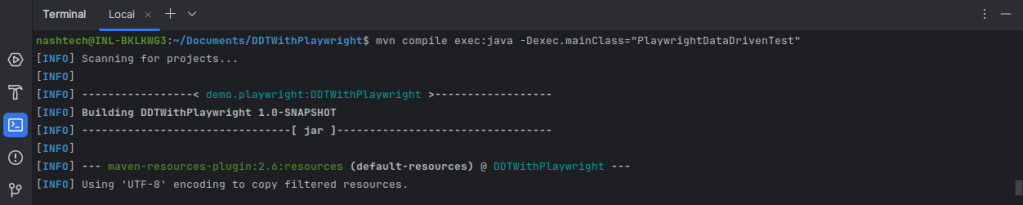
This command will compile the Java code and execute the main() method in the PlaywrightDataDrivenTest class.
Conclusion
In this blog, we explored Data-Driven Testing with Playwright: Using JSON and CSV. Playwright’s powerful automation capabilities, combined with data-driven testing, make it easy to run the same tests with different data. This approach improves test scalability, efficiency, and flexibility while ensuring comprehensive coverage for your web applications.
For further details on Playwright and its features, refer to the official documentation here.