


Demo Agentic AI in Power BI (Part 1)
Introduction
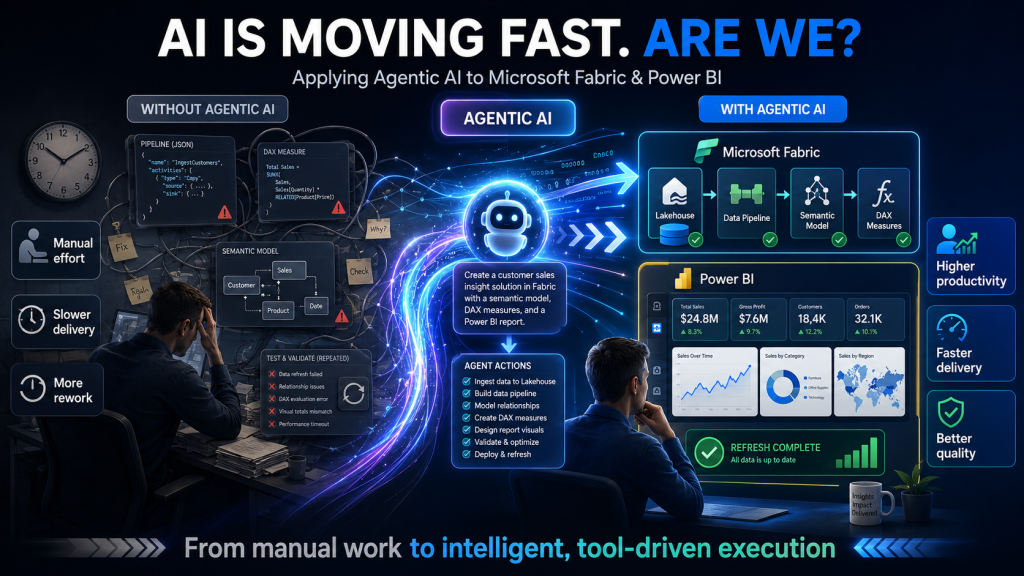
AI is changing how we work. Instead of simply answering questions, AI agents can now perform complete tasks and support complex development workflows.
Microsoft Fabric Skills help AI coding assistants such as GitHub Copilot understand Microsoft Fabric and Power BI workloads, APIs, modeling patterns, and best practices.
After completing this tutorial, you will be able to:
- Connect GitHub Copilot to Power BI Desktop.
- Use Microsoft Fabric Skills and the Power BI Modeling MCP Server.
- Identify fact and dimension tables.
- Create and configure table relationships.
- Build hierarchies and DAX measures.
- Create a working Power BI report with meaningful visuals.
Power BI Agentic overview
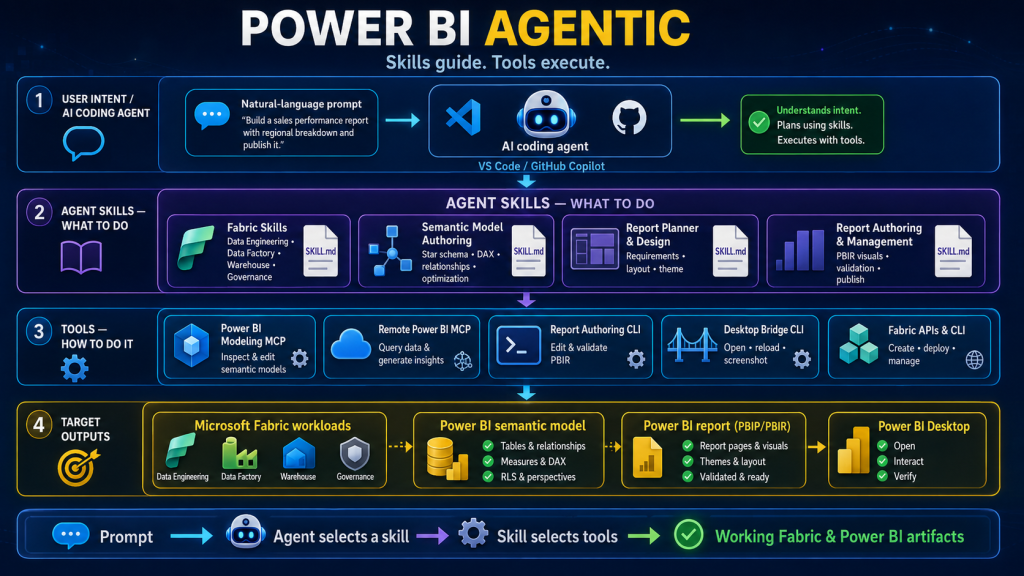
Power BI Agentic is a set of agent skills and tools that improve your experience when developing Power BI with AI coding agents such as GitHub Copilot.
It combines two building blocks:
Agent skills — Folders of instructions, scripts, and resources that an agent loads on demand to follow Power BI authoring best practices. Skills cover both semantic model authoring (designing a star schema, writing DAX, structuring a PBIP project, preparing a model for AI) and report authoring (creating pages and visuals, formatting, and validating PBIR report definitions).
Tools — MCP servers and CLI bridges that let the agent inspect schemas, run DAX, edit semantic models, validate reports, and drive Power BI Desktop directly — for example, reloading a model or capturing screenshots for visual verification.
Prerequisites
Before starting the demo, make sure you have installed or downloaded the following tools and resources:
- The Latest Version of Power BI Desktop
- Power BI Desktop Bridge CLI (Preview)
- Visual Studio Code
- Github Copilot & Github Copilot CLI
- Node.js 18 or later
- Power BI Modelling MCP Server
- Microsoft Fabric Skills
- AdventureWorks Sales sample Excel workbook
Install Power BI Desktop Bridge (Preview)
The bridge is a local server running inside the Power BI Desktop process.
The Power BI Desktop Bridge enables external applications and agents to interact directly with a running instance of Power BI Desktop on the local machine.
Read the two links below to understand more:
- What prerequisites you need before using the bridge
- What the bridge is and how it communicates with Power BI Desktop
- How to get started quickly with the Power BI Desktop Bridge CLI
- How the Report Authoring Skill uses the bridge
- Refer:
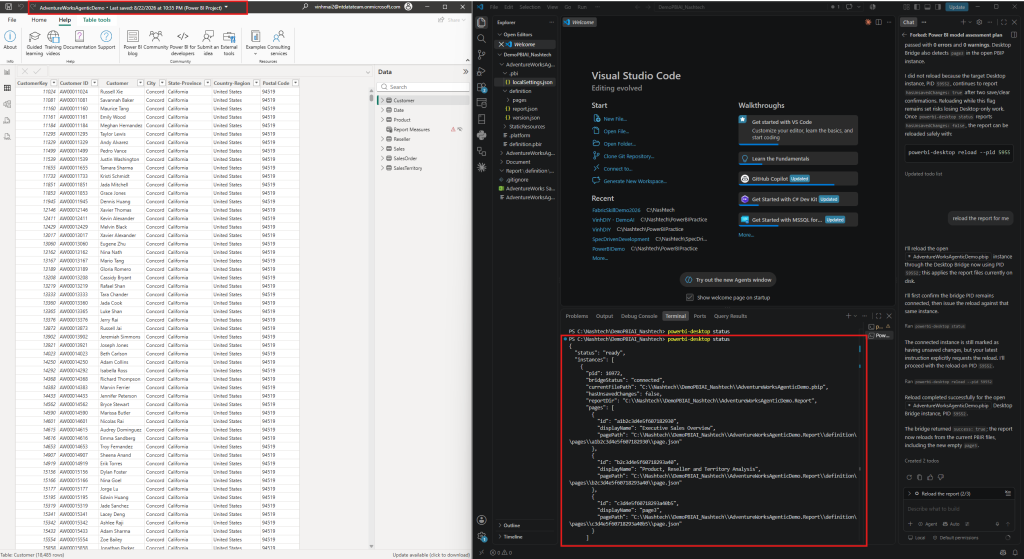
After installing Power BI Desktop Bridge, you can use its CLI commands to interact with Power BI Desktop. For example, if a Power BI Desktop instance is running, use the powerbi-desktop status command to view its connection information, as shown in the screenshot below.
Install Github Copilot CLI
GitHub Copilot CLI allows you to interact with GitHub Copilot directly from the command line.
For installation instructions: https://docs.github.com/en/copilot/concepts/agents/copilot-cli/about-copilot-cli
After installing it successfully, open a new terminal in Visual Studio Code and run: copilot
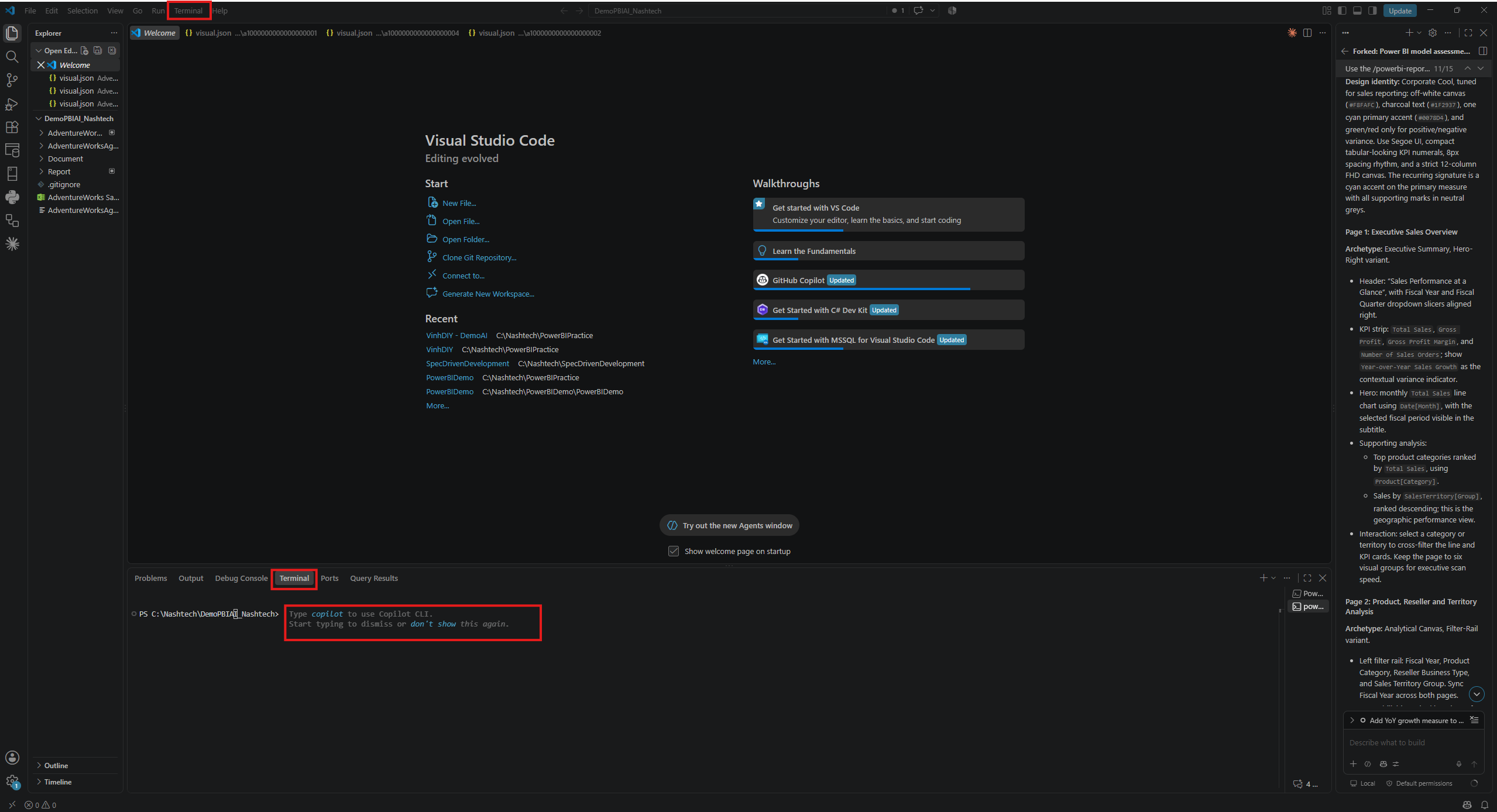
Then we will see the below windows:
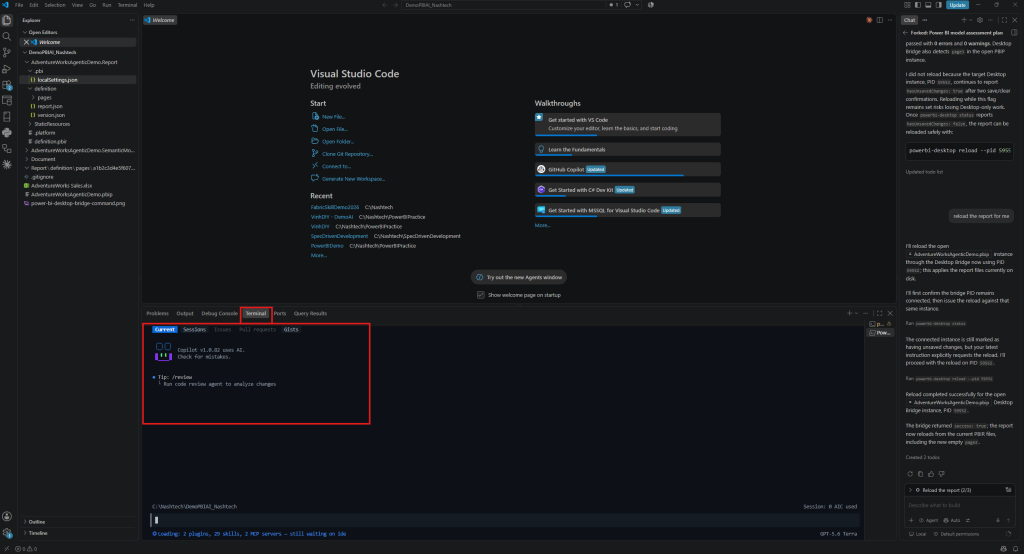
Use Github Copilot CLI to connect Power Desktop Instance with below prompt:
Connect to the running desktop instanceInstall Fabric Skills
Microsoft Fabric Skills are reusable instructions that help AI coding assistants work effectively with Microsoft Fabric. They provide tools such as GitHub Copilot CLI and other compatible AI coding agents with the knowledge needed to understand Fabric workloads, APIs, query patterns, and operational best practices.
Using Github Copilot CLI to install Fabric Skills as instruction below:
Add the public marketplace:
/plugin marketplace add microsoft/skills-for-fabricInstall the main Fabric bundle. Power BI report authoring is packaged separately:
/plugin install fabric-skills@fabric-collectionOr install the Power BI authoring bundle:
# Power BI authoring: semantic models, Power BI report skills, and PBIP workflows
/plugin install powerbi-authoring@fabric-collection
Refer Microsoft Skills Repo: https://github.com/github/awesome-copilot/tree/main/skills
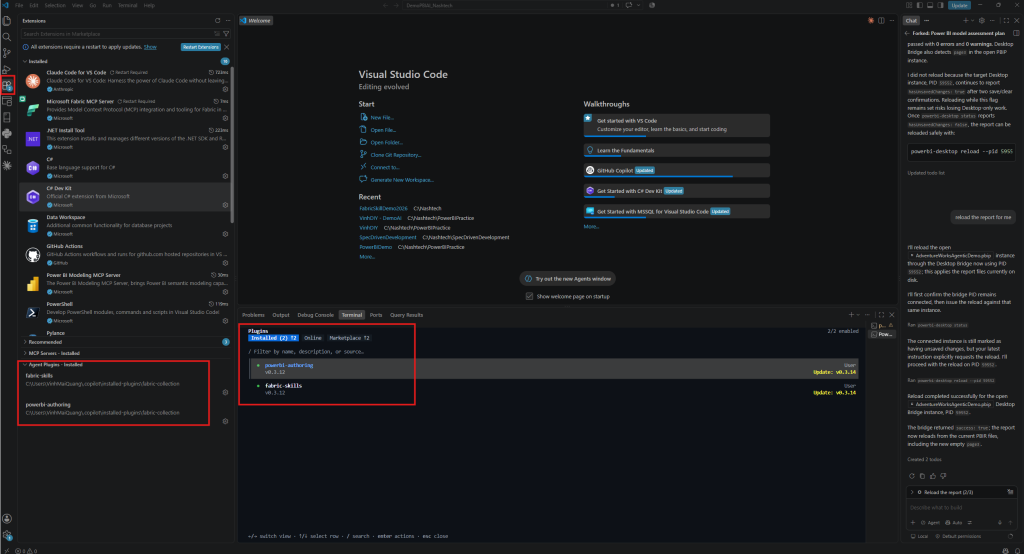
In Github Copilot CLI, use the ‘/plugin‘ command to verify Fabric Skills has been installed successfully as screenshot below, you will see ‘powerbi-authoring‘ and ‘fabric-skills‘
Install BI Modelling MCP Server
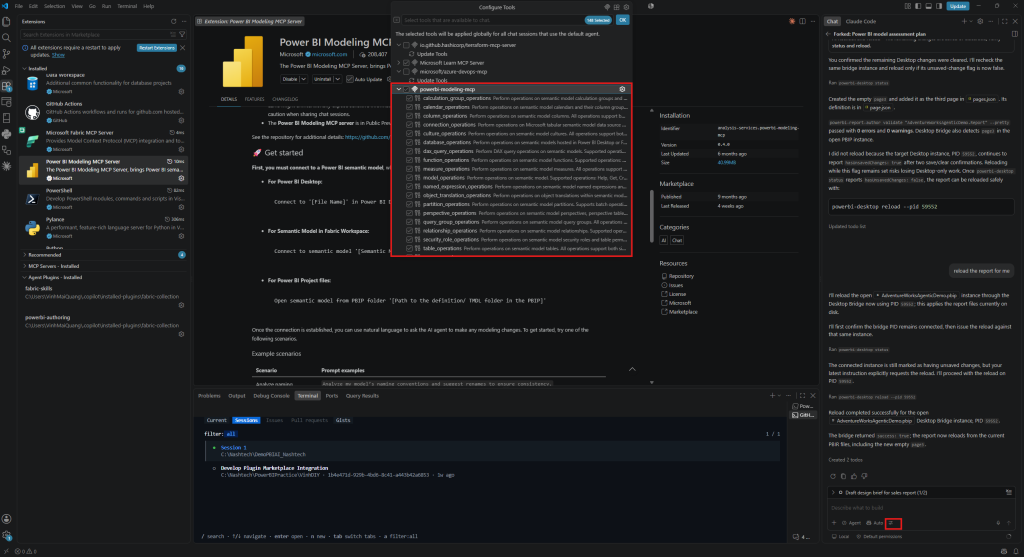
The Power BI Modeling MCP Server brings Power BI semantic modeling capabilities to your AI agents through a local MCP server. This allows developers and AI applications to interact with Power BI models in entirely new ways, from using natural language to execute modeling changes to autonomous AI agentic development workflows.
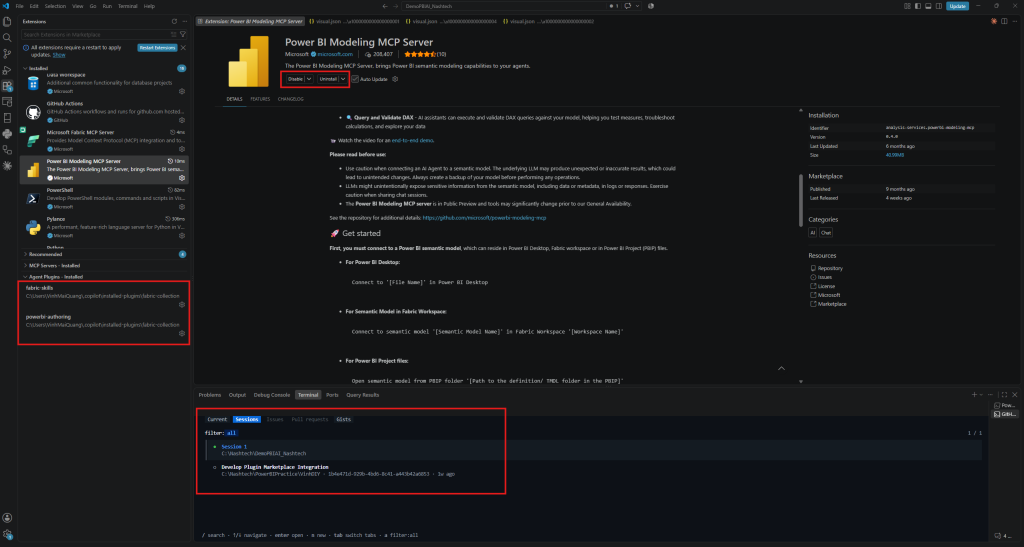
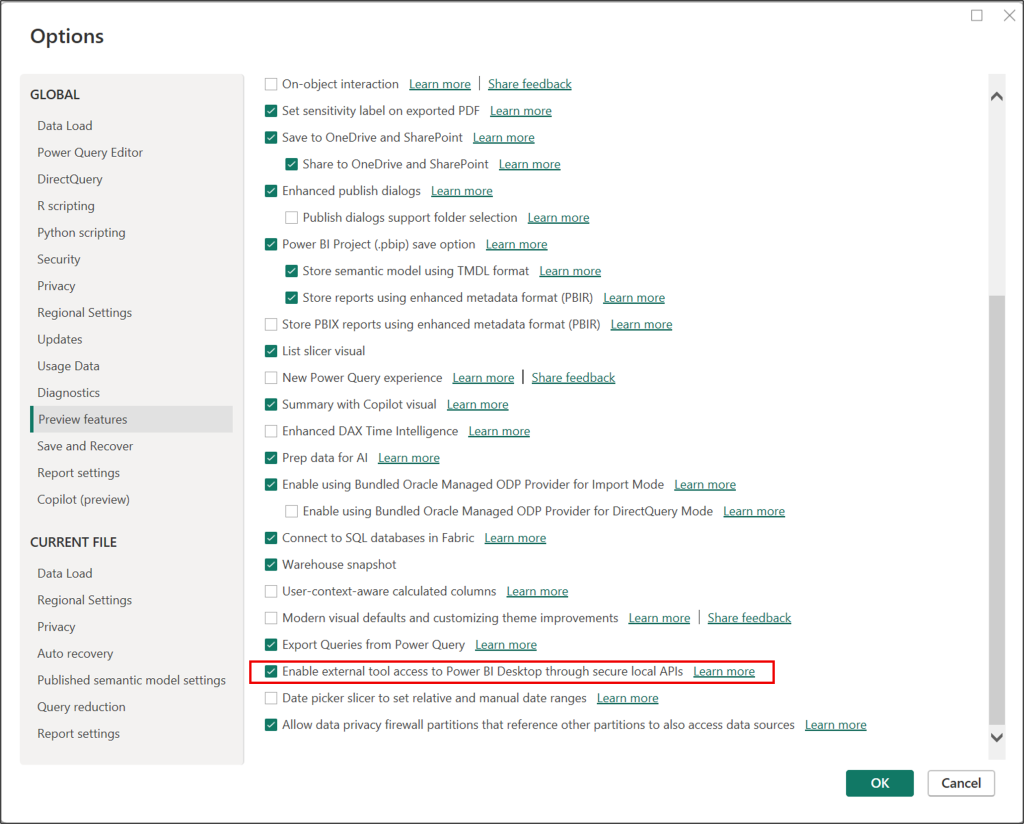
After installing, make sure we enabled the PBI Modelling MCP Server:
Prepare dataset
Why we choose AdventureWorks Sales for this demo
Link to download:
| Table | Role |
|---|---|
| Sales | Fact table |
| Customer | Customer dimension |
| Date | Date dimension |
| Product | Product dimension |
| Reseller | Reseller dimension |
| SalesTerritory | Geography/sales territory dimension |
| SalesOrder | Sales order details |
It provides the right level of complexity for the demo:
- The AI identifies fact and dimension tables.
- Creates one-to-many relationships.
- Handles multiple date relationships.
- Creates active and inactive relationships.
- Creates DAX measures using
USERELATIONSHIP. - Creates hierarchies.
- Builds a Sales Executive Summary report.
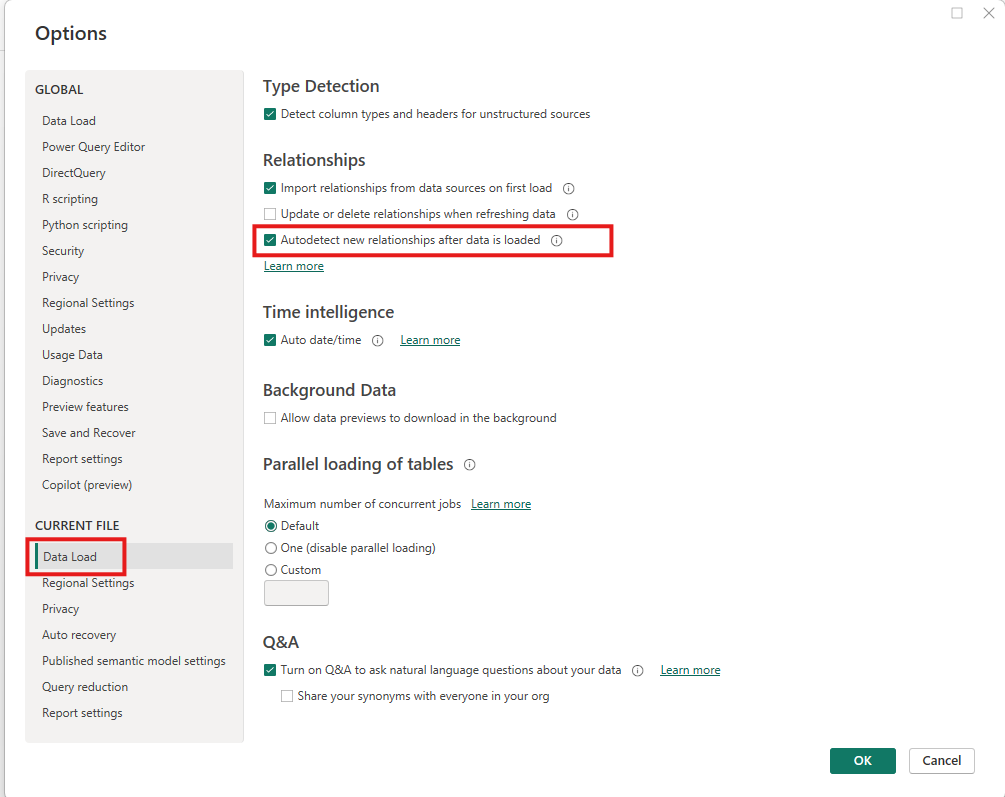
Before the demo, in Power BI Desktop, please disable Autodetect new relationships, if not, PBI can automatically create most of the relationships before AI has the opportunity to perform it.
Load dataset
In Power BI Desktop -> choose Get Data -> Excel workbook
- Choose AdventureWorks sales
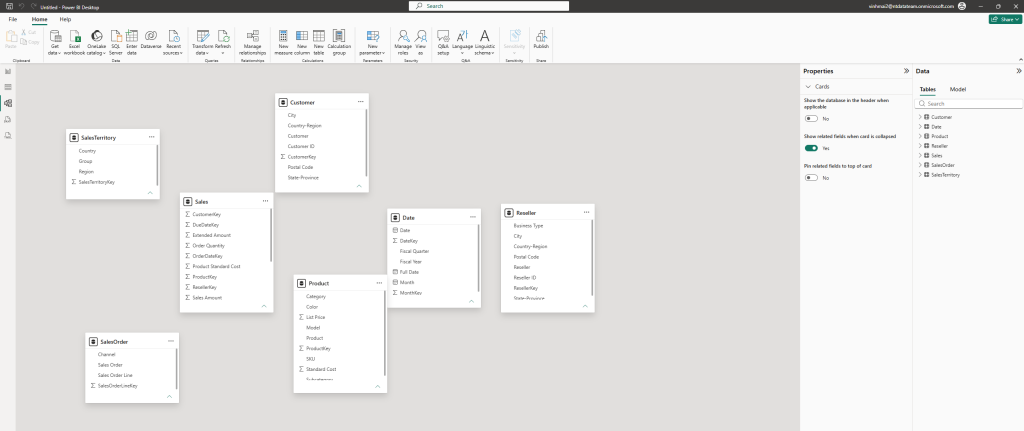
- Choose 7 tables
- Customer
- Date
- Product
- Reseller
- Sales
- SalesOrder
- SalesTerritory
- Choose Transform data -> Choose Close & Apply
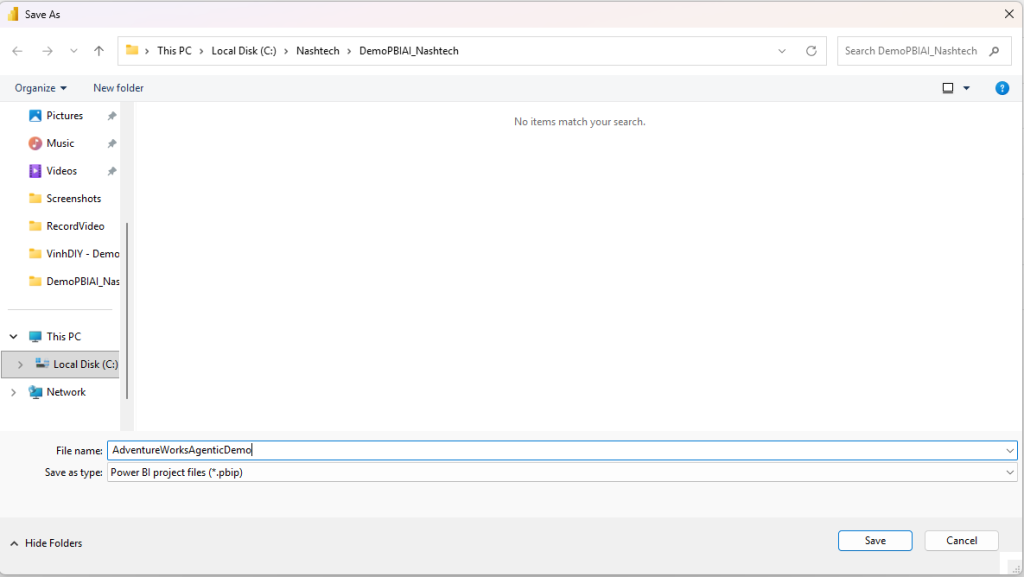
After completing Part 1, you now have all the components and software required to demonstrate Agentic AI in Power BI. Stay tuned for Part 2, where we will put them into practice.